How to Play Allumeria Online Multiplayer with Friends: 2026 Dedicated Server and Co-op Guide
There is something about playing a voxel survival game with friends that makes the whole experience feel different. A cave that would be mildly interesting alone suddenly becomes a terrible idea when three players are standing at the entrance arguing about who forgot the torches.
That is exactly where Allumeria gets interesting.
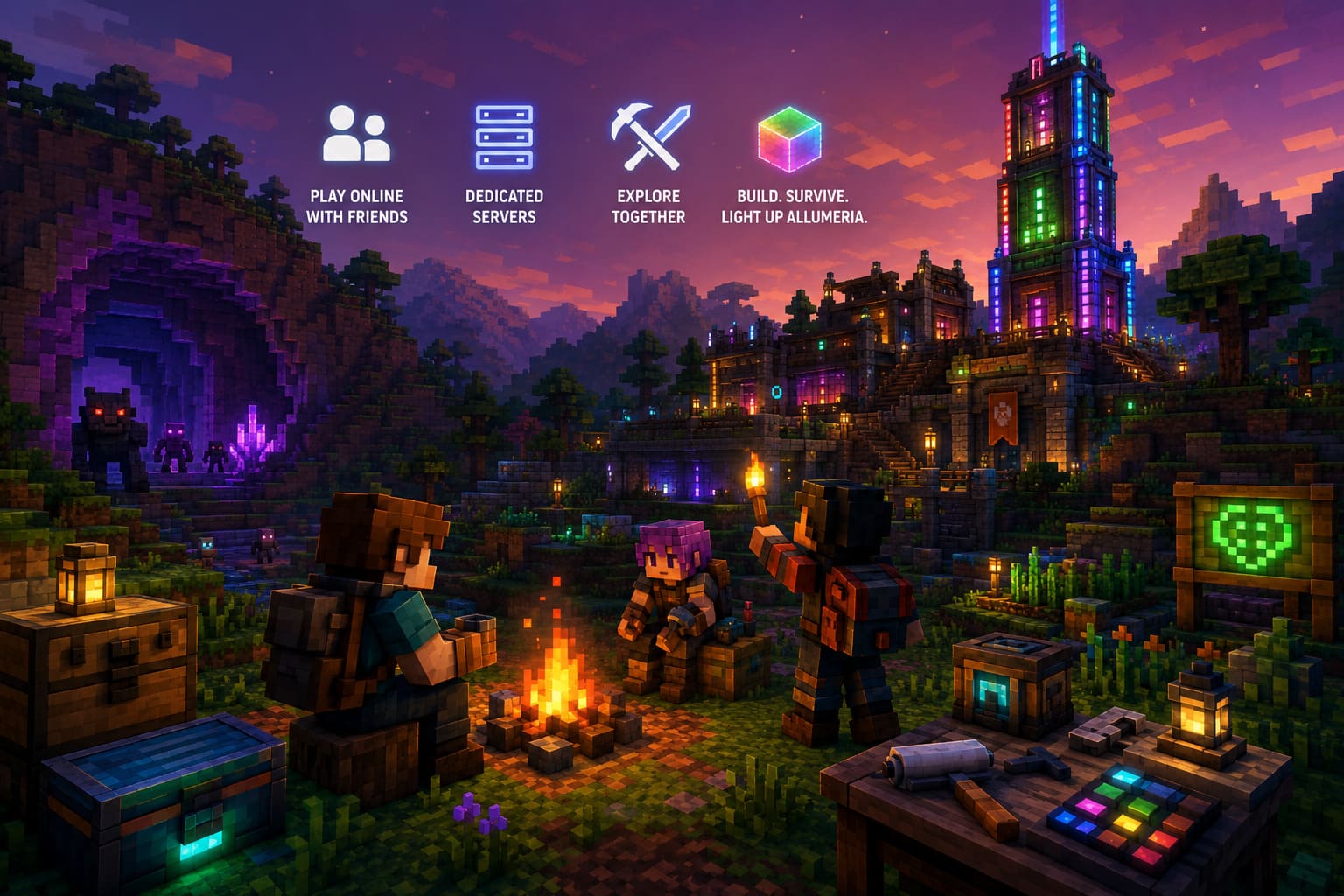
Developed by Infinimelon, also known as Unobtainable Melon, Allumeria entered Steam Early Access on August 28, 2026, bringing together voxel construction, procedural exploration, dungeon crawling, boss fights, and an RGB-focused lighting system. The solo experience has plenty to offer, but multiplayer is where the game’s sandbox systems start to feel much more useful.
Whether you only want to invite a couple of Steam friends for an evening or build a persistent world that people can visit whenever they want, there are several ways to approach Allumeria multiplayer in 2026.
And honestly, for most players, I would start with the simplest option before touching dedicated servers.
Allumeria Multiplayer Options at a Glance
| Multiplayer Method | Best For | Cost | Main Advantage |
|---|---|---|---|
| Steam Co-Op | 2–4 friends | Free | Extremely easy to start |
| Hosted Dedicated Server | Regular groups | Paid | Persistent 24/7 world |
| Self-Hosted Server | Advanced users | Mostly free | Full control |
| Local/LAN Setup | Same-network players | Free | Simple private sessions |
The biggest question is not really which method works. It is how seriously you want to treat your multiplayer world.
If you are just trying to show a friend your base, Steam co-op is the obvious choice. If your group wants a shared world that keeps developing while everyone is offline, a dedicated server makes much more sense.
1. The Easiest Way to Play Allumeria With Friends: Steam Co-Op
For a new Early Access game, I always prefer starting with the built-in multiplayer system. There is no reason to spend money on hosting before you know how much time your group will actually put into the game.
The Steam-based approach is particularly convenient for small groups.
Start Allumeria through Steam, then create a new world or load an existing one. From the multiplayer or hosting options, set the session to Friends Only or Invite Only if you don’t want random players joining.
Once you’re inside the world, open the Steam Overlay with Shift + Tab.
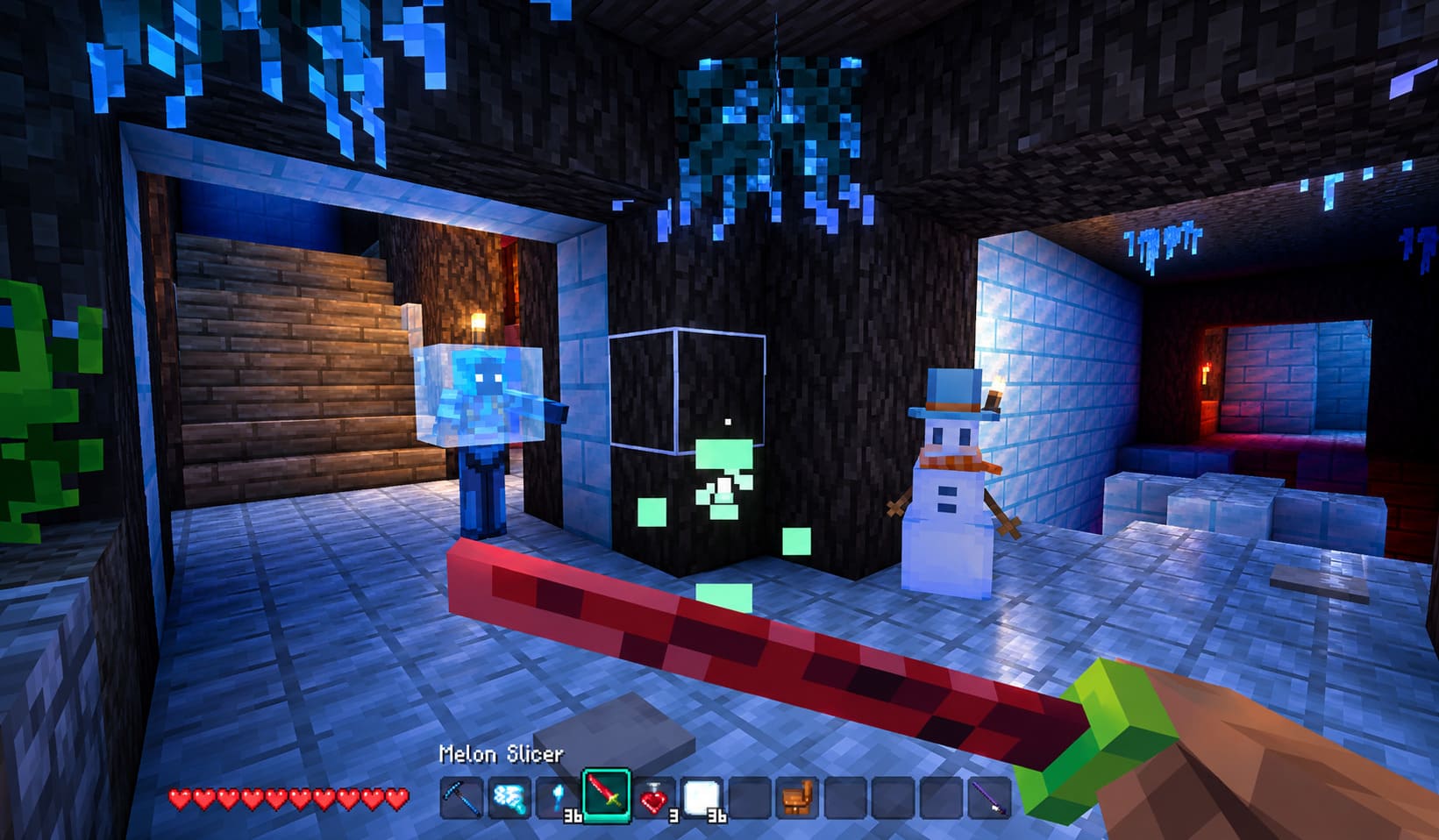
From there:
- Open your Steam Friends List.
- Find the friend you want to play with.
- Right-click their name.
- Select the available Invite to Game option.
- Have your friend accept the invitation.
- They should then connect directly to your hosted session.
It is about as painless as multiplayer gets.
The catch is important, though: the host matters. This isn’t the kind of persistent server where everyone can continue playing after the owner disappears. If the host quits, crashes, or loses their connection, everyone else can be kicked from the session.
For a casual Saturday night, I don’t consider that a serious problem.
Steam Co-Op Pros and Cons
Pros
- Free
- Very little configuration
- Easy Steam invitations
- Great for small friend groups
- No router configuration required
Cons
- Host needs to remain online
- A host crash can interrupt everyone
- Less suitable for a permanent community world
If you’re playing two or three people together, this is the method I’d try first.
2. Want a World That Never Sleeps? Use a Dedicated Server
This is where things get more interesting.
A dedicated server is the better option if your group is planning to build a serious shared world. Instead of one player’s PC acting as the host, the server runs independently. Someone can log in while another player is offline, continue gathering resources, expand the base, or explore a completely different part of the map.
Third-party hosting services can also remove much of the technical work involved in running the machine yourself.
The basic process is straightforward:
- Pick a hosting provider that supports Allumeria.
- Choose the number of player slots you need.
- Select a server location close to the majority of your players.
- Complete the purchase and open the server control panel.
- Configure the world and server settings.
- Start the server.
- Send the connection information to your friends.
Server location matters more than people sometimes realize. If your entire group is playing from Europe, there is little reason to host the world on the other side of the planet. Lower physical distance generally means a better chance of keeping latency under control.
For a game involving exploration, combat, and lots of rapidly changing blocks, a responsive server makes a noticeable difference.
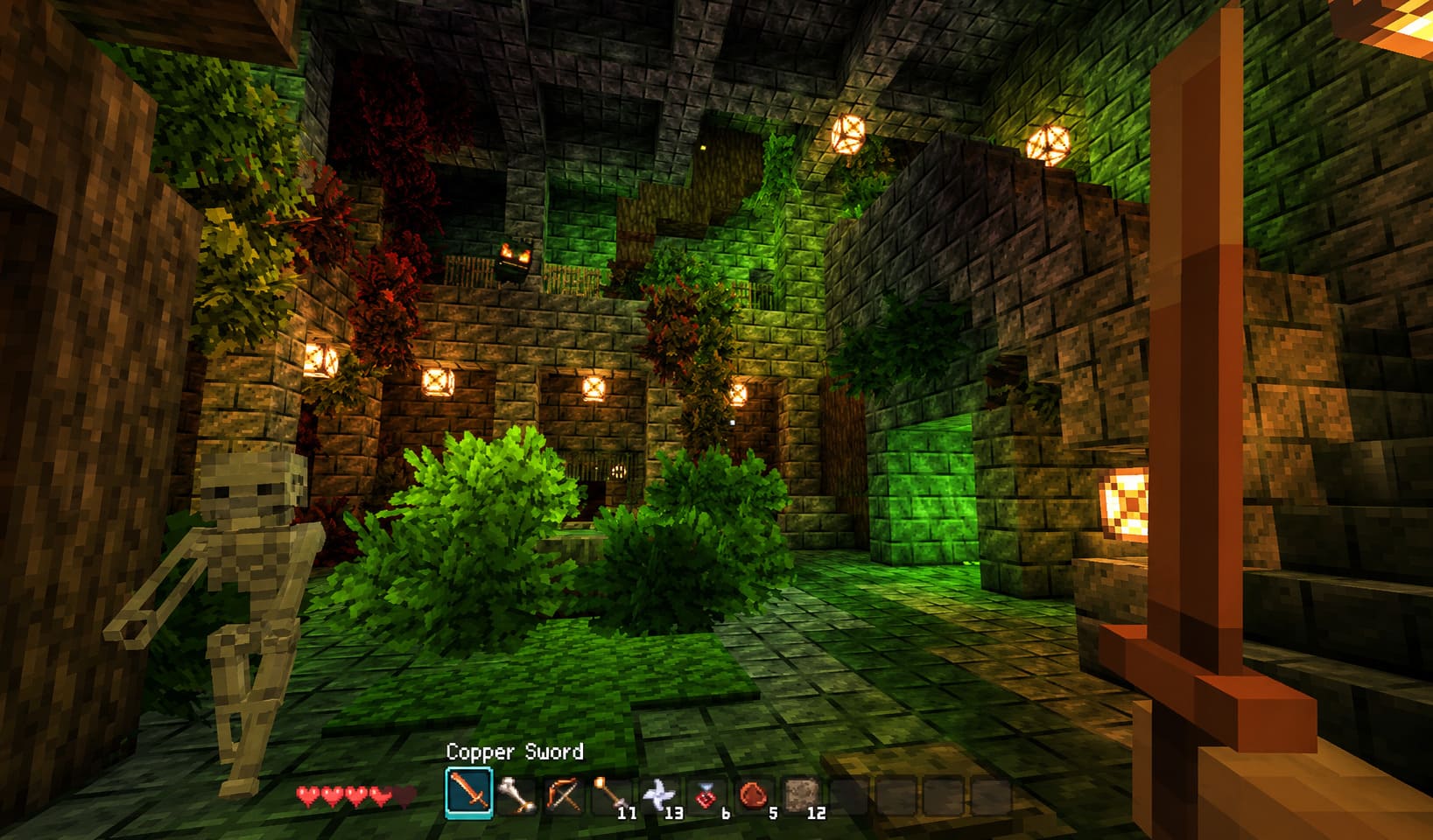
Settings Worth Checking
Depending on the hosting setup, you may have access to configuration files or a web-based control panel. Typical options can include:
- Server Name
- Maximum Players
- Server Password
- World Seed
- Difficulty or gameplay settings
Don’t blindly change every setting you find, though. Early Access games can change configuration structures between updates, and an option that exists today may behave differently after a major patch.
3. How Friends Join Your Dedicated Allumeria Server
Once the server is running, joining should be fairly simple.
Your hosting dashboard should provide an IP address and port. Give those details to your friends.
Inside Allumeria, look for the multiplayer connection option and enter the server address.
A typical address might look something like:
123.123.123.123:27015
The important part is that everyone uses the correct current address and port.
If you’ve added a password, make sure your friends have that as well.
One small piece of advice: don’t post your private server credentials publicly. A password-protected server is much more useful when the password actually stays within your group.
4. Self-Hosting Allumeria: Free, Flexible, and More Complicated
If you have a spare PC sitting around, self-hosting can be appealing.
You avoid a monthly hosting bill and gain much more control over the machine. The downside is that you become the server administrator, which means troubleshooting network problems is now your problem too.
You’ll generally need a machine with enough memory and processing headroom to handle the server alongside the operating system and any other services running on it.
The basic workflow is:
Install server files → configure the server → forward the required ports → start the server → share the public address
The port-forwarding step is the one that usually scares people away.
Port Forwarding Basics
Log into your router’s administration interface and find the Port Forwarding, Virtual Server, or similarly named section.
Create a rule for the port or ports required by the Allumeria server.
The exact port should come from the current server documentation or configuration rather than being guessed. Don’t assume that a commonly used gaming port will always be correct, especially during Early Access.
You’ll also want the forwarding rule to point toward the local IP address of the computer running your server.
And don’t forget Windows Firewall. A correctly forwarded router port won’t help if the server application itself is being blocked locally.
5. Building a Good Multiplayer Base
Once everyone is connected, the real fun starts.
One of my favorite things about multiplayer voxel games is how quickly a random collection of blocks turns into an actual settlement. Someone builds a storage room. Someone else decides the entrance needs a tower. Five minutes later, another player has started constructing a completely unnecessary neon hallway.
That’s basically the genre at its best.
In Allumeria, it makes sense to establish a safe central hub early.
Natural blocks can become dangerous when hostile creatures begin spawning in darkness. Replacing natural ground inside your settlement with player-created blocks can help prevent unwanted spawns in your main living area, while proper lighting makes navigation much easier.
I’d divide early responsibilities between players:
- Builder: Handles the main base and defensive layout.
- Gatherer: Collects wood, stone, flint, and other basic resources.
- Explorer: Searches caves and nearby biomes.
- Crafter: Keeps tools and useful equipment moving through the group.
You don’t have to enforce these roles rigidly. The point is simply to avoid four players gathering the same resource while nobody remembers to build a storage room.
6. Don’t Ignore Allumeria’s Lighting System
The RGB lighting system is one of the game’s more distinctive visual features, and multiplayer gives you a good excuse to actually use it.
Brightly illuminated structures aren’t only decorative. They can become navigation landmarks when you’re traveling far from the main settlement.
A massive glowing tower visible from a distance is much easier to recognize than another dirt-and-wood box.
I’d recommend establishing a few recognizable visual markers around important areas:
Main Base → Cave Entrance → Mining Area → Dungeon Route
That simple system can save a surprising amount of time once your world becomes larger.
The Paint Roller and color customization also make group construction more enjoyable. One player can focus on collecting materials and building structures while another handles the visual design.
7. Share Resources Instead of Fighting Over Them
Early-game multiplayer progression becomes much smoother when the group treats resources as a shared pool.
Caves can provide huge amounts of useful materials, so there is little reason for every player to hoard everything they find.
Create communal chests for basic resources and keep personal storage for rare items or specialized equipment.
A few keyboard shortcuts can also speed things up considerably. Shift + Left Click can make moving stacks between inventories and storage much quicker, while recipe lookup shortcuts such as U or R can help players figure out crafting requirements without constantly leaving the game.
And please build more storage than you think you need.
You will need it.
8. Allumeria Multiplayer Connection Problems
Early Access multiplayer can occasionally be temperamental. If somebody cannot connect, don’t immediately assume the server is broken.
Work through the basics first.
If You Get “Cannot Connect to Server”
Check these things:
- Confirm everyone is running the same game version.
- Verify the server is actually running.
- Recheck the IP address and port.
- Confirm the password is correct.
- Check Windows Firewall or other security software.
- If self-hosting, verify the router’s port-forwarding rule.
- Restart the server if it has been running for a long time.
If one person connects while another cannot, the problem may be on the individual player’s network rather than the server itself.
If Players Experience Lag or Teleporting
Server performance matters, but so does the host’s connection.
Check whether the machine is downloading updates, streaming large files, running heavy background applications, or struggling with CPU usage.
For rented servers, choosing a location geographically close to your players is one of the easiest improvements you can make.
9. Custom Skins and Multiplayer
Character customization is another area where Allumeria still feels like an Early Access project.
If you’re manually replacing character textures through the game files, make sure everyone follows the correct installation path. Otherwise, you may end up with one player seeing a customized character while someone else sees the default model.
I’d honestly keep backups of any modified files.
Early Access updates have a habit of changing things when you least expect them.
Allumeria Multiplayer Lag Fix: How to Stop Desync and Lag Spikes (2026 Guide)
My Recommended Way to Play Allumeria Multiplayer
If you’re playing with two to four friends, start with Steam co-op. It’s free, fast, and doesn’t make you spend an evening pretending to be a network administrator.
If your group becomes invested and starts treating the world as a long-term project, move to a dedicated server.
Self-hosting is worth considering if you’re comfortable with router configuration, firewall rules, server maintenance, and troubleshooting. For everyone else, paying for a reliable host can be money well spent simply because it lets you focus on the game.
And that’s ultimately what I like about Allumeria multiplayer. The game doesn’t need a complicated group strategy to be fun. One player can disappear into a cave, another can work on the base, and someone else can spend an unreasonable amount of time turning the settlement into a glowing RGB monument.
Then everyone meets back at the base and compares what they found.
That’s the kind of multiplayer sandbox loop that can keep a world alive for a very long time.
Quick Recommendation
Casual co-op: Steam hosting
Regular friend group: Dedicated server
Large persistent world: Paid dedicated hosting
Technical players: Self-hosted server
For most people jumping into Allumeria after its August 28, 2026 Steam Early Access launch, I’d keep it simple at first. Get a world running, invite your friends, explore a cave together, and see whether the game clicks.
If it does, then worry about building the 24/7 server.