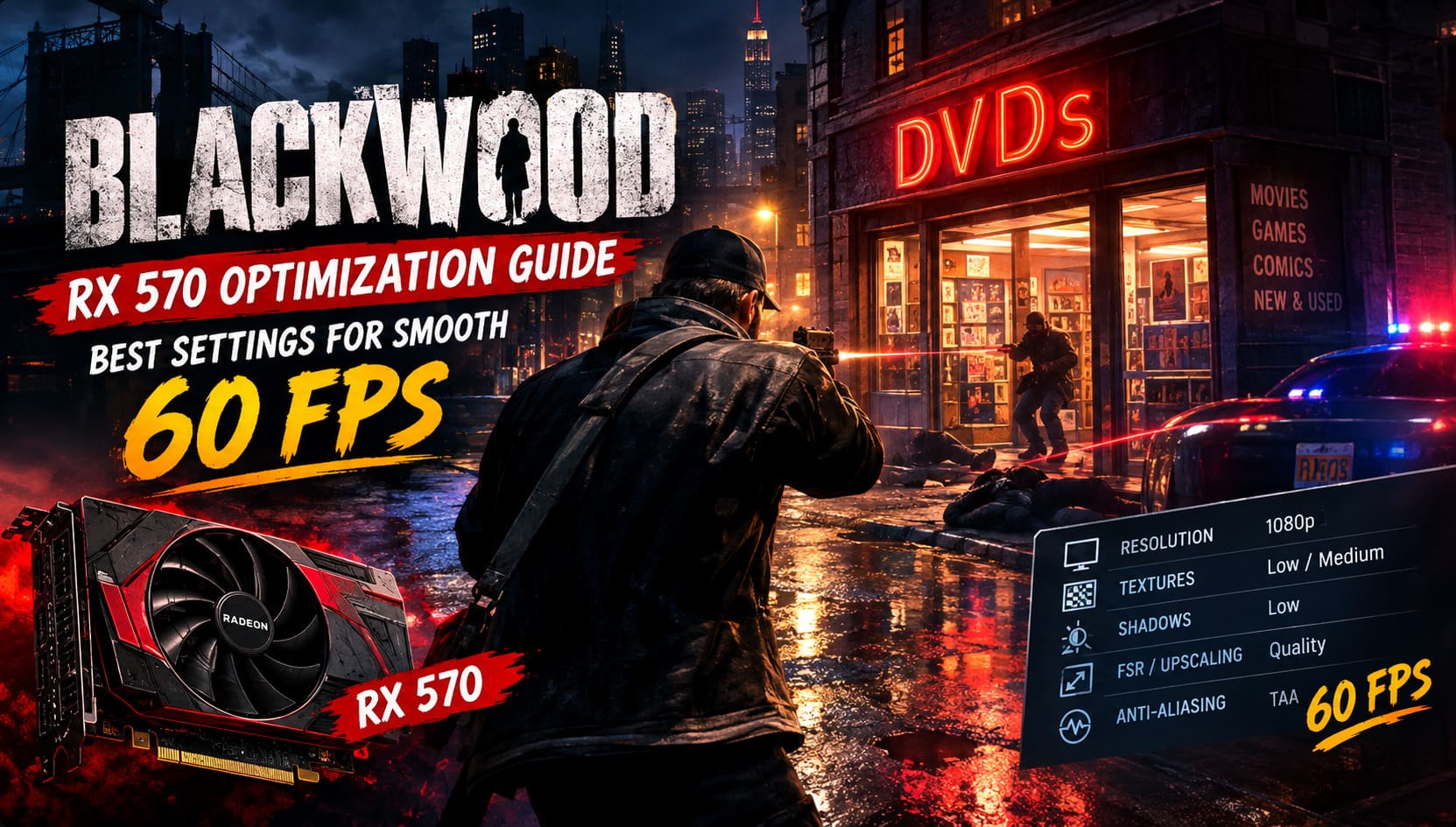
BLACKWOOD (2026) RX 570 Optimization Guide: Best Settings for Smooth 60 FPS
BLACKWOOD is the kind of game that can make you forget about performance settings for a while. Its combination of stylish gunplay, brutal melee encounters, a strangely convincing 2012 New York atmosphere, and the unusual idea of running a DVD store between assassination jobs gives it a personality that a lot of modern action games simply don’t have. But that atmosphere comes at a price. If you’re playing on an older graphics card such as the AMD Radeon RX 570, getting BLACKWOOD to run smoothly can require a little more work than simply selecting the Low preset.
I’ve spent enough time tweaking games on older hardware to know that the biggest mistake is usually trying to preserve every visual effect. On a GPU like the RX 570, that’s rarely the best approach. BLACKWOOD can look surprisingly good with carefully chosen settings, and in my experience, a stable frame rate is far more important than having perfect reflections or cinematic shadows during a firefight.
How to Fix Blackwood (2026) High CPU Usage on Ryzen 5 3600: Ultimate Optimization Guide
Can the RX 570 Run BLACKWOOD at 60 FPS?
The short answer is yes, but with compromises. The RX 570 sits around the minimum hardware level for BLACKWOOD, so expecting native 1080p with high-quality effects and a locked 60 FPS isn’t realistic. The 4GB and 8GB versions also behave differently, particularly when the game starts streaming lots of textures and environmental assets.
The good news is that the RX 570 still has enough raw performance to deliver a much better experience than the official minimum target might suggest. The trick is to reduce the settings that have the largest impact on GPU performance while keeping the options that actually contribute to image quality. With sensible adjustments and some form of upscaling, 55-60 FPS becomes a much more realistic goal, although demanding combat scenes can still produce occasional dips.
| Setting | RX 570 4GB | RX 570 8GB | Performance Priority |
|---|---|---|---|
| Resolution | 1920×1080 | 1920×1080 | Medium |
| Texture Quality | Low | Medium | Medium |
| Shadows | Low | Low | High |
| Volumetric Lighting | Low/Off | Low | Very High |
| Ambient Occlusion | Medium | Medium | Low |
| Screen Space Reflections | Low/Off | Low | High |
| Anti-Aliasing | TAA | TAA | Low |
| Post-Processing | Low | Low | Medium |
Why BLACKWOOD Is Difficult for an RX 570
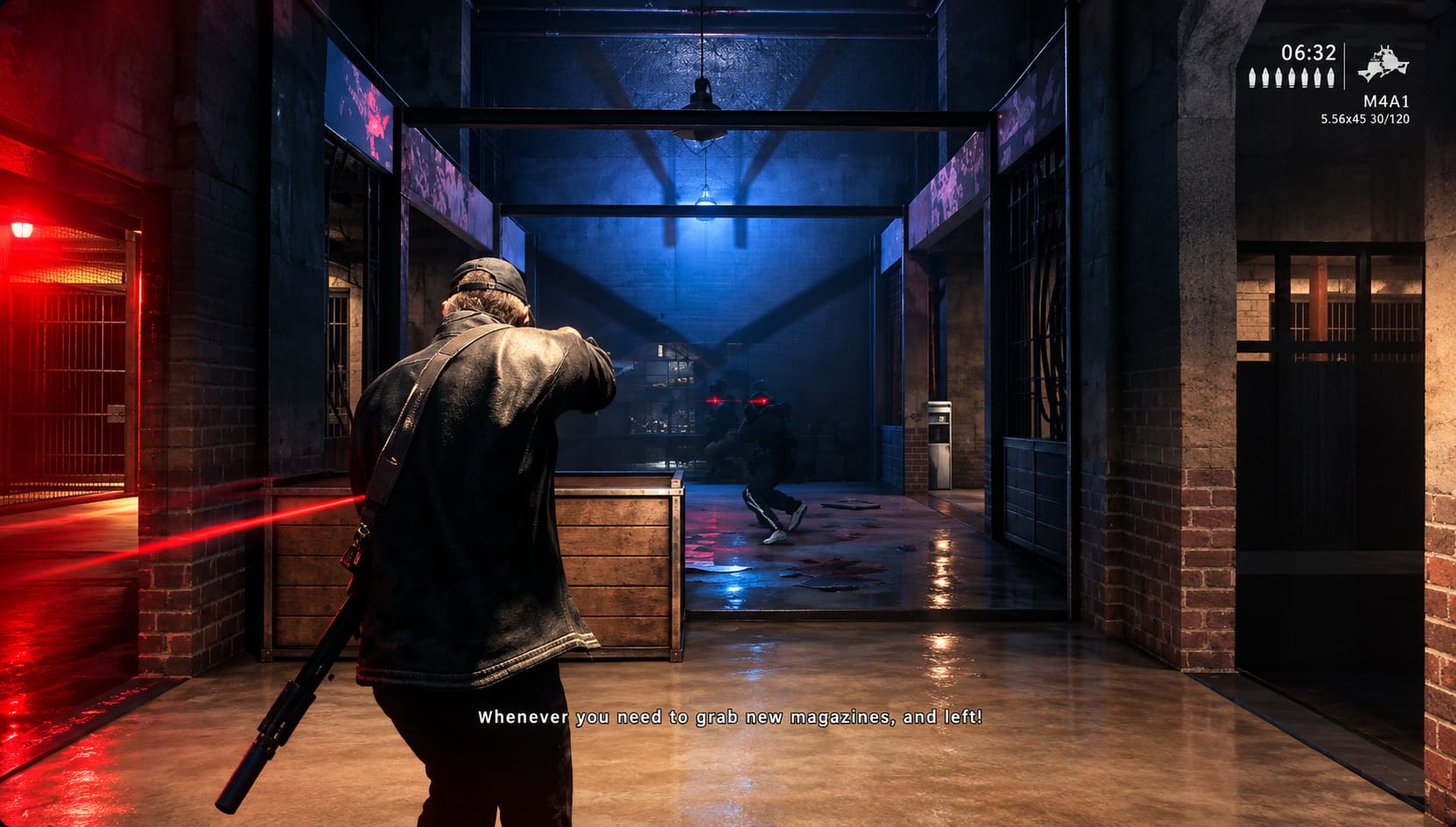
The biggest challenge isn’t simply the number of polygons on screen. BLACKWOOD combines dynamic lighting, environmental effects, physics-heavy combat, atmospheric weather, reflections, and other effects that can become surprisingly expensive when several of them are active simultaneously. A quiet afternoon inside the DVD store is one thing; a rainy street fight with multiple enemies, muzzle flashes and reflective surfaces is a completely different workload.
The 4GB RX 570 is particularly sensitive to texture streaming. When VRAM becomes crowded, the problem isn’t always a simple reduction in average FPS. You can also encounter hitching, inconsistent frame pacing and sudden pauses as the game moves new assets into memory. The 8GB model has a useful advantage here, allowing you to keep textures at Medium without putting the same pressure on available VRAM.
Best BLACKWOOD Graphics Settings for RX 570
If your priority is smooth gameplay rather than screenshots, I’d start with a customized Low-to-Medium configuration rather than using the default Low preset. Some settings are worth keeping above Low because their visual impact is significant while their performance cost is relatively small.
Display Mode and Resolution
Display Mode: Fullscreen is my preferred option for the RX 570. It can provide more consistent frame pacing and avoids some of the overhead that can appear with borderless modes on older systems. For resolution, keep 1920×1080 if your monitor is 1080p, but don’t feel obligated to render the entire game at native resolution internally.
That’s where render scaling becomes important. Instead of immediately dropping the monitor resolution to something like 1600×900, I’d rather keep the 1080p output and let the game render internally at a lower resolution before reconstructing the image. The result usually looks cleaner and makes the user interface easier to read.
Textures: Low for 4GB, Medium for 8GB
This is one of the settings where the two RX 570 variants should be treated differently. On the 4GB model, Low textures are the safer choice, especially if you notice stuttering when moving quickly through the city. With the 8GB card, Medium textures are a much better compromise because they noticeably improve character clothing, environmental details and small objects without demanding the same VRAM discipline.
I wouldn’t sacrifice texture quality before reducing shadows or volumetric effects. Texture quality often has less influence on raw GPU performance than people expect, while excessively detailed shadows can have a much bigger impact on frame rate.
Shadows: Turn Them Down
Shadow Quality: Low and Shadow Resolution: Low are two of the easiest recommendations I can make. BLACKWOOD’s lighting can look excellent, but dynamic shadows from streetlights, characters, weapons and environmental objects quickly become expensive for an older GPU.
The difference between Low and High shadows is something you will notice when deliberately looking for it, but during a fast gunfight you’re much more likely to notice a sudden frame-rate drop. For me, this is exactly the kind of visual compromise worth making.
Volumetric Lighting: Low or Off
The dark, rainy atmosphere is one of BLACKWOOD’s strongest visual features, so turning every atmospheric effect off can make the game lose some of its personality. Fortunately, you don’t have to go that far. Volumetric Lighting on Low usually provides enough atmosphere while avoiding the enormous performance cost associated with higher-quality fog and light shafts.
If you’re still struggling to maintain 60 FPS during nighttime missions, this is one of the first settings I’d completely disable. A few missing volumetric rays are much less frustrating than watching your frame rate collapse in the middle of a firefight.
Ambient Occlusion: Keep It at Medium
Ambient occlusion is one setting I wouldn’t immediately destroy in the name of performance. At Medium, it helps preserve the depth of BLACKWOOD’s environments, especially around furniture, walls, alleys and other objects. Completely disabling it can make the world appear noticeably flatter.
If you’re already running into serious performance problems, lowering AO can help, but I’d reduce shadows and volumetric lighting first. In a well-balanced configuration, Medium AO gives you a good amount of visual depth for a relatively reasonable performance cost.
Screen Space Reflections: Low or Off
Those wet New York streets can look fantastic, but reflections are exactly the sort of luxury feature an RX 570 doesn’t need. SSR should be Low at most, and I’d turn it off completely if your frame rate is unstable outdoors.
This is especially important during rainy sequences where multiple reflective surfaces can be visible at once. BLACKWOOD still looks atmospheric without perfect real-time reflections, while the performance difference can be much easier to feel than the graphical difference is to notice.
Anti-Aliasing and Post-Processing
TAA is the best starting point when you’re using a reduced internal resolution or an upscaling solution. It helps hide jagged edges and makes the image more coherent when the game isn’t being rendered at full native resolution.
I’d also set Post-Processing to Low and turn Motion Blur Off. Motion blur may look cinematic in trailers, but during actual gameplay I generally find it more distracting than useful. BLACKWOOD already has fast movement, slides, melee animations and camera transitions, so keeping the image sharp makes it easier to track enemies and react to attacks.
Use FSR or Render Scaling for a Big FPS Boost
If there is one optimization I would try before spending an hour experimenting with individual settings, it’s upscaling. Rendering every frame at native 1080p puts unnecessary pressure on the RX 570, especially in the game’s heavier areas.
If BLACKWOOD provides an FSR option, start with FSR Quality. If that isn’t enough, move to Balanced. If the game instead provides a Render Scale slider, try approximately 80-85% and test the result in an actual combat sequence rather than standing inside the store.
This approach is often much more effective than lowering every setting indiscriminately. You retain the overall 1080p presentation while reducing the number of pixels the GPU has to process every frame. The slight loss in sharpness can also be compensated for with moderate sharpening if the game or driver provides that option.
AMD Adrenalin Settings for BLACKWOOD
Once the game itself is configured, there are a few AMD Software settings worth checking. I wouldn’t recommend enabling every performance option blindly because driver-level tweaks can sometimes create as many problems as they solve. For an RX 570, however, a conservative profile can improve responsiveness and image quality.
- Radeon Anti-Lag: Enabled.
- Radeon Image Sharpening: Around 40-60% if the image looks soft after upscaling.
- Texture Filtering Quality: Performance.
- Surface Format Optimization: Enabled.
Anti-Lag is particularly appealing in a game like BLACKWOOD because combat is built around quick reactions. When you’re trying to counter an attack or land a shot immediately after sliding into cover, responsiveness matters more than squeezing a tiny amount of extra visual detail out of the GPU.
Windows Tweaks That Can Help
Don’t overlook the operating system. Before blaming the RX 570 for every stutter, make sure Windows isn’t competing with BLACKWOOD for resources. Windows Game Mode should be enabled, and unnecessary background applications should be closed before launching the game.
It’s also worth keeping your AMD graphics driver reasonably up to date. Driver updates can contain game-specific fixes, shader improvements and stability changes, although I wouldn’t automatically assume that the newest driver is always the fastest one for every title. If a particular driver introduces problems, testing a known stable version can sometimes be worthwhile.
Finally, experiment with Fullscreen Optimizations if you experience unusual frame pacing or alt-tab behavior. This isn’t a universal performance booster, so I wouldn’t enable or disable it simply because a guide says you should. Test both configurations and keep whichever produces the smoother result on your system.
My Recommended RX 570 60 FPS Profile
If I were setting up BLACKWOOD on an RX 570 today, this is the configuration I’d use as a starting point. It prioritizes consistent frame delivery over maximum graphical quality, but it still leaves enough visual effects enabled to preserve the game’s dark cinematic style.
| Option | Recommended Setting |
|---|---|
| Display Mode | Fullscreen |
| Resolution | 1920×1080 |
| Render Scale | 80-85% |
| FSR | Quality, then Balanced if necessary |
| V-Sync | Off |
| FPS Limit | 60 FPS |
| Textures 4GB | Low |
| Textures 8GB | Medium |
| Shadows | Low |
| Volumetric Lighting | Low |
| Ambient Occlusion | Medium |
| SSR | Low or Off |
| Anti-Aliasing | TAA |
| Post-Processing | Low |
| Motion Blur | Off |
What Performance Should You Expect?
It’s important to keep expectations realistic. The RX 570 is an older budget GPU, and no settings guide can magically turn it into modern hardware. Your CPU, RAM configuration, driver version, background processes and even the specific area of BLACKWOOD you’re playing can all affect performance.
With the configuration above, the goal should be a generally smooth experience around 60 FPS, rather than believing that the game will remain locked to exactly 60 FPS in every situation. Heavy combat, crowded areas and complex weather effects can still cause drops. If that happens, reduce render scale slightly before destroying the rest of the game’s visual settings.
Final Verdict: Is BLACKWOOD Worth Playing on an RX 570?
Absolutely, if you’re willing to optimize. The RX 570 may no longer be a modern gaming powerhouse, but it can still deliver a surprisingly enjoyable experience when you understand which settings actually matter. BLACKWOOD’s atmosphere doesn’t disappear just because shadows are on Low or reflections are disabled, and in a fast action game, consistent frame pacing is much more valuable than expensive effects that you barely notice while playing.
For the RX 570 4GB, I’d focus on Low textures, Low shadows, reduced volumetrics, disabled SSR and FSR Quality or Balanced. The 8GB version gives you more breathing room for Medium textures and generally makes asset streaming less troublesome. In both cases, the smartest strategy is to protect the frame rate first and then gradually increase individual settings until you find the visual/performance balance you personally prefer.
That’s ultimately how I’d approach BLACKWOOD on older hardware. Don’t chase a benchmark number at the expense of the experience. Keep the image clean, keep the controls responsive, and make sure the frame rate doesn’t fall apart when the game suddenly turns a quiet night in Brooklyn into a chaotic gunfight. With the right settings, the RX 570 can still give BLACKWOOD the smooth, aggressive gameplay it deserves without forcing you to replace your graphics card just to enjoy it.