How to Fix Aniimo Pre-Load Installation Stuck or Freezing Errors (2026 Guide)
The launch of Aniimo, Pawprint Studio’s ambitious open-world creature-catching RPG, is almost here, and naturally, everyone wants to be ready the second the servers open. The pre-load went live on September 14, 2026, giving players a chance to download the game before launch and avoid the inevitable server traffic spike.
There is just one problem: for some players, the pre-load itself has become the boss fight.
Players on PC, Steam, PlayStation 5, and Xbox Series X|S have reported Aniimo downloads getting stuck at 0%, 99%, or 100%, freezing during installation, looping on an “Installing” message, or failing while the launcher tries to extract the game files. Some users are also running into vague file verification and extraction errors that provide almost no useful information.
I’ve dealt with enough broken game launches to know the drill. A download sitting at 99% for ten minutes doesn’t necessarily mean your installation is dead, but when the disk activity drops to zero and the launcher has been staring at the same percentage for half an hour, something is probably wrong.
The good news is that you don’t need to immediately delete everything and start the entire download from scratch.
This Aniimo pre-load troubleshooting guide covers the fixes worth trying on the standalone PC launcher, Steam, Xbox Series X|S, and PS5, including corrupted files, antivirus interference, storage problems, Steam cache issues, directory problems, licensing glitches, and Windows prerequisites.
Why Is the Aniimo Pre-Load Getting Stuck?
A pre-load isn’t exactly the same thing as downloading a normal game. The client is dealing with compressed and encrypted data that has to be downloaded, verified, unpacked, and prepared for the actual launch.
That means the progress bar isn’t always telling the whole story.
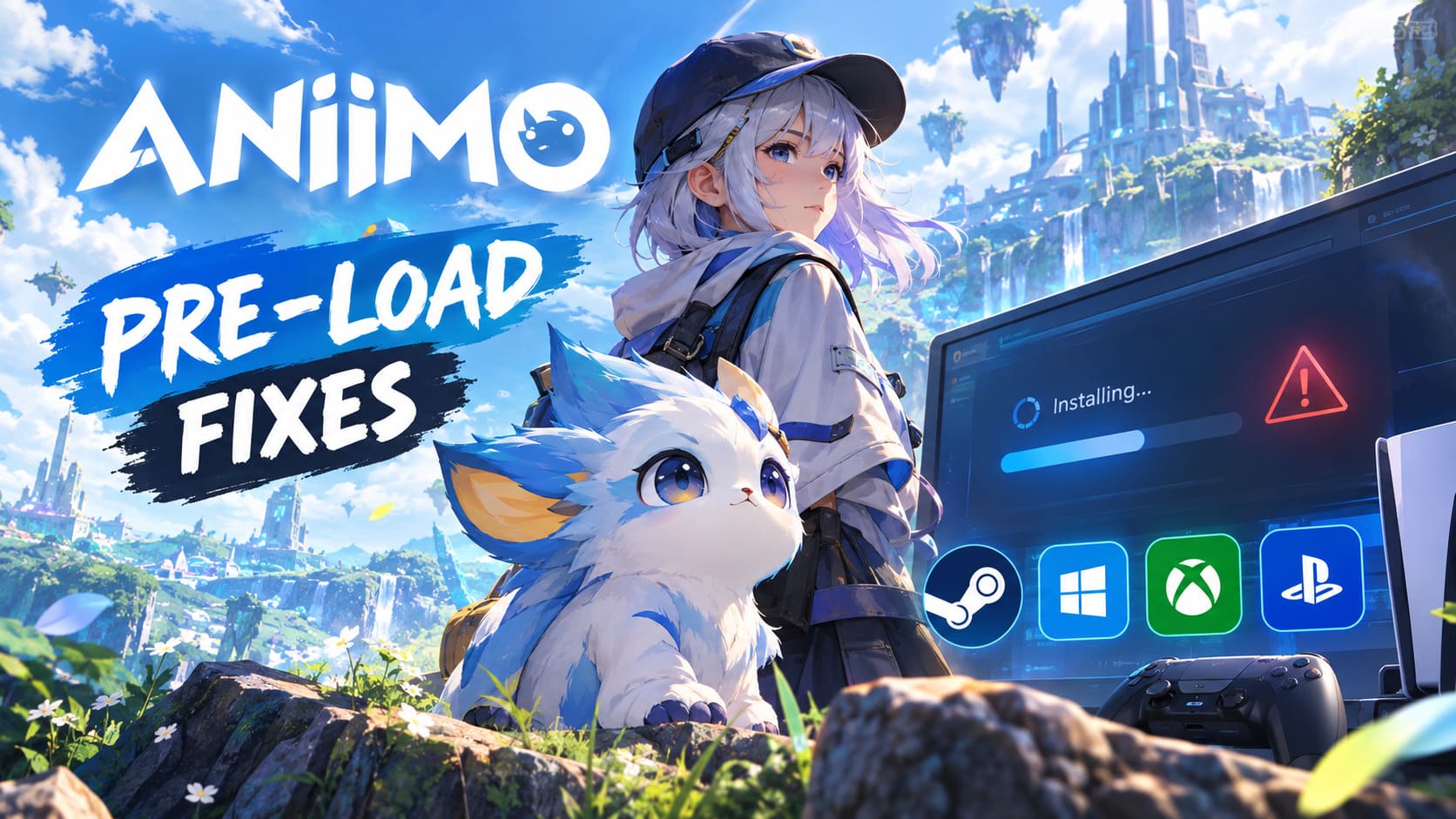
You can see 100% download progress while Steam or the Aniimo launcher is still working heavily on the files in the background. On the other hand, a genuinely frozen extraction process can look almost identical from the user’s perspective.
Several problems can cause Aniimo to appear stuck.
| Possible Problem | What You May See | What Usually Helps |
|---|---|---|
| Antivirus interference | Extraction failed, file locked | Temporarily disable scanning and repair files |
| Not enough free storage | Installation freezes or fails | Free additional SSD space |
| Corrupted download | Verification or repair error | Run Quick Repair or redownload damaged chunks |
| Directory issue | Launcher crashes or refuses to install | Use a simple installation path |
| Steam cache problem | Download/install loops | Clear Steam Download Cache |
| Console license issue | Pre-load unavailable or incorrect version | Restore licenses or access the correct bundle |
| Slow storage | Extraction appears frozen | Install on an SSD |
The biggest mistake is assuming that 40 GB free means you have enough room for a 40 GB installation. It doesn’t.
During extraction, the launcher needs additional temporary working space. I’d personally leave at least 55–60 GB free before starting the Aniimo pre-load if you’re installing on PC.
Fix Aniimo Pre-Load Stuck on PC
If you’re using Pawprint Studio’s standalone launcher, start here.
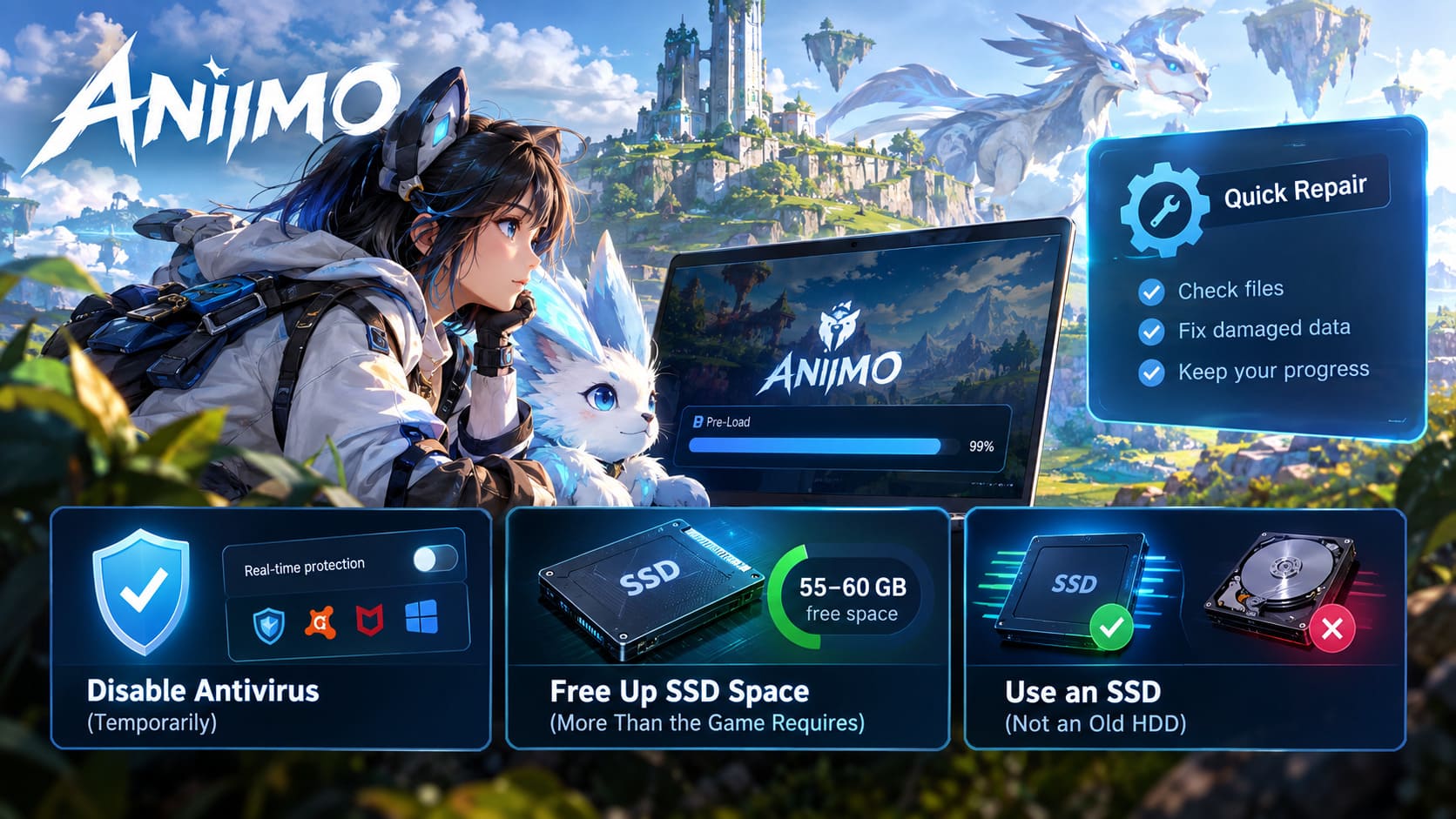
1. Run the Aniimo Launcher Quick Repair
This should be your first move if the installation has stopped because of a corrupted or incomplete file.
Don’t uninstall the entire game immediately. That’s the nuclear option, and there’s no reason to use it before trying the built-in repair system.
- Close the Aniimo launcher completely.
- Press Ctrl + Shift + Esc to open Windows Task Manager.
- Check for any remaining Aniimo-related processes and terminate them.
- Right-click the Aniimo launcher and select Run as administrator.
- Open the launcher’s Settings menu.
- Select Quick Repair.
- Allow the launcher to scan the installation and compare your files against its official manifest.
The useful part here is that Quick Repair should identify damaged or incomplete chunks rather than forcing you to download the entire game again.
If Aniimo stopped at 99%, this is one of the first things I’d try.
2. Fix “Game File Extraction Failed” Errors
One particularly annoying error is a message along the lines of “Game file extraction failed” or “File Locked.”
This is often caused by security software interfering with the launcher’s extraction process.
Windows Defender and third-party antivirus applications can be overly aggressive with brand-new game clients, especially when they’re unpacking large numbers of executable or compressed files.
Temporarily test the installation with real-time protection disabled:
- Open your antivirus software and temporarily disable real-time protection.
- If you’re using Windows Security, open Virus & threat protection and then Manage settings.
- Temporarily turn Real-time protection off.
- Check the antivirus quarantine/history section.
- If Aniimo files were quarantined, restore them if you’re certain they belong to the official installation.
- Add the legitimate Aniimo installation folder to your antivirus exclusion or trusted list.
- Restart the launcher and run Quick Repair again.
Important: don’t leave your antivirus disabled permanently. This is strictly a troubleshooting step. Once the installation works, turn protection back on.
3. Free More SSD Space Than the Game Actually Requires
The listed storage requirement isn’t necessarily the amount of space required while the installation is being built.
If you have exactly 40 GB remaining, I wouldn’t even bother starting the extraction.
Aim for around 55–60 GB of free space on the target SSD. That gives the installer room to unpack temporary files without hitting the wall halfway through.
Also, avoid installing Aniimo on an old mechanical hard drive if you have an SSD available.
The difference between an SSD and an aging HDD can be massive during an extraction-heavy installation. A slow drive can make the launcher look completely frozen even when it’s technically still working.
Aniimo Steam Pre-Load Stuck at 100%
Steam has its own set of problems, and one of the most frustrating is seeing Aniimo reach 100% only to sit there forever under Installing.
Don’t panic immediately.
Steam can sometimes spend additional time processing, decrypting, allocating, or constructing files after the visible download has reached 100%.
If disk usage and network activity remain active, give it some time.
If absolutely nothing is happening, however, try the following.
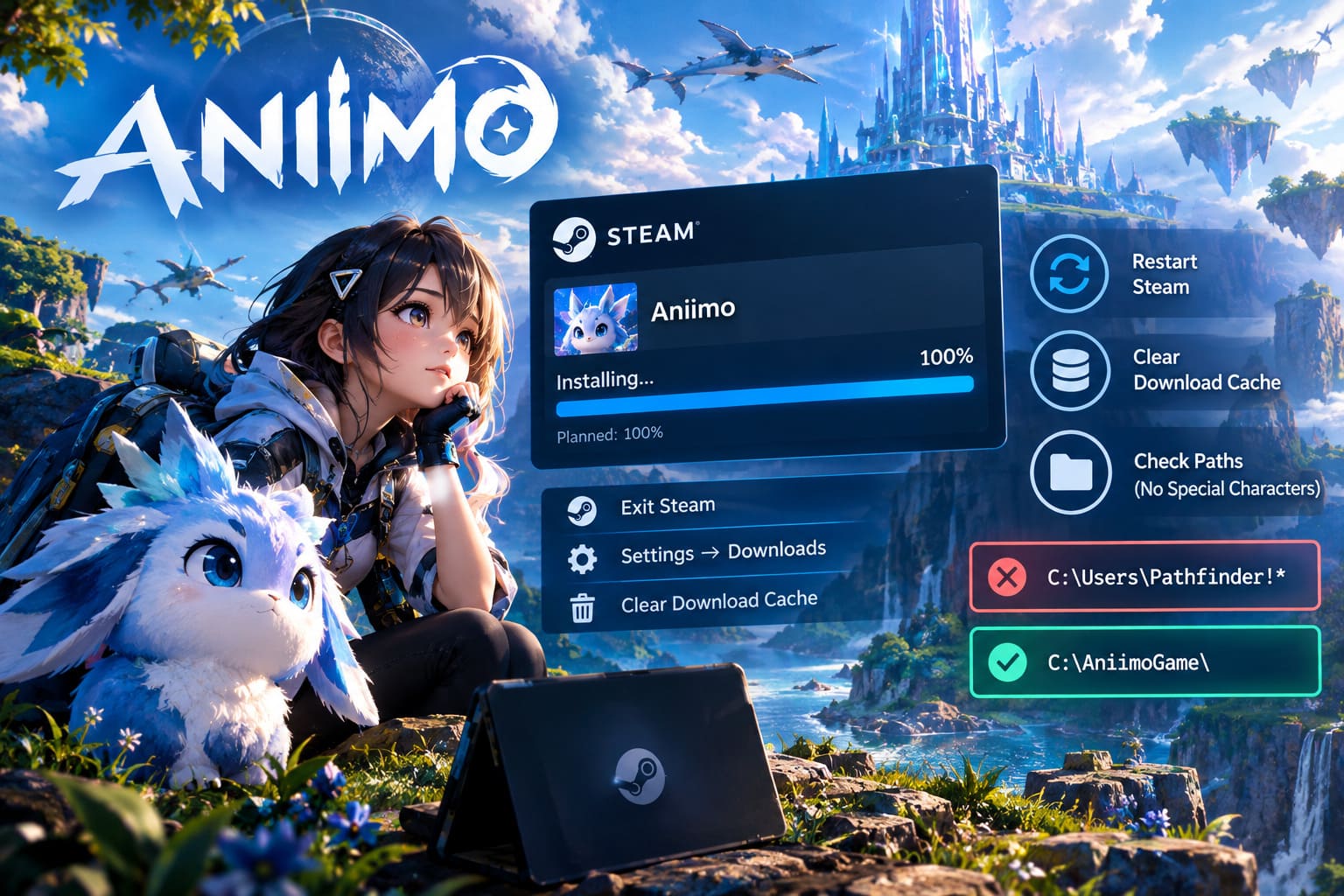
1. Completely Restart Steam
Don’t just close the Steam window.
- Click Steam in the upper-left corner.
- Select Exit.
- Open Windows Task Manager.
- Check for lingering Steam processes.
- End any Steam processes that refuse to close.
- Start Steam again.
- Check the Aniimo installation.
A full client restart can force Steam to reassess the game’s manifest and installation state.
2. Clear the Steam Download Cache
If Steam keeps looping or refuses to finish preparing Aniimo, clearing the download cache is worth trying.
Go to:
Steam → Settings → Downloads → Clear Download Cache
Confirm the operation and log back into Steam if required.
This won’t magically make your internet faster, but it can clear corrupted local download configuration data that prevents a pre-load from being processed correctly.
If your Aniimo installation has been sitting at the same point for ages, this is a much more sensible step than immediately deleting the whole game.
Check Your Windows and Steam Directory Paths
There is another particularly strange issue worth checking: special characters and non-English characters in account or installation paths.
If the Aniimo client encounters unusual symbols, emojis, or certain non-Latin characters while accessing its installation directory, the launcher may have difficulty initializing the required files.
For example, a problematic path could look something like:
C:\Users\Pathfinder!*
Try keeping the installation directory simple.
A clean location such as:
C:\AniimoGame\
is much easier for a game launcher to handle.
If you’re using Steam, you can also try changing your Steam display name to something containing only standard letters and numbers as a troubleshooting experiment.
I wouldn’t permanently restructure your entire Windows account just because of one game, but if Aniimo refuses to initialize its files, eliminating weird characters from the installation path is an easy test.
Aniimo Pre-Load Problems on Xbox Series X|S
Console troubleshooting is a little different because you don’t have the same access to installation files and folders.
Aniimo’s pre-load and associated pre-order content can also involve license validation, particularly if you’ve purchased an edition or bonus package.
Check the Correct Xbox Store Listing
If you can’t find the Aniimo pre-load through the normal game page, check the specific pre-order or bonus package associated with your purchase.
For example, if you purchased an Advanced Edition Pre-Order Pack, search for that exact package through the Xbox Store and check whether the installation option appears there.
This can be more effective than repeatedly refreshing the standard free-to-play Aniimo listing.
Power Cycle the Xbox
If the download has stopped halfway through or the console seems to be stuck with an outdated installation state, perform a full power cycle.
- Hold the Xbox power button for approximately 10 seconds.
- Wait until the console shuts down completely.
- Disconnect the power cable.
- Leave it disconnected for around two minutes.
- Reconnect the cable.
- Turn the console back on.
- Check the Aniimo download again.
It’s a boring fix, but console cache problems have a habit of disappearing after a proper cold restart.
Fix Aniimo Pre-Load Errors on PS5
PS5 players can run into a different headache: the console may recognize the wrong version of a game or fail to properly validate the associated digital rights.
Restore PS5 Licenses
If Aniimo’s pre-load is missing, locked, or behaving as though you don’t own the relevant content, try restoring your licenses.
Go to:
Settings → Users and Accounts → Other → Restore Licenses
Allow the process to finish, then check your Aniimo installation again.
This refreshes the console’s digital entitlement information and can resolve situations where the system isn’t correctly recognizing your pre-order content.
Delete the Broken Pre-Load and Start Again
If the installation remains completely stuck, deleting the corrupted pre-load may be necessary.
Remove the Aniimo pre-load from your PS5 storage, restart the console, then download the game again through your Game Library.
Yes, it’s annoying to redownload a large game right before launch. But if the existing installation is genuinely corrupted, staring at the same frozen progress bar for another hour isn’t going to fix it.
Advanced PC Fixes for Aniimo Installation Problems
If you’ve tried the basic fixes and Aniimo still refuses to install, it’s time to look at Windows itself.
Reinstall or Update Visual C++ and DirectX Components
Game launchers often install or rely on Microsoft runtime components behind the scenes.
If one of those prerequisites is damaged or missing, the Aniimo installer can potentially hang while trying to initialize its required dependencies.
Install the latest supported Microsoft Visual C++ Redistributable packages from Microsoft and make sure your DirectX components are properly installed.
After installing or repairing the prerequisites:
- Restart Windows.
- Launch Aniimo as administrator.
- Run Quick Repair if available.
- Attempt the pre-load again.
A reboot matters here. Don’t skip it just because Windows didn’t aggressively demand one.
Increase the Windows Page File
Systems with 16 GB of RAM can occasionally run into memory pressure when handling large compressed game packages.
If Aniimo’s extraction process keeps crashing or freezing without producing a useful error, increasing the Windows page file is another advanced option.
Search Windows for Advanced System Settings, then:
- Open the Advanced tab.
- Under Performance, click Settings.
- Open the Advanced tab again.
- Find Virtual Memory and click Change.
- Disable Automatically manage paging file size for all drives.
- Select your fastest SSD.
- Choose Custom size.
- Set the Initial size to 8192 MB.
- Set the Maximum size to 16384 MB.
- Click Set, apply the changes, and restart your PC.
I wouldn’t recommend changing virtual memory settings for every minor game problem, but if you’re running close to the minimum RAM requirement and the installer repeatedly dies during extraction, it’s a reasonable troubleshooting step.
Don’t Mistake a Slow Extraction for a Frozen Download
This deserves its own warning because I’ve fallen into this trap more times than I’d like to admit.
Aniimo showing 99% doesn’t automatically mean the installation is broken.
Look at your SSD activity in Task Manager.
If the drive is still reading and writing data, the installer may simply be processing the final files. Large pre-load packages can take noticeably longer to unpack than their download percentage suggests.
The real red flag is when the percentage doesn’t move and disk activity, CPU usage, and network activity have effectively flatlined for an extended period.
That’s when I’d start troubleshooting.
Aniimo Pre-Load Fixes at a Glance
| Platform | First Fix to Try | Next Step |
|---|---|---|
| PC Launcher | Quick Repair | Antivirus and storage check |
| Steam | Restart Steam | Clear Download Cache |
| Xbox Series X|S | Power Cycle | Check specific edition/bundle |
| PS5 | Restore Licenses | Delete and redownload |
| Low-RAM PC | Increase Page File | Repair Visual C++/DirectX |
| Extraction Error | Check antivirus | Run launcher as administrator |
How to Fix Aniimo Controller Support Not Working Bug on PC and Consoles
When Can You Actually Play Aniimo?
Once the pre-load has completed, don’t worry if the launcher or console doesn’t immediately let you jump into Idyll.
A completed pre-load simply means the required game files are already on your machine. The actual game remains locked until the servers officially open.
According to the launch schedule in the provided information, Aniimo is scheduled to go live on September 16, 2026, at 02:00 UTC for PC, PlayStation 5, and Xbox Series X|S.
For North American players, that means:
- US East Coast: September 15 at 10:00 PM EDT
- US West Coast: September 15 at 7:00 PM PDT
So if your launcher suddenly changes to a greyed-out Play button or reports that the game is pre-loaded but unavailable, that doesn’t necessarily indicate another installation problem.
The servers simply aren’t open yet.
Aniimo Crossplay Guide: How to Play Across PC, PS5, and Xbox Series X/S
Final Thoughts
The worst part about a major game launch isn’t usually the game itself. It’s sitting there watching a launcher stubbornly refuse to finish while everyone else is already posting screenshots.
With Aniimo, the pre-load problems reported so far fall into a handful of familiar categories: corrupted files, antivirus interference, insufficient temporary storage, Steam cache problems, awkward directory paths, and console license validation.
Start with the least destructive fixes. Restart the launcher or Steam, run the built-in repair tool, check your available SSD space, and make sure security software hasn’t quarantined something important. On consoles, refresh licenses or perform a proper power cycle before deleting everything.
Most importantly, don’t immediately reinstall a 40 GB game because the progress bar has been sitting at 99% for five minutes. Check whether your SSD is still working first.
If the drive is hammering away, let it cook.
If the installation has completely flatlined, then it’s time to troubleshoot.
Getting the Aniimo pre-load sorted before September 16 is worth the effort. The last thing anyone wants is to finally hit the global launch window, grab their Pathfinder gear, and discover that they’re spending the first hour staring at an installation error instead of exploring Idyll.