How to Fix Pax Autocratica Crashing on Startup on Windows 11
Pax Autocratica is one of those games that immediately caught my attention. After spending years playing strategy games, colony builders, survival simulators, and FPS titles, I appreciate when a developer tries something unusual. The combination of a dystopian colony management system with roguelite FPS combat creates a strange but addictive experience where every decision matters.
You are not just building a settlement or controlling units from a safe distance. You are managing a complete authoritarian system, monitoring citizens, dealing with resistance, and personally entering dangerous battlefields. The concept is ambitious, but like many modern PC releases, the experience can quickly become frustrating when technical problems appear.
Many Windows 11 players have reported that Pax Autocratica crashes on startup, freezes during the loading screen, or instantly closes back to the desktop before reaching the main menu. After checking player discussions and testing different solutions, it becomes clear that these crashes are usually caused by configuration conflicts rather than hardware limitations.
GRAIN ROT Multiplayer Guide: Max Lobby Size and Friendly Fire Trolling Mechanics Explained
Why Does Pax Autocratica Crash Before Launching?
Modern games depend on many different systems working together. Graphics drivers, DirectX versions, Windows settings, shader files, configuration folders, and GPU preferences all need to cooperate before the game can successfully load.
With Pax Autocratica, several common problems appear to trigger startup crashes more frequently than others:
- FSR upscaling conflicts during the initial graphics setup.
- DirectX 12 compatibility issues with specific hardware combinations.
- Corrupted configuration files after updates or crashes.
- Outdated graphics drivers preventing proper GPU initialization.
- Windows 11 graphics settings launching the game incorrectly.
From my experience with PC gaming, startup crashes are rarely caused by one massive issue. Most of the time, a single graphics option or damaged file prevents the engine from completing its launch sequence.
Disable FSR If Pax Autocratica Crashes Immediately
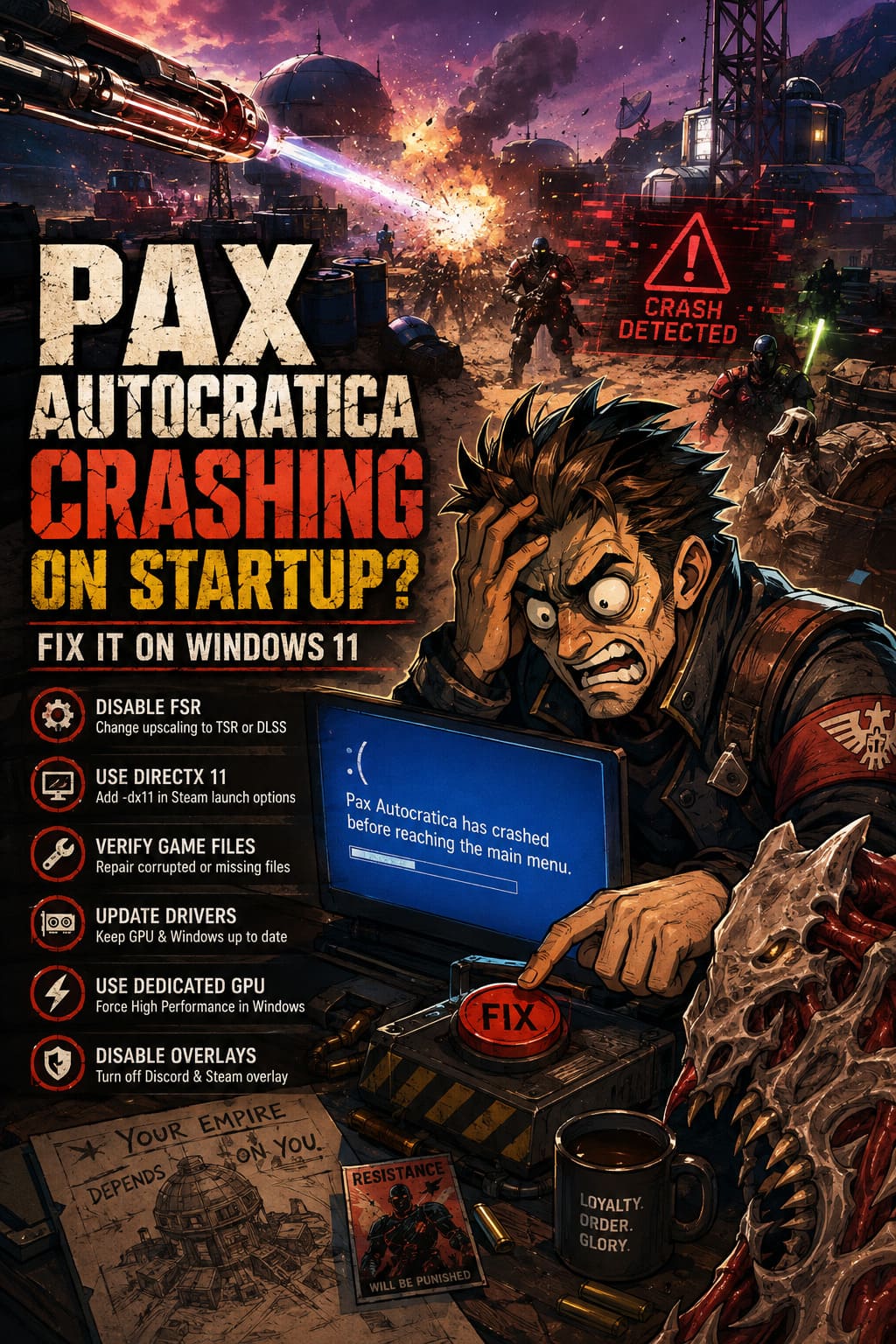
One of the most successful fixes reported by players involves disabling AMD FidelityFX Super Resolution (FSR). Upscaling technologies are usually designed to improve performance, but sometimes they create problems during the first launch, especially when the game cannot even open the graphics menu.
If Pax Autocratica crashes before reaching the main screen, you can manually change the upscaling method through the configuration files.
How to Change the Upscaling Setting
- Press Windows + R to open the Run window.
- Type %USERPROFILE%\AppData\Local and press Enter.
- Find the Pax Autocratica configuration folder.
- Locate the file named GameUserSettings.ini.
- Open it with Notepad.
- Search for the line containing UpscalingMethod=.
- Change FSR to TSR or DLSS depending on your GPU.
- Save the file and restart the game.
This is one of the first solutions I would personally try because it does not require reinstalling anything and can immediately solve launch problems caused by rendering settings.
Force Pax Autocratica to Run With DirectX 11
DirectX 12 is powerful, but it is also responsible for many strange launch issues across modern PC games. Some hardware combinations simply handle DirectX 11 more reliably, especially when a game is still receiving optimization updates.
If Pax Autocratica freezes during startup or closes before the menu appears, forcing DirectX 11 is worth testing.
How to Enable DirectX 11 Mode
- Open your Steam Library.
- Right-click Pax Autocratica.
- Select Properties.
- Find the Launch Options field.
- Enter:
-dx11
Close the window and launch the game again. If the crash disappears, you can continue playing with DirectX 11 until future updates improve compatibility.
Verify Pax Autocratica Game Files Through Steam
Sometimes the problem is much simpler than expected. A damaged installation file can prevent the game from starting correctly, especially after patches or interrupted downloads.
Steam includes a built-in repair tool that checks every important file and replaces anything missing or corrupted.
Steps to Verify Files
- Open Steam Library.
- Right-click Pax Autocratica.
- Select Properties.
- Open the Installed Files section.
- Click Verify integrity of game files.
I always recommend doing this before more complicated troubleshooting. It takes only a few minutes and can fix many unexplained crashes.
Update Graphics Drivers and Windows 11
Pax Autocratica uses modern rendering technology, meaning outdated drivers can easily create problems during startup. The game needs a stable connection between Windows, your graphics card, and the engine before loading begins.
| Component | Why Update It? |
|---|---|
| Graphics Driver | Fixes GPU compatibility problems and crashes. |
| Windows 11 Updates | Provides important system and DirectX improvements. |
| Microsoft Visual C++ Packages | Required for many PC game functions. |
| Chipset Drivers | Improves communication between hardware components. |
For GPU drivers, I recommend downloading the latest versions directly from NVIDIA or AMD instead of relying only on Windows Update. A clean driver installation can remove old conflicts that continue causing crashes.
Force Windows 11 to Use Your Dedicated GPU
Laptop users and players with multiple graphics adapters sometimes experience crashes because Windows launches the game using integrated graphics instead of the dedicated GPU.
This can happen silently, making it look like the game is broken when the real problem is incorrect GPU selection.
How to Select the High Performance GPU
- Open Windows Search.
- Type Graphics Settings.
- Add the Pax Autocratica executable.
- Select the game from the list.
- Choose Options.
- Select High Performance.
This forces Windows to use your NVIDIA or AMD graphics card when launching the game.
Disable Fullscreen Optimizations
Windows 11 includes fullscreen optimization features designed to improve performance, but they do not work perfectly with every game engine. Some players experience crashes, black screens, or loading problems because of these background adjustments.
Disable Fullscreen Optimizations
- Open the Pax Autocratica installation folder.
- Right-click the game’s executable file.
- Select Properties.
- Open the Compatibility tab.
- Enable Disable fullscreen optimizations.
- Try enabling Run this program as administrator.
These settings are simple changes, but they often improve stability for games that struggle during startup.
Clear Pax Autocratica Local Cache Files
If the game worked previously but suddenly started crashing after an update, the problem may come from corrupted local configuration files. Games often store graphics settings, cached data, and temporary files that can become outdated.
How to Reset Local Configuration
- Press Windows + R.
- Enter %localappdata%.
- Find the Pax Autocratica folder.
- Create a backup copy first.
- Delete the original configuration folder.
- Restart the game.
The game will automatically create fresh settings files during the next launch.
Additional Fixes Worth Trying
If the main solutions do not work, several smaller adjustments can also help. These are common fixes I have used across many PC games experiencing unexplained crashes.
- Disable Discord Overlay.
- Turn off Steam Overlay temporarily.
- Close MSI Afterburner and RivaTuner.
- Remove GPU overclock settings.
- Restart your PC before launching again.
- Temporarily disable third-party antivirus software.
Report Remaining Bugs to the Developers
Sometimes a crash is simply caused by a game-side issue. New releases often have problems that only appear on certain combinations of processors, graphics cards, and Windows configurations.
If nothing works, collect your system information and send a detailed report. Include your CPU, GPU, Windows version, driver version, and exactly when the crash happens.
Pax Autocratica includes tools for submitting bug reports, allowing developers to analyze crash logs and improve future updates. These reports are extremely useful because they reveal patterns that are difficult to reproduce internally.
Final Thoughts
After playing countless PC games across different genres, I have learned that launch problems are unfortunately part of modern gaming. A new title can be incredible, but one wrong setting can keep players stuck on the desktop instead of inside the game world.
For Pax Autocratica, the most effective fixes appear to be disabling FSR, switching to DirectX 11, verifying game files, and correcting Windows GPU settings. Those are the steps I would try first because they solve the majority of startup crashes without requiring complicated changes.
If your game still refuses to launch, do not immediately assume your PC is too weak. Many crashes are caused by software conflicts, and future patches will likely improve stability. Until then, these solutions give you the best chance to return to managing your dystopian empire instead of troubleshooting Windows errors.