How to Fix Pragmata Stuttering: Shader Compilation & PC Performance Guide
If you’re diving into Capcom’s sci-fi adventure Pragmata on PC, you already know just how visually stunning this game is. From the lunar landscapes to the intricacies of its futuristic cities, it’s a feast for the eyes.
But even with a top-tier GPU like the RTX 5090, many players have reported frustrating stutters and FPS drops, especially during fast-paced combat or cinematic cutscenes.
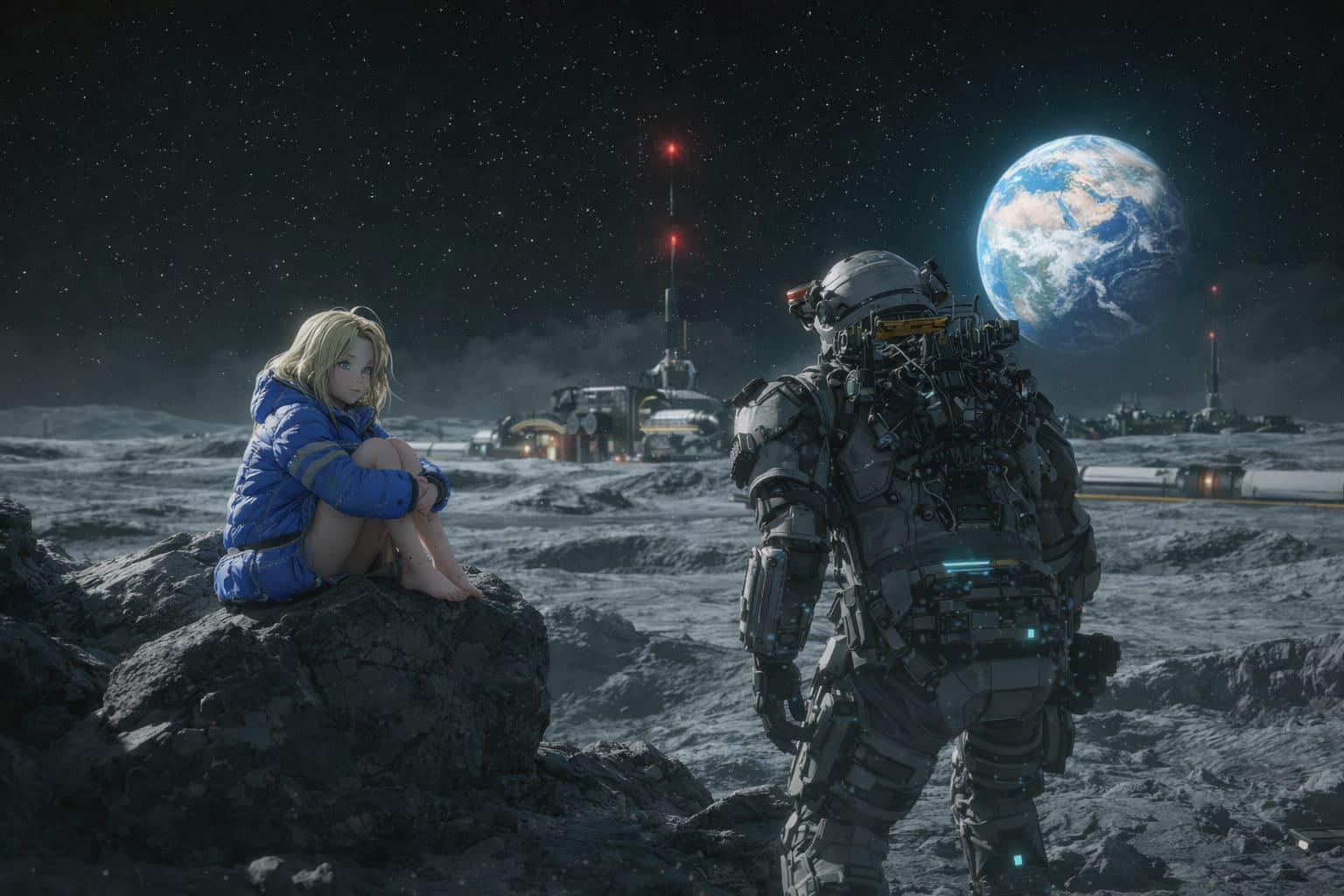
The main culprit? Shader compilation issues—a common hurdle in modern PC gaming. Luckily, there are several ways to tackle this and get your gameplay running smoothly.
Jetpack Cat Release Date & Guide: Mastering Fika’s Tether & Tow Abilities
1. Force Shader Re-Compilation for Smooth Gameplay
Shader compilation stutter happens when your GPU struggles to process shaders in real-time. The easiest way to resolve this is by clearing old shader caches and letting the game rebuild them.
- Clear DirectX Shader Cache: Search for “Disk Cleanup” in Windows, select your main drive, check DirectX Shader Cache, and click OK.
- NVIDIA Users: Navigate to AppData\Local\NVIDIA and delete the DXCache and GLCache folders.
- Steam Launch Options: Right-click Pragmata in your library, go to Properties > General > Launch Options, and try entering -DX12 (or -DX11 if crashes persist).
Doing this ensures that your shaders are fully pre-compiled for your current GPU drivers, eliminating “hitches” mid-game.
2. Optimize Your GPU Control Panel Settings
Default GPU settings aren’t always ideal for heavy RE Engine titles like Pragmata. Adjusting shader cache and power management can significantly improve stability.
- NVIDIA: Open NVIDIA Control Panel > Manage 3D Settings > Global Settings. Set Shader Cache Size to 10GB or Unlimited, and Power Management Mode to Prefer Maximum Performance.
- AMD: Open AMD Adrenalin Software > Gaming > Graphics > Advanced tab. Reset Shader Cache to clear corrupted files.
These changes reduce recurring stutters caused by shader recompilation and ensure your GPU operates at peak efficiency.
3. Utilize NVIDIA’s Auto Shader Compilation Feature
As of early 2026, NVIDIA introduced a feature called Auto Shader Compilation in the NVIDIA App (the successor to GeForce Experience).
This tool pre-compiles shaders in the background, reducing in-game FPS drops and making Pragmata feel buttery smooth from the first cutscene.
Make sure your NVIDIA App is updated and “Background Shader Compilation” is enabled for Pragmata.
4. Windows Performance Tweaks
Even the fastest PC can experience stutters if the operating system isn’t prioritizing the game correctly. A few tweaks can make a noticeable difference:
- Enable Game Mode: Search “Game Mode settings” in Windows and toggle it On to prioritize CPU and GPU resources for Pragmata.
- Hardware-Accelerated GPU Scheduling (HAGS): Go to Settings > System > Display > Graphics > Change Default Graphics Settings. Turn on HAGS and restart your PC.
- Close Background Apps: Apps like Chrome or Discord with hardware acceleration can steal resources and cause micro-stutters. Close them while playing.
5. RE Engine Specific Fixes for Pragmata
The RE Engine powers Pragmata’s stunning visuals but can struggle in open lunar areas, causing “traversal stutter.” Adjusting in-game settings can improve performance without sacrificing visual quality.
- Ray Tracing: Lower Ray Tracing quality to Medium or disable Ray Traced Shadows if you experience stutters during boss fights or exploration.
- V-Sync & Buffering: Enable Triple Buffering in the GPU control panel when using V-Sync to smooth out inconsistent frame times.
Recommended Hardware & Performance Specs
If problems persist, it’s worth ensuring your hardware can handle Pragmata’s next-gen visuals. Here’s a table summarizing recommended specs for a smooth 1440p or 4K experience:
| Component | Recommended Specs |
|---|---|
| CPU | Intel i7-13700K or Ryzen 7 7800X3D (high single-threaded and multi-threaded performance is key for shader compilation) |
| GPU | RTX 4070 Ti / RX 7900 XT or higher for Ray Tracing |
| RAM | 16GB – 32GB DDR5 |
| Storage | NVMe SSD is mandatory to prevent stuttering during asset streaming |
✅ Summary of Pragmata PC Fixes
By following these steps, most players can resolve stuttering and FPS issues:
- Clear shader caches through Disk Cleanup and GPU folders.
- Increase Shader Cache Size to 10GB+ in NVIDIA Control Panel.
- Enable NVIDIA App’s Auto Shader Compilation feature and update drivers.
- Install the game on an SSD to reduce traversal stutters.
- Tweak in-game Ray Tracing and V-Sync settings for smoother performance.
Pragmata’s world deserves to be experienced without constant micro-stutters. By taking control of shader compilation, optimizing your GPU settings, and ensuring your PC meets recommended specs, you can immerse yourself fully in Capcom’s visually stunning sci-fi adventure.
Whether exploring the lunar base or engaging in intense combat sequences, these optimizations ensure your gameplay remains smooth and cinematic, giving you the best possible Pragmata experience.
Mastering Pragmata: How to Achieve the Best FPS and Visuals on Any PC
Pragmata, launching April 17, 2026, is shaping up to be an ambitious title from Capcom, blending the stunning visuals of the RE Engine with immersive gameplay.
For gamers who crave both smooth performance and eye-catching graphics, knowing which settings to tweak can make a huge difference. The RE Engine offers high-end path tracing options, but pairing them thoughtfully with traditional rasterization is key to unlocking the best FPS across all hardware tiers.

Why FPS Optimization Matters in Pragmata
The RE Engine is known for its ability to create cinematic visuals, but this can come at a cost. Path-traced reflections and global illumination, while beautiful, are extremely demanding, especially on mid-range GPUs. Even though Pragmata is more optimized than some recent Capcom releases, turning on every visual feature at maximum can still cause noticeable frame drops. Understanding the balance between performance and aesthetics will save frustration during intense exploration in the lunar base environment.
Universal “Golden” Settings for Any GPU
Regardless of your graphics card, there are a few settings that offer the best compromise between quality and performance. These settings are ideal for most players and can prevent common issues like shimmering, stuttering, and hitching.
- Rendering Mode: Normal. Avoid Interlaced unless your GPU is very low-end, as it can produce significant visual shimmering.
- Texture Quality: High (2GB–4GB). Higher textures (8GB+) offer minimal improvement unless gaming at native 4K.
- Mesh Quality: Medium or High. Reduces CPU overhead during complex traversal scenes.
- Shadow Quality: Medium. High shadows can cause micro-stutters during combat.
- Ambient Occlusion: SSAO. Skip HDAO or FROX if you experience frame drops in interiors.
Optimized Settings by GPU Tier
To help you get the most out of Pragmata, here’s a breakdown based on GPU performance tiers. Following these recommendations will allow you to enjoy smooth gameplay without sacrificing too much visual fidelity.
| GPU Tier | Recommended Resolution & Upscaling | Ray Tracing & Lighting | Other Key Tweaks |
|---|---|---|---|
| High-End (RTX 4080 / 5070+) | 4K or 1440p, DLSS 4 Multi-Frame Generation Enabled | Ray Tracing On (High) with Ray Reconstruction for cleaner reflections | Variable Rate Shading: Balanced to reduce GPU load in dark lunar areas |
| Mid-Range (RTX 3060 / 4060, RX 6700 XT / 7700 XT) | 1440p or 1080p, DLSS/FSR 3 Quality | Ray Tracing Off or Medium (Reflections only), Volumetric Lighting Medium | RT Shadows Off to maintain stable FPS |
| Entry-Level / Handheld (GTX 1660, RX 5500 XT, Steam Deck) | 1080p or 800p (Deck), FSR 3 Performance or XeSS | Screen Space Reflections only, Ray Tracing Disabled | Medium Textures, Contact Shadows Off, target stable 40 FPS on Deck |
RE Engine Specific Tweaks for Smooth Gameplay
Pragmata’s RE Engine introduces some unique mechanics that can impact performance. Two areas often overlooked are traversal stutter and shader streaming. By addressing these, even mid-tier GPUs can maintain smoother frame rates during exploration.
- Image Quality: Keep this at 100%. Increasing it with Super Sampling can drastically reduce FPS, even on high-end hardware.
- Shader Cache & Storage: Installing the game on an NVMe SSD prevents 1-2 second freezes when moving between rooms. The RE Engine streams assets constantly, and HDDs simply can’t keep up.
Personal Insights: Balancing Visuals and Performance
As someone who enjoys hopping between a variety of PC games, I’ve found that Pragmata requires thoughtful tuning rather than blindly maxing out settings. On a mid-range system, I prefer medium volumetric lighting and SSAO instead of HDAO—it’s barely noticeable but keeps FPS much steadier. High-end cards, on the other hand, let you enjoy full ray tracing with DLSS 4 Multi-Frame Generation, which feels like the game is almost cinematic in motion.
One subtle but impactful tip is adjusting the Variable Rate Shading (VRS) on dark areas of the lunar base. It reduces GPU load without a noticeable quality loss, and it’s a trick Capcom has refined across RE Engine titles. On handheld systems, I prioritize stable FPS over visual fidelity, scaling textures to medium and turning off advanced reflections. Even with these compromises, the game remains visually appealing.
Conclusion
Optimizing Pragmata isn’t about hitting every visual checkbox; it’s about striking a balance that suits your hardware. High-end GPUs can embrace path tracing and cinematic effects fully, mid-range cards benefit from selective RT usage and medium volumetrics, and entry-level devices prioritize frame stability with smart upscaling. By following the recommendations above, you’ll enjoy smoother gameplay and retain the RE Engine’s hallmark visuals, making every moment on the lunar surface more immersive.
Whether you’re exploring the mysterious lunar base, fighting enemies, or just soaking in the atmosphere, proper optimization can elevate your experience. Pragmata proves that thoughtful tuning can make even a visually demanding game accessible across a wide range of systems.