Pragmata Crashing on Startup? How to Fix & Achieve Smooth 60 FPS on PC
If you’ve finally got your hands on Capcom’s futuristic adventure Pragmata, only to be stopped dead at the launch screen, you’re not alone.
Despite being a visually stunning sci-fi journey built on the RE Engine, some PC players experience frustrating crashes right at startup.

Whether it’s during shader compilation, black screens, or getting stuck on the Capcom logo, there are several proven ways to get the game running smoothly.
Here’s a full breakdown of practical fixes, based on user reports from Steam, Reddit, and official Capcom guidance as of April 2026.
Check Your System Requirements First
Pragmata is a next-gen title, and it’s not shy about its demands. Before diving into tweaks, make sure your system meets the basics:
- OS: Windows 11 (64-bit) is recommended for best stability.
- CPU: Intel Core i5-8500 or AMD Ryzen 5 3500 minimum.
- RAM: At least 16 GB.
- GPU: NVIDIA GeForce GTX 1660 (6GB) or AMD Radeon RX 5500 XT (8GB).
- Storage: 40 GB free on an SSD—HDDs may cause long load times or crashes.
If your system is below these specs, you’ll likely face repeated crashes or poor performance, especially if ray tracing is enabled.
Update Your Graphics Drivers
Graphics drivers are the most common cause of startup crashes. Both NVIDIA and AMD released “Game Ready” drivers optimized for Pragmata’s April 17, 2026 launch. Make sure you’re running the latest versions:
- NVIDIA: Use GeForce Experience or download directly from NVIDIA’s website.
- AMD: Use Adrenalin Edition. If the game crashes when enabling Frame Generation, disable it in the driver settings and enable only in-game.
Edit Config.ini for Render Stability
A popular community fix is adjusting the game’s configuration file. This can prevent crashes linked to specific render paths:
- Navigate to your Steam folder: …\Steam\steamapps\common\PRAGMATA.
- Open config.ini in Notepad.
- Locate the [Render] section and ensure these lines are present:
- AliasBarrierWorkaround=Enable
- Capability=DirectX12
- TightFitShaderCache=Enable
- Save the file and restart the game.
Clear Shader Cache
Crashes during shader compilation often indicate a corrupt cache. Here’s how to fix it depending on your GPU:
- NVIDIA: Open NVIDIA Control Panel > Manage 3D Settings > Shader Cache Size > Set to ‘Unlimited’, or manually clear the folder at %LocalAppData%\NVIDIA\GLCache.
- AMD: Open Adrenalin > Graphics > Advanced > Reset Shader Cache.
Disable Overlays and Background Apps
Overlays from Steam, Discord, or third-party apps like RivaTuner often clash with the RE Engine at launch. To prevent this:
- Right-click Pragmata in Steam > Properties > uncheck “Enable the Steam Overlay while in-game.”
- Close MSI Afterburner, Predator Sense, or similar performance boosters before starting the game.
Verify Game Files
Startup crashes can result from missing or corrupted files, especially in a large download like Pragmata. To verify:
- Open your Steam Library.
- Right-click Pragmata > Properties > Installed Files > Verify integrity of game files…
Run as Administrator & Disable Compatibility Mode
Modern DirectX 12 games can break with older Windows compatibility settings. Fix this by:
- Right-click PRAGMATA.exe in the installation folder > Properties > Compatibility.
- Ensure “Run this program in compatibility mode” is unchecked.
- Check “Run this program as an administrator.”
Set Windows Power and Graphics to High Performance
System throttling can unexpectedly crash the game. Boost performance by:
- Windows Settings > System > Power & Battery > Select “Best Performance.”
- Windows Settings > System > Display > Graphics > Find Pragmata > Options > High Performance.
Fix for Steam Deck and Linux Users
If you’re playing on Linux or Steam Deck, the default Proton version can cause black screens. To fix:
- Open game properties > Compatibility.
- Check “Force the use of a specific Steam Play compatibility tool.”
- Select Proton Experimental or Proton GE 10-26 if available.

Install Media Feature Pack for Windows N/KN Editions
Pragmata relies on specific codecs for cinematic sequences. European N/KN editions of Windows require the Media Feature Pack to prevent crashes during intro videos.
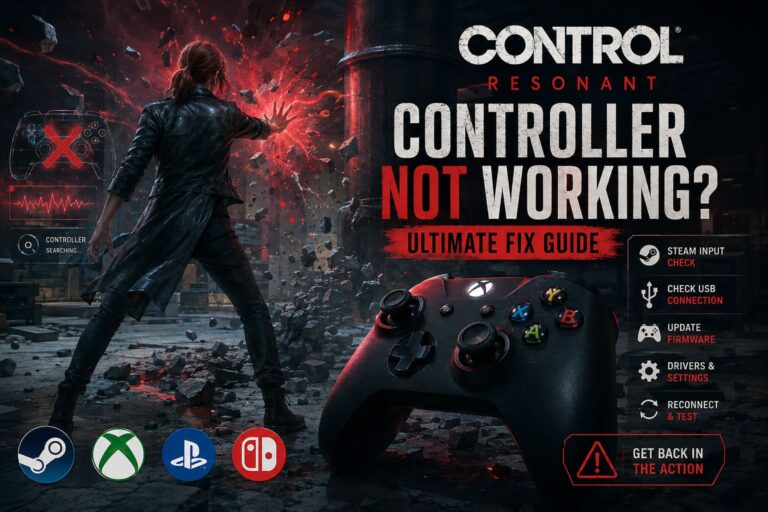
Quick Reference Table for Common Error Codes
| Error | Likely Cause | Primary Fix |
|---|---|---|
| Fatal D3D Error | Driver Conflict / GPU Overclock | Update drivers / disable overclock |
| Crashing at 0% Shader | Corrupt Cache | Reset shader cache |
| Black Screen on Launch | Missing Codec | Install Media Feature Pack |
| Stuck on Capcom Logo | Overlay Conflict | Disable Steam/Discord overlay |
Mastering Pragmata: A Real Gamer’s Guide to Smooth 60 FPS Gameplay
If you’ve been diving into Pragmata, you already know it’s a game that looks absolutely stunning, thanks to the latest iteration of the RE Engine. However, that visual fidelity comes at a cost: the game is incredibly demanding, especially on older GPUs.
As someone who loves testing different games and hardware setups, I’ve spent hours finding the perfect balance between gorgeous visuals and smooth performance. Here’s my take on optimizing Pragmata for a stable 60 FPS without losing the soul of the game.
1. Resolution and Upscaling: The Performance Foundation
The single most effective way to boost frames in Pragmata is by leveraging modern upscaling technologies. They allow you to enjoy crisp visuals without hammering your GPU unnecessarily.
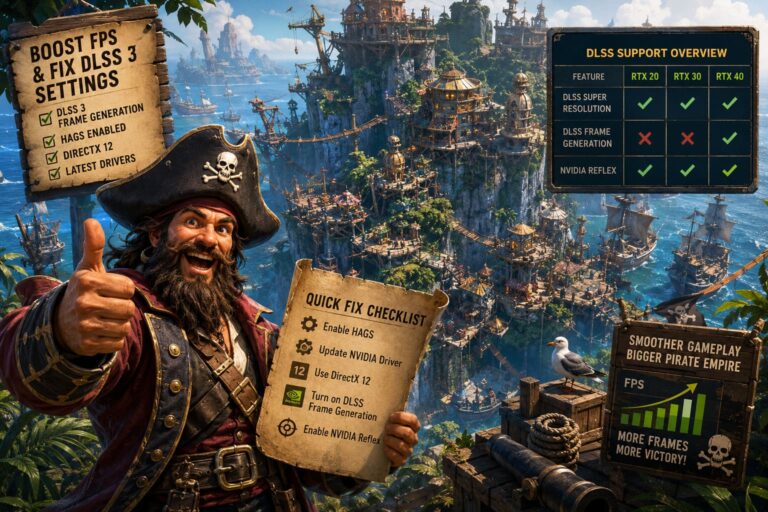
- NVIDIA Users: For 1080p and 1440p, DLSS set to Quality is ideal. At 4K, Balanced works wonders. If you’re rocking an RTX 40 or 50-series card, Frame Generation can feel like a cheat code, especially in CPU-heavy lunar station areas.
- AMD Users: FSR 3.1 is your friend. For extra sharp visuals, enable Native AA mode if your performance headroom allows.
- Image Quality: Keep this at 100%. Dropping it to 50% may increase frames slightly, but it destroys the visual charm Pragmata is known for.
2. Ray Tracing and Path Tracing: When to Push the Limits
Pragmata’s lighting system is a marvel. Full Path Tracing simulates realistic light interactions, but it can devastate frame rates if your GPU isn’t beefy enough.
- Path Tracing: Keep it OFF unless you’re using an RTX 4080, 5080, or better. It’s the ultimate performance killer.
- Ray Traced Reflections: Medium is the sweet spot. High can cause noticeable stutters during jetpack maneuvers on reflective lunar surfaces.
- Ray Traced Global Illumination (RTGI): ON for mid-range GPUs like the RTX 3060 or RX 6700 XT. The performance hit is manageable (10-15%), and the atmosphere boost is worth it.
3. Sweet Spot Settings for 1080p/1440p
For mid-range GPUs targeting 60 FPS, here’s what I’ve found to be the most practical setup. It balances visuals and performance without sacrificing the immersive experience.
| Setting | Recommended Value | Impact |
|---|---|---|
| Texture Quality | High (2GB – 4GB) | High VRAM usage; avoid Ultra on 8GB cards |
| Mesh Quality | Mid / High | Low impact; improves character and object detail |
| Shadow Quality | Mid | Medium impact; High shadows are gorgeous but heavy |
| Ambient Occlusion | SSAO | Low impact; 5-8 FPS gain compared to Ray Traced AO |
| Volumetric Lighting | Mid | High impact; reduce if lunar dust storms cause lag |
| Strand-based Hair | ON | Medium impact; essential for character realism |
| Motion Blur | OFF | Improves clarity during fast combat |
4. Critical VRAM Management
Benchmarks show that Pragmata can quickly consume over 8GB of VRAM at 1440p. For those with 8GB cards, texture management is key.
- Set Texture Quality to High (2GB) or lower. Using Max textures will force data into system RAM, causing stutter or crashes.
- Enable Unlimited Shader Cache in your NVIDIA or AMD control panel. This prevents constant shader recompilations that cause 1% low FPS dips.
5. Display Settings and Input Latency
Even with perfect visuals, input lag can ruin the experience. Here’s how to stay responsive:
- NVIDIA Reflex: On + Boost. Essential if you use Frame Generation.
- Vertical Sync: Off when using G-Sync or FreeSync to prevent extra input lag.
Final Thoughts: The Pragmata Balance
Optimizing Pragmata is all about balance. High-end visuals are tempting, but mid-range settings often provide the most enjoyable experience: smooth 60 FPS, minimal stuttering, and still jaw-dropping graphics.
As someone who loves exploring different games and pushing hardware limits, I recommend treating Pragmata like a puzzle: adjust settings incrementally, monitor VRAM usage, and enjoy the moment when everything clicks into place.
In the end, Pragmata isn’t just about hitting numbers on a benchmark. It’s about immersing yourself in its lunar world, enjoying the atmosphere, and feeling every jetpack boost and sunlight reflection as if you were really there.
With these tweaks, you’ll get the best of both worlds: stellar visuals and smooth performance.