How to Fix EA SPORTS FC 27 Memory Leak in Career Mode: Performance & FPS Drop Guide
There is nothing more annoying in EA SPORTS FC 27 than starting a Career Mode save with a perfectly smooth game, only to watch the performance slowly fall apart after a few matches. At first, everything feels normal. Menus respond instantly, matches run at a stable frame rate, and moving between scouting, transfers and squad management is completely painless. Then, somewhere after the second or third match, something changes.
The menus start taking longer to open. Player models may stutter when you switch screens. The transfer hub feels like it is running through mud, and eventually the actual matches can drop from a comfortable 60 FPS or higher to something closer to 10–15 FPS. In the worst cases, the game freezes completely or crashes back to Windows.
I’ve always found this kind of problem especially frustrating in football games because Career Mode is supposed to be the long-session mode. You are expected to spend hours building a squad, checking youth prospects, negotiating transfers and playing several matches in one sitting. Having to restart the game every hour because performance gradually collapses is not exactly how I want to spend my evening.
The behavior described by players is consistent with a possible memory-management or memory-leak issue, particularly during extended Career Mode sessions. While the exact cause needs to be confirmed through official patches or technical documentation from EA, there are several practical settings and habits that can reduce the impact. Here is what I would change first.
What Makes EA SPORTS FC 27 Career Mode Performance Get Worse Over Time?
A memory leak happens when an application continues holding memory that it should have released after finishing with it. In a game as menu-heavy as Career Mode, that can become especially noticeable because you are constantly loading player portraits, squad information, menus, 3D environments, scouting data and match-related assets.
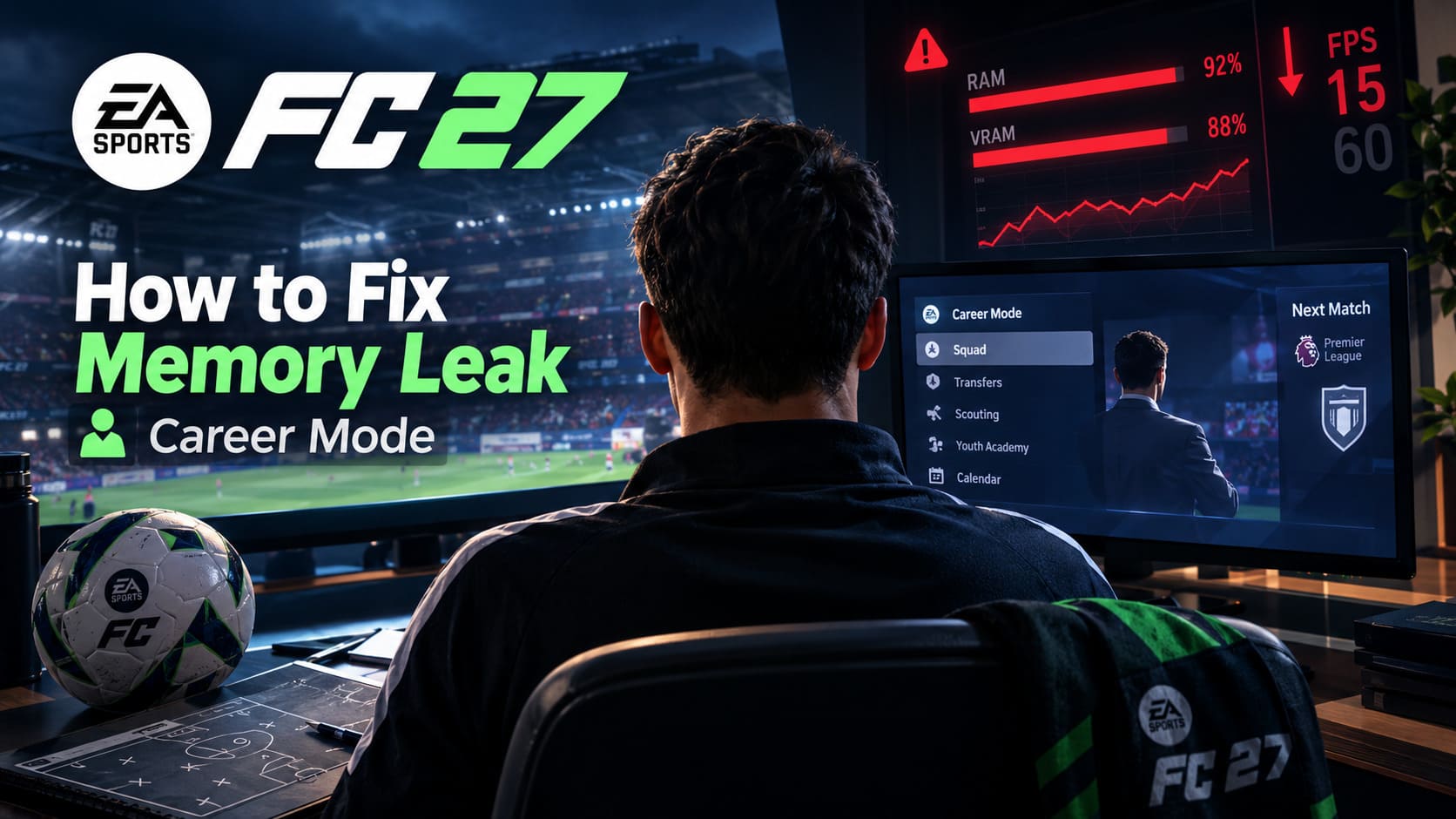
The important thing is that this type of performance problem does not necessarily mean your PC suddenly became too weak. If FC 27 runs smoothly when you first launch it and gradually becomes slower during the same session, that pattern points toward accumulated resources rather than simply insufficient hardware.
Career Mode can be particularly demanding because you are constantly moving between different systems. You might spend ten minutes in the transfer hub, check several scouting reports, jump into a match, watch half-time and post-match screens, return to the calendar, adjust your lineup and then start another match. Every transition potentially loads more assets.
Here are the areas I would keep an eye on:
- Career Mode menus and UI assets that are repeatedly loaded during long sessions.
- Match and post-match data, including statistics, replays and presentation elements.
- VRAM usage, especially on GPUs with 4GB, 6GB or 8GB of memory.
- System RAM usage when available graphics memory becomes heavily occupied.
None of these points automatically proves that every FPS drop in FC 27 is caused by a memory leak. Drivers, shaders, thermal throttling, background applications and graphics settings can produce similar symptoms. That’s why I prefer treating the following fixes as troubleshooting steps rather than some magical one-click cure.
Quick FC 27 Career Mode Memory Leak Fix Checklist
| Problem | What To Try | Why It Can Help |
|---|---|---|
| Performance worsens after several matches | Restart FC 27 | Clears the game’s current memory allocation |
| VRAM usage is very high | Lower Rendering, Grass and Crowd Quality | Reduces graphics memory pressure |
| Stuttering during long sessions | Use Borderless Windowed mode | Can provide more consistent desktop/display behavior |
| Unnecessary GPU load | Use an external FPS cap | Keeps rendering from running unnecessarily fast |
| EA App behaving strangely | Clear the EA App cache | Removes temporary launcher data |
| Crashes when RAM is exhausted | Check Windows pagefile settings | Provides additional virtual memory headroom |
1. Try Borderless Windowed Mode First
If FC 27 starts smoothly but becomes unstable during a long Career Mode session, I would begin with the display configuration before touching Windows settings.
Open the game’s display settings and change Fullscreen to Windowed Borderless. At the same time, try disabling the game’s internal VSync and avoid using an unnecessarily aggressive in-game FPS configuration.
Personally, I prefer having the game render consistently and then controlling the frame rate through the GPU driver when necessary. It gives you another layer of control and can make troubleshooting much easier.
Don’t assume that an unlimited frame rate is automatically better, though. If your monitor is 144Hz and FC 27 is rendering hundreds of frames per second while your GPU is already under heavy load, you’re generating additional heat and power consumption without necessarily improving what you see on screen.
2. Set an External FPS Limit
Once you have disabled the game’s internal frame limiter, you can use your graphics driver to control the maximum frame rate.
For NVIDIA GPUs, open the NVIDIA Control Panel or NVIDIA App and create a profile for EA SPORTS FC 27. Find the Max Frame Rate option and choose a sensible limit for your monitor.
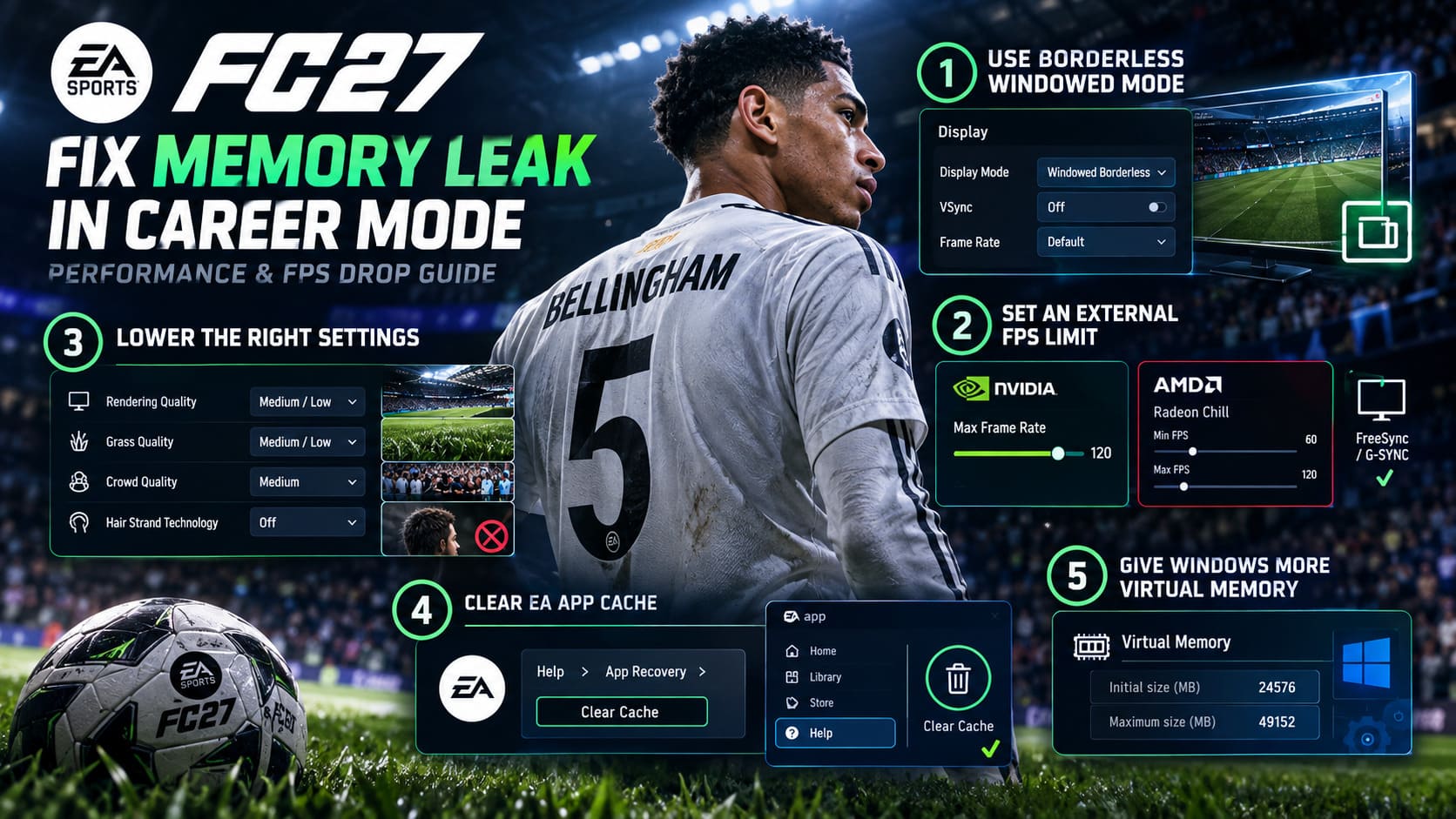
For AMD GPUs, the equivalent approach can be handled through AMD Software: Adrenalin Edition. Radeon Chill can be useful here because it allows you to define a minimum and maximum frame rate rather than letting the GPU constantly push for the highest number possible.
If your monitor supports adaptive synchronization such as FreeSync or another compatible variable-refresh technology, make sure your configuration is consistent across the game and driver. The goal isn’t to chase the biggest FPS number. The goal is to keep frame pacing predictable while reducing unnecessary GPU workload.
3. Lower the Settings That Actually Matter
This is where I would avoid the classic mistake of dropping every setting to Low. FC 27 can still look good without turning the entire presentation into a blurry mess.
Instead, target settings that can have a meaningful effect on graphics memory and the amount of work required during matches and presentation scenes.
- Set Rendering Quality to Medium or Low while testing.
- Use Medium or Low Grass Quality.
- Reduce Crowd Quality to Medium.
- Disable Hair Strand Technology if you are troubleshooting severe performance degradation.
Hair Strand Technology is one of those features that looks great when everything is running properly, but I would happily sacrifice some hair detail if it means avoiding a slideshow after a few matches. The same logic applies to grass and crowd detail. These settings can be pushed back up later once you know where your performance ceiling actually is.
4. Clear the EA App Cache
If the EA App itself has started acting strangely, clearing its cache is a simple troubleshooting step that is worth doing.
Close FC 27 completely, open the EA App and use Help > App Recovery > Clear Cache. The application should clear its temporary launcher data and restart.
I would also be careful about manually deleting random folders inside your game installation. There is a big difference between clearing documented temporary cache data and deleting files simply because they look suspicious. If you don’t know what a folder does, leave it alone.
5. Give Windows More Virtual Memory Headroom
This is particularly relevant if your PC has 16GB of RAM and you are seeing memory usage climb aggressively during a long FC 27 session.
Windows uses a paging file as virtual memory when physical RAM becomes heavily occupied. It is much slower than actual RAM, so it isn’t a performance upgrade, but having a reasonable pagefile can help prevent an application from immediately running out of available memory.
You can find the setting through Advanced System Settings > Performance Settings > Advanced > Virtual Memory.
One traditional approach is to use a manually configured pagefile with an initial size around 1.5 times your physical RAM and a larger maximum size. For example, a 16GB system could use an initial value around 24576 MB and a maximum around 49152 MB.
That said, I wouldn’t treat those numbers as a universal requirement. Modern Windows systems can manage the pagefile automatically, and the best configuration depends on your storage, RAM capacity and workload. If automatic management is already working correctly, changing it purely because a random game guide says you must is not necessarily useful.
Why Restarting FC 27 Actually Helps
This is probably the least exciting fix in the entire guide, but it is also the one I would keep in mind if you are dealing with progressively worse performance.
If the game starts at 70, 100 or 144 FPS and then drops dramatically after several Career Mode matches, completely closing and relaunching the game gives it a fresh memory state. Any resources that were being held by the previous session are released when the process closes.
That is why I use what I call the three-match rule when a game shows this kind of behavior.
The Three-Match Rule for Long Career Sessions
After roughly three matches, or after spending a long period jumping between transfers, scouting and other Career Mode menus, save your progress. If performance has noticeably deteriorated, exit back to the main menu and completely close FC 27.
Don’t just minimize the game. Don’t leave it suspended indefinitely. Actually terminate the application and launch it again.
On a modern SSD, the restart is usually far less painful than trying to play through a session where every menu takes several seconds to respond. It also gives you a useful diagnostic test: if performance immediately returns to normal after restarting, that tells you something important about the nature of the problem.
What About PS5 and Xbox Series X|S?
Console players don’t have access to the same Windows-level troubleshooting options, but the basic principle remains useful: fully close FC 27 when performance begins to degrade.
On Xbox, avoid relying indefinitely on Quick Resume if you suspect that a long-running FC 27 session is becoming increasingly sluggish. On PS5, completely close the game instead of repeatedly leaving it suspended.
If the console UI or FC 27 menus become unusually slow, save your Career Mode progress and perform a full shutdown. A complete restart gives the system and game a clean starting point.
I would not make a habit of unplugging the console every time FC 27 stutters, though. A normal full shutdown and restart should be your first step. Power-cycling hardware is more appropriate when you’re troubleshooting a broader console issue rather than a single game’s performance problem.
EA FC 27 Career Mode: How to Master TransferRoom Mechanics and Negotiations
How to Tell If You Are Actually Dealing With a Memory Problem
The easiest way to avoid wasting hours changing random settings is to watch what happens before and after the slowdown.
If you can, monitor RAM usage, VRAM usage, GPU utilization, CPU utilization and temperatures. Record the numbers when you first launch FC 27 and compare them with the values after two or three Career Mode matches.
If memory usage steadily climbs while performance gets worse and then returns to normal immediately after restarting the game, that is a much more useful clue than simply saying “FC 27 is lagging.”
On the other hand, if the GPU is overheating, the CPU is permanently hitting a thermal limit, or the game stutters from the moment you launch it, you are probably dealing with a different problem. In that situation, a memory-leak workaround won’t magically fix the underlying issue.
EA SPORTS FC 27 Clubs Guide: How to Join and Play in The Grounds
Final Thoughts
Long Career Mode sessions are exactly where FC 27 should be at its most enjoyable. You start a season, make a few transfers, develop a young player, play several matches and suddenly realize you’ve spent three hours managing the club. That’s the appeal of the mode.
So when performance gradually collapses during that same session, it is incredibly easy to blame your GPU or assume your PC is no longer powerful enough. Before replacing hardware, I’d test the simple stuff first.
Use Borderless Windowed mode, experiment with external FPS limiting, reduce the settings that put the most pressure on VRAM, clear the EA App cache and make sure Windows has enough virtual-memory headroom. Most importantly, don’t be afraid to restart FC 27 when Career Mode starts behaving strangely.
There is no reason to sit through 15 FPS menus just because you don’t want to reload the game. If restarting consistently restores your original performance, make that part of your routine until an official update addresses the underlying behavior.
For me, that is a much better compromise than turning every graphical setting to Low and hoping for the best. Keep the visual settings reasonable, watch your RAM and VRAM usage, save regularly and restart the game when the performance curve starts heading south. Career Mode is supposed to be about building your club — not managing the game’s memory usage.