How to Fix EA SPORTS FC 27 Audio Desync & Commentary Lag
There are few things more annoying in EA SPORTS FC 27 than scoring a ridiculous last-minute goal and hearing the commentary react several seconds later. The ball is already in the net, your players are celebrating, and then, completely out of nowhere, the commentator finally starts screaming about the goal.
That is not exactly the match-day atmosphere anyone wants.
EA SPORTS FC 27 audio desync, delayed commentary, missing commentary and strange sound glitches have become a noticeable headache for players on PC, PlayStation 5, Xbox Series X|S and Nintendo Switch. In some cases, the commentary slowly drifts out of sync during a match. In others, the crowd and stadium effects continue normally while the commentators suddenly disappear. Some PC players also run into audio delays after stutters or sudden performance drops.
I have spent enough time troubleshooting sports games to know that these problems are rarely caused by one magical setting. FC 27 can be particularly stubborn because the game is juggling commentary, crowd audio, music, menus, cutscenes and other streamed assets at the same time.
The good news? There are several practical fixes worth trying before you start reinstalling the entire game.
Why Is EA SPORTS FC 27 Commentary Out of Sync?
Before changing random settings, it helps to understand what can actually break the commentary track.
| Possible Cause | What You May Notice | Recommended Fix |
|---|---|---|
| EA Music Player conflict | Commentary becomes delayed or disappears | Disable Music Always On |
| Wrong speaker layout | Crowd works but voices sound weak or missing | Switch to Stereo |
| PC performance spikes | Commentary falls behind after stutters | Cap FPS and disable overlays |
| Corrupted language files | Voice lines cut out or fail at specific moments | Re-download commentary files |
| Temporary system cache | Audio glitches appear after updates | Clear cache and reboot |
| Damaged game audio settings | Multiple sound options behave strangely | Reset Audio settings |
One particularly frustrating part of the problem is that the game can still sound perfectly normal at first. You might hear stadium noise, menu sounds and player effects without any obvious problem. Then the commentary starts drifting behind the action.
That usually means you should troubleshoot the audio pipeline instead of immediately blaming your headset or TV.
Fix 1: Turn Off “Music Always On” in the EA Music Player
This is one of the first settings I would check.
FC 27’s integrated music system can interfere with the way the game handles background music and commentary. If the Music Always On option is enabled, turning it off is a quick test and costs you nothing.
While you’re in the main menu or a match:
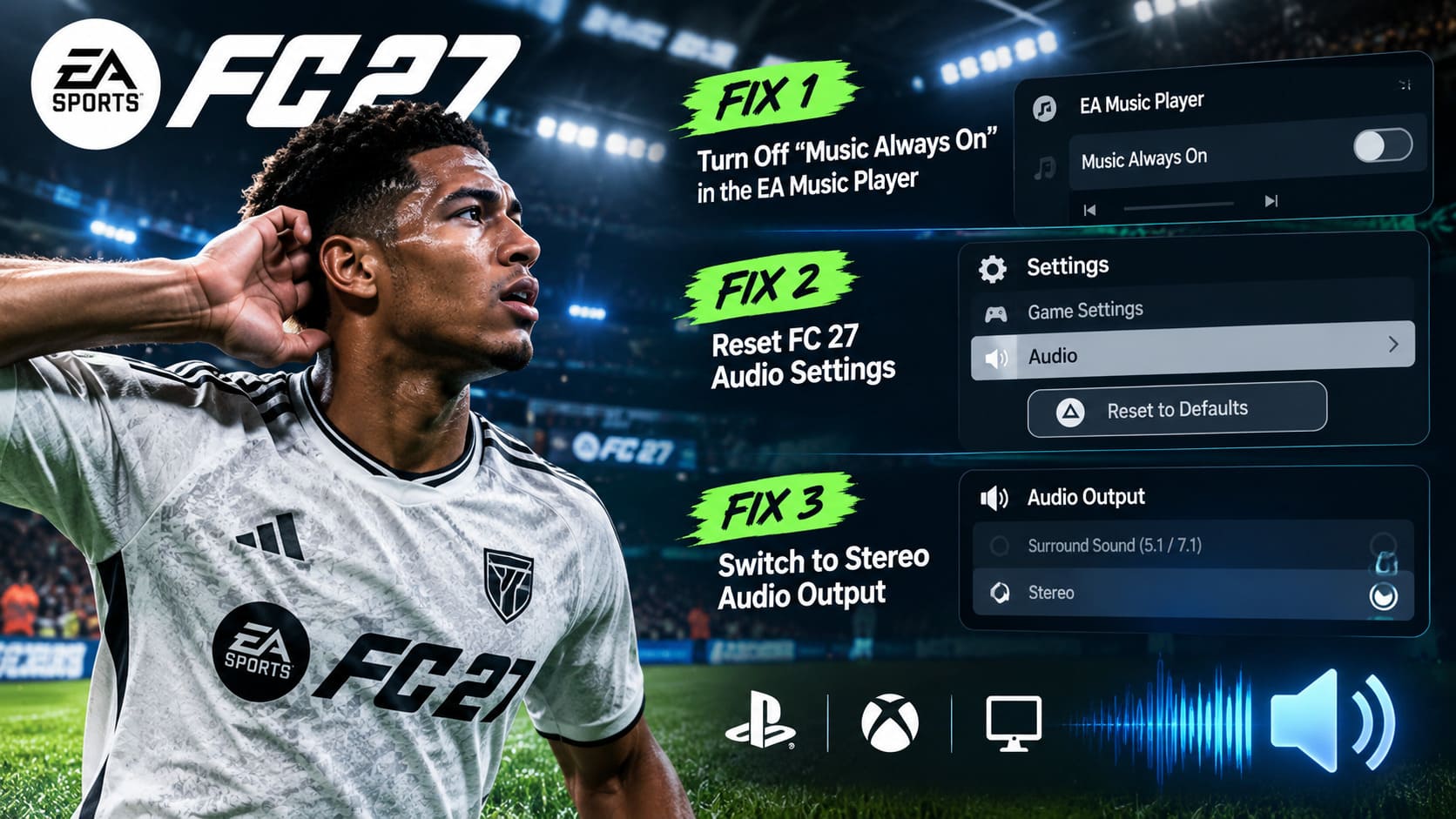
- Open the EA Music Player by holding R1 on PlayStation or RB on Xbox.
- Look around the bottom of the Music Player interface for Music Always On.
- If the option is enabled, press R3 on PlayStation or click the Right Stick on Xbox to disable it.
- Return to the match and listen for the commentary.
Play a few minutes before deciding whether the fix worked. Audio desync isn’t always immediate, so don’t quit after one attack.
My advice: keep this option disabled while troubleshooting. You can always switch it back on later if the commentary stays stable.
Fix 2: Reset FC 27 Audio Settings
If you have changed several sound options over time, there is a good chance you are dealing with a messy configuration rather than broken hardware.
FC 27 gives you a way to restore the game’s audio settings to their default state.
Go to:
Settings → Game Settings → Audio
Once you’re inside the Audio section, use the button shown at the bottom of the screen to reset the sound settings to their defaults. On PlayStation this is typically the Triangle button, while Xbox uses Y.
After resetting everything, check the individual streaming and music options again.
If available in your current configuration, make sure Disable Streaming Music is enabled when testing. The goal here is simple: remove unnecessary audio variables and see whether the commentary starts following the match correctly.
Don’t change ten settings at once. Reset the audio, test a match, then move on to the next fix if the delay remains.
Fix 3: Switch Your Audio Output to Stereo
This is a big one, especially if crowd noise sounds normal but the commentary is extremely quiet, muffled or completely missing.
Surround-sound configuration can cause problems when your physical setup doesn’t actually have the speakers required for the selected channel layout. Commentary can be mixed into a center channel that your TV, headset or sound setup isn’t handling correctly.
PlayStation 5
Open:
Settings → Sound → Audio Output
Check the selected audio device and make sure it matches what you’re actually using. If you’re using standard TV speakers or a stereo headset rather than a proper surround setup, Stereo Linear PCM is worth testing.
Xbox Series X|S
Go to:
Settings → General → Volume & Audio Output
Under Speaker Audio, test:
Stereo Uncompressed
This removes unnecessary surround processing and gives FC 27 a straightforward stereo output.
PC
Right-click the speaker icon in Windows and open Sound Settings.
Select your main playback device and check its configuration. If Windows is configured for 5.1 or 7.1 Surround while you’re actually using ordinary stereo headphones, change the setup to stereo.
This sounds like a tiny setting, but it can make a surprisingly big difference. If the commentators suddenly become clear after switching to stereo, you have found the problem.
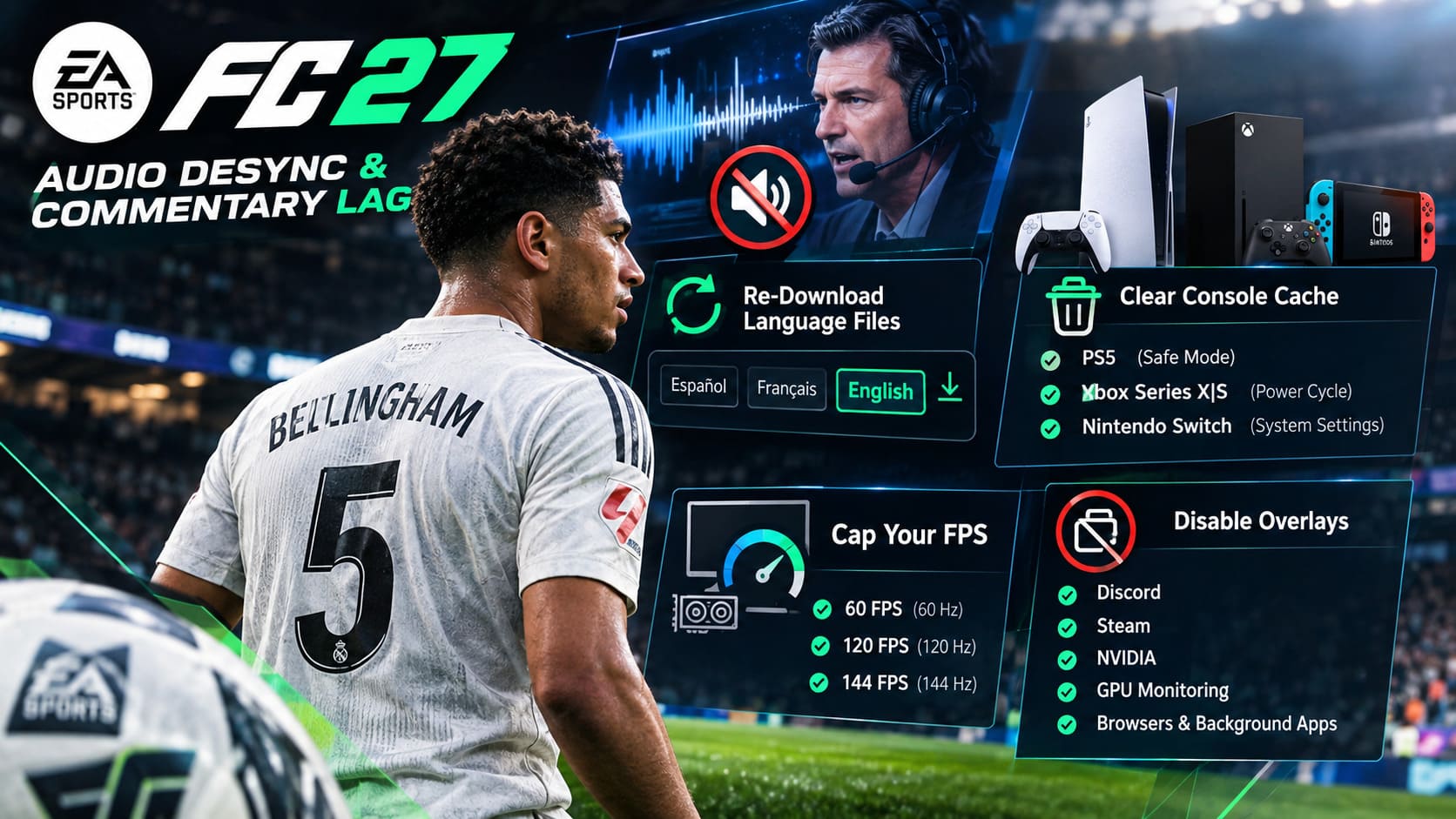
Fix 4: Re-Download the FC 27 Commentary Language Files
PC players have another possible culprit: corrupted or incomplete language files.
This can happen after an update, an interrupted download or a change in language settings. The game may still launch normally, but certain commentary assets can fail to load correctly.
The most useful workaround is to force the client to download the language package again.
Steam or EA App
- Close EA SPORTS FC 27 completely.
- Open Steam or the EA App.
- Find FC 27 in your game library.
- Open the game’s management or language options.
- Temporarily change the game language to another supported language, such as Spanish or French.
- Let the new language package download completely.
- Change the language back to English.
- Allow the English commentary files to download again.
- Launch FC 27 and test a full match.
This is basically a clean refresh of the commentary assets without having to reinstall the entire game.
If your commentary consistently cuts out at a particular point in a match, such as around halftime or after a specific event, I would definitely try this before doing anything more drastic.
Fix 5: Clear the Console Cache and Perform a Full Reboot
Consoles accumulate temporary data, and sometimes a major game update leaves behind cached files that don’t play nicely with the new version.
A proper shutdown and cache cleanup can be worth trying when FC 27 suddenly develops audio problems after an update.
PlayStation 5
Completely shut down the PS5 rather than leaving it in Rest Mode.
Then boot into Safe Mode by holding the power button until you hear the second beep. Connect the controller with a USB cable and select the cache-related maintenance option.
Use Clear System Software Cache when available. Be careful not to select an option that deletes your saved data.
Xbox Series X|S
Hold the physical Xbox power button for around 10 seconds until the console completely shuts down.
Unplug the power cable and leave the console disconnected for approximately two minutes.
Reconnect the cable and start the console normally.
Nintendo Switch
Open:
System Settings → System → Formatting Options → Clear Cache
Select the appropriate user profile and clear the temporary cache data.
Afterward, restart the Switch and check that FC 27 and the system itself are fully updated.
Cache cleanup isn’t some mystical performance ritual. You’re simply removing temporary data that may have survived an update and is now causing weird behavior.
Fix 6: Cap Your PC’s FPS
If you’re playing FC 27 on PC, don’t ignore performance when troubleshooting audio.
A game that is constantly jumping between wildly different frame rates can create a noticeably worse experience, particularly if the system is already under heavy CPU or GPU load. If commentary begins falling behind immediately after a major stutter, your performance configuration deserves attention.
Open your graphics driver software:
NVIDIA Control Panel or AMD Software
Find the FC 27 profile and set a reasonable maximum frame rate.
For example:
- 60 FPS for a 60 Hz display
- 120 FPS for a 120 Hz display
- 144 FPS for a 144 Hz display
You don’t necessarily need to push the highest possible frame rate. Consistency matters more when you’re troubleshooting stutters and synchronization problems.
I would rather play FC 27 at a locked 120 FPS than watch the counter bounce between 170, 94, 143 and 71 while the game is trying to keep everything synchronized.
Fix 7: Kill Background Overlays
Overlays are another easy thing to eliminate.
While testing FC 27, disable:
- Discord Overlay
- Steam Overlay
- NVIDIA In-Game Overlay
- Other GPU monitoring overlays
- Unnecessary browser windows
- Video playback running in the background
- Other software that is constantly consuming CPU or GPU resources
You don’t have to uninstall anything. Just close the extra stuff temporarily.
This is especially important if the audio problem appears alongside micro-stuttering, frame-time spikes or sudden FPS drops.
If the commentary suddenly stays perfectly synchronized after disabling your overlays, turn them back on one by one. That makes it much easier to identify which application is causing the conflict.
Don’t Reinstall FC 27 Too Early
One mistake I see constantly with PC troubleshooting is jumping straight to a full reinstall.
If the game launches, menus work and most of the audio is fine, a complete reinstall should not be your first move.
Start with the low-effort fixes:
Disable Music Always On → reset audio settings → switch to stereo → check commentary files → clear cache → stabilize PC performance.
That sequence eliminates several common causes without wasting hours downloading the entire game again.
How to Fix EA SPORTS FC 27 Memory Leak in Career Mode: Performance & FPS Drop Guide
What If Nothing Fixes the Commentary Delay?
If you’ve gone through every fix and the commentary is still several seconds behind the action, pay attention to exactly when the problem happens.
Does it occur:
- Immediately after launching a match?
- Only after halftime?
- After a goal?
- During cutscenes?
- After a major FPS drop?
- Only with a particular language?
- Only when using Bluetooth headphones?
- Only in one game mode?
That information matters.
If the delay follows the game regardless of hardware, settings and audio devices, the problem may be tied to the current FC 27 build rather than your setup. In that situation, keep the game updated and check current community reports before repeatedly changing your Windows or console configuration.
EA FC 27 Career Mode: How to Master TransferRoom Mechanics and Negotiations
Final Thoughts
EA SPORTS FC 27 commentary desync is incredibly annoying, especially because the rest of the match can appear completely normal. When the commentator reacts to a goal several seconds after you’ve already celebrated, the immersion disappears instantly.
The fixes that deserve your attention first are disabling Music Always On, resetting FC 27’s audio settings and forcing your system to use a proper stereo output. PC players should also look closely at FPS stability, overlays and potentially corrupted commentary language files.
You don’t need to throw every possible fix at the game simultaneously. Change one thing, play a few minutes, and see what happens. That approach takes a little longer, but it also tells you what actually solved the problem instead of leaving you with a pile of random settings.
And if the issue appeared immediately after an FC 27 update and none of these fixes make any difference, don’t assume your headset suddenly died. Sometimes the simplest explanation is that the latest game build introduced another audio bug that needs to be patched on EA’s side.