Best Settings for 144Hz Monitors in The Blood of Dawnwalker: Max FPS & Smooth Performance Guide
The Blood of Dawnwalker is exactly the kind of RPG where a high refresh rate can make a bigger difference than people expect. This isn’t a slow turn-based adventure where an occasional frame drop goes unnoticed. Combat, camera movement, exploration, and quick reactions all benefit from smooth frame delivery.
And honestly, once you’ve played a demanding action RPG on a properly configured 144Hz monitor, going back to a stuttering 60 FPS experience feels rough.
The problem is that The Blood of Dawnwalker is built with Unreal Engine 5, which immediately raises a red flag for PC performance. Unreal Engine 5 can produce incredible environments, detailed lighting, dense vegetation, and impressive atmospheric effects. It can also make your GPU and CPU sweat for every frame.
That’s why simply opening the game and selecting “Ultra” isn’t the best approach.
If you’re using a 144Hz monitor, the goal shouldn’t necessarily be hitting a perfect 144 FPS everywhere. That’s unrealistic for many systems, especially in a visually demanding open-world RPG. What matters more is achieving consistent frame pacing, low input latency, and stable performance.
In this guide, I’ll explain how I would configure Windows, G-Sync or FreeSync, GPU settings, and the in-game graphics options to get the smoothest possible experience.
First: Make Sure Your Monitor Is Actually Running at 144Hz
This sounds obvious, but it’s one of the most common mistakes PC gamers make.
You can own a fantastic 144Hz monitor and still be playing at 60Hz because Windows didn’t automatically select the maximum refresh rate.
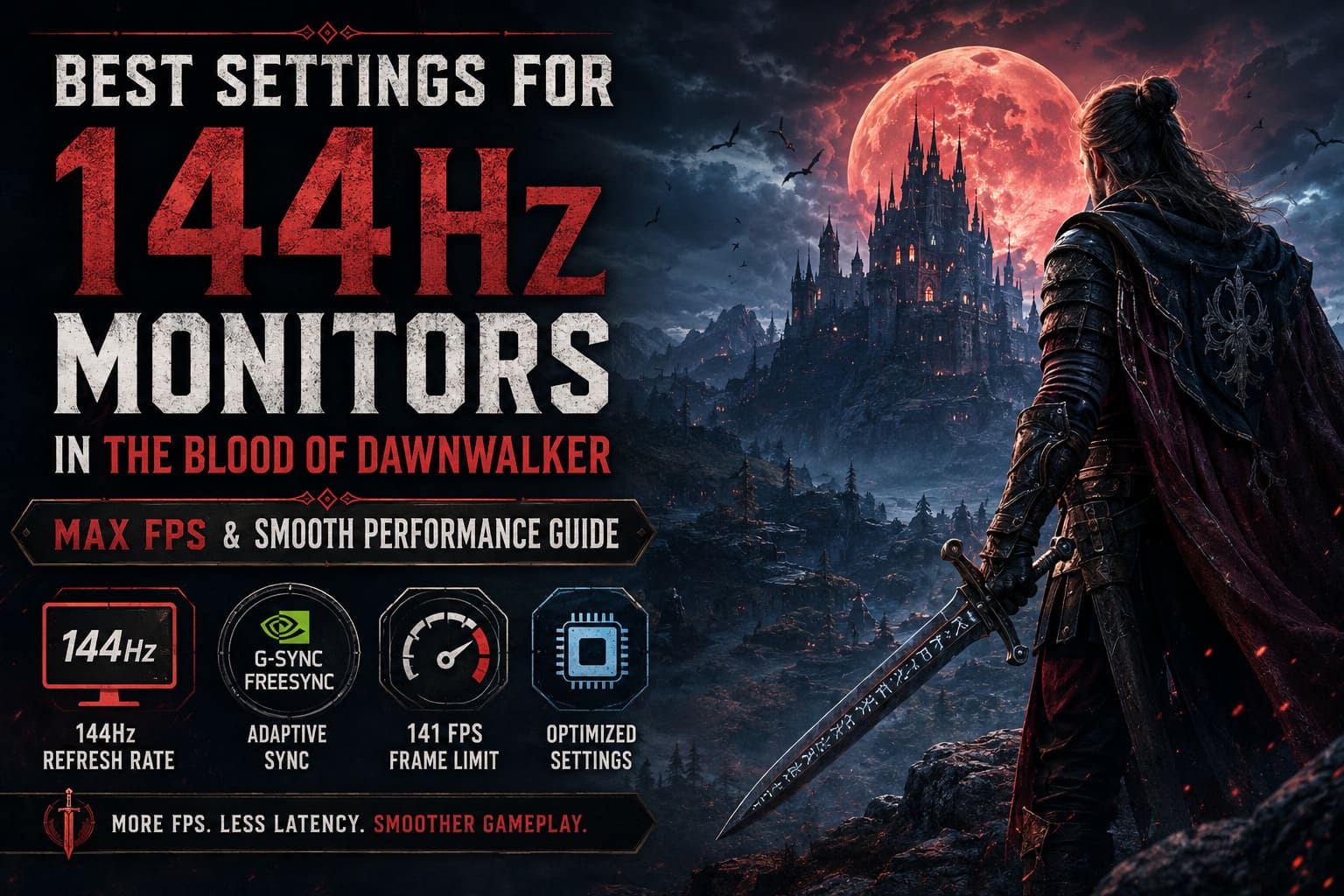
Before touching the game’s graphics settings, check Windows.
How to Check Your Refresh Rate
- Right-click the desktop.
- Open Display Settings.
- Scroll down to Advanced Display.
- Find the Refresh Rate option.
- Select 144Hz.
Also, pay attention to your cable.
For most gaming monitors, DisplayPort is usually the safest choice for accessing the maximum refresh rate and adaptive sync features. HDMI can also work perfectly, but this depends on your monitor, GPU, resolution, and HDMI version.
Once you’ve confirmed that Windows is actually running at 144Hz, you’re ready to optimize the rest.
Enable G-Sync or FreeSync
Personally, I consider adaptive sync one of the most valuable features for games like The Blood of Dawnwalker.
Open-world games rarely maintain one perfectly stable frame rate. You might get 120 FPS inside a building, 95 FPS while exploring a dense forest, and then experience a temporary drop when entering a visually complex area.
Without adaptive sync, those fluctuations can result in screen tearing.
With G-Sync or FreeSync, your monitor dynamically adjusts its refresh behavior to match the game’s frame output.
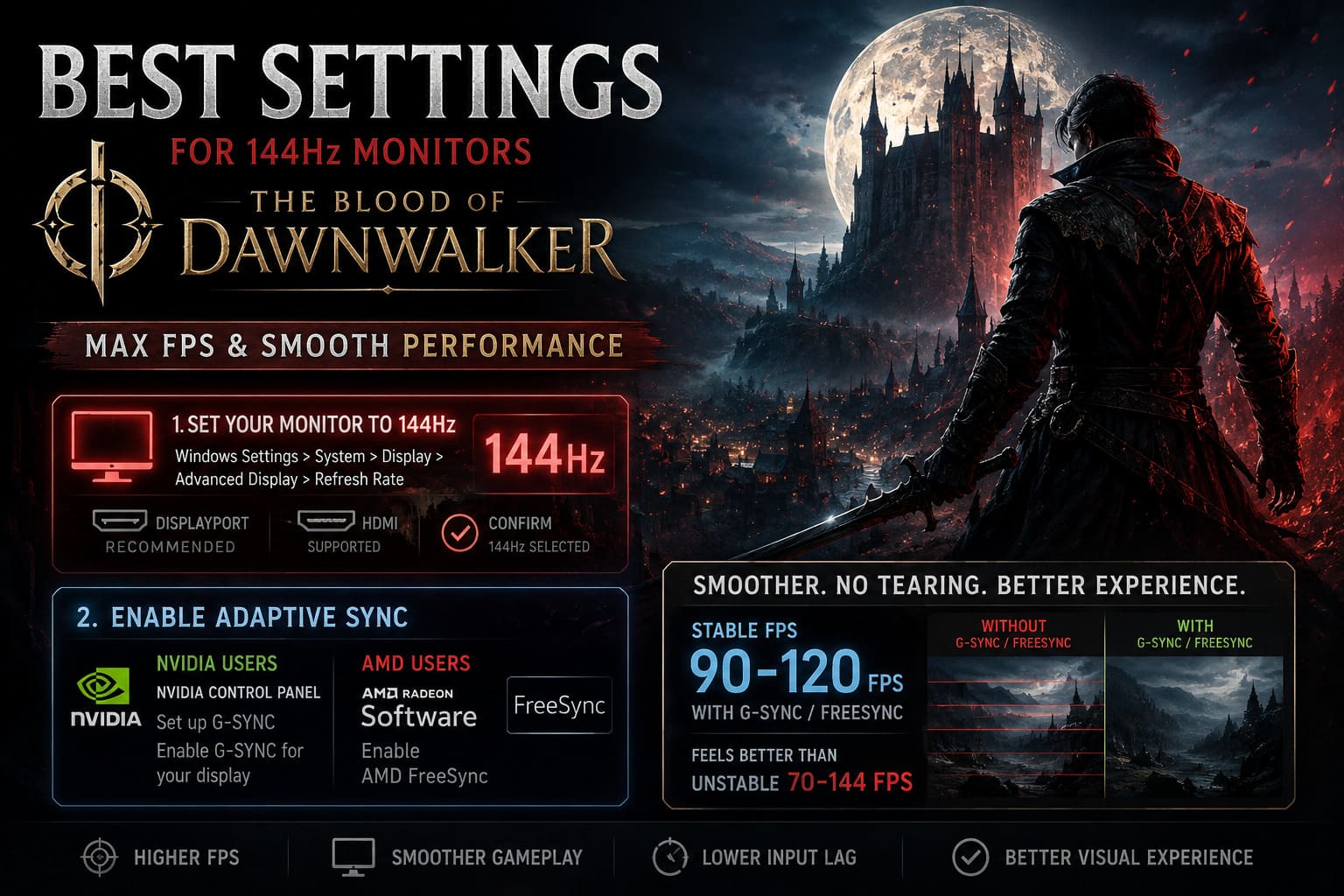
Nvidia Users
Open the Nvidia Control Panel and go to:
Set up G-SYNC
Enable G-Sync for your compatible display.
AMD Users
Open AMD Software: Adrenalin Edition and navigate to your display settings.
Enable:
AMD FreeSync
This is especially useful if your system doesn’t consistently reach 144 FPS.
And that’s perfectly fine.
A stable experience around 90–120 FPS with adaptive sync can feel dramatically better than wildly fluctuating performance between 70 and 144 FPS.
The Best Frame Rate Limit for a 144Hz Monitor
One of the oldest tricks for high-refresh-rate gaming is limiting your FPS slightly below your monitor’s maximum refresh rate.
For a 144Hz display, I recommend trying:
141 FPS
This leaves a small buffer below the maximum refresh rate.
The result is usually smoother synchronization with G-Sync or FreeSync while avoiding some of the latency problems associated with traditional VSync behavior.
My preferred configuration would be:
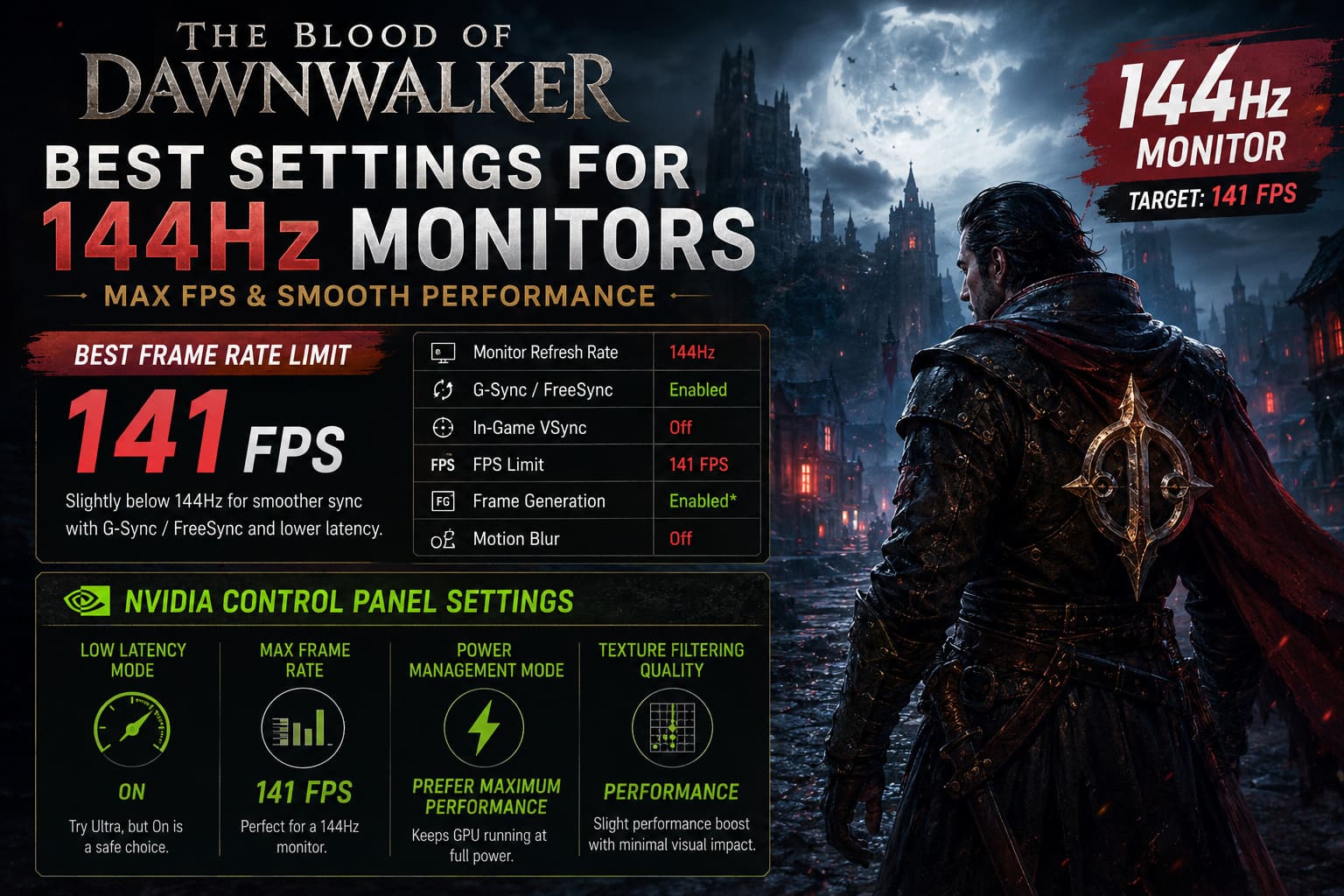
| Setting | Recommended Value |
|---|---|
| Monitor Refresh Rate | 144Hz |
| G-Sync / FreeSync | Enabled |
| In-Game VSync | Off |
| FPS Limit | 141 FPS |
| Frame Generation | Enabled if supported |
| Motion Blur | Off |
Of course, your PC needs to be capable of reaching that frame rate.
If your system averages 90 FPS, there’s no reason to obsess over 141 FPS. Instead, focus on maintaining a stable 80–100 FPS range.
Consistency matters.
Nvidia Control Panel Settings I Recommend
For Nvidia users, the driver settings can help improve responsiveness and prevent unnecessary GPU power fluctuations.
Open:
Nvidia Control Panel → Manage 3D Settings → Program Settings
Add The Blood of Dawnwalker if necessary.
These are the settings I would start with.
Low Latency Mode
Set this to:
On
You can experiment with Ultra, but I wouldn’t blindly recommend Ultra for every game. Modern games with Nvidia Reflex or Frame Generation may manage latency differently.
If the game includes Nvidia Reflex, I would generally prioritize the in-game implementation.
Max Frame Rate
Set:
141 FPS
This works well for a 144Hz monitor.
Power Management Mode
Select:
Prefer Maximum Performance
This helps prevent aggressive GPU downclocking during lighter scenes.
Texture Filtering Quality
Set:
Performance
The image quality difference is generally difficult to notice during normal gameplay, while performance can improve slightly.
AMD Radeon Settings for Smooth Gameplay
AMD users should open AMD Software: Adrenalin Edition and create a profile for the game.
The most important settings are:
- AMD FreeSync: Enabled
- Radeon Anti-Lag: Enabled
- FPS Limit: Around 141 FPS
- Texture Filtering Quality: Performance
Anti-Lag can be particularly useful in a game where combat depends on timing and directional reactions.
I wouldn’t expect miracles from a driver setting, obviously. No software switch can magically fix poor performance. But reducing unnecessary latency is always worthwhile when you’re playing at high refresh rates.
Best Display Settings in The Blood of Dawnwalker
Once Windows and your GPU software are configured, move into the game.
These are the settings I would use as a starting point.
Display Mode: Borderless Windowed
I prefer Borderless Windowed for modern PC games.
Older games sometimes benefited from exclusive fullscreen modes, but modern Windows and DirectX 12 games generally work well in borderless mode.
The advantages include:
- Faster Alt-Tab behavior
- Better desktop integration
- Convenient multi-monitor support
- Smooth interaction with modern Windows features
If exclusive fullscreen performs noticeably better on your specific PC, test it. But Borderless Windowed is where I would start.
Resolution: Use Your Native Resolution
Don’t immediately reduce your resolution to gain FPS.
If you own a 1440p monitor, running the game at native 1440p usually produces a much cleaner image.
Instead, use:
DLSS, FSR, or XeSS
Modern upscaling is generally a better solution than simply lowering your monitor resolution.
VSync: Turn It Off
For my preferred 144Hz setup, I would disable in-game VSync.
Why?
Traditional VSync can introduce additional input latency.
If you’re already using:
- G-Sync
- FreeSync
- A 141 FPS frame cap
You usually don’t need in-game VSync.
If you experience unusual tearing or synchronization issues, you can experiment. PC configurations vary, and there is no single setting that behaves identically on every monitor.
The Most Important Graphics Setting: Upscaling
Upscaling technology is probably one of the biggest performance tools available in modern PC gaming.
The basic recommendation is simple.
Nvidia GPUs
Use:
DLSS
AMD GPUs
Use:
FSR
Intel GPUs
Use:
XeSS
For image quality, I would start with Quality Mode.
If performance isn’t good enough, move to:
Balanced
And if you’re really struggling:
Performance
At 1080p, Performance Mode can sometimes look noticeably softer. At 1440p, however, it can still look reasonably good while delivering a significant performance increase.
My preferred progression would be:
Quality → Balanced → Performance
Don’t immediately select Performance unless you actually need it.
Frame Generation: Should You Enable It?
If your GPU supports Frame Generation, I would absolutely test it.
Frame Generation can dramatically increase the displayed frame rate and make camera movement feel smoother on a 144Hz monitor.
It’s particularly useful if your system produces something like:
70–90 native FPS
Frame Generation can make the experience feel much closer to the high-refresh-rate potential of your monitor.
However, there is an important point.
Frame Generation does not replace good base performance.
If your game is running terribly at 30 FPS, generating additional frames won’t magically give you the responsiveness of a native 120 FPS experience.
Personally, I prefer having at least a reasonably solid base frame rate before enabling Frame Generation.
Volumetric Quality: The First Setting I’d Lower
If The Blood of Dawnwalker follows typical Unreal Engine 5 performance patterns, volumetric effects are likely to be among the most expensive settings.
Fog, mist, atmospheric lighting, and god rays look fantastic.
But they can destroy your frame rate.
And considering the game’s dark fantasy atmosphere, volumetrics may be constantly active.
My recommendation:
Medium
For weaker systems:
Low
I would lower Volumetric Quality before sacrificing textures.
The difference between Ultra and Medium atmospheric effects often isn’t as noticeable as the FPS difference.
Best Shading and Shadow Settings
Shading and shadows can also put significant pressure on your system.
For a balanced 144Hz experience, I wouldn’t immediately select Ultra.
Shading Quality
Recommended:
High
For mid-range systems:
Medium
Ultra shading can look beautiful during screenshots.
During actual combat?
You’re usually too busy trying not to die.
Shadow Quality
Recommended:
Medium
High-resolution shadows are expensive, especially in environments filled with trees, buildings, and complex architecture.
Medium shadows often provide a good visual balance.
View Distance and Foliage Settings
Open-world environments can be brutal for CPUs.
Dense forests are particularly problematic because the game has to manage vegetation, object visibility, environmental detail, and geometry streaming.
For most players, I recommend:
View Distance: Medium
Foliage Quality: Medium
High settings are fine if your CPU and GPU have plenty of headroom.
But if you’re experiencing random drops while moving quickly through the world, these settings are worth reducing.
Texture Quality Depends on Your VRAM
Texture settings are different from shadows or volumetrics.
Higher textures primarily increase VRAM usage.
They don’t always significantly reduce your average FPS—until your graphics card runs out of memory.
That’s when things can get ugly.
You may experience:
- Stuttering
- Texture pop-in
- Frametime spikes
- Sudden performance drops
Here’s the configuration I would use.
| GPU VRAM | Recommended Texture Setting |
|---|---|
| 6GB or Less | Medium |
| 8GB | High |
| 10GB–12GB | High or Ultra |
| 16GB+ | Ultra |
If you’re unsure, start with High.
Then monitor your performance.
Motion Blur Should Be Off
This is one of the easiest recommendations in the entire guide.
Turn Motion Blur Off.
A 144Hz monitor already provides significantly smoother motion than a traditional 60Hz display.
Adding artificial blur often reduces visual clarity.
In a fast action RPG, I want to clearly see:
- Enemy movements
- Attack animations
- Directional attacks
- Environmental details
Motion Blur doesn’t help me with any of that.
So, personally?
Off. Always.
Best The Blood of Dawnwalker Settings for a 144Hz Monitor
Here is the configuration I would recommend for most players.
| Graphics Setting | Recommended Setting |
|---|---|
| Display Mode | Borderless Windowed |
| Resolution | Native |
| Refresh Rate | 144Hz |
| VSync | Off |
| FPS Limit | 141 FPS |
| Upscaling | DLSS / FSR / XeSS |
| Upscaling Mode | Quality or Balanced |
| Frame Generation | On if supported |
| Volumetrics | Medium |
| Shading | High |
| Shadows | Medium |
| View Distance | Medium |
| Textures | High |
| Effects | Medium |
| Post-Processing | Medium |
| Motion Blur | Off |
This is the preset I would personally start with before making individual adjustments.
High-End 144Hz Preset
For systems using hardware around the level of an RTX 4070, RTX 5070-class GPU, RX 7800 XT, or better, you can aim for higher visual settings.
Recommended Configuration
- Native 1440p
- DLSS or FSR Quality
- Frame Generation Enabled
- Volumetrics: Medium
- Shading: High
- Shadows: High
- View Distance: High
- Textures: Ultra
- Effects: High
Target: 100–141 FPS
I still wouldn’t expect every location to maintain a perfect 141 FPS.
Open-world games are unpredictable.
Mid-Range 144Hz Preset
For GPUs similar to:
- RTX 3060 Ti
- RTX 4060
- RX 6700 XT
I would prioritize consistency.
Recommended Configuration
- Native 1080p or 1440p
- DLSS / FSR / XeSS Balanced
- Frame Generation if available
- Volumetrics: Medium
- Shading: Medium
- Shadows: Medium
- View Distance: Medium
- Textures: High
- Effects: Medium
Target: 80–120 FPS
And honestly, this can still feel fantastic on a 144Hz monitor.
You don’t need a constant 144 FPS to benefit from a high-refresh-rate display.
Budget PC Preset
For older GPUs such as:
- RX 6600
- GTX 1060
- RX 580
The goal should be smooth performance rather than chasing 144 FPS.
Recommended Configuration
- 1080p
- Upscaling: Performance
- Volumetrics: Low
- Shading: Low or Medium
- Shadows: Low
- View Distance: Medium
- Textures: Medium
- Effects: Low
- Motion Blur: Off
Target: 60–90 FPS
A stable 75 FPS experience is better than constantly bouncing between 50 and 100 FPS.
That’s especially true in combat.
The Blood of Dawnwalker Climbing Guide: How to Climb Walls and Find Every Secret Area
Final Thoughts: Don’t Chase 144 FPS at Any Cost
The biggest mistake I see with high-refresh-rate monitors is assuming that you must always hit the monitor’s maximum refresh rate.
You don’t.
A stable 100 FPS with good frame pacing can feel amazing on a 144Hz display.
Even 80–90 FPS can feel dramatically smoother than 60 FPS, particularly when G-Sync or FreeSync is working properly.
For The Blood of Dawnwalker, my personal optimization priority would look like this:
- Enable 144Hz in Windows.
- Turn on G-Sync or FreeSync.
- Set an FPS cap around 141 FPS.
- Use DLSS, FSR, or XeSS.
- Lower Volumetric Quality first.
- Keep Shadows around Medium.
- Use textures according to available VRAM.
- Disable Motion Blur.
- Enable Frame Generation if your hardware supports it.
- Prioritize stable frametimes over maximum graphics settings.
The Blood of Dawnwalker is designed around a dark, atmospheric world, so I wouldn’t recommend destroying the visuals just to chase a number on an FPS counter. Medium volumetrics, reasonable shadows, and modern upscaling can preserve most of the game’s visual atmosphere while significantly improving responsiveness.
The Blood of Dawnwalker Vampirism Guide: How to Drink Blood and Recharge Powers
That’s the balance I would aim for.
A good 144Hz setup shouldn’t just produce a bigger FPS number. It should make combat feel sharper, camera movement smoother, exploration more comfortable, and those intense encounters noticeably more responsive.
And in a dark fantasy RPG where one missed reaction can mean the difference between surviving and watching your character hit the ground, smooth performance is absolutely worth the effort.