How to Fix Echoes of Mystralia Infinite Loading Screen and Freezing on PC
There is a special kind of frustration that comes with an RPG you actually want to play: you finally get some free time, launch the game, settle in for a run, and then… nothing. Just a loading screen.
That is exactly what some Echoes of Mystralia players are running into on PC. Borealys Games’ action-RPG roguelite has a lot going for it, especially its unusually flexible spellcrafting system and fast magical combat, but Early Access also means dealing with the occasional technical headache. An infinite loading screen, black screen, or a freeze while moving between areas can turn an otherwise exciting session into a trip through Windows settings.
I have never been a fan of the “just reinstall everything” approach to PC troubleshooting. It wastes time, and in many cases the real problem is something much smaller: a damaged game file, a shader cache that needs rebuilding, an overlay fighting with the game, or a graphics setting that the engine simply doesn’t like.
So, if Echoes of Mystralia is stuck loading on PC, I’d work through the fixes below in this order. Start with the easy ones and only move toward the more invasive solutions if the problem refuses to go away.
Why Is Echoes of Mystralia Stuck on the Loading Screen?
Infinite loading problems can have several causes, particularly with an Early Access game that is still receiving updates.
The most common possibilities include corrupted Steam files, outdated GPU drivers, shader-cache problems, Windows permissions, graphics configuration issues, background overlays, or a save that is no longer behaving properly after an update.
The annoying part is that the symptom can look almost identical in every case. You may see the loading animation continue forever, get a completely black screen, or freeze during a transition into another region.
That is why there isn’t one magic button that fixes every installation.
Here’s the order I’d personally try.
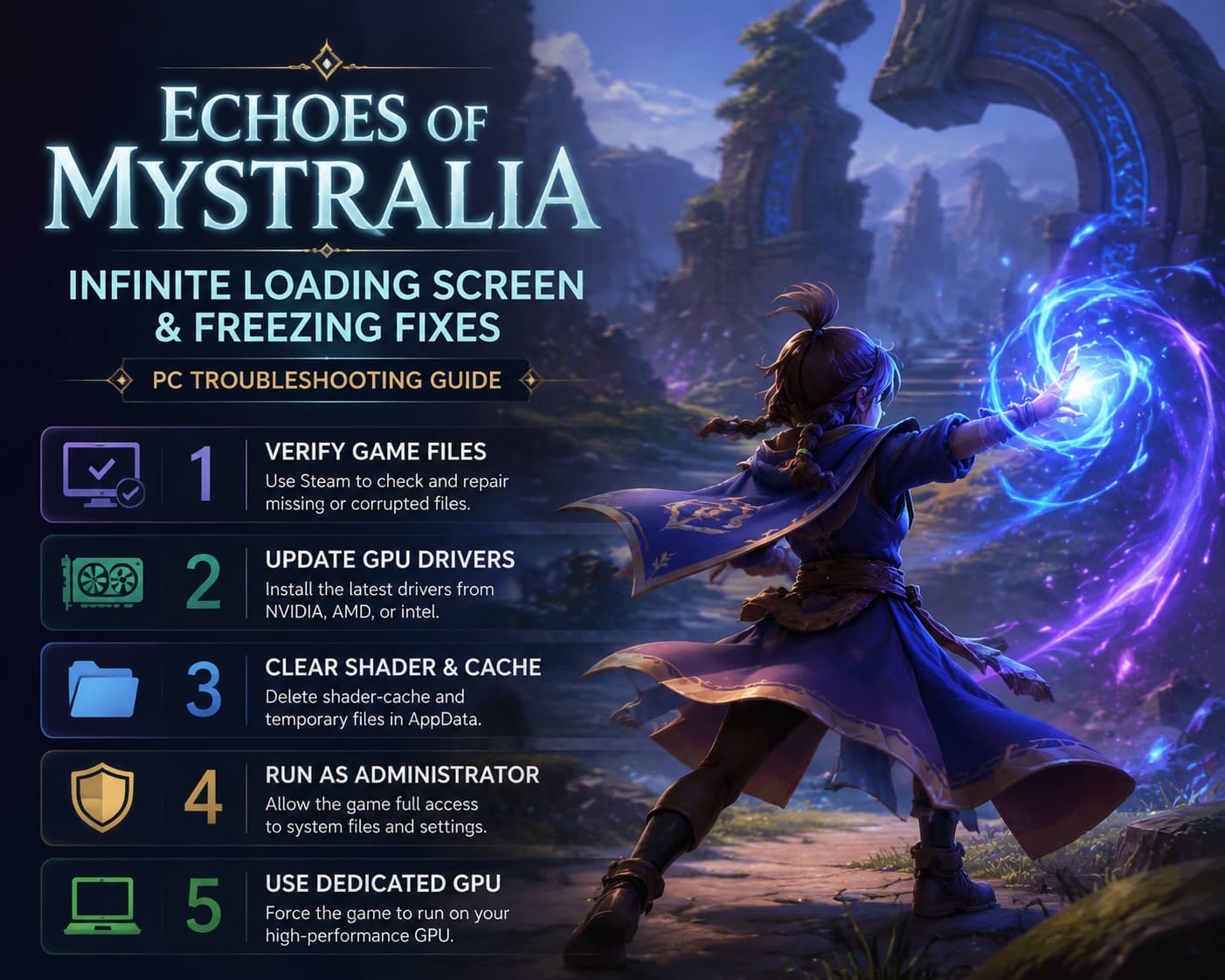
1. Verify Echoes of Mystralia’s Steam Files
This is boring advice, but it is also the first thing I’d do.
Steam downloads thousands of files for a modern game, and occasionally something can become corrupted or fail to update correctly. If the problem started immediately after a patch, this step becomes even more important.
To verify the installation:
- Open Steam and go to your Library.
- Right-click Echoes of Mystralia.
- Select Properties.
- Open Installed Files.
- Click Verify integrity of game files.
- Let Steam complete the process before launching the game again.
If Steam finds damaged or missing files, it will replace them automatically.
Honestly, this takes only a few minutes in most cases, so there is very little reason not to try it before touching anything more complicated.
2. Update Your GPU Drivers
Graphics drivers are another obvious suspect, particularly if Echoes of Mystralia started freezing after a game update.
The game relies on plenty of visual effects, spell animations, environmental rendering, and asset streaming. A driver that is outdated or simply doesn’t play nicely with the current build can potentially cause trouble during initialization or area transitions.
Depending on your hardware, update through:
- NVIDIA: NVIDIA App or official driver download tools
- AMD: AMD Software: Adrenalin Edition
- Intel: Intel Driver & Support Assistant
After installing a new driver, restart your PC. Don’t skip that part. Windows can leave driver components active until the next reboot, and testing immediately after installation doesn’t always give you a clean result.
3. Clear the Shader and Cache Data
This is one of the fixes I’d pay particular attention to if the game freezes after an update or gets stuck while entering a particular region.
Games generate temporary shader and rendering data so they don’t have to rebuild everything from scratch every time you launch them. When that cached information becomes outdated or corrupted, weird things can happen.
First, close Echoes of Mystralia completely.
Then:
- Press Windows + R.
- Enter
appdata. - Open the Local folder.
- Look for an Echoes of Mystralia or Borealys Games directory.
- Open its Saved folder.
- Look for shader-cache folders or files associated with cached rendering data.
- Remove the relevant cache files.
You may also find files or folders associated with pipeline caching.
Don’t be surprised if the next launch takes a little longer. The game may need to regenerate some of that data.
In my experience with PC gaming, rebuilding a broken shader cache can solve problems that otherwise look completely unrelated to shaders.
4. Try Running the Game as Administrator
Windows permissions are rarely the first thing I blame for an infinite loading screen, but they are worth testing.
If the game cannot properly access or modify a required configuration, save, or cache location, the result can sometimes be a freeze rather than an obvious error message.
To test administrator mode:
- Open Steam and browse to the game’s local files.
- Find the main Echoes of Mystralia executable.
- Right-click it and choose Properties.
- Open the Compatibility tab.
- Enable Run this program as an administrator.
- Click Apply and OK.
Launch the game again.
I wouldn’t necessarily keep administrator mode enabled forever if you don’t need it, but it is a useful troubleshooting test.
5. Force Echoes of Mystralia to Use Your Dedicated GPU
This one is especially relevant to gaming laptops.
Modern laptops often have an integrated graphics processor alongside a more powerful NVIDIA or AMD GPU. Windows normally handles the switching automatically, but automatic doesn’t always mean perfect.
If the game launches using the weaker graphics processor, you could see unusually poor performance, stuttering, or strange behavior during loading.
Open Windows Graphics Settings and add the game’s executable. Then select:
Options → High Performance
Save the setting and restart the game.
If you’re on a desktop with only one GPU, you can obviously skip this step.
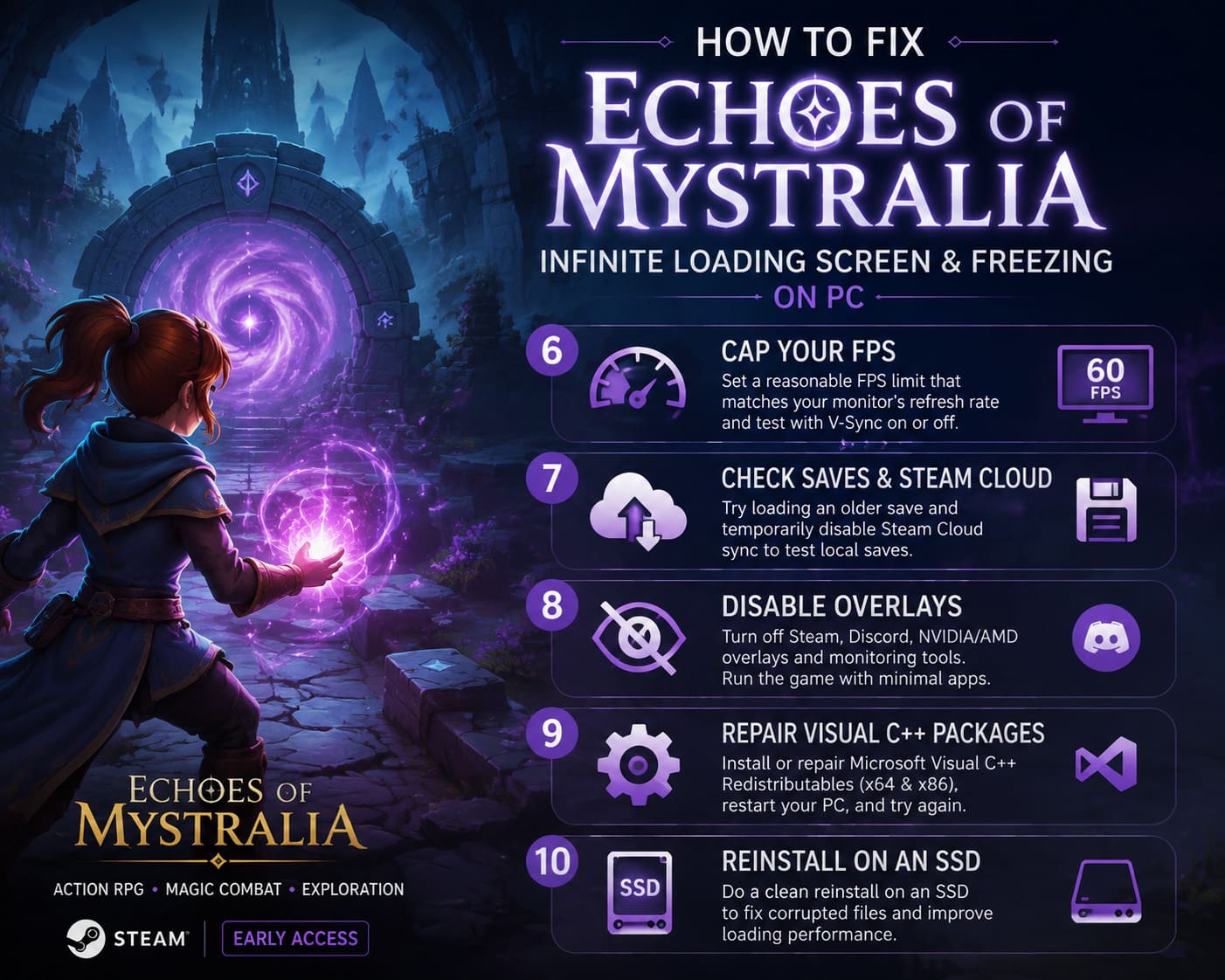
6. Put a Sensible FPS Cap on the Game
Unlimited FPS sounds great until you discover that some games don’t particularly benefit from it.
If Echoes of Mystralia is pushing your hardware unnecessarily hard during loading sequences, setting a reasonable frame-rate limit is worth testing.
For example, if your monitor runs at 60Hz, try a 60 FPS cap. A 120Hz display could use 120 FPS, while a 144Hz monitor could use 144 FPS.
You can configure this through your NVIDIA or AMD graphics software.
I’d also experiment with V-Sync if the loading issue appears alongside unusual rendering behavior. Try disabling it first, then test the alternative configuration if the problem remains.
If you’re using an ultrawide display or an unusual resolution, temporarily returning to a standard resolution and 100% resolution scale is another worthwhile test.
7. Check Your Save and Steam Cloud
This is where things get a little more serious.
If Echoes of Mystralia loads normally until you select Continue, but then hangs forever, the problem may not be the game’s installation at all.
An Early Access update can potentially expose problems with an existing save, particularly if the game has changed systems or data structures between builds.
Before doing anything drastic, try loading an older save if one is available.
You can also temporarily disable Steam Cloud synchronization:
- Right-click the game in Steam.
- Open Properties.
- Go to the relevant Steam Cloud setting.
- Temporarily disable synchronization.
- Launch the game and test your local save.
If an older save loads correctly while your newest save doesn’t, you’ve got a much better clue about where the problem is coming from.
Don’t blindly delete your saves. Back them up first.
8. Disable Overlays and Background Monitoring Tools
This is another fix I personally recommend trying earlier rather than later.
Overlays hook into the game while it is rendering. Most of the time they work perfectly, but when a game is already experiencing instability, an overlay can become another variable you don’t need.
Temporarily disable:
- Steam Overlay
- Discord Overlay
- NVIDIA in-game overlay
- AMD overlay
- MSI Afterburner
- RivaTuner Statistics Server
Then launch the game with as little additional software running as possible.
If the infinite loading screen disappears, re-enable your applications one by one. That way, you can figure out which program was actually causing the conflict.
9. Repair Microsoft Visual C++ Redistributables
This is a less exciting solution, but missing or damaged Windows runtime components can cause games to behave strangely.
Echoes of Mystralia may start successfully and still encounter problems once it begins executing more demanding processes.
Install or repair the current Microsoft Visual C++ Redistributable packages for both x64 and x86 where appropriate.
If Windows already reports that the package is installed, use the Repair option rather than simply assuming everything is fine.
Restart Windows afterward and test the game again.
10. Reinstall Echoes of Mystralia on an SSD
If you’ve reached this point, we’ve officially moved into the “I really want to play this game tonight” category.
A clean reinstall can eliminate persistent file corruption and configuration problems that survive ordinary Steam verification.
Uninstall Echoes of Mystralia through Steam, then check whether leftover installation or configuration folders remain. If you decide to remove them, back up your saves first.
When reinstalling, choose an SSD if you have one available.
That’s not just about faster loading times. Modern games increasingly rely on rapid asset streaming, and a mechanical hard drive can make those processes considerably slower.
How to Fix Echoes of Mystralia Black Screen on Startup: Complete Steam Guide (2026)
Echoes of Mystralia Infinite Loading Fixes at a Glance
| Fix | Best Time to Try It | Difficulty |
|---|---|---|
| Verify Steam Files | After an update or sudden problem | Easy |
| Update GPU Drivers | After graphics-related crashes/freezes | Easy |
| Clear Shader Cache | After patches or visual changes | Medium |
| Run as Administrator | When permissions may be involved | Easy |
| Force Dedicated GPU | Gaming laptops / hybrid graphics | Easy |
| Cap FPS | Loading freezes with high GPU usage | Medium |
| Check Save Files | Freeze occurs when continuing | Medium |
| Disable Overlays | Random freezes or black screens | Easy |
| Repair Visual C++ | Startup/runtime problems | Medium |
| Clean Reinstall | Nothing else works | Hard |
What Should You Try First?
Don’t start by reinstalling the entire game. That’s the advice I’d give anyone dealing with this problem.
Instead, begin with Steam file verification, then update your graphics drivers. If that doesn’t work, move to clearing shader/cache data and disabling overlays. Those steps are relatively painless and can eliminate several common sources of PC instability.
If the game only freezes when loading a particular save or area, I’d shift my attention toward save files and Steam Cloud rather than repeatedly reinstalling the game.
And if you’re playing on a laptop, definitely check which GPU Windows is actually assigning to Echoes of Mystralia.
Echoes of Mystralia Beginner Guide: Tips, Tricks, and Best Spell Builds to Master the Loop
Final Thoughts
The frustrating thing about Early Access is that you can have a game you genuinely enjoy and still spend an evening troubleshooting it instead of playing it. I’ve been there more times than I’d like to admit. One minute you’re excited to experiment with a new build, and the next you’re staring at Task Manager wondering why a loading screen has apparently decided to become your permanent desktop wallpaper.
Fortunately, an Echoes of Mystralia infinite loading screen doesn’t automatically mean your installation is broken beyond repair.
Start with the simple fixes, especially Steam verification and driver updates. Then work your way through shader caches, GPU selection, overlays, save data, and Windows runtimes. Only consider a complete reinstall once the easier options have been exhausted.
And because Echoes of Mystralia is still in Early Access, keep an eye on future updates from Borealys Games. If a loading issue is tied to the current build rather than your PC, there may be very little you can do locally beyond using a workaround and waiting for a hotfix.
For now, though, these are the fixes I’d try before giving up on the game. Hopefully the next loading screen you see lasts a few seconds instead of becoming an accidental endurance test.