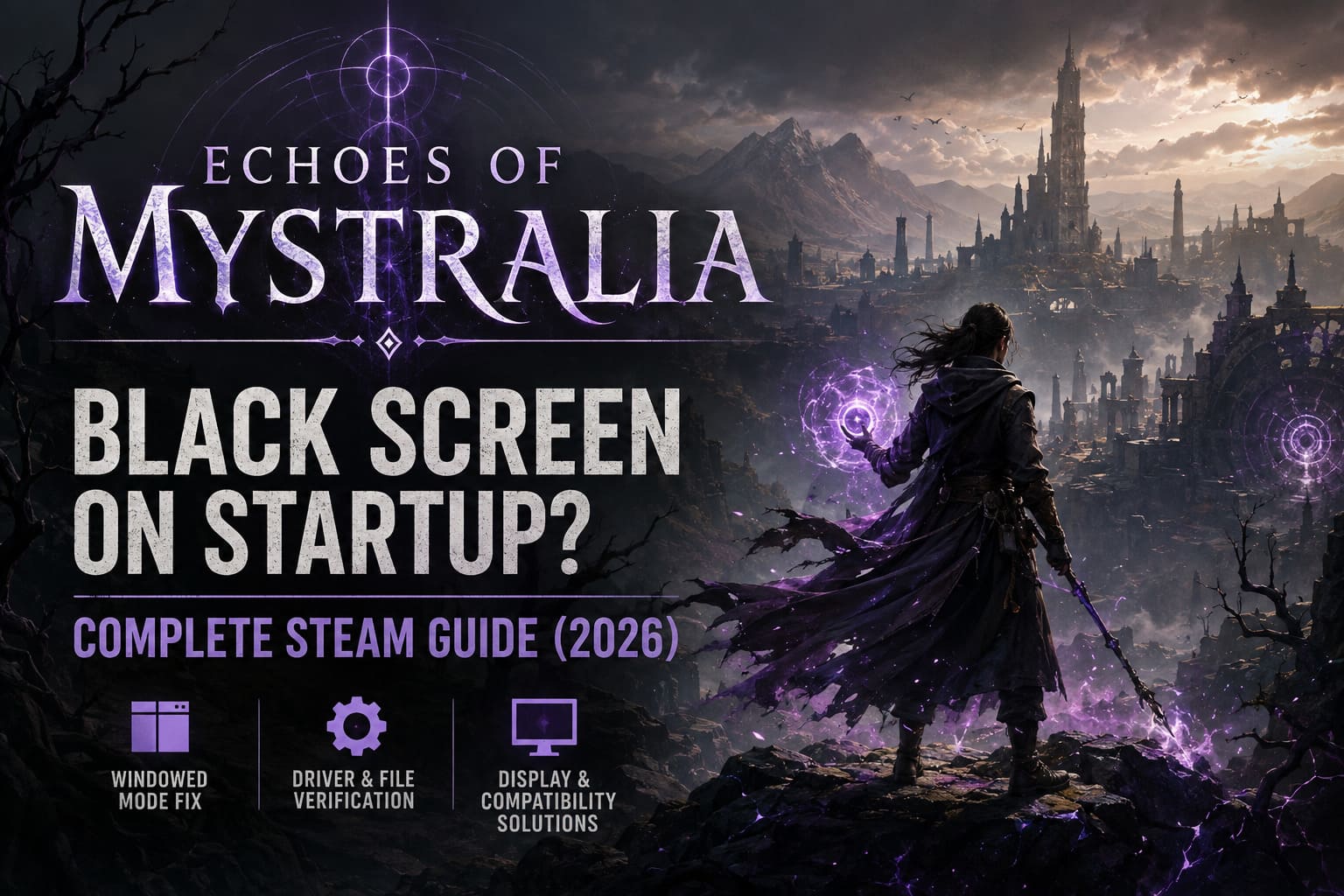
How to Fix Echoes of Mystralia Black Screen on Startup: Complete Steam Guide (2026)
There is nothing quite like getting excited to play a new PC game, clicking Play on Steam, and being rewarded with… a completely black screen.
That is exactly the kind of first impression some players are getting with Echoes of Mystralia. The game launches, the executable appears to be running, and then the screen goes dark. Sometimes there is no sound at all. Other times you can hear menu music in the background, which is somehow even more annoying because you know the game is actually running.
I have dealt with enough launch problems over the years to know that a black screen does not automatically mean the game is broken. Quite often, it is something boring: a bad resolution setting, a graphics driver conflict, Steam Input, a second monitor, or one corrupted file.
So rather than throwing twenty random fixes at the problem, I would go through these in order. Start with the quick stuff and only move toward the more invasive fixes if the earlier ones fail.
First: Figure Out What Kind of Black Screen You Have
Before changing anything, pay attention to what happens when you launch the game.
| What You See | Most Likely Problem |
|---|---|
| Black screen immediately, no sound | Resolution, driver, corrupted files |
| Black screen with music | Display mode or monitor conflict |
| Game crashes back to desktop | Drivers, missing runtimes, corrupted files |
| Black screen only in fullscreen | Resolution or refresh-rate conflict |
| Game works without controller | Steam Input or peripheral conflict |
| Game works on one monitor | Multi-monitor configuration |
This little distinction can save you a lot of unnecessary troubleshooting.
And honestly, I would not start by reinstalling the entire game. There are much faster things to try first.
1. Force Echoes of Mystralia Into Windowed Mode
This is the first fix I would try.
A newly launched PC game can occasionally pick a fullscreen resolution or refresh rate that Windows and your monitor don’t agree with. The result is a perfectly functional game rendering somewhere behind a black display.
Steam lets you override the initial display mode.
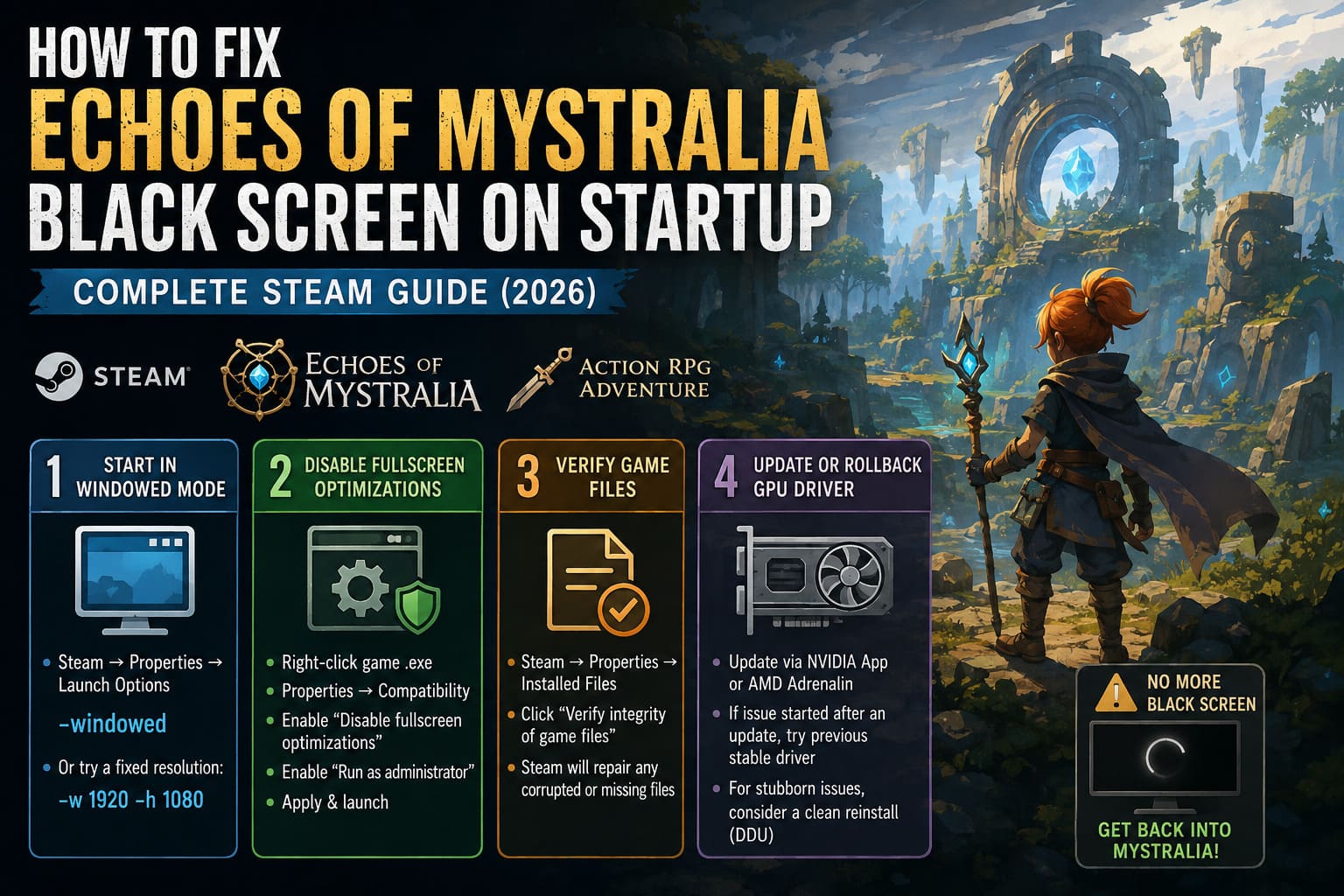
What to do:
- Open Steam and go to your Library.
- Right-click Echoes of Mystralia.
- Select Properties.
- Stay on the General tab.
- Find Launch Options.
- Enter
-windowed.
Launch the game again.
If it suddenly appears in a window, you’ve probably found the culprit.
Once you’re inside the game, set the resolution to your monitor’s native resolution and switch to Borderless Fullscreen. After that, remove -windowed from Steam.
If that doesn’t work, you can also experiment with a fixed resolution:
-w 1920 -h 1080
Obviously, change those numbers if 1080p isn’t your display’s native resolution.
My advice: don’t immediately start throwing multiple launch commands into the box. Test one change at a time so you know what actually fixed the problem.
2. Disable Fullscreen Optimizations
Windows has accumulated a surprisingly large collection of compatibility features over the years. Most of the time they are harmless. Every now and then, though, they seem determined to make a game fail at the worst possible moment.
Find the game’s executable through Steam:
Library → Echoes of Mystralia → Manage → Browse local files
Locate the main .exe file.
Then:
- Right-click the executable.
- Choose Properties.
- Open Compatibility.
- Enable Disable fullscreen optimizations.
- Enable Run this program as an administrator.
- Click Apply.
Try launching the game again.
I wouldn’t normally recommend running every game as administrator forever, but as a troubleshooting step it’s useful. If it makes no difference, you can always undo the setting later.
3. Verify the Steam Game Files
This one is boring, but boring fixes are often the best fixes.
A damaged download or missing file can prevent a game from getting through its initial engine startup. You don’t necessarily need to know which file is broken because Steam can check the installation for you.
Go to:
Steam → Library → Echoes of Mystralia → Properties → Installed Files
Then select:
Verify integrity of game files
Let Steam finish the scan.
If it discovers something wrong, it will replace the affected files automatically.
Afterward, restart Steam and try the game again.
Why I recommend doing this early
It takes relatively little effort, doesn’t touch your save files in the normal case, and can eliminate an entire category of possible problems before you start messing with Windows settings.
4. Update Your GPU Driver — Or Roll It Back
Graphics drivers are one of the first things I look at when a new game refuses to display anything.
The timing matters here.
If Echoes of Mystralia worked before a recent NVIDIA or AMD driver update, don’t blindly assume that “latest” means “best.” New drivers can occasionally introduce problems with specific games.
For NVIDIA hardware, check the current driver through the NVIDIA app or your normal driver-management software.
For AMD cards, open AMD Software: Adrenalin Edition and check for available drivers.
If the black screen started immediately after a driver update, trying the previous stable driver can be worth the effort.
For particularly stubborn driver problems, some PC players use Display Driver Uninstaller (DDU) to completely remove the existing display driver before installing a fresh one.
That is a more advanced step, so I wouldn’t touch DDU unless a normal driver reinstall hasn’t helped.
One important rule: don’t change five driver-related things at once. You want to know whether the driver itself was the problem.
5. Temporarily Disconnect Your Second Monitor
This sounds ridiculous until you’ve actually had a game launch on the wrong display.
Multi-monitor configurations can create strange fullscreen behavior, especially when your screens have different:
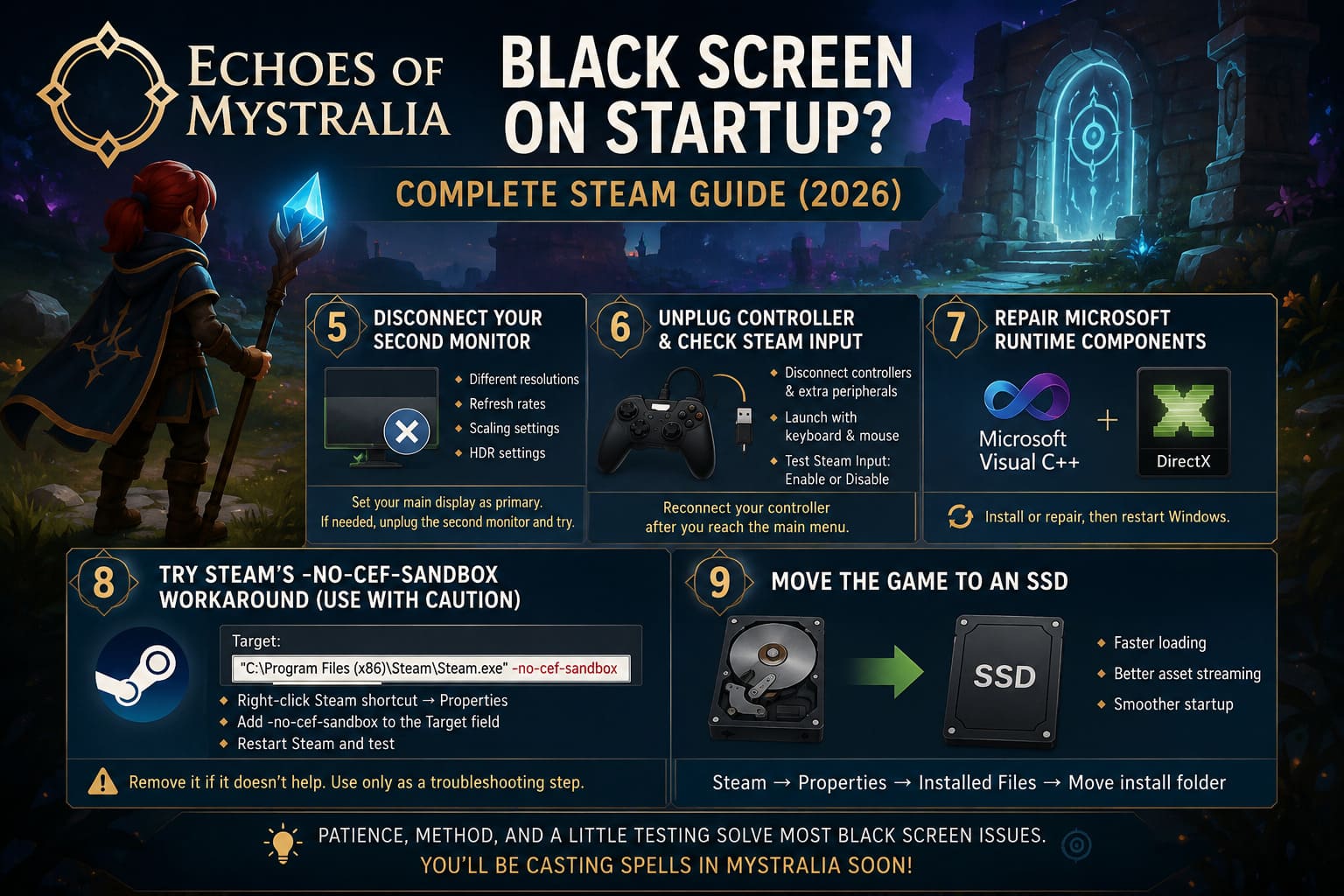
- resolutions
- refresh rates
- scaling settings
- HDR configurations
Go into Windows Display Settings and make sure your gaming monitor is selected as the primary display.
If you’re still getting a black screen, physically disconnect the second monitor for one launch attempt.
I would also disconnect a VR headset if one is connected.
If the game suddenly works, you’ve narrowed the problem down considerably.
You can reconnect everything afterward and experiment with the display configuration.
6. Unplug Your Controller and Test Steam Input
This is another fix that sounds too simple.
Some games don’t play nicely with certain controllers, virtual controllers, remapping utilities, or unusual USB devices during startup.
For the first test, unplug your controller completely.
Also disconnect unnecessary gaming peripherals such as:
- racing wheels
- fight sticks
- extra gamepads
- unusual USB input devices
Launch the game using your keyboard and mouse.
If it boots normally, reconnect your controller after you reach the main menu.
You can also experiment with Steam’s controller configuration:
Game Properties → Controller
Try switching between Disable Steam Input and Enable Steam Input.
There isn’t one universal answer here. Some controllers behave better with Steam Input enabled, while others work properly only when the game handles the device directly.
7. Repair Microsoft Visual C++ and DirectX Components
Sometimes the game isn’t failing because of the game files at all.
Windows games depend on shared Microsoft runtime components. If one of those components is damaged or missing, the game can fail before it ever reaches the main menu.
I’d make sure your system has current Microsoft Visual C++ Redistributables, including the x64 and x86 packages where appropriate.
It is also worth repairing or installing the required DirectX runtime components.
After installing or repairing them, restart Windows.
That restart matters. Don’t just close the installers and immediately launch the game again.
8. Try Steam’s -no-cef-sandbox Workaround Carefully
This is one of those fixes I would put much lower on the list because it affects the Steam client rather than Echoes of Mystralia itself.
Completely close Steam first.
Then right-click your Steam shortcut and open Properties.
In the Shortcut tab, locate the Target field. At the end of the existing command, add a space followed by:
-no-cef-sandbox
Apply the change and restart Steam.
If it doesn’t help, remove the argument again.
Personally, I wouldn’t leave this enabled permanently unless you have a specific reason to. Treat it as a troubleshooting experiment, not a magic performance setting.
9. Move the Game to an SSD
If you’re still stuck, consider where Echoes of Mystralia is installed.
Modern PC games are increasingly aggressive about streaming assets, shaders, textures and world data during startup. An old mechanical HDD can make loading dramatically slower than an SSD.
Steam makes moving an installation fairly painless.
Go to:
Properties → Installed Files → Move install folder
Choose an available SSD and let Steam transfer the installation.
Does an SSD magically fix a black screen?
Not necessarily.
I wouldn’t claim that every black-screen problem is caused by a slow drive. But if the game is installed on an aging HDD and you’re experiencing extremely long loading times, freezes, or apparent timeouts, moving it to an SSD is a sensible upgrade anyway.
If you already have the game on a decent NVMe SSD, I’d skip this step.
The Order I Would Actually Try These Fixes
If you just want the shortest possible troubleshooting route, this is how I’d approach it:
- Launch with
-windowed. - Verify Steam game files.
- Update or roll back the GPU driver.
- Disconnect the second monitor or VR headset.
- Launch without the controller and test Steam Input.
- Disable fullscreen optimizations.
- Repair Visual C++ and DirectX components.
- Try the Steam CEF workaround.
- Move the installation to an SSD.
This order is intentional.
There is no reason to spend an hour reinstalling drivers when changing one launch option might immediately reveal that the game was simply starting with an unusable fullscreen configuration.
Echoes of Mystralia Beginner Guide: Tips, Tricks, and Best Spell Builds to Master the Loop
What If You Can Hear the Game Behind the Black Screen?
This is actually a useful clue.
If you can hear music, menu sounds, or controller input while the display remains black, don’t immediately assume the game has crashed.
It may mean the game is running but rendering to the wrong display or using an invalid fullscreen mode.
In that situation, I’d prioritize:
Windowed mode → monitor configuration → refresh rate → fullscreen optimizations → GPU driver
If there is absolutely no audio and the process disappears from Task Manager, I’d put more attention on:
game files → drivers → Visual C++ → DirectX → permissions
That distinction has saved me plenty of time with PC games.
Echoes of Mystralia Lore & Story Explained: Deep History and Rift Mechanics Analysis
Final Thoughts
The frustrating thing about a black screen is that it looks like one problem, when it can actually be caused by several completely unrelated pieces of the PC setup.
With Echoes of Mystralia, I would resist the temptation to immediately blame the game itself. Start with the low-risk fixes, especially -windowed, file verification, and temporarily removing extra displays and controllers.
And if you’ve just installed a brand-new GPU driver and the game stopped working afterward, don’t be afraid to consider a rollback. I’ve lost more troubleshooting time over “the newest driver must be better” than I’d like to admit.
The good news is that most of these fixes take only a few minutes. You shouldn’t have to reinstall Windows or spend your entire evening rebuilding your PC just to get past a black screen.
Start with windowed mode, verify the installation, check the GPU driver, and simplify your hardware setup. In most cases, that’s where I’d expect the answer to be.