How to Fix Wand & Order Connection Timed Out Error: Full Guide
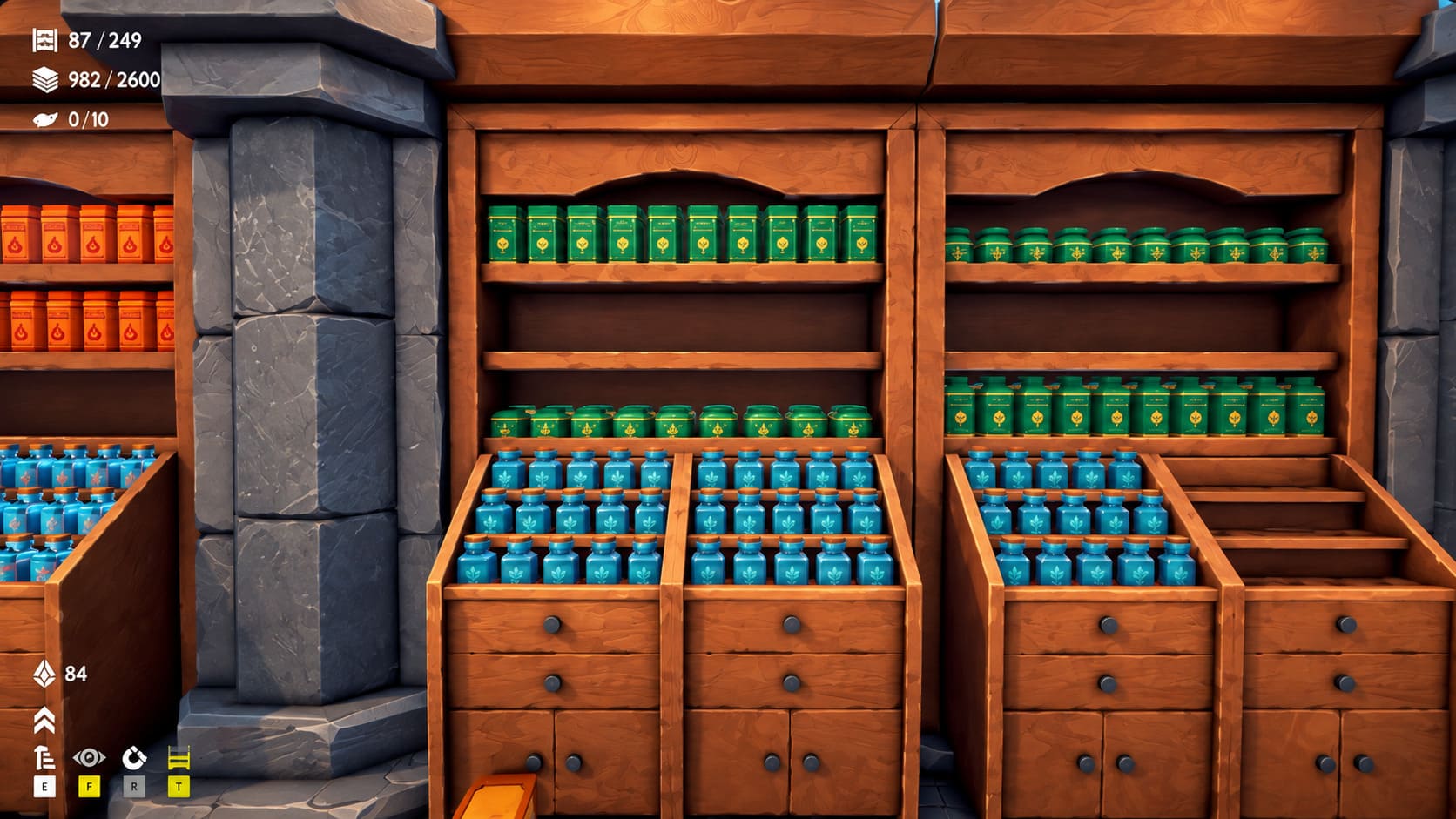
Wand & Order: Tidy up the magic shop! has the kind of co-op design that makes you forget how simple the premise sounds. You and your friends spend your time sorting wands, arranging potions, organizing tarot cards, and generally trying to keep a magical shop from descending into complete chaos. As someone who has played plenty of co-op games, I actually like this slower approach because it gives everyone something useful to do without turning every multiplayer session into a competition.
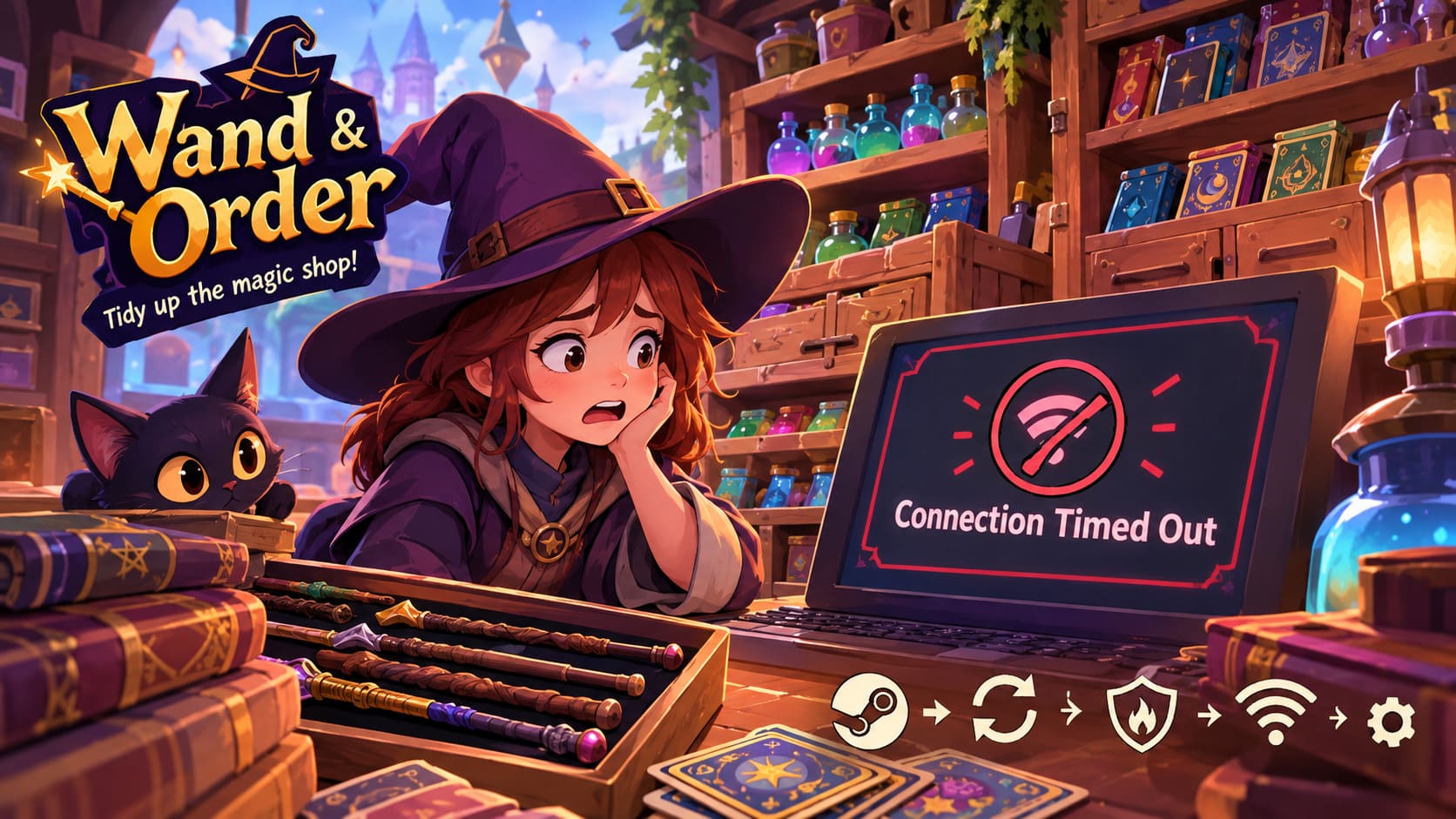
Unfortunately, even the coziest multiplayer game can become frustrating when the Connection Timed Out or Connection to Host Timed Out message appears. Instead of organizing shelves with your friends, you are suddenly staring at an error and wondering whether the problem is Steam, Windows, your router, or the game itself. The good news is that a timeout does not necessarily mean something is seriously wrong with your internet connection.
In most cases, the problem is related to the communication between your game client, Steam’s multiplayer services, and the player hosting the lobby. Temporary session problems, cached Steam data, firewall rules, DNS issues, or an unstable network route can all interfere with the connection process. I would therefore recommend starting with the simple fixes before changing anything complicated on your router.
Wand and Order Steam Deck Compatibility Performance, Settings, and Optimization Guide
What Causes the Wand & Order Connection Timed Out Error?
A connection timeout basically means that the game waited for a response and did not receive it within the expected period. That response could be coming from the multiplayer infrastructure or directly from the player hosting your co-op session. The important thing is that a timeout does not automatically mean your internet is offline; you can browse websites, watch videos, and use Discord normally while a particular game connection still fails.
From my experience troubleshooting multiplayer games, especially smaller co-op titles, the most common causes are temporary lobby problems and blocked network traffic. Indie games can also behave differently from large games with extensive dedicated-server infrastructure, so restarting a session can sometimes accomplish more than spending half an hour changing Windows settings.
| Possible Cause | What You May Notice | First Thing to Try |
|---|---|---|
| Stale Multiplayer Session | You were disconnected and cannot rejoin | Restart the game and recreate the lobby |
| Steam Cache Problem | Other Steam multiplayer features behave strangely | Clear the Steam download cache |
| Firewall Blocking | One PC cannot connect while others can | Allow the game through Windows Firewall |
| DNS or Network Stack Issue | Connections fail inconsistently | Flush DNS and reset Winsock |
| Steam Region or Routing Issue | Connections work at some times but not others | Try another nearby Steam download region |
1. Restart the Lobby Before Changing Anything
This is the fix I would try first, and honestly, it is the one that gets overlooked most often. If you were already playing and suddenly lost connection to the host, immediately pressing Rejoin can sometimes put you straight back into the same broken session. Rather than repeatedly attempting the same connection, completely close the game and rebuild the multiplayer session.
Have the host save whatever progress is possible and exit Wand & Order completely. The other players should also close the game rather than leaving it running in the background. Once everyone has restarted, let a player create a fresh lobby and invite the others again.
If that still does not work, try switching hosts. This is particularly useful when only one player consistently receives the timeout message. If changing the host suddenly fixes everything, that gives you a useful clue that the original lobby or host-side network connection was involved rather than the game installation on every PC.
2. Make Sure Windows Time Is Correct
This sounds almost too simple, but an incorrect Windows clock can cause problems with authentication and secure network communication. Modern online services rely on timestamps and certificates, so a computer with a significantly incorrect system time can sometimes behave strangely when communicating with servers.
On Windows 10 or Windows 11, open Settings > Time & language > Date & time. Make sure Set time automatically is enabled and check that your time zone is correct. You can also use the Sync now option to force Windows to synchronize the clock.
After synchronizing the time, completely restart Steam and then launch Wand & Order again. It takes less than a minute to check and can eliminate a surprisingly annoying source of connection problems.
3. Clear the Steam Download Cache
Steam stores temporary download and connection-related data locally, and occasionally that cached information can become corrupted. I would not treat this as the explanation for every multiplayer problem, but clearing the cache is a relatively safe troubleshooting step when Steam itself starts behaving oddly.
Open Steam and go to Steam > Settings > Downloads. Find Clear Download Cache and confirm the operation. Steam will restart and may require you to sign in again.
One thing worth remembering is that clearing this cache is not the same as reinstalling your game. You are simply removing temporary Steam data, so there is no reason to immediately start deleting Wand & Order or your saved files just because a multiplayer connection failed.
4. Check Windows Firewall Permissions
Firewalls are another classic source of multiplayer headaches. Windows Defender Firewall can sometimes block an application’s network communication depending on how its rules were created, especially after an update, a fresh installation, or a change in network profile.
Search Windows for Windows Defender Firewall and open it. Select Allow an app or feature through Windows Defender Firewall, click Change settings, and check whether Wand & Order is listed.
If the game appears in the list, make sure it has the appropriate permission for the network profile you are using. If it is missing, you can use Allow another app to add the game’s executable manually. The exact installation path can vary depending on where you installed Steam, so do not assume that every PC uses the same drive or folder structure.
I would also check third-party antivirus software if you have one installed. Some security suites have their own network filtering systems, meaning that allowing the game through Windows Firewall may not be enough. If multiplayer works after temporarily changing the security software’s network permissions, you have a much clearer indication of where the blockage is coming from.
5. Flush DNS and Reset the Windows Network Stack
When a network connection behaves inconsistently, Windows can sometimes be working with outdated DNS information or a damaged Winsock configuration. These problems are not necessarily specific to Wand & Order, but they can affect how your PC reaches online services and other players.
Open Command Prompt as Administrator and run:
ipconfig /flushdnsAfter that, you can reset the Windows Winsock catalog with:
netsh winsock resetRestart your computer after running the commands. The reboot is important because the Winsock reset needs to be applied before you properly test the game again. Once Windows starts back up, open Steam, launch Wand & Order, and try creating or joining a new lobby.
6. Try a Different Steam Download Region
If everything looks normal on your PC but multiplayer connections are still unreliable, Steam’s selected download region is another setting worth testing. This does not magically repair your internet connection, but changing the region can sometimes help when the route or infrastructure associated with your current selection is experiencing temporary issues.
Go to Steam > Settings > Downloads and locate Download Region. Pick another region that is geographically close to you rather than jumping to a server on the other side of the world.
For example, if you normally use a nearby regional server, testing another neighboring European location can help determine whether the issue is related to routing. I would only change this setting temporarily while troubleshooting and then return to your normal region if it makes no difference.
7. Test Whether the Problem Affects Everyone
One of the most useful troubleshooting tricks in any multiplayer game is figuring out whether the problem is local or shared. Ask your friends whether they can create a lobby successfully without you. If everyone else can connect normally but one player repeatedly receives the timeout, the investigation should focus on that player’s PC, firewall, router, or network connection.
On the other hand, if everyone starts experiencing the same timeout around the same time, repeatedly changing individual Windows settings may be a waste of time. In that situation, a temporary service-side or game-side problem becomes more plausible, and waiting for the service to recover or checking official community/developer channels is more useful.
8. Avoid Changing Router Ports Randomly
You may find guides recommending that you immediately forward various UDP ports on your router. I would be careful with that advice. Multiplayer systems can use different networking technologies, and a generic port number mentioned in a troubleshooting article is not automatically an official requirement for Wand & Order.
If you know that your router has unusually strict firewall rules, investigate those settings, but do not start opening a large collection of ports without understanding why each one is needed. In general, restart the lobby, restart Steam, check firewall permissions, reset networking, and test another host before making permanent router changes.
My Recommended Troubleshooting Order
After playing a lot of multiplayer games, I have learned that troubleshooting becomes much easier when you change one thing at a time. If you simultaneously reset your router, reinstall the game, change DNS providers, disable antivirus protection, and modify firewall rules, you may fix the problem but have no idea what actually solved it.
For the Wand & Order timeout specifically, I would work through the following sequence:
- Close Wand & Order and recreate the lobby.
- Have another player host the session.
- Restart Steam and your PC.
- Synchronize Windows date and time.
- Check Windows Firewall and antivirus permissions.
- Clear Steam’s download cache.
- Run the DNS and Winsock reset commands.
- Test a different nearby Steam download region.
- Only then investigate router-specific restrictions.
Final Thoughts
The Wand & Order Connection Timed Out error is especially annoying because the game itself is designed to be relaxing. You are supposed to be sorting magical objects with friends, not staring at networking errors and digging through Windows menus. Fortunately, most of the practical fixes are straightforward, and you usually do not need to reinstall the entire game just because one multiplayer session failed.
Start with the boring solutions because they are often the most effective: restart the lobby, restart the game, switch hosts, and restart Steam. If the problem continues, move into Windows networking by checking your clock, firewall, DNS configuration, and Winsock stack. Finally, if multiple players are affected at the same time, consider that the problem may be outside your PC rather than assuming your setup is broken.
For me, the biggest lesson with small co-op games is simple: do not overcomplicate a temporary networking problem. A clean new lobby can sometimes fix what looks like a serious technical issue, while a few minutes of systematic testing can tell you whether the problem belongs to your computer, your network, the host, or the multiplayer service. Once the connection is stable again, you can get back to the part that actually matters—making the magical shop look organized before everything inevitably becomes chaotic again.