How to Fix Aliens: Fireteam Elite 2 Unreal Engine Crash on Launch
If there is one thing that can kill the mood faster than a xenomorph jumping out of a vent, it is a game crashing before you even reach the main menu. Aliens: Fireteam Elite 2 is built around frantic cooperative firefights, huge enemy swarms, and the kind of visual chaos that makes you want to keep playing “just one more mission.” Unfortunately, some PC players can run into an Unreal Engine crash on launch, leaving them stuck on a splash screen, staring at a crash report, or getting kicked straight back to the desktop.
I have spent enough time troubleshooting PC games to know that launch crashes are rarely caused by one single problem. A game can refuse to start because of a bad graphics driver, damaged files, an unstable DirectX configuration, missing Windows components, or even an innocent-looking overlay running in the background. The good news is that most of these issues can be fixed without reinstalling the entire game or spending hours changing random Windows settings.
This guide walks through the fixes I would personally try first when Aliens: Fireteam Elite 2 crashes with an Unreal Engine error on startup. Start with the easiest solutions and work your way down the list. There is no reason to perform a clean Windows installation because a xenomorph decided your GPU configuration looked suspicious.
Best Graphics Settings for 60fps in Aliens Fireteam Elite 2 on Steam
Why Does Aliens: Fireteam Elite 2 Crash on Startup?
Unreal Engine games can be surprisingly sensitive during their first few seconds of execution. Before you see the main menu, the game has to initialize the renderer, load shaders, communicate with your GPU driver, start several runtime components, and prepare the first set of assets.
That means a problem that has nothing to do with the actual gameplay can still prevent the game from launching. In my experience, DirectX conflicts and outdated GPU drivers are two of the first things worth checking, especially after a major game update or a fresh installation.
Other common causes include:
- Corrupted or incomplete game files
- Outdated NVIDIA or AMD drivers
- Missing Visual C++ runtime components
- Damaged DirectX files
- Discord, Steam, or GPU overlays
- Overclocking and monitoring software
- Windows compatibility problems
- Security software interfering with the executable
The important thing is not to change ten things at once. Try one solution, launch the game, and see whether the crash is gone. That makes it much easier to identify what actually fixed the problem.
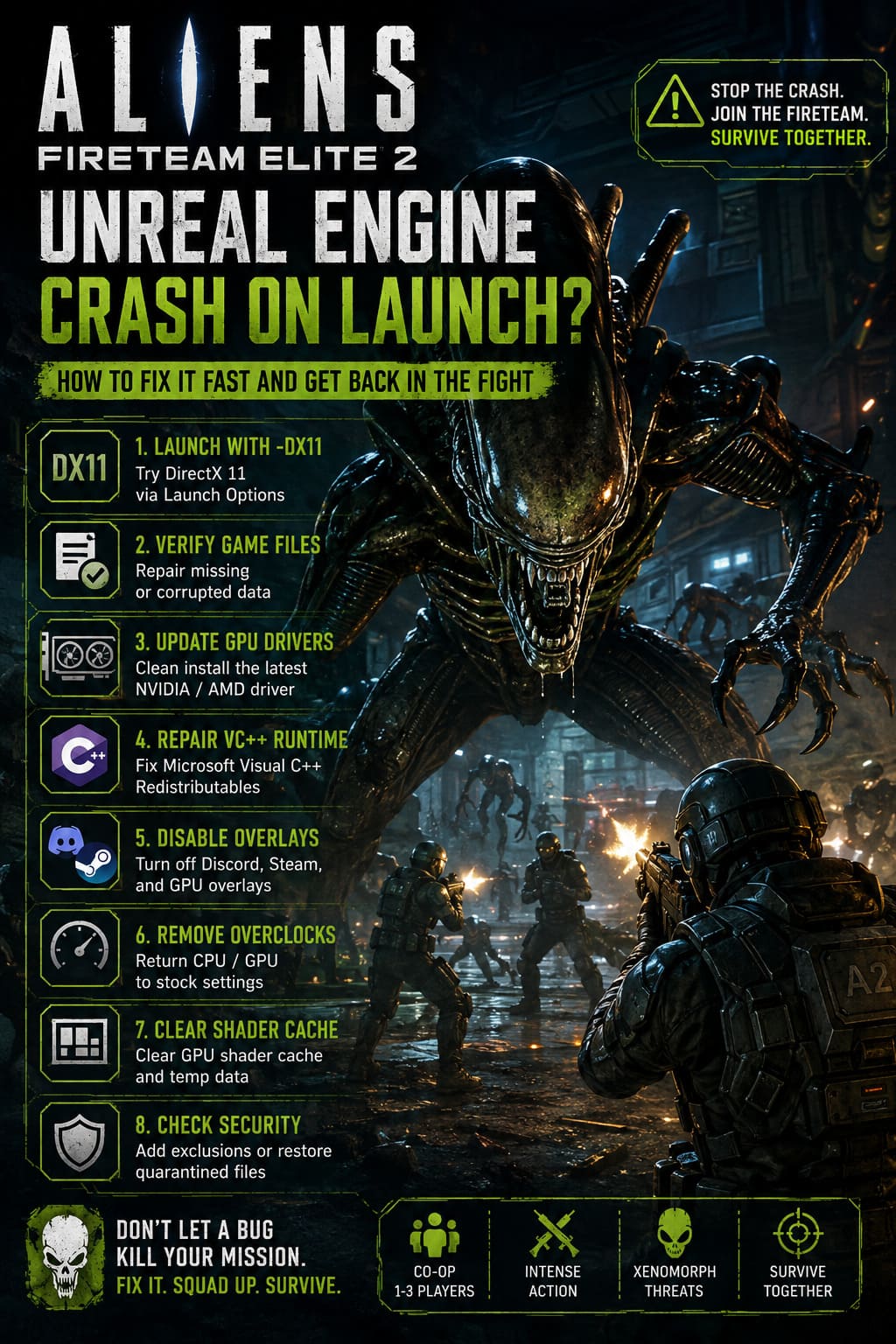
1. Try Launching the Game With DirectX 11
This is the first workaround I would test if Aliens: Fireteam Elite 2 crashes immediately after launch. DirectX 12 can offer excellent performance and modern rendering features, but it can also expose driver or hardware-specific problems that do not occur under DirectX 11.
Steam makes it relatively easy to test another rendering path. Open your Steam Library, right-click Aliens: Fireteam Elite 2, select Properties, and stay on the General tab. Find the Launch Options field and enter:
-dx11
Close the Properties window and start the game again.
The idea here is simple: you are asking Unreal Engine to initialize using DirectX 11 instead of its normal DirectX 12 path. If the crash disappears, you have a pretty strong indication that the problem is related to the DX12 rendering environment rather than the game installation itself.
I would not necessarily consider this a permanent solution. If a future driver or game update fixes the problem, you can remove the launch option and return to the default renderer.
2. Verify the Game Files
Before doing anything complicated, make sure the installation itself is healthy. Modern games can contain enormous numbers of files, and a damaged archive or interrupted update can leave one important asset broken while everything else looks perfectly normal.
On Steam, right-click the game in your Library and open Properties. Go to Installed Files and select Verify integrity of game files. Steam will compare your local installation against the expected files and replace anything that is missing or corrupted.
If you own the game through Epic Games Store, open your Library, click the three-dot menu next to the game, choose Manage, and then select Verify.
This process is worth trying even if the game worked perfectly yesterday. A patch can sometimes fail during installation, particularly if your storage drive runs out of space or the launcher is interrupted while updating. It is also one of the safest troubleshooting steps because it does not require you to modify Windows or your graphics settings.
3. Perform a Clean GPU Driver Installation
Graphics drivers are a huge part of the equation with Unreal Engine games. A brand-new title can work flawlessly on one driver version and suddenly crash after another update, while an older installation may contain configuration leftovers that cause problems with a new game.
If you are using an NVIDIA GPU, check for the latest Game Ready driver. AMD users should check the latest Adrenalin Edition driver. When possible, choose the clean installation option instead of simply installing the new driver over the previous version.
A clean installation can remove old driver settings and profiles that might be interfering with the game. This is particularly useful if you recently changed graphics cards, upgraded Windows, or installed several different driver versions while troubleshooting another game.
I would also restart the PC after installing the driver. It sounds obvious, but Windows sometimes needs that restart before every component is properly initialized.
Don’t Forget Windows Updates
GPU drivers are not the only software involved. Make sure Windows itself is reasonably up to date, especially if you are using a recent version of Windows 10 or Windows 11.
You do not need to install every optional update just because it exists, but missing major system updates can occasionally create compatibility problems with newer games and their runtime dependencies.
4. Repair Microsoft Visual C++ Redistributables
This is one of those boring PC maintenance jobs that you usually ignore until a game refuses to launch. Unreal Engine titles depend on Microsoft runtime components, and damaged or missing Visual C++ files can cause crashes before the game reaches the main menu.
Look for the latest supported Microsoft Visual C++ Redistributable packages for your Windows installation. If the relevant package is already installed, use the Repair option rather than immediately uninstalling everything.
After repairing or reinstalling the runtime, restart your computer and try launching the game again.
I would also avoid downloading random DLL files from third-party websites. If Windows is complaining about a missing runtime component, get the required package from Microsoft rather than grabbing an individual DLL from some questionable download site.
5. Turn Off Discord, Steam, and GPU Overlays
Overlays are convenient, but they can sometimes cause ridiculous problems in games. They work by interacting with the game while it is rendering, and Unreal Engine titles can be particularly sensitive to software hooking into the graphics pipeline.
Start by disabling the Discord overlay. Open Discord settings, find the Game Overlay section, and turn the feature off. You can also temporarily disable the Steam Overlay through Steam’s In-Game settings.
If you use NVIDIA or AMD software with an in-game overlay, disable that as well. The same applies to recording utilities and performance-monitoring applications.
Personally, I would close anything unnecessary before troubleshooting a startup crash. That includes RGB utilities, hardware monitoring programs, FPS counters, capture software, and aggressive third-party antivirus tools. You can turn them back on later once you know the game is stable.
6. Remove Overclocks and Aggressive Performance Tweaks
A system can appear completely stable during everyday use while still crashing in a demanding game. Aliens: Fireteam Elite 2 can put a serious load on the CPU and GPU, which means an unstable overclock may only reveal itself when the game starts rendering.
If you have manually overclocked your CPU or GPU, temporarily return everything to stock settings. The same applies to aggressive undervolting or custom GPU profiles.
Do not assume that because another game runs perfectly, your overclock must be stable. Different engines stress different parts of the hardware, and Unreal Engine games have a long history of exposing marginal system stability.
If the game suddenly launches after reverting your hardware settings, you have found an important clue.
7. Clear Shader and Temporary Cache Data
Shader compilation can also cause strange behavior after a driver update or major game patch. A corrupted cache can sometimes make the game crash while it is preparing its rendering environment.
If you have recently updated your graphics driver and the crash started immediately afterward, clearing the relevant shader cache can be worth trying. NVIDIA and AMD both maintain shader-related caches, while Windows and individual launchers may also store temporary graphics data.
After clearing the cache, the first launch can take longer than normal because the game needs to rebuild shaders. Do not assume the game has crashed simply because the initial loading takes longer than usual.
Give it a little time, particularly on the first startup after clearing cached shader data.
8. Check Your Antivirus and Windows Security
Security software can occasionally interfere with newly released games. This is especially possible when the game executable is new and has not yet been widely recognized by security databases.
Check whether your antivirus or Windows Security has quarantined anything associated with the game. If it has, make sure you understand what was detected before restoring or allowing the file.
I would not recommend permanently disabling your antivirus just to launch a game. Instead, use legitimate exclusions only when you are confident the installation comes from an official store and the executable is trustworthy.
This is another situation where downloading a replacement DLL or executable from a random website is a terrible idea.
Quick Troubleshooting Checklist
| Problem | What to Try First |
|---|---|
| Unreal Engine crash immediately | Launch with -dx11 |
| Crash after an update | Verify game files |
| GPU-related error | Clean-install the latest driver |
| Missing runtime error | Repair Visual C++ Redistributables |
| Crash with overlays enabled | Disable Discord, Steam, NVIDIA/AMD overlays |
| Crash after GPU tuning | Return GPU and CPU to stock settings |
| Crash after driver update | Clear shader cache |
| Game executable disappears | Check antivirus or Windows Security |
What I Would Try First
If I were sitting at my own PC and Aliens: Fireteam Elite 2 refused to launch, I would not start by reinstalling the game. That takes too long and often solves nothing.
My order would be DirectX 11 first, file verification second, GPU driver check third, and overlays fourth. Those steps are relatively quick and cover a surprisingly large percentage of launch problems.
If none of those work, I would move toward Visual C++ repairs, shader cache cleanup, checking security software, and finally testing the system without any overclock. The goal is to isolate the problem rather than randomly changing every setting you can find.
Final Thoughts
A launch crash is especially annoying in a cooperative shooter because the entire appeal is getting into a mission with friends and immediately causing absolute chaos. Sitting at the desktop staring at an Unreal Engine crash window is obviously not part of the intended Colonial Marine experience.
The good news is that most Aliens: Fireteam Elite 2 Unreal Engine startup crashes should be approached as a compatibility or configuration problem first, not as proof that your PC cannot run the game. Start with the simple fixes, test the game after every change, and avoid downloading unofficial files to repair Windows components.
For me, the biggest takeaway is simple: try -dx11, verify the installation, clean up your GPU driver environment, and kill the overlays before doing anything drastic. Those four steps take much less time than reinstalling a huge modern game, and they are the first things I would check when a new Unreal Engine title decides it would rather crash than let me play.