How to Fix VHOLUME Crashing on Startup on PC: 2026 Troubleshooting Guide
VHOLUME is finally out on Windows PC, and if you have been waiting for the full release after spending time with the demo or beta, you probably expected the first launch to be the easy part. Unfortunately, that has not been the experience for everyone.
I have seen plenty of games arrive with strange launch problems, but there is something especially annoying about clicking Play, waiting for the game to initialize, and getting absolutely nothing for your trouble. VHOLUME can crash straight back to the desktop, hang on a black screen, freeze before the main menu, or in some cases make the entire system feel like it has stopped responding.
The good news is that most startup problems are not mysterious hardware failures. They usually come down to graphics drivers, leftover configuration files, overlays, damaged game data, or Windows components that the game suddenly decides it cannot live without.
So, rather than throwing random fixes at the problem, I would work through the following VHOLUME PC troubleshooting checklist in order. Start with the simple stuff. If that does not work, move deeper.
Why Is VHOLUME Crashing Before It Starts?
There is no single cause behind every VHOLUME crash. That is important because a fix that works perfectly on one PC may do absolutely nothing on another.
From the symptoms described by PC players, the biggest suspects are:
- Graphics API conflicts, particularly when the game has trouble initializing a modern rendering path.
- Old beta or demo configuration files interfering with the release version.
- Corrupted game files or shader data preventing the game from reaching the menu.
- Overlay and monitoring software hooking into the game during startup.
- Outdated or corrupted GPU drivers.
- Windows system file problems that only become obvious when a demanding game starts using them.
Personally, I would not start deleting random Windows folders or reinstalling the entire operating system. There are much cleaner things to try first.
1. Try the DirectX 11 Launch Option First
If VHOLUME crashes almost immediately after pressing Play, this is the first workaround I would test.
Modern games increasingly depend on DirectX 12, but newer does not automatically mean more reliable on every PC. Driver versions, GPU configurations, Windows updates, and previous game installations can all contribute to problems during graphics initialization.
If VHOLUME is failing somewhere during that process, forcing an alternative rendering path can sometimes get you into the game.
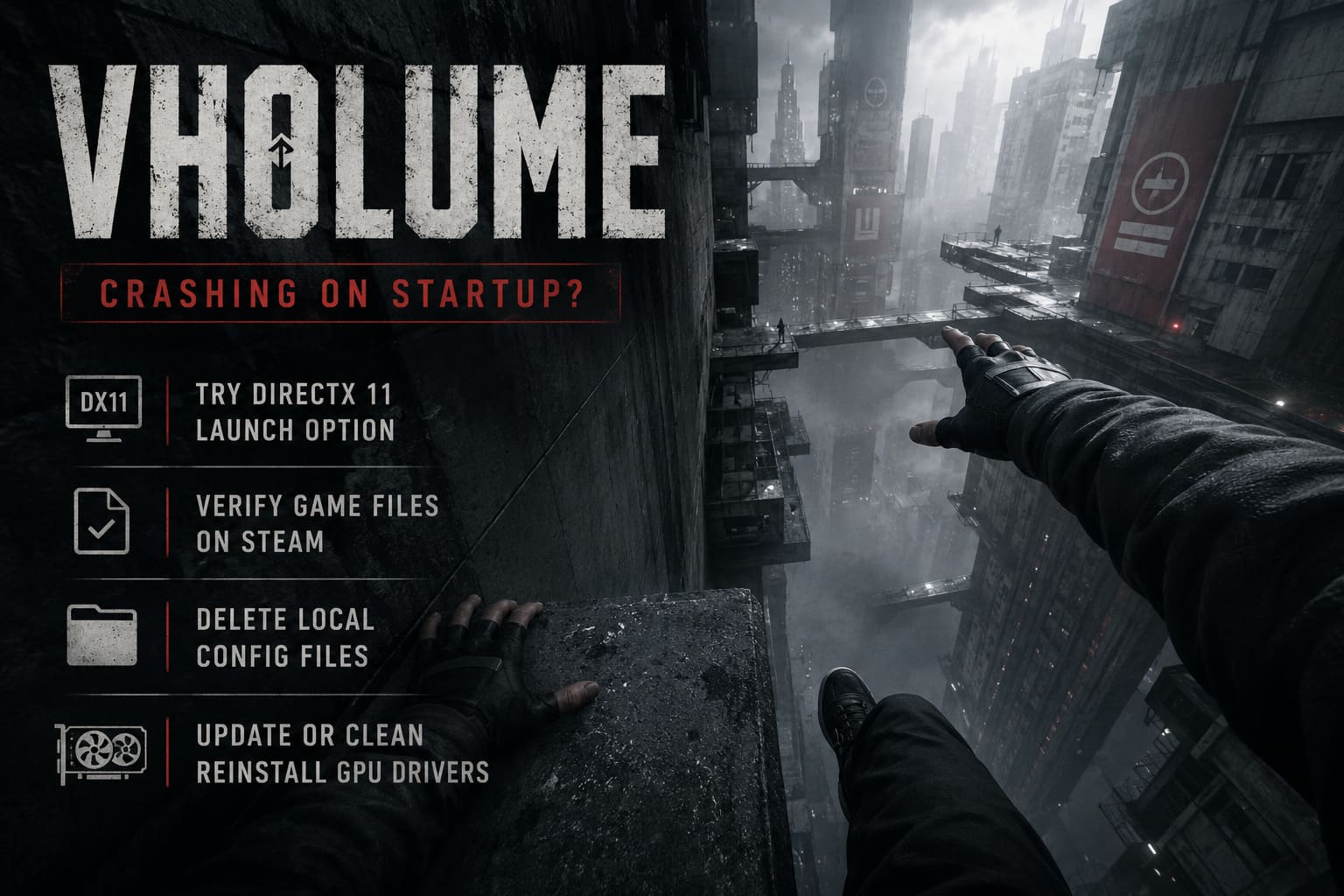
How to try DX11 through Steam
- Open Steam and go to your Library.
- Right-click VHOLUME.
- Select Properties.
- Stay on the General tab.
- Find the Launch Options field.
- Enter
-dx11. - Close the Properties window.
- Launch VHOLUME again.
If the game suddenly reaches the main menu, you have learned something useful. The problem is probably connected to the default graphics API or its interaction with your driver setup.
I would keep this option enabled while testing the game rather than changing five other things at the same time.
What about Steam Deck and Linux?
If you are running VHOLUME through Proton and experiencing a graphics-related crash, the situation can be different. Some players may benefit from testing PROTON_USE_WINED3D=1.
This changes how Windows graphics calls are handled under Proton. It can also reduce performance, though, so I would treat it as a troubleshooting experiment rather than my first-choice permanent configuration.
2. Verify VHOLUME’s Steam Files
This sounds incredibly basic, but it is one of the fixes I always recommend before doing anything complicated.
A game can have a damaged asset without Steam giving you an obvious warning. A failed download, interrupted update, disk error, or transition from an older build can leave you with files that look normal from the outside but fail when the game tries to load them.
If VHOLUME crashes around the splash screen or just before the main menu, verify the installation.
Steam verification steps
- Open Steam Library.
- Right-click VHOLUME.
- Select Properties.
- Open Installed Files.
- Select Verify integrity of game files.
- Let Steam complete the scan.
If Steam discovers damaged or missing files, it will download replacements.
I would especially do this if you played the demo or beta and then installed the full release. Game updates can change more than just the executable itself, and old assets occasionally become a headache.
3. Remove Old VHOLUME Configuration Files
This is probably my favorite fix when a game used to launch but suddenly refuses to do it after an update.
A game’s installation directory is not the whole story. Windows games often store configuration files and cached data somewhere under AppData, and those files can survive uninstalling and reinstalling the game.
That means you can reinstall VHOLUME and accidentally keep the exact configuration that was causing the crash.
Press Windows + R, type %localappdata% and press Enter.
Look for a folder associated with VHOLUME, its developer, publisher, or the engine used by the game. Depending on how the game organizes its files, you may find configuration data under a path resembling Saved\Config\Windows.
Look for files such as engine.ini or other local configuration/cache files.
Important warning
I would back up the folder before deleting anything. Save files and configuration data can sometimes live surprisingly close together, and there is no reason to risk losing progress just because you are troubleshooting a launch problem.
If you have identified the configuration folder correctly, rename it rather than immediately destroying it. For example, adding _backup to the folder name gives VHOLUME a chance to create fresh settings while preserving your original data.
Then restart the game.
If it launches normally, you have likely found a corrupted or incompatible configuration.
4. Give Your GPU Driver a Proper Refresh
A game that crashes the moment it starts rendering 3D content makes me suspicious of the graphics driver almost immediately.
This is especially true if you recently updated Windows, installed another game, changed GPU settings, or upgraded from an older driver branch.
For NVIDIA, install the latest appropriate Game Ready Driver.
For AMD, install the current Adrenalin driver package for your GPU.
A normal driver update is worth trying first. If VHOLUME still crashes, a cleaner driver reinstall may be necessary.
When a normal update is not enough
A utility such as Display Driver Uninstaller (DDU) can completely remove an existing graphics driver installation before you install a fresh one.
The general approach is:
- Download the appropriate driver beforehand.
- Boot Windows into Safe Mode.
- Use DDU to remove the existing display driver.
- Restart the PC.
- Install the current NVIDIA or AMD driver.
- Test VHOLUME before reinstalling additional GPU utilities.
I would not jump straight to DDU for every crash. It is more useful when you have persistent driver-related problems or several failed driver updates behind you.
5. Turn Off Overlays and Monitoring Tools
This is another fix that has saved me from wasting hours on PC games.
Overlays are useful. I use them myself. But they also inject themselves into games, and freshly released titles can sometimes react badly to that extra software layer.
For troubleshooting, temporarily disable:
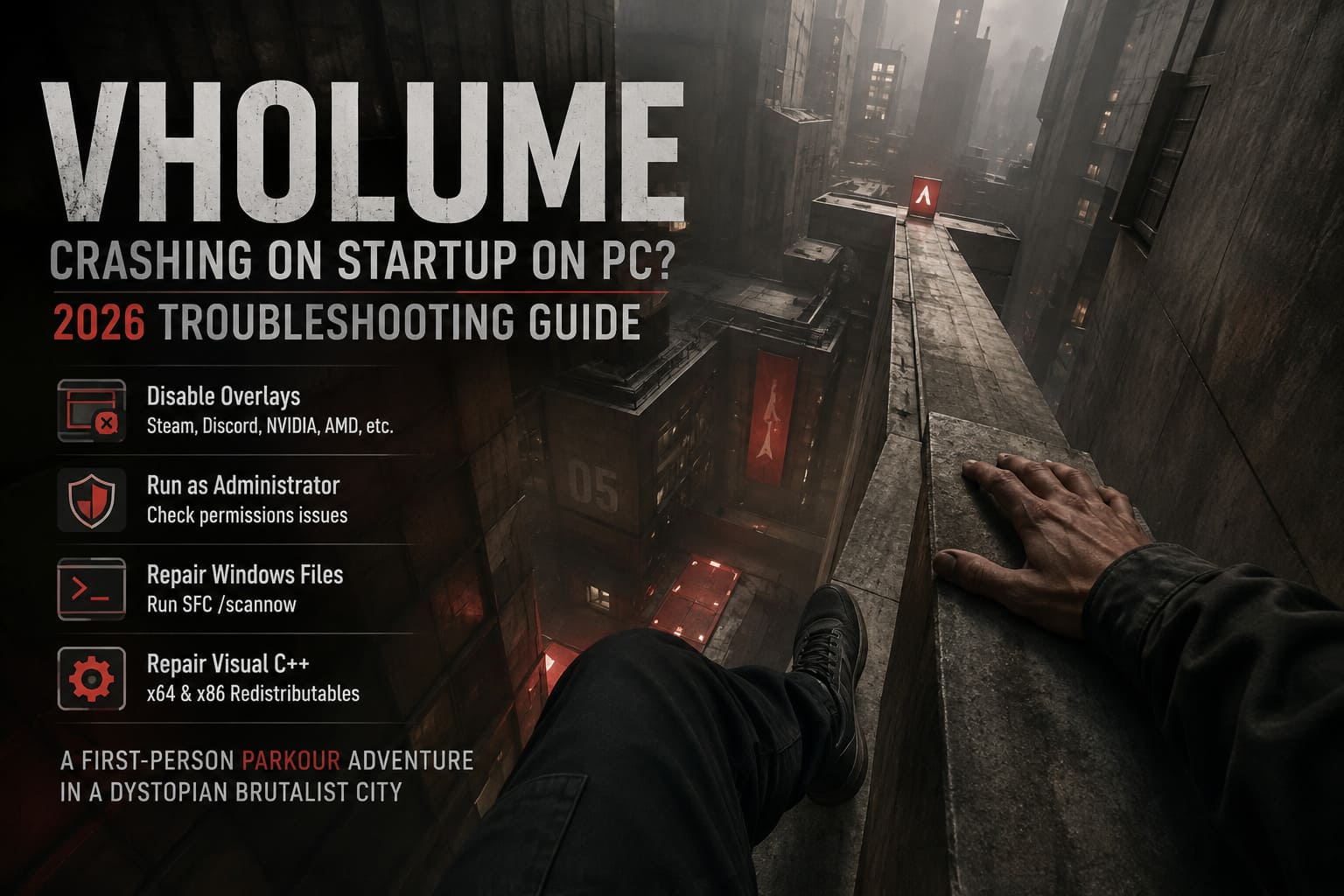
- Steam Overlay
- Discord Overlay
- NVIDIA overlay features
- AMD overlay features
- MSI Afterburner/RTSS
- Razer Synapse game integrations
- Other RGB, recording, FPS, or hardware-monitoring overlays
For Steam, you can disable the overlay specifically for VHOLUME through the game’s Properties rather than turning it off globally.
For Discord, open User Settings and disable the in-game overlay.
Then completely close the relevant background programs and launch VHOLUME again.
If the game works afterward, start re-enabling your usual software one application at a time. That makes it much easier to identify the offender.
6. Try Running VHOLUME as Administrator
I do not recommend running every game as administrator permanently. It is better used as a diagnostic step.
However, if VHOLUME cannot access a directory, configuration file, or another Windows resource correctly, elevated permissions can reveal whether Windows access restrictions are involved.
First, completely exit Steam.
Then right-click your Steam shortcut, open Properties > Compatibility, and test Run this program as an administrator.
You can also locate the VHOLUME executable in its Steam installation directory and test administrator mode there.
Launch the game again.
If this fixes the problem, I would investigate the underlying permissions issue rather than simply assuming administrator mode is the final answer.
7. Repair Windows System Files with SFC
If VHOLUME does more than crash to desktop and instead causes a serious freeze, Windows itself deserves some attention.
A damaged system DLL or other corrupted Windows component can cause completely different games to behave strangely, particularly when they use common runtime libraries.
Open Command Prompt as Administrator and run:
SFC /scannow
Let the scan finish completely.
If Windows finds corrupted system files, it will attempt to repair them automatically.
Afterward, restart the PC and try VHOLUME again.
This is not specifically a VHOLUME fix, but if several unrelated games are crashing, it becomes much more relevant.
8. Repair Microsoft Visual C++ Redistributables
Some PC games depend on Microsoft runtime components that most players never think about until something breaks.
If the necessary Visual C++ Redistributable files are missing or corrupted, VHOLUME may fail before you ever see the main menu.
Install or repair the current Microsoft Visual C++ Redistributables appropriate for your system, including the commonly required x64 and x86 packages.
If the installer gives you a Repair option, use it rather than blindly installing another copy.
Restart Windows after completing the repair and test the game again.
My Recommended VHOLUME Crash-Fix Order
If I were sitting at my own PC and VHOLUME refused to launch, I would not perform all eight fixes immediately.
I would go in this order:
- Try
-dx11 - Verify Steam game files
- Disable overlays
- Reset VHOLUME configuration/cache
- Update or clean-install GPU drivers
- Test administrator mode
- Repair Visual C++
- Run SFC if Windows itself is becoming unstable
That order keeps the troubleshooting reasonably safe and avoids making major system changes before the simple explanations have been ruled out.
Is VHOLUME Coming to PS5 and Xbox Series X/S? Release Date and Console Port Expectations
VHOLUME Startup Crash Quick Reference
| Symptom | What I Would Try First |
|---|---|
| Instant crash after pressing Play | Test -dx11 |
| Black screen before the menu | Verify game files and disable overlays |
| Crash after a demo/beta installation | Reset old configuration files |
| Crash when 3D graphics initialize | Update or clean-install GPU drivers |
| Crash disappears with background apps closed | Find the conflicting overlay or monitoring tool |
| Several games are crashing | Check Windows files and GPU drivers |
| Full PC freeze or system instability | SFC scan, driver investigation, hardware monitoring |
| Game launches after resetting settings | Keep the new configuration and restore settings gradually |
Final Thoughts
VHOLUME looks like the kind of PC game I would rather spend my evening playing than troubleshooting, so I understand the frustration when the first thing you see is a black screen or a crash to desktop.
The important thing is not to change everything at once. That makes troubleshooting much harder because you never learn what actually fixed the problem.
Start with the graphics API test, verify the installation, kill the overlays, and reset old configuration data. Those are relatively straightforward and can solve a surprising number of launch failures. If VHOLUME still refuses to cooperate, move on to the GPU driver, Windows components, and Microsoft runtime repairs.
And if you came from the beta or demo, I would pay particular attention to leftover configuration files. A fresh release build deserves a clean configuration, especially when the old version had months of settings and cached data accumulated behind it.
Hopefully, one of these fixes gets you past the startup crash and into VHOLUME without another evening spent staring at a black screen. Once the game finally launches, change your graphics settings gradually rather than maxing everything immediately. That way, if another crash appears, you will have a much better idea of what caused it.