Sineus Arena Survivors Multiplayer Lag Fix & Best Steam Deck Settings for 60FPS
If you’ve spent even a few hours in Sineus Arena Survivors, you’ve probably experienced two things. First, the incredible satisfaction of building an overpowered character capable of erasing entire waves of enemies. Second, the frustration of watching that run fall apart because of random lag spikes, stuttering, or performance drops during the most intense moments.
After dozens of hours playing with friends and digging through community discussions, I noticed the same complaints appearing everywhere. Players on PC report rubber-banding and multiplayer desync, while Steam Deck users often struggle to keep a consistent frame rate once enemy density starts scaling out of control.
The good news is that most of these problems are not permanent. In fact, a few adjustments can dramatically improve both network stability and overall performance. If you’re tired of losing runs because the game freezes when the screen fills with projectiles, this guide will help you get things under control.
Why Sineus Arena Survivors Starts Lagging
At first glance, many players assume internet speed is the problem. While connection quality matters, multiplayer issues in Sineus Arena Survivors are usually caused by several factors working together.
The game constantly exchanges information between players, enemies, projectiles, status effects, and arena events. During late-game waves, the amount of data being processed increases significantly. If Windows networking, firewall rules, shader caches, or system scheduling aren’t behaving properly, the result is often:
- Rubber-banding
- Delayed enemy movement
- Frame pacing issues
- Input lag
- Sudden stutters during combat
- Host synchronization problems
The heavier the action becomes, the more obvious these issues feel.
Step One: Refresh Your Windows Network Configuration
One of the easiest improvements comes from cleaning up Windows networking components.
Over time, DNS records, routing tables, and network settings can become cluttered or partially corrupted. Competitive players have been using network resets for years because they often solve unexplained multiplayer instability.
Open an administrator terminal and run the following commands:
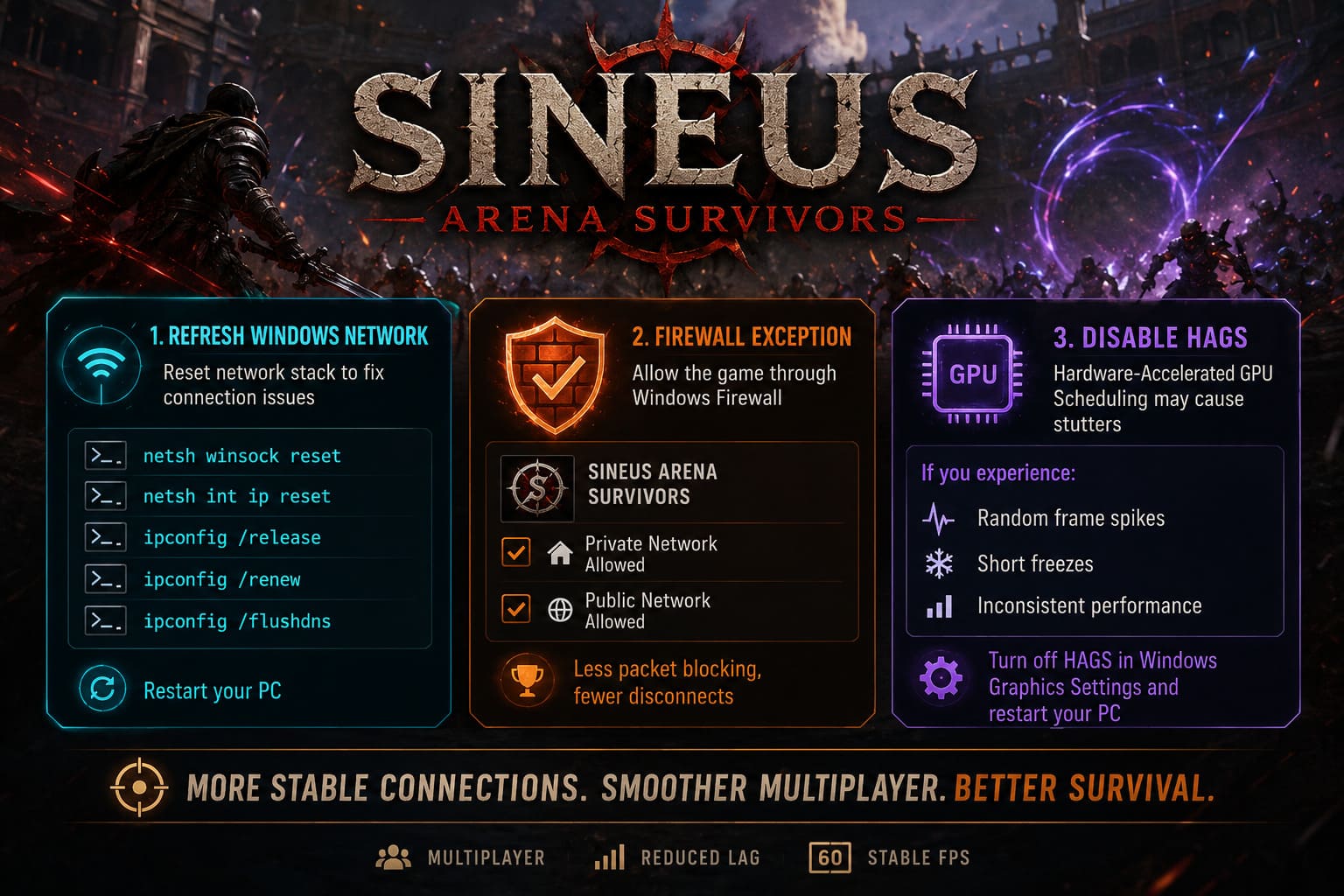
- netsh winsock reset
- netsh int ip reset
- ipconfig /release
- ipconfig /renew
- ipconfig /flushdns
After completing the process, restart your PC.
This won’t magically improve your internet speed, but it can help remove communication bottlenecks that occasionally cause lobby instability and packet delays.
Firewall Configuration Matters More Than Most Players Think
I was skeptical about this one until testing it myself.
Windows Defender occasionally becomes overprotective when games exchange large amounts of peer-to-peer traffic. During chaotic multiplayer matches, the security layer may inspect incoming packets more aggressively, introducing small delays that become noticeable when hundreds of entities are active.
Adding a dedicated firewall exception for the game’s executable can reduce unnecessary monitoring.
Make sure both Private and Public network permissions are enabled for Sineus Arena Survivors. The process takes less than a minute and can eliminate random connection interruptions that appear impossible to diagnose otherwise.
Hardware-Accelerated GPU Scheduling Isn’t Always Your Friend
Modern graphics features sound great on paper, but not every game benefits from them equally.
Hardware-Accelerated GPU Scheduling (HAGS) has produced mixed results across many indie titles. While some games see minor improvements, others develop inconsistent frame pacing and sudden hitching.
Sineus Arena Survivors appears to fall into the second category for a portion of users.
If you’re experiencing:
- Random frame spikes
- Short freezes
- Inconsistent performance despite high FPS
Try disabling HAGS through Windows Graphics Settings and reboot your system.
Several players report noticeably smoother gameplay after making this adjustment, especially during multiplayer sessions where frame consistency matters more than raw FPS numbers.
Clean Your Shader Cache Regularly
One of the biggest hidden performance killers in modern games is shader cache corruption.
Every time new visual effects, enemy abilities, lighting systems, or particle combinations appear, the game relies on precompiled shader data. If these files become bloated or corrupted, stutters start appearing seemingly out of nowhere.
Typical symptoms include:
| Issue | Common Trigger |
|---|---|
| Sudden FPS drop | Elite enemy spawns |
| Short freeze | Large particle effects |
| Frame hitch | New arena area loads |
| Visual stutter | Massive wave events |
| Delayed rendering | Ability chains |
| Micro-freezing | Multiplayer combat |
Deleting old DirectX shader cache files forces the system to rebuild fresh versions.
The first launch afterward may take slightly longer, but overall gameplay generally becomes much smoother once compilation finishes.
The Steam Deck Experience Can Be Excellent
Despite being packed with enemies, explosions, and visual effects, Sineus Arena Survivors actually runs surprisingly well on the Steam Deck when configured correctly.
The default settings, however, are not ideal.
Valve’s handheld is powerful, but survival games create unique workloads. Late-game stages often stress both CPU and GPU resources simultaneously, causing frame rate drops even when earlier levels feel perfectly smooth.
The goal isn’t maximizing visual quality.
The goal is maintaining stable performance during the moments that matter most.
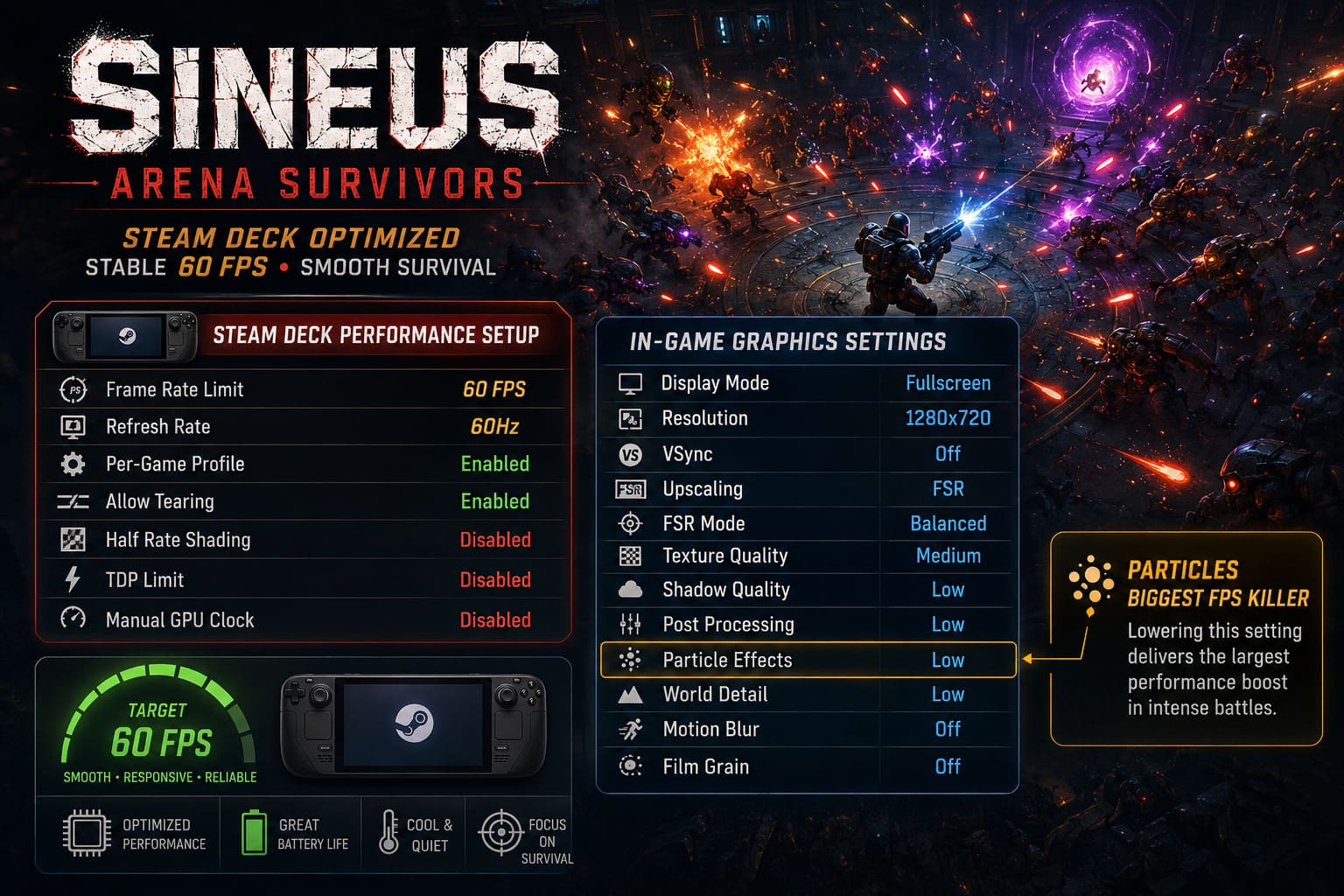
Recommended Steam Deck Performance Configuration
The first thing I suggest is creating a dedicated per-game profile through the Steam Deck Quick Access Menu.
Use the following setup:
| Setting | Recommended Value |
|---|---|
| Frame Rate Limit | 60 FPS |
| Refresh Rate | 60Hz |
| Per-Game Profile | Enabled |
| Allow Tearing | Enabled |
| Half Rate Shading | Disabled |
| TDP Limit | Disabled |
| Manual GPU Clock | Disabled |
Allowing SteamOS to manage CPU and GPU scaling dynamically usually produces better results than manually locking clocks.
Many players try aggressive manual tuning and end up creating additional bottlenecks during heavy combat sequences.
Best In-Game Graphics Settings
After extensive testing, these settings offer the best balance between image quality and frame stability.
| Graphics Option | Recommended Setting |
|---|---|
| Display Mode | Fullscreen |
| Resolution | 1280×720 |
| VSync | Off |
| Upscaling | FSR |
| FSR Mode | Balanced |
| Texture Quality | Medium |
| Shadow Quality | Low |
| Post Processing | Low |
| Particle Effects | Low |
| World Detail | Low |
| Motion Blur | Off |
| Film Grain | Off |
Particle effects deserve special attention.
In most bullet-heaven games, particles become the single largest source of performance degradation. Lowering this setting often provides more benefit than reducing textures or resolution.
Why 720p Often Beats Native Resolution
Many Steam Deck owners hesitate to leave the native 1280×800 resolution.
In reality, dropping to 1280×720 delivers a surprisingly meaningful performance boost.
The visual difference is minor on a seven-inch display, while the additional headroom helps prevent frame rate collapses during endgame enemy swarms.
Personally, I’d rather have perfectly smooth combat than slightly sharper menu text.
Once hundreds of enemies fill the arena, consistent frame pacing becomes far more important than extra pixels.
Advanced Optimization for Power Users
If you still encounter occasional stuttering during arena transitions, memory allocation may be the culprit.
The Steam Deck relies on shared memory architecture, meaning system RAM and video memory work together. Certain games benefit from increasing the available frame buffer.
Many experienced Steam Deck users utilize CryoUtilities to optimize memory behavior and reduce asset streaming interruptions.
Combined with a larger UMA Frame Buffer allocation in BIOS, this can significantly reduce loading hiccups and texture streaming delays.
While not every player will notice a dramatic difference, those pushing long survival sessions often report smoother overall performance after applying these changes.
Sineus Arena Survivors Gameplay Walkthrough: Strategy Guide to Solo and Co-op Base Defense
Final Thoughts
Sineus Arena Survivors is one of those rare multiplayer roguelikes that becomes more exciting as the chaos increases. Unfortunately, that’s also when performance problems become most noticeable.
Fortunately, the majority of lag, stuttering, and frame pacing issues can be resolved without upgrading hardware.
A clean network configuration, proper firewall permissions, refreshed shader caches, and optimized graphics settings go a long way toward creating a smoother experience. Steam Deck players can benefit even further by carefully balancing performance options and reducing unnecessary graphical overhead.
After applying these adjustments, I found multiplayer sessions far more stable and Steam Deck performance dramatically more consistent during high-intensity waves.
If you’re serious about surviving the toughest arenas and pushing deeper into endgame runs, spending a few minutes optimizing your setup is absolutely worth it.