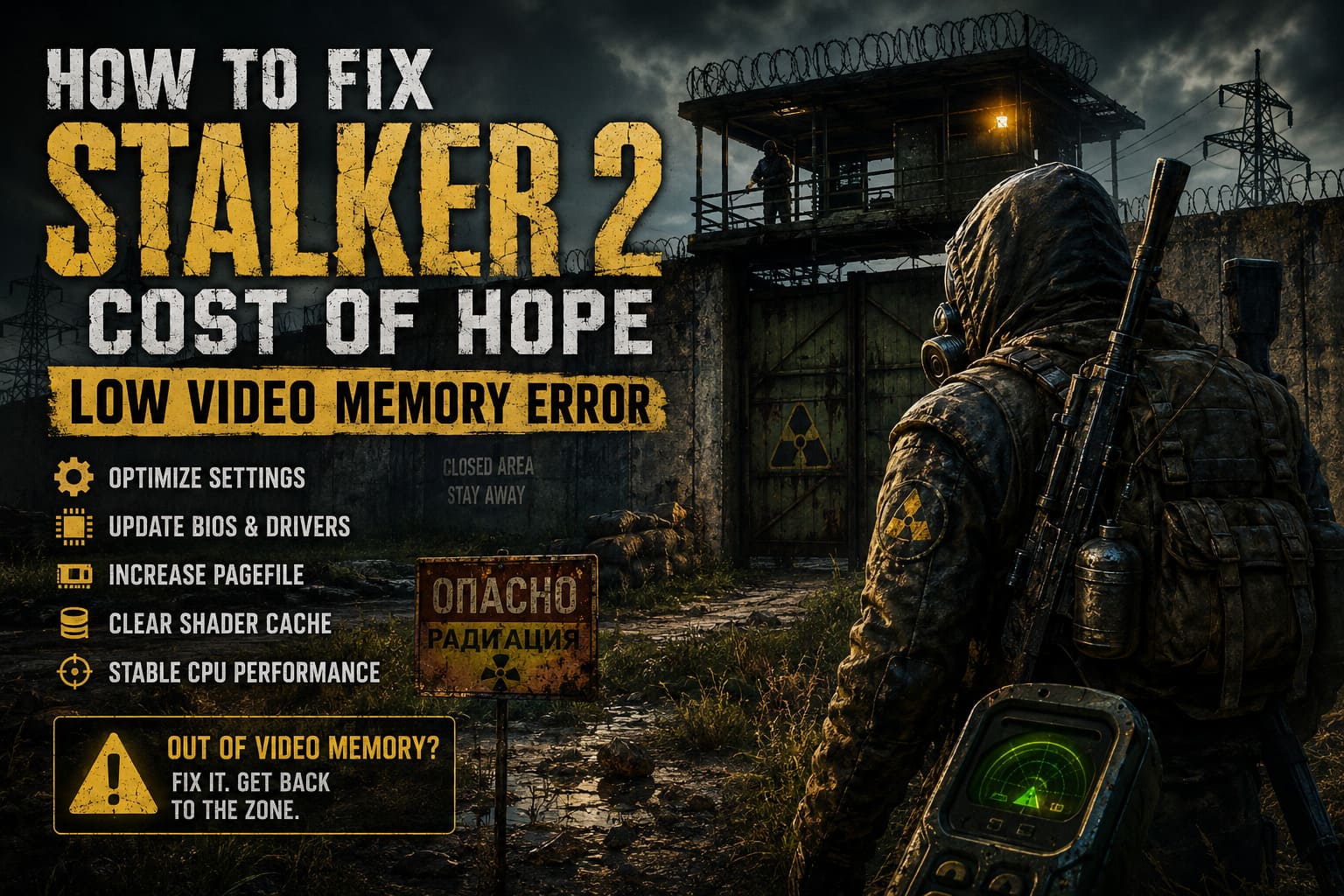
How to Fix STALKER 2 Cost of Hope Low Video Memory Error on PC
There are few things more annoying than finally getting into a game you have been waiting for, only to watch it crash with an “Out of video memory” message. STALKER 2 Cost of Hope is exactly the kind of game where this can happen at the worst possible moment. You might be standing in the middle of the Zone, loading into a new area, compiling shaders after an update, or simply turning toward a particularly demanding location when the game suddenly disappears to the desktop.
What makes the STALKER 2 Cost of Hope low video memory error especially frustrating is that the warning does not always mean your graphics card actually lacks VRAM. Players with powerful GPUs can run into the same crash, which makes the message feel almost misleading. After dealing with enough Unreal Engine 5 games and their occasional technical quirks, I have learned one thing: when a game says “not enough video memory,” it is worth investigating the entire PC rather than immediately blaming the GPU.
STALKER 2 pushes modern hardware extremely hard. Its detailed environments, lighting, textures, streaming systems, and shader workloads can create huge bursts of resource usage. The result is a game that can expose instability elsewhere in your system, including CPU behavior, motherboard firmware, Windows virtual memory, drivers, shader caches, and graphics settings.
How to Fix Shader Compilation Stutter in STALKER 2 Patch 2.0 (Cost of Hope DLC Guide)
Why STALKER 2 Can Report Low Video Memory When You Have Plenty of VRAM
The first thing I would change in your troubleshooting mindset is this: do not assume the error automatically means your GPU is too weak. If you have a card with 16GB, 20GB, 24GB, or more VRAM and the game still crashes with a video memory warning, there is probably another factor involved.
Unreal Engine 5 performs a huge amount of work behind the scenes. Shader compilation, asset streaming, decompression, texture management, lighting calculations, and CPU-side preparation can all happen during demanding sections of the game. If one part of that chain becomes unstable, the final error message may point toward rendering memory even though the original problem started somewhere else.
This is particularly important for players using high-end Intel processors from the 13th and 14th generations. Certain systems have experienced instability under heavy workloads, especially when motherboard firmware applies aggressive power and voltage behavior. A game such as STALKER 2 can expose that instability very quickly because it is capable of hammering the CPU during shader compilation and loading.
Other possible causes include:
- Outdated motherboard BIOS or firmware
- Corrupted GPU shader cache
- Insufficient Windows pagefile allocation
- Unstable CPU overclocking or motherboard power settings
- Extremely demanding texture and lighting settings
- Graphics driver conflicts
- Background applications consuming system resources
So before buying a new graphics card, I would work through the software and system-level fixes first.
1. Check Your Intel CPU Stability
If you are running an Intel Core i7 or i9 processor from the 13th or 14th generation, this is one of the first areas I would investigate. Models such as the Core i7-13700K, i9-13900K, i7-14700K, and i9-14900K can produce enormous performance, but stability becomes particularly important when a motherboard is configured with aggressive automatic power settings.
I have seen plenty of gaming PCs that appear perfectly stable during normal use but fall apart under a very specific workload. STALKER 2 can be that workload.
If you use Intel Extreme Tuning Utility, you can test a slightly lower Performance Core Ratio. For example, a 55x multiplier can be reduced to 54x or 53x as a diagnostic step. The goal is not to cripple the processor. You are simply checking whether a small reduction in peak frequency eliminates the crash.
If the game suddenly becomes stable after a modest reduction, that is a strong indication that system stability deserves more attention.
Do not blindly copy someone else’s voltage settings. CPU tuning varies from system to system, and aggressive manual voltage changes can create their own problems. If you are uncomfortable working with BIOS settings, sticking to manufacturer-recommended defaults is the safer approach.
2. Update Your Motherboard BIOS
This is one of those boring fixes that I would normally put near the bottom of a gaming troubleshooting list. In this particular situation, however, it deserves to be near the top.
Motherboard manufacturers regularly release BIOS updates that improve processor compatibility, memory behavior, power management, and system stability. If your motherboard is running an old BIOS, especially with a newer high-performance Intel CPU, updating it can make a noticeable difference.
Start by identifying the exact motherboard model through Windows System Information. Then visit the manufacturer’s official support page and locate the newest stable BIOS release for that specific board.
Before flashing anything, read the manufacturer’s instructions carefully. BIOS updates are not something to rush through while multitasking with a game running in the background. Use the motherboard’s built-in flashing utility, such as M-Flash, Q-Flash, or a similar tool, depending on the manufacturer.
After the update, check your memory configuration as well. XMP or EXPO settings may return to default values, so your RAM might temporarily run below its rated speed.
3. Increase the Windows Pagefile
This is another fix that gets overlooked because gamers naturally focus on VRAM first.
Windows uses a pagefile on your storage drive as virtual memory. It is not a replacement for physical RAM, and nobody should treat it as one, but it gives Windows additional room to manage large workloads when physical memory becomes heavily occupied.
For a demanding Unreal Engine 5 game, having a reasonable pagefile configuration can help prevent crashes caused by memory pressure.
To adjust it, open Advanced System Settings in Windows and navigate to the Performance settings. From there, open the Advanced tab and locate Virtual Memory.
You can disable automatic management and configure a custom size on a fast SSD or NVMe drive. A commonly used approach is to set the initial size around 1.5 times your installed RAM and the maximum size around three times your installed RAM.
| Installed RAM | Example Initial Size | Example Maximum Size |
|---|---|---|
| 16GB | 24GB | 48GB |
| 32GB | 48GB | 96GB |
| 64GB | 96GB | 192GB |
These are examples rather than universal requirements. Windows normally handles virtual memory reasonably well on modern systems, so if your PC already has a healthy automatically managed pagefile, changing it may not be necessary. Still, if you have been experimenting with custom memory settings or have an unusually small pagefile, restoring a sensible configuration is worth trying.
4. Clear the GPU Shader Cache
Shader compilation is one of the first things I suspect when a demanding game begins crashing after a driver update, patch, or hardware change.
Old shader data can occasionally conflict with newer drivers or game files. STALKER 2 already has a substantial shader workload, so I would rather start with a clean cache than spend hours chasing an obscure problem.
Windows includes a straightforward way to remove the DirectX Shader Cache. Search for Disk Cleanup, select your Windows drive, and look for the DirectX Shader Cache option.
NVIDIA users can also review the Shader Cache Size setting in the NVIDIA Control Panel. If your driver provides an Unlimited option, testing it can be worthwhile for a game with heavy shader compilation.
AMD Radeon users should similarly check AMD Software: Adrenalin Edition and use its shader cache reset option where available.
After clearing the cache, expect the next launch to take longer. That is normal. The game has to rebuild shader data instead of using the cache you just removed.
5. Reduce the Settings That Actually Matter
There is a temptation to turn every setting down when a game reports low VRAM. I do not recommend doing that immediately.
Instead, target the settings that have the biggest impact on memory usage and rendering workload.
- Texture Quality
- Shadow Quality
- Global Illumination
- Effects Quality
- Hair or foliage-related settings
- View distance
If everything is set to Epic or Cinematic, dropping a few options to High can provide a surprisingly good compromise. In my experience, High settings often look much better than gamers expect, particularly while actually moving through a game rather than staring at screenshots.
Texture quality deserves special attention because high-resolution textures can consume a large amount of VRAM. If your GPU is close to its memory limit, lowering textures one step can make a bigger difference than sacrificing several unrelated settings.
6. Use DLSS, FSR, or XeSS
Upscaling technology is one of the best tools available when you’re trying to reduce the rendering burden without making the game look terrible.
Depending on your GPU, STALKER 2 can use technologies such as NVIDIA DLSS, AMD FSR, or Intel XeSS. Start with the Quality preset rather than immediately jumping to Performance.
Quality upscaling renders the game internally at a lower resolution and reconstructs the final image. On a high-resolution display, the difference can be surprisingly difficult to notice during normal gameplay, while the reduction in GPU workload can be significant.
If your system is already unstable, I would rather run a consistent Quality upscaling mode with sensible graphics settings than chase maximum native-resolution quality and suffer random crashes.
7. Cap Your Frame Rate
This sounds unrelated to a video memory error, but it is another useful stability test.
If your GPU is constantly running at its maximum possible output, there is little reason to let it render 180 FPS in a menu or a relatively simple scene when your display is running at 120Hz.
Try a frame-rate limit appropriate for your monitor, such as 60, 120, or 144 FPS. A frame cap can reduce unnecessary GPU utilization, power consumption, and heat.
It is not a guaranteed fix for the low video memory message. Think of it more as reducing the overall workload while you determine what is actually causing the crash.
8. Do Not Ignore Graphics Driver Problems
If the error started immediately after installing a new graphics driver, consider that timing significant.
The newest driver is not automatically the best driver for every game on every system. Likewise, an extremely old driver can contain problems that have already been fixed.
A clean driver installation can be useful if normal updates have left behind corrupted files or conflicting components. Before doing anything drastic, however, make sure the game itself and Windows are fully updated.
Also close unnecessary applications while testing. Browser tabs, recording software, hardware monitoring tools, overlays, RGB utilities, and other background programs can consume memory or interfere with the game.
My Recommended Troubleshooting Order
If I were sitting at your PC trying to fix this problem, I would not change twenty settings at once. That makes troubleshooting almost impossible because you will never know which adjustment actually worked.
I would approach it in this order:
- Restart the PC and verify the game files.
- Update the GPU driver and motherboard BIOS.
- Clear the DirectX/GPU shader cache.
- Check CPU stability, particularly on affected Intel systems.
- Make sure Windows has a healthy pagefile.
- Lower textures and the heaviest lighting settings.
- Enable DLSS, FSR, or XeSS in Quality mode.
- Cap the frame rate and test the game again.
This approach starts with relatively simple fixes and gradually moves toward hardware-level troubleshooting.
Final Thoughts
The STALKER 2 Cost of Hope low video memory error looks frightening because the message immediately makes you think your graphics card is running out of VRAM. Sometimes that really is the problem, but it is far from the only explanation. A high-end GPU does not automatically protect a gaming PC from CPU instability, corrupted shader data, bad firmware settings, memory pressure, or an overly aggressive configuration.
That is what makes troubleshooting modern PC games so different from it was years ago. The GPU is only one piece of the puzzle.
If you are crashing during shader compilation, I would pay particular attention to CPU and BIOS stability. If the crash happens after playing for a long time, graphics settings, memory pressure, and shader caches become more interesting suspects. And if the error appeared after a driver or game update, I would investigate software changes before touching your hardware.
The good news is that you do not necessarily need to replace your graphics card. Start methodically, change one thing at a time, and test the game properly after every major adjustment. STALKER 2 is demanding, no question, but with a stable system and sensible settings, you should be able to spend your time worrying about mutants, anomalies, and getting lost in the Zone instead of staring at another crash dialog.