Onimusha Way of the Sword PC Optimization Guide: Best Settings for Maximum FPS and Performance
There are few things more annoying than finally getting into a sword fight, lining up a perfect parry, and watching your frame rate suddenly fall through the floor. Onimusha: Way of the Sword is exactly the kind of game where stable performance matters. This isn’t a slow strategy game where an occasional hitch barely registers. Combat is built around timing, quick reactions, counters, and reading enemy attacks.
Released on September 4, 2026, Capcom’s latest Onimusha takes the series into a darker version of Edo-period Kyoto. You play as Miyamoto Musashi, a young samurai armed with the legendary Oni Gauntlet, cutting through hordes of Genma in a supernatural version of historical Japan.
The game looks fantastic. That is also part of the problem.
Dense environments, atmospheric lighting, volumetric effects, particles, detailed character models, and busy combat encounters can put serious pressure on a PC. Mid-range hardware can handle the game, but the default presets aren’t necessarily where I’d leave them.
After spending plenty of time tweaking PC games, I wouldn’t chase a gigantic FPS number at the expense of image quality here. A stable 60 FPS with good frame pacing feels dramatically better than a wildly fluctuating 80–100 FPS. The goal of this guide is to find that sweet spot.
First: Check Your PC Hardware
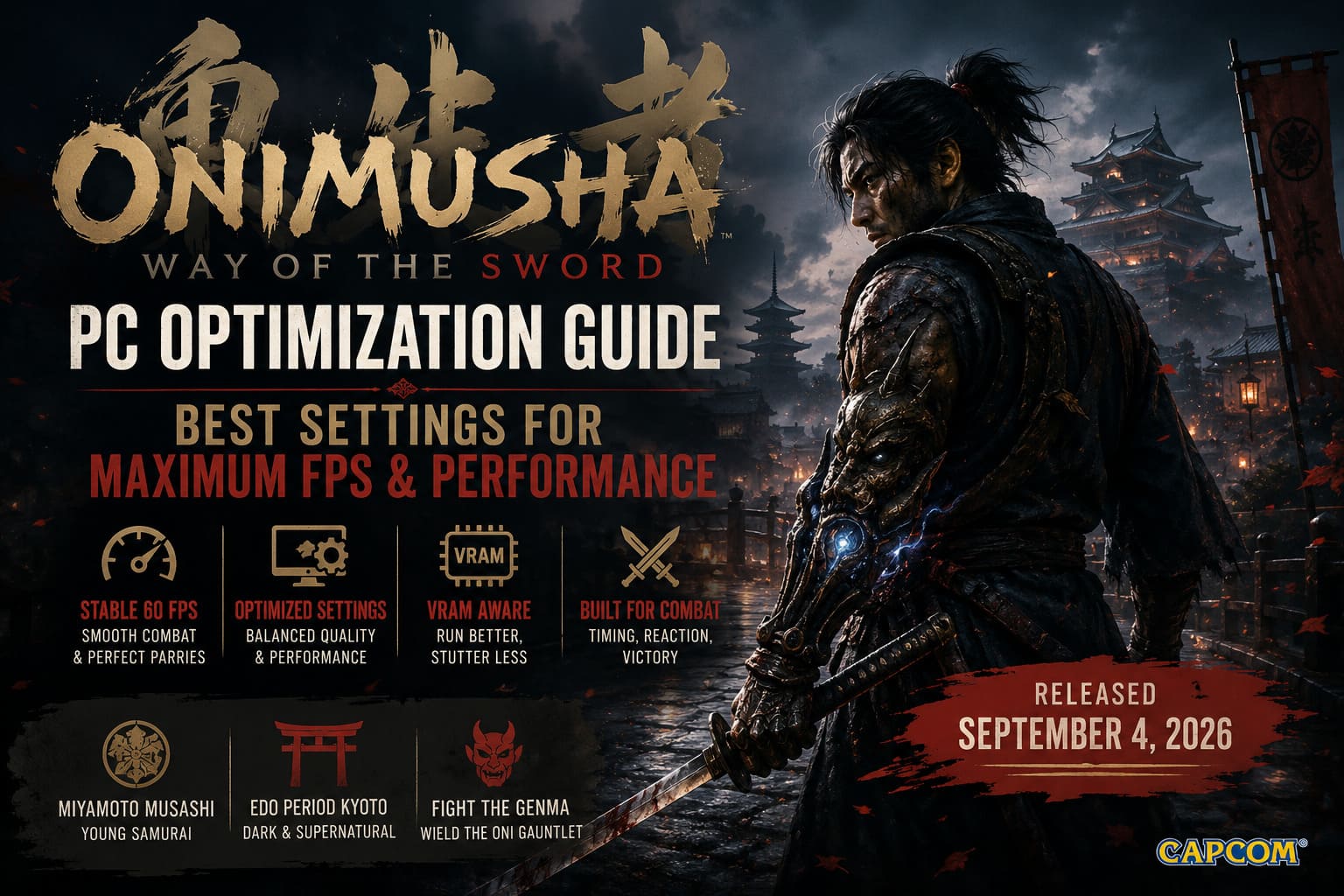
Before changing every graphics option you can find, make sure your system is actually within the game’s hardware target.
| Component | Minimum | Recommended |
|---|---|---|
| OS | Windows 11 64-bit | Windows 11 64-bit |
| CPU | Intel Core i5-8400 / Ryzen 3 3100 | Intel Core i5-10400 / Ryzen 5 3600 |
| RAM | 16 GB | 16 GB |
| GPU | GTX 1660 6GB / RX 5500 XT 8GB | RTX 2060 Super 8GB / RX 6600 8GB |
| API | DirectX 12 | DirectX 12 |
| Storage | 50 GB SSD | 50 GB SSD |
The SSD requirement deserves attention. Don’t treat it as marketing fluff.
On a modern game that constantly streams environmental assets, textures, effects, audio, and other data, an old mechanical hard drive can become a major bottleneck. If you’re experiencing strange pauses when entering new areas, long loading screens, texture pop-in, or audio falling out of sync during cinematics, storage speed should be one of the first things you investigate.
For the smoothest experience, install the game on an SSD with some free space remaining.
Prepare Windows Before Launching the Game
A surprising amount of PC performance troubleshooting starts outside the game itself.
Update Your GPU Driver
Install the latest compatible NVIDIA or AMD graphics driver before you start experimenting with settings. New releases often receive driver-level optimizations, shader fixes, and stability improvements shortly after launch.
If you’ve just upgraded your driver, don’t immediately assume that a few minutes of shader stutter means your GPU is broken. Shader compilation can temporarily make a new game feel much rougher than it will after the first sessions.
Turn On Windows Game Mode
Open:
Windows Settings → Gaming → Game Mode
Make sure Game Mode is enabled.
It won’t magically add 30 FPS, but it can help Windows prioritize gaming workloads and reduce interference from unnecessary background activity.
Enable Hardware-Accelerated GPU Scheduling
Go to:
Settings → System → Display → Graphics → Change default graphics settings
If the option is available on your system, enable Hardware-Accelerated GPU Scheduling.
The actual benefit varies by hardware and Windows configuration, so don’t expect miracles. It can help latency and frame delivery on some modern systems, but I’d treat it as a small optimization rather than a guaranteed FPS booster.
Use a High-Performance Power Profile
Desktop users should make sure their power configuration isn’t unnecessarily restricting performance. Laptop users should pay even more attention to this.
Gaming on battery or with an aggressive power-saving profile can dramatically reduce CPU and GPU clocks. Plug the laptop in and use an appropriate performance mode before judging the game’s performance.
The Best Onimusha: Way of the Sword Graphics Settings
Now we get to the important stuff.
The easiest mistake is dropping everything to Low. Sure, your FPS counter might look happier, but Onimusha loses a lot of its visual identity when you destroy the lighting, shadows, and atmosphere.
The better approach is to target the settings that consume the most GPU resources while leaving relatively cheap visual options higher.
Upscaling — Quality Is the Sweet Spot
Performance Impact: Very High
If your GPU supports a modern upscaler, this is the first setting I’d touch.
Recommended choices:
- NVIDIA RTX: DLSS Quality
- AMD: FSR Quality
- Intel: XeSS Quality
- Native resolution: Use only if your GPU has enough headroom
Upscaling can deliver one of the largest performance improvements available in the graphics menu.
For 1080p and 1440p, Quality mode should be your starting point. It generally preserves much more detail than aggressive Performance modes while giving your GPU considerably more breathing room.
I would avoid jumping straight to Performance mode unless you’re genuinely struggling. Fine details such as foliage, roof textures, wires, particles, and distant geometry can start looking unstable or shimmery.
For a game this atmospheric, that visual degradation is simply not worth it unless you need the extra frames.
Texture Quality — Watch Your VRAM
Performance Impact: Low until you exceed available VRAM
Texture quality is one of those settings people misunderstand.
If your GPU has enough VRAM, increasing texture quality doesn’t necessarily destroy your FPS. The trouble starts when you exceed your available memory.
A sensible starting point is:
- 6GB VRAM: Medium
- 8GB VRAM: High
- 12GB+ VRAM: High or Ultra
- Lower VRAM: Medium or Low
If you push textures beyond what your graphics card can comfortably hold, you can get ugly hitching and asset-streaming problems.
And that’s much worse than simply losing a few FPS.
Shadow Quality — One of the First Settings to Lower
Performance Impact: High
Shadow Quality is one of my first targets whenever a demanding game refuses to maintain a stable frame rate.
For Onimusha, Medium is the sweet spot.
High-quality shadows look great when you’re standing still and admiring Kyoto. During an actual fight, however, you probably won’t notice every tiny improvement in shadow resolution.
Dropping from High to Medium can recover meaningful GPU performance while keeping the environment believable.
I’d only use Low if you’re already fighting for every frame.
Ambient Occlusion
Performance Impact: Medium
Ambient Occlusion gives environments depth by adding subtle contact shadows around objects and surfaces.
Without it, scenes can look strangely flat.
Use SSAO or HBAO+ if available. If your system is struggling badly, reducing the quality is preferable to completely gutting the game’s lighting presentation.
For most mid-range PCs, SSAO is a good compromise.
Volumetric Fog and Lighting
Performance Impact: High
This is another big one.
Onimusha’s supernatural atmosphere relies heavily on fog, volumetric lighting, and dark environmental effects. They look excellent, but they’re also expensive.
My recommendation is:
Medium for most PCs. Low for struggling systems.
Going from High to Medium can provide a useful performance improvement without making Kyoto suddenly look like a flat video game backdrop.
And honestly, Medium is where I’d leave it even on a fairly capable PC if my priority was consistent combat performance.
Particle Effects
Performance Impact: High during combat
Particles can be sneaky performance killers.
A quiet street might run perfectly, then you start fighting several Genma, trigger Oni abilities, absorb souls, and suddenly the GPU has a completely different workload.
Set Particle Effects to Medium if you’re experiencing combat-specific FPS drops.
This is particularly useful if your average FPS looks fine but your frame-time graph goes crazy whenever the screen fills with effects.
Anti-Aliasing
Performance Impact: Low
If you’re playing at native resolution, TAA is the sensible choice for smoothing jagged edges.
If you’re using DLSS, FSR, or XeSS, let the upscaling solution handle its own reconstruction and anti-aliasing.
TAA can introduce a little softness, but I’d take that over crawling edges around Musashi’s armor and weapons.
Motion Blur and Depth of Field
Performance Impact: Low
Turn both Off if you care about clarity.
Motion Blur is a cinematic effect, not a performance necessity. During fast sword fights, I find it actively gets in the way.
Depth of Field is similar. It can look beautiful during cinematic moments, but if you want a clearer image during normal gameplay, disabling it makes sense.
Don’t expect a huge FPS increase from either setting. This is primarily about visual clarity and personal preference.
My Recommended 60 FPS Configuration
If I were setting up a typical mid-range gaming PC today, this is the configuration I’d start with.
| Setting | Recommended Value |
|---|---|
| Display Mode | Borderless Window |
| Resolution | Native Monitor Resolution |
| Upscaling | DLSS / FSR / XeSS Quality |
| Texture Quality | High on 8GB+, Medium on 6GB |
| Texture Filtering | Anisotropic 8x |
| Shadow Quality | Medium |
| Ambient Occlusion | SSAO |
| Volumetric Fog | Medium |
| Particle Effects | Medium |
| Motion Blur | Off |
| Depth of Field | Off |
| Anti-Aliasing | Upscaler / TAA |
| Dynamic Resolution | Off |
This is the setup I’d recommend before doing anything extreme.
It preserves the parts of the game that actually make it look expensive while cutting back on several settings that can hammer the GPU.
Maximum FPS Settings for Older PCs
If your system is closer to the minimum specification, you need to be more aggressive.
Try:
- Fullscreen
- FSR or XeSS Balanced
- Textures Medium or Low
- Anisotropic Filtering 4x
- Shadows Low
- Ambient Occlusion Off or Low
- Volumetric Fog Low
- Particles Low
- Motion Blur Off
- Depth of Field Off
The big priority is maintaining stable frame delivery.
I’d much rather play at a locked 60 FPS with sensible image quality than watch the counter bounce between 47 and 72 FPS every few seconds.
For handheld hardware such as the Steam Deck, an even lower target can make sense. A 40 FPS cap is often a better experience than chasing an unstable 60 FPS because consistent frame times make movement and camera control feel considerably smoother.
Is Onimusha: Way of the Sword Crossplay & Cross-Save Supported? PC to PS5 Transfer Guide
Fixing Micro-Stutters After Changing Settings
Graphics settings aren’t always the culprit.
Give Shader Compilation Time
The first launch after installing the game or updating GPU drivers can be rough.
Let the game sit at the main menu for a few minutes before immediately starting a long session. If the engine is compiling shaders in the background, forcing it to do that while you’re fighting enemies is a recipe for hitching.
If stuttering gradually improves after you’ve visited several areas, shader compilation is a strong suspect.
Check Your Storage
If the game is installed on an HDD, move it to an SSD.
Seriously.
No graphics preset can compensate for painfully slow asset streaming.
Watch VRAM Usage
If lowering textures suddenly makes stuttering disappear, your GPU may have been running out of VRAM.
Don’t obsess over making the texture slider as high as possible. VRAM headroom is more valuable than a prettier texture preset that causes constant hitching.
Check V-Sync and VRR
If you’re using G-Sync or FreeSync, experiment with disabling in-game V-Sync and managing synchronization through your GPU software.
A frame-rate cap slightly below your monitor’s maximum refresh rate can also help keep VRR operating inside its useful range.
The exact ideal cap depends on your display, so don’t blindly copy somebody else’s number.
Onimusha Way of the Sword Trophy Guide & Roadmap (PS5 / Series X)
Final Verdict
Onimusha: Way of the Sword doesn’t need to be run on Low to perform well. That’s the biggest takeaway.
The expensive settings are relatively obvious once you know where to look: shadows, volumetric effects, particles, and resolution rendering can all have a much greater impact than small visual options such as anti-aliasing or texture filtering.
For a typical 8GB GPU, I’d start with Quality upscaling, High textures, Medium shadows, Medium volumetrics, Medium particles, and SSAO. Turn off Motion Blur and Depth of Field, then work from there.
If you’re still dropping frames, lower the upscaling quality or shadows before destroying everything else.
And don’t forget the most important part: frame pacing matters more than the biggest FPS number on your screen. In a samurai action game built around parries, counters, and split-second reactions, a consistent 60 FPS can make the combat feel dramatically better.
Get the frame times under control, keep the image sharp, and then go back to doing what Onimusha does best — cutting through demons with a sword instead of fighting your graphics settings.