Zombie Army 4 Low FPS and Stuttering Fix: Guide for DirectX 12 (2026 Update)
There is something uniquely annoying about Zombie Army 4: Dead War running at 100+ FPS and still feeling like it is struggling.
I ran into exactly that problem. The FPS counter looked perfectly healthy most of the time, yet the game could suddenly hitch when a new group of zombies appeared, freeze for a fraction of a second during explosions, or feel strangely uneven when turning the camera. It was especially noticeable during the bigger horde encounters, which is probably the worst possible moment for a shooter to start having frame-pacing problems.
At first, I assumed my hardware was simply getting old. It wasn’t. The problem was much more complicated than average FPS.
After experimenting with DirectX 12 settings, shader caches, Windows configuration, refresh-rate options, and Vulkan, I found that Zombie Army 4 responds much better when you treat its performance problems as a frame-pacing issue rather than simply trying to push the highest possible FPS.
So, if you’re dealing with Zombie Army 4 low FPS, stuttering, micro-freezes, or inconsistent frame times on PC in 2026, these are the changes I’d try first.
Why Zombie Army 4 Can Stutter Even at High FPS
This is the part that confused me the most.
You can have an average of 90, 120, or even 200 FPS and still experience obvious stutter. That’s because the average FPS number doesn’t tell you how consistently individual frames are being delivered.
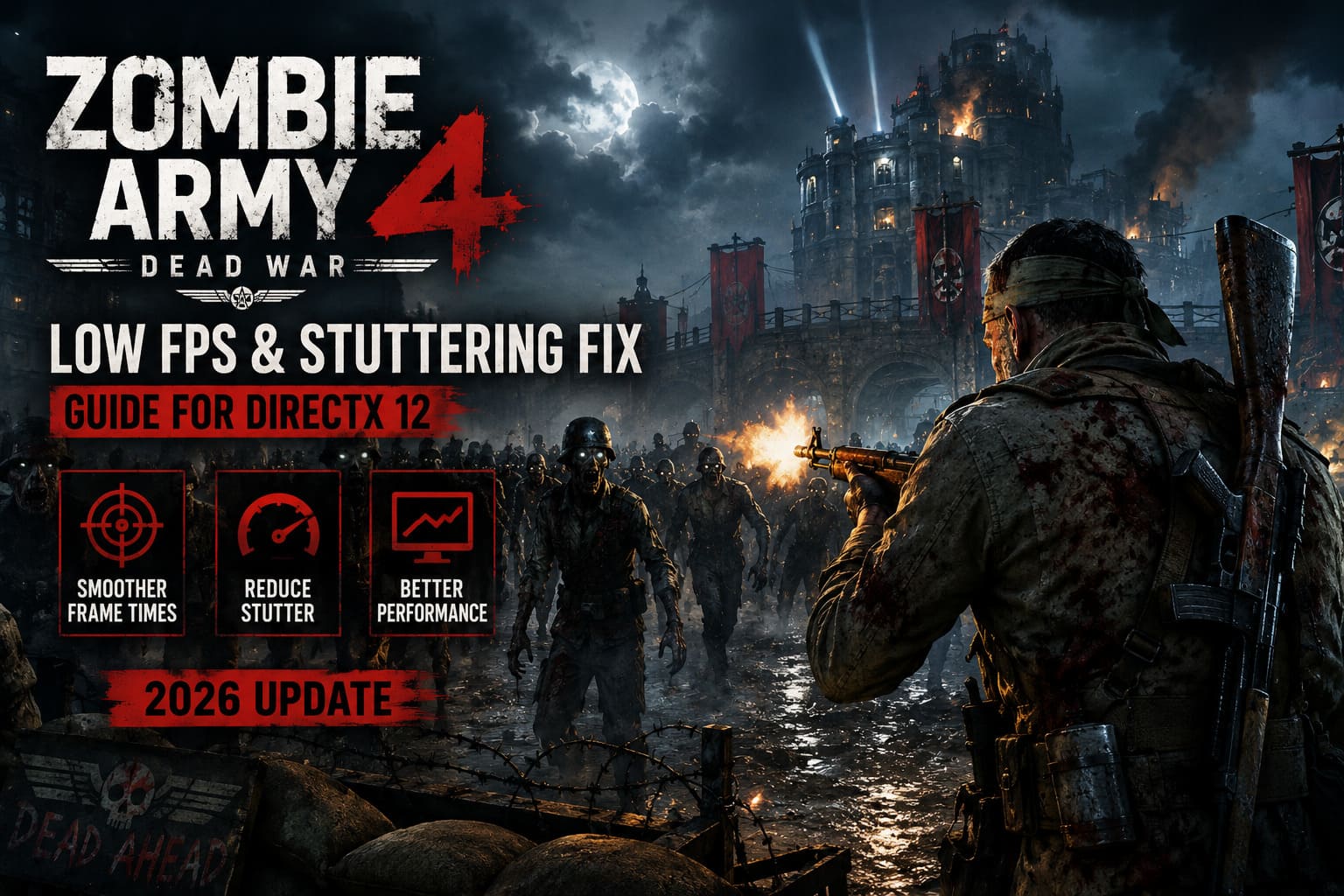
Imagine the game is rendering at 120 FPS. In theory, that’s around 8.3 milliseconds per frame. If most frames arrive around that time but one suddenly takes 40 or 50 milliseconds, you’ll notice that hitch immediately.
Zombie Army 4 can expose this problem during particularly busy scenes.
Large zombie groups, explosions, environmental effects, new assets loading into memory, and shader compilation can all produce short spikes in frame time. DirectX 12 can make this more noticeable because the API gives the game greater responsibility for managing low-level rendering tasks.
In my experience, smooth frame pacing matters much more here than chasing a huge FPS number.
My First Recommendation: Try Vulkan Before Doing Anything Extreme
If DirectX 12 is giving you trouble, I wouldn’t spend an entire evening tweaking Windows security settings before testing the obvious alternative.
Try Vulkan first.
Zombie Army 4 supports Vulkan, and switching rendering APIs can make a surprisingly noticeable difference depending on your GPU and driver configuration.
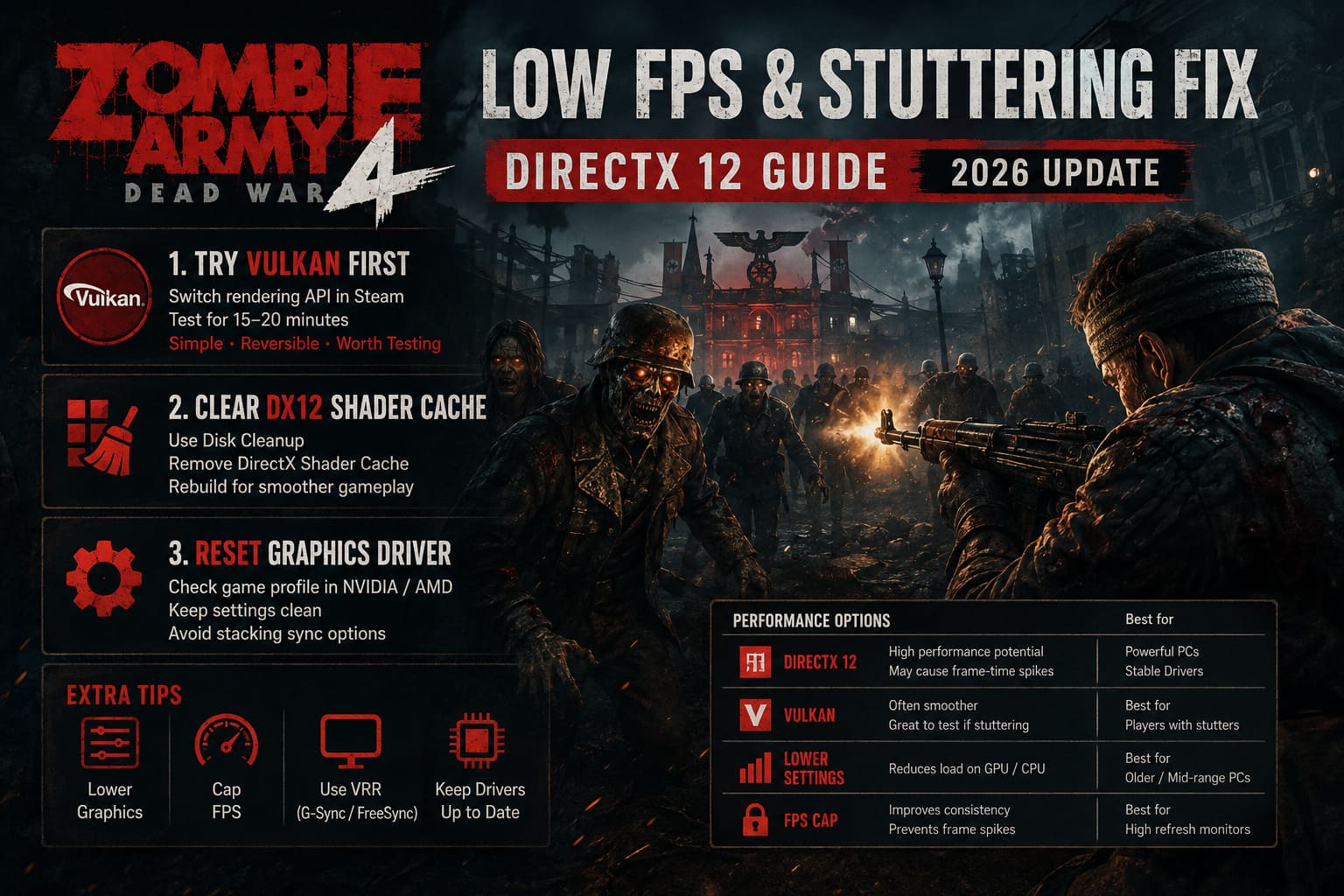
To test it through Steam:
- Open your Steam Library.
- Right-click Zombie Army 4: Dead War.
- Select Properties.
- Look for the game’s launch or startup configuration.
- If the game provides an API selection screen when launching, choose Vulkan instead of DirectX 12.
- Play through a demanding mission for at least 15–20 minutes before judging the result.
Don’t test for two minutes and immediately switch back. The first few minutes can involve shader and asset caching, so the experience may not represent what you’ll get after the game has settled.
For me, Vulkan is the first thing I’d test because it’s simple, reversible, and doesn’t require changing Windows security features.
DirectX 12 vs. Vulkan
| Option | What I’d Expect | Best For |
|---|---|---|
| DirectX 12 | Potentially excellent performance but can expose frame-time issues | Modern hardware with stable drivers |
| Vulkan | Often worth testing when DX12 feels inconsistent | Players experiencing stutters |
| Lower Graphics Settings | Reduces GPU/CPU workload | Older or mid-range PCs |
| FPS Cap | Improves consistency | High-refresh monitors |
Rebuild the DirectX Shader Cache
If you want to stay with DirectX 12, the next thing I’d investigate is the shader cache.
Shader compilation is one of those things you rarely think about until a game starts freezing for a split second every time something new happens on screen.
A damaged or outdated cache can potentially cause unnecessary recompilation. That’s particularly irritating in a game like Zombie Army 4, where the screen can suddenly become extremely busy.
Windows gives you a straightforward way to clear the DirectX shader cache.
How to Clear It
- Open the Windows Start menu.
- Search for Disk Cleanup.
- Select your Windows system drive.
- Let Windows scan the drive.
- Find DirectX Shader Cache in the list.
- Select it.
- Run the cleanup operation.
After that, launch Zombie Army 4 again.
Don’t panic if the first run isn’t perfectly smooth. Rebuilding caches can temporarily introduce some stutter while new shaders and related data are generated.
I’d play a full mission or at least spend 10–15 minutes in a busy area before deciding whether the change helped.
Give Your Graphics Driver a Clean Start
This is another boring fix that is surprisingly useful.
GPU drivers don’t always behave perfectly after multiple game updates, Windows updates, and driver upgrades. Sometimes a profile or cached setting ends up doing more harm than good.
Before making dozens of custom changes, open your graphics driver’s control software and check the Zombie Army 4 profile.
For NVIDIA users, that’s the NVIDIA Control Panel. AMD users can check AMD Software.
I prefer keeping the game’s profile relatively conservative instead of forcing every possible performance option globally.
In particular, avoid stacking multiple forms of frame synchronization.
If you’re using G-Sync or FreeSync, for example, you generally want a sensible combination of variable refresh rate, V-Sync configuration, and an FPS cap rather than enabling every synchronization option simultaneously.
Your Monitor’s Refresh Rate Matters More Than You Think
Here’s another change that’s easy to overlook.
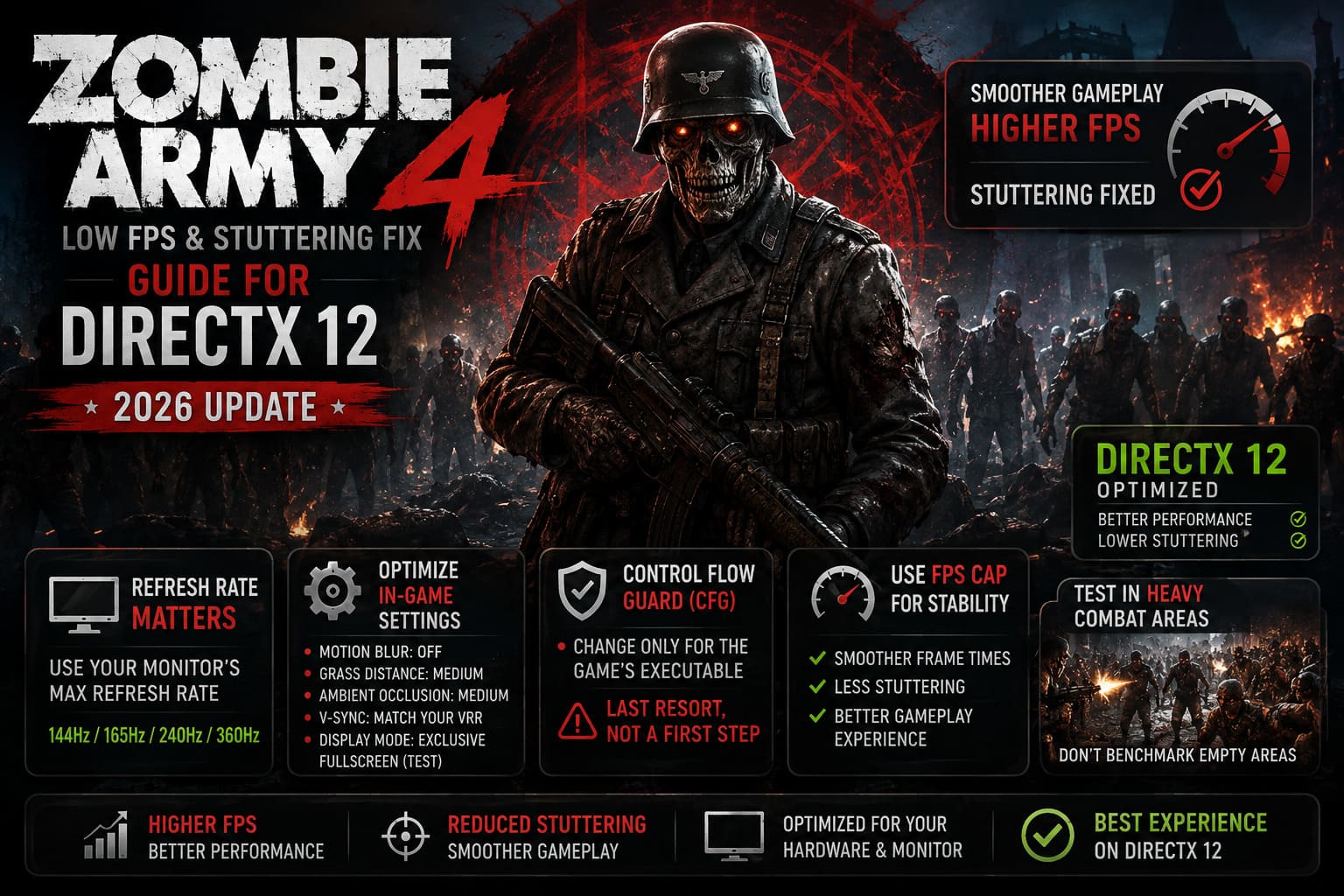
If you’re playing on a 144Hz, 165Hz, 240Hz, or 360Hz monitor, make sure Windows is actually configured to use the refresh rate you paid for.
Go to:
Settings → System → Display → Advanced Display
Then check the active refresh rate.
It sounds obvious, but Windows updates, driver changes, display swaps, and graphics settings can occasionally leave a monitor running below its intended frequency.
A mismatched display configuration can make a game feel less responsive even when the FPS counter looks good.
Zombie Army 4 is also an older title compared with some of the modern games being designed specifically around ultra-high-refresh displays. So I wouldn’t assume that throwing 300+ FPS at it automatically means you’re getting a perfect 300Hz experience.
Don’t Ignore the In-Game Settings
You don’t need to put everything on Low.
That’s one of the biggest mistakes people make when troubleshooting PC performance.
Instead, identify the settings that have a meaningful effect on frame times.
I’d start with these:
- Motion Blur: Off
- Grass/Vegetation Distance: Medium
- Ambient Occlusion / Obscurance: Medium or one step below maximum
- V-Sync: Configure according to your VRR setup
- Display Mode: Test Exclusive Fullscreen if available
Motion blur isn’t necessarily a huge performance killer, but I prefer it disabled when troubleshooting because it makes visual judder harder to diagnose.
Grass and environmental detail are more interesting. In large outdoor areas, reducing vegetation distance can take some pressure off rendering and asset streaming without turning the entire game into a blurry mess.
That’s the kind of compromise I like.
Keep the textures and important visual details high, then reduce the settings that actually cause trouble.
What About Control Flow Guard?
This is where I’d be more cautious.
Windows includes security features such as Control Flow Guard (CFG) as part of its exploit protection system. You may find PC performance guides recommending that players disable CFG for the game’s executable.
There are circumstances where advanced Windows security mitigations can interact poorly with particular applications, but I would not make this my first troubleshooting step.
You’re changing a security feature for a specific executable, so the potential benefit needs to justify the trade-off.
If you’ve already tried Vulkan, shader-cache cleanup, driver troubleshooting, graphics adjustments, and refresh-rate checks and the problem remains specifically tied to the DirectX 12 executable, then you can investigate the game’s individual Windows Exploit Protection settings.
If you do, make the change only for the game’s executable, not globally across Windows.
And remember what you changed so you can reverse it later.
Personally, this is a last-resort experiment, not a universal Zombie Army 4 FPS fix.
The FPS Cap Trick Is Underrated
Here’s something I strongly recommend testing if your system produces wildly fluctuating FPS.
Cap your frame rate.
If your PC jumps between 160 FPS and 95 FPS constantly, the game can feel less consistent than it would at a locked 100 or 120 FPS.
A stable 120 FPS can feel better than an unstable 170 FPS.
That sounds counterintuitive until you look at frame times.
For a 144Hz monitor, I’d experiment with a cap somewhere below the maximum refresh rate. For a 240Hz display, you don’t necessarily need to chase 240 FPS either.
The right number depends on your GPU, CPU, monitor, and VRR configuration.
The important thing is to find a level your PC can actually sustain during the worst parts of a mission.
Don’t benchmark an empty hallway. Test during the biggest zombie massacre you can find.
Zombie Army 4: Dead War Xbox Series S Frame Rate Settings: 2026 Optimization Guide
My Recommended Order of Attack
If I were reinstalling Zombie Army 4 today and immediately encountered stuttering, I wouldn’t randomly change 20 settings.
I’d work through the problem in this order:
- Check GPU drivers and Windows refresh rate.
- Test Vulkan instead of DirectX 12.
- Clear the DirectX shader cache.
- Lower grass/vegetation and ambient obscuration settings.
- Disable motion blur.
- Experiment with a sensible FPS cap.
- Check G-Sync/FreeSync and V-Sync configuration.
- Test Exclusive Fullscreen if available.
- Only then investigate Windows Exploit Protection and CFG.
This approach makes troubleshooting much easier because you’re changing one major variable at a time.
How to Fix Zombie Army 4: Dead War Crashing on Startup in Windows 11 (2026 Guide)
Final Thoughts
Zombie Army 4 is still a fantastic co-op shooter, and honestly, it deserves better than being remembered as a game with annoying PC stutters.
The good news is that you don’t necessarily need a new graphics card to fix the problem.
In many cases, the real issue is consistency rather than raw performance. A clean shader cache, sensible graphics settings, a properly configured monitor, and the right rendering API can make the game feel dramatically better.
For me, Vulkan would be the first test. It’s quick, reversible, and can immediately tell you whether DirectX 12 is part of the problem.
If Vulkan doesn’t help, move on to the shader cache and frame-pacing adjustments. And if you’re still seeing severe stutters after all of that, then it’s time to look deeper into drivers, Windows configuration, and the game’s executable.
The biggest lesson is simple: don’t judge Zombie Army 4’s performance by the FPS counter alone. Watch how the game actually feels.
When the hordes arrive, explosions fill the screen, and dozens of zombies are collapsing around you, that’s the real benchmark.
If the game stays smooth there, you’ve probably found the right configuration.