How to Fix Scarlet Deer Inn Low FPS in Torch Light Scenes: Full Optimization Guide
When I first launched Scarlet Deer Inn, I wasn’t expecting to troubleshoot performance. The game looks like a moving storybook rather than a hardware benchmark. Its embroidered characters, painted backgrounds, and atmospheric lighting create one of the most distinctive visual styles I’ve seen in years.
Then I reached the darker areas.
Everything was perfectly smooth until Elise pulled out her torch. Suddenly my frame rate took a dive, camera movement became inconsistent, and every new room introduced tiny freezes that completely broke the immersion. After browsing Steam discussions, Reddit threads, and experimenting on my own system for several evenings, I discovered that this isn’t simply “my PC being too weak.” In many cases, it’s a combination of lighting calculations, frame pacing, and graphics settings that don’t cooperate particularly well on some hardware.
If you’re seeing major FPS drops whenever torchlight enters the scene, here’s everything that genuinely helped me.
Why Does Performance Drop Around Torches?
At first glance, Scarlet Deer Inn looks like a lightweight 2D adventure, but that’s a little misleading.
The artwork is layered in a way that’s far more demanding than many traditional side-scrollers. Every scene contains numerous animated elements, overlapping textures, transparency effects, and lighting that reacts dynamically rather than being baked into the environment.
When Elise lights a torch, several things happen simultaneously:
- Dynamic shadows begin updating across multiple visual layers.
- Lighting gradients change continuously while you move.
- Shader effects need to process transparency and color transitions in real time.
- The CPU suddenly has more rendering work while the GPU receives additional lighting calculations.
Individually these aren’t particularly heavy, but together they can create noticeable spikes, especially if your frame timing is already unstable.
One thing I noticed during testing was that average FPS wasn’t always the problem. Sometimes the game still reported 60 FPS, yet movement felt noticeably less smooth because the frame pacing became inconsistent.
The First Settings I Changed
I always prefer fixing performance inside the game before touching drivers or Windows.
These three settings immediately produced the biggest improvement.
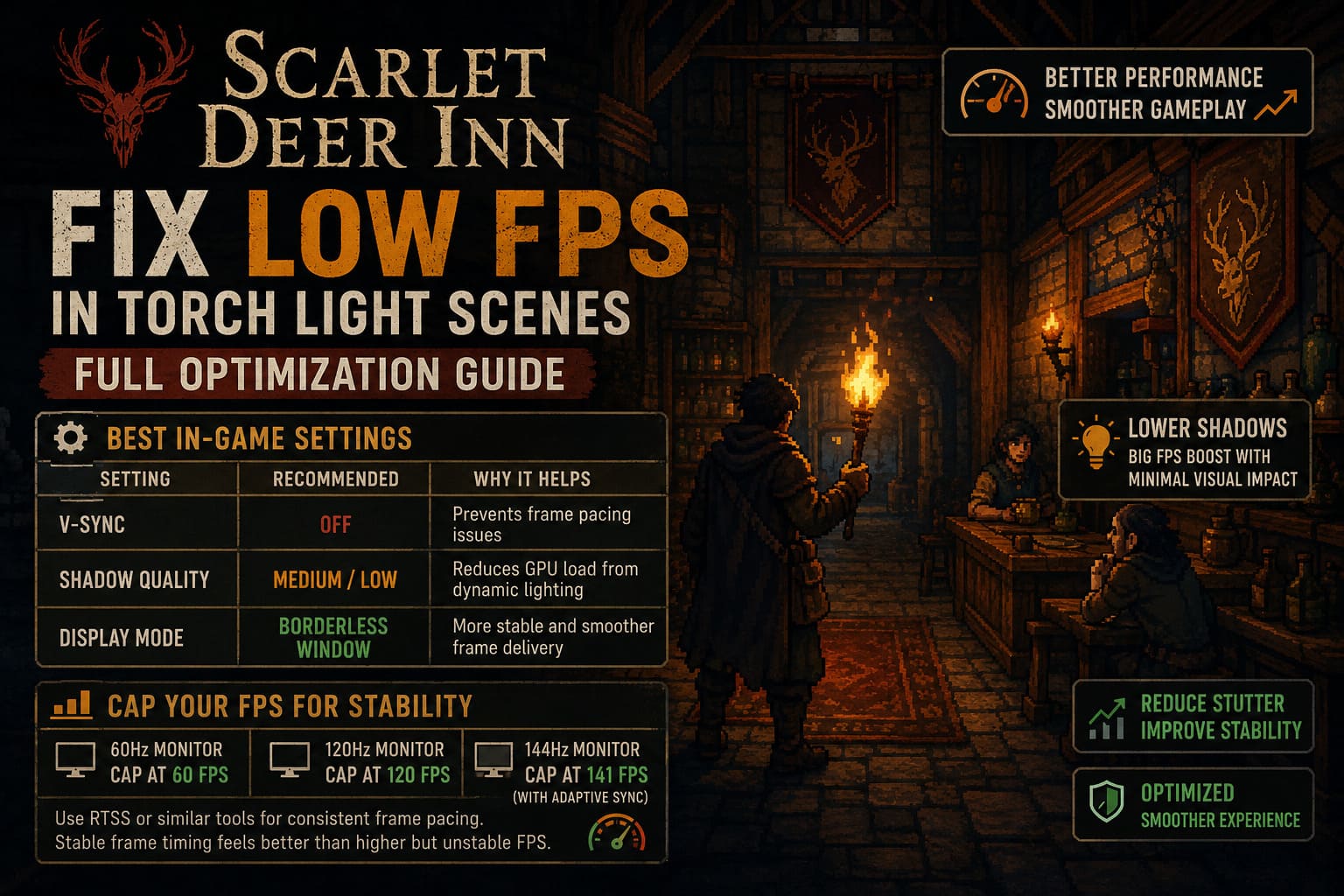
| Setting | Recommended Value | Why It Helps |
|---|---|---|
| V-Sync | Off | Prevents sudden frame pacing issues when FPS fluctuates. |
| Shadow Quality | Medium or Low | Reduces the workload created by dynamic lighting. |
| Display Mode | Borderless Window | Often provides smoother frame delivery than exclusive fullscreen. |
Lowering shadows had the biggest impact on my system.
Normally I hate sacrificing visual quality, but Scarlet Deer Inn’s art style hides reduced shadow resolution surprisingly well. Unless you’re actively comparing screenshots, the difference is difficult to notice during gameplay.
Borderless Mode Was Surprisingly Better
This isn’t something I expected.
Exclusive fullscreen usually performs best in most modern games, but Scarlet Deer Inn behaved differently on my PC.
Switching to Borderless Windowed Mode reduced several random stutters that consistently appeared while entering darker rooms.
I’ve seen enough reports from other players describing similar behavior that I don’t think it’s just a coincidence.
If you’re currently using Fullscreen mode, it’s definitely worth trying Borderless for fifteen minutes before changing anything more complicated.
Stable Frame Timing Matters More Than Maximum FPS
One mistake I made initially was leaving the frame rate completely uncapped.
The GPU rendered hundreds of unnecessary frames in brighter locations, then suddenly struggled whenever dynamic lighting became more demanding.
Instead, I capped my frame rate externally.
Programs like RivaTuner Statistics Server (RTSS) work especially well because they deliver much more consistent frame pacing than many built-in limiters.
My general recommendation:
- 60 Hz monitor → cap at 60 FPS.
- 120 Hz monitor → cap at 120 FPS.
- 144 Hz monitor → cap around 141 FPS if you’re using adaptive sync.
The game immediately felt more consistent.
Instead of constantly bouncing between high and low frame rates, everything became smoother because the GPU workload stayed predictable.
GPU Driver Settings Are Worth Checking
Something many players overlook is power management.
Scarlet Deer Inn doesn’t constantly push your graphics card to maximum utilization like a modern AAA shooter. Because of that, some drivers become overly aggressive with power saving.
Then, the moment a torch introduces extra rendering work, the GPU has to ramp clocks back up.
That transition alone can create tiny performance hiccups.
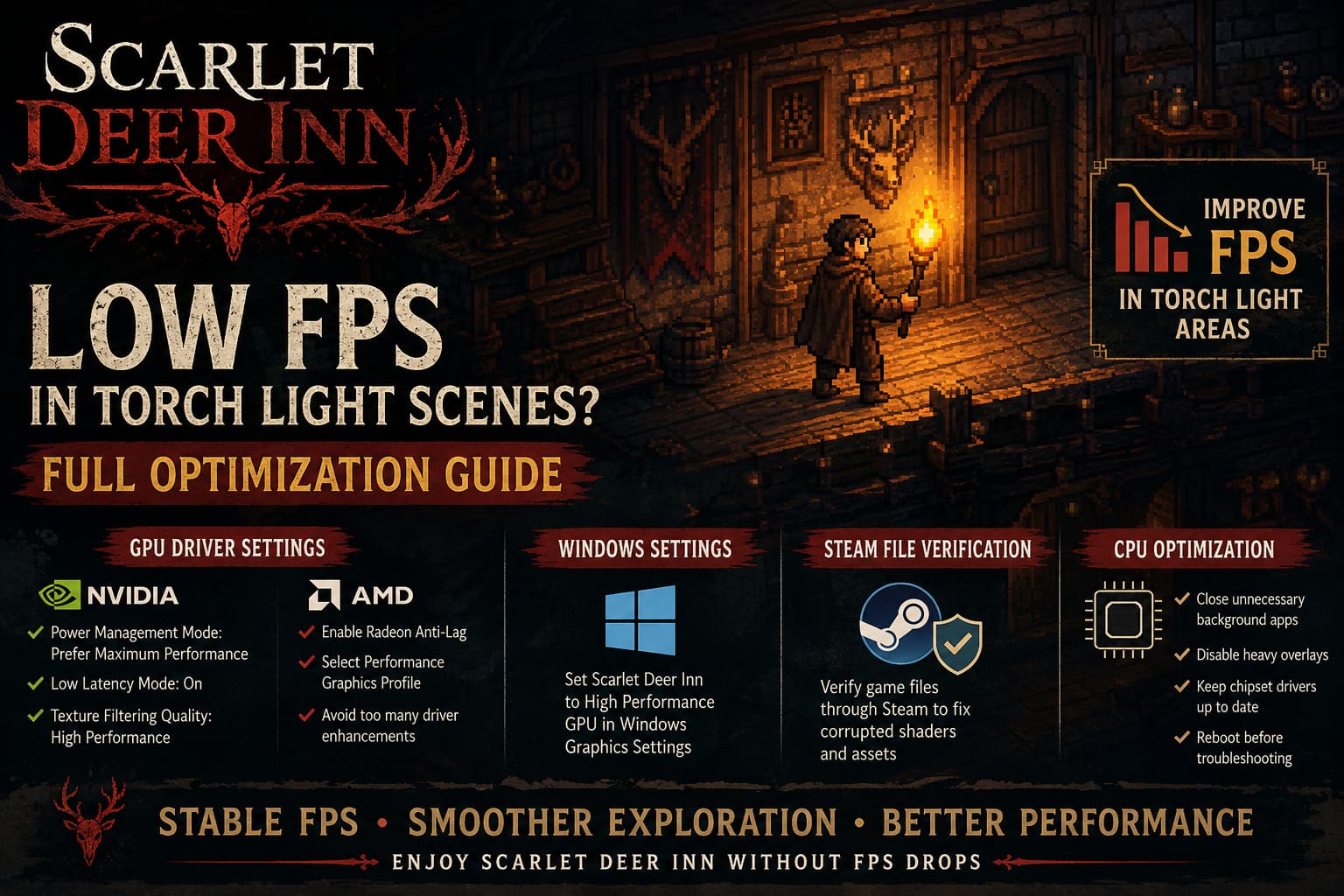
NVIDIA
For NVIDIA users, I recommend:
- Power Management Mode: Prefer Maximum Performance.
- Low Latency Mode: On.
- Texture Filtering Quality: High Performance.
I usually leave everything else at default unless another game specifically requires different settings.
AMD
If you’re using Radeon hardware:
- Enable Radeon Anti-Lag.
- Select the Performance graphics profile.
- Avoid enabling too many driver-level enhancements simultaneously.
Less is often more here.
Windows Can Also Get in the Way
Windows sometimes decides a game doesn’t deserve maximum resources, especially when it’s a visually simple-looking indie title.
That assumption isn’t always correct.
I recommend opening Graphics Settings in Windows and manually assigning Scarlet Deer Inn to the High Performance GPU profile.
It only takes a minute and ensures Windows always uses your dedicated graphics card rather than making its own decisions.
Don’t Ignore Steam File Verification
I know this advice appears in almost every troubleshooting guide.
Usually I skip it.
This time, however, it’s actually worth doing.
Lighting effects rely heavily on shaders and cached assets. If one of those files becomes corrupted after an update, strange performance behavior can appear in only certain areas of the game.
Verifying files through Steam takes just a few minutes and eliminates that possibility entirely.
CPU Optimization: Does It Help?
You’ll occasionally see recommendations telling players to “unlock all CPU cores” through Windows configuration.
Personally, I wouldn’t consider this a universal performance fix.
Modern versions of Windows already schedule CPU cores effectively on properly functioning systems.
If your processor is operating normally, changing boot processor settings often provides little to no improvement.
Instead, I had better results simply by:
- Closing unnecessary background software.
- Disabling heavyweight overlays I wasn’t using.
- Keeping chipset drivers updated.
- Running the game after a fresh reboot when troubleshooting.
These steps reduced background interruptions without modifying Windows boot configuration.
Steam Deck Performance
Scarlet Deer Inn actually feels fantastic on the Steam Deck once you stop chasing the highest possible frame rate.
During my testing, locking performance produced a noticeably better experience than letting FPS fluctuate.
Here’s what I’d recommend:
| Mode | Recommendation |
|---|---|
| Maximum Smoothness | 60 FPS / 60 Hz |
| Balanced Battery Life | 45 FPS / 45 Hz |
| Longer Portable Sessions | Medium shadows with a 45 FPS lock. |
Because the game emphasizes atmosphere rather than fast reactions, a locked 45 FPS still feels remarkably smooth on the Deck display.
More importantly, it removes the distracting performance swings during darker sequences.
Extra Tweaks That Helped Me
After trying dozens of different suggestions, these smaller optimizations were the ones I decided to keep:
- Keep graphics drivers updated.
- Close browsers with multiple video tabs open.
- Disable unnecessary RGB control software while gaming.
- Avoid recording software unless you actually need it.
- Restart the game after changing major graphics settings.
None of these changes magically doubled my FPS, but together they made gameplay noticeably more consistent.
Scarlet Deer Inn Steam Deck Best Graphics Settings: Maximize Battery Life and Visuals
My Recommended Settings
For most mid-range gaming PCs, I’d start with something like this:
| Option | Recommended |
|---|---|
| Display Mode | Borderless |
| Resolution | Native |
| V-Sync | Off |
| Shadow Quality | Medium |
| External FPS Cap | Match your monitor refresh rate. |
| Windows Graphics Mode | High Performance |
| NVIDIA Power Mode | Prefer Maximum Performance |
| Radeon Profile | Performance |
Scarlet Deer Inn Ending Explained: The Full Plot Summary & Slavic Lore Breakdown
Final Thoughts
Scarlet Deer Inn proves that visual complexity isn’t limited to photorealistic games. Even though it’s a handcrafted 2D adventure, its layered artwork and dynamic lighting can place surprising demands on both the CPU and GPU.
The encouraging part is that most torch-related FPS drops aren’t caused by outdated hardware. They’re usually the result of unstable frame pacing, aggressive shadow rendering, or driver settings that aren’t ideal for this particular engine.
After experimenting with different configurations, the biggest improvements came from lowering shadow quality, switching to Borderless mode, capping the frame rate externally, and making sure the graphics driver stayed in its high-performance mode. None of these changes noticeably reduced the game’s artistic charm, but together they transformed the experience from inconsistent and stuttery into something that felt fluid from beginning to end.
If you’re still seeing performance drops after trying these tweaks, don’t panic. Indie games often receive optimization updates during the weeks following release, and Scarlet Deer Inn already has an active community sharing new discoveries. Until then, a few carefully chosen settings can make exploring its beautifully stitched world feel every bit as smooth as it deserves.