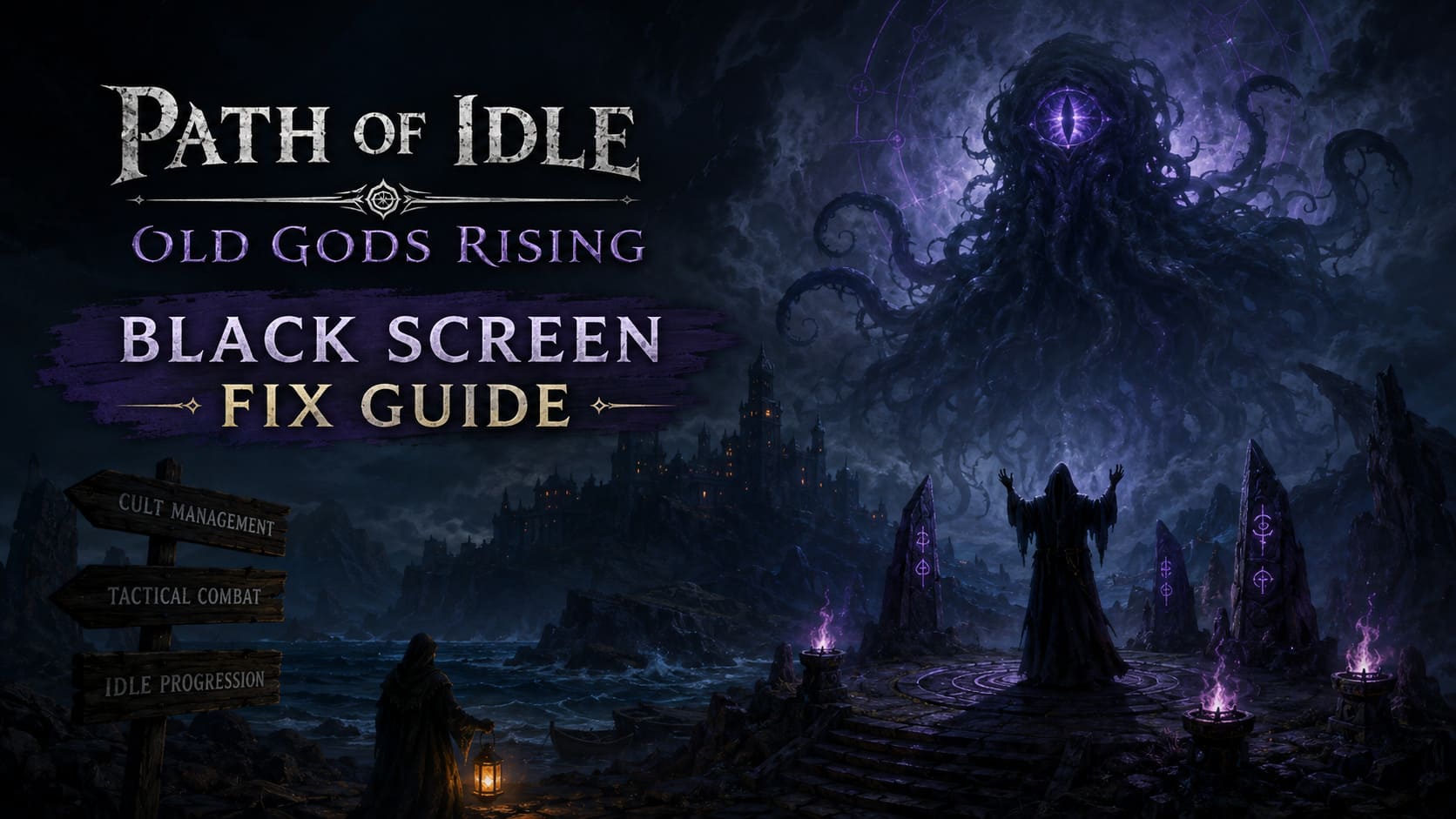
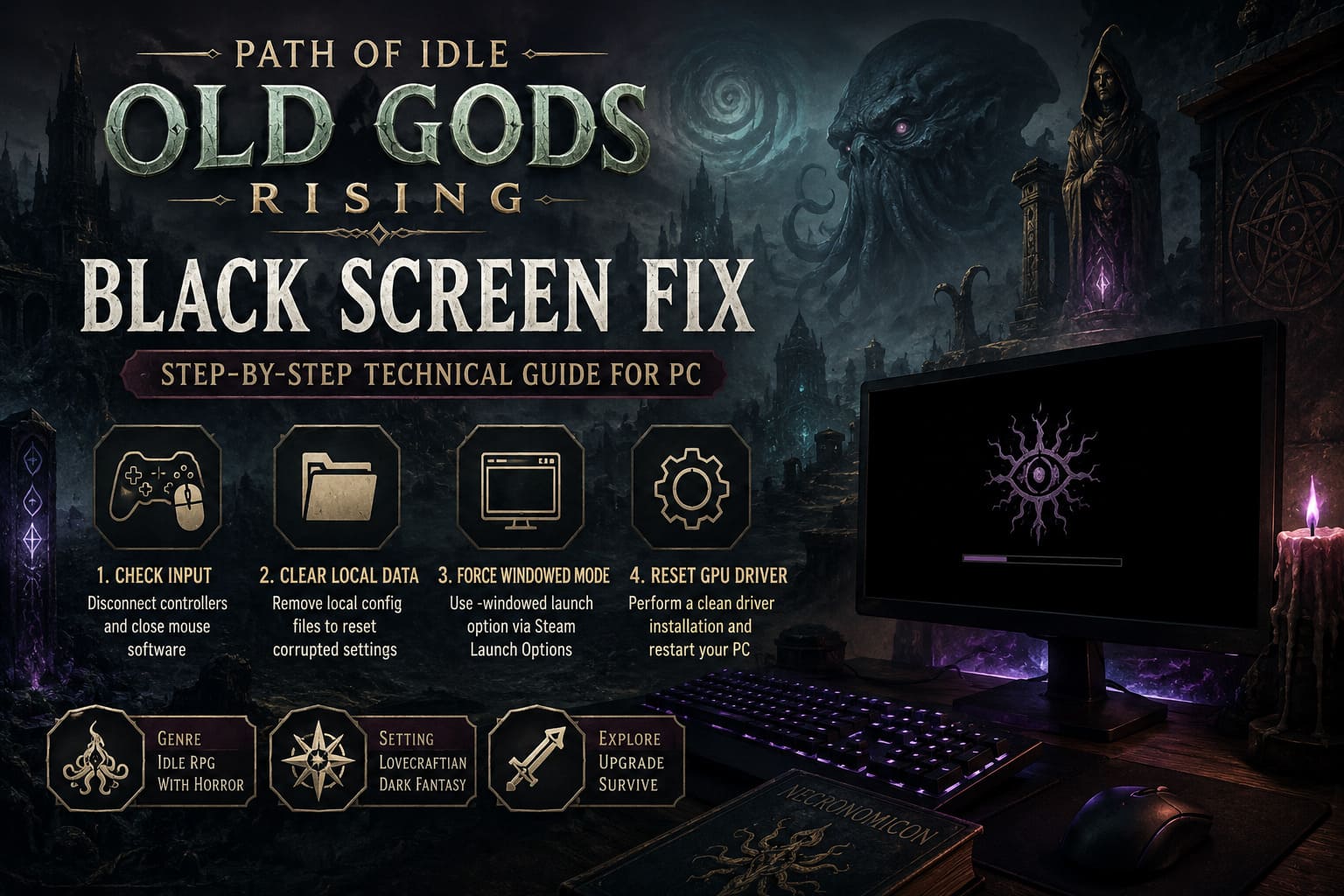
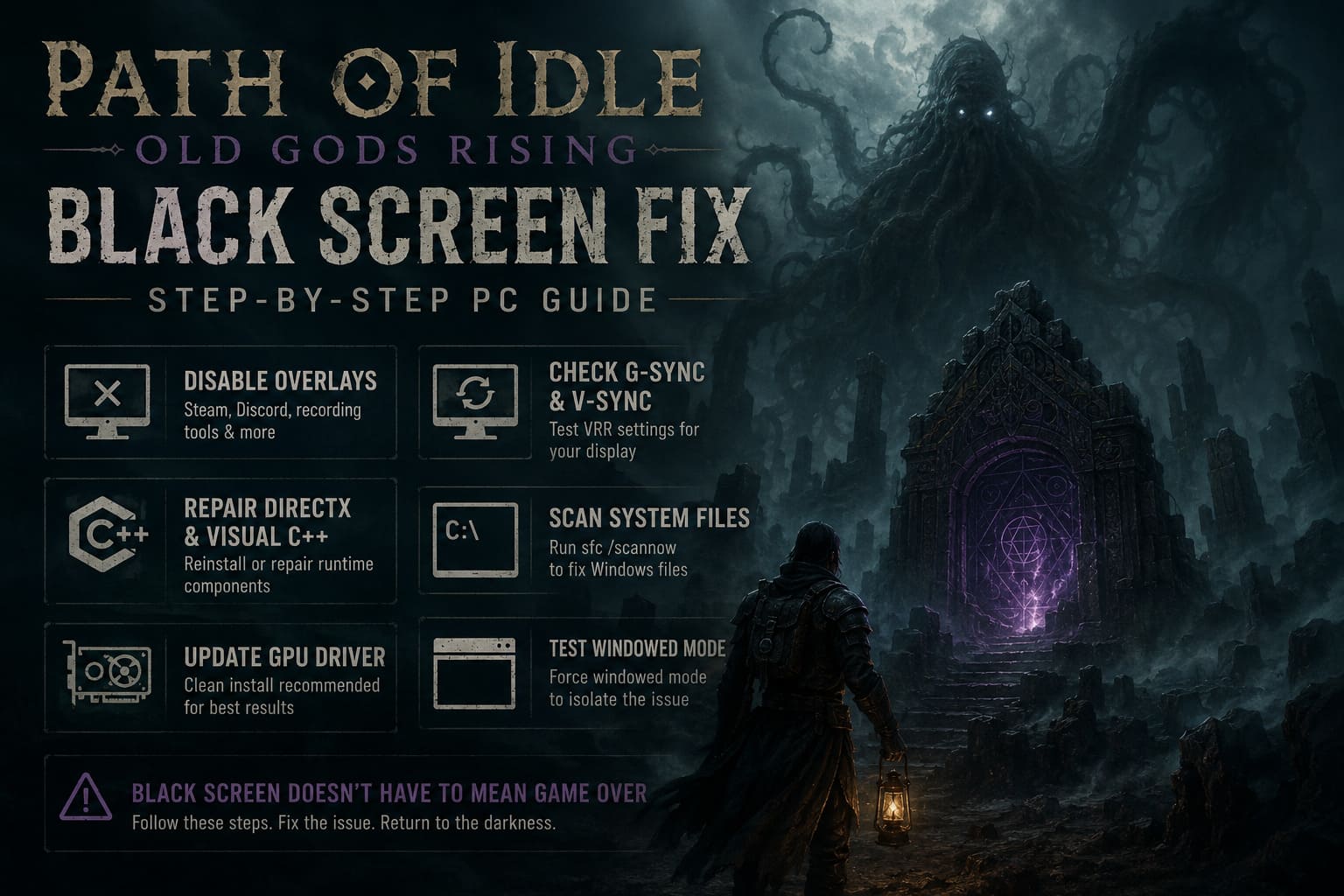
Path of Idle Old Gods Rising Black Screen Fix: Step-by-Step Technical Guide for PC
If there is one thing that can ruin the first few minutes of a new RPG, it is not a difficult boss, a bad tutorial, or even a brutal progression system. It is launching the game, hearing the music kick in, moving your mouse around the screen… and realizing that you are staring at a completely black screen.
That is exactly the kind of problem some PC players are running into with Path of Idle: Old Gods Rising. The game has a really interesting mix of idle progression, cult management, tactical combat, and dark RPG atmosphere, so I was genuinely looking forward to spending time on Blackreef Isle. Instead, for some players, the first real challenge is getting the game to display anything at all.
The annoying part is that the game does not always crash in an obvious way. Sometimes you can hear background music. Sometimes the mouse cursor is still visible. In other cases, clicking Continue appears to do something, but the screen immediately turns completely black.
I have dealt with enough PC game launch problems to know that there is rarely one magical fix. The good news is that a black screen usually points toward a handful of specific problems: corrupted local settings, display-mode conflicts, graphics drivers, overlays, input devices, or missing Windows components.
So instead of randomly reinstalling the entire game, I would work through the following fixes in order.
First, Figure Out What Kind of Black Screen You Have
Before changing anything, pay attention to what the game is actually doing.
If you can hear music while the screen is black, that is a useful clue. It means the game itself may still be running and the problem is more likely connected to rendering, display configuration, or UI/input behavior.
If the game freezes immediately after pressing Continue, input handling or a corrupted configuration becomes more suspicious.
And if the monitor briefly loses its signal when the game launches, I would look at fullscreen, refresh-rate, G-Sync, FreeSync, and driver settings before touching anything else.
This distinction matters because reinstalling the game is often the first thing people try, and honestly, I would save that for later. A clean reinstall does not necessarily remove corrupted files stored in your Windows user profile.
Fix #1: Disconnect Controllers and Stop Background Mouse Software
This is probably not the first solution most players think about, but it is one I would try early.
Games using Unity-style input systems can occasionally behave strangely when several input devices are sending commands at the same time. A controller, racing wheel, joystick, virtual controller, or even certain mouse utilities can interfere with menu navigation.
If your black screen appears after clicking a menu button such as Continue, try this:
- Completely close Path of Idle: Old Gods Rising.
- Unplug secondary controllers and other gaming peripherals.
- Close software such as Logitech G HUB, Razer Synapse, or Corsair iCUE temporarily.
- If your mouse supports onboard profiles, switch to its onboard memory profile.
- Restart the game.
- Navigate the menu with slow, single clicks rather than rapidly clicking or pressing Enter/Space at the same time.
I especially recommend avoiding repeated clicks during transitions. If the game is already struggling with a UI state, hammering the button is unlikely to help.
My advice: test the game with the simplest possible input setup. Just keyboard and mouse. If the black screen disappears, you have already narrowed down the problem considerably.
Fix #2: Clear Path of Idle’s Local Configuration
This is one of the fixes I would take seriously if the game worked once and then suddenly stopped displaying correctly.
Steam’s file verification checks the installed game files, but it does not necessarily clean every configuration file created in your Windows user folders. A broken graphics profile, input state, or cached setting can survive a reinstall.
To reset the local data:
- Close the game completely.
- Press Windows + R.
- Enter
%appdata%. - Press Enter.
- Move from the Roaming folder back to the main AppData directory.
- Open LocalLow.
- Search for a folder belonging to Path of Idle or its developer.
- Back up the folder somewhere safe before deleting anything.
- Delete the relevant local game folder.
- Start the game again.
The important part here is backing up first.
Do not blindly delete every folder inside AppData. You only want the folder associated with the game.
The next launch should recreate fresh configuration files. If a corrupted local setting was responsible for the black screen, this can be enough to get the game rendering normally again.
Fix #3: Force Windowed Mode
If your PC has multiple monitors, a high-refresh-rate display, or a gaming television, I would move this fix near the top of the list.
A game can technically launch correctly while failing to display properly because it is trying to initialize fullscreen at an unsupported resolution or refresh rate.
Steam gives us a simple workaround.
Go to:
Steam Library → Path of Idle: Old Gods Rising → Properties → General → Launch Options
Enter:
-windowed
Then close the Properties window and launch the game.
If it works, resist the temptation to immediately switch back to fullscreen. Go into the game’s graphics settings first and select your monitor’s native resolution and a sensible refresh rate.
Personally, I prefer Borderless Windowed for troubleshooting because it removes a lot of the weirdness associated with exclusive fullscreen modes.
Once everything is stable, you can experiment with fullscreen again.
Fix #4: Give Your Graphics Driver a Proper Reset
A driver can be technically “up to date” and still be the reason a game refuses to render.
That is because updating a driver does not always eliminate every old profile, shader cache, or configuration problem. If Path of Idle: Old Gods Rising is the only game giving you trouble, a full driver reinstall may be excessive. But if several newer games are showing graphical problems, I would absolutely consider it.
Identify whether your GPU is from NVIDIA, AMD, or Intel, then download the driver directly from the manufacturer’s official website.
During installation, choose the clean-install option if your driver package provides one.
After installation:
- Restart Windows.
- Do not immediately launch five other applications.
- Start Path of Idle first.
- Test it before re-enabling overlays and other gaming utilities.
A clean graphics driver installation is particularly worth trying if the black screen appeared after a recent GPU driver update.
Fix #5: Turn Off Every Overlay You Can
Overlays are convenient until they aren’t.
Steam Overlay, Discord Overlay, recording software, GPU monitoring tools, filters, and other applications that hook into games can interfere with rendering.
For troubleshooting, I would temporarily disable:
- Steam Overlay
- Discord Overlay
- GPU recording overlays
- Streaming and capture software
- FPS monitoring tools
- Screen filters such as f.lux
- Other applications that inject information into games
For Steam, open the game’s Properties and disable the Steam Overlay option.
For Discord, open the settings and turn off the in-game overlay.
Then restart the game.
You can turn everything back on later. Right now, the goal is to establish whether an external application is causing the black display.
I have lost count of how many PC problems looked like serious game bugs and turned out to be an overlay sitting quietly in the background.
Fix #6: Check G-Sync, FreeSync, and V-Sync
This one is especially relevant if you are playing on a high-refresh-rate gaming monitor or TV.
Variable refresh technologies are fantastic when everything works correctly. But when a game launches with unusual fullscreen behavior, synchronization settings can sometimes make troubleshooting much harder.
If you use NVIDIA hardware, open NVIDIA Control Panel and go to the game’s individual profile under Manage 3D Settings → Program Settings.
Do not start changing global settings unless you have a reason.
For Path of Idle, check the Vertical Sync option and avoid forcing an aggressive global mode. Letting the application control synchronization is a sensible troubleshooting starting point.
If you use G-Sync, also experiment with disabling G-Sync temporarily for the game.
AMD users should perform the equivalent test through Radeon Software with FreeSync and driver-level synchronization features.
This is not necessarily a permanent fix. Think of it as a diagnostic step.
If the game suddenly displays correctly after disabling VRR, you have found a strong clue.
Fix #7: Repair DirectX and Visual C++ Components
Sometimes the problem isn’t really Path of Idle at all.
Windows games depend on various runtime libraries, and a damaged or incomplete Visual C++ installation can cause strange behavior ranging from immediate crashes to games that appear to launch but never render correctly.
Download the necessary components directly from Microsoft, rather than using random “driver update” websites.
Pay particular attention to:
Microsoft Visual C++ Redistributable packages and the DirectX End-User Runtime.
If Visual C++ is already installed, use the repair option when available.
After repairing the components, restart your PC.
I would not recommend downloading mysterious “all-in-one DLL fixer” programs. Those tools tend to create more problems than they solve.
Fix #8: Check Windows System Files
If the previous solutions have failed, it is time to look beyond the game.
Windows includes a built-in System File Checker that can detect and repair damaged system files.
Open Command Prompt as Administrator and run:
sfc /scannow
Let the process finish completely.
If Windows reports that it found and repaired corrupted files, restart the computer before testing Path of Idle again.
This is one of those boring fixes that does not feel like gaming troubleshooting, but corrupted Windows components can absolutely create strange application behavior.
Do You Really Need to Change Virtual Memory?
This is the last thing I would touch.
If your system has plenty of RAM and other games work normally, I would not immediately start manually configuring the paging file just because Path of Idle has a black screen.
Windows normally manages virtual memory quite well.
However, if you are dealing with very low available RAM, unusually heavy background applications, or broader system instability, checking virtual memory can be worthwhile.
You can reach the setting through:
System Properties → Advanced → Performance Settings → Advanced → Virtual Memory
If you decide to use a custom configuration, make sure you have plenty of free SSD storage and understand what you are changing.
I would treat this as a last-resort system troubleshooting step rather than a dedicated Path of Idle fix.
The Order I Would Personally Try
If I were sitting at my own PC with a black screen, I wouldn’t perform eight complicated procedures immediately.
I’d go in this order:
- Restart the game and disconnect unnecessary controllers.
- Disable mouse utilities and overlays.
- Try
-windowed. - Reset the game’s LocalLow configuration.
- Disable G-Sync/FreeSync and forced V-Sync settings.
- Clean-install the GPU driver.
- Repair Visual C++ and DirectX components.
- Run
sfc /scannow.
This approach starts with the least invasive fixes and gradually moves toward deeper system troubleshooting.
Path of Idle Old Gods Rising Unique Items Drop Locations: Farming Guide (2026)
Quick Black Screen Troubleshooting Table
| Symptom | Most Likely Area | First Thing I’d Try |
|---|---|---|
| Music plays but screen is black | Display/rendering | Force Windowed Mode |
| Black screen after Continue | Input/UI | Disconnect controllers |
| Worked once, then stopped | Local configuration | Clear LocalLow data |
| Screen loses monitor signal | Fullscreen/VRR | Disable G-Sync/FreeSync |
| Black screen after driver update | GPU driver | Clean driver installation |
| Game works after disabling overlays | Background software | Keep overlays disabled |
| Multiple games have launch problems | Windows/runtime | Repair Visual C++ and DirectX |
| PC is generally unstable | System files/resources | Run sfc /scannow |
Path of Idle Old Gods Rising Crafting Guide: Best Gear Blueprint
Final Thoughts
A black screen is one of the most frustrating PC gaming problems because it gives you almost no useful information. There is no boss health bar to read, no error message to Google, and sometimes not even a crash.
But if Path of Idle: Old Gods Rising is still playing music behind that black window, that is actually encouraging. The game may be running while something prevents the visual layer from being presented correctly.
I would start with the simple stuff: remove extra controllers, close overlays, force windowed mode, and reset the game’s local configuration. Those steps are quick and reversible.
If that doesn’t work, move toward the graphics driver, VRR settings, Windows runtimes, and system integrity checks.
And one final piece of advice from someone who would much rather be playing an RPG than staring at Windows settings for an hour: don’t start changing ten things simultaneously. Test one fix at a time. Otherwise, if the game suddenly works, you won’t know what actually solved it.
The goal isn’t just to make the screen appear once. You want to find the reason it went black in the first place so that the next time you launch Path of Idle: Old Gods Rising, you can get straight back to building your cult instead of fighting your graphics driver.