Luminary Coop Not Working How to Fix Drop-In Drop-Out Multiplayer in Refractive Entertainment RPG
If there is one feature I always appreciate in modern RPGs, it is a multiplayer system that lets friends join the adventure without forcing everyone to restart progress or create completely separate characters. Luminary tries to deliver exactly that experience with its drop-in, drop-out co-op system, allowing players to explore the fantasy world together while keeping their own character progression.
After playing countless action RPGs, survival adventures, and online fantasy games over the years, I immediately liked the idea behind Luminary. The game focuses on exploration, a relaxing fantasy atmosphere, and cooperative fun instead of turning every mechanic into a complicated spreadsheet. However, during the Early Access launch, the multiplayer side has created plenty of frustration for players.
Instead of instantly joining friends and fighting through the world together, many players have encountered endless loading screens, failed invites, random disconnects, and sessions that simply refuse to appear. Looking through Steam discussions, community posts, and player reports, it is clear that Luminary co-op issues are affecting a large part of the community.
The good news is that most of these problems are not permanent. Since Luminary is still being actively developed, many multiplayer failures are connected to launch server pressure, matchmaking bugs, and small technical conflicts. After testing different solutions and comparing experiences with other players, these are the fixes that have helped the most.
Luminary Game 2026: Steam Deck Support, PC Crossplay, and Full Co-Op Details
Why Luminary Multiplayer Is Not Working
The biggest attraction of Luminary’s multiplayer system is the ability to seamlessly switch between solo and cooperative gameplay. Your character, upgrades, and progress are designed to follow you whether you are playing alone or joining a friend’s world.
When everything works correctly, the system feels simple and convenient. A friend should be able to enter your world within seconds without forcing you to leave the game or rebuild a party from scratch. Unfortunately, Early Access multiplayer systems often struggle during launch periods, especially when thousands of players attempt to connect at the same time.
Based on community reports, most Luminary co-op problems appear to come from matchmaking synchronization, Steam connection issues, firewall restrictions, or corrupted local files after updates.
- Infinite loading screens when joining friends
- Session Not Found errors
- Connection Timed Out messages
- Steam invites failing to open the lobby
- Players disconnecting shortly after joining
- Friends being unable to see hosted worlds
In many situations, your internet connection is not the actual problem. The game simply fails to complete the connection process between players.
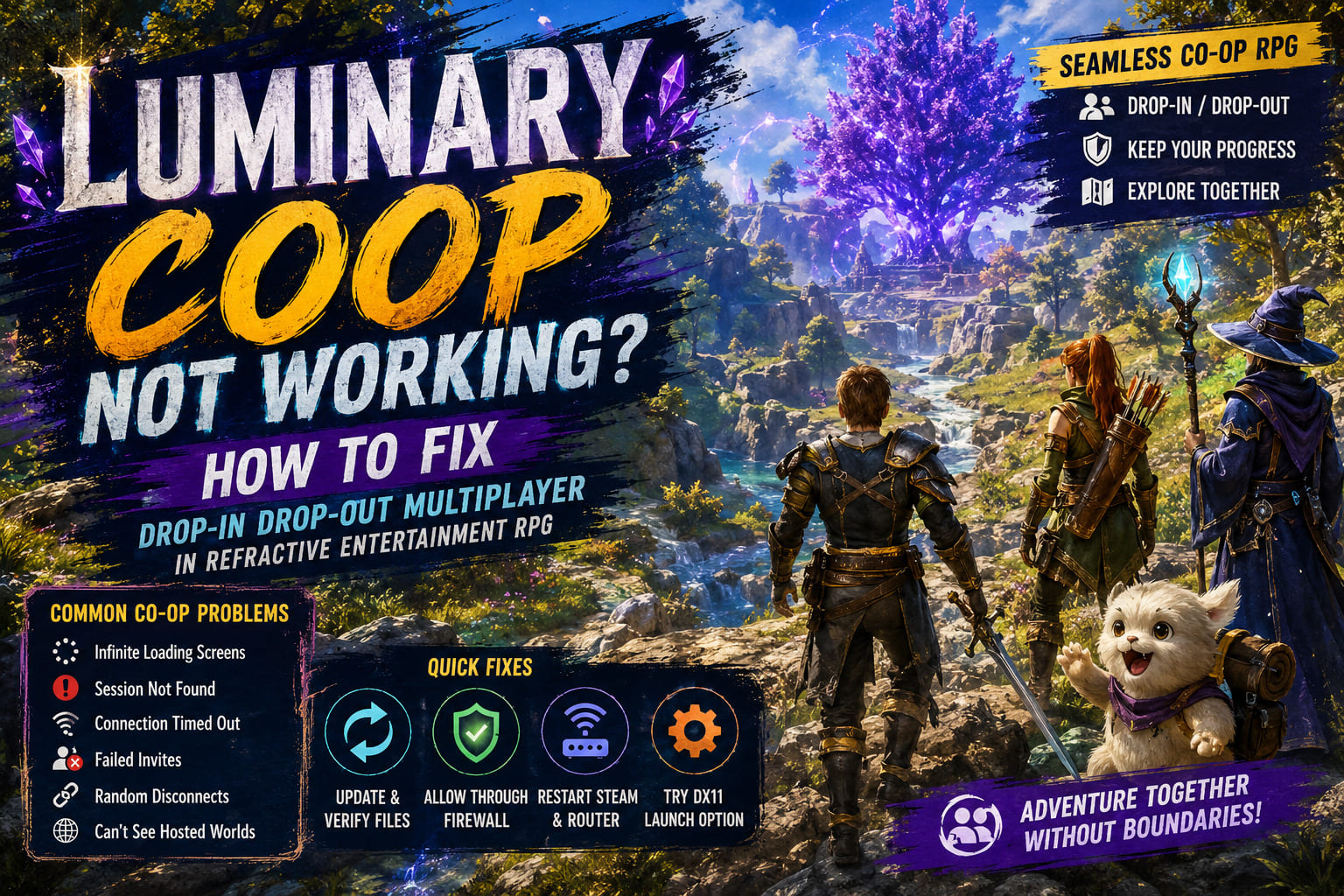
Common Luminary Co-Op Problems and Solutions
| Problem | Possible Cause | Fix |
|---|---|---|
| Cannot join a friend | Different game versions | Update Luminary and verify files |
| Session not found | Steam matchmaking desync | Restart Steam and recreate lobby |
| Endless loading screen | Corrupted game files | Verify integrity of files |
| Disconnect after joining | Firewall restrictions | Allow Luminary through Windows Firewall |
| Multiplayer unavailable | Tutorial not completed | Finish the opening section |
| Crashes during co-op | DirectX 12 instability | Try DirectX 11 launch mode |
1. Update Luminary and Match Game Versions
This is the first thing I check whenever an Early Access game has multiplayer problems. Small patches can completely change how matchmaking works, and even a tiny version difference can prevent players from joining each other.
If the host has downloaded a new hotfix but another player has not updated yet, Luminary may reject the connection attempt automatically. The game sees both players as running different builds and refuses to create a stable session.
To fix this, every player should completely close Luminary, restart Steam, and check for updates. I also recommend verifying the game files because Early Access patches sometimes leave damaged or missing files behind.
Open Steam, right-click Luminary in your library, select Properties, go to Installed Files, and choose Verify Integrity of Game Files. This simple step has fixed many strange multiplayer problems for me in different games.
2. Complete the Tutorial Before Using Multiplayer
One mistake many new players make is trying to invite friends immediately after creating a character. Luminary does not unlock every multiplayer feature from the first minute.
The game requires players to complete the introductory section, interact with the first important world location, and establish basic progression before the social features become available.
If your friend cannot see the multiplayer menu, make sure they have finished the opening tutorial. Once the feature unlocks, the Social menu should appear normally and invitations should start working.
3. Refresh Lobby Privacy Settings
Sometimes the lobby itself becomes stuck. The game may technically create a session, but Steam matchmaking fails to properly announce it to your friends.
A surprisingly effective solution is changing the lobby privacy settings. If you normally use Friends Only, switch temporarily to Invite Only or even Public. Allow your friend to search for the session or join through Steam, then switch the setting back.
This forces Luminary to refresh its matchmaking connection and can remove old or broken sessions that prevent players from joining.
4. Allow Luminary Through Windows Firewall
Firewall settings are one of the most overlooked causes of multiplayer problems. Windows security features can sometimes block new games from receiving connection requests, especially shortly after release.
To check this, open Windows Defender Firewall settings and select the option to allow an app through the firewall. Find Luminary and make sure both private and public network permissions are enabled.
If the game does not appear in the list, manually add the executable from your Steam installation folder. Also remember to temporarily disable VPN services or aggressive antivirus network protection while testing.
5. Disable VPN Software
VPNs are useful for privacy, but online games often do not work well with them. They can change your connection route, increase latency, and interfere with matchmaking systems.
I have personally seen multiplayer problems disappear simply by turning off a VPN before launching a game. If Luminary keeps disconnecting during the joining process, this is an easy fix worth trying.
6. Use DirectX 11 Instead of DirectX 12
One of the more interesting solutions discovered by players is switching Luminary from DirectX 12 to DirectX 11.
Although DirectX 12 can provide better visual performance on newer hardware, it can sometimes create instability depending on your graphics card, drivers, or operating system setup.
If Luminary crashes while loading into another player’s world or disconnects immediately after joining, try launching the game with DirectX 11.
To enable it, open Steam, right-click Luminary, select Properties, and add this command in Launch Options:
-dx11
This forces the game to use a more mature graphics API and has helped many players improve overall stability.
7. Check Official Community Updates
Sometimes the problem is not your PC, your network, or your settings. The servers themselves may simply be overloaded.
Because Refractive Entertainment is a smaller development team, large player spikes during Early Access launches can create unexpected matchmaking problems.
The official community channels are usually the fastest place to find information about server problems, emergency patches, and temporary solutions. Checking developer announcements can save hours of unnecessary troubleshooting.
My Experience With Luminary Co-Op
After playing many different RPGs, I have learned that multiplayer launches are rarely perfect. Even major studios with huge budgets experience connection problems when thousands of players arrive at once. For a smaller indie team, these issues are even more understandable.
What makes Luminary worth fixing is that the actual co-op design is genuinely enjoyable. Once the connection works, joining friends feels natural. There is no complicated party setup, no annoying restrictions, and no feeling that multiplayer was added as an afterthought.
The best approach is starting with the simplest solutions: update the game, verify files, finish the tutorial, and check firewall settings. If those do not help, move on to DirectX 11 and possible server issues.
Luminary still has plenty of time to improve during Early Access, and multiplayer stability will likely become much better with future patches. Right now, the co-op system has some rough edges, but the foundation is strong and the idea of a relaxed shared fantasy adventure is something many RPG fans have been waiting for.