Zombie Army 4 Friend Invite Not Working? 2026 Multiplayer Fix Guide
If there is one thing that can ruin a great Zombie Army 4: Dead War session faster than a surprise swarm of armored zombies, it is trying to get your friends into the same lobby for twenty minutes.
I’ve had plenty of multiplayer games where everything looks fine at first. The game is running, everyone is online, Steam says the other person is playing, and yet the actual invite behaves like it was sent into another dimension. You click Invite Friends, nothing happens. Your friend accepts an invitation and gets thrown back to the menu. Sometimes the lobby simply refuses to exist.
The annoying part is that Zombie Army 4 can give you very little information about what actually went wrong.
Errors such as 12011, 12018, and 12001 can appear during matchmaking, while other players get connection timeouts without any useful explanation. In my experience, these problems are usually not caused by one single broken setting. They are more often the result of platform communication, NAT restrictions, overlays, matchmaking services, or a temporary server-side problem.
So instead of randomly reinstalling the game, here is the order I would personally work through when Zombie Army 4 friend invites are not working in 2026.
First: Make Sure Everyone Is Actually on a Compatible Platform
Before touching your router, firewall, or game files, check the platforms involved.
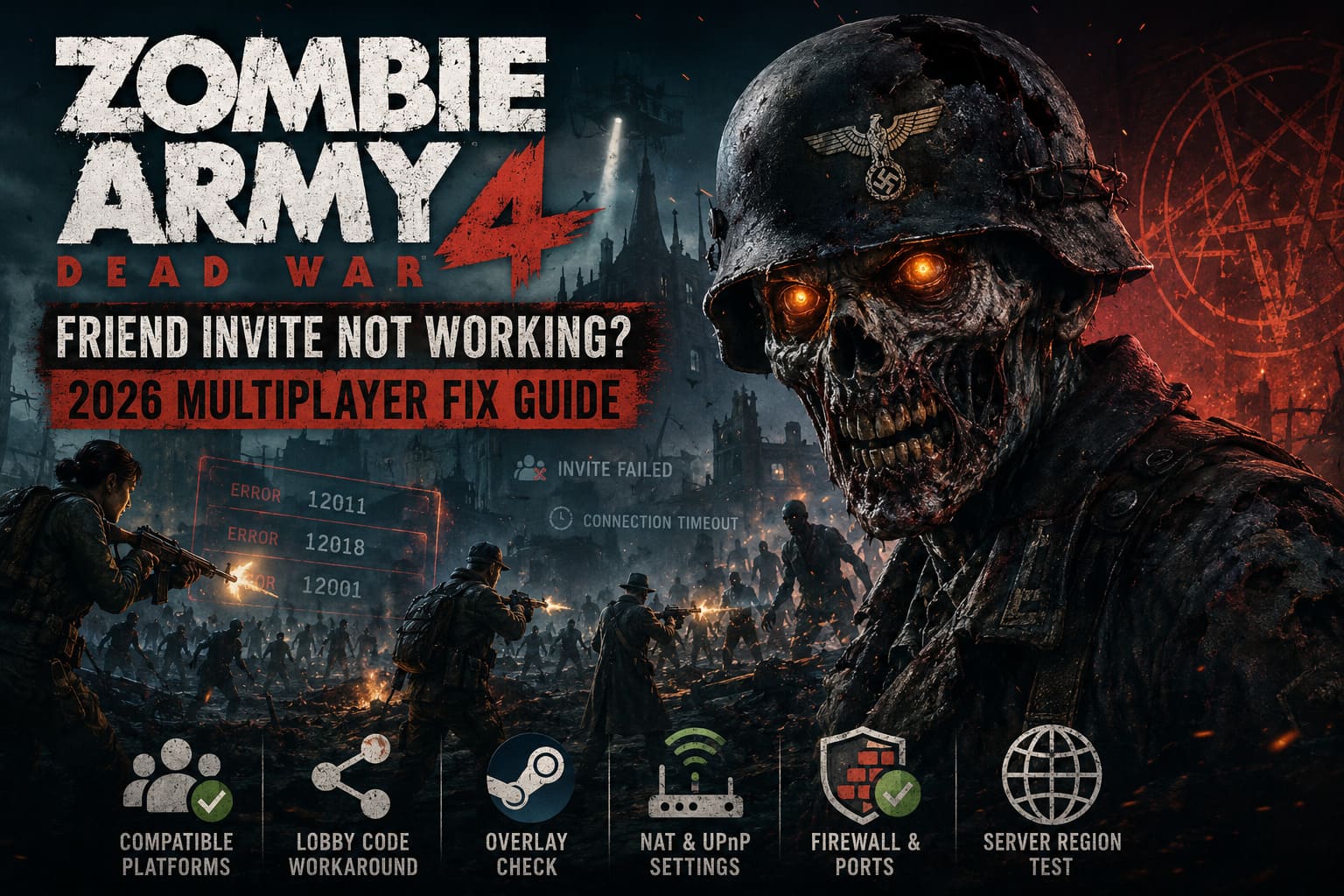
This is one of those things that can waste an unbelievable amount of time because the game can make the multiplayer experience feel more universal than it actually is.
Zombie Army 4 does not offer unrestricted cross-platform multiplayer between every version of the game. In particular, Xbox and PC players cannot simply create a normal crossplay lobby together because both versions exist within the same broader gaming ecosystem.
So if one player is on Xbox and another is on PC or PlayStation, don’t spend an hour trying to repair an invite that the game’s multiplayer infrastructure simply isn’t designed to support.
For supported combinations, make sure everyone is also using the same current version of the game.
The Quick Fix I Would Try First: Use the Lobby or Invite Code
When the normal friend invitation refuses to work, I would not immediately start changing Windows networking settings.
Try the game’s alternative lobby-joining method first.
Create a private or friends-only multiplayer session and look for the available invite/share code in the lobby interface. Send that code directly to your friend through Discord, Steam chat, or another messaging service.
Your friend can then use the appropriate multiplayer joining option to enter the code manually.
Why do I like this workaround? Because it removes one annoying layer from the process. Instead of relying entirely on the platform’s social overlay to launch the invitation correctly, you’re giving the other player a direct way to locate the session.
If normal invitations are failing but your lobby exists correctly, this can be surprisingly effective.
Fix #1: Check Your Steam or Epic Overlay
This is probably the first PC-specific thing I’d check after the lobby-code workaround.
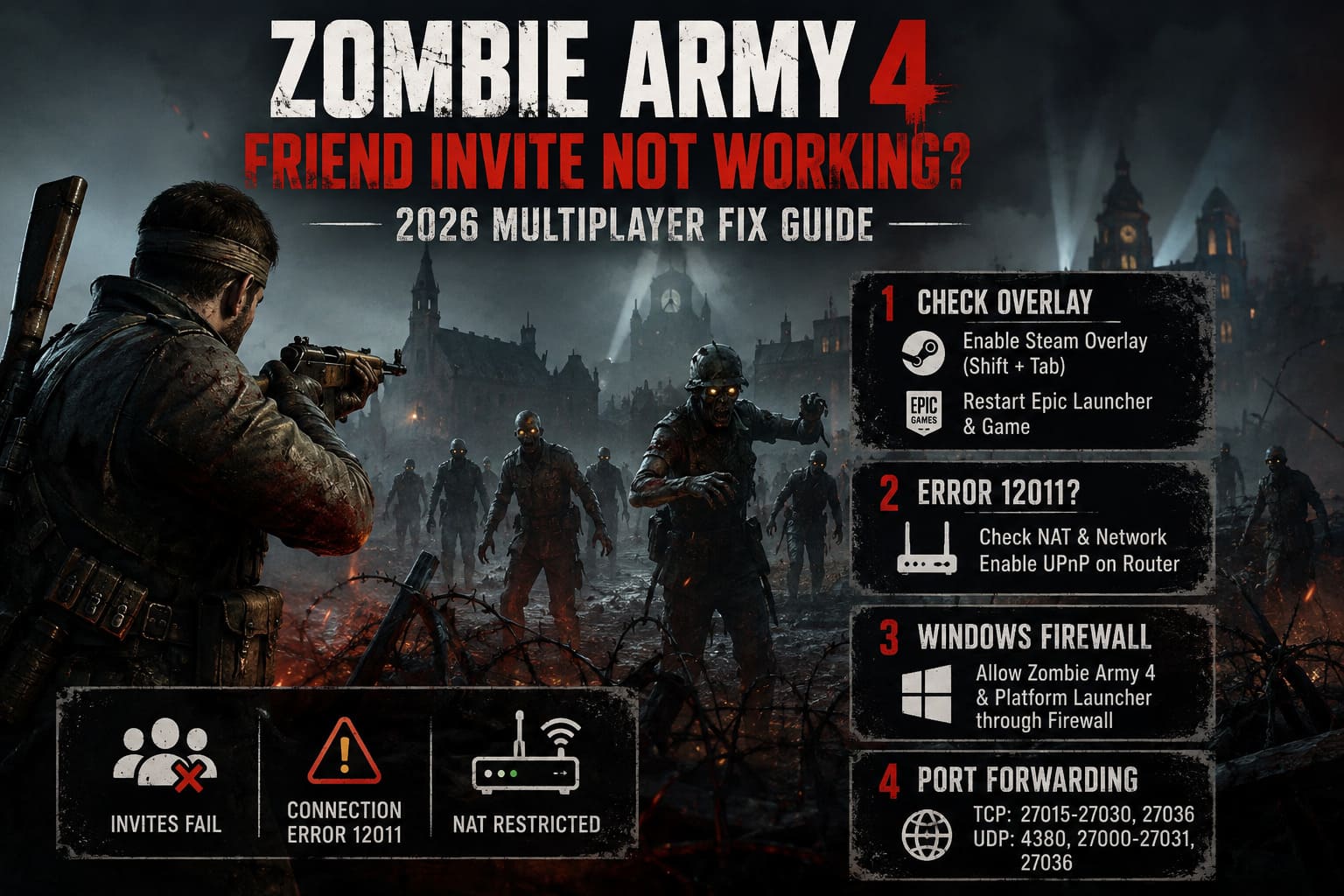
Zombie Army 4 relies on platform services for parts of its social functionality. If the overlay is disabled, stuck, or simply having a bad day, the Invite Friends button may appear to do absolutely nothing.
Steam
Open Steam and go to your library.
- Right-click Zombie Army 4: Dead War.
- Select Properties.
- Open the General section.
- Make sure the option for enabling the Steam Overlay while in-game is turned on.
- Launch the game again and test the invitation.
You can also try opening the Steam Overlay manually with Shift + Tab while you’re inside the lobby.
If your friend appears online there, try inviting them directly through Steam rather than relying exclusively on the in-game button.
I’ve found that restarting Steam completely is also worth doing. Not just closing the game. Exit Steam, make sure it is no longer running in the background, then launch it again.
Epic Games
Epic users should check that the Epic social functionality is working correctly and that the account is properly connected to the game.
If the social panel refuses to load, friends appear permanently offline, or the launcher is behaving strangely, restart Epic Games Launcher and Zombie Army 4 before doing anything more complicated.
Sometimes the “technical problem” is simply a social client that got stuck.
Fix #2: Error 12011 Usually Makes Me Look at the Network
Error 12011 is particularly frustrating because you can sometimes get through the invitation process only to have the actual connection fail.
When that happens, I would start investigating NAT and firewall behavior.
NAT determines how devices on different networks communicate with each other. If one player’s router is extremely restrictive, the game can have trouble establishing the connection required for multiplayer.
The easiest thing to try first is UPnP.
Enable UPnP on Your Router
Log into your router’s administration interface and look under network, advanced, internet, or similar settings.
Find UPnP (Universal Plug and Play) and enable it if it is currently disabled.
Restart the router afterward and test Zombie Army 4 again.
UPnP allows compatible applications to request the network mappings they need automatically, which is considerably easier than manually configuring everything.
If UPnP is already enabled and nothing changes, continue with the firewall checks.
Fix #3: Check Windows Firewall
Windows Firewall can occasionally interfere with multiplayer connectivity, particularly after Windows updates, driver changes, or a fresh installation.
Search Windows for Windows Defender Firewall and open the option for allowing applications through the firewall.
Find Zombie Army 4 and make sure it is permitted on the appropriate network types.
I’d also check that Steam or Epic Games Launcher isn’t being blocked.
After changing firewall permissions, restart the game rather than simply returning to the lobby.
Don’t disable your entire firewall permanently just to test one game. If you temporarily change a security setting for troubleshooting, restore it afterward and use a specific application exception instead.
Fix #4: Port Forwarding — Only If the Easier Options Fail
Port forwarding is where I would stop casually changing settings and start paying attention to exactly what I’m doing.
If UPnP doesn’t help and one player consistently cannot host or join, manually forwarding the ports associated with the platform may resolve a restrictive network configuration.
For PC gaming, commonly used Steam networking ports include:
- TCP: 27015–27030, 27036
- UDP: 4380, 27000–27031, 27036
PlayStation and Xbox use their own networking requirements, so don’t blindly copy PC settings into a console router configuration.
The important thing here is that port forwarding is not automatically better than UPnP. If your connection already works for other games, changing a bunch of router settings can create more problems than it solves.
I would only use manual forwarding after simpler NAT and firewall troubleshooting has failed.
Fix #5: Try a Different Matchmaking Region
Another possible cause of Zombie Army 4 Error 12018 is a problem establishing the multiplayer session itself.
If your game reports that it cannot create the game or repeatedly fails when you attempt to host, don’t automatically assume your computer is broken.
Sometimes matchmaking infrastructure can have temporary regional problems.
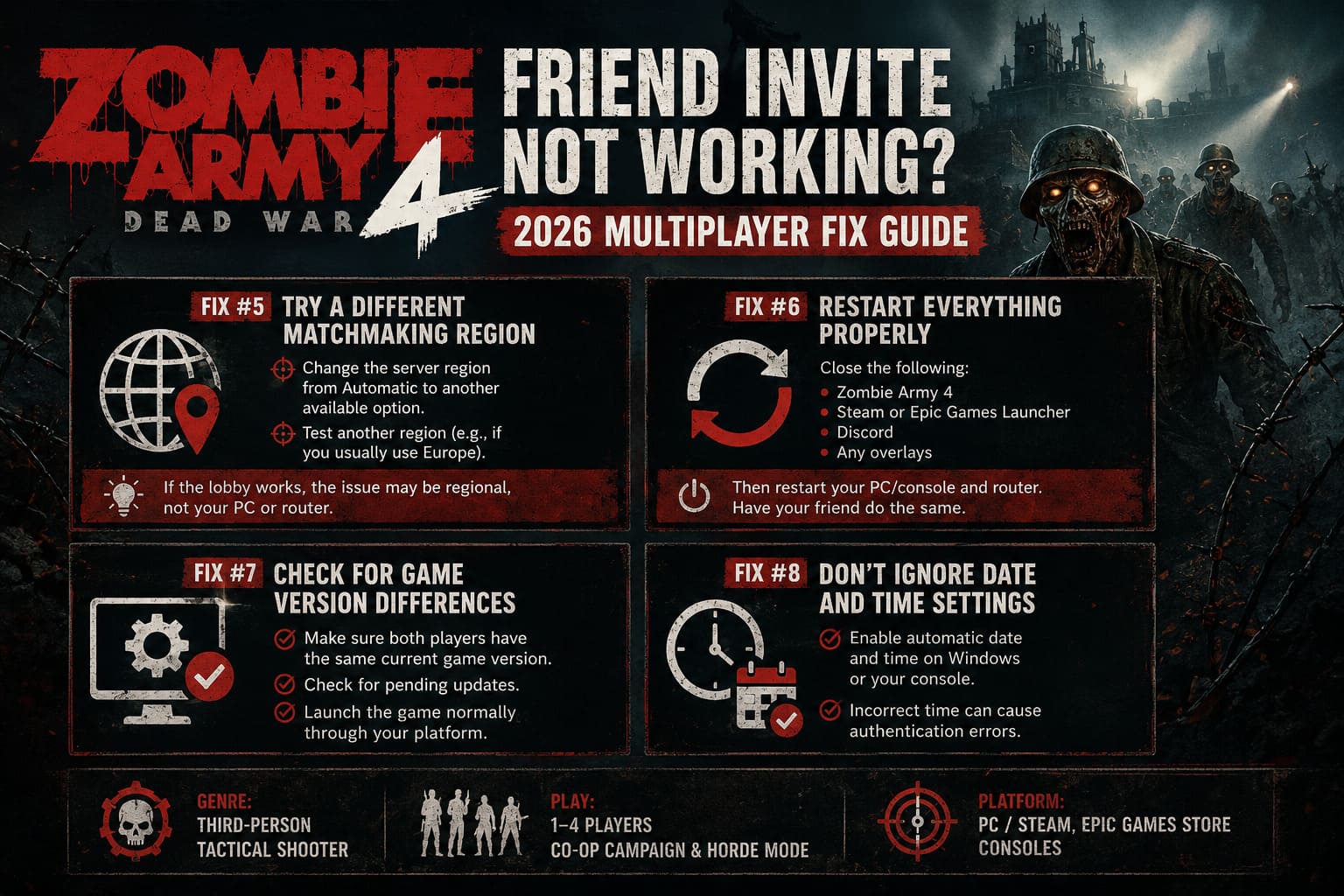
If your version of the game provides a matchmaking or server-region selection option, try switching away from Automatic and testing another available region.
For example, a player normally connecting through Europe could temporarily test another available region to determine whether the problem is regional.
I wouldn’t permanently force a distant region because latency matters in a cooperative shooter. This is mainly a troubleshooting test.
If the lobby suddenly works after changing regions, you’ve learned something useful: the problem may not be your PC or router at all.
Fix #6: Restart Everything Properly
This sounds almost insultingly simple, but don’t underestimate it.
When multiplayer has been failing repeatedly, I recommend doing a proper restart rather than endlessly clicking Join.
Close:
- Zombie Army 4
- Steam or Epic Games Launcher
- Discord
- Any relevant overlays
Then restart the PC or console.
After that, restart the router.
Have your friend do the same if you’re troubleshooting a persistent connection problem.
A router can retain stale connection mappings, and game launchers can retain broken authentication or social-session states. Restarting everything gives you a clean baseline.
Fix #7: Check for Game Version Differences
This is another easy one to overlook.
If your game has just received an update, make sure both players have the same current version.
Steam usually handles this automatically, but that doesn’t mean it can never get stuck.
Check the game’s download/update status and make sure neither player has a pending update.
If one player has an older build while the other is already running the newest version, multiplayer matchmaking may fail before the game gives you a useful explanation.
I’d also avoid launching through unusual shortcuts or old executable files when troubleshooting. Start the game normally through the platform where you own it.
Fix #8: Don’t Ignore Date and Time Settings
This sounds unrelated to zombies, guns, and multiplayer servers, but incorrect system time can cause authentication problems with online services.
On Windows, open Date & Time settings and enable automatic time synchronization.
Do the same on consoles if the option is available.
If the system clock is significantly wrong, secure connections and account authentication can behave strangely.
It costs almost nothing to check, so I consider it one of those five-minute troubleshooting steps worth doing before more invasive changes.
What About Error 12001?
Error 12001 belongs in the same general troubleshooting category as the other multiplayer connection problems, but I wouldn’t assume that every player experiencing the same number has the exact same underlying cause.
If you’re seeing 12001 while other players can connect normally, start with the basics:
- Restart the game and platform launcher.
- Confirm everyone has the latest game version.
- Test the lobby code instead of the normal invite.
- Check NAT and firewall restrictions.
- Test hosting from the other player’s connection.
- Test again later if the problem appears to be server-side.
That fifth step is particularly useful.
If Player A cannot host but Player B can, you’ve immediately narrowed the problem down. The game itself may be fine, while Player A’s network is causing the failure.
One Trick I Really Recommend: Swap the Host
This is one of the most useful diagnostic tricks because it takes very little effort.
Suppose you normally host the campaign and your friend cannot join.
Don’t keep trying the exact same setup.
Have your friend create the lobby instead.
If you suddenly connect without any problem, the evidence points toward your original host’s network rather than the game’s entire multiplayer system.
You can then focus on NAT, firewall rules, router settings, ISP restrictions, or platform connectivity on that specific side.
That’s much better than changing ten settings at once and having no idea which one actually fixed the problem.
How to Fix Brigador Killers Crashing on Startup: PC Troubleshooting Guide
My Recommended Troubleshooting Order
If I were sitting down to play Zombie Army 4 tonight and my friend’s invite wasn’t working, this is the order I’d use:
| Problem | What I’d Try First |
|---|---|
| Invite button does nothing | Restart platform overlay and use the lobby code |
| Friend cannot see the lobby | Check platform compatibility and game version |
| Error 12011 | Test NAT, UPnP, and Windows Firewall |
| Error 12018 | Try another matchmaking region and restart the host |
| Error 12001 | Restart launcher, verify connection, swap hosts |
| Constant timeout | Test the other player’s network as host |
| Everything suddenly stopped working | Check platform/game server status and wait before changing router settings |
The biggest mistake is changing everything simultaneously. If you disable the firewall, forward ports, change DNS, reinstall the game, reboot the router, and switch regions all at once, you won’t know what actually solved the problem.
Do one change, test it, and move to the next.
Final Thoughts
Zombie Army 4 is at its best when you’re sitting in a lobby with friends, weapons loaded, and an absolutely unreasonable number of undead enemies waiting on the other side of the door. That’s why multiplayer connection problems feel particularly irritating here.
The good news is that a broken friend invite doesn’t automatically mean your game installation is damaged.
Start with the boring stuff: platform compatibility, updates, launcher restarts, overlays, and the alternative lobby code. If that doesn’t work, move toward NAT, UPnP, firewall permissions, and eventually port forwarding.
For Error 12011, I’d concentrate on the network connection between players. For 12018, I’d investigate lobby creation and matchmaking services before tearing apart my router configuration. And if only one person consistently has trouble hosting, swap hosts — that simple test can tell you a lot.
Personally, I would avoid reinstalling Zombie Army 4 unless everything else has failed. Multiplayer connection problems are very often outside the actual game installation.
And when all else fails, don’t forget the most useful troubleshooting technique in co-op gaming: have the other guy host the zombies for a change. Sometimes that’s all it takes to get back into the apocalypse.