How to Fix Warlord: Awaji Crashing on Launch, Black Screen, and Startup Freezes
There is nothing quite like getting hyped for a new strategy game, finally clicking Play on Steam, and being rewarded with… absolutely nothing.
No main menu. No samurai army. No battlefield. Just a black screen, a frozen window, or an instant crash back to the desktop.
That is exactly the kind of frustration some Warlord: Awaji players are running into right now.
Darkmatter Games’ ambitious historical strategy and battle sandbox has a lot going for it. The game takes the chaos of feudal Japan and turns it into a large-scale tactical playground, complete with huge armies and terrain based on real-world heightmap data. When everything works, it is the sort of game that can swallow an entire evening without you noticing.
When it doesn’t work, though, you may never get far enough to see the battlefield.
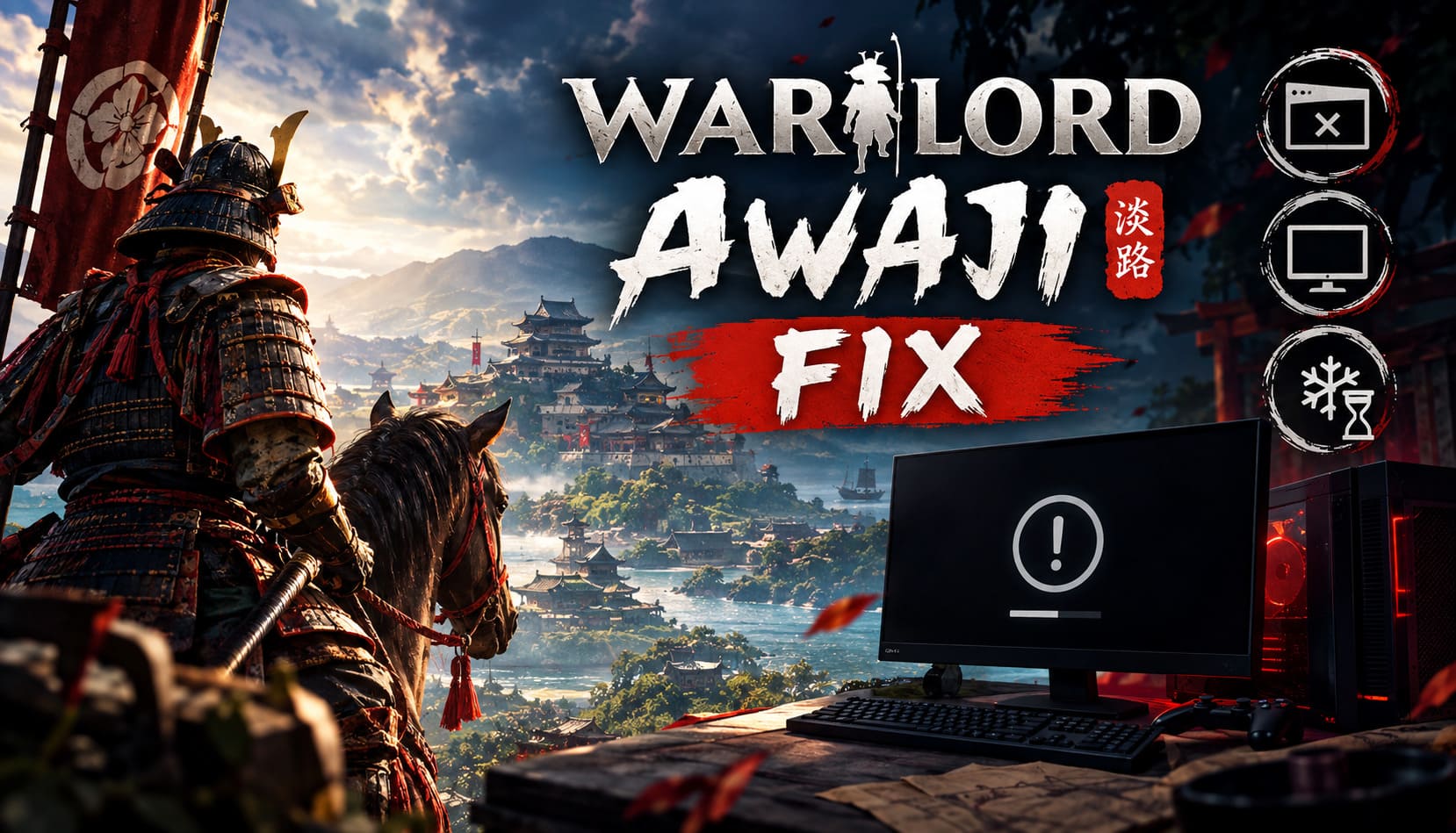
Players have reported Warlord: Awaji crashing on launch, black screens, startup freezes, broken menus, corrupted local data, and sudden crashes to desktop. Some problems appear to be connected to configuration files and Steam Cloud synchronization, while others can come from graphics settings, missing game files, drivers, or the game rendering far more frames than your GPU needs during startup.
I’ve put together the fixes I’d try first if Warlord: Awaji refused to launch on my own PC. Start with the simpler solutions and work downward. In particular, don’t skip the Steam Cloud and AppData cleanup if you’re stuck in a persistent crash or corrupted-settings loop.
Quick Fix Overview
| Problem | Fix To Try |
|---|---|
| Crash immediately after pressing Play | Disable Steam Cloud and reset local data |
| Black screen before the menu | Reset configuration and try DX11 |
| GPU suddenly hits extreme usage | Apply an FPS cap |
| Missing or corrupted files | Verify Steam game files |
| Graphics-related startup crash | Disable problematic upscaling features |
| Antivirus blocks the game | Check firewall and security permissions |
| Random launch instability | Update GPU drivers and Windows |
1. Turn Off Steam Cloud Before Resetting Your Files
This is the first thing I’d check if Warlord: Awaji keeps crashing despite reinstalling it.
A reinstall sounds like the obvious solution, but PC gamers know the trap: uninstalling the game doesn’t necessarily remove every local configuration or profile file. Worse, if Steam Cloud is enabled, damaged data can potentially be synchronized back onto your machine.
That can leave you stuck in a ridiculous cycle where you delete the problem, reinstall the game, launch it… and Steam promptly hands the broken data right back.
Some community reports have also mentioned strange UI behavior, including “TRNSL_ERR” appearing in menu-related text and other signs that local data has gone sideways.
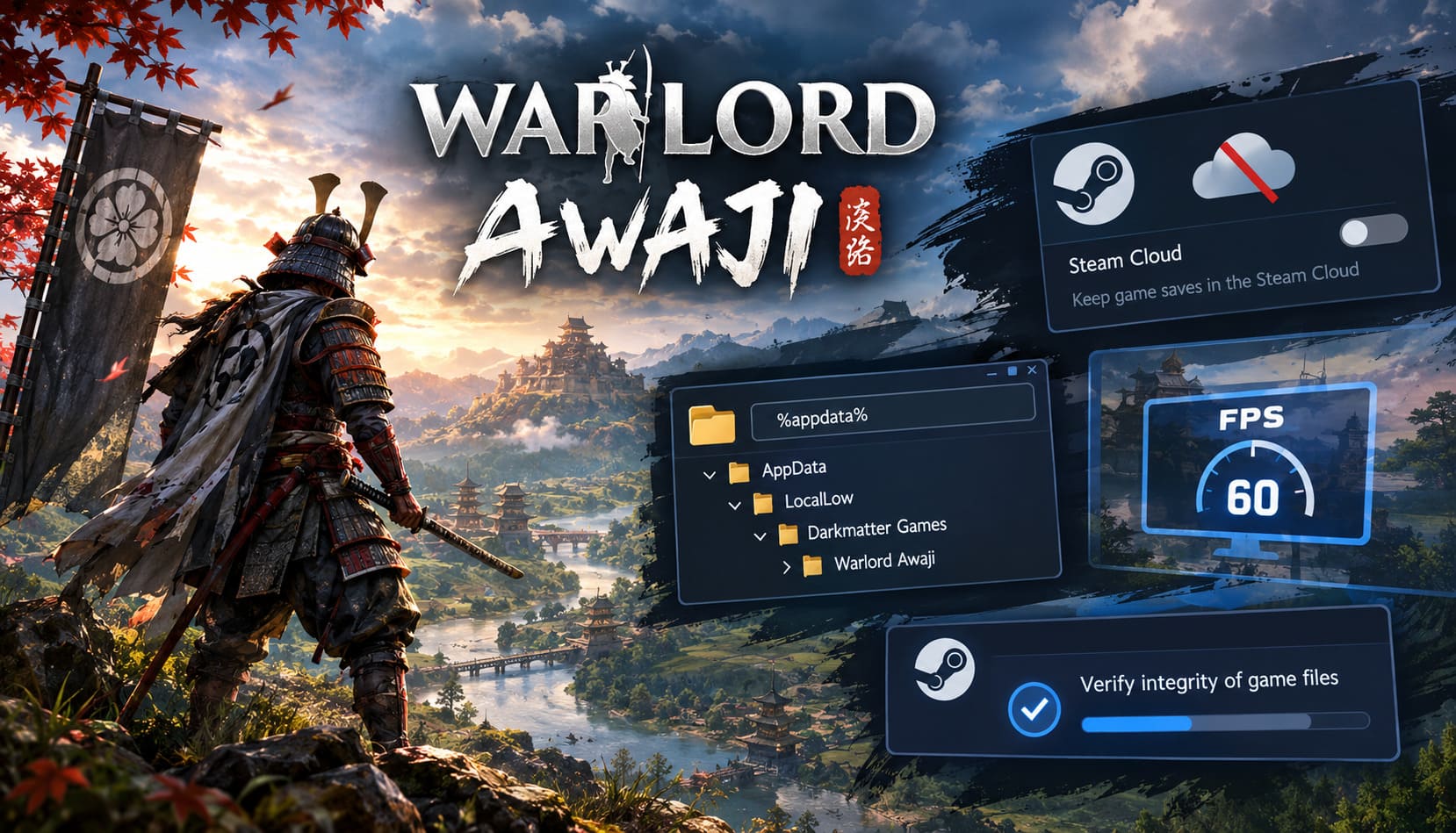
Before touching the local files, disable Steam Cloud:
- Completely close Warlord: Awaji.
- Exit Steam and make sure the client is no longer running.
- Open Steam again and go to your Library.
- Right-click Warlord: Awaji and select Properties.
- Stay in the General section.
- Find the Steam Cloud option and turn off Keep games saves in the Steam Cloud for Warlord: Awaji.
Now Steam won’t immediately restore the same potentially corrupted files you’re trying to get rid of.
Don’t launch the game yet. Move on to the local-data reset first.
2. Clear the Warlord: Awaji AppData Folder
This is the fix that feels a little too old-school, but it is still one of the most useful tricks for stubborn PC game problems.
Warlord: Awaji can store configuration and profile-related data outside the normal Steam installation directory. That means you can uninstall and reinstall the game multiple times without actually touching the files responsible for your startup problem.
Here’s how to reach them.
Press Windows Key + R to open the Run window.
Enter:
%appdata%
Press Enter.
Windows will open your Roaming AppData folder. From there, click AppData in the address bar to go back one level.
Open:
LocalLow → Darkmatter Games → Warlord Awaji
The exact contents can vary, but this is where you should look for the game’s local configuration and save-related data.
If you’re trying to perform a genuinely clean reset, back up anything important first and then remove the problematic Warlord: Awaji data. The goal is to make the game rebuild its local configuration from scratch.
There is one small exception worth mentioning. If you have manually tweaked graphics options and want to preserve them, you may be able to leave the base options/configuration text file alone. For a full troubleshooting reset, however, deleting the entire Warlord Awaji folder is the cleaner approach.
Afterward, launch the game while Steam Cloud is still disabled.
If you suddenly reach the main menu, you’ve probably found the culprit.
3. Put a Hard FPS Limit on the Game
This is one of the more interesting problems because it can sound completely insane until you actually see it happen.
During earlier playtest and demo periods, Warlord: Awaji was reported to have an issue where the main menu didn’t impose a proper frame-rate limit. On a powerful GPU, that can mean the menu is rendered at an absurdly high FPS.
Your graphics card doesn’t care that you’re sitting on a static menu.
It sees frames.
So it renders frames.
And renders more.
And more.
Suddenly your GPU is working like you’re benchmarking a demanding game instead of looking at a menu.
If you notice GPU usage or temperatures jumping dramatically immediately after launching Warlord: Awaji, I’d absolutely test an FPS cap.
In Steam, open:
Library → Warlord: Awaji → Properties → General → Launch Options
You can test commands such as:
-fpslimit 60
or:
-maxfps 60
Whether a particular launch parameter is honored can depend on how the current build handles command-line arguments, so don’t assume every command works just because it is accepted by Steam.
The more reliable alternative is to use your GPU software.
For NVIDIA hardware, open the NVIDIA Control Panel and create a profile for Warlord Awaji.exe. Look for the Max Frame Rate setting and apply a sensible cap such as 60 or 144 FPS.
AMD users can do the equivalent through AMD Radeon Software.
Honestly, for troubleshooting, I’d start at 60 FPS. You can always raise the limit later once the game proves it can launch consistently.
4. Verify the Steam Installation
Never underestimate the boring fix.
A broken download, damaged asset bundle, or missing DLL can be enough to stop a game before it even reaches the title screen.
Warlord: Awaji is not a tiny executable with a handful of files. It uses a substantial collection of engine and game assets, and one corrupted package can potentially cause a spectacularly unhelpful startup failure.
Fortunately, Steam has a built-in repair mechanism.
Go to:
Steam Library → Warlord: Awaji → Properties → Installed Files
Select:
Verify integrity of game files
Let Steam complete the scan.
If it discovers damaged or missing files, Steam should download replacement versions automatically.
This process doesn’t normally require you to reinstall the entire game, which is exactly why I’d do it before wasting time on a full reinstall.
5. Tame Graphics Settings and Try DirectX 11
If Warlord: Awaji crashes before you can reach the graphics menu, the problem may be the graphics configuration itself.
Modern upscaling and rendering technologies are fantastic when everything lines up correctly. When they don’t, though, they can turn a perfectly playable game into a crash generator.
If you can access the game’s configuration files, look for options related to features such as:
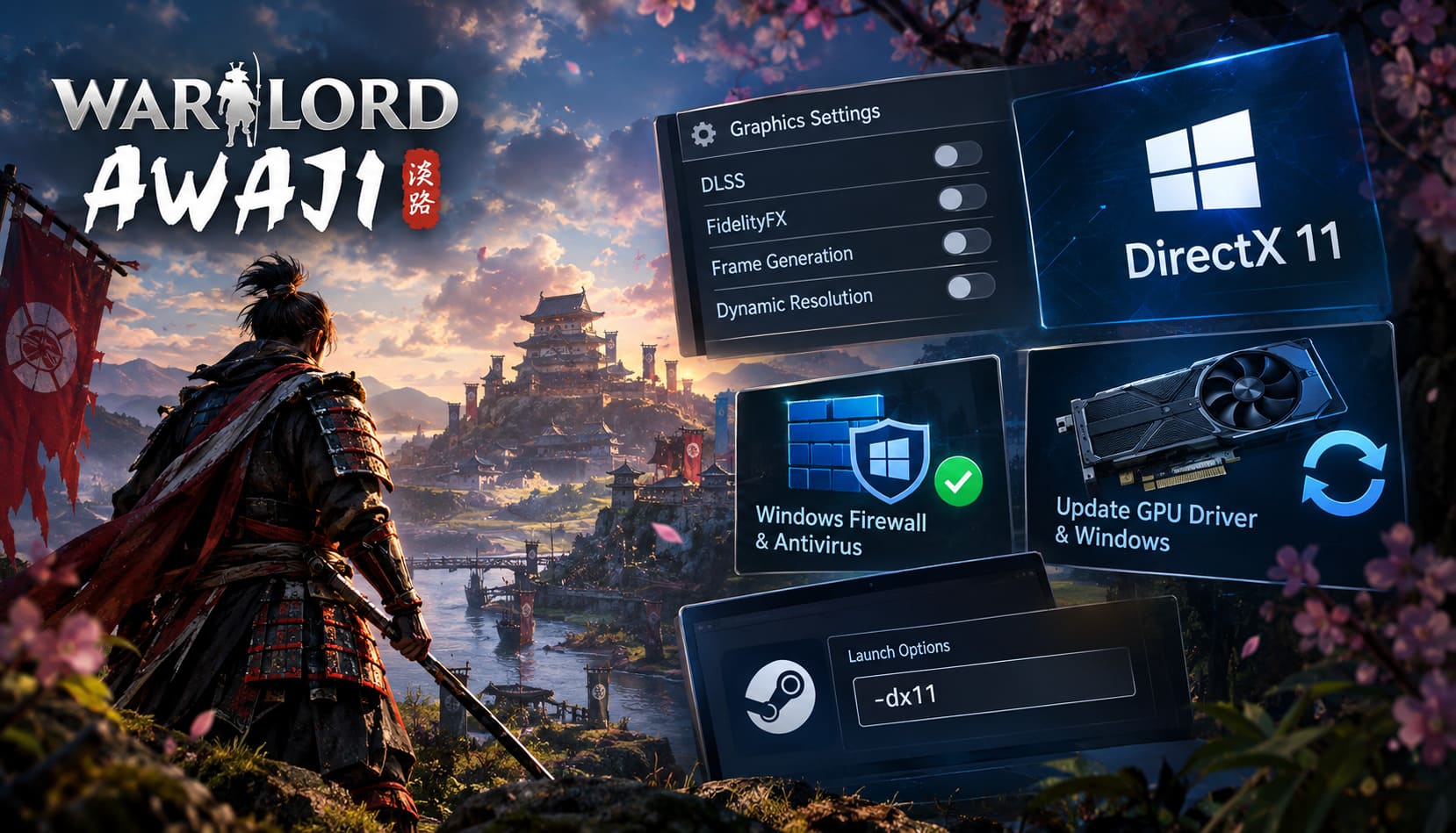
- DLSS
- FidelityFX
- Frame Generation
- Dynamic Resolution
- Other advanced rendering features
If one of these has been forced into an incompatible state, try disabling it or setting the corresponding value to 0 or False, depending on how the configuration file is structured.
Another troubleshooting option is forcing the game to use DirectX 11.
In Steam Launch Options, test:
-dx11
DX11 isn’t automatically “better” than DX12, and I wouldn’t recommend switching APIs permanently just because you can. But when you’re dealing with a startup crash, stability matters more than squeezing out a few extra graphical features.
If DX11 gets you into the main menu, that’s valuable information in itself.
6. Check Windows Firewall and Antivirus Restrictions
Sometimes the game isn’t actually crashing because of the game.
Windows security software can interfere with a newly released executable, particularly when the application is unfamiliar or has recently changed.
If Warlord: Awaji launches and immediately disappears, check whether Windows Security, Windows Defender Firewall, or third-party antivirus software has blocked its executable.
To check Windows Firewall:
- Open the Windows Start menu.
- Search for Windows Security.
- Open Firewall & network protection.
- Select Allow an app through firewall.
- Click Change settings.
- Look for Warlord: Awaji in the list.
- If necessary, use Allow another app and browse to the game’s executable.
- Make sure the appropriate network permissions are enabled.
You may also want to check your antivirus quarantine or protection history.
I wouldn’t recommend blindly disabling your entire antivirus just to make one game launch. That’s using a sledgehammer when a screwdriver will do. Add the game’s executable as an exception only if you’re confident the installation is legitimate and the security software is actually blocking it.
7. Update Your GPU Driver and Windows
This is another unglamorous fix that gets overlooked because everyone wants the complicated answer.
Don’t.
If you’re running an older NVIDIA, AMD, or Intel graphics driver against a brand-new PC game, update it before spending an hour digging through obscure configuration files.
Install the latest driver available for your GPU and restart Windows afterward.
You should also run Windows Update and make sure your operating system isn’t missing important system components or platform updates.
Warlord: Awaji is designed for modern 64-bit Windows systems, so an outdated software environment can create unnecessary compatibility problems.
If you’re troubleshooting a launch crash, I’d rather spend ten minutes updating drivers than spend two hours blaming the game engine for something Windows is contributing to.
What I’d Try First
If I were sitting at my own PC with Warlord: Awaji refusing to launch, I wouldn’t randomly try all seven fixes at once. That makes it impossible to know what actually solved the problem.
My order would be:
- Disable Steam Cloud.
- Back up and clear the Warlord: Awaji AppData data.
- Launch the game with a conservative FPS cap.
- Verify Steam game files.
- Try DX11 and disable advanced graphics features.
- Check firewall/antivirus blocks.
- Update GPU drivers and Windows.
The Steam Cloud + AppData combination is particularly important when the game appears to remember a broken state even after reinstalling.
Warlord: Awaji Low FPS Fix: PC Performance & Stuttering Guide (2026)
Don’t Immediately Reinstall the Game
This deserves its own warning.
If Warlord: Awaji is crashing on startup, a complete reinstall might not fix anything if the underlying problem lives in AppData, graphics configuration, Steam Cloud data, or your driver environment.
You could spend half an hour downloading the game again only to watch it crash in exactly the same place.
That’s why I prefer the targeted reset approach.
Kill the bad configuration first.
Then verify the installation.
Then deal with graphics and system-level problems.
It is much faster, and you actually learn something from every successful step.
Warlord Awaji Guide: How to Recruit Warriors and Upgrade Soldiers Fast
Final Thoughts
Warlord: Awaji has the kind of ambition I love seeing in PC strategy games. Building a huge tactical sandbox around historical Japanese terrain and large-scale battles is a seriously cool idea. But ambitious games can also have rough edges at launch, especially when they’re dealing with complex rendering systems, large environments, configuration files, and a wide range of PC hardware.
If you’re currently staring at a black screen or desktop after clicking Play, don’t assume your save is gone or your PC suddenly can’t handle the game.
Start with the boring stuff.
Disable Steam Cloud. Clear the local AppData configuration. Cap the FPS. Verify the game files. Then move toward graphics APIs, security software, and drivers.
That sequence tackles the most likely causes without immediately resorting to a nuclear-option reinstall.
And once Warlord: Awaji finally drops you into the battlefield instead of dropping you back onto the Windows desktop, you’ll know the troubleshooting was worth it.
The important thing is to change one thing at a time. When the game finally launches normally, you’ll know exactly which fix brought your samurai campaign back from the dead.