Warlord: Awaji Low FPS Fix: PC Performance & Stuttering Guide (2026)
There is something wonderfully chaotic about Warlord: Awaji. Watching dozens — sometimes hundreds — of samurai collide on the battlefield while you are trying to keep your army alive is exactly the kind of madness I wanted from a historical strategy sandbox.
Unfortunately, that same chaos can be brutal on a PC.
The game may feel perfectly smooth while you are exploring the island, walking through a quiet settlement, or looking at a temple. Then a large battle begins, the AI suddenly wakes up, arrows start flying, soldiers start reacting to each other, and your beautiful 80 FPS can turn into 20 FPS stuttering hell.
I’ve seen this kind of performance problem in strategy games before, and Warlord: Awaji has a particularly annoying version of it because the problem isn’t always your graphics card. Sometimes the GPU is barely breaking a sweat while the CPU is drowning in calculations.
So, instead of simply telling you to “lower your graphics,” I’ve put together the settings and Windows tweaks I’d actually use on my own gaming PC.
Why Warlord: Awaji Can Run Poorly Even on a Powerful PC
The first thing worth understanding is that Warlord: Awaji isn’t a normal action game.
Yes, the visuals use a stylized low-poly aesthetic, which makes the game look relatively lightweight. But underneath those visuals is a surprisingly busy simulation. Individual soldiers have their own tracking, experience, behaviors, positioning, and combat decisions.
That creates two very different performance situations.
| Situation | Main Problem | What Usually Helps |
|---|---|---|
| Exploring Awaji | GPU Load | Lower Shadows, View Distance |
| Large Battles | CPU Simulation | Reduce Unit Effects, Close Background Apps |
| Menus | Uncapped GPU Usage | Enable FPS Limit |
| New Areas | Shader/Asset Loading | SSD, Shader Cache |
| Long Sessions | Memory Pressure | 16 GB+ RAM |
| Laptop Gaming | Power Throttling | Plug In, Dedicated GPU |
In other words, a powerful RTX card doesn’t automatically guarantee smooth battles. Your processor can become the bottleneck when the battlefield gets crowded.
That’s why I would approach Warlord: Awaji performance problems from both directions: optimize the graphics settings, then make sure Windows isn’t getting in the way.
My Recommended Warlord: Awaji Graphics Settings
Before touching Windows or NVIDIA/AMD settings, I’d start inside the game.
There is no reason to make things complicated if a few graphics options can immediately improve your frame rate.
Fullscreen First
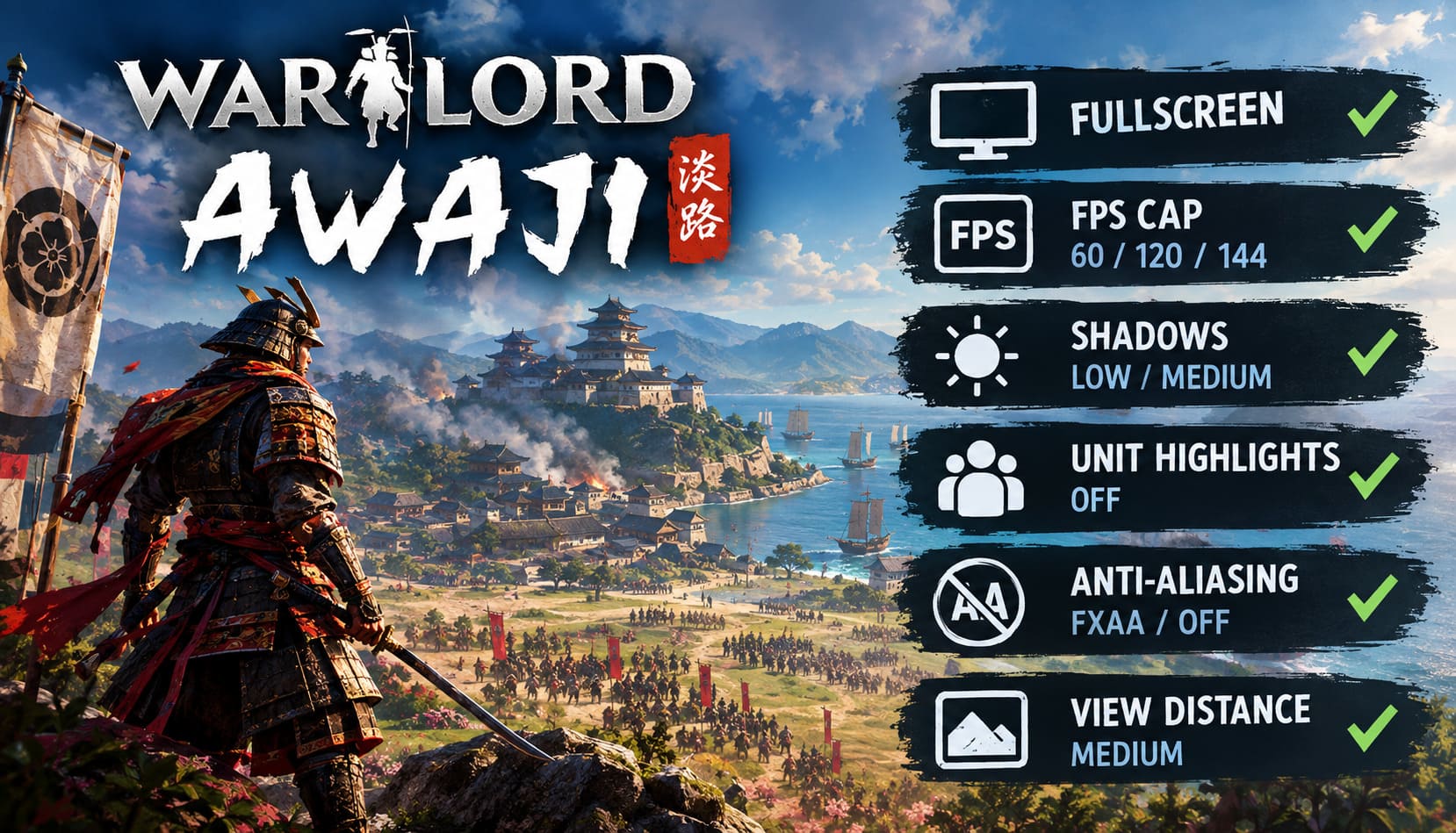
I recommend using Fullscreen instead of Borderless or Windowed mode.
Borderless mode is convenient, but when you’re trying to squeeze every last bit of consistency out of a game, I prefer exclusive fullscreen whenever it’s available. It can also help avoid some unnecessary desktop composition behavior.
Don’t Automatically Lower Resolution
If you’re playing at 1920×1080, I wouldn’t immediately jump to 1600×900 just because you’re getting occasional drops.
Try optimizing the heavier settings first.
Only reduce resolution if your GPU is genuinely the limiting factor. On something like an older GTX 1050 Ti, however, dropping resolution can make a surprisingly large difference.
Cap Your FPS
This is one of the easiest things to overlook.
Don’t let Warlord: Awaji render unlimited frames if you don’t need them.
Set the FPS limit close to your monitor’s refresh rate:
- 60 FPS for a 60 Hz display
- 120 FPS for a 120 Hz display
- 144 FPS for a 144 Hz display
Apart from improving consistency, an FPS cap is especially useful in menus. There is little point in having your GPU render hundreds of unnecessary frames while you’re staring at the settings screen.
Shadows: Low or Medium
If I had to choose one visual setting to reduce first, shadows would be near the top of my list.
Warlord: Awaji can have a lot of soldiers, structures, terrain and moving objects on screen simultaneously. Dynamic shadows add another layer of work for the GPU.
I’d start with Medium. If your system is struggling badly during battles, try Low.
The visual difference isn’t nearly as painful as watching your frame rate collapse.
Unit Highlights: Off
If you’re looking for small performance improvements everywhere you can get them, disable Unit Highlights.
The difference won’t magically turn 30 FPS into 100 FPS, but large battles are exactly where every little reduction in visual processing can matter.
Anti-Aliasing: FXAA or Off
If the game gives you several anti-aliasing choices, I’d avoid expensive options when performance is already an issue.
FXAA is a good compromise because it smooths jagged edges without demanding as much hardware power.
If you’re desperate for additional FPS, disabling AA entirely is another option.
View Distance: Medium
View Distance can be surprisingly expensive in an open sandbox environment.
Awaji has plenty of terrain, structures and distant objects that don’t need to be rendered at maximum detail when you’re already fighting a massive battle.
My recommendation is Medium.
If you’re still experiencing drops, lower it further before sacrificing your native resolution.
The Biggest Difference: CPU Performance During Massive Battles
This is where Warlord: Awaji gets interesting.
When you’re wandering around the island, your GPU may be the main limitation. During a huge battle, however, the situation can completely reverse.
The game has to process:
- Individual soldier behavior
- Combat decisions
- Ranged attacks
- Unit positioning
- Morale and surrender behavior
- Battlefield interactions
- Physics and environmental calculations
That’s a lot of simulation happening simultaneously.
This explains why someone with a Ryzen 7 5800X3D and RTX 4080 can still experience sub-60 FPS in an enormous battle.
It’s not necessarily because the PC is weak. The engine simply has a lot of work to process.
And unfortunately, there’s no magical graphics slider that can completely eliminate a CPU-side bottleneck.
What you can do is make sure your processor isn’t wasting resources elsewhere.
Windows Settings I Would Change
Windows can sometimes be surprisingly aggressive about managing applications in the background.
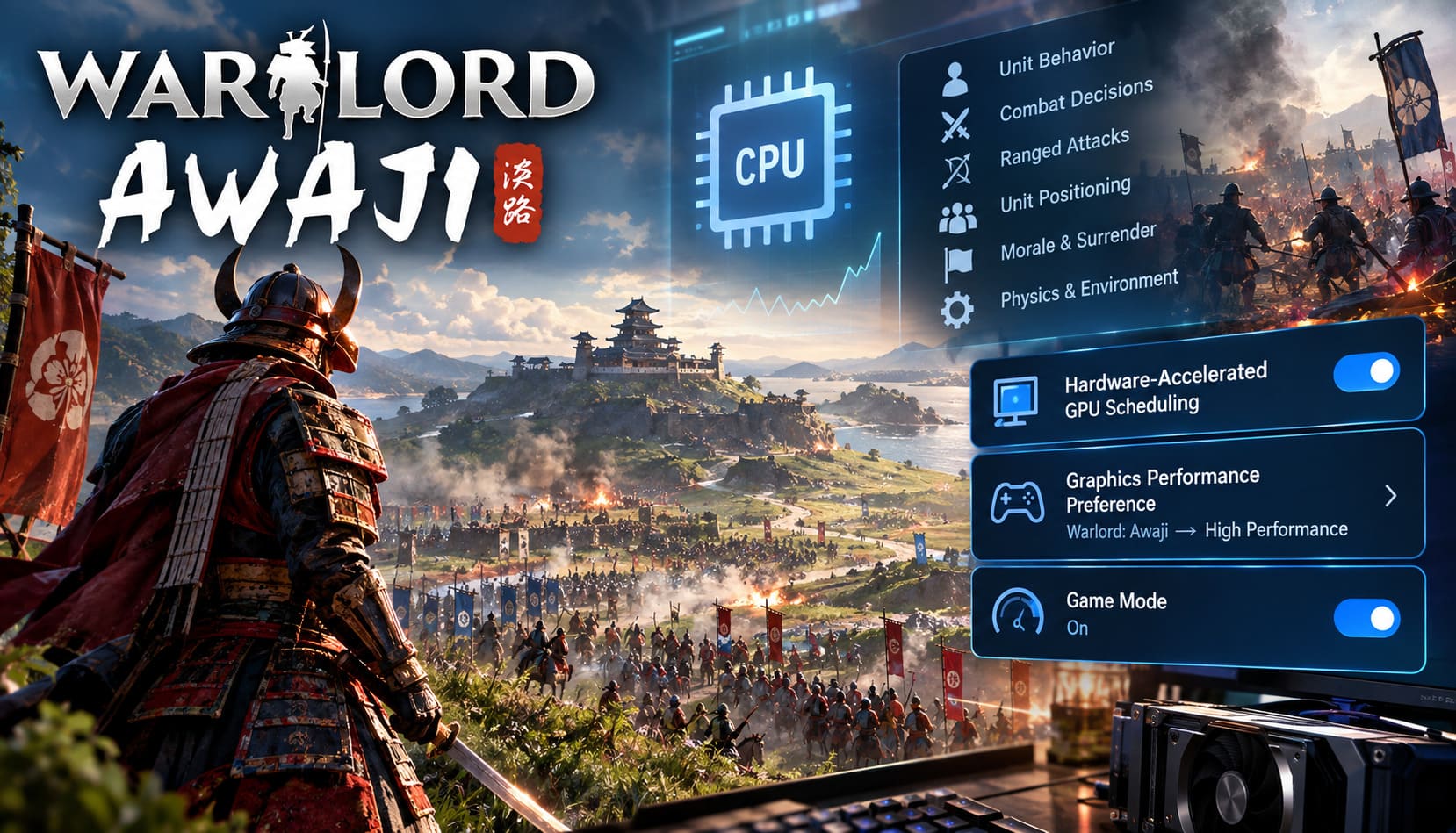
Enable Hardware-Accelerated GPU Scheduling
Go to:
Settings → System → Display → Graphics → Default Graphics Settings
If Hardware-Accelerated GPU Scheduling is available, turn it on and restart your PC.
I don’t consider this a universal miracle setting, but if you’re chasing better frame pacing and lower latency, it’s worth testing.
Set Warlord: Awaji to High Performance
In the same Graphics settings area, look for Graphics Performance Preference.
Add the Warlord: Awaji executable and set it to:
High Performance
This is particularly important on laptops or systems containing multiple GPUs.
You don’t want Windows deciding that your game should use an integrated graphics processor when a dedicated GPU is sitting there waiting to do the work.
Turn Game Mode On
Go to:
Settings → Gaming → Game Mode
Make sure Game Mode is enabled.
Again, this isn’t going to double your FPS. Think of it as basic housekeeping. When you’re playing a CPU-heavy strategy game, I’d rather have Windows minimize unnecessary background activity.
NVIDIA Settings for Warlord: Awaji
If you’re using an NVIDIA GPU, I’d also create a dedicated profile for the game.
Open the NVIDIA Control Panel or NVIDIA App and find the game’s profile.
My starting configuration would be:
| NVIDIA Option | Recommended Setting |
|---|---|
| Power Management Mode | Prefer Maximum Performance |
| Low Latency Mode | On |
| Shader Cache Size | 10 GB |
| Vertical Sync | Based On Your Display Setup |
| Texture Filtering | Performance If Needed |
The most important setting here is Power Management Mode.
Setting it to Prefer Maximum Performance can prevent unnecessary clock-speed fluctuations while you’re playing.
For Low Latency Mode, I’d start with On rather than immediately forcing Ultra. If the game already has its own latency technology, stacking multiple latency solutions can sometimes produce unpredictable results.
Shader caching is also worth paying attention to. If you’re experiencing brief stutters when entering new areas or encountering effects for the first time, shader compilation may be part of what you’re seeing.
AMD Users: A Few Settings Worth Testing
AMD players shouldn’t feel left out.
In AMD Software: Adrenalin Edition, create a Warlord: Awaji profile and experiment with:
- Radeon Anti-Lag: Enabled
- Radeon Chill: Disabled
- Texture Filtering Quality: Performance
I’d keep Radeon Chill disabled unless you’re deliberately using it as your frame-rate management solution.
The goal here isn’t to activate every “performance” feature simply because it exists. The goal is to remove unnecessary limits and keep frame delivery consistent.
Turn Off Overlays Before Blaming the Game
This is one of my favorite troubleshooting steps because it’s so easy.
If you’re getting strange stutters, inconsistent 1% lows or sudden frame-time spikes, temporarily disable overlays.
The biggest ones to test are:
Discord Overlay → Off
Steam Overlay → Off
NVIDIA Overlay / ShadowPlay → Off
You don’t necessarily need to live without them forever. I’m just suggesting disabling them while troubleshooting.
If the stuttering suddenly disappears, you’ve found an important clue.
Don’t Ignore Your RAM and Storage
The official baseline is 16 GB of RAM, and that’s where I’d want to be for Warlord: Awaji.
If you’re still using 8 GB, Windows and the game can quickly start fighting over memory. That can lead to paging and unpleasant hitching, particularly when the game is loading assets while you’re already in the middle of a battle.
An SSD is also strongly recommended.
I wouldn’t expect an SSD to magically increase your average FPS, but it can improve loading and asset streaming behavior, which is a completely different part of the experience.
If your game is installed on an old mechanical hard drive, moving it to an SSD is one of the upgrades I’d consider before endlessly tweaking obscure Windows settings.
Laptop Players Have One Extra Problem
Gaming laptops can behave completely differently from desktop PCs.
First, play plugged in.
It sounds obvious, but battery power can dramatically reduce CPU and GPU performance.
Then check your Windows power profile and use a performance-oriented setting when gaming.
If your laptop has a MUX switch, consider using dedicated-GPU mode when playing Warlord: Awaji. This can bypass the integrated GPU path and potentially improve performance and consistency.
Just remember that high-performance laptop settings usually mean more heat, more fan noise and shorter battery life. That’s the trade-off.
One Weird Problem: Audio Stutters
There’s another issue worth mentioning because it can look like a graphics problem.
Some players have encountered situations where atmospheric audio appears to duplicate after restarting certain instant-action scenarios.
When multiple sound channels start behaving incorrectly, the resulting CPU activity can contribute to short stutters.
The first thing I’d do is make sure Warlord: Awaji is fully updated through Steam.
If the problem continues, try restarting the game and temporarily lowering your audio settings. I wouldn’t treat audio volume itself as a permanent performance fix, but it can be useful as a troubleshooting step.
Verify Your Game Files
If performance suddenly became much worse after an update, or you’re seeing strange behavior that doesn’t make sense, verify the installation.
In Steam:
Library → Warlord: Awaji → Properties → Installed Files → Verify Integrity of Game Files
Steam will compare your local installation against the expected files and replace damaged or missing data.
This is one of those boring troubleshooting steps that I usually try before doing anything drastic.
There’s no reason to spend an hour editing Windows settings if the actual problem is one corrupted game file.
Warlord Awaji Guide: How to Recruit Warriors and Upgrade Soldiers Fast
My Quick Warlord: Awaji FPS Fix Checklist
If you don’t want to read the entire guide every time you launch the game, this is the setup I’d try first:
- Use Fullscreen mode.
- Cap FPS to your monitor’s refresh rate.
- Set Shadows to Medium or Low.
- Set View Distance to Medium.
- Disable Unit Highlights.
- Use FXAA or disable Anti-Aliasing if necessary.
- Enable Game Mode in Windows.
- Set the game to High Performance in Windows Graphics settings.
- Test HAGS.
- Disable Discord, Steam and GPU overlays.
- Make sure you’re using the dedicated GPU.
- Keep the game on an SSD.
- Have at least 16 GB RAM.
- Verify the game files if problems appeared suddenly.
Warlord Awaji System Requirements: Full PC Specs, Download Size, and Hardware Optimization Guide
Final Thoughts
What I like about Warlord: Awaji is also what makes it difficult to optimize.
The game isn’t simply rendering a character and a few enemies. It’s trying to create a living battlefield where individual soldiers matter. That’s fantastic when everything is running smoothly, but it’s also why performance can fall apart when your army becomes enormous.
Personally, I wouldn’t chase a perfectly flat 144 FPS at all costs. For this type of game, stable frame pacing is much more important than a giant FPS number.
I’d rather play at a consistent 60–90 FPS with sensible settings than watch the counter bounce between 140 and 35 FPS every time two armies collide.
Start with the in-game settings, especially Shadows, View Distance and the FPS cap. Then move to Windows and GPU settings. Finally, investigate overlays, storage, RAM and potential CPU bottlenecks.
And if your PC still drops frames during the biggest battles after all of that, don’t immediately assume your hardware is failing. In a simulation-heavy strategy sandbox like Warlord: Awaji, sometimes the game simply has an enormous number of samurai to think about.