Forza Horizon 6 Wheel Settings: Guide for Better Force Feedback
I’ve spent way too many hours in racing games to pretend I’m still casually experimenting. The moment I plugged my steering wheel into Forza Horizon 6, I expected that instant immersion everyone talks about—proper weight transfer, sharp cornering feedback, and that natural pull through fast bends.
Instead, it felt like I was driving a slightly confused shopping cart on ice. And if you’ve already gone through Reddit threads, YouTube “ultimate settings” guides, and endless trial-and-error sessions, you already know this isn’t a rare experience.
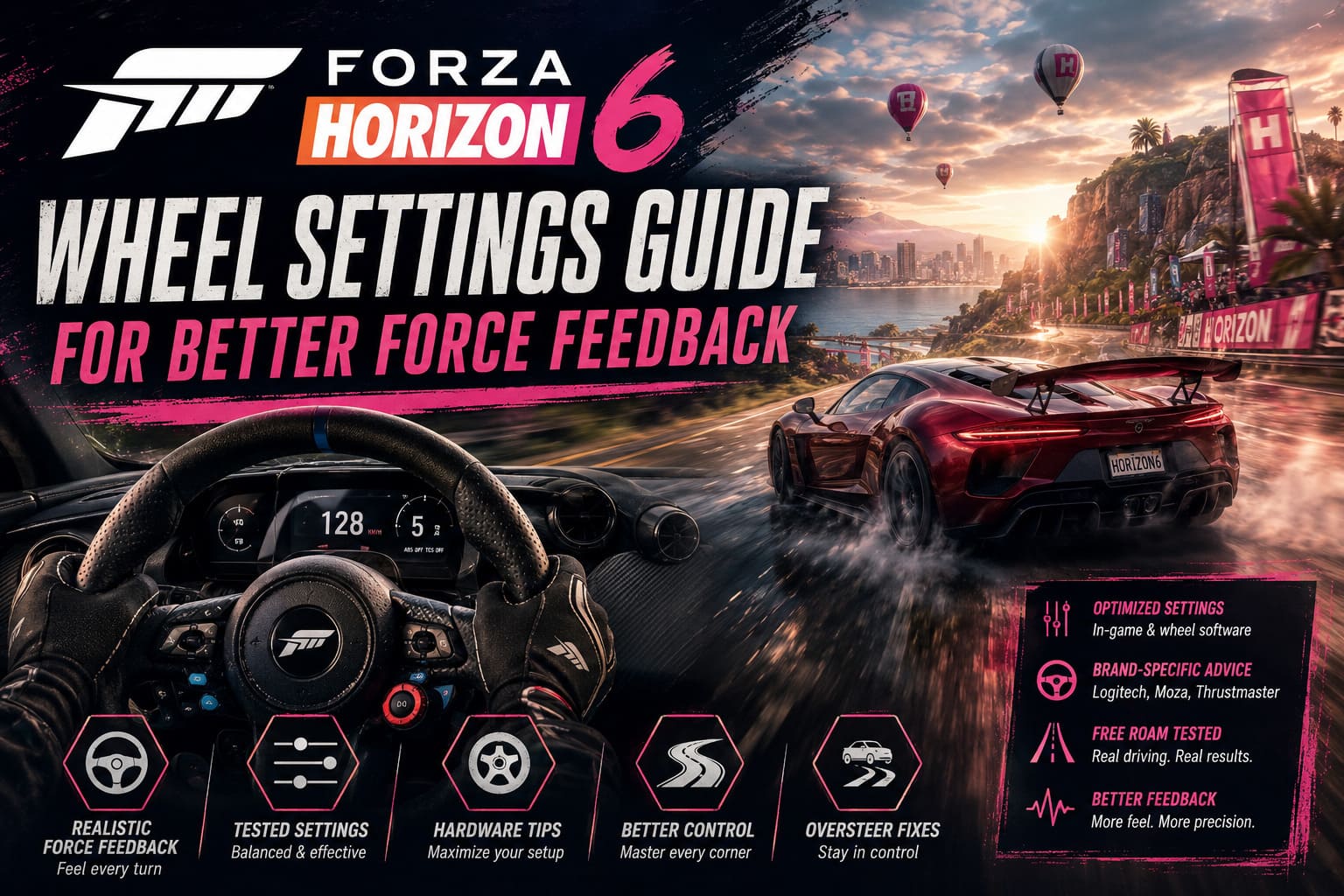
This is my personal breakdown after deep testing, community research, and a lot of in-game tuning until the wheel finally started to feel alive instead of artificial.
Why Wheel Driving Feels Off in Forza Horizon 6
Forza Horizon 6 sits in that tricky middle zone between arcade fun and simulation physics. That hybrid design is great for controller players, but it often creates problems for wheel users.
Forza Horizon 6 Time Attack Guide: Best Circuits, Car Builds, and Pro Driving Lines
What I immediately noticed:
- Cars feel too light at high speed
- Centering force feels artificial and overly smooth
- Oversteer reactions are inconsistent
- Force feedback sometimes drops mid-corner
The issue isn’t your hardware. It’s the combination of filtering, assists, and default force feedback scaling working against raw physics data.
First Step: Remove Hidden Driving Assists
Before touching force feedback settings, you need to disable the hidden systems that interfere with wheel input.
- Steering Type: Simulation
- Traction Control: Off
- Stability Control: Off
- ABS: Optional depending on pedal setup
Without this step, all other tuning becomes unreliable because the game keeps overriding your input behavior.
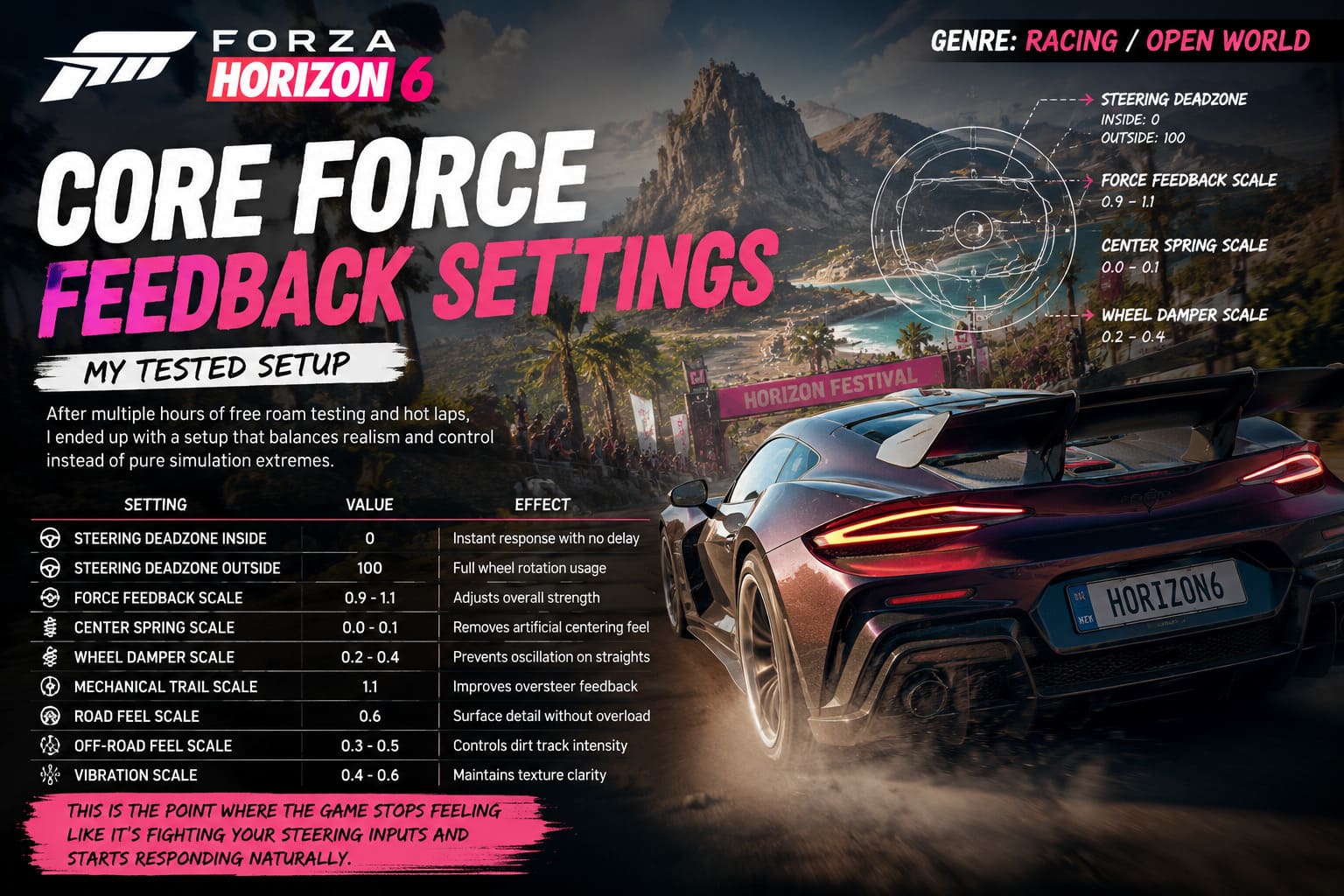
Core Force Feedback Settings (My Tested Setup)
After multiple hours of free roam testing and hot laps, I ended up with a setup that balances realism and control instead of pure simulation extremes.
Forza Horizon 6 PC Optimization Guide: Best Settings for Smooth FPS
Recommended Baseline Settings
| Setting | Value | Effect |
|---|---|---|
| Steering Deadzone Inside | 0 | Instant response with no delay |
| Steering Deadzone Outside | 100 | Full wheel rotation usage |
| Force Feedback Scale | 0.9–1.1 | Adjusts overall strength |
| Center Spring Scale | 0.0–0.1 | Removes artificial centering feel |
| Wheel Damper Scale | 0.2–0.4 | Prevents oscillation on straights |
| Mechanical Trail Scale | 1.1 | Improves oversteer feedback |
| Road Feel Scale | 0.6 | Surface detail without overload |
| Off-Road Feel Scale | 0.3–0.5 | Controls dirt track intensity |
| Vibration Scale | 0.4–0.6 | Maintains texture clarity |
This is the point where the game stops feeling like it’s fighting your steering inputs and starts responding naturally.
Hardware Settings Matter More Than You Think
One of the biggest mistakes I made early on was focusing only on in-game sliders. Your wheel software is just as important as the game settings themselves.
Recommended Wheel Software Setup
- Rotation Angle: 540°–720° for better responsiveness
- Centering Spring: Disabled
- Force Strength: 80–100% depending on wheel base
- Damping: Low to medium depending on wheel type
Running 900° rotation can feel realistic, but it slows down counter-steering reactions significantly, especially in Horizon-style driving.
Oversteer and Spin Control Issues
One of the most common complaints is uncontrollable oversteer. The so-called “ice effect” happens when weight transfer is not properly communicated through feedback and steering response timing.
What actually helped me fix it:
- Reducing steering rotation to 540°
- Increasing Mechanical Trail slightly
- Lowering damping if wheel feels delayed
- Learning throttle modulation instead of full acceleration
The biggest shift is understanding that wheel driving is not about input speed—it’s about weight management and balance control.

Brand-Specific Adjustments
Logitech (G29, G920, G923)
- Higher damping to reduce gear rattle
- Lower force feedback to avoid mechanical noise
- 540° rotation feels most responsive
Moza Direct Drive (R3, R5, R12)
- Low damping (0.1–0.2)
- Avoid max force settings to prevent clipping
- 720° rotation provides best balance
Thrustmaster (T300, T248, T598)
- 900° rotation works well due to belt system
- Balanced force feedback without extreme damping
- Mechanical trail around 1.1 feels natural
My Testing Method in Free Roam
I never test wheel settings in menus or stationary conditions. That gives misleading results.
Instead, I always:
- Load into free roam environment
- Select a mid-power rear-wheel-drive car
- Test controlled drifts at medium speed
- Evaluate recovery and steering correction
- Repeat on asphalt and off-road surfaces
If the wheel communicates grip loss clearly and recovery feels predictable, the setup is right.
Final Thoughts
After all the adjustments and testing, the biggest realization is simple: Forza Horizon 6 is not a pure simulator, but it can feel extremely close with the right configuration.
The real transformation doesn’t come from one magical slider. It comes from balancing responsiveness, feedback clarity, and damping behavior until the system stops feeling artificial.
Once everything clicks, the wheel stops being a controller replacement and becomes a true extension of the car’s behavior on the road.
That’s the moment it finally feels right.