Forza Horizon 6 PC Optimization Guide: Best Settings for Smooth FPS
When I first launched Forza Horizon 6, I expected a simple “set everything to Ultra and drive” experience. What I actually got was a visually stunning but surprisingly demanding open-world racer that can quietly destroy performance if you don’t tune it properly.
The game looks incredible, no doubt, but behind that beauty is a heavy engine that reacts strongly to VRAM limits, CPU load, and lighting complexity.

After hours of testing different configurations in real gameplay conditions, not just menu tweaking, I realized something important: default Ultra settings are not optimized for consistency.
They are designed to impress in short bursts, not to hold stable performance during long driving sessions across cities, highways, and dense environments.
Path of Exile 2 King in the Mist Guide: Spirit Rescue and Endgame Farming Strategy
Why Forza Horizon 6 Performance Feels Inconsistent
The biggest issue with performance in Forza Horizon 6 is not raw hardware power, but how the game distributes workload across systems. Even high-end PCs can experience frame pacing issues if certain settings are left unchecked.
VRAM Pressure and Texture Overflow
One of the most common problems is VRAM usage. High texture settings, especially on 8GB GPUs, can quietly push memory beyond limits. The result is not an immediate crash but gradual degradation. After 30–40 minutes of gameplay, the engine starts spilling data into system RAM, causing stutters and inconsistent frame delivery.
CPU Bottlenecks in Dense Environments
High-speed driving through cities or detailed countryside areas puts significant stress on the CPU. Geometry streaming and object loading can cause micro-hitches, especially when environment quality is set too high. This is most noticeable when rapidly turning the camera or entering dense urban zones.
Task Bar Hero Priest Class Guide: How to Unlock and Claim Free DLC
Ray Tracing and Lighting Load
Ray-traced global illumination adds a massive visual upgrade but comes with a heavy performance cost. Transitions during sunrise, sunset, or tunnel sections can create spikes in GPU usage, which affects frame pacing even on powerful systems.
My Real-World Graphics Settings Breakdown
Instead of chasing maximum Ultra settings, I focused on balancing visuals and stability. Below is how I personally categorize the most important graphics options after extensive testing.
Settings That Heavily Impact Performance
- Environment Textures – Major VRAM consumer
- Environment Geometry – High CPU impact in cities
- Ray-Traced Reflections – Significant GPU load
- Ray-Traced Global Illumination – Heavy lighting calculations
- Extreme Shadow Quality – Diminishing returns for performance cost
Well-Optimized Settings
- Volumetric Fog – Minimal performance difference between High and Extreme
- Shader Quality – High already delivers excellent visual fidelity
- Car Level of Detail – Ultra is usually enough for realistic visuals
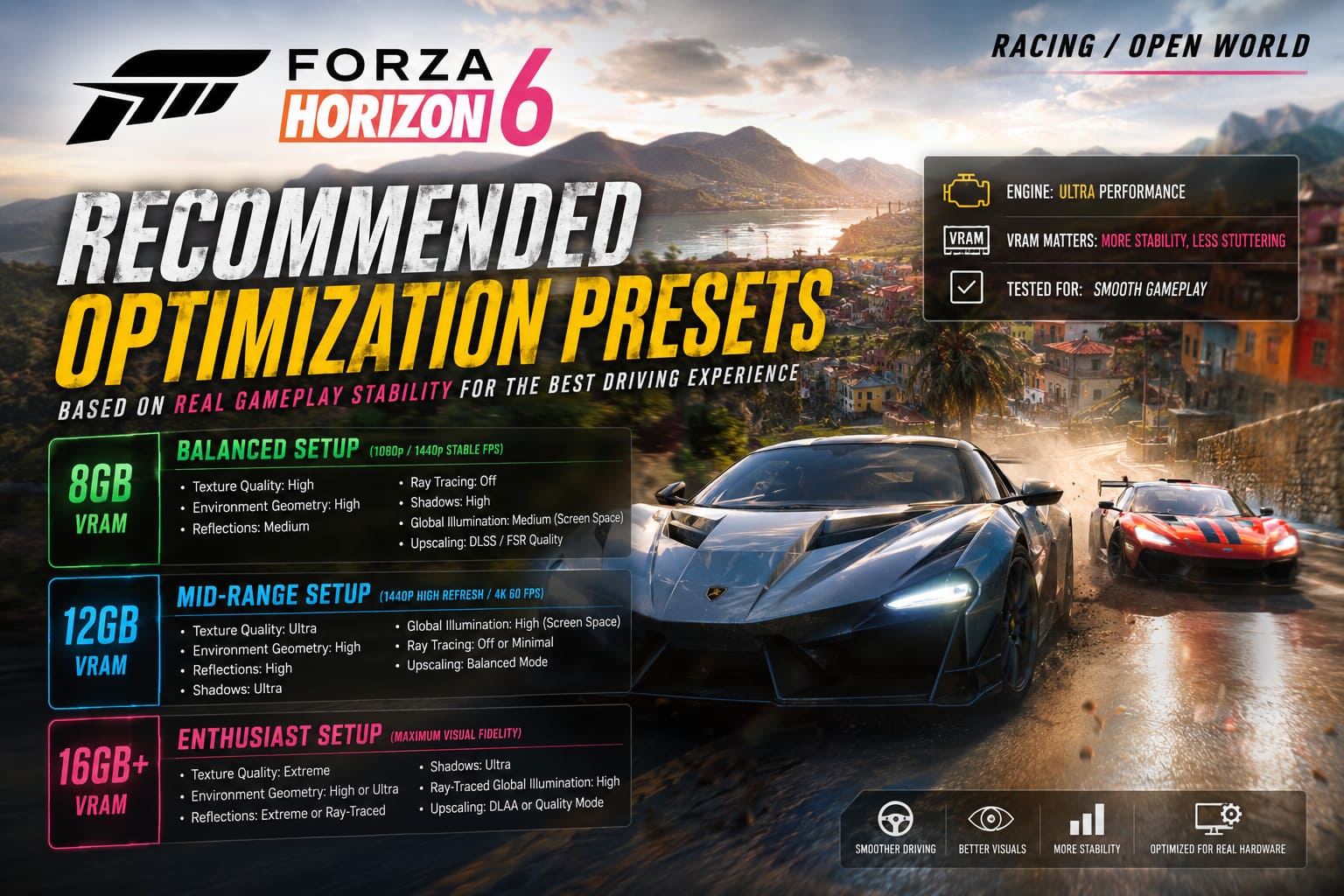
Recommended Optimization Presets
Instead of random settings adjustments, I prefer structured presets based on hardware capability and VRAM capacity. These are based on real gameplay stability rather than synthetic benchmarks.
Balanced 8GB VRAM Setup (1080p / 1440p Stable FPS)
- Texture Quality: High
- Environment Geometry: High
- Reflections: Medium
- Ray Tracing: Off
- Shadows: High
- Global Illumination: Medium (Screen Space)
- Upscaling: DLSS / FSR Quality
This configuration significantly reduces stuttering and provides a much more consistent driving experience compared to default Ultra settings.
Mid-Range 12GB VRAM Setup (1440p High Refresh / 4K 60 FPS)
- Texture Quality: Ultra
- Environment Geometry: High
- Reflections: High
- Shadows: Ultra
- Global Illumination: High (Screen Space)
- Ray Tracing: Off or Minimal
- Upscaling: Balanced Mode
This is the sweet spot for most modern gaming PCs. It preserves visual richness while maintaining stable frame pacing in most scenarios.
Enthusiast 16GB+ VRAM Setup (Maximum Visual Fidelity)
- Texture Quality: Extreme
- Environment Geometry: High or Ultra
- Reflections: Extreme or Ray-Traced
- Shadows: Ultra
- Ray-Traced Global Illumination: High
- Upscaling: DLAA or Quality Mode
This preset is designed for visual showcase purposes. It delivers the best possible graphics but may introduce occasional performance drops in dense city areas.
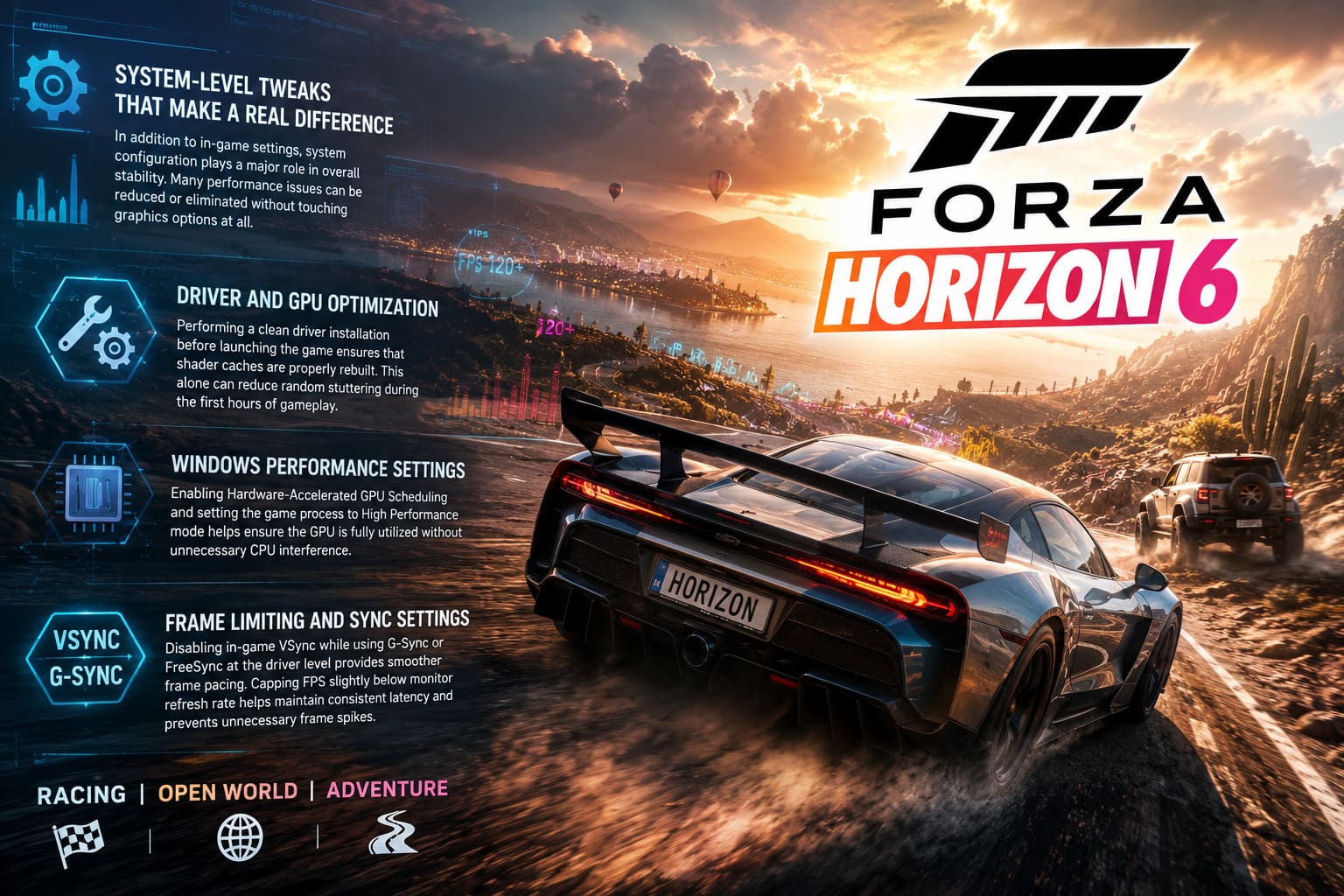
System-Level Tweaks That Make a Real Difference
In addition to in-game settings, system configuration plays a major role in overall stability. Many performance issues can be reduced or eliminated without touching graphics options at all.
Driver and GPU Optimization
Performing a clean driver installation before launching the game ensures that shader caches are properly rebuilt. This alone can reduce random stuttering during the first hours of gameplay.
Windows Performance Settings
Enabling Hardware-Accelerated GPU Scheduling and setting the game process to High Performance mode helps ensure the GPU is fully utilized without unnecessary CPU interference.
Frame Limiting and Sync Settings
Disabling in-game VSync while using G-Sync or FreeSync at the driver level provides smoother frame pacing. Capping FPS slightly below monitor refresh rate helps maintain consistent latency and prevents unnecessary frame spikes.
What Actually Improved Performance the Most
After extensive testing, the biggest performance improvements came from surprisingly simple adjustments rather than extreme tuning.
- Reducing Environment Geometry from Extreme to High
- Lowering Texture Quality based on VRAM limits
- Disabling Ray-Traced Reflections
- Using DLSS or FSR Quality mode instead of native resolution
- Turning off Night Shadows for better frame stability
These changes alone can improve performance stability by a noticeable margin, often between 40 and 60 percent depending on hardware configuration.
Final Thoughts
Forza Horizon 6 is one of the most visually impressive racing games available today, but it is also a game that rewards smart optimization over brute-force settings. Running everything on Ultra might look good in screenshots, but it does not guarantee smooth gameplay.
The real key is balance. Once you align textures with VRAM capacity, reduce unnecessary geometry load, and apply modern upscaling techniques, the game transforms from a stutter-prone experience into a fluid and responsive driving world.
In my experience, the best mindset is simple: Ultra is for visuals, optimized settings are for driving.