EA Sports FC 27 Steam Deck OLED Guide: Best Graphics Settings for Locked 60 FPS
Getting a football game running at 60 FPS on a handheld sounds like the kind of thing that should be simple. Set the resolution, drop a few graphics options, cap the frame rate, and start playing.
With EA Sports FC 27 on the Steam Deck OLED, it is not quite that easy.
The hardware is surprisingly capable, and the OLED model has some genuine advantages over the original Steam Deck. The 90Hz HDR display looks fantastic, the 6nm AMD APU is more efficient, and the faster LPDDR5 memory helps the integrated GPU squeeze out a little more performance. But FC 27 is not exactly a lightweight game. Between detailed player models, crowds, stadiums, lighting, cloth simulation, hair effects, and busy match scenes, the game can put serious pressure on the Deck’s CPU and GPU.
After spending a lot of time tweaking handheld games, I’ve found that the trick isn’t trying to make FC 27 look like a desktop PC running Ultra settings. That’s a losing battle. The smart approach is to protect the 60 FPS target and spend your limited performance budget on the things you actually notice while playing.
There is one major catch before we even touch the graphics menu, though.
EA Anti-Cheat Is the First Problem You Have to Solve
The biggest obstacle isn’t performance. It is compatibility.
EA Sports FC 27 relies on EA Anti-Cheat, which creates a major problem for the standard Steam Deck SteamOS environment. EA’s anti-cheat system is not officially compatible with Linux, SteamOS, or Proton in the way required by the game.
That means you cannot simply install FC 27 through SteamOS, press Play, and expect everything to work.
For this setup, you’ll need Windows 10 or Windows 11 installed on the Steam Deck OLED. You can use a dual-boot configuration or run Windows from suitable external storage, such as a fast microSD card or external SSD.
That sounds annoying, and honestly, it is. The Steam Deck is at its best when SteamOS makes everything feel console-like. Installing Windows adds another layer of maintenance, driver management, and configuration. But if FC 27 is one of those games you specifically want to play on the Deck, this is the hurdle you need to clear first.
This guide assumes that Windows is already installed and that the official AMD drivers required for Steam Deck Windows support are working correctly.
Why the Steam Deck OLED Is a Good Fit for FC 27
The OLED model doesn’t magically turn the Steam Deck into a desktop gaming PC, but it does have some useful hardware improvements.
The CPU architecture remains based on Zen 2 with 4 cores and 8 threads, just like the LCD version. The big difference is the move to a more efficient 6nm manufacturing process, which helps the APU maintain its clocks with lower power consumption and less heat.
The OLED model also uses faster 6400 MT/s LPDDR5 memory. Since the integrated Radeon GPU shares system memory with the CPU, memory bandwidth matters.
You aren’t going to see a night-and-day performance jump, but stability is what matters here. In a football match, small frame-time spikes are much more noticeable than they are in a turn-based game.
A perfectly smooth 60 FPS during normal play feels dramatically better than a setup that constantly bounces between 45, 50, and 60 FPS.
Steam Deck OLED FC 27 Settings at a Glance
Here is the configuration I’d start with if the goal is competitive, consistent gameplay rather than screenshot-quality graphics:
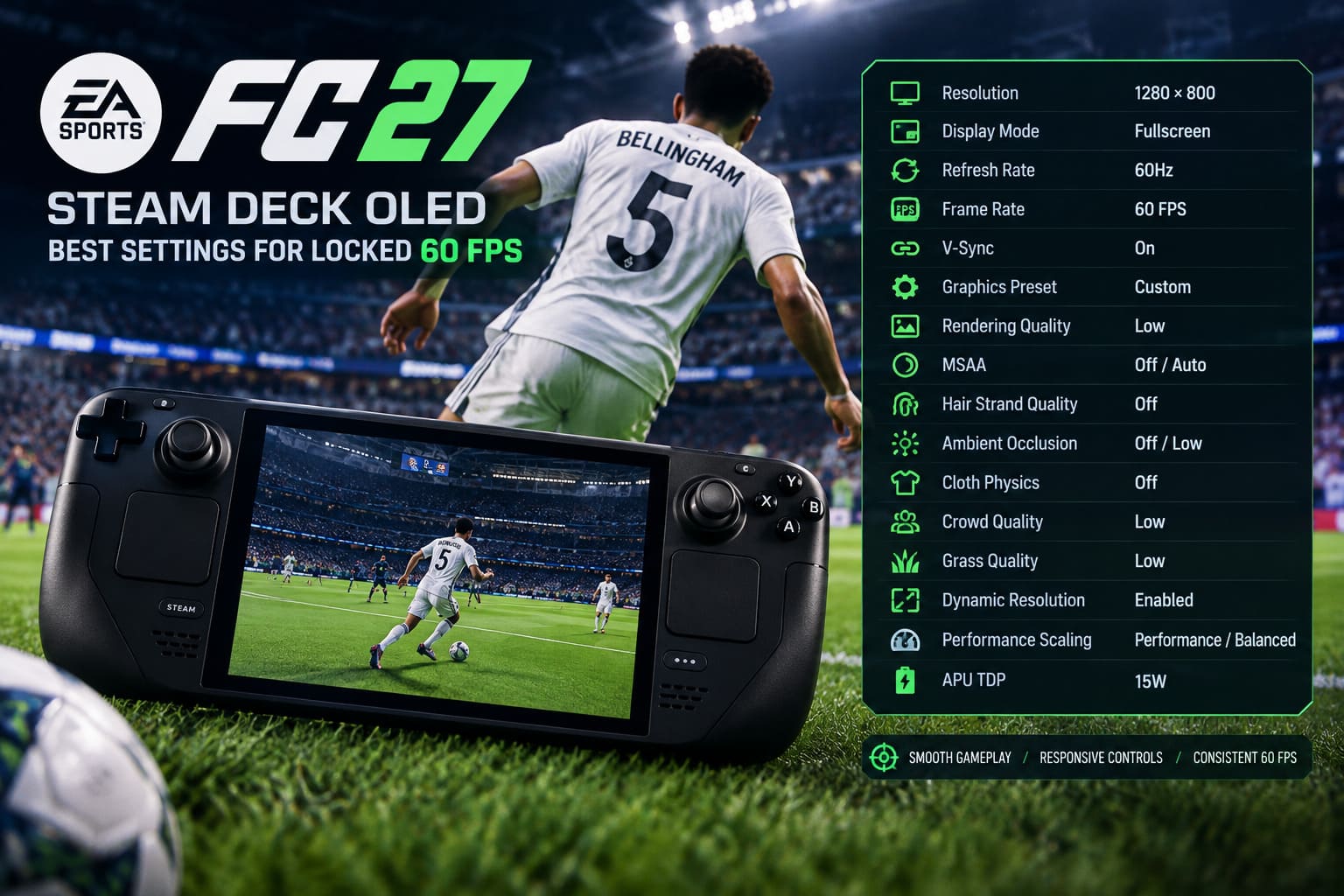
| Setting | Recommended Value |
|---|---|
| Resolution | 1280×800 |
| Display Mode | Fullscreen |
| Refresh Rate | 60Hz |
| Frame Rate | 60 FPS |
| V-Sync | On |
| Graphics Preset | Custom |
| Rendering Quality | Low |
| MSAA | Off / Auto |
| Hair Strand Quality | Off |
| Ambient Occlusion | Off / Low |
| Cloth Physics | Off |
| Crowd Quality | Low |
| Grass Quality | Low |
| Dynamic Resolution | Enabled |
| Performance Scaling | Performance / Balanced |
| APU TDP | 15W |
This isn’t the prettiest possible configuration. It is the configuration I’d actually use if I cared about responsive passing, defending, timed finishing, and consistent frame pacing.
BIOS: Set the UMA Frame Buffer to 4GB
If you’re running Windows on the Deck OLED, there is another setting worth checking before launching FC 27.
The Steam Deck uses shared system memory for its integrated GPU. You can adjust the UMA Frame Buffer Size through the BIOS.
To change it:
- Completely shut down the Steam Deck.
- Hold Volume Up and press the Power button.
- Enter the BIOS/Setup Utility.
- Open the Advanced section.
- Find UMA Frame Buffer Size.
- Change the allocation from 1G to 4G.
- Save your changes and reboot into Windows.
The idea is to give the GPU a more predictable dedicated memory allocation rather than relying entirely on dynamic allocation.
I wouldn’t treat this as some magic “double your FPS” switch. It isn’t. But when you’re chasing consistent frame times on a memory-constrained handheld, eliminating unnecessary memory-management headaches can be worthwhile.
Windows Performance Settings You Should Change
Once you’re back in Windows, make sure the operating system isn’t working against you.
Open Control Panel → Power Options and use either High Performance or Balanced, depending on how aggressively you want Windows to manage power.
Then go to:
Settings → System → Display → Graphics
Find the FC 27 executable and set it to High Performance.
This tells Windows to prioritize the game’s graphics workload rather than treating it like an ordinary application.
It is a small configuration step, but when you’re trying to squeeze every last bit of consistency from handheld hardware, I prefer removing every obvious bottleneck before touching the game itself.
The Best EA Sports FC 27 Graphics Settings for 60 FPS
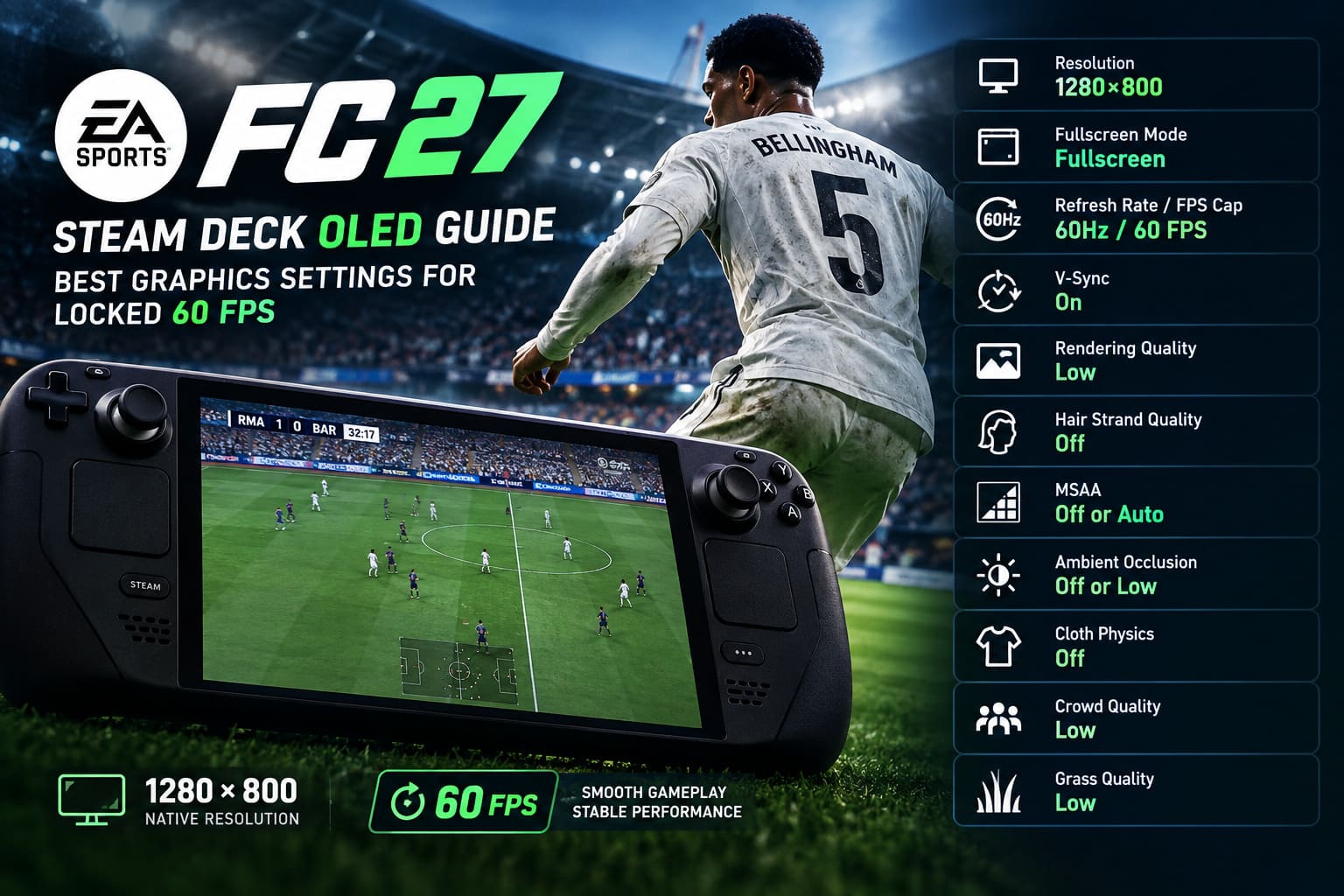
Resolution: 1280×800
Keep the native Steam Deck OLED resolution.
The display runs at 1280×800, and there’s little reason to sacrifice that sharpness unless you absolutely have to.
FC 27 has a lot of small interface elements, player names, menus, tactical information, and scoreboard details. Dropping the resolution too far makes everything noticeably softer.
For a 7-inch screen, native resolution gives you the best balance between clarity and performance.
Fullscreen Mode
Use Fullscreen.
Windows introduces enough extra overhead already. There is no reason to make the game compete with the desktop compositor through Borderless Windowed mode if you’re specifically trying to minimize latency and maintain stable performance.
Fullscreen is the obvious choice here.
60Hz and a 60 FPS Cap
The OLED screen can reach 90Hz, but don’t let that tempt you into chasing 90 FPS.
FC 27 is exactly the kind of game where a stable 60 FPS is more useful than an unstable higher frame rate.
Set the display to 60Hz and cap FC 27 at 60 FPS.
The goal is consistent frame pacing. You want your players responding predictably when you make a quick turn or try to defend a counterattack.
V-Sync: Start With On
I’d begin with V-Sync enabled.
The benefit is obvious: it eliminates tearing and keeps the presentation clean.
If you notice that input response feels too sluggish, experiment with V-Sync disabled and use your Windows AMD graphics settings instead. Competitive players can be particularly sensitive to even small amounts of additional latency, so this is one of those settings where personal preference matters.
Rendering Quality: Low
This is where I’d be conservative.
Set Rendering Quality to Low if your priority is maintaining 60 FPS across different stadiums, weather conditions, replays, and crowded situations.
Medium can look better, particularly on player kits, faces, and environmental textures, but it also gives the GPU less breathing room.
I’d rather have a slightly less detailed pitch than watch the frame rate collapse during a packed penalty-box situation.
Hair Strand Quality: Off
Turn this off.
Seriously.
Hair Strand Quality is one of those settings that looks impressive in marketing screenshots but isn’t remotely worth the performance hit on integrated handheld graphics.
Strand-based hair can become particularly expensive during close-up shots, replays, and cinematics. Those are exactly the moments where FC 27 can suddenly hammer the GPU.
Turning it off gives the Deck some much-needed breathing room.
MSAA: Off or Auto
Multi-sample anti-aliasing is another easy target.
Set MSAA to Off.
If you find the jagged edges too distracting, Auto is worth testing. I wouldn’t manually force 2x or 4x MSAA on this hardware when the entire point of the setup is a stable 60 FPS.
The Steam Deck’s small display already hides quite a bit of visual roughness.
Ambient Occlusion: Off or Low
Ambient Occlusion adds contact shadows and depth to the environment, but it is not essential to enjoying a football match.
Use Off for maximum performance.
If the pitch and players look too flat without it, try Low. I wouldn’t go higher.
Cloth Physics: Off
Dynamic cloth simulation is another feature I’d sacrifice immediately.
Yes, watching jerseys move naturally is cool. But when you’re sitting several feet away from the screen and focusing on the ball, you’re not going to notice the difference nearly as much as you’ll notice a sudden frame-time spike.
Turn Cloth Physics Off.
Crowd Quality: Low
Large stadium crowds are expensive.
FC 27 can put huge numbers of animated spectators on screen, particularly when using wider broadcast camera angles. Lowering crowd quality reduces that background workload and keeps more performance available for the actual match.
Set it to Low.
The crowd will still be there. Your CPU just won’t have to work quite as hard pretending every spectator is having the greatest football experience of their life.
Grass Quality: Low
Grass is another setting where I’d happily take the performance trade.
Set Grass Quality to Low.
At 1280×800 on a relatively small display, the difference isn’t nearly as dramatic as it would be on a large 4K monitor. The pitch still looks perfectly acceptable, while the GPU gets some extra headroom.
Dynamic Resolution Is Your Safety Net
One of the most useful tools for this kind of setup is Dynamic Resolution Scaling.
Enable it.
The idea is simple: when the GPU suddenly gets hammered, the game can temporarily reduce its internal rendering resolution rather than allowing the frame rate to fall apart.
This can happen during situations such as:
- Heavy weather effects
- Crowded corners
- Celebrations
- Cinematic transitions
- Busy stadium scenes
The resolution can then increase again when the workload drops.
You might occasionally notice the image becoming slightly softer, but personally, I’d take a brief resolution adjustment over watching FC 27 fall into the 40s during an important match.
If the game also offers a Performance or Balanced scaling preset, use one of those rather than a quality-focused profile.
Don’t Forget the 15W Power Target
For this configuration, 15W is the sensible APU target.
Windows utilities such as Handheld Companion or other Steam Deck management tools can be used to control power behavior.
Running FC 27 aggressively above that level doesn’t necessarily translate into proportional performance gains. You can simply end up producing more heat and draining the battery faster.
With the optimized settings above, expect roughly 2 to 2.5 hours of battery life, although the actual number will depend on brightness, Windows background activity, power settings, and your specific workload.
I’d also use an aggressive or performance-oriented fan profile when possible. Keeping temperatures under control helps prevent thermal throttling during longer sessions.
Best EA FC 27 Controller Settings: Competitive PvP Sensitivity Guide
Common FC 27 Steam Deck OLED Problems
Shader Stutter
Don’t panic if your first few matches aren’t perfectly smooth.
Initial shader compilation can cause brief stutters while the game prepares effects for stadiums, lighting, players, and other assets. After playing several matches, the situation should generally become more consistent as the necessary shaders are cached.
Menus Running at Lower FPS
Don’t automatically assume something is broken if menus, transfer screens, or certain cutscenes run at a lower frame rate.
Some game menus and cinematic sequences can behave differently from active gameplay. What matters most for this setup is maintaining the target during the actual match.
Controller Problems in Windows
Windows can make Steam Deck controls more complicated than they are under SteamOS.
If the built-in controls aren’t being detected correctly, use Steam Input or an appropriate controller translation utility so the Deck is recognized as an XInput controller.
That’s especially important in FC 27. A tiny delay or inconsistent button mapping can be incredibly annoying when you’re trying to pull off a precision pass or timed shot.
EA Sports FC 27 Xbox Series S 60FPS Performance Fix: Stop Lag & Frame Drops
Final Verdict: Make 60 FPS the Priority
Getting EA Sports FC 27 running properly on a Steam Deck OLED requires more work than I would like. The EA Anti-Cheat requirement means Windows is effectively the starting point, and that immediately removes some of the simplicity that makes the Steam Deck so appealing.
Once that hurdle is out of the way, though, the OLED model is a surprisingly enjoyable machine for portable football.
The recipe is straightforward: 1280×800, 60Hz, 60 FPS, Low-to-Medium rendering, Hair Strand Quality Off, Cloth Physics Off, Low crowds and grass, and Dynamic Resolution enabled.
Don’t chase Ultra settings. Don’t obsess over making every blade of grass look perfect. And definitely don’t sacrifice consistent frame pacing just to make the crowd slightly prettier.
For a football game, responsiveness is king.
When FC 27 stays locked around 60 FPS and the controls react exactly when you expect them to, the Steam Deck OLED becomes a genuinely compelling portable football machine. The OLED panel makes the colors pop, the higher contrast gives the pitch and stadiums plenty of visual punch, and the compact screen hides some of the compromises that would be much more obvious on a large monitor.
I’ve always preferred handheld optimization that knows when to stop chasing graphics quality. FC 27 on Steam Deck OLED doesn’t need to look like a high-end PC version to be great. It needs to feel fast, consistent, and responsive. Once you’ve got those three things right, the rest becomes background noise.