How to Fix Diablo 4 Season 14 Crash on Launch on Proton Linux and Steam Deck
When Diablo 4 Season 14 dropped, I expected the usual routine: update the game, grab a coffee, and disappear into Sanctuary for the next several hours. Instead, I spent most of my evening watching Steam proudly display “Launching…”, only for the game to vanish back to the Play button a few seconds later.
No error window. No Blizzard message. No useful explanation.
If you’re using a Steam Deck, Bazzite, Arch Linux, Ubuntu, Debian, CachyOS, or pretty much any Linux distribution with Proton, there’s a good chance you’ve run into the exact same wall.
After digging through community discussions, Proton reports, Linux gaming forums, and plenty of trial and error on my own system, one thing became obvious:
This isn’t your PC.
It’s a compatibility problem introduced alongside Season 14, and until Valve and Blizzard finish smoothing everything out, we’re mostly relying on temporary workarounds.
This guide explains what appears to be happening, what isn’t worth wasting time on, and which fixes have given players the best chance of getting back into the game.
The Crash Looks Different, But It’s Usually the Same Problem
For most Linux users, the behavior is almost identical.
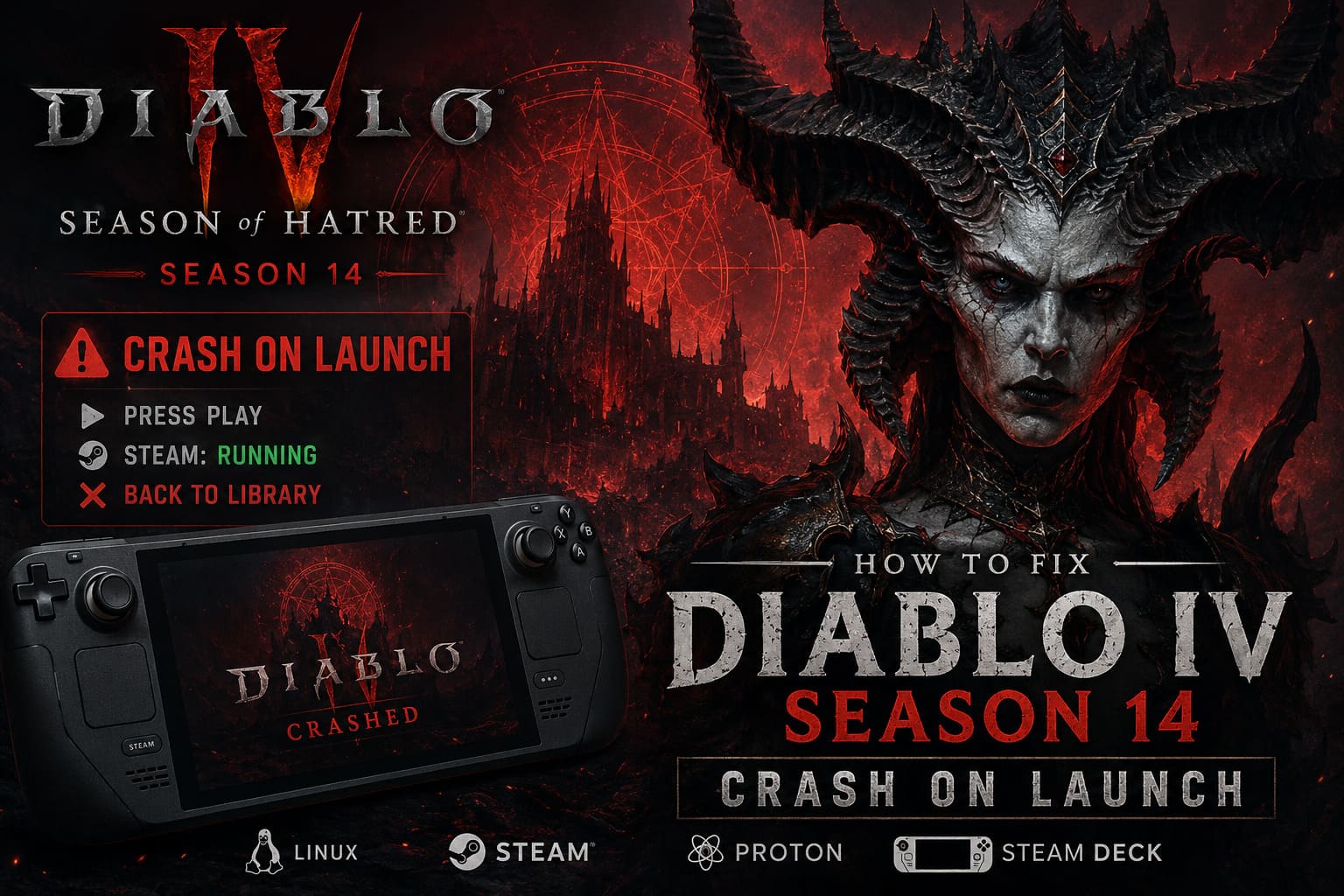
You press Play.
Steam switches to Running.
Four to ten seconds later…
You’re staring at your library again.
Sometimes Battle.net closes first. Sometimes it stays open. Occasionally Proton creates a log file, but many players don’t even get that.
One important detail is that the crash happens before Diablo IV even starts rendering the game world. If you never see Blizzard’s intro or the login screen, you’re almost certainly dealing with the Season 14 launch bug rather than a graphics issue.
Why I Don’t Think Reinstalling Helps
Whenever a game refuses to launch, the first instinct is usually to verify files, reinstall Proton, wipe shader caches, or even reinstall the entire operating system.
I tried most of those.
So did countless other Linux users.
The success rate?
Almost zero.
The reason is fairly simple.
Everything points toward a failure during the game’s early startup sequence rather than corrupted game data.
The executable appears to stop while performing internal validation before DirectX translation, Vulkan initialization, or GPU setup even begins.
That’s why people with completely different hardware are reporting identical crashes.
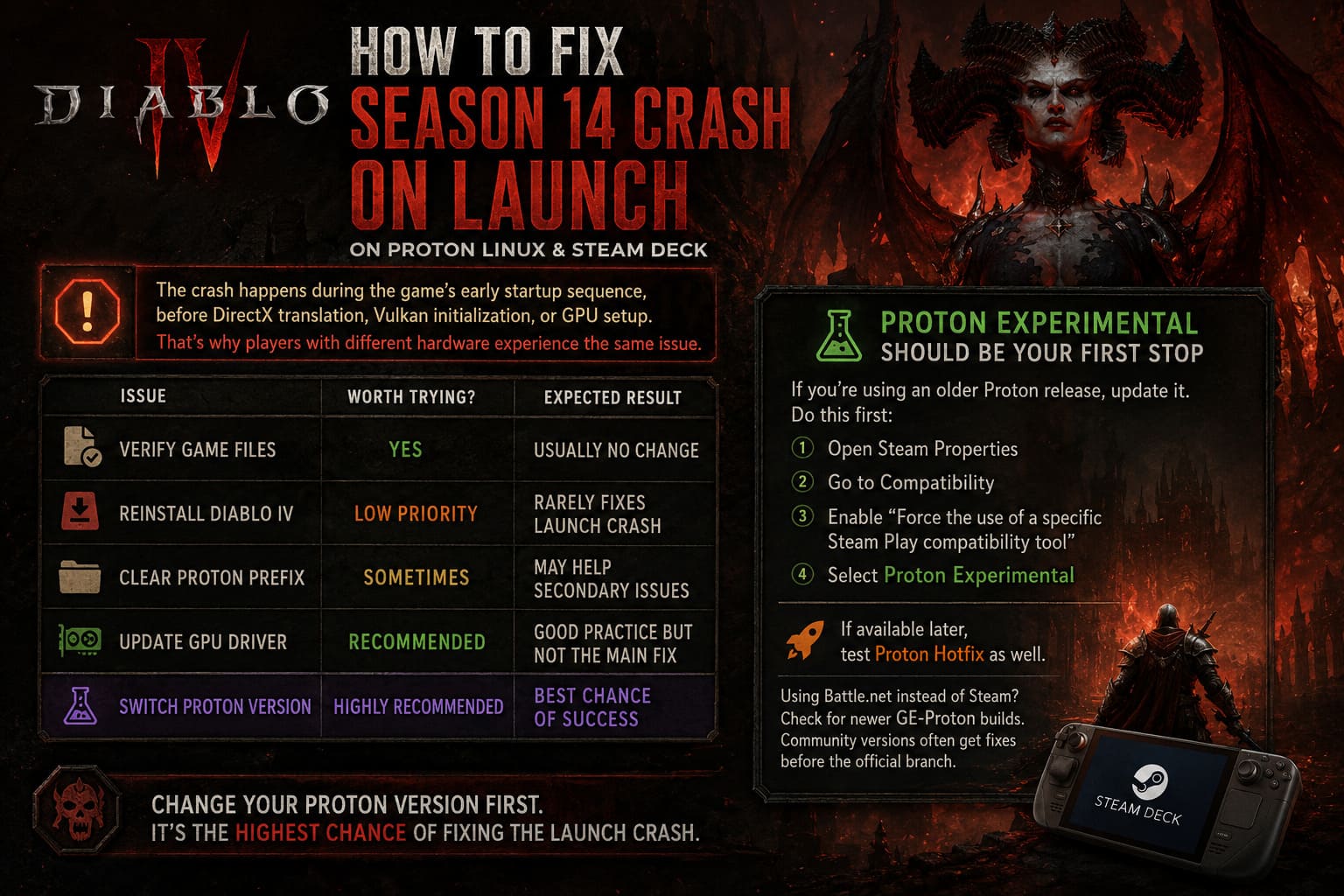
| Issue | Worth Trying? | Expected Result |
|---|---|---|
| Verify game files | Yes | Usually no change |
| Reinstall Diablo IV | Low priority | Rarely fixes launch crash |
| Clear Proton prefix | Sometimes | May help secondary issues |
| Update GPU driver | Recommended | Good practice but not the main fix |
| Switch Proton version | Highly recommended | Best chance of success |
Proton Experimental Should Be Your First Stop
If you’re still using an older Proton release, don’t.
The Proton developers usually react quickly whenever a popular game breaks after an update, and Diablo IV is one of the biggest titles running on Steam Deck.
Here’s what I’d recommend first:
- Open Steam Properties.
- Go to Compatibility.
- Enable Force the use of a specific Steam Play compatibility tool.
- Select Proton Experimental.
- If available later, test Proton Hotfix as well.
For players launching Diablo through Battle.net instead of Steam, it’s also worth checking whether a newer GE-Proton build has been released.
Community Proton builds often receive compatibility improvements before they make their way into the official branch.
Battle.net Can Be Part of the Problem
One thing that surprised me was how often Battle.net itself seemed to complicate the launch process.
Its embedded Chromium interface isn’t exactly lightweight, and Linux logs frequently show browser-related GPU initialization messages right before Diablo exits.
Whether that’s the direct cause or simply a side effect isn’t entirely clear.
Either way, reducing Battle.net’s workload seems to help some players.
I recommend changing these launcher options:
- Exit Battle.net after launching a game.
- Disable browser hardware acceleration.
- Avoid leaving multiple Battle.net windows open.
- Restart the launcher after changing settings.
It won’t magically solve every crash, but it removes another possible point of failure.
Hybrid Graphics Users Should Double-Check Their Adapter
Laptop owners seem to have another layer of frustration.
Systems with both integrated graphics and a dedicated GPU occasionally confuse Diablo IV during startup.
Instead of consistently choosing the discrete graphics card, the game may attempt to initialize the wrong adapter.
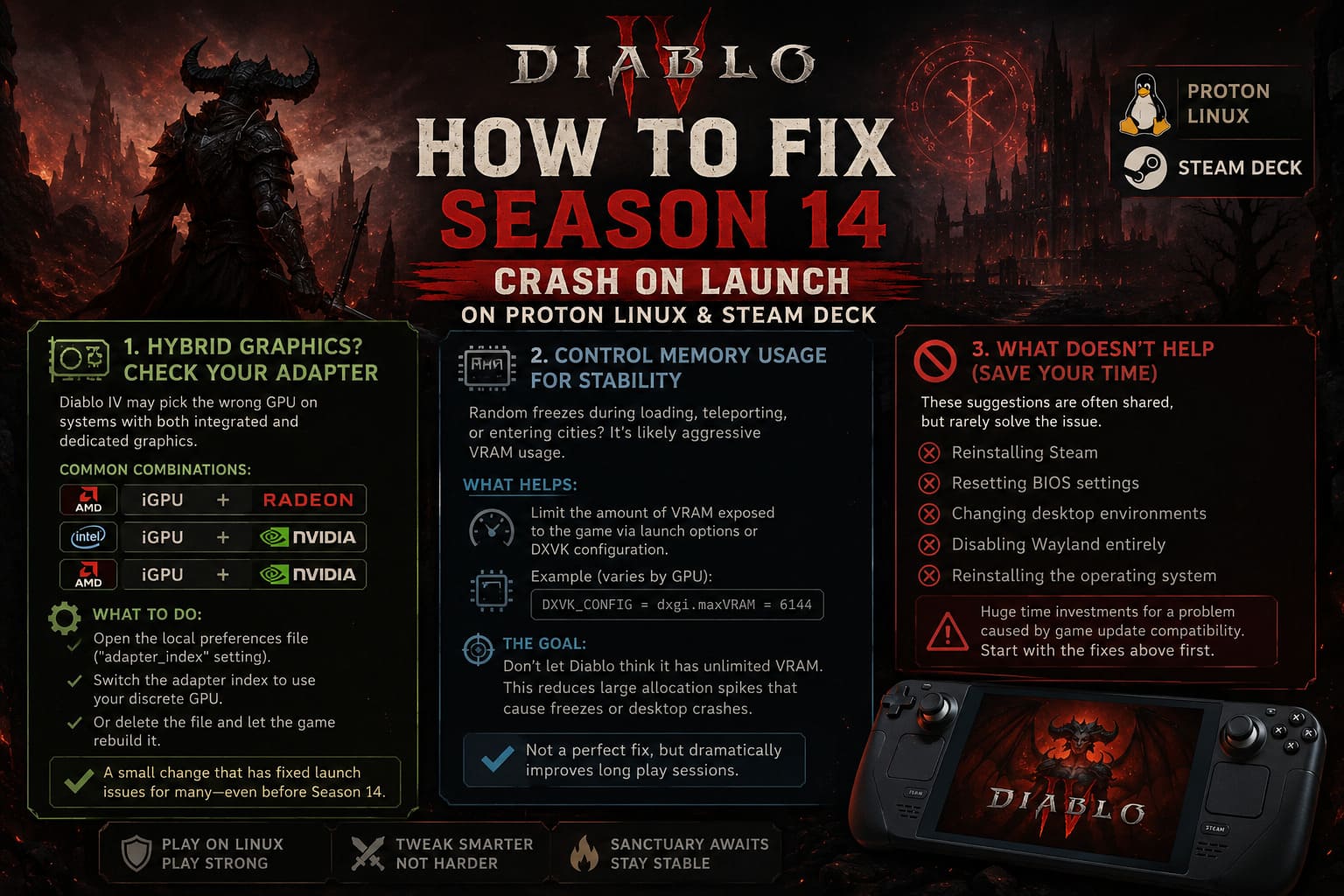
If your configuration includes:
- AMD iGPU + Radeon
- Intel iGPU + NVIDIA
- AMD iGPU + NVIDIA
It’s worth checking the game’s local preferences file.
Some players report success simply by switching the selected adapter index or deleting the configuration entirely so Diablo rebuilds it from scratch.
It’s a tiny adjustment, but one that’s solved launch problems before—even outside Season 14.
Memory Management Still Isn’t Perfect
Even after getting into the game, Linux players aren’t completely safe.
I’ve seen random freezes during loading screens, teleporting, and entering large cities.
This feels different from the instant launch crash.
Instead, it behaves more like aggressive VRAM usage that eventually overwhelms the system.
Several users have reported noticeably smoother gameplay after limiting the amount of video memory exposed to the game through launch options or DXVK configuration files.
The exact values depend on your graphics card, but the idea is simple:
Don’t let Diablo think it has unlimited VRAM.
That seems to reduce large allocation spikes that occasionally lead to freezes or unexpected desktop exits.
It’s not a miracle fix, but it made long play sessions noticeably more stable on my own setup.
Things That Didn’t Make Much Difference
One thing I appreciate about Linux communities is that people are usually honest when something doesn’t work.
Some suggestions continued circulating despite little evidence behind them.
These included:
- Reinstalling Steam.
- Resetting BIOS settings.
- Changing desktop environments.
- Disabling Wayland entirely.
- Reinstalling the operating system.
Unless you’re already troubleshooting unrelated system problems, I wouldn’t start there.
Those are huge time investments for something that appears to be a software compatibility issue introduced by the game update.
Is Blizzard Actually Working on It?
Thankfully, yes.
Although Blizzard doesn’t officially support Linux as a gaming platform, Diablo IV has become too popular on Steam Deck to ignore.
Historically, Blizzard and Valve have quietly cooperated whenever major compatibility problems affected large numbers of players.
Season 14 appears to be another one of those situations.
Initial updates improved things for some users but didn’t completely eliminate the launch failure.
That suggests the problem is deeper than a simple packaging mistake and likely requires changes inside Proton or adjustments to how the game’s startup protection behaves under Wine.
Diablo 4 A Gospel of Despair Guide: Full Season of Death Awakening Walkthrough
My Advice Right Now
If I were setting up a fresh Linux installation today, this would be my checklist:
- Fully update Steam.
- Update your graphics drivers.
- Switch immediately to Proton Experimental.
- Keep GE-Proton installed for testing.
- Disable Battle.net browser acceleration.
- Check the local graphics adapter configuration if using hybrid graphics.
- Apply conservative VRAM limits if the game launches but later freezes.
- Wait for newer Proton releases instead of endlessly reinstalling everything.
That approach gives you the highest chance of playing while avoiding hours of unnecessary troubleshooting.
Diablo 4 Mythic Uniques 3.0 Crafting & Enchanting Guide: Master Your End-Game Gear
Final Thoughts
Season launches are always stressful for online games, but this one has been especially frustrating for Linux players because nothing appears broken until you actually press Play.
The good news is that the community identified the pattern almost immediately. Players across different hardware, distributions, and GPU vendors experienced nearly identical behavior, which strongly suggests a common compatibility issue rather than thousands of unrelated system failures.
That’s actually encouraging.
Shared bugs are usually easier to fix than mysterious one-off crashes.
Linux gaming has come a long way over the past few years, and Proton continues to improve at an impressive pace. Temporary setbacks like this happen whenever major games introduce new launch protections or low-level runtime changes.
If you’ve already confirmed your installation is up to date, don’t panic if Diablo IV still refuses to launch today. There’s a good chance the permanent solution won’t come from another reinstall on your end—it will arrive through an upcoming Proton update or a Blizzard patch.
Until then, keep Proton Experimental installed, watch for new compatibility releases, and don’t let one stubborn crash convince you that Linux gaming has suddenly gone backwards. If history is any indication, this is another bump in the road rather than a dead end.