RIP Reincarnation Insurance Program Controller Support Guide: How to Fix Right Stick Aiming and Menu UI Issues
If you have spent any real time with roguelites, you probably know how important controller feel can be. A game can have fantastic weapons, clever progression, and hundreds of enemies on screen, but if aiming with a gamepad feels awkward, the entire experience starts working against you. That is exactly the situation I ran into with R.I.P. – Reincarnation Insurance Program, a game that otherwise does a surprisingly good job of combining the chaos of survivor-like games with the satisfying loot chase of an ARPG.
Developed by WarmCore Studio and published by 2P Games, R.I.P. – Reincarnation Insurance Program takes the familiar horde-survival formula and pushes it toward something closer to Vampire Survivors mixed with the gear obsession of Diablo. You play an elite agent working for the mysterious Reincarnation Insurance Company, entering contaminated areas, mowing down enormous zombie hordes, collecting equipment, and gradually turning your character into a walking disaster.
The core gameplay is genuinely addictive. The problem is that controller support doesn’t always feel like it belongs to a fast-paced shooter. The game recognizes a controller without much trouble, but the default right-stick behavior and several menu interactions can make the experience considerably less comfortable than it should be.
After playing plenty of twin-stick shooters, survivor-likes, and loot-heavy action games, I think the distinction is important: R.I.P. is not poorly designed around controllers overall, but some of its controller decisions feel designed around a mouse first and a gamepad second.
R.I.P. Controller Support: What Actually Works?
The first thing worth clearing up is that R.I.P. does support controllers. An Xbox controller, PlayStation gamepad, or compatible third-party PC controller can be detected by the game, and the basic controls work as expected.
Movement is assigned to the left analog stick, while the face buttons handle abilities and other combat actions. For normal movement and dodging, everything feels reasonably familiar.
The problem appears when you start aiming.
In most twin-stick shooters, the formula is almost universal. Left stick controls movement, right stick controls aiming, and the character attacks in the direction you’re pointing. Once you have played enough games using this system, the controls become second nature.
R.I.P. takes a different approach.
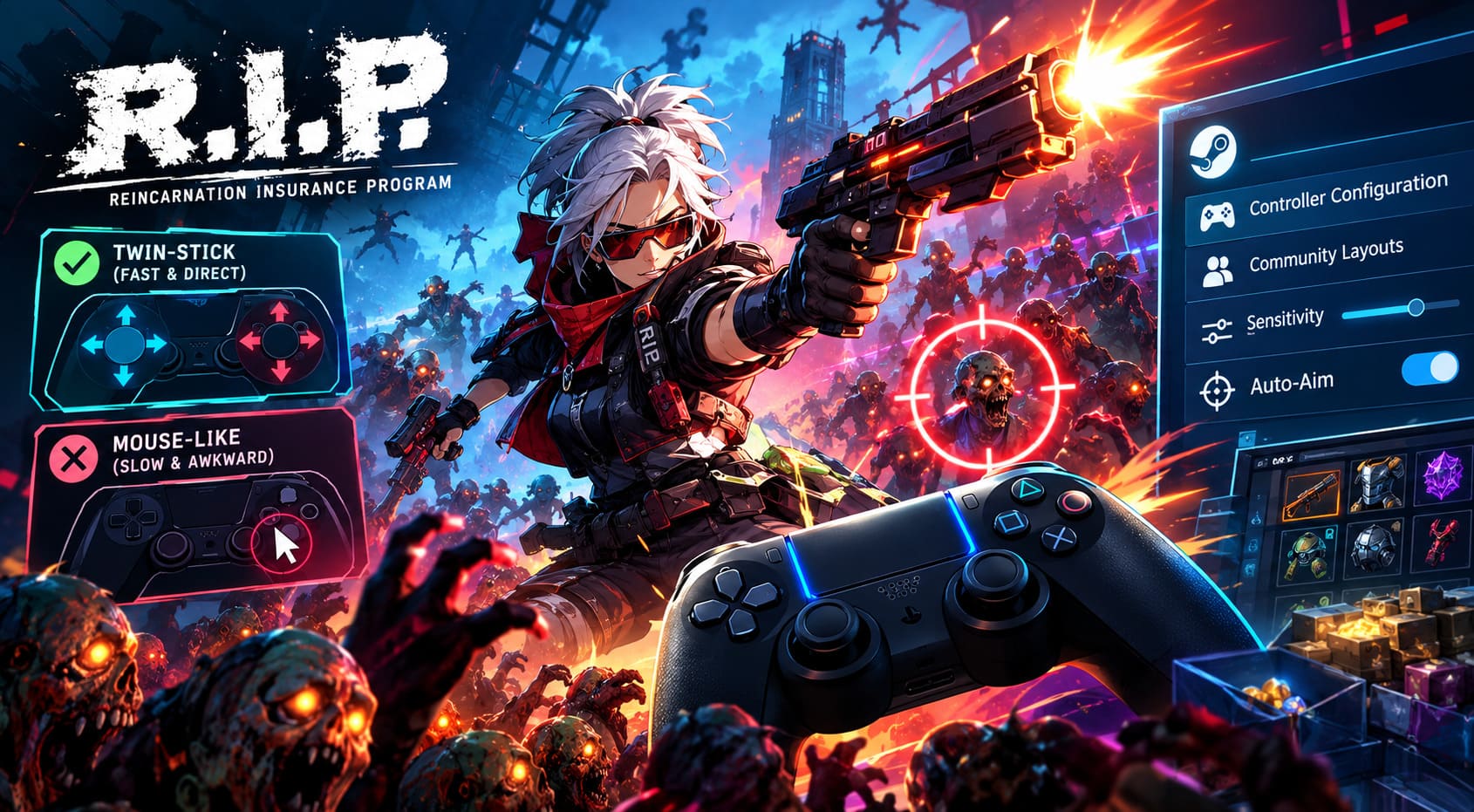
Instead of behaving like a traditional aiming stick, the right analog stick essentially behaves like a mouse cursor. Moving the stick pushes a targeting reticle around the screen. In theory, this gives you precise control over where attacks or abilities land. In practice, it can feel surprisingly slow when the screen is packed with enemies.
That difference is much more noticeable during difficult runs than it is during the first few minutes of play.
Why the Right Stick Feels So Awkward
The biggest issue is simply speed.
When a boss appears and hundreds of enemies are closing in, you don’t really want to think about moving a cursor from one side of the screen to the other. You want to flick the right stick, turn toward the threat, and keep moving.
That isn’t quite how R.I.P. behaves with its default configuration.
The reticle can feel heavy, particularly when you are trying to make rapid adjustments. If you’ve played games such as Helldivers 2, Risk of Rain 2, or other action-heavy titles where aiming is tightly integrated with movement, the difference is immediately noticeable.
There is also a muscle-memory problem. I found myself instinctively pushing the right stick toward an enemy expecting the character to immediately aim there, only to realize that I was moving a cursor instead.
It sounds like a small distinction, but during a chaotic run, small control problems become big problems very quickly.
| Controller Element | Default Experience | Main Problem |
|---|---|---|
| Left Stick | Movement | Generally comfortable |
| Face Buttons | Combat abilities | Mostly straightforward |
| Right Stick | Mouse-style reticle | Can feel slow and unnatural |
| Auto-Aim | Automatic targeting | Helps primary weapons considerably |
| Menus | Cursor-based navigation | Imprecise with a controller |
| Inventory | Mouse-oriented interface | Better with a physical mouse |
The reticle also stays where you leave it. That can create some strange situations where you’re moving your character around the battlefield while your targeting position remains somewhere else entirely.
For a game that constantly throws enemies at you from multiple directions, I think this is the biggest weakness of the default controller setup.
The Easiest Solution: Turn On Auto-Aim
Thankfully, you don’t have to completely rebuild your controller configuration just to make R.I.P. playable.
The simplest workaround is the game’s Auto-Aim option.
During a combat run, pressing Y on an Xbox controller or the corresponding Triangle button on a PlayStation controller toggles the targeting assistance. Once activated, your primary weapon can automatically target nearby threats rather than forcing you to constantly drag the reticle around manually.
For me, this is easily the first thing I would recommend trying.
It changes the rhythm of combat quite a bit. Instead of constantly thinking about aiming, you can concentrate on movement, enemy positioning, picking up experience, and deciding which enemies or projectiles you need to avoid.
And that is really where a survivor-like game should put most of your attention.
There is one important limitation, though. Auto-Aim doesn’t completely solve every targeting situation. Certain Divine Tech abilities and tactical attacks still require more precise placement, meaning you’ll occasionally have to return to the right-stick cursor.
So don’t think of Auto-Aim as a perfect replacement for proper twin-stick controls. Think of it as the easiest way to make normal weapon combat significantly more comfortable.
How to Improve R.I.P. Controller Aiming With Steam Input
If Auto-Aim isn’t enough and you really want the game to feel closer to a traditional twin-stick shooter, Steam Input is the next tool I would try.
This is where PC gaming has a major advantage over consoles. Steam allows you to change how controller inputs are translated before they reach the game, which means you aren’t necessarily stuck with the developer’s default layout.
How to Configure Steam Input
To experiment with Steam Input, start by opening your Steam Library and selecting R.I.P. – Reincarnation Insurance Program. Open the game’s controller configuration or controller layout options and make sure Steam Input is enabled for your particular gamepad.
Once the configuration screen is open, look through the available layouts instead of immediately sticking with the official configuration. The Community Layouts section can be especially useful because other players may have already created configurations intended to make the unusual right-stick aiming system more responsive.
- Open your Steam Library and select R.I.P. – Reincarnation Insurance Program.
- Open the game’s controller configuration or controller layout options.
- Make sure Steam Input is enabled for your controller.
- Browse the available layouts instead of automatically using the official configuration.
- Check Community Layouts for configurations designed around faster aiming or mouse-style joystick control.
- Test several layouts and pay attention to right-stick sensitivity rather than choosing the first one you see.
Community layouts can be particularly useful because other players have already spent time experimenting with the game’s unusual control scheme.
You may find configurations described with terms such as True Twin Stick, Mouse Joystick, or similar descriptions. The exact names can change as players upload and update layouts, so I would focus more on what the configuration actually does than the title attached to it.
Creating Your Own Steam Input Configuration
If you don’t find a community layout that feels right, creating your own setup is worth the extra few minutes.
The most important thing to experiment with is the behavior assigned to the right joystick. Since R.I.P. treats it like a mouse, increasing the sensitivity can make the cursor considerably more responsive.
I would start conservatively instead of immediately pushing everything to maximum. Excessive sensitivity can make precise targeting harder, especially when you’re trying to place an ability directly beside a boss.
The goal isn’t simply to make the cursor move as fast as possible. The goal is to find a setting where a small stick movement produces a useful amount of screen movement without destroying precision.
This is one of those situations where there isn’t a universal perfect setting. Controller sensitivity depends heavily on the gamepad, deadzone, stick condition, and your own preferences.
The Bigger Problem: Menus and Inventory
Oddly enough, aiming isn’t the only controller issue I noticed.
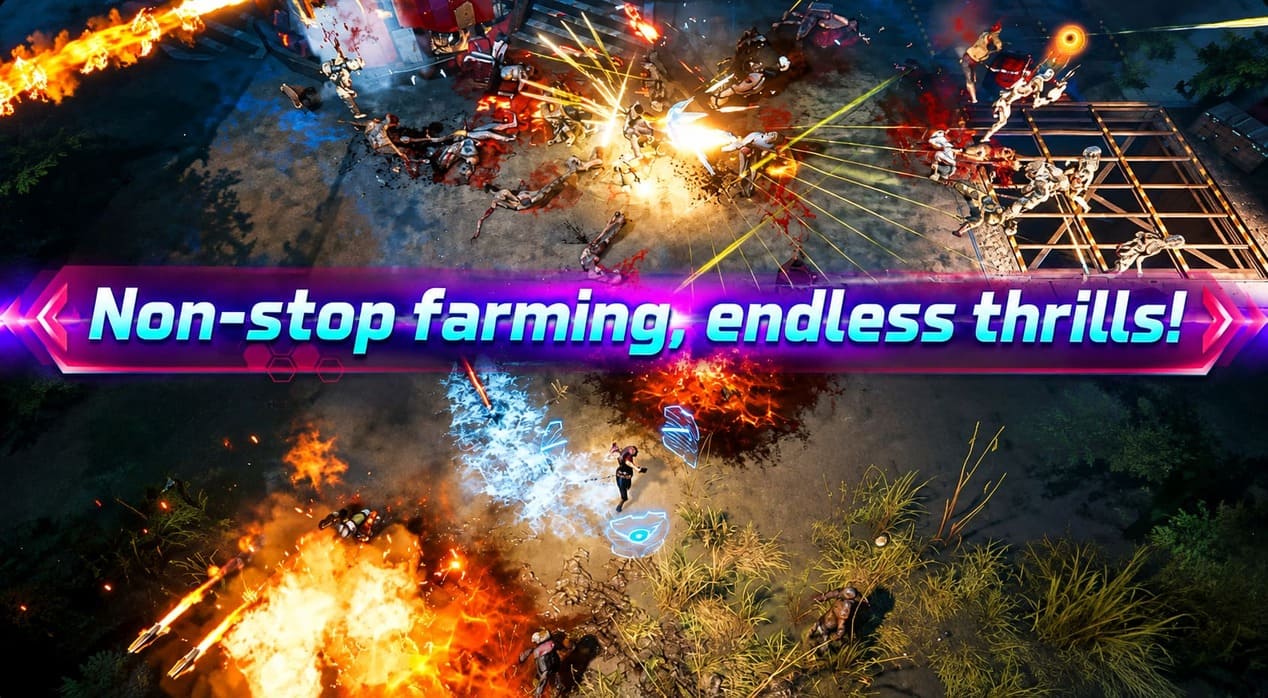
R.I.P. has a surprisingly deep progression system. There is equipment to manage, stats to consider, upgrades to purchase, contracts to work with, and a permanent progression system that gives the game considerably more depth than a basic survivor-like.
That’s great for the gameplay loop.
It’s less great when you’re trying to navigate everything using a controller.
The interface is clearly much more comfortable with a mouse pointer. Moving around large inventory screens with analog controls doesn’t have the same precision, particularly when you’re trying to select individual pieces of equipment.
The talent tree is another good example. When a progression system contains a large number of nodes and branching paths, a mouse naturally makes it easier to locate the exact upgrade you’re looking for.
A controller cursor can do the job, but it isn’t particularly elegant.
Why Inventory Management Can Become Frustrating
Combat is only half of the R.I.P. experience. A large part of the long-term progression comes from deciding which equipment to keep, which items to dismantle, and how to improve your character between runs.
That means you’ll spend a lot of time outside combat. When the interface is built around mouse-style interaction, these quieter moments can actually become more annoying than the fast-paced combat itself.
I especially notice this in games where I have to compare several pieces of gear quickly. With a mouse, moving between items and checking their stats feels immediate. With a controller cursor, the same process can feel like you’re fighting the interface instead of managing your build.
It isn’t a game-breaking issue, but after dozens of runs, small interface annoyances start adding up.
My Preferred Solution: Use a Hybrid Setup
Honestly, I don’t think there is any shame in using both a controller and a mouse with R.I.P.
This is actually the solution I prefer for games with this type of interface.
Use the controller for combat because that’s where its advantages become obvious. Movement feels natural, dodging is comfortable, and having everything under your thumbs makes long runs much easier.
Then, when the run ends, switch to the mouse for inventory management.
It takes only a few seconds, and suddenly dismantling equipment, comparing stats, navigating the talent tree, and managing your build become much less frustrating.
It may not be the elegant all-in-one controller experience some players want, but it works right now without requiring complicated configuration.
Is R.I.P. Worth Playing With a Controller?
For me, yes — but with some qualifications.
The underlying game is much better than its controller implementation initially suggests. Once you get past the awkward right-stick behavior, there is a lot to enjoy. The combination of enormous enemy waves, increasingly ridiculous weapons, loot drops, permanent progression, and build experimentation creates exactly the kind of loop that can turn ‘I’ll play one more run’ into an unexpectedly long session.
The controller problems are frustrating because the combat itself is well suited to a gamepad.
That’s why the right-stick implementation stands out so much.
If the game eventually adds a proper native twin-stick aiming option, I think it could make a meaningful difference. A controller-specific UI mode would also go a long way toward solving the inventory and talent-tree problems.
What I Would Like to See Improved
There are several relatively straightforward improvements that could make R.I.P. much more controller-friendly. The most obvious one would be a native option that lets players choose between the current mouse-style reticle and conventional twin-stick aiming.
The menu system could also benefit from controller-specific navigation. Instead of treating the analog stick as a mouse pointer everywhere, a grid or snap-based system could make inventory screens, talent trees, and equipment menus much easier to operate from a couch or Steam Deck.
- Native twin-stick aiming for players who don’t want mouse-style targeting.
- Improved controller menu navigation with more reliable selection and snapping.
- More detailed sensitivity options for right-stick aiming.
- Better controller-first inventory interaction for equipment management.
None of these changes would require reinventing the game’s combat system. They would simply make the existing systems better suited to players who prefer a gamepad.
Final Thoughts
After playing a lot of games across the roguelite, twin-stick shooter, and action RPG genres, I can understand why some players immediately dislike the default controls in R.I.P. – Reincarnation Insurance Program. The game asks for fast reactions, but its default right-stick system sometimes makes aiming feel more like moving a desktop cursor than controlling a weapon.
Fortunately, this is more of a configuration problem than a fundamental gameplay problem.
Start with Auto-Aim. If you want more direct control, experiment with Steam Input and increase right-stick responsiveness until the reticle feels natural. For menus, don’t be afraid to keep a mouse nearby, especially when you’re dealing with large inventories and the permanent talent system.
Once those annoyances are out of the way, R.I.P. starts to show why its combination of horde combat and loot progression is so appealing. The controller experience isn’t perfect, but it is absolutely possible to make it comfortable enough for long sessions.