How to Fix MECCHA CHAMELEON Black Screen on Launch: Complete PC and Mac Guide
Few things kill the excitement of jumping into a brand-new multiplayer game faster than staring at a black screen.
MECCHA CHAMELEON exploded onto the indie multiplayer scene with a genuinely fresh concept. Its color-based camouflage mechanics, stealth-focused gameplay, and fast-paced matches immediately grabbed my attention. As someone who spends an unhealthy number of hours testing new releases, I was excited to dive in from day one.
Then the black screen happened.
The game launched, the menu music played, and the interface appeared. Everything looked normal—except the actual game world was completely black. In some cases, the loading screen never progressed. In others, the UI remained responsive while the environment simply refused to render.
After digging through community reports, experimenting with different configurations, and comparing fixes shared by players across various gaming forums, I found several solutions that consistently solved the issue.
If MECCHA CHAMELEON is giving you a black screen on startup, this guide covers every fix worth trying.
Why MECCHA CHAMELEON Shows a Black Screen
Before throwing random fixes at the problem, it’s useful to understand what’s actually happening behind the scenes.
MECCHA CHAMELEON is built on Unreal Engine 5, a powerhouse engine that delivers stunning visuals but also places heavy demands on hardware, drivers, and rendering APIs.

Most black screen reports seem connected to one of several technical issues:
| Problem Area | What Happens |
|---|---|
| DirectX 12 Conflicts | The game fails to initialize rendering properly on certain hardware setups |
| Shader Compilation Errors | Essential graphical assets fail to load during startup |
| Outdated GPU Drivers | Drivers crash or timeout when processing modern UE5 shaders |
| Overlay Software Conflicts | External overlays interfere with rendering pipelines |
| Corrupted Game Files | Missing assets prevent the game world from loading |
| Translation Layer Problems (Mac) | DirectX instructions fail to translate correctly through compatibility software |
The good news? Most players can solve the issue without reinstalling Windows, replacing hardware, or performing any drastic system changes.
Fix #1: Force MECCHA CHAMELEON to Run in DirectX 11
This is easily the most effective solution I found.
Modern games love pushing DirectX 12 as the default rendering mode. Unfortunately, “modern” doesn’t always mean “stable.”
Many players reported that forcing DirectX 11 immediately eliminated the black screen.

How to Enable DX11
- Open Steam.
- Navigate to your Library.
- Find MECCHA CHAMELEON.
- Right-click the game.
- Select Properties.
- Stay on the General tab.
- Locate the Launch Options field.
- Enter:
-dx11
Close the window and launch the game.
If the issue remains, test these alternatives:
-d3d11
or
-dx11 -windowed
I’ve personally seen windowed mode solve rendering initialization problems in several Unreal Engine titles, so it’s absolutely worth trying.
Fix #2: Verify Game Files Through Steam
One damaged shader file is enough to send Unreal Engine into chaos.
Corrupted files often appear after interrupted downloads, failed updates, storage issues, or unexpected crashes.
Steam has a built-in repair tool that checks every file against the official servers.
Verify Installation Files
- Open Steam Library.
- Right-click MECCHA CHAMELEON.
- Select Properties.
- Open Installed Files.
- Click Verify Integrity of Game Files.
Steam will scan the installation and automatically replace damaged files.
The process can take anywhere from a few minutes to over fifteen minutes depending on your SSD or HDD speed.
Don’t skip this step. It’s surprisingly effective.
Fix #3: Update Graphics Drivers the Right Way
One mistake I see constantly in gaming communities is players relying on Windows Device Manager updates.
That method often misses the latest optimized gaming drivers.
For MECCHA CHAMELEON, you want a clean driver installation.
NVIDIA Users
Download the newest driver package from NVIDIA.
During installation:
- Select Custom Installation
- Enable Perform a Clean Installation
This removes old profiles that may be causing conflicts.
AMD Users
Use AMD Software Adrenalin Edition and select the clean reset option before installing the latest driver package.
Intel Users
Install the newest Arc or integrated graphics driver directly from Intel’s support portal.
Modern Unreal Engine 5 games can behave unpredictably on outdated drivers, even if older titles run perfectly fine.
Fix #4: Repair Microsoft Visual C++ Redistributables
Many gamers overlook this one because it doesn’t sound exciting.
Unfortunately, missing runtime libraries can completely prevent a game from loading assets correctly.
I’ve seen Visual C++ packages break after Windows updates, software removals, and even antivirus interventions.
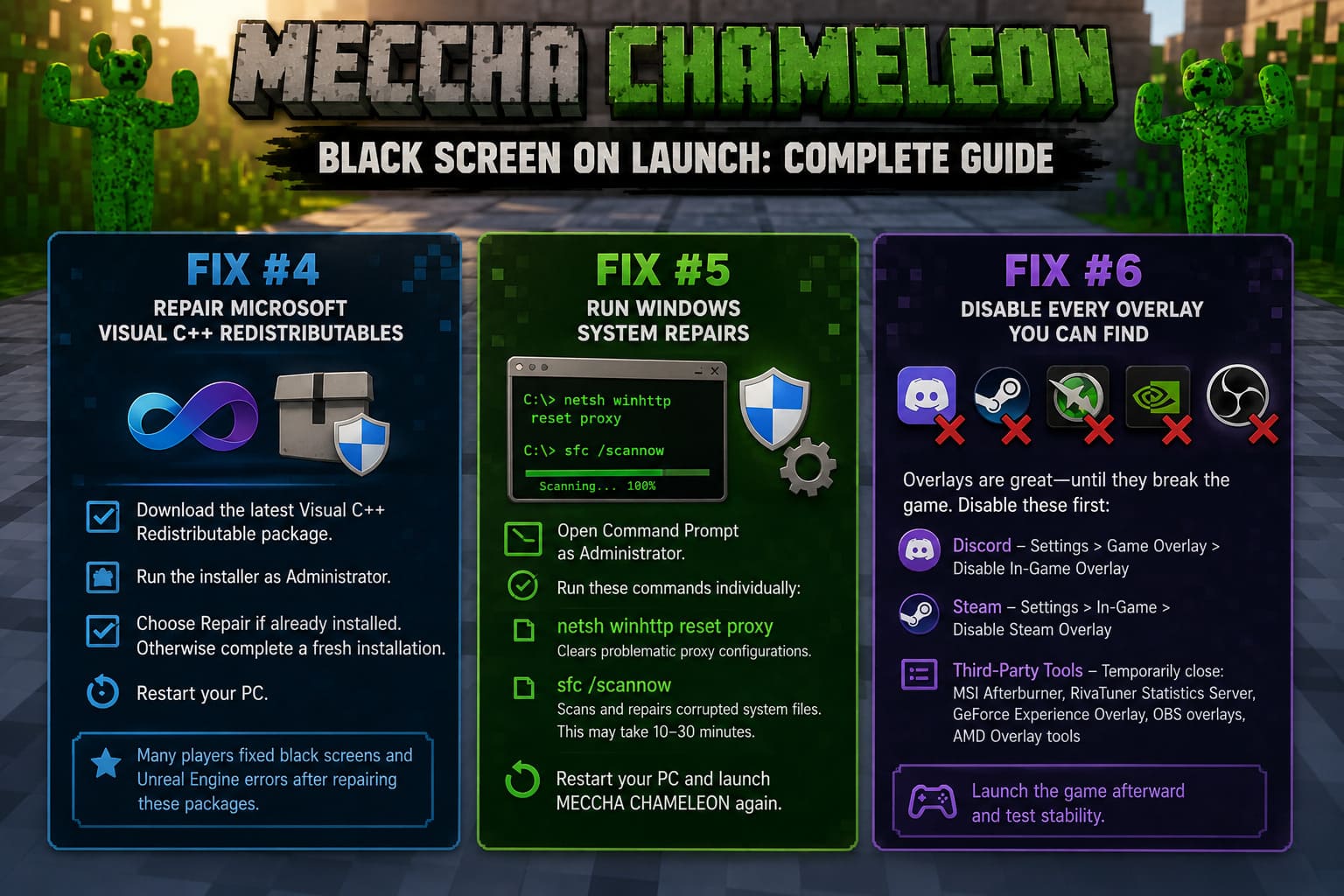
What to Do
- Download the latest Visual C++ Redistributable package.
- Run the installer as Administrator.
- Choose Repair if already installed.
- Otherwise complete a fresh installation.
- Restart your PC.
Several players experiencing black screens alongside Unreal Engine errors reported success after repairing these packages.
Fix #5: Run Windows System Repairs
Sometimes the game isn’t the problem.
Windows itself may have damaged system files affecting game initialization.
Open Command Prompt as Administrator
Run these commands individually:
netsh winhttp reset proxy
This clears problematic proxy configurations.
Next:
sfc /scannow
Windows will begin scanning protected system files and replace corrupted components automatically.
Depending on your system, this process may take 10 to 30 minutes.
Once completed, restart your computer and launch MECCHA CHAMELEON again.
Fix #6: Disable Every Overlay You Can Find
Overlays are fantastic—until they aren’t.
Discord overlays, hardware monitoring tools, FPS counters, streaming utilities, and recording software all hook into the rendering process.
When Unreal Engine decides it doesn’t like one of those hooks, black screens can happen.
Disable These First
Discord
- Open Settings
- Select Game Overlay
- Disable In-Game Overlay
Steam
- Open Settings
- Select In-Game
- Disable Steam Overlay
Third-Party Tools
Temporarily close:
- MSI Afterburner
- RivaTuner Statistics Server
- GeForce Experience Overlay
- OBS overlays
- AMD Overlay tools
Launch the game afterward and test stability.
Mac Players: CrossOver Black Screen Fix
Mac gamers are no strangers to troubleshooting.
Running Windows games through CrossOver often requires some experimentation, especially with Unreal Engine 5 releases.
One of the most common reports involves a fully black environment while menus and interface elements continue working normally.
That behavior usually points to DirectX translation issues.
Recommended CrossOver Configuration
Open CrossOver and locate your Steam bottle.
Check the graphics settings carefully.
For most affected users:
- Enable DXVK
- Disable D3DMetal
- Restart the bottle
Afterward:
- Launch Steam.
- Open MECCHA CHAMELEON Properties.
- Enter:
-dx11
into Launch Options.
This forces the game to use a rendering path that CrossOver handles far more reliably.
Several Mac players reported immediate improvements after switching from DirectX 12 translation to DirectX 11 through DXVK.
How to Fix Meccha Chameleon Crossplay Party Error and Lobby Join Glitches (2026 Guide)
The Fix That Worked for Most Players
After reviewing dozens of community reports and testing the game myself, two solutions stand above the rest.
The highest success rate came from:
- Forcing DirectX 11.
- Verifying game files.
Those two fixes alone appear to solve the problem for the majority of affected users.
Driver updates come in third place, especially for players using older NVIDIA and AMD installations.
How to Fix Meccha Chameleon Stuttering, Frame Drops, and Blurry Paint Textures
Final Thoughts
Launch-period technical issues are frustrating, but they’re also fairly common for ambitious multiplayer games built on Unreal Engine 5.
MECCHA CHAMELEON has all the ingredients of a long-term multiplayer hit. The stealth mechanics feel refreshing, the visual design is memorable, and the core gameplay loop keeps pulling you back for one more match.
The black screen bug is annoying, no question. Fortunately, it’s usually tied to rendering configuration problems rather than major hardware failures.
Start with DirectX 11. Verify your files. Update your graphics drivers. Disable overlays.
Those steps solve the overwhelming majority of cases and can get you back into the action within minutes instead of spending an entire evening staring at a black monitor wondering whether your GPU just retired itself.
Hopefully the developers continue improving shader optimization and compatibility through future patches. Until then, these fixes remain the fastest and most reliable way to get MECCHA CHAMELEON running properly on both PC and Mac.