Big Walk Optimization Guide: Best Low End PC Settings and Voice Chat Stutter Fix (2026)
When I first launched Big Walk, I expected a relaxed co-op adventure where the biggest challenge would be solving puzzles with friends. Instead, my biggest enemy turned out to be my own PC. Every time someone used voice chat, the game would hitch for a split second, my FPS would nosedive, and sometimes the entire experience felt like it paused just long enough to ruin the conversation.
After spending several evenings experimenting with Windows settings, Steam options, graphics tweaks, and engine configurations, I eventually found a setup that made the game surprisingly smooth even on older hardware. This isn’t a miracle guide that turns a decade-old laptop into a gaming monster, but it does remove many of the most common performance bottlenecks that make Big Walk frustrating on budget systems.
If you’re dealing with random freezes, microphone stutters, unstable FPS, or inconsistent frame pacing, these are the changes that made the biggest difference for me.
Why Big Walk Can Feel Demanding
Unlike many casual multiplayer games, Big Walk constantly processes more than graphics alone.
The game is simultaneously handling:
- Large interactive environments
- Real-time multiplayer synchronization
- Spatial voice communication
- Environmental sound simulation
- Physics calculations
All of these systems compete for CPU resources. On powerful gaming PCs this usually isn’t noticeable, but on quad-core processors, older Ryzen chips, or aging Intel CPUs, everything happening at once can create brief performance spikes.
The biggest offender, at least in my experience, is voice communication.
Whenever someone starts talking, the game has to process microphone input, synchronize it with every connected player, and position that audio correctly inside the game world. If Windows or Steam is also applying extra audio processing in the background, those tasks stack together and create noticeable frame drops.
My First Priority: Fixing Voice Chat Stuttering
The first thing I changed wasn’t graphics—it was Windows audio.
Modern versions of Windows often enable additional sound processing that works fine for video calls but isn’t always ideal for games using advanced positional audio.
I disabled unnecessary enhancements, turned off Exclusive Mode for both my microphone and headset, and standardized every audio device to 48 kHz sampling.
After restarting the PC, the improvement was immediately noticeable.
Instead of freezing every time someone spoke, conversations became smooth and gameplay remained responsive.
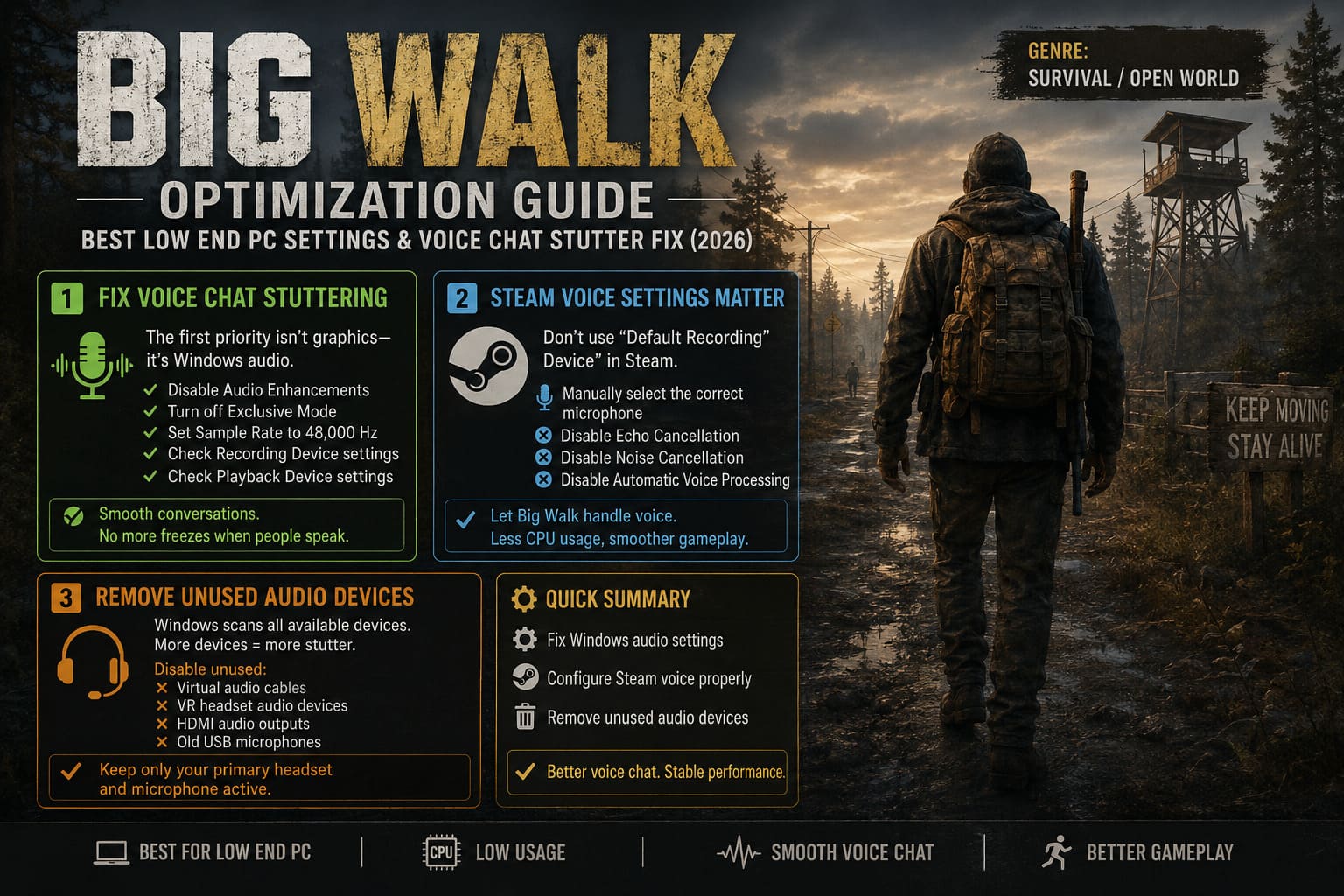
I recommend checking:
- Audio Enhancements
- Exclusive Mode
- Recording Device settings
- Playback Device settings
- Sample Rate (48,000 Hz)
Those five minutes alone solved almost half of my performance issues.
Steam Voice Settings Matter More Than You Think
One mistake I kept making was leaving Steam configured to use the default recording device.
That sounds harmless, but Windows sometimes switches default devices whenever USB headsets, webcams, Bluetooth devices, or virtual drivers appear.
Instead, manually selecting the correct microphone inside Steam prevented constant background device checks.
I also disabled several optional processing features, including:
- Echo Cancellation
- Noise Cancellation
- Automatic Voice Processing
Big Walk already performs its own voice handling, so layering Steam’s processing on top simply added unnecessary CPU work.
Remove Audio Devices You Never Use
This was one of the most surprising discoveries.
My system still had several inactive audio drivers installed from old VR software and recording utilities.
Although I never used them anymore, Windows continued reporting them as available devices.
Games frequently scan available playback and recording hardware when initializing voice chat, so reducing that list can help eliminate tiny pauses.
I disabled unused:
- Virtual audio cables
- VR headset audio devices
- HDMI audio outputs
- Old USB microphones
Keeping only my primary headset and microphone active noticeably reduced random hitching.
Graphics Settings That Actually Improved Performance
After solving the audio side, I focused on graphics.
Rather than lowering everything to the absolute minimum, I found a balanced configuration that preserved visual quality while dramatically improving frame consistency.
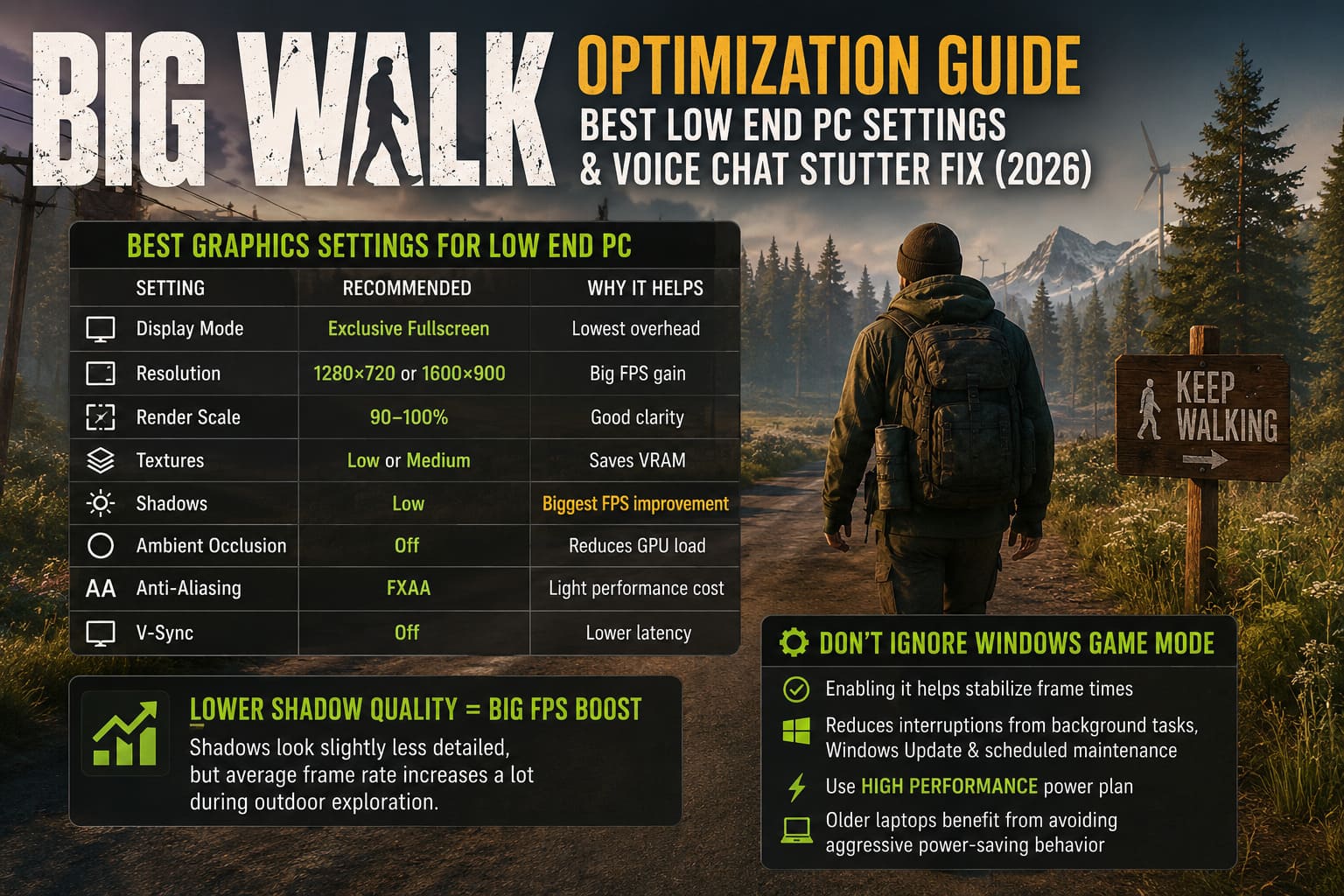
| Setting | Recommended Value | Why |
|---|---|---|
| Display Mode | Exclusive Fullscreen | Lowest overhead |
| Resolution | 1280×720 or 1600×900 | Big FPS gain |
| Render Scale | 90–100% | Good clarity |
| Textures | Low or Medium | Saves VRAM |
| Shadows | Low | Biggest FPS improvement |
| Ambient Occlusion | Off | Reduces GPU load |
| Anti-Aliasing | FXAA | Light performance cost |
| V-Sync | Off | Lower latency |
The single largest improvement came from lowering Shadow Quality.
Shadows looked slightly less detailed, but my average frame rate increased considerably during outdoor exploration.
Don’t Ignore Windows Game Mode
I used to think Windows Game Mode was mostly marketing.
For Big Walk, however, enabling it actually helped stabilize frame times.
It won’t magically increase FPS by 30%, but it does reduce interruptions from background tasks, especially Windows Update services and scheduled maintenance.
Combined with a High Performance power plan, the game maintained much steadier CPU clock speeds.
Older laptops especially benefit from avoiding aggressive power-saving behavior.
Engine Configuration Tweaks Worth Trying
If you’re comfortable editing configuration files, Big Walk allows a few deeper optimizations that aren’t available through the settings menu.
I added several rendering parameters inside the game’s Engine configuration file to improve texture streaming and shader behavior.
[SystemSettings]
r.Shadow.Virtual.Enable=1
r.ShadowQuality=1
r.XGEShaderCompile=1
r.D3D11.ZeroRenderTargets=1
r.TextureStreaming=1
Interestingly, one setting surprised me.
Normally I disable virtual shadows in Unreal Engine games, but during my testing Big Walk actually behaved more consistently with virtual shadow support left enabled.
Frame pacing became smoother, particularly while moving quickly between large areas.
As always, create a backup before modifying configuration files, and make only one change at a time so it’s easy to identify what actually helps.
Reduce Background CPU Usage
Another lesson I learned the hard way: browsers are performance killers.
Chrome with multiple YouTube tabs, Discord streaming, RGB software, hardware monitoring tools, cloud storage syncing, and game launchers all compete for CPU time.
Before starting Big Walk I now close:
- Web browsers
- RGB utilities
- Hardware monitoring software
- Unused launchers
- Background recording tools
The difference isn’t dramatic individually, but together they free enough CPU resources to eliminate many small frame spikes.
Big Walk Best Graphics Settings for High FPS: PC Optimization Guide (2026)
Temporary Files Won’t Increase FPS—But They Can Help
Deleting Windows temporary files isn’t some magical optimization trick.
However, clearing old cache folders can reduce unnecessary disk activity, especially on systems using slower SATA SSDs or traditional hard drives.
I periodically clean:
- %temp%
- temp
- prefetch
It’s more about keeping Windows responsive than directly increasing frame rates.
How to Fix Big Walk Crash on Launch, Startup Errors, and Freezing on PC
My Overall Recommended Setup
After plenty of testing, this became the configuration I kept using.
| Category | Recommended Choice |
|---|---|
| Resolution | 1600×900 (720p if necessary) |
| Texture Quality | Medium (Low for 2 GB VRAM) |
| Shadow Quality | Low |
| Ambient Occlusion | Disabled |
| Anti-Aliasing | FXAA |
| Windows Game Mode | Enabled |
| Power Plan | High Performance |
| Audio Sample Rate | 48 kHz |
| Steam Voice Processing | Disabled |
Final Thoughts
Big Walk shines when everyone can communicate naturally while exploring together, so performance issues tied to voice chat are especially frustrating. After trying dozens of different tweaks, I found that audio optimization made a bigger difference than graphics settings alone. Once the microphone stutters disappeared, reducing heavy graphical effects like shadows and ambient occlusion was enough to keep frame rates consistently smooth on older hardware.
No optimization guide can overcome hardware limitations entirely, but you don’t necessarily need a brand-new gaming PC to enjoy Big Walk. With a little patience, a few Windows adjustments, sensible graphics settings, and some cleanup of unnecessary background processes, the game becomes far more stable and enjoyable.
If you’re still struggling after applying these changes, focus on monitoring CPU usage rather than GPU load. In my experience, Big Walk is much more likely to become processor-bound during busy multiplayer sessions, especially when several players are talking at the same time. Once I understood that, optimizing the game became much easier—and co-op adventures finally felt the way they were meant to.