
How to Fix Meccha Chameleon Crossplay Party Error and Lobby Join Glitches (2026 Guide)
When a multiplayer game suddenly explodes in popularity, server issues almost always follow. That’s exactly what happened with Meccha Chameleon, the colorful hide-and-seek phenomenon that quickly became one of the most talked-about indie multiplayer releases of 2026.
I jumped into the game with a group of friends during launch week expecting pure chaos and laughter. Instead, we spent almost an hour fighting lobby bugs, connection errors, endless loading screens, and invitations that simply refused to work. Sound familiar?
If you’ve been struggling to join friends, create working rooms, or get stuck on loading screens, don’t worry. After testing dozens of community fixes and comparing reports from players across Steam discussions, Reddit threads, and gaming forums, I found several solutions that consistently improve multiplayer stability.
This guide covers the most effective methods that have helped players get back into the game without wasting hours troubleshooting.
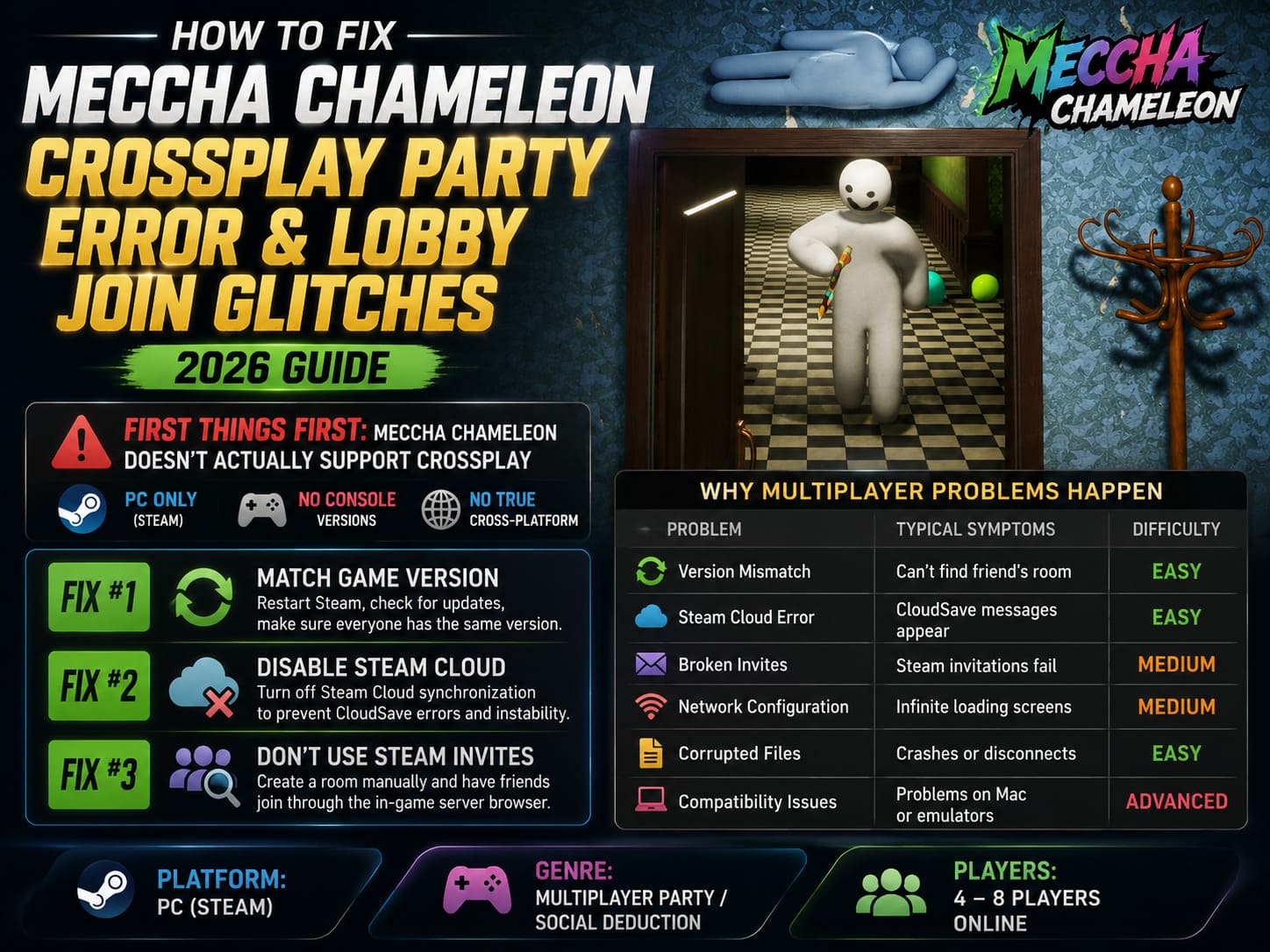
First Things First: Meccha Chameleon Doesn’t Actually Support Crossplay
One of the biggest misconceptions surrounding the game is the idea that it supports cross-platform play.
Many players search for terms like “Meccha Chameleon crossplay error” or “crossplay party fix” expecting solutions for PlayStation, Xbox, Nintendo Switch, or mobile devices.
The reality is much simpler.

At the time of writing, Meccha Chameleon is a PC-only game available through Steam. There is no official console version and no true cross-platform functionality. Most so-called “crossplay” problems are actually regular multiplayer connection issues occurring between Steam users.
Understanding this distinction can save a lot of frustration because the problem usually isn’t platform compatibility—it’s the game’s networking system.
Why Multiplayer Problems Happen So Often
After spending time investigating community reports, I noticed that most connection failures fall into several common categories.
| Problem | Typical Symptoms | Difficulty |
|---|---|---|
| Version Mismatch | Can’t find friend’s room | Easy Fix |
| Steam Cloud Error | CloudSave messages appear | Easy Fix |
| Broken Invites | Steam invitations fail | Medium Fix |
| Network Configuration | Infinite loading screens | Medium Fix |
| Corrupted Files | Crashes or disconnects | Easy Fix |
| Compatibility Issues | Problems on Mac or emulators | Advanced Fix |
The good news is that most of these problems can be fixed within minutes.
Fix #1: Make Sure Everyone Has Exactly the Same Game Version
This sounds obvious, but it’s surprisingly common.
Meccha Chameleon has received multiple updates shortly after launch. Even a tiny difference between versions can prevent players from seeing each other’s rooms.
What I recommend:
- Close the game completely.
- Exit Steam.
- Restart Steam.
- Check for pending updates.
- Let all downloads finish.
- Compare version numbers with your friends.
I’ve personally seen situations where one player was only a single patch behind and nobody could join the lobby.
If you’re troubleshooting multiplayer issues, always start here.
Fix #2: Disable Steam Cloud Synchronization
One of the strangest bugs in the game is related to Steam Cloud synchronization.
Several players—including members of my own group—noticed that multiplayer became unstable whenever cloud save errors appeared in the main menu.
How to Disable Steam Cloud
- Open Steam Library.
- Right-click Meccha Chameleon.
- Select Properties.
- Navigate to General.
- Disable Steam Cloud synchronization.
- Restart the game.
After doing this, many players report that room creation and matchmaking become significantly more reliable.
It’s not necessarily a permanent solution, but it’s one of the fastest troubleshooting steps available.
Fix #3: Stop Using Steam Invites
This was probably the biggest surprise for me.
Normally, Steam invites are the easiest way to join friends. In Meccha Chameleon, however, they often create more problems than they solve.
Several players report getting stuck in endless loading loops after accepting invitations through the Steam Overlay.
Instead, try this approach.
Host Player
- Create a room manually.
- Use a unique room name.
- Add a password if desired.
Joining Players
- Open the server browser.
- Search for the room name.
- Join directly through the game.
Since switching to manual room searching, my group has experienced far fewer connection failures.
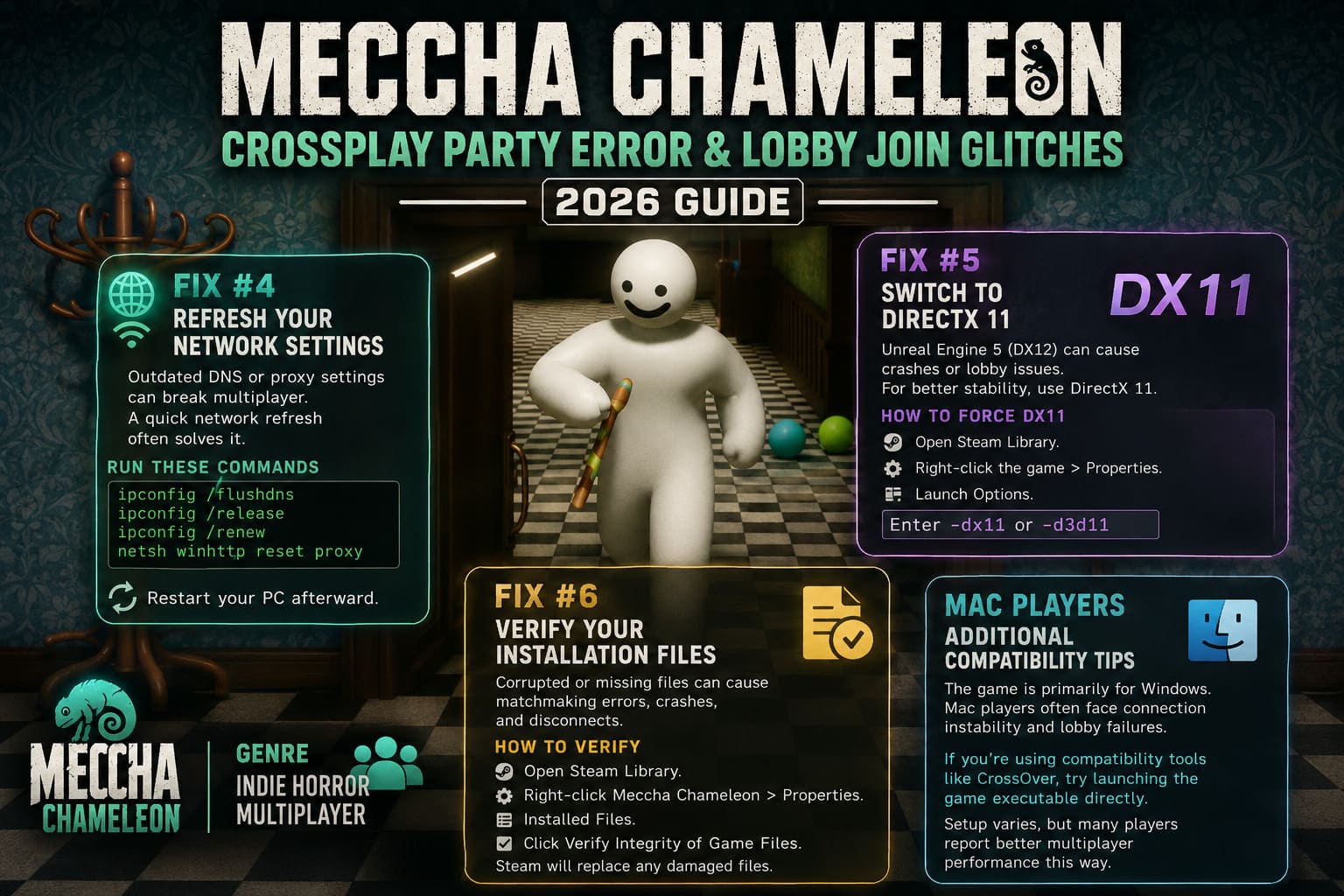
Fix #4: Refresh Your Network Settings
Sometimes the issue isn’t the game at all.
Windows can occasionally store outdated DNS information or proxy settings that interfere with multiplayer connectivity.
A quick network refresh often helps.
Commands Worth Running
Open Command Prompt as Administrator and run the following commands:
ipconfig /flushdns
ipconfig /release
ipconfig /renew
netsh winhttp reset proxy
Restart your PC afterward.
While this won’t solve every problem, it’s surprisingly effective for players who get kicked back to the menu during connection attempts.
Fix #5: Switch From DirectX 12 to DirectX 11
This fix helped one of my friends who experienced both crashes and failed lobby connections.
Meccha Chameleon uses Unreal Engine 5 technology, which typically launches using DirectX 12. On some systems, however, DirectX 11 provides better overall stability.
To Force DirectX 11
- Open Steam Library.
- Right-click the game.
- Open Properties.
- Locate Launch Options.
- Enter -dx11.
If that doesn’t help, try -d3d11 instead.
The visual difference is minimal, but the stability improvement can be significant on certain hardware configurations.
Fix #6: Verify Your Installation Files
Whenever multiplayer behaves unpredictably, verifying game files should be one of the first things you try.
Corrupted or missing files can create all kinds of strange behavior, including:
- Failed matchmaking.
- Connection drops.
- Crashes while loading maps.
- Random disconnects.
Verification Process
- Open Steam Library.
- Right-click Meccha Chameleon.
- Select Properties.
- Open Installed Files.
- Click Verify Integrity of Game Files.
Steam will automatically replace any damaged files.
This process usually takes only a few minutes.
Mac Players: Additional Compatibility Advice
Although the game is designed primarily for Windows, many players run it through compatibility software.
The biggest complaints from Mac users involve connection instability, lobby failures, launch problems, and multiplayer crashes.
If you’re using compatibility layers such as CrossOver or similar solutions, launching the game executable directly may improve stability.
Because compatibility setups vary significantly from system to system, results aren’t guaranteed, but many users report better multiplayer performance after bypassing secondary launchers.
How to Fix Meccha Chameleon Stuttering, Frame Drops, and Blurry Paint Textures
The Fixes That Worked Best for My Group
After several nights of testing, three solutions stood out above all others:
- Matching game versions — This solved the highest number of connection problems.
- Using the in-game server browser — Direct room searching was dramatically more reliable than Steam invites.
- Disabling Steam Cloud — Unexpectedly effective for players seeing save-related errors.
Those three changes alone fixed nearly every issue our group encountered.
MECCHA CHAMELEON Windows Defender False Positive: Is It a Virus?
Final Thoughts
Despite its networking hiccups, Meccha Chameleon remains one of the most entertaining multiplayer games I’ve played this year. Few games create the same level of laughter as watching a friend desperately attempt to blend into a brightly painted environment while everyone else searches for them.
The launch period has clearly been rough for multiplayer stability, but most lobby issues are fixable with a little patience. Developers continue releasing updates, and every new patch seems to improve the overall experience.
If you’re currently stuck dealing with loading screens, broken party invites, or invisible rooms, don’t give up yet. Start with version checks, switch to the server browser, and disable cloud synchronization if necessary.
Those simple steps have already helped thousands of players return to what Meccha Chameleon does best: creating hilarious moments with friends.
And honestly? Once the lobby finally works, it’s absolutely worth the effort.


