How to Fix The Witcher 3 Remastered Lighting Flickering: Next-Gen Shadow & DX12 Fixes
I’ve spent an absurd amount of time tweaking The Witcher 3, and one thing I can say with confidence is that the Next-Gen update can look absolutely spectacular right up until the renderer decides to have a bad day.
The lighting is usually one of the first things I notice when something goes wrong. A dark room suddenly flashes bright. Shadows crawl across a wall for no obvious reason. A building exterior starts flickering as Geralt walks past it. Sometimes the effect is subtle, almost like a tiny visual hiccup. Other times it looks like the game is trying to communicate with me through Morse code.
That is especially annoying in a game built around atmosphere.
The Witcher 3: Wild Hunt still has some of the best environmental lighting in an open-world RPG. Novigrad can look incredible at sunset, Toussaint can be ridiculously beautiful in bright daylight, and even a random village house can have a convincing little pool of warm light inside. When that lighting starts flashing or the shadows begin jumping around, the entire illusion falls apart.
The good news is that The Witcher 3 Next-Gen lighting flickering is usually something you can troubleshoot from the software side. The problem can involve configuration settings, shadow cascades, DX12 behavior, Ray Tracing, drivers, or Windows security features.
I’ve put the fixes below in the order I’d actually try them on a gaming PC.
Why Does The Witcher 3 Next-Gen Have Lighting Flickering?
The Next-Gen version changed much more than the game’s texture quality. CD Projekt RED introduced a significantly more advanced rendering setup, including DirectX 12, Ray-Traced Global Illumination, Ray-Traced Shadows, Ultra+ settings, DLSS, FSR, and additional temporal rendering techniques.
That extra technology is great when everything behaves. When it doesn’t, though, several different rendering systems can start interacting in ways that produce strange visual artifacts.
There are three areas worth paying attention to.
| Possible Cause | What You May See | Main Fix |
|---|---|---|
| Light Dimmers | Interior lights rapidly changing | Disable AllowDimmers |
| Shadow Cascades | Large exterior shadows flashing | Adjust cascade distance values |
| DX12 Rendering | White flashes, frame pacing issues | Optimize DX12 or switch to DX11 |
Community testing and modding work around the game’s REDkit tools have also pointed toward light dimmers and shadow transitions as possible sources of some of the more persistent flickering behavior.
The exact cause can vary from system to system, which is why there isn’t one magical graphics option that fixes every case.
So let’s get practical.
1. Disable Light Dimmers in user.settings
If the flickering happens mostly inside houses, taverns, buildings, or underneath structures, this is the first tweak I’d try.
The Next-Gen renderer uses engine objects called dimmers to control how lighting changes in certain areas. When those systems misbehave, you can end up with rapid changes between light and dark states.
The fix is surprisingly simple.
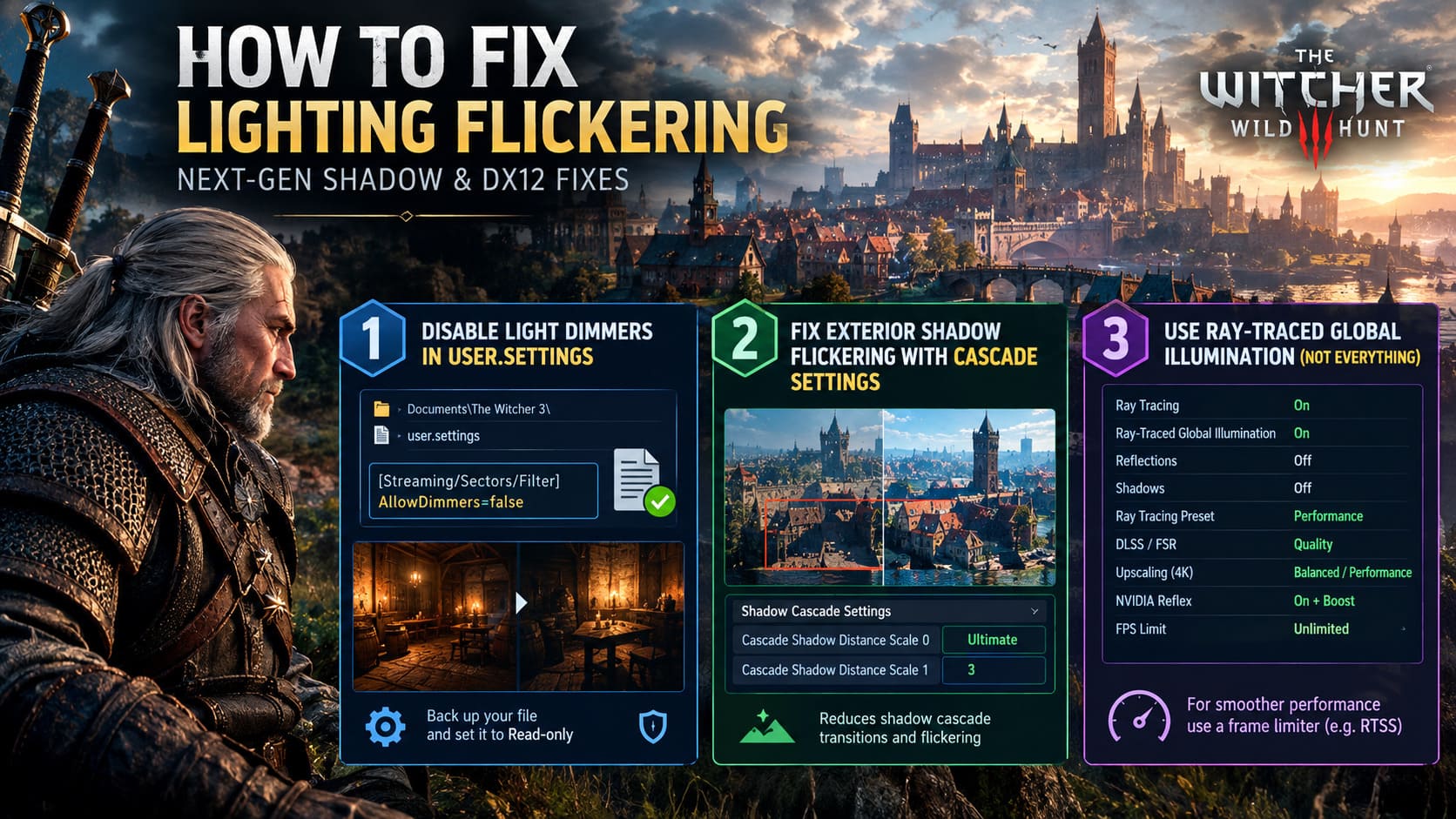
First, go to your Witcher 3 configuration directory. On a typical Windows installation, you’ll find it here:
C:\Users\[YourUsername]\Documents\The Witcher 3\
Look for:
user.settings
Before touching anything, make a backup copy. Seriously. It takes seconds and saves you from digging through folders later if something goes wrong.
Open user.settings with Notepad and search for:
[Streaming/Sectors/Filter]
If the section already exists, add this line underneath it:
AllowDimmers=false
If the section isn’t present, you can create it at the bottom of the configuration file.
Save the file and launch the game.
There’s one more annoying but useful step. Right-click user.settings, open Properties, enable Read-only, and apply the change.
The reason is simple: the game or launcher can sometimes overwrite manually edited configuration values.
What does this actually change?
You’re telling the engine not to use those potentially problematic dimmer transitions.
The downside is that some interiors may look slightly brighter or darker than intended. Personally, I’d take that trade every time if the alternative is a tavern that keeps flashing like a broken neon sign.
If you need to change your normal graphics settings later, remember to remove the Read-only attribute first.
2. Fix Exterior Shadow Flickering With Cascade Settings
Not every lighting problem is caused by interior dimmers.
If your issue looks more like huge chunks of shadows jumping across walls, roads, buildings, or terrain, you’re probably dealing with shadow cascade transitions.
This is particularly noticeable around large structures and in open areas of places like Novigrad.
The Next-Gen version pushes shadow rendering much farther than the original release. That’s great for screenshots, but it also means the engine has to transition between different shadow map resolutions over larger distances.
When those transitions become unstable, shadows can visibly flash or shift.
One community workaround is to expose additional shadow variables through a graphics tweak framework or REDkit-based configuration.
The important values are:
- Cascade Shadow Distance Scale 0 — Ultimate
- Cascade Shadow Distance Scale 1 — 3
After applying the changes, save the configuration and restart The Witcher 3.
The idea here isn’t to magically make shadows better. You’re trying to make the transition points between different shadow levels more predictable.
And that matters because the flicker often appears exactly where one shadow cascade hands off to another.
If your problem is mostly happening outdoors rather than inside buildings, this is the fix I’d investigate before messing around with Windows settings.
3. Use Ray-Traced Global Illumination Without Turning Everything Else On
Here’s the weird part.
Sometimes Ray Tracing can actually help with lighting flickering.
That sounds backwards because Ray Tracing is also one of the easiest ways to make The Witcher 3 punish your GPU. But the reason it can help is that the game uses a different lighting path when certain Ray-Traced features are enabled.
For a balanced setup, start from the main menu rather than changing everything while you’re inside a loaded save.
I recommend testing this configuration:
| Setting | Recommended Value |
|---|---|
| Ray Tracing | On |
| Ray-Traced Global Illumination | On |
| Ray-Traced Reflections | Off |
| Ray-Traced Shadows | Off |
| Ray Tracing Preset | Performance |
| DLSS / FSR | Quality |
| Upscaling at 4K | Balanced or Performance |
| NVIDIA Reflex | On + Boost |
| In-Game FPS Limit | Unlimited |
The important trick is to use Ray-Traced Global Illumination while leaving reflections and RT shadows disabled.
You’re essentially trying to clean up the lighting path without turning your GPU into a space heater.
At 1080p or 1440p, start with DLSS or FSR on Quality. If you’re running native 4K, Balanced or Performance can make more sense depending on your GPU.
For NVIDIA users, also test Reflex Low Latency — On + Boost.
This won’t magically repair every lighting bug, but it can improve frame pacing in demanding DX12 scenarios. Sometimes what looks like a tiny lighting flash is mixed in with a frame-time spike or rendering hiccup, so stabilizing the frame delivery can make the overall presentation considerably cleaner.
I’d also avoid relying on the game’s unlimited frame rate by itself.
Set the game to Unlimited and use something like RivaTuner Statistics Server (RTSS) or your GPU driver’s frame limiter to establish a consistent cap.
A stable 60 FPS is often preferable to bouncing between 67, 83, 71, 91, and whatever number your GPU happens to produce next.
4. Clean Install Your GPU Driver
If you’ve changed drivers repeatedly over the years, your installation can become a mess.
That doesn’t mean every flickering problem is caused by a dirty driver installation. But if you’ve recently upgraded your GPU, swapped driver branches, or experienced shader-related problems in other DX12 games, I’d absolutely put a clean installation on the troubleshooting list.
Use Display Driver Uninstaller (DDU) from Windows Safe Mode to remove the existing GPU driver completely.
Then install the latest official driver package for your NVIDIA or AMD graphics card.
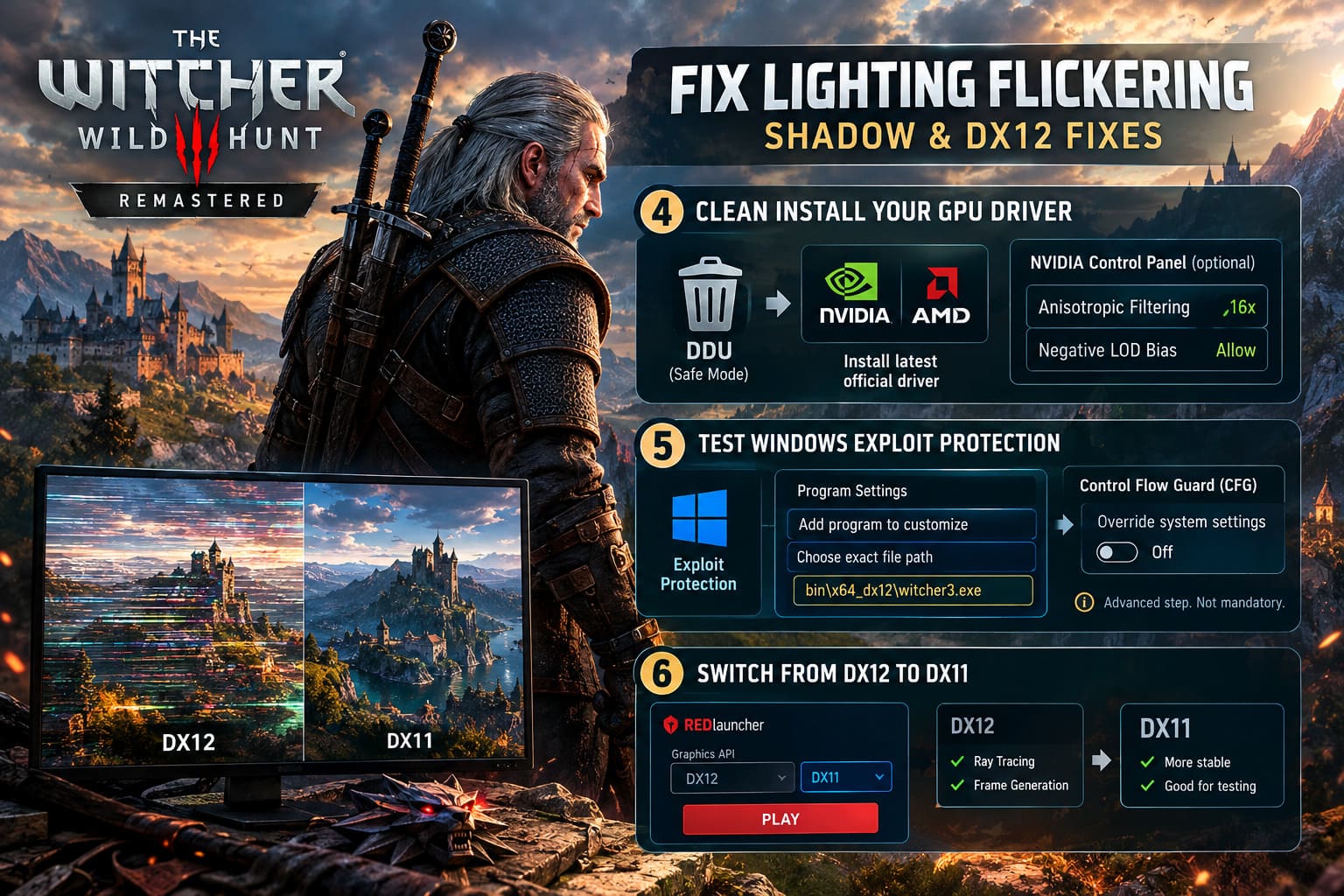
For NVIDIA users, you can also test these settings in the NVIDIA Control Panel:
- Anisotropic Filtering — 16x
- Negative LOD Bias — Allow
These settings aren’t guaranteed to fix lighting flickering, but they can be useful when you’re troubleshooting texture and rendering behavior alongside the main problem.
The key thing is to change one major variable at a time.
If you reinstall the driver, modify the configuration file, enable Ray Tracing, change shadow settings, and disable three Windows security features simultaneously, you’ll have no idea which change actually helped.
5. Test Windows Exploit Protection and Control Flow Guard
This one is much more specific, so I wouldn’t start here.
Some players have experimented with Control Flow Guard (CFG) in Windows Exploit Protection when troubleshooting unusual DX12 performance and rendering behavior.
If the other fixes haven’t worked, you can test it for The Witcher 3 specifically rather than changing the Windows-wide setting.
Open the Windows Start menu and search for:
Exploit Protection
Open it and go to Program Settings.
Choose Add program to customize and then Choose exact file path.
Navigate to your Witcher 3 installation and locate:
bin\x64_dx12\witcher3.exe
Add the executable.
Find Control Flow Guard (CFG) in the list and select Override system settings.
Turn it off for that specific executable and apply the change.
Restart Windows afterward.
I would treat this as an advanced troubleshooting step, not a mandatory optimization.
Windows security features exist for a reason, so I wouldn’t start disabling protections globally just because one game has a graphics bug.
6. Switch From DX12 to DX11
And finally, there’s the solution that isn’t glamorous but works as a fantastic diagnostic test.
Try DirectX 11.
If you’ve spent hours changing settings and the flickering refuses to disappear, switching renderers can immediately tell you whether the problem is tied to the DX12 path.
Launch The Witcher 3 through Steam, GOG Galaxy, or Epic Games Launcher.
When the REDlauncher appears, look for the graphics API selector near the Play button.
Change:
DX12 → DX11
Then launch the game.
DX11 doesn’t provide the same feature set as the Next-Gen DX12 renderer. You’ll lose access to the game’s DX12-specific Ray Tracing features and native Frame Generation options.
But you’re also stepping away from the rendering architecture responsible for many of the newer graphical complications.
If the flickering completely disappears in DX11, that’s valuable information.
It means your hardware isn’t necessarily the problem. Your monitor isn’t suddenly dying. Your GPU isn’t automatically defective.
The issue is much more likely connected to the DX12 rendering path, its configuration, or an interaction between the game and your particular driver setup.
The Witcher 3 Next-Gen Remastered: Best NVIDIA Control Panel & RTX Graphics Settings (2026 Guide)
Which Fix Should You Try First?
I wouldn’t throw all six solutions at the game at once.
Start with the symptom.
- Indoor lights rapidly flashing: try
AllowDimmers=false. - Huge outdoor shadows flickering: investigate cascade shadow settings.
- Small flashes combined with DX12 stutter: test Reflex, frame limiting, and DLSS/FSR.
- Problems started after multiple driver updates: perform a clean GPU driver installation.
- Persistent DX12-specific problems: test the Windows CFG adjustment.
- Nothing works: switch to DX11 and compare.
That last comparison is particularly useful because it gives you a clean baseline.
The Witcher 3 Remastered Best Signs Ranking: Combat Control Tier List (2026)
Final Thoughts
The Witcher 3 Next-Gen update remains one of those cases where a game can look better than almost anything else on your SSD and still make you want to throw your keyboard through a window five minutes later.
The lighting system is a huge part of why the upgraded version looks so good, but that also makes visual bugs painfully obvious.
Lighting flickering, flashing shadows, white artifacts, and unstable interiors don’t necessarily mean your GPU is dying. There are several configuration and rendering paths worth testing before you start blaming your hardware.
For me, the AllowDimmers=false tweak is the first thing I’d test when the problem is clearly tied to interior lighting. If the flickering is happening across exterior environments, shadow cascade settings deserve more attention. If DX12 remains problematic no matter what you do, DX11 is still sitting there as the reliable escape hatch.
And honestly, there’s nothing wrong with using it.
I’d rather play Geralt’s entire journey with stable lighting, consistent frame pacing, and clean shadows than spend an evening staring at a wall in Novigrad trying to figure out why it keeps blinking at me.
The Continent has enough monsters already. Your lighting shouldn’t be one of them.