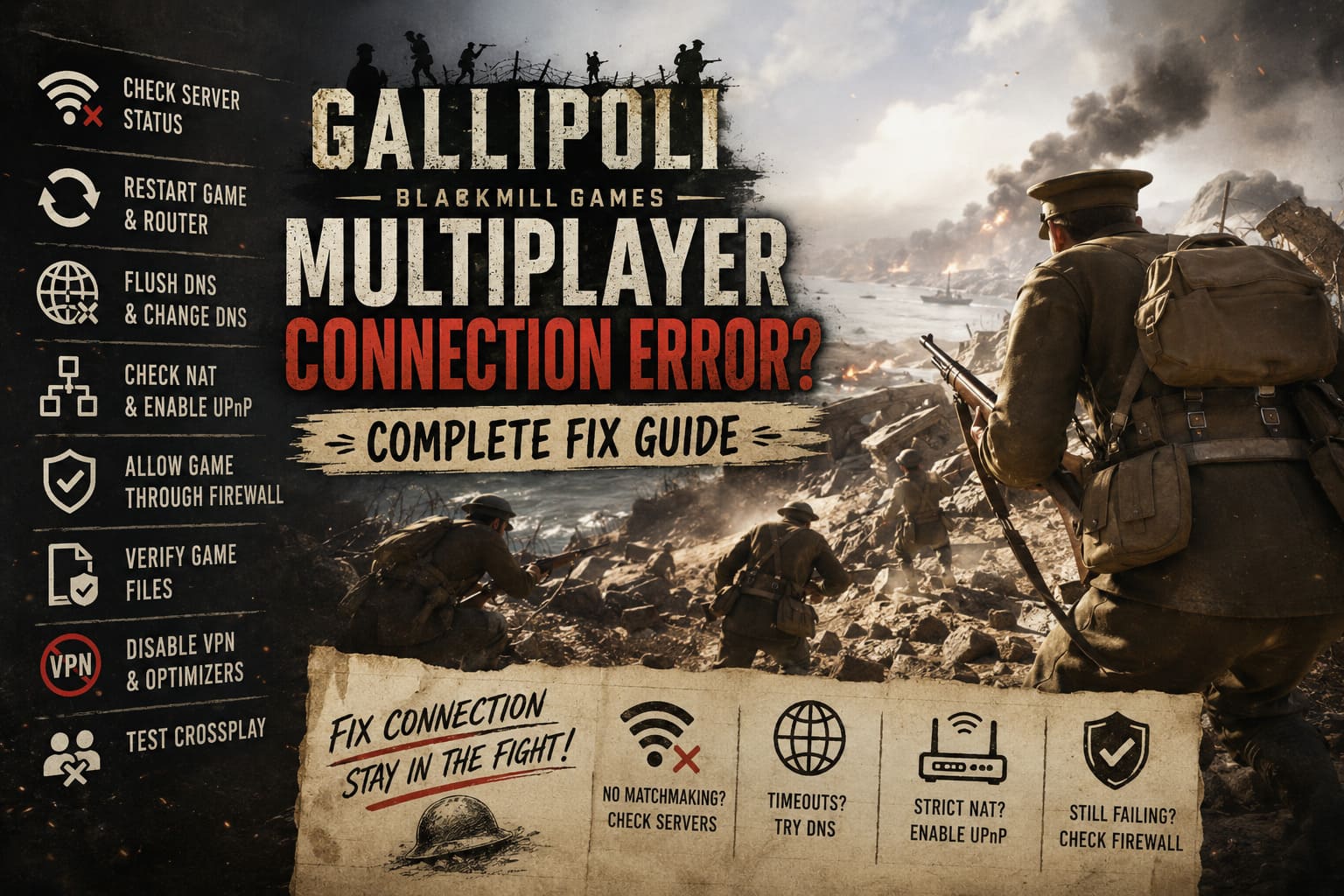
How to Fix Gallipoli BlackMill Games Multiplayer Connection Error: Complete Guide
If there is one thing that can ruin a good multiplayer session faster than getting shot before you even leave the trench, it is a connection error. Gallipoli has all the ingredients I want from a World War I shooter: huge battles, period weapons, brutal frontline combat, and enough chaos to make every match feel unpredictable. But for some players, especially around launch, getting into a match can be harder than surviving the actual battlefield.
The Gallipoli BlackMill Games multiplayer connection error can appear in several forms. You might get stuck while matchmaking, lose connection while joining a server, get kicked back to the main menu, or simply stare at a timeout message while everyone else is already fighting. After dealing with multiplayer problems across plenty of PC games, I have learned one important lesson: don’t immediately start changing ten network settings at once. Work through the problem logically, because that makes it much easier to figure out what is actually broken.
This guide covers the fixes I would try first, from checking the server situation to dealing with DNS, IPv6, firewalls, NAT, corrupted files, and console networking. Some solutions are quick, while others require a little more patience, but you should not need to rebuild your entire home network just to play Gallipoli.
Gallipoli Game Low FPS Fix: Ultimate Steam Optimization Guide
Why Gallipoli Multiplayer Connection Errors Happen
A connection problem does not automatically mean that your internet is bad. In fact, if you can stream videos, browse normally, use Discord, and play other online games without problems, there is a good chance your connection itself is fine.
New multiplayer releases can experience several problems at once. Server congestion, matchmaking instability, authentication failures, router restrictions, firewall rules, DNS issues, and crossplay communication can all contribute to failed connections. The difficult part is that the game may give you a very generic error instead of telling you exactly which component failed.
Crossplay can make things even more complicated. Gallipoli connects players across different platforms and network environments, meaning a problem somewhere between your PC or console, platform services, matchmaking infrastructure, and the game servers can prevent a session from starting.
Before changing anything complicated, I recommend checking whether other players are reporting the same problem. If thousands of players suddenly cannot connect, spending an hour changing router settings probably isn’t going to help.
1. Check Gallipoli Server Status First
This is the boring solution, but it is also the one people skip most often. Before touching IPv6, DNS, firewall settings, or router configuration, make sure the problem isn’t happening on BlackMill Games’ side.
Look for recent announcements from BlackMill Games and check the game’s community channels for reports of maintenance, outages, or matchmaking problems. It is particularly important around launch periods and after major updates because developers can restart or patch server infrastructure without warning.
You should also check the online services for the platform you are using. A problem with Steam, Xbox Network, PlayStation Network, or another platform service can make Gallipoli look broken when the game itself is actually working.
If everything is officially online but you still cannot connect, try matchmaking again at a different time. Peak evening hours can expose server capacity problems that aren’t obvious during quieter periods.
2. Restart Everything Before Changing Settings
I know this sounds ridiculously simple, but I would still do it before moving on to more complicated fixes.
Close Gallipoli completely rather than leaving it suspended in the background. Restart Steam or your console, then reboot your router and modem. Give the network equipment a couple of minutes to reconnect before launching the game again.
This can clear temporary authentication problems, stale network sessions, and router glitches. I have fixed plenty of multiplayer problems this way, and it costs nothing except a few minutes.
If you are using Wi-Fi, this is also a good opportunity to test Gallipoli through an Ethernet connection. A wired connection removes a whole category of potential interference and packet-loss problems.
3. Try Disabling IPv6 on Windows
One troubleshooting step worth testing on PC is temporarily disabling IPv6. This is not something I recommend blindly changing on every gaming PC, but if Gallipoli consistently struggles to establish a multiplayer connection, it is a reasonable diagnostic test.
How to Disable IPv6 in Windows 10 and Windows 11
- Press Windows + R.
- Enter
ncpa.cpland press Enter. - Right-click your active Ethernet or Wi-Fi connection.
- Select Properties.
- Find Internet Protocol Version 6 (TCP/IPv6).
- Uncheck it.
- Click OK and restart your PC.
Launch Gallipoli afterward and test multiplayer.
If the game suddenly works, you have learned something useful about how your current network configuration is handling the connection. If nothing changes, simply turn IPv6 back on and continue with the next fix.
4. Flush DNS and Test a Different DNS Provider
DNS problems are another possibility when a game cannot consistently locate or communicate with online services.
Open Command Prompt as administrator and run:
ipconfig /flushdnsWait for Windows to confirm that the DNS resolver cache was successfully cleared. Restart Gallipoli and test the connection again.
If that does not work, you can also test a public DNS service. Google DNS uses 8.8.8.8 and 8.8.4.4, while other public providers are available as well.
I wouldn’t expect changing DNS to magically fix every Gallipoli connection error. DNS primarily helps when name resolution or your ISP’s DNS infrastructure is involved. Still, it is an easy test and can occasionally solve strange matchmaking behavior.
5. Check Your NAT Type and Router Configuration
This is where multiplayer troubleshooting starts getting more technical.
A restrictive NAT configuration can interfere with communication between your device and online services. If your router reports a strict NAT type, or multiplayer diagnostics show that incoming connections are restricted, enabling UPnP may help.
Open your router’s administration page and look for UPnP under advanced network or LAN settings. Enable it if it is currently disabled, save the configuration, and restart the router.
I would avoid manual port forwarding unless you actually have evidence that NAT is causing the problem. Port forwarding can work, but randomly opening ports because a guide says to do it is not my favorite approach. It creates additional configuration that you may later forget about.
If you already know the correct ports required by your specific Gallipoli and platform configuration, forward only those ports to the correct local device. Otherwise, test UPnP first.
6. Verify Gallipoli Game Files
Sometimes the network problem isn’t really a network problem.
A damaged or incomplete installation can prevent a game from properly starting services, communicating with platform software, or loading components required for multiplayer. This is especially worth checking if the connection error appeared immediately after an update or if the game has crashed recently.
### Steam
Open your Steam Library, right-click Gallipoli, select Properties, then open Installed Files. Choose Verify integrity of game files and wait for Steam to finish.
If Steam discovers damaged or missing files, it will replace them automatically.
### Epic Games Store
Open your Epic Games Library, find Gallipoli, select the three-dot menu, choose Manage, and use the Verify option.
After verification completes, restart the launcher and try multiplayer again.
This is one of the fixes I would absolutely try before reinstalling the entire game. A complete reinstall takes much longer and often achieves exactly the same thing as a successful file verification.

7. Check Windows Firewall and Antivirus Software
Security software can occasionally block a newly installed game, particularly when its executable starts communicating with unfamiliar servers for the first time.
Open Windows Security > Firewall & network protection > Allow an app through firewall and check whether Gallipoli is allowed through the firewall. If Windows asks for network permission when you launch the game, make sure you are not accidentally denying it.
Third-party antivirus applications can also interfere with games. If you use additional security or network-management software, temporarily disable the relevant protection and test multiplayer.
The important word here is temporarily. I would not recommend leaving antivirus protection disabled just to play an online game. The goal is to determine whether the security software is responsible. If it is, create an appropriate exception rather than permanently disabling your protection.
Also take a look at VPN applications, gaming network optimizers, traffic-shaping utilities, and similar background programs. These can modify how packets travel through your network and sometimes create more problems than they solve.
8. Disable VPNs and Network Optimization Software
If you normally use a VPN, turn it off before launching Gallipoli.
VPN routing can send your traffic through a distant server, increasing latency and occasionally creating problems with matchmaking or authentication. A VPN can also make the game believe that your connection is coming from a different region.
The same goes for aggressive network optimization software. Tools that attempt to prioritize gaming traffic can be useful in certain situations, but when troubleshooting a connection error, I prefer having the simplest possible network configuration.
For testing purposes, run Gallipoli with the VPN and network optimizer completely closed. If multiplayer suddenly works, you have identified a likely source of the problem.
9. Console Players Should Power Cycle Their System
The troubleshooting process is slightly different on Xbox Series X/S and PlayStation 5, but the basic idea remains the same.
Completely shut down the console instead of leaving it in a suspended state. Disconnect the power cable for a couple of minutes, reconnect it, and start the system again.
Afterward, run the console’s built-in network test. Pay particular attention to NAT warnings, packet loss, and multiplayer connectivity results.
If possible, test Gallipoli using an Ethernet cable instead of Wi-Fi. Wi-Fi is convenient, but large multiplayer shooters are much less forgiving when there is intermittent packet loss or unstable wireless interference.
10. Test Crossplay as a Diagnostic Step
If Gallipoli allows you to change crossplay settings, temporarily disabling crossplay can be a useful test.
I wouldn’t treat this as a permanent solution. One of the biggest attractions of modern multiplayer games is having a healthy player population, and crossplay can be important for matchmaking times.
However, if you consistently fail to connect with crossplay enabled but can join matches with it disabled, that gives you valuable information. It suggests that the problem may involve cross-platform matchmaking rather than your basic internet connection.
Likewise, if crossplay is disabled and the problem remains exactly the same, you can focus your attention elsewhere.
Quick Troubleshooting Checklist
| Problem | Fix I Would Try First | Difficulty |
|---|---|---|
| Cannot find a match | Check server status and restart the game | Easy |
| Connection timeout | Restart router and test DNS | Easy |
| Repeated disconnects | Test Ethernet and disable VPN | Easy |
| Strict NAT | Enable UPnP | Medium |
| Game updated before problem appeared | Verify game files | Easy |
| Firewall warning | Allow Gallipoli through Windows Firewall | Easy |
| Crossplay connection failure | Temporarily test with crossplay disabled | Easy |
| Console multiplayer errors | Power cycle and run network diagnostics | Easy |
What I Would Try First
If I were sitting at my PC and Gallipoli suddenly refused to connect, I wouldn’t immediately start forwarding ports or rebuilding my network configuration. My order would be much simpler.
First, I would check whether other players are reporting an outage. Then I would restart the game, Steam, PC, and router. After that, I would verify the game files, disable any VPN or network optimizer, flush DNS, and test the connection again.
Only if those steps failed would I start looking at IPv6, NAT, UPnP, and more advanced router settings. This approach saves a lot of time because you eliminate the easy possibilities before touching settings that can affect other games and applications.
Final Thoughts
The Gallipoli BlackMill Games multiplayer connection error is frustrating precisely because there isn’t always one universal fix. A server-side outage, overloaded matchmaking system, restrictive NAT, firewall rule, DNS problem, corrupted game file, or unstable Wi-Fi connection can produce very similar symptoms.
From my experience with multiplayer shooters, the best troubleshooting strategy is to change one thing at a time. Start with the server status and basic restarts, then move through file verification, DNS, firewall, VPN, NAT, and router settings only when necessary.
Gallipoli is at its best when the match finally gets moving and you are surrounded by the noise of rifles, artillery, shouting teammates, and absolute battlefield confusion. Having the game throw you back to the menu before you even reach the frontline is the last thing anyone wants. With a methodical approach, though, most connection problems can be narrowed down without resorting to a full reinstall or completely rebuilding your home network.