Akatori PC System Requirements & Full Controller Support Layout Guide (2026)
When I first watched the newest gameplay footage for Akatori, one thing immediately stood out—it wasn’t just another indie metroidvania trying to imitate the giants of the genre. The movement has real weight, every staff swing feels deliberate, and chaining parkour with combat looks incredibly satisfying. As someone who has spent way too many late nights mastering movement-heavy games like Ori and the Will of the Wisps, Hollow Knight, and Prince of Persia: The Lost Crown, I instantly knew this was the kind of game that deserves a proper controller and a stable frame rate.
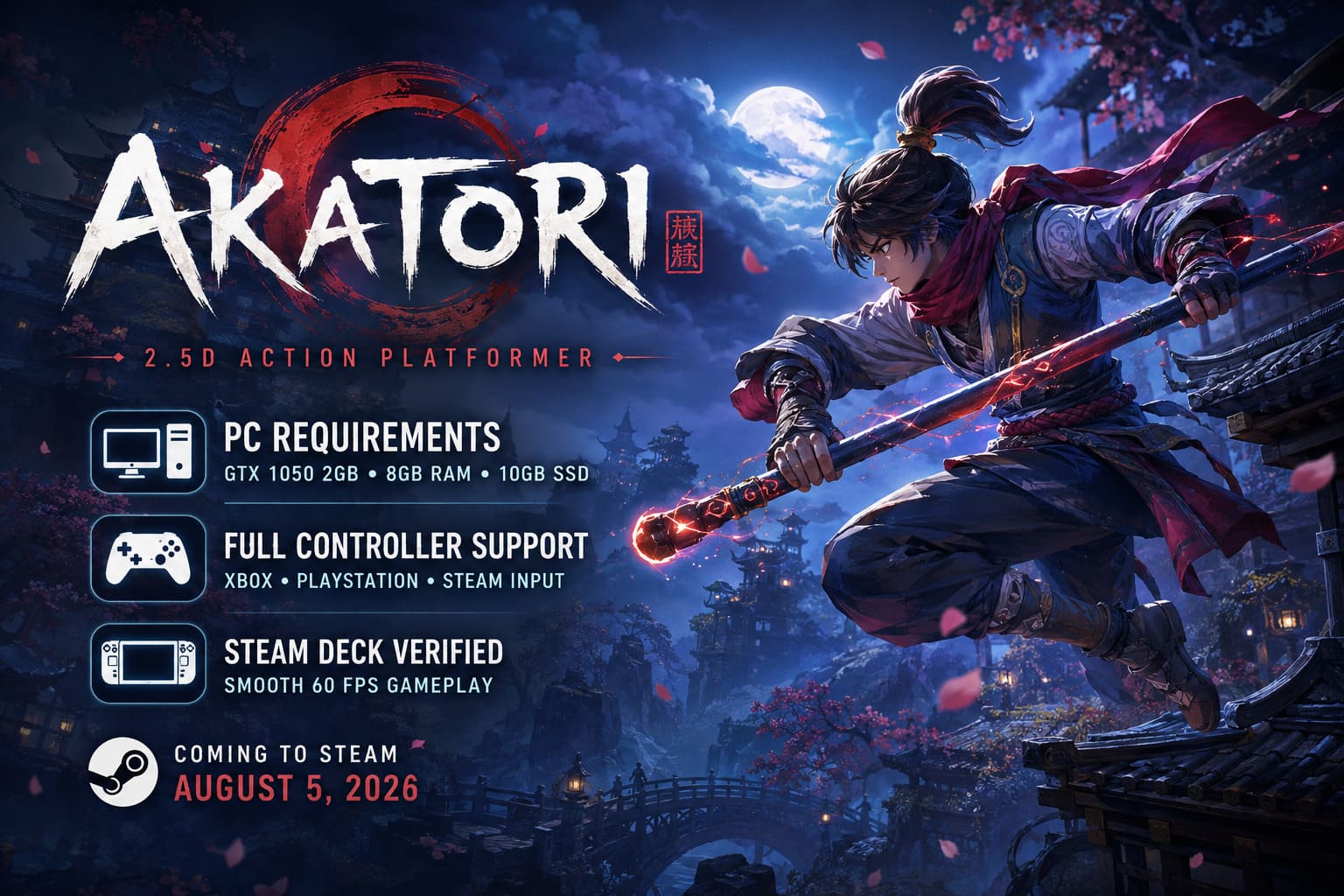
With Akatori arriving on PC through Steam on August 5, 2026, plenty of players are wondering whether their hardware is powerful enough and whether the game fully supports modern controllers without extra setup. Fortunately, the answers are encouraging.
This guide covers everything you actually need before jumping into the adventure, including the official PC requirements, controller layout, performance recommendations, handheld compatibility, and several fixes if your gamepad refuses to cooperate.
Official Akatori PC System Requirements
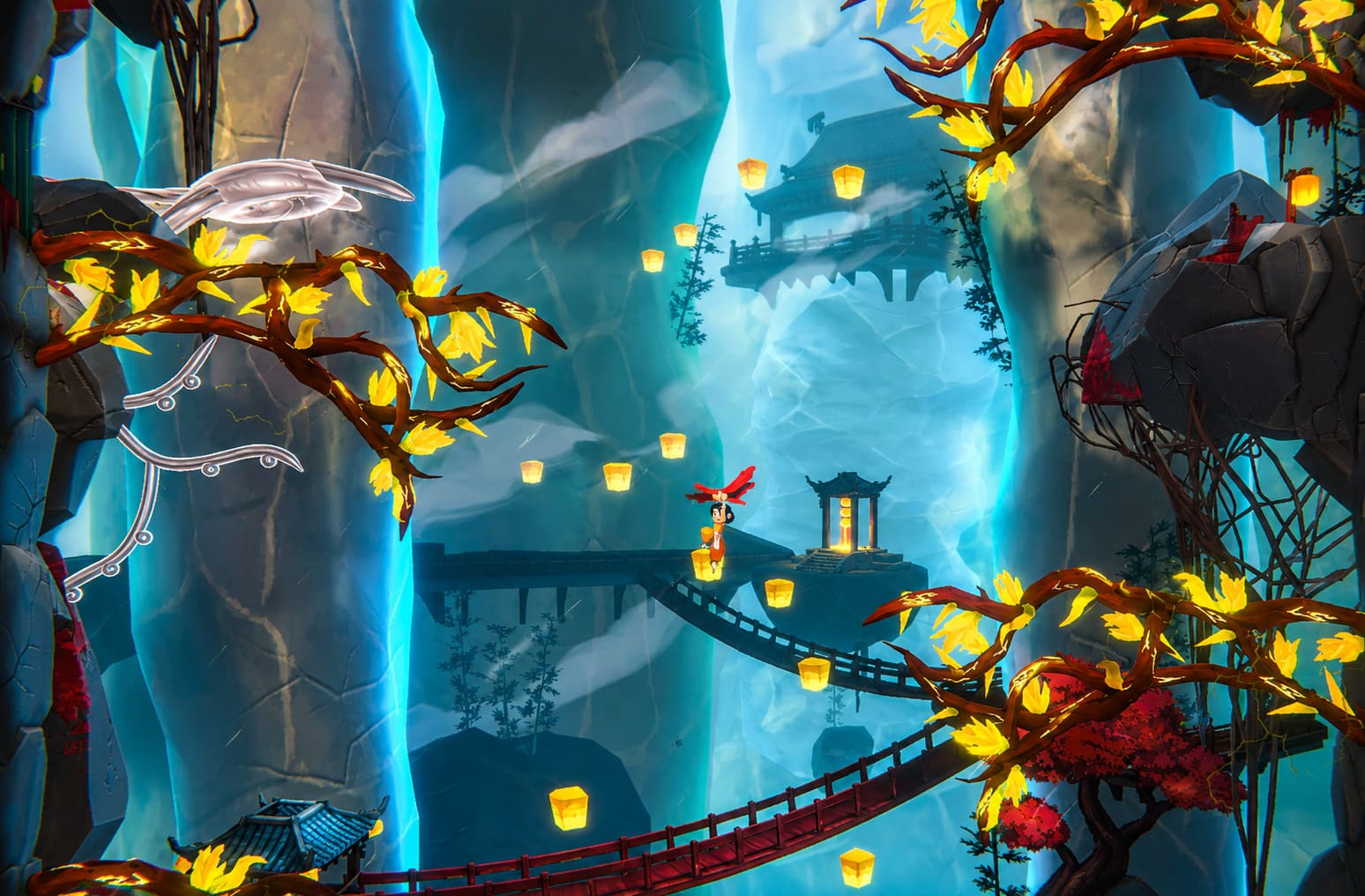
For a visually rich 2.5D action platformer, Akatori is surprisingly lightweight. Contrast Games has clearly spent time optimizing the game instead of relying on expensive hardware brute force.
Whether you’re using an older desktop, a budget gaming laptop, or one of today’s popular handheld PCs, the requirements remain very approachable.
Minimum Requirements
These specifications should comfortably deliver 1080p gameplay on Low or Medium settings.
| Component | Minimum Specification |
|---|---|
| Operating System | Windows 10 64-bit (Version 21H1 or newer) |
| Processor | Intel Core i3-6100 or equivalent AMD CPU |
| Memory | 6 GB RAM |
| Graphics Card | NVIDIA GeForce GT 740 2GB or AMD equivalent |
| Storage | 10 GB available space (SSD recommended) |
Even though the GT 740 is an aging GPU, Akatori doesn’t appear to demand modern ray tracing hardware or enormous VRAM buffers.
Recommended Requirements
If you’re aiming for smooth gameplay with higher graphical settings and consistent frame rates, these are the official recommendations.
| Component | Recommended Specification |
|---|---|
| Operating System | Windows 10 or Windows 11 64-bit |
| Processor | Intel Core i5-3470 or AMD Ryzen R5 |
| Memory | 8 GB RAM |
| Graphics Card | NVIDIA GTX 1050 2GB or AMD Radeon R9 380 |
| Storage | 10 GB SSD |
The recommended hardware is refreshingly realistic. Unlike many recent PC releases asking for RTX-class GPUs, Akatori stays accessible for players using hardware that’s several generations old.
Can Budget PCs Run Akatori?
From everything currently available, I’d say yes.
One of the nicest surprises is how forgiving the hardware requirements are. A GTX 1050 is still found in countless gaming laptops around the world, and it should have no trouble handling the game’s side-scrolling presentation.
Since Akatori isn’t rendering massive open worlds or dozens of AI-driven NPCs at once, performance is focused more on responsive gameplay than graphical excess.
If you’re running:
- GTX 1050
- GTX 1060
- GTX 1650
- RX 570
- RX 580
…you’re already in a comfortable position for a very enjoyable experience.
Older systems equipped with SSD storage will also benefit from noticeably faster loading times between areas.
Steam Deck and Handheld Gaming Performance
This might end up being one of the best handheld metroidvanias released this year.
Because Akatori combines fixed camera angles with stylized visuals instead of photorealistic rendering, devices like:
- Steam Deck
- ASUS ROG Ally
- Lenovo Legion Go
should all handle the game without major issues.
Personally, I’d lock the frame rate to 60 FPS while playing on battery. The gameplay emphasizes rhythm and precision far more than extremely high refresh rates, and a stable 60 FPS usually feels better than fluctuating between 70 and 100.
Battery life should also benefit considerably thanks to the relatively modest GPU workload.
Full Steam Controller Support
Contrast Games officially recommends using a controller, and after watching combat demonstrations, it’s easy to understand why.
Movement constantly flows into aerial attacks, staff abilities, wall traversal, and quick dodges. Trying to perform long combo chains on a keyboard is certainly possible, but analog movement simply feels more natural.
The game offers native support for:
- Xbox Controllers
- PlayStation DualShock 4
- PlayStation DualSense
- Standard XInput devices
- Most DirectInput controllers through Steam Input
No external remapping utilities should be necessary for the majority of players.
Recommended Controller Layout
The default layout feels very familiar if you’ve played modern action platformers.
Movement
| Button | Action |
|---|---|
| Left Stick / D-Pad | Move |
| A / Cross | Jump and Confirm |
| Double Jump | Unlockable Ability |
| RT / R2 | Sprint and Momentum Boost |
| LT / L2 | Air Glide or Slow Descent |
The sprint trigger deserves special attention because movement momentum seems to influence many platforming sections.
Combat Controls
| Button | Action |
|---|---|
| X / Square | Light Attack |
| Y / Triangle | Heavy Attack or Special Staff Ability |
| B / Circle | Dodge Roll, Parry, Cancel |
| RB / R1 | Staff Throw and Recall |
| LB / L1 | Healing Items and Consumables |
This arrangement allows your right hand to remain active across the face buttons while your index finger stays ready on the sprint trigger.
After watching extended gameplay, I honestly wouldn’t change much.
Interface Controls
| Button | Function |
|---|---|
| View / Share | World Map and Inventory |
| Menu / Options | Pause Menu |
| Right Stick | Camera Look and Vertical Viewing |
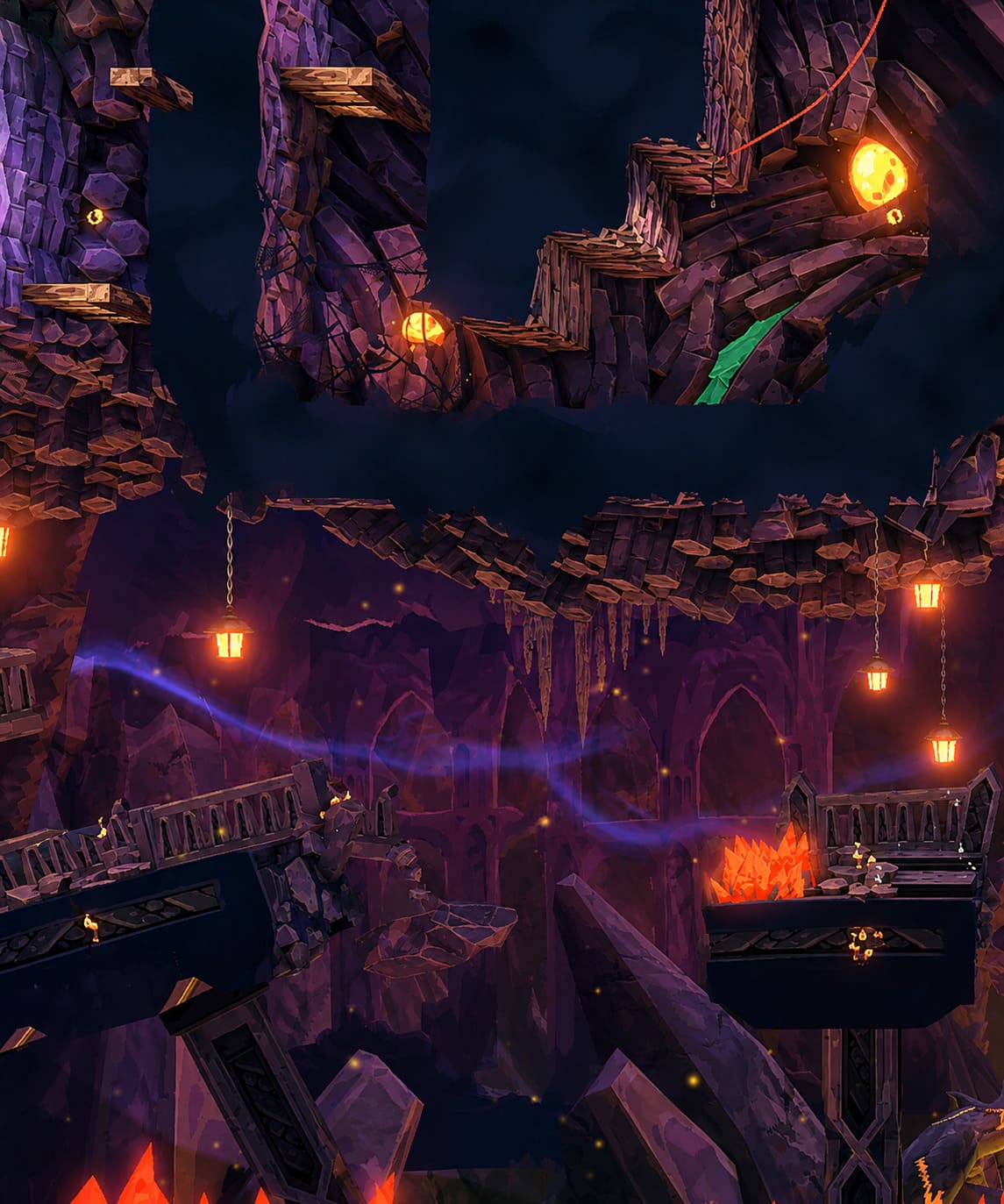
The right stick’s vertical camera adjustment should prove surprisingly useful when exploring tall environments filled with hidden passages.
Why the Default Layout Actually Works
Some games force awkward button combinations that become exhausting after several hours.
Akatori doesn’t appear to fall into that trap.
Most advanced combat strings naturally transition like this:
Sprint → Jump → Air Dash → Staff Throw → Heavy Slam → Dodge
Your fingers barely need to reposition, which keeps combat flowing smoothly during hectic encounters.
That kind of layout usually isn’t accidental. It’s often the result of developers repeatedly testing movement until everything feels intuitive.
As someone who spends far too much time chasing perfect movement routes in platformers, I appreciate that philosophy.
Fixing Controller Detection Problems
Although native support is available, Windows and Steam occasionally create conflicts.
If your controller works perfectly inside Steam but suddenly stops responding once Akatori launches, try these solutions.
Enable or Disable Steam Input
This is usually the first thing worth checking.
- Open Steam Library.
- Right-click Akatori.
- Select Properties.
- Open the Controller section.
- Change the controller override.
Sometimes enabling Steam Input fixes everything.
Other times, disabling it allows the game to communicate directly with Xbox controllers.
Testing both takes less than a minute.
Enable Generic Controller Support
If you’re using a third-party controller:
- Open Steam Settings.
- Navigate to Controller.
- Enable Steam Input for Generic Controllers.
For official Xbox or PlayStation controllers, avoid enabling unnecessary controller profiles, as this can occasionally create duplicate input problems.
Disconnect Extra Gaming Devices
This one sounds ridiculous until it actually happens.
Windows occasionally decides that your racing wheel, HOTAS joystick, steering pedals, or virtual controller software should become the primary gaming device.
Disconnect anything you aren’t actively using before launching Akatori.
If programs like DS4Windows, vJoy, or other remapping software are running in the background, temporarily close them as well.
Akatori Day 1 Patch Notes, Updates, and Nintendo Switch 2 Release Year Delay Explained
Performance Tips for the Smoothest Experience
Akatori relies heavily on timing.
Tiny frame drops may not matter in slower RPGs, but they’re immediately noticeable during difficult platforming sequences.
A few simple adjustments can make gameplay feel considerably smoother.
Use Exclusive Fullscreen
Fullscreen generally reduces input latency compared to Borderless Windowed mode.
If your inputs ever feel slightly delayed, this should be one of the first settings you test.
Match Your FPS to Your Display
Instead of chasing the highest possible frame rate, cap your FPS to your monitor’s refresh rate.
- 60 FPS
- 120 FPS
- 144 FPS
Consistent frame pacing almost always feels better than wildly fluctuating performance.
Install the Game on an SSD
While Akatori doesn’t require massive storage bandwidth, SSD installation noticeably improves loading speeds and area transitions.
Enable Steam Cloud
Cloud synchronization keeps save files and custom controller layouts available if you switch between your desktop PC and handheld gaming device.
Final Thoughts
Akatori is shaping up to be one of the most promising indie metroidvanias of 2026, and it’s refreshing to see a game that doesn’t demand cutting-edge hardware just to deliver a polished experience.
The official system requirements are approachable, handheld compatibility looks excellent, and native controller support should satisfy both Xbox and PlayStation players without endless configuration. That’s exactly what a movement-focused action platformer needs.
If you’re planning to dive into Mako’s journey on launch day, spending a few minutes checking your controller settings, locking your frame rate, and installing the game on an SSD will likely reward you with the smooth, responsive gameplay that Akatori’s fast-paced combat and parkour mechanics were clearly designed around. After watching the latest previews, I already have a feeling this is one of those games where mastering movement becomes just as addictive as defeating the next boss—and honestly, those are usually the adventures that stay installed on my PC long after the credits roll.