Go-Go Town Black Screen on Startup & Low FPS: Complete PC Fix Guide
When I first jumped into Go-Go Town, I expected a relaxing town-building game where I could slowly grow a colorful little community. Instead, after a few hours, I ran into the same problems that many other PC players have been talking about lately: a black screen at launch, random freezes, FPS drops, and noticeable stuttering once the town became more populated.
The funny thing is that the game itself isn’t incredibly demanding. Most of these issues come from Windows settings, graphics drivers, Steam configuration, or simply how the simulation behaves when your town becomes huge.
After spending quite a bit of time testing different solutions and comparing experiences from other players, I found several tweaks that consistently made the biggest difference. If you’re struggling with startup problems or poor performance, these are the methods I’d recommend trying first.
Why Go-Go Town Has Performance Problems
One thing I noticed is that Go-Go Town behaves differently depending on how far you’ve progressed.
Early in the game, performance is generally excellent. Once dozens of workers, tourists, automated routes, and production chains start operating simultaneously, CPU usage climbs rapidly. That’s when stuttering usually begins.
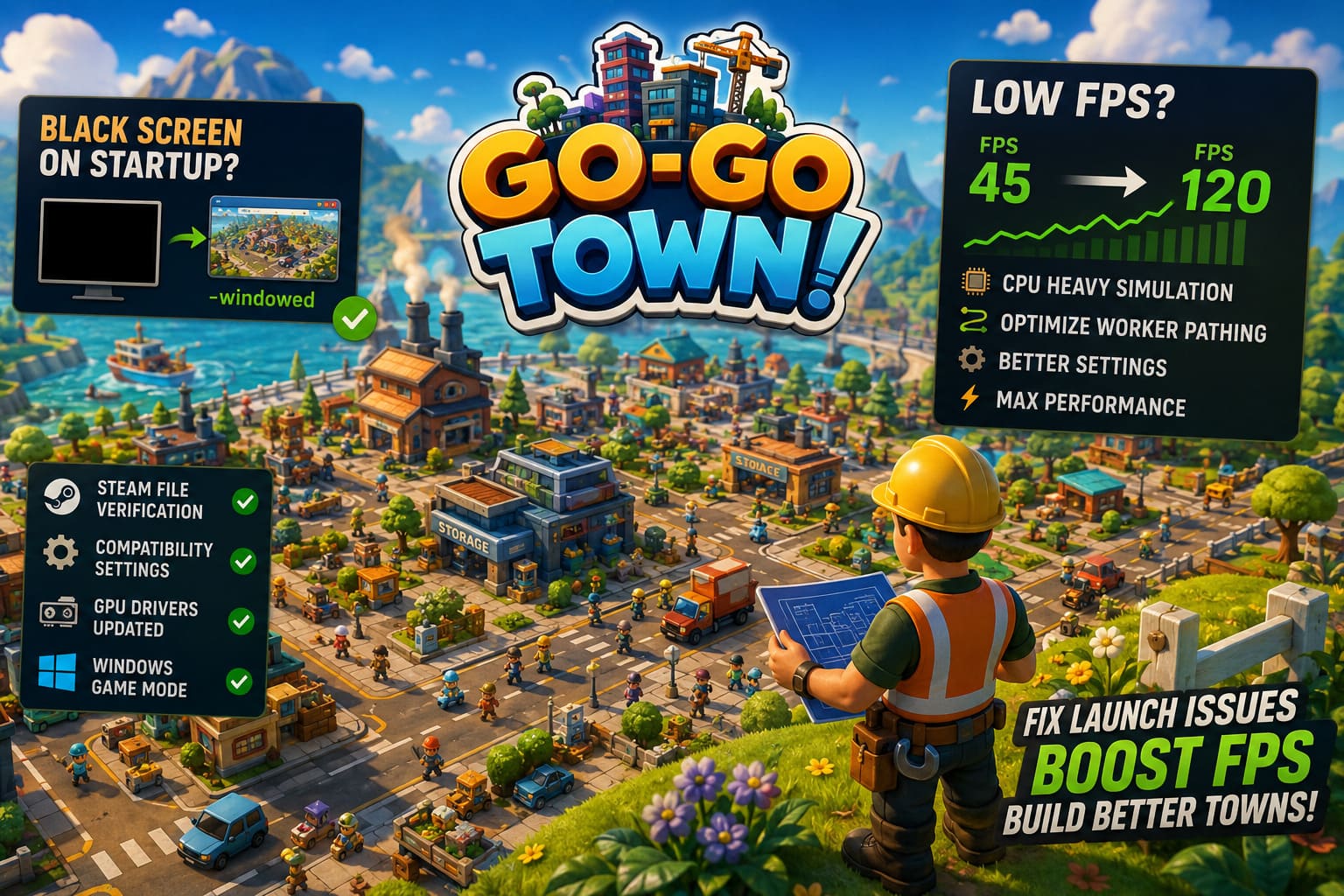
The most common problems include:
- Black screen immediately after launching
- Game crashes before reaching the main menu
- Random freezes during gameplay
- Low FPS in larger towns
- Frame time spikes that make movement feel choppy
- Micro-stutters while workers recalculate paths
Fortunately, none of these necessarily mean your PC is too weak.
My First Fix for the Black Screen
The very first thing that solved my startup issue was forcing the game into windowed mode.
Sometimes Windows and the graphics driver simply don’t agree on which fullscreen resolution should be used, especially if you’re running multiple monitors or recently changed display settings.
Open Steam and add this launch option:
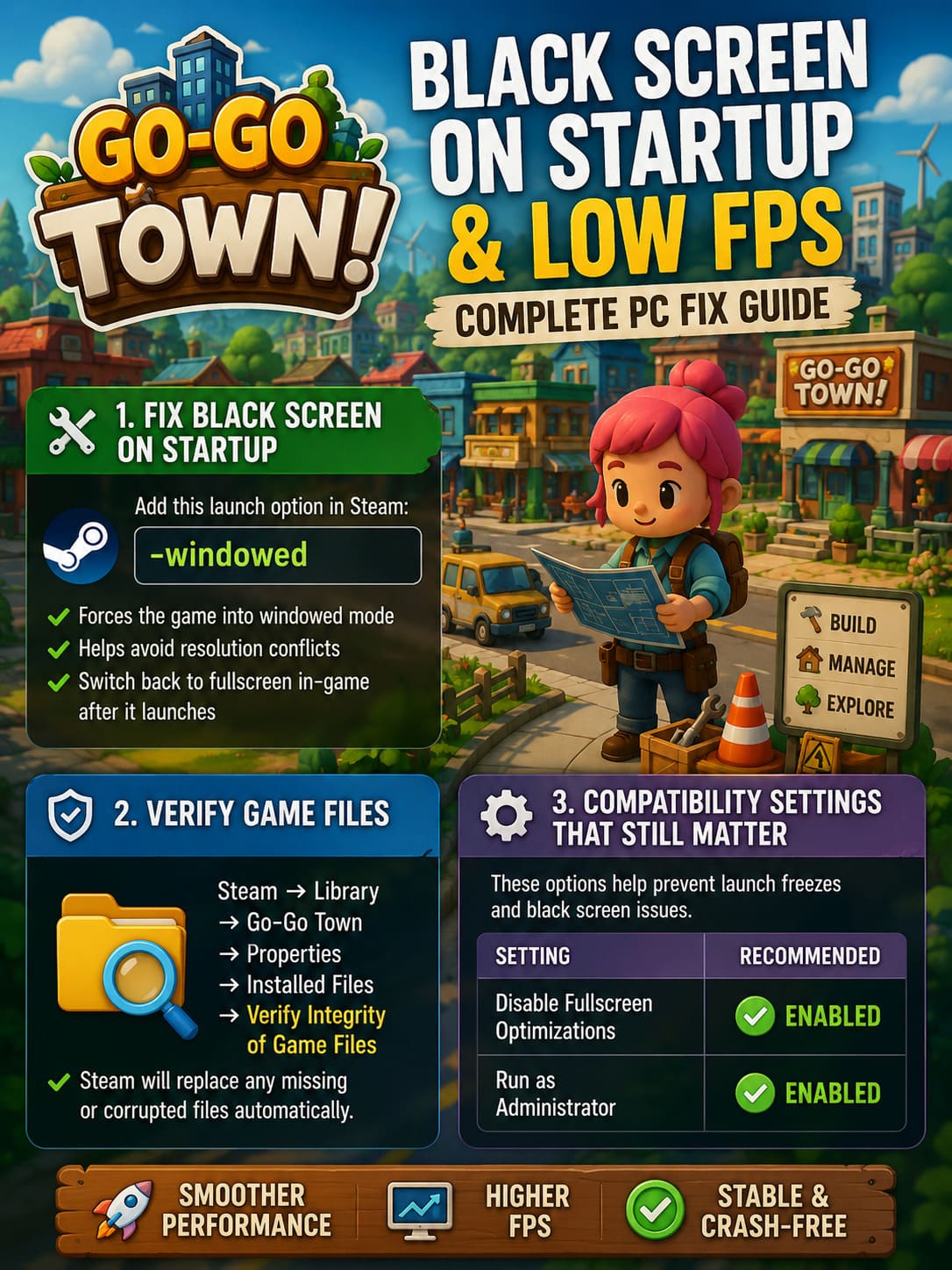
-windowedIt’s a tiny change, but surprisingly effective.
Once the game finally launches correctly, you can switch back to fullscreen inside the graphics menu.
This single tweak fixed startup problems for me far faster than reinstalling the game ever did.
Steam File Verification Is Worth Doing
Normally I don’t recommend verifying files unless there’s obvious corruption, but with Go-Go Town it’s actually one of the easier fixes.
Inside Steam:
Library → Go-Go Town → Properties → Installed Files → Verify Integrity of Game Files
It only takes a few minutes, and Steam replaces anything that’s missing or damaged automatically.
Considering how often games receive patches, it’s not impossible for one file to become corrupted during an update.
Compatibility Settings That Still Matter
Windows loves trying to “optimize” games.
Unfortunately, those optimizations sometimes create the exact opposite effect.
I recommend enabling both of these options on the game’s executable:
| Setting | Recommended |
|---|---|
| Disable Fullscreen Optimizations | Enabled |
| Run as Administrator | Enabled |
These settings won’t magically increase FPS, but they often eliminate launch freezes and strange black screen behavior.
Don’t Ignore GPU Drivers
It sounds obvious, but outdated graphics drivers remain one of the biggest causes of launch problems.
If you recently upgraded your graphics card—or even switched from AMD to NVIDIA or vice versa—a normal driver update isn’t always enough.
A completely clean installation often works much better.
If you’re experiencing repeated crashes after driver updates, removing old driver files before installing the newest version can eliminate conflicts that regular updates leave behind.
Also make sure Windows itself is fully updated.
Older DirectX components and Visual C++ libraries can prevent games from launching correctly.
The Biggest FPS Improvements I Found
After solving the startup issues, performance became the next challenge.
As my town expanded, FPS slowly dropped despite my GPU barely working.
That was the clue.
Go-Go Town is much more CPU-heavy than it initially appears.
Once hundreds of AI calculations begin running simultaneously, graphics settings alone won’t solve everything.
Still, several adjustments noticeably improved overall smoothness.
Graphics Settings That Actually Matter
Not every graphics option affects performance equally.
Here’s what had the biggest impact for me.
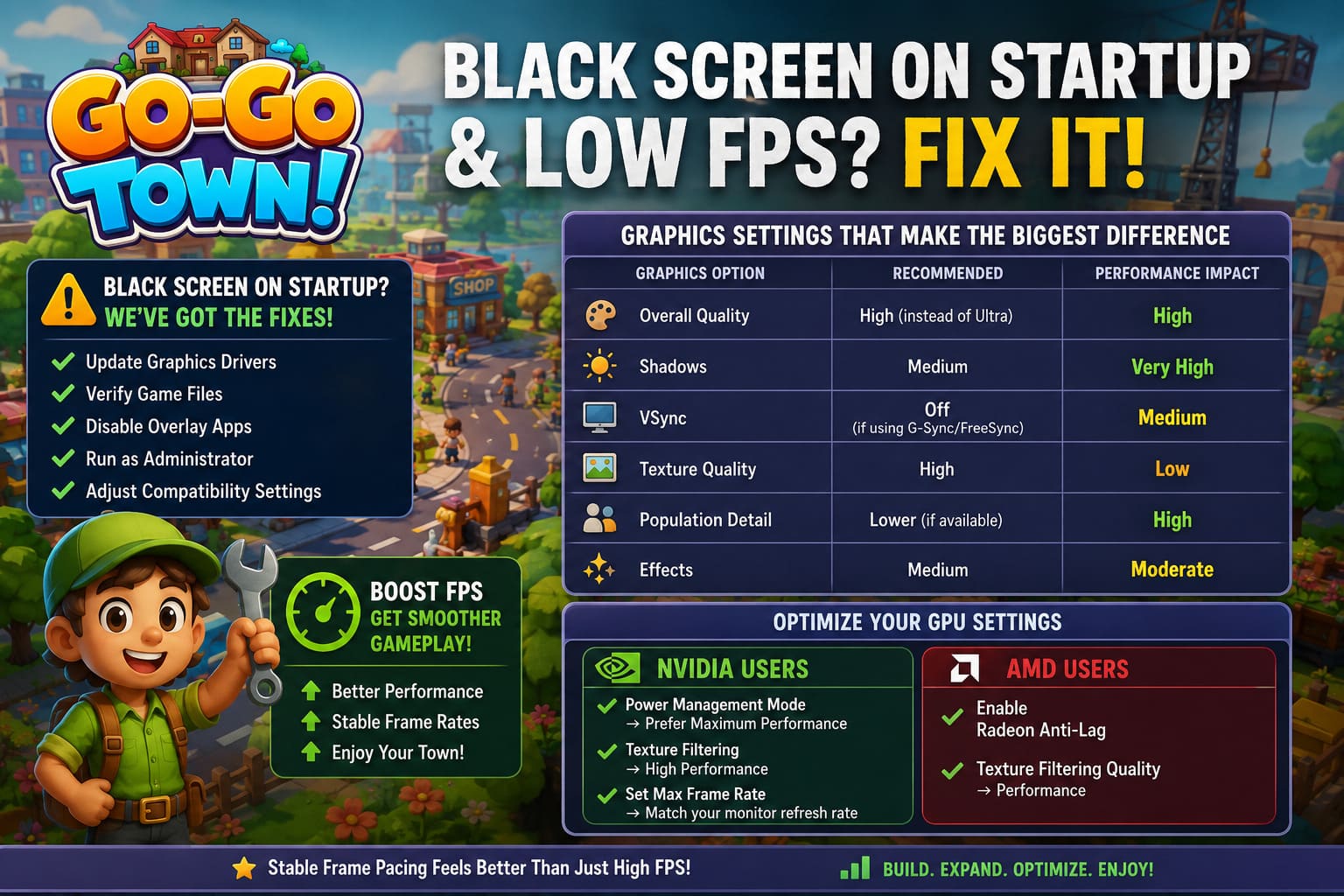
| Graphics Option | Recommendation | Performance Impact |
|---|---|---|
| Overall Quality | High instead of Ultra | High |
| Shadows | Medium | Very High |
| VSync | Off (if using G-Sync/FreeSync) | Medium |
| Texture Quality | High | Low |
| Population Detail | Lower if available | High |
| Effects | Medium | Moderate |
Interestingly, reducing shadows delivered a much larger FPS improvement than lowering textures.
The game still looked great, but frame rates became far more consistent.
NVIDIA and AMD Users Should Check Power Settings
Something many people overlook is the GPU power profile.
If Windows or your graphics software is using a balanced mode, your graphics card may never reach full performance.
For NVIDIA, I recommend:
- Power Management Mode → Prefer Maximum Performance
- Texture Filtering → High Performance
- Match the Maximum Frame Rate to your monitor refresh rate.
For AMD users:
- Enable Radeon Anti-Lag.
- Set Texture Filtering Quality to Performance.
Neither setting dramatically changes average FPS, but they often improve frame consistency.
And honestly, stable frame pacing usually feels better than simply having a higher FPS number.
The Real Performance Killer: Worker Pathfinding
This was probably the most surprising discovery.
As my town became larger, performance didn’t gradually decrease.
Instead, I’d suddenly lose 20–40 FPS for seemingly no reason.
Eventually I realized it happened whenever large groups of workers became stuck trying to navigate crowded industrial areas.
If you’ve built enormous storage districts with narrow walkways, decorative objects, or overlapping fences, workers sometimes spend excessive time recalculating routes.
That’s expensive for the CPU.
I eventually redesigned several production districts with:
- Wider walking paths.
- Fewer decorative obstacles.
- Better spacing between storage areas.
- More direct delivery routes.
To my surprise, FPS immediately became much more stable.
Sometimes improving city design helps more than lowering graphics quality.
Close Background Applications
This advice isn’t exciting, but it genuinely works.
Before launching Go-Go Town, I usually close:
- Discord overlays.
- Xbox Game Bar.
- Chrome tabs.
- Browser video playback.
- Recording software.
- RGB utility programs.
Individually these programs don’t consume much.
Together they can occupy enough CPU time to create inconsistent frame pacing.
Turn On Windows Game Mode
Windows Game Mode has improved significantly over the years.
It’s no longer the questionable feature it once was.
If it’s disabled, enable it.
It helps Windows prioritize active games while reducing interruptions from background processes.
Likewise, switching your Windows power plan from Balanced to High Performance prevents unnecessary CPU downclocking during heavier simulation loads.
Things That Didn’t Help Much
Not every popular suggestion actually improved performance.
Here are a few things that made little or no difference during my testing.
| Optimization | My Experience |
|---|---|
| Lowering Texture Quality | Very small FPS gain. |
| Reinstalling Windows | Unnecessary. |
| Turning every setting to Low | Town simulation still limited performance. |
| Unlimited FPS | Often caused inconsistent frame pacing. |
| Constant driver reinstalling | Only useful if drivers were actually corrupted. |
Sometimes it’s better to optimize intelligently instead of lowering everything.
Go-Go Town Characters Disappearing Bug Fix: How to Restore Missing Townies, Workers, and Tourists
If You’re Playing Co-op
Co-op adds another layer of complexity.
Synchronization between players increases CPU activity, especially in larger towns with many active systems.
If only one player experiences stuttering:
- Compare graphics driver versions.
- Verify game files on every PC.
- Ensure everyone has similar game versions.
- Reduce background applications before joining the session.
- Test the same save file in single-player to see whether multiplayer is actually the cause.
This makes troubleshooting much easier.
Go-Go Town! Automation Guide: Best Beginner Tips for 1.0 Release
My Overall Thoughts
Despite the technical hiccups, I genuinely enjoy Go-Go Town.
Its relaxing atmosphere, automation systems, and charming art style make it surprisingly addictive once your town starts running efficiently.
The good news is that most performance problems aren’t permanent bugs.
In my experience, startup issues usually came down to Windows compatibility settings or graphics drivers, while FPS drops were far more related to town design and CPU workload than raw GPU power.
If I had to recommend only three fixes, they’d be:
- Launch the game in windowed mode if you’re stuck on a black screen.
- Lower shadow quality before touching everything else.
- Redesign crowded worker routes once your town becomes large.
Those three changes produced the biggest improvements on my system.
Hopefully future patches continue optimizing worker AI and late-game simulation, because that’s where the game still has the most room to improve. Until then, a few smart Windows tweaks and better town planning can make Go-Go Town feel dramatically smoother without sacrificing the cozy experience that makes it so enjoyable.