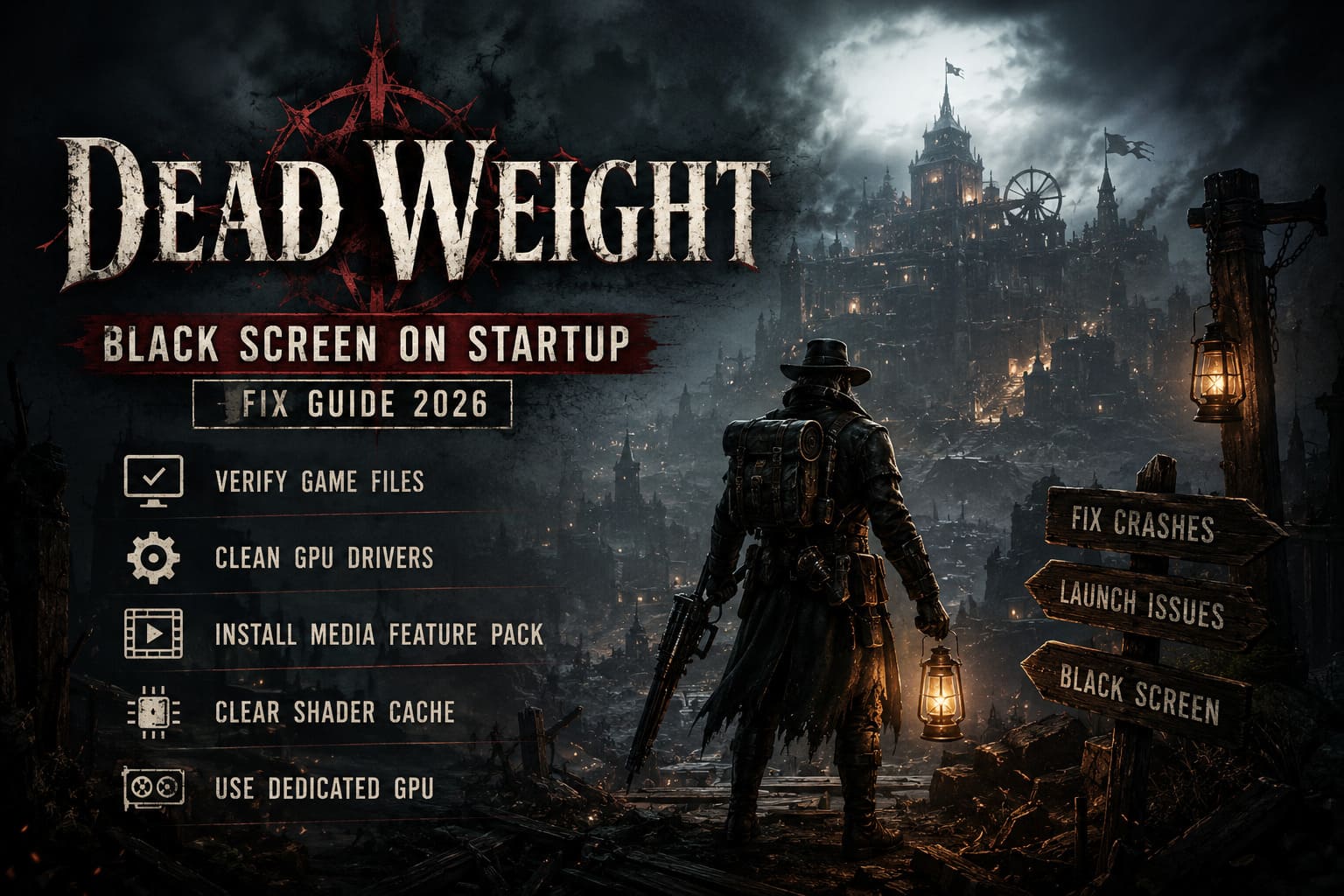
Dead Weight Black Screen on Startup on PC: Fix Guide for 2026
I was genuinely excited to jump into Dead Weight. The mix of tactical RPG combat, roguelike progression, and strategic decision-making had me hooked before I even hit the Play button. Unfortunately, my first experience wasn’t with enemies or difficult choices—it was with a completely black screen.
The game launched through Steam, my cursor changed, I even heard audio once, but the display stayed black. No menus, no logos, nothing. Judging by discussions across gaming communities, I quickly realized I wasn’t the only one dealing with this.
After testing different solutions on my own PC and comparing notes with other players, I found several fixes that consistently solved the problem. If Dead Weight won’t get past a black screen on startup, these are the methods I recommend trying first.
Why Does Dead Weight Show a Black Screen?
From what I’ve seen, this isn’t usually caused by one specific bug.
Instead, the black screen can happen because of several different conflicts:
- Graphics driver corruption
- Shader cache issues
- Fullscreen initialization failures
- Missing Windows media components
- Integrated GPU selection
- Third-party overlays interfering with rendering
The good news is that most of these are relatively easy to fix once you know where to look.
Start With Steam File Verification
Whenever a brand-new game refuses to launch correctly, I always begin with the simplest solution.
Even a single damaged shader or missing configuration file can stop the engine before it renders anything on screen.
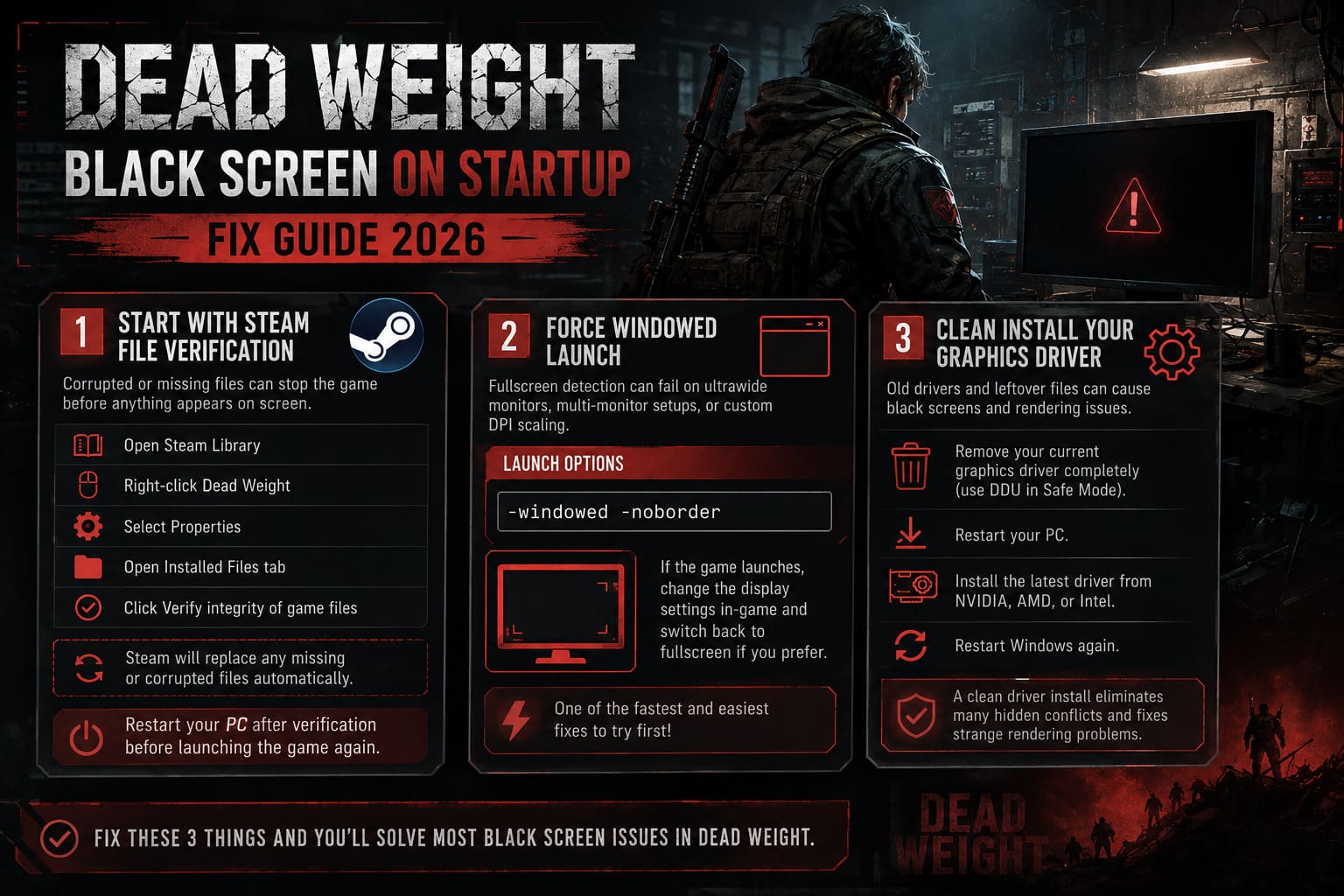
Verify your installation
- Open Steam Library.
- Right-click Dead Weight.
- Select Properties.
- Open the Installed Files tab.
- Click Verify integrity of game files.
Steam will automatically replace anything that’s missing or corrupted.
Once verification finishes, restart your PC before launching the game again.
This fix may seem basic, but it’s surprisingly effective after launch-day downloads.
Force the Game to Launch in Windowed Mode
One thing I’ve noticed with newer PC releases is that fullscreen detection occasionally fails, especially on ultrawide displays, multiple monitors, or systems using custom DPI scaling.
Launching in a borderless window often bypasses that entire problem.
Open Steam Properties for Dead Weight and add the following command under Launch Options:
-windowed -noborderIf the game loads successfully, change the display settings inside the game afterward and switch back to fullscreen if you prefer.
For me, this is one of the quickest fixes worth testing.
Completely Reinstall Your Graphics Driver
Updating a graphics driver isn’t always enough.
Old shader caches, registry entries, and leftover driver components sometimes remain behind after standard updates.
If you’ve been upgrading drivers for months without ever performing a clean installation, it’s worth doing now.
I recommend using Display Driver Uninstaller (DDU) in Safe Mode.
The process is straightforward:
- Remove the existing graphics driver completely.
- Restart your computer.
- Install the latest driver directly from NVIDIA, AMD, or Intel.
- Restart Windows once again.
It takes a little longer than a normal update, but it eliminates countless strange rendering issues.
Windows N Users Should Check Media Feature Pack
This solution surprised me the first time I encountered it.
Certain Windows editions don’t include Microsoft’s media components by default.
If Dead Weight tries to load an intro cinematic without those codecs available, the game may never display anything except a black screen.
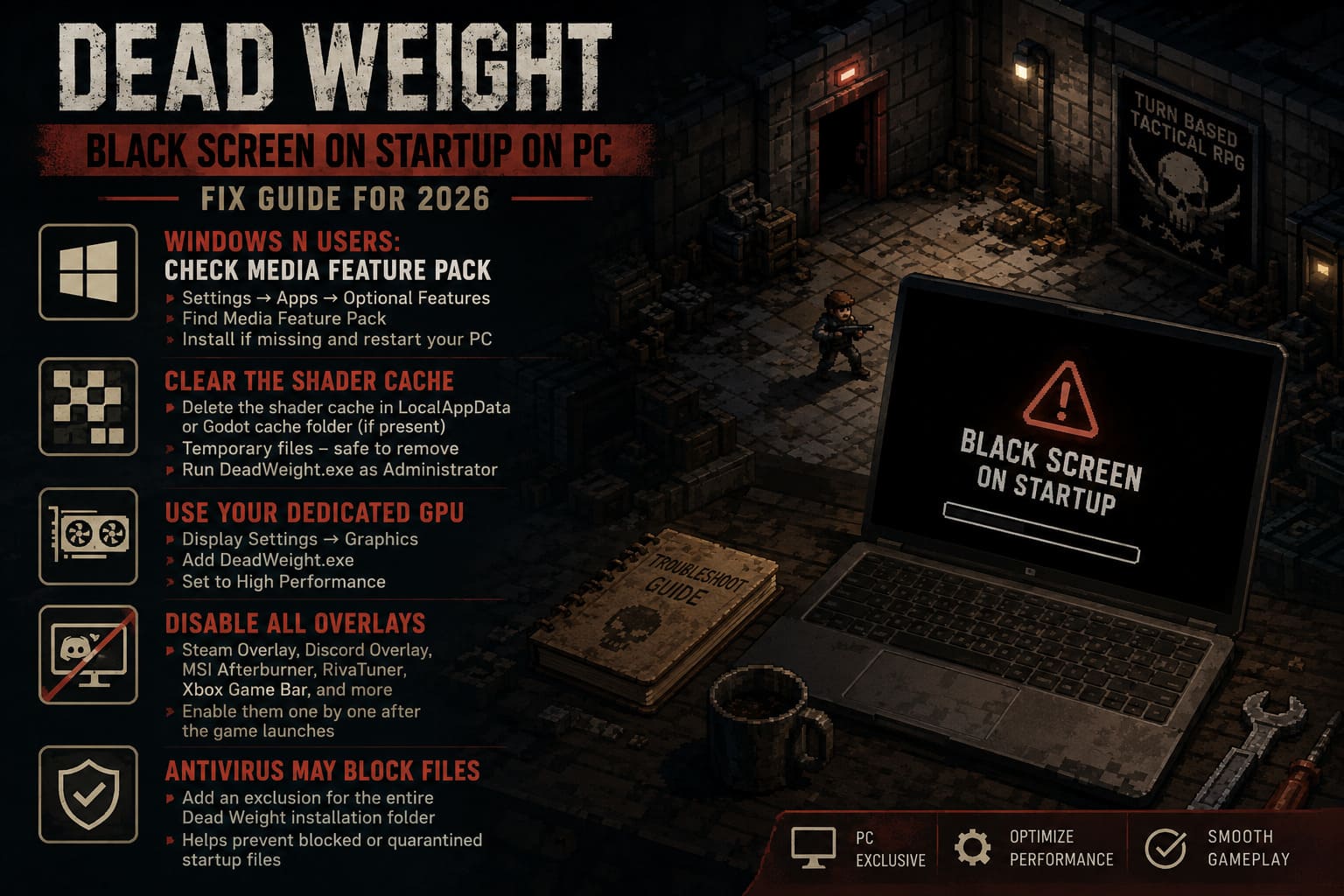
Navigate to Settings → Apps → Optional Features and search for Media Feature Pack.
If it isn’t installed, add it and reboot your PC afterward.
If it’s already installed, simply move on to the next fix.
Clear the Shader Cache
Shader compilation has become one of the biggest sources of launch problems in modern PC gaming.
Dead Weight appears to rebuild shaders during its first startup.
If that cache becomes corrupted, the rendering process may fail before the menu ever appears.
Delete the shader cache inside the game’s local application data or Godot cache directory if present.
Don’t worry—these files are temporary.
The engine automatically recreates them the next time you launch the game.
I also recommend running DeadWeight.exe as Administrator after clearing the cache.
Make Sure Your Dedicated GPU Is Actually Being Used
Laptop users run into this problem far more often than desktop owners.
Windows sometimes decides a game should run using integrated graphics instead of the dedicated GPU.
Needless to say, that’s not ideal.
To check your graphics preference:
- Open Display Settings.
- Select Graphics.
- Browse for DeadWeight.exe.
- Choose High Performance.
- Save the changes.
After forcing the dedicated graphics processor, many startup problems disappear immediately.
Disable Every Overlay Before Testing
I’ve lost count of how many launch issues were caused by overlays.
Steam Overlay, Discord Overlay, MSI Afterburner, RivaTuner, and Xbox Game Bar can all interfere with a game’s initialization process.
Whenever I’m troubleshooting, I disable everything first.
Only after the game launches correctly do I start enabling overlays one at a time.
It’s much easier to identify the real culprit this way.
Antivirus Can Occasionally Block Startup Files
Most antivirus software behaves well.
Sometimes, though, a newly released game gets flagged simply because it hasn’t built a reputation yet.
If Windows Defender or another antivirus quarantines a startup component, the result may simply be a frozen black screen.
Instead of disabling your antivirus entirely, create an exclusion for the entire Dead Weight installation folder.
It’s safer and usually solves the problem if security software is interfering.
Extra Things Worth Checking
If none of the previous fixes helped, these smaller adjustments are still worth trying.
- Install the latest DirectX Runtime.
- Repair the newest Microsoft Visual C++ Redistributables.
- Temporarily set Windows display scaling to 100%.
- Disconnect unnecessary USB devices before launching.
- Restart Steam completely.
- Reboot Windows after every major troubleshooting step.
Sometimes it’s the combination of several small fixes—not one big solution—that finally gets the game working.
Quick Reference Table
| Problem | Most Likely Cause | Recommended Fix |
|---|---|---|
| Black screen immediately after launch | Corrupted installation | Verify Steam files |
| Audio but no image | Missing media components | Install Media Feature Pack |
| Frozen black window | Shader cache corruption | Delete shader cache |
| Instant freeze on laptops | Integrated GPU selected | Force High Performance GPU |
| Launch works after several attempts | Overlay conflict | Disable Steam, Discord and RTSS overlays |
| Random startup failures | Graphics driver corruption | Perform a clean DDU driver installation |
Dead Weight Combat Guide: Beginner Tactical Strategies and Airship Mechanics (2026)
My Recommended Troubleshooting Order
If I had to start over from scratch, this is exactly the order I’d follow.
- Verify Steam game files.
- Launch using -windowed -noborder.
- Disable every overlay.
- Delete the shader cache.
- Force the dedicated GPU.
- Install the Media Feature Pack if you’re using Windows N.
- Perform a clean graphics driver installation using DDU.
This order moves from the quickest fixes to the more time-consuming ones, helping you avoid unnecessary work.
Dead Weight Class Guide: All 15 Character Classes and Multiclassing Tier List
Final Thoughts
One thing I’ve learned over the years is that PC game launches are rarely perfect, even for games that are otherwise incredibly polished. Dead Weight seems to be another example where the gameplay itself isn’t necessarily the issue—the startup environment is.
In my experience, the biggest culprits are shader compilation problems, graphics driver leftovers, and fullscreen initialization conflicts. Those three alone account for the majority of successful fixes I’ve seen players report.
The encouraging part is that once the game finally launches properly, most people don’t continue experiencing black screen problems afterward. It’s usually a first-start issue rather than something that keeps coming back every session.
If you’re still staring at a black screen after trying everything above, I’d focus next on running Windows system integrity checks with SFC and DISM, checking for unstable GPU overclocks, and making sure your monitor isn’t forcing an unsupported refresh rate during startup.
Dead Weight is absolutely worth getting running. Once I finally made it past that frustrating black screen, I spent far more time planning tactical encounters than troubleshooting Windows—and that’s exactly how it should be.