How to Fix The Life and Suffering of Sir Brante Crash on Startup on Steam (2026 Guide)
There are games you play for a weekend, and then there are games that stay with you long after the credits roll. The Life and Suffering of Sir Brante definitely belongs in the second category. It isn’t about flashy combat or cutting-edge graphics—it’s about difficult choices, moral compromises, and a world that constantly challenges every decision you make.
That’s exactly why it’s so frustrating when the game refuses to launch.
Over the past few years, I’ve seen dozens of Reddit discussions, Steam Community posts, and YouTube tutorials trying to solve startup crashes. Some of the advice works, some of it is outdated, and some fixes are honestly just random guesses. After helping a few friends get the game running again on modern Windows systems, I decided to collect the methods that consistently produce results.
If The Life and Suffering of Sir Brante crashes on startup, closes instantly after pressing Play, or gets stuck on a black screen in Steam, this guide walks through the fixes I’d personally try first.
Why Does Sir Brante Crash Before It Even Starts?
One thing worth mentioning is that this isn’t usually a problem with the game itself. The title was designed years ago, and Windows has changed quite a bit since then. New graphics drivers, security updates, display technologies, and Steam client updates occasionally create unexpected compatibility problems.

The most common causes include:
- damaged or incomplete game files;
- Windows permission conflicts;
- outdated Visual C++ libraries;
- GPU driver issues;
- fullscreen optimization bugs;
- antivirus software blocking the executable;
- display resolution or multi-monitor conflicts.
The good news? Most launch problems can usually be fixed in under twenty minutes.
Quick Troubleshooting Table
| Problem | Most Likely Cause | Recommended Fix |
|---|---|---|
| Instant crash after clicking Play | Corrupted files | Verify Steam files |
| Black screen with music | Resolution conflict | Change display settings |
| Nothing happens after launch | Windows permissions | Run as Administrator |
| Game opens then immediately closes | Missing runtime libraries | Repair Visual C++ |
| Crash after recent Windows update | Driver incompatibility | Update GPU drivers |
| Steam says Running then stops | Antivirus interference | Add the game folder to exclusions |
1. Verify the Steam Installation First
Whenever a Steam game refuses to launch, this is my automatic first step.
I’ve lost count of how many times Steam quietly replaced one damaged file and completely solved the issue.

To verify the installation:
- Open Steam.
- Find The Life and Suffering of Sir Brante in your Library.
- Open Properties.
- Select Installed Files.
- Click Verify integrity of game files.
Steam compares every installed file with the official version and downloads anything that’s missing.
It’s simple, takes only a few minutes, and honestly fixes more problems than people expect.
2. Give Windows Fewer Reasons to Interfere
Modern versions of Windows love trying to “optimize” games.
Unfortunately, older titles don’t always appreciate the help.
Locate the game’s executable inside its installation folder and open Properties → Compatibility.
Enable the following options:
- Run this program as Administrator
- Disable fullscreen optimizations
This combination has fixed startup crashes for plenty of indie games—not just Sir Brante.
If the game launches correctly from the executable but not through Steam, you’re already much closer to identifying the real problem.
3. Compatibility Mode Is Still Worth Trying
Some gamers immediately dismiss compatibility mode as outdated advice.
Personally, I wouldn’t rely on it as a first solution, but I’ve seen enough older RPGs suddenly work after switching to Windows 8 compatibility that it’s worth spending thirty seconds testing.
Inside the same Compatibility tab:
- Enable Compatibility Mode.
- Select Windows 8.
- If that doesn’t work, try Windows 7.
- Launch the game again through Steam.
It’s hardly a guaranteed fix, but it’s an easy one that has helped more than a few players.
4. Update Your Graphics Driver
This is especially important if you recently upgraded your graphics card or installed a major Windows update.
A surprising number of startup crashes have nothing to do with the game—they happen because DirectX or the graphics driver fails during initialization.
Whether you’re using NVIDIA, AMD, or Intel graphics, install the latest stable driver instead of assuming Windows Update handled everything.
Personally, I also recommend performing a clean installation whenever your driver package offers the option. Leftover settings from older versions occasionally create weird issues that are incredibly difficult to diagnose.
5. Don’t Ignore Windows Updates
I know. Nobody enjoys seeing another Windows update waiting.
But missing framework updates can prevent older games from launching correctly.
Before diving into complicated troubleshooting:
- Install all pending Windows updates.
- Restart your computer.
- Launch the game again.
It sounds almost too simple, but it has solved startup crashes for several people I know over the years.
6. Repair Microsoft Visual C++ Redistributables
This is one of those fixes that’s easy to overlook.
Many PC games—including Sir Brante—depend on Microsoft’s runtime libraries.
If those become damaged, the game may never even reach the title screen.
Download the latest supported Visual C++ Redistributables directly from Microsoft and choose Repair instead of uninstalling them.
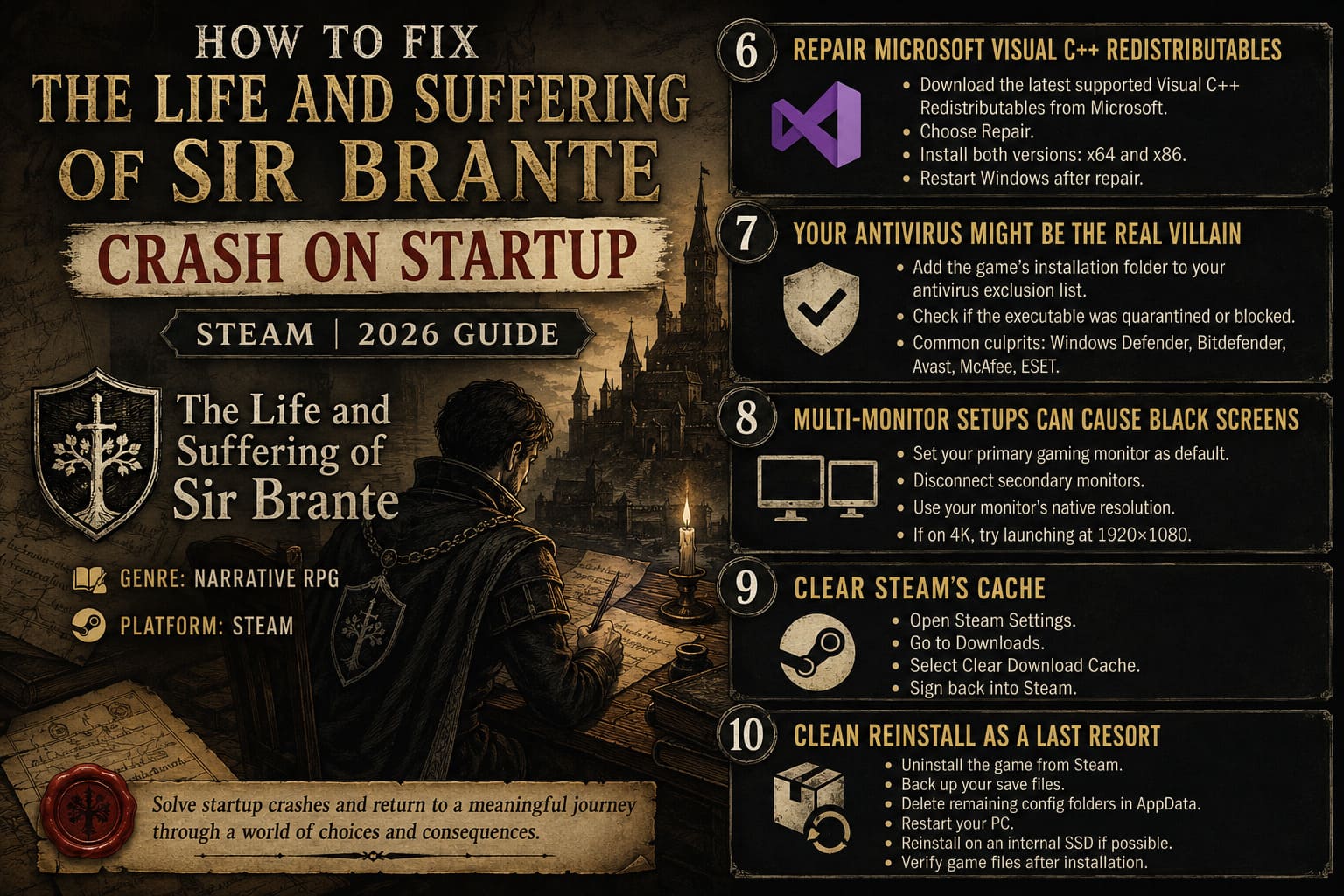
Install both versions:
- x64
- x86
Even on a 64-bit operating system, both versions are commonly required.
After the repair finishes, restart Windows before testing the game again.
7. Your Antivirus Might Be the Real Villain
This one genuinely surprised me.
Several players reported that Windows Security—or third-party antivirus software—prevented the game from creating configuration files during launch.
The result? An instant crash before anything meaningful appeared on screen.
Instead of disabling antivirus completely, simply add the game’s installation folder to the exclusion list.
If you’re using any of the following security suites, it’s worth checking whether the executable has been quarantined or silently blocked:
- Windows Defender
- Bitdefender
- Avast
- McAfee
- ESET
False positives aren’t nearly as rare as people think, especially with smaller indie releases.
8. Multi-Monitor Setups Can Cause Black Screens
This issue appears much more frequently today than it did a few years ago.
Running dual monitors, ultrawide displays, 4K panels, or monitors with different refresh rates can occasionally confuse older games during startup.
If Sir Brante plays music but only shows a black screen, try the following:
- Make your primary gaming monitor the default display.
- Temporarily disconnect secondary monitors.
- Switch to your monitor’s native resolution.
- If you’re playing on a 4K display, test launching the game at 1920×1080.
I’ve personally fixed several indie games this way. Sometimes the game is technically running—it just opens somewhere Windows isn’t displaying correctly.
9. Clear Steam’s Cache
Steam itself isn’t perfect.
Occasionally its download cache or local browser data becomes corrupted.
Clearing the cache forces Steam to rebuild several internal files.
The process only takes a couple of minutes:
- Open Steam Settings.
- Navigate to Downloads.
- Select Clear Download Cache.
- Sign back into Steam.
If you’ve been installing and uninstalling lots of games recently, this step is definitely worth trying.
10. Clean Reinstall as a Last Resort
If absolutely nothing else works, I’d recommend starting fresh.
Not because reinstalling magically fixes everything—but because leftover configuration files sometimes survive normal uninstallations.
Here’s the order I’d follow:
- Uninstall the game from Steam.
- Back up your save files.
- Remove any remaining configuration folders inside AppData.
- Restart the computer.
- Install the game again on an internal SSD if possible.
- Verify the files once after installation finishes.
It’s more time-consuming, but it eliminates nearly every software-related issue in one go.
A Few Extra Things I’d Check
These aren’t guaranteed fixes, but they’ve helped enough players that they’re worth mentioning.
Close background overlays.
Applications like Discord, MSI Afterburner, RivaTuner Statistics Server, GeForce Experience overlays, Xbox Game Bar, and various RGB control utilities occasionally interfere with older engines.
Disconnect unnecessary USB devices.
Flight sticks, steering wheels, drawing tablets, capture cards, and unusual controllers have caused startup problems in more than one PC game over the years.
Disable overclocking temporarily.
If your CPU or GPU is heavily overclocked, revert to stock settings just long enough to test the launch. Stable in one game doesn’t always mean stable in every title.
My Personal Take
I’ve always liked games that don’t rely on spectacle to leave an impression.
The Life and Suffering of Sir Brante is one of those rare RPGs where reading dialogue never feels like a chore because every conversation can reshape your future. That’s exactly why seeing players bounce off because of technical issues is disappointing.
The encouraging part is that, unlike some modern AAA releases plagued by engine-level bugs, Sir Brante’s startup problems are usually linked to Windows, Steam, or missing dependencies rather than the game itself.
If I had to rank the fixes by success rate based on what I’ve seen across community discussions and my own experience, it would look something like this:
| Rank | Fix | Success Rate (Personal Experience) |
|---|---|---|
| ⭐⭐⭐⭐⭐ | Verify Steam files | Very High |
| ⭐⭐⭐⭐⭐ | Update GPU drivers | Very High |
| ⭐⭐⭐⭐☆ | Repair Visual C++ | High |
| ⭐⭐⭐⭐☆ | Administrator mode | High |
| ⭐⭐⭐☆☆ | Antivirus exclusions | Medium |
| ⭐⭐⭐☆☆ | Clean reinstall | Medium to High |
Final Thoughts
Startup crashes can make it feel like you’re fighting your PC before you’ve even entered the world of Sir Brante. Fortunately, most launch problems have straightforward solutions once you know where to look.
I’d begin with Steam file verification, then move on to graphics driver updates, Visual C++ repairs, and administrator compatibility settings. If the game still refuses to cooperate, checking antivirus exclusions and performing a clean reinstall usually covers the remaining edge cases.
Once everything is working, you’ll quickly forget the troubleshooting session and get back to what really matters—making impossible decisions, living with their consequences, and experiencing one of the most memorable narrative RPGs available on PC.