How to Fix Assassin’s Creed Black Flag Resynced Shader Compilation Stuttering on PC
Few games deserve a modern comeback as much as Assassin’s Creed Black Flag. Sailing across the Caribbean, hunting legendary ships, boarding enemy frigates, and exploring tropical islands remains just as addictive today as it was years ago. The Resynced edition dramatically upgrades the experience with modern rendering technology, richer lighting, atmospheric weather effects, and far more detailed environments. It looks incredible—but there’s one frustrating issue that has become the biggest topic among PC players.
Micro-stuttering.
Even gamers running an RTX 4090, RTX 5080, RX 7900 XTX, or the latest Ryzen and Intel processors have reported random frametime spikes, hitching while entering new locations, and sudden FPS drops during naval battles. After spending dozens of hours testing different settings, reading countless community discussions, and comparing hardware behavior, one thing became obvious: this isn’t simply a “your PC isn’t powerful enough” problem. Most of the stuttering comes from how the engine handles shader compilation, CPU scheduling, and several questionable default graphics options.
The good news? Most of these problems can be reduced—or almost completely eliminated—with a few smart adjustments.
Why Does Black Flag Resynced Stutter on Powerful PCs?
This is probably the first question everyone asks after installing the game.
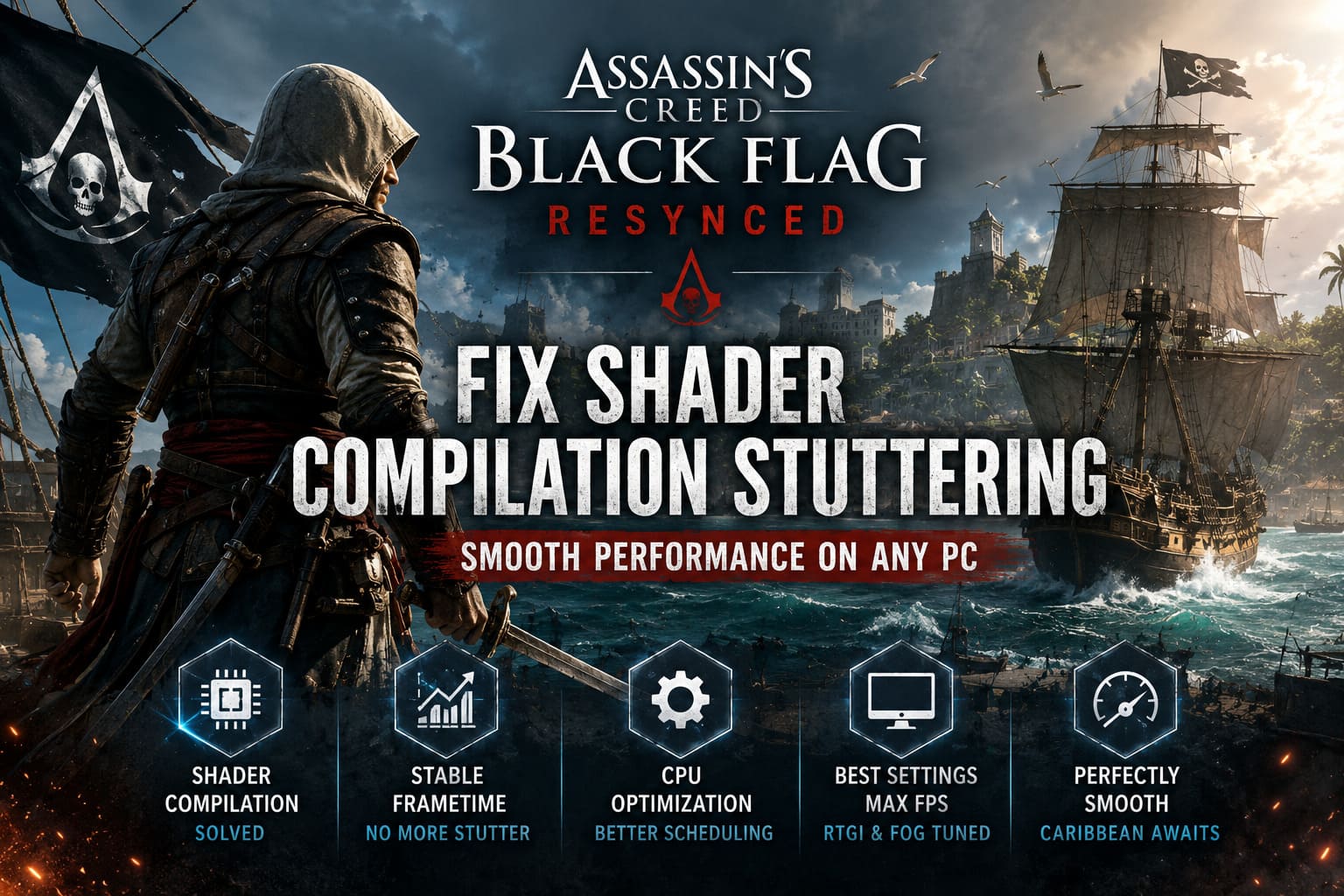
You launch it expecting buttery smooth gameplay, only to experience tiny freezes every few seconds while walking through Havana or steering the Jackdaw into a busy harbor.
The biggest culprit is real-time shader compilation.
Unlike many modern PC games that force every shader to compile before gameplay starts, Black Flag Resynced appears to build a large portion of its shader cache dynamically. Whenever the engine encounters a new material, lighting effect, weather transition, or environmental asset for the first time, it may briefly pause while compiling new shaders.
Those tiny pauses become visible as annoying frametime spikes.
The situation becomes even worse because the original engine architecture still carries some legacy limitations dating back to the 2013 release. The visual technology is modern, but parts of the underlying CPU workload still behave like an older generation game, creating unnecessary bottlenecks on today’s multi-core processors.
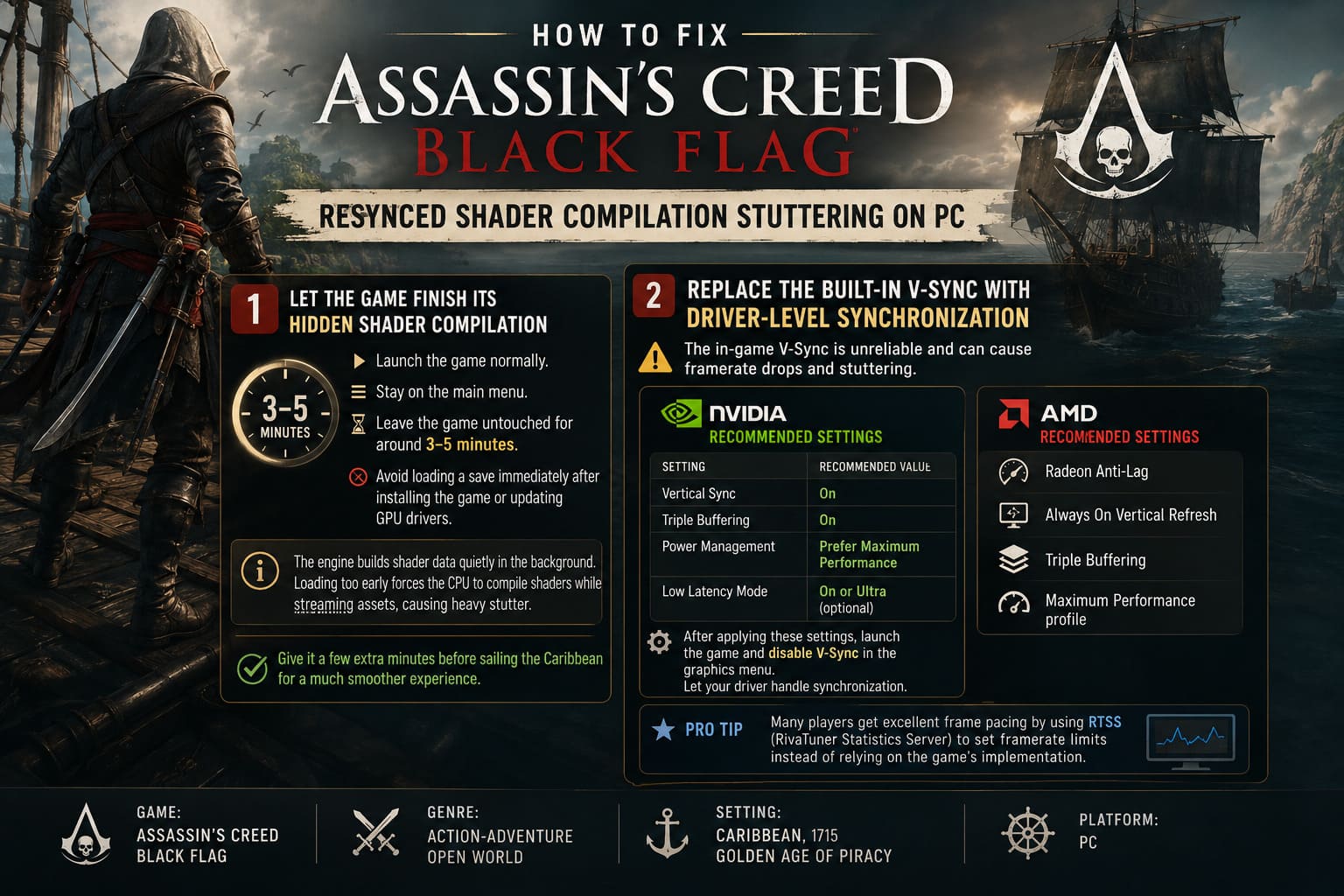
Let the Game Finish Its Hidden Shader Compilation
This sounds incredibly simple, but it’s probably the easiest performance improvement available.
Many players launch the game and immediately load their save.
That’s exactly what you shouldn’t do.
Instead:
- Launch the game normally.
- Stay on the main menu.
- Leave the game untouched for around 3–5 minutes.
- Avoid loading a save immediately after installing the game or updating GPU drivers.
While nothing dramatic appears on screen, the engine is often building shader data quietly in the background.
Loading into gameplay too early forces the CPU to compile shaders while simultaneously streaming world assets, animations, textures, and audio. That’s the perfect recipe for heavy hitching.
I noticed the difference almost immediately after giving the game a few extra minutes before jumping into the Caribbean.
Replace the Built-In V-Sync With Driver-Level Synchronization
One of the oldest complaints surrounding Ubisoft’s Anvil engine has returned once again.
The in-game V-Sync simply isn’t very reliable.
Whenever performance briefly dips below your monitor’s refresh rate, the engine can aggressively halve the framerate target, producing sudden jumps between smooth gameplay and obvious stutter.
A better solution is allowing your GPU driver to manage synchronization instead.
NVIDIA Recommended Settings
| Setting | Recommended Value |
|---|---|
| Vertical Sync | On |
| Triple Buffering | On |
| Power Management | Prefer Maximum Performance |
| Low Latency Mode | On or Ultra (optional) |
After applying those settings, launch the game and disable V-Sync inside the graphics menu.
This allows the driver to handle synchronization much more consistently.
AMD Recommended Settings
AMD users can achieve similarly smooth results by enabling:
- Radeon Anti-Lag
- Always On Vertical Refresh
- Triple Buffering
- Maximum Performance profile
Several players also report excellent frame pacing while using RTSS to manage framerate limits externally instead of relying on the game’s own implementation.
Improve CPU Thread Scheduling
One interesting discovery made by many enthusiasts is how unevenly the game distributes CPU workloads.
Instead of spreading work efficiently across physical cores, the engine sometimes overloads one logical thread while leaving others relatively idle.
The result?
Random frametime spikes that feel completely disconnected from GPU usage.
Quick Windows Affinity Reset
This trick only takes a few seconds.
- Launch the game.
- Open Task Manager.
- Navigate to Details.
- Find the game’s executable.
- Open Set Affinity.
- Disable the last CPU core.
- Apply the change.
- Re-enable that same core.
Oddly enough, forcing Windows to rebuild thread scheduling often smooths out CPU utilization during gameplay.
It sounds strange, but it genuinely works for many systems.
Process Lasso Can Offer a Permanent Solution
If you don’t want to repeat the affinity trick every time you launch the game, Process Lasso is worth considering.
Many PC enthusiasts already use it for older DirectX games.
After creating a permanent CPU affinity rule, you can configure the game to prioritize physical cores while avoiding unnecessary Hyper-Threading or SMT scheduling issues.
Although results vary depending on your processor, this adjustment has consistently reduced frametime instability for numerous players using modern Intel and AMD CPUs.
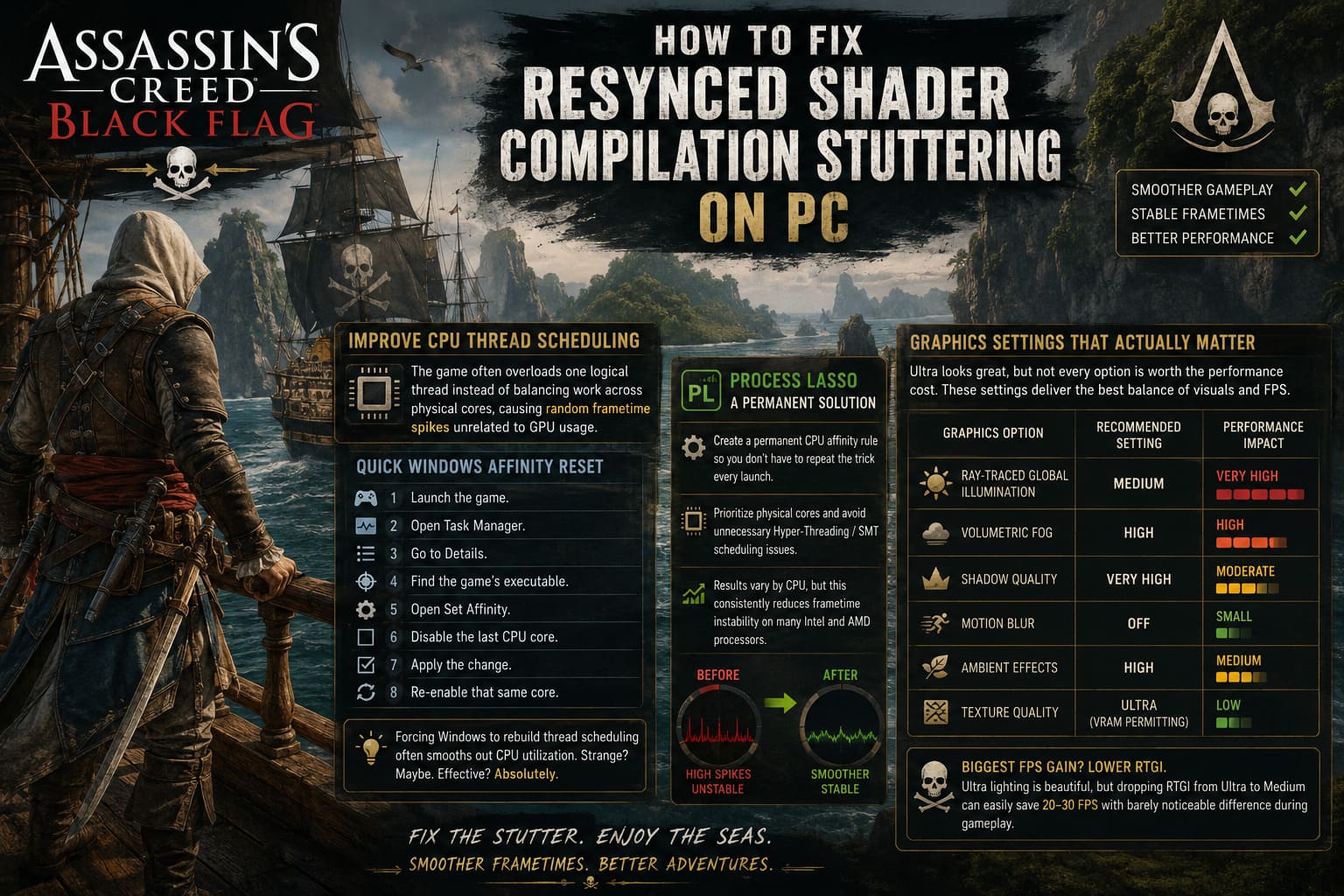
Graphics Settings That Actually Matter
Ultra presets look fantastic, but not every visual option delivers meaningful improvements.
Some settings consume a huge amount of GPU resources while barely changing image quality during normal gameplay.
Here’s the configuration I ended up preferring.
| Graphics Option | Recommended Setting | Performance Impact |
|---|---|---|
| Ray-Traced Global Illumination | Medium | Very High |
| Volumetric Fog | High | High |
| Shadow Quality | Very High | Moderate |
| Motion Blur | Off | Small |
| Ambient Effects | High | Medium |
| Texture Quality | Ultra (VRAM permitting) | Low |
The biggest performance gain almost always comes from lowering RTGI.
Yes, Ultra lighting looks beautiful.
No, it usually isn’t worth sacrificing 20–30 FPS for reflections you’ll barely notice while climbing ships or fighting enemy captains.
Try Disabling Hardware-Accelerated GPU Scheduling
Windows’ Hardware-Accelerated GPU Scheduling (HAGS) can be somewhat unpredictable.
Some games benefit from it.
Others perform noticeably worse.
Black Flag Resynced appears to fall into the second category on certain systems.
If frametime graphs remain inconsistent despite lowering graphics settings, try disabling HAGS.
After changing the setting, always restart Windows before testing performance again.
This small tweak has solved persistent micro-stuttering for a surprising number of players.
Disable Every Overlay You Don’t Need
Background overlays have become one of the most overlooked causes of inconsistent frame pacing.
Modern PC gaming often involves multiple applications trying to inject themselves into DirectX simultaneously.
Examples include:
- Ubisoft Connect Overlay
- Discord Overlay
- Steam Overlay
- GeForce Experience Overlay
- Radeon Overlay
- OBS capture hooks
- Hardware monitoring overlays
Every additional overlay slightly increases the chances of conflicts with rendering.
I usually disable everything except the launcher itself whenever benchmarking a new game.
It’s amazing how often that alone eliminates random hitching.
How to Fix Assassin’s Creed Black Flag Resynced Crash to Desktop After Prologue
Additional Performance Tips Worth Trying
If you’re still chasing perfectly smooth gameplay, these smaller tweaks are also worth testing.
- Install the game on an SSD or NVMe drive.
- Update graphics drivers before troubleshooting anything else.
- Close RGB control software running in the background.
- Avoid unnecessary browser tabs while gaming.
- Lock FPS slightly below your monitor refresh rate using RTSS if you notice unstable frame pacing.
- Keep Windows Game Mode enabled unless you’ve confirmed it hurts performance on your system.
None of these changes perform miracles individually, but together they help create a much cleaner gaming environment.
How to Fix Assassin’s Creed Black Flag Resynced Splash Screen Freeze on Startup
Quick Optimization Checklist
| Optimization | Recommended |
|---|---|
| Wait at Main Menu | ✔ |
| Disable In-Game V-Sync | ✔ |
| Enable Driver V-Sync | ✔ |
| Enable Triple Buffering | ✔ |
| Reduce RTGI | ✔ |
| Lower Volumetric Fog | ✔ |
| Disable Motion Blur | ✔ |
| Test HAGS Off | ✔ |
| Disable Overlays | ✔ |
| Reset CPU Affinity | ✔ |
Final Thoughts
Black Flag Resynced delivers one of the most visually impressive versions of Edward Kenway’s legendary adventure, but its PC version clearly inherits some technical baggage beneath all the gorgeous lighting upgrades. The good news is that most of the frustrating stuttering isn’t caused by weak hardware—it’s the result of shader compilation behavior, legacy CPU scheduling quirks, and a handful of poorly optimized default settings.
Once I stopped rushing into gameplay, switched synchronization over to the GPU driver, tuned a few graphics options, and cleaned up background software, the experience became dramatically smoother. Sailing across the Caribbean finally felt the way it should: stable, responsive, and immersive instead of constantly interrupted by random frametime spikes.
If you’re still chasing perfectly consistent performance, don’t expect one magical setting to fix everything. The real improvement comes from combining several smaller optimizations. Together, they transform Black Flag Resynced into a far more polished PC experience, allowing the upgraded visuals to shine without the constant distraction of shader hitches and uneven frame pacing.