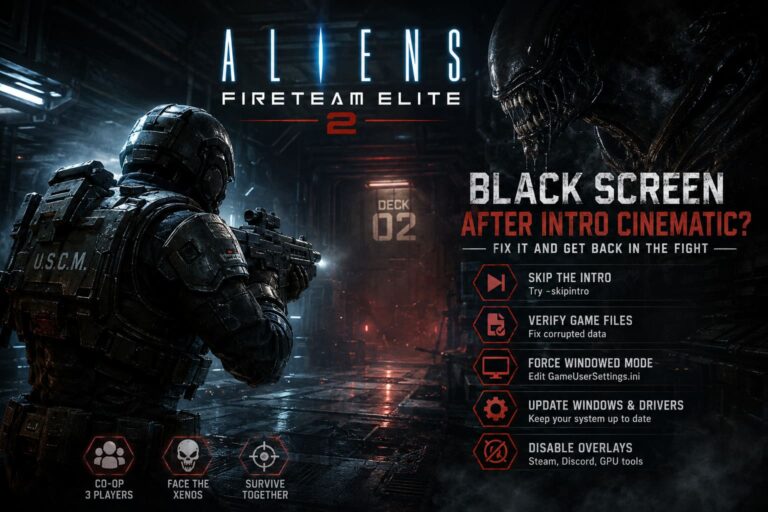
How to Fix Controller Input Lag in Cat Mail Co. (2026 PC & Console Guide)
When I first launched Cat Mail Co., I expected a cozy evening of sorting letters, delivering magical packages, and relaxing with one of the most charming indie games of 2026. Instead, I spent my first hour wondering why every movement felt delayed. My character reacted just a fraction of a second too late, menu navigation felt sluggish, and lining up deliveries became surprisingly frustrating.
At first, I blamed my controller. Then I blamed Bluetooth. After digging through community discussions, experimenting with different settings, and testing multiple controllers myself, I realized the issue isn’t usually caused by a single thing. It’s often several small factors adding extra latency together.
If you’re experiencing controller delay in Cat Mail Co., here’s what actually made the biggest difference for me.
Why Does Cat Mail Co. Feel Laggy?
One thing I noticed almost immediately is that the game itself isn’t necessarily running poorly. FPS can stay relatively high while the controls still feel delayed.
That’s because input latency and frame rate aren’t always the same problem.
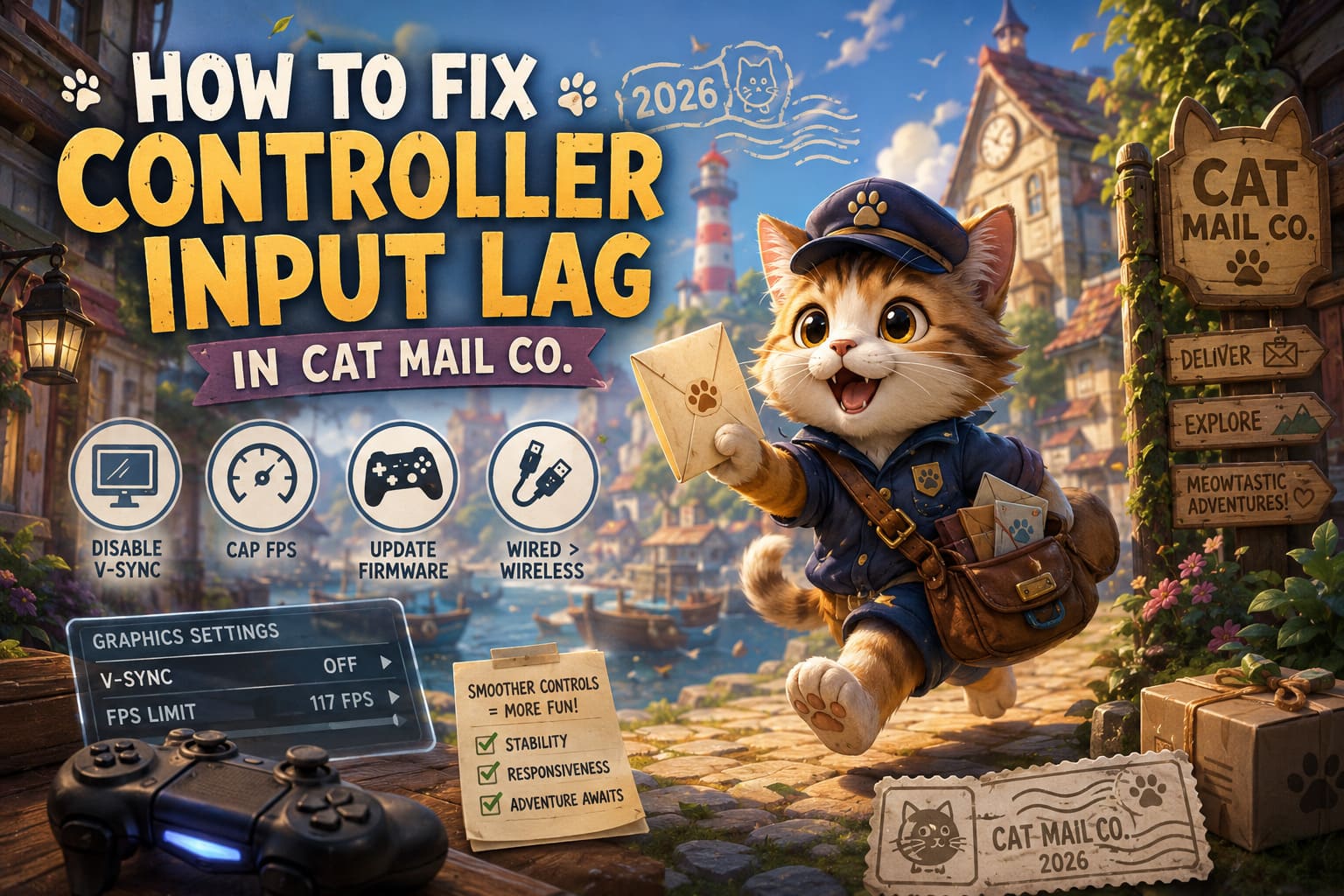
Your controller sends commands instantly, but those commands still have to travel through Windows (or your console), the game engine, graphics rendering, display synchronization, and finally your monitor or TV.
If one of those steps introduces delay, the entire game starts feeling “heavy.”
My First Fix: Disable In-Game V-Sync
This was easily the biggest improvement.
Many games ship with V-Sync enabled because it removes screen tearing. Unfortunately, it can also introduce noticeable input delay.
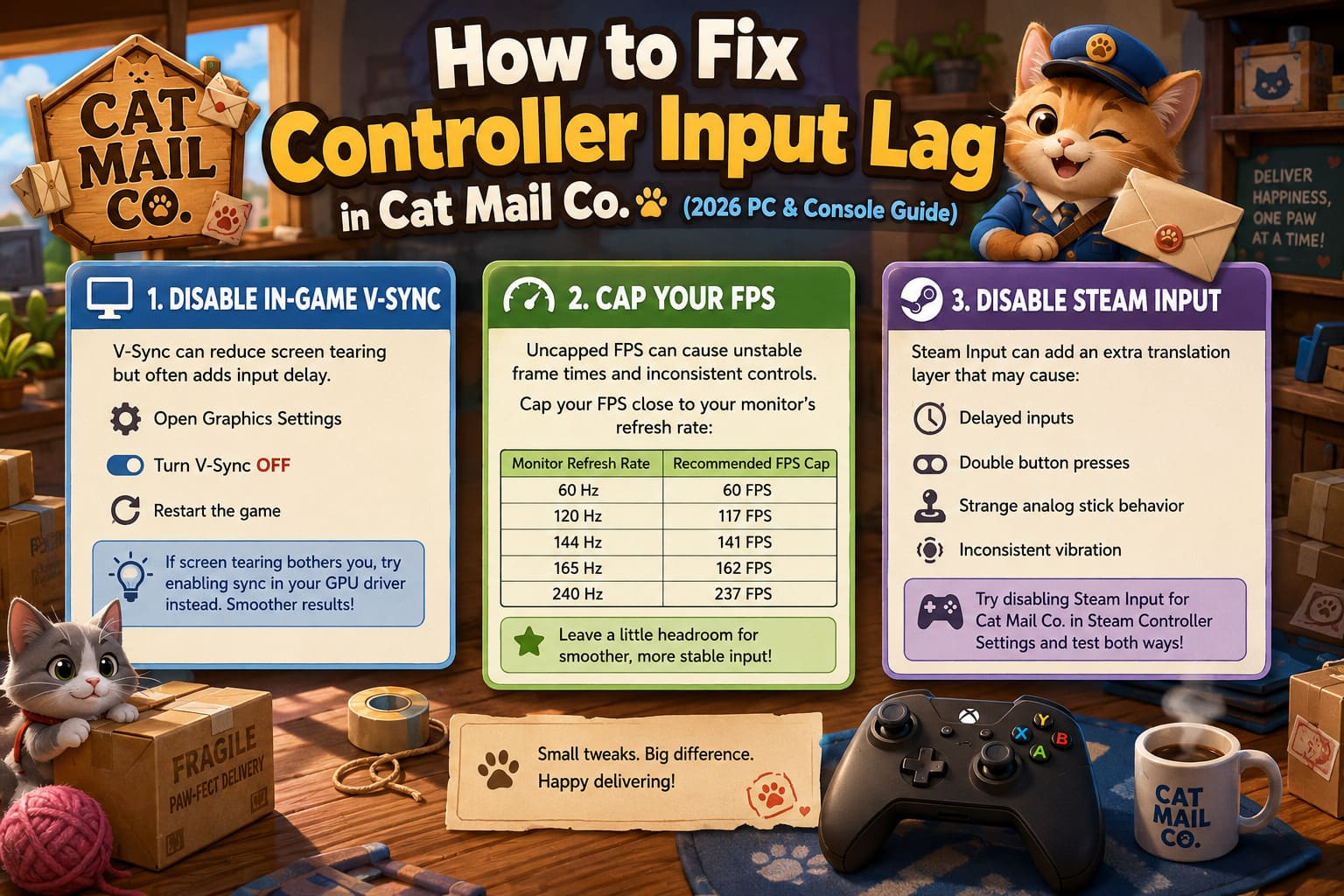
Inside Cat Mail Co. I simply:
- Opened Graphics Settings
- Turned V-Sync Off
- Restarted the game
Immediately everything felt much more responsive.
If screen tearing bothers you afterward, I personally recommend enabling synchronization through your graphics driver instead of the in-game option. I’ve consistently had smoother results that way across dozens of PC games.
Don’t Let Your FPS Run Wild
This surprised me.
Normally I leave every game uncapped because “more FPS is always better,” right?
Not exactly.
When Cat Mail Co. was pushing my GPU to its limit, I actually noticed more inconsistent controls.
Setting an FPS cap helped stabilize frame times.
A few good examples:
| Monitor Refresh Rate | Recommended FPS Cap |
|---|---|
| 60 Hz | 60 FPS |
| 120 Hz | 117 FPS |
| 144 Hz | 141 FPS |
| 165 Hz | 162 FPS |
| 240 Hz | 237 FPS |
Leaving just a tiny amount of headroom often produces smoother input than constantly maxing out your hardware.
Steam Input Isn’t Always Your Friend
Steam Input is fantastic.
I use it constantly for older games.
But newer titles that already support Xbox and PlayStation controllers sometimes don’t need Steam translating controller inputs.
That extra translation layer can occasionally create:
- Delayed inputs
- Double button presses
- Strange analog stick behavior
- Inconsistent vibration
For me, disabling Steam Input specifically for Cat Mail Co. made the controls feel much more natural.
It’s worth testing both options because every controller behaves a little differently.
Xbox, DualSense, or Third-Party?
I tried three different controllers.
Here’s how they compared during my testing.
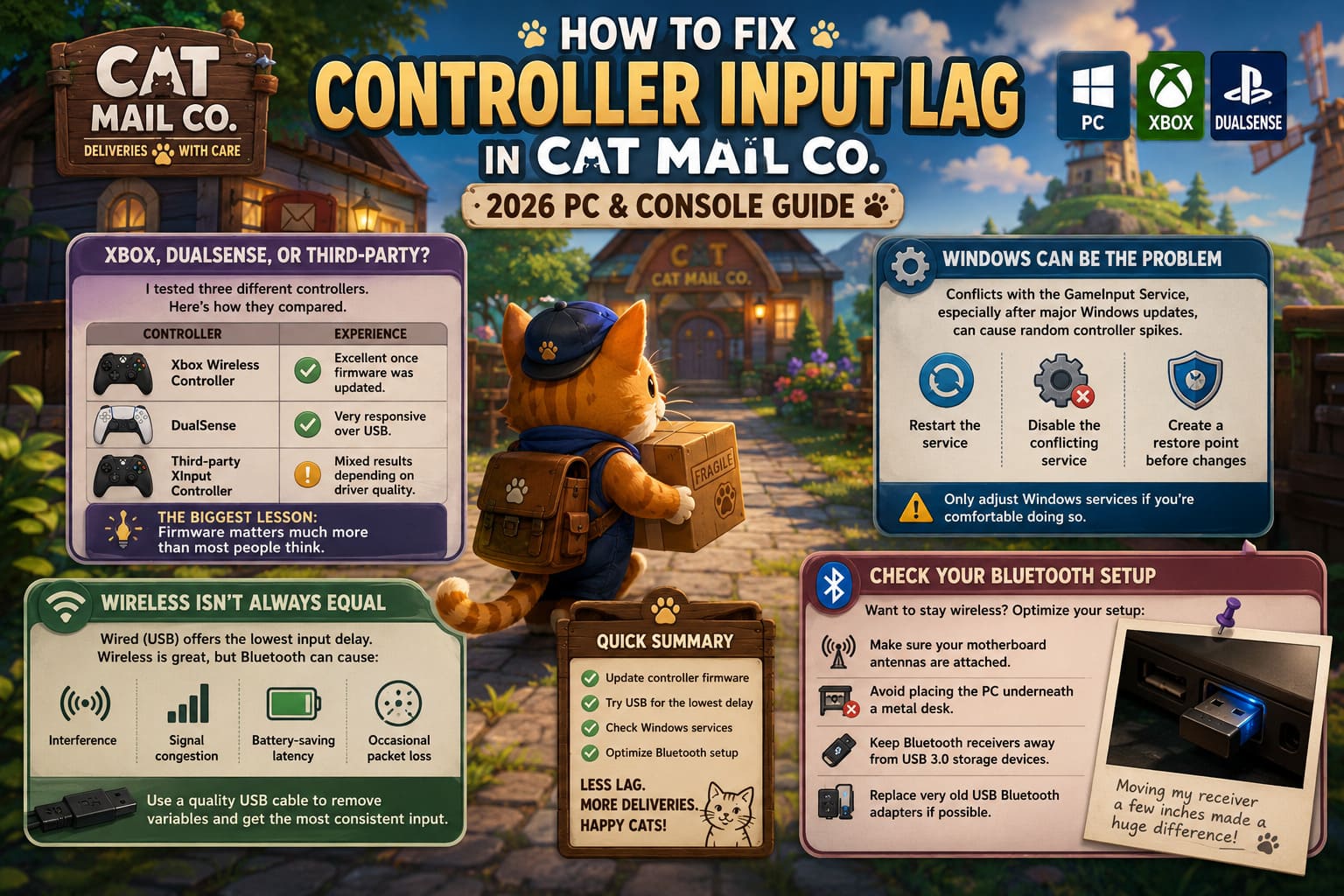
| Controller | Experience |
|---|---|
| Xbox Wireless Controller | Excellent once firmware was updated. |
| DualSense | Very responsive over USB. |
| Third-party XInput Controller | Mixed results depending on driver quality. |
The biggest lesson?
Firmware matters much more than most people think.
Even if your controller works perfectly in every other game, an outdated firmware version can introduce weird compatibility issues with newer releases.
Updating took only a few minutes.
Windows Can Be the Problem
This was the weirdest fix I found.
Several Windows users discovered conflicts involving the GameInput Service, especially after major Windows updates.
In some cases, restarting or disabling the conflicting service reduced random controller spikes.
I wouldn’t recommend changing Windows services unless you’re comfortable doing so, but it’s definitely worth investigating if every other fix fails.
Before making any system changes, it’s also smart to create a restore point.
Wireless Isn’t Always Equal
I normally play wirelessly.
For Cat Mail Co., though, I switched to USB just to compare.
The difference wasn’t dramatic—but it was definitely noticeable.
Wireless controllers today are incredibly good, but Bluetooth still has a few disadvantages:
- Interference
- Signal congestion
- Battery-saving latency
- Occasional packet loss
Using a quality USB cable removes almost every one of those variables.
If you’re chasing the lowest possible input delay, wired is still the safest option.
Check Your Bluetooth Setup
If you want to stay wireless, don’t overlook your Bluetooth hardware.
Some easy things to check:
- Make sure your motherboard antennas are attached.
- Avoid placing the PC underneath a metal desk.
- Keep Bluetooth receivers away from USB 3.0 storage devices.
- Replace very old USB Bluetooth adapters if possible.
I was honestly surprised how much moving my receiver just a few inches improved connection stability.
Lower Graphics Can Improve Controls
This sounds backwards.
Graphics settings shouldn’t affect controller responsiveness…
…except they often do.
Heavy effects increase GPU load, which increases render latency.
The biggest offenders in Cat Mail Co. seem to be:
- Volumetric lighting
- Weather particles
- High shadow quality
- Excessive ambient effects
Dropping those from Ultra to Medium barely changed the game’s beautiful art style, but it definitely helped responsiveness during busy scenes.
Verify Your Game Files
If the problem suddenly appears after an update, don’t immediately assume the patch is broken.
Corrupted files happen.
Verifying game files is one of the quickest troubleshooting steps available.
It only takes a few minutes and has fixed countless strange issues for me over the years—not just in Cat Mail Co., but in plenty of other Steam games.
Should You Try Higher USB Polling Rates?
This topic always starts debates.
Some experienced PC users increase controller USB polling rates using community tools.
Higher polling means the PC checks for controller input more frequently.
On paper, that reduces latency.
In reality?
The improvement is usually very small unless you’re already running a high-refresh monitor with extremely low system latency.
If you’re comfortable experimenting, it can be an interesting tweak.
If not, you’re honestly not missing much.
I’d focus on the earlier fixes first because they provide much larger improvements.
How to Fix Cat Mail Co Infinite Loading Screen Loop: 2026 Guide
My Personal Order of Troubleshooting
If a friend asked me today how to fix controller lag in Cat Mail Co., this is exactly the order I’d recommend:
- Disable in-game V-Sync.
- Cap FPS just below your monitor’s refresh rate.
- Update controller firmware.
- Test with Steam Input disabled.
- Try a wired USB connection.
- Reduce demanding graphics settings.
- Verify game files.
- Investigate Windows GameInput only if nothing else works.
Most players probably won’t need to go beyond the first four steps.
Cat Mail Co Crash on Launch: How to Fix Steam Startup Issues on PC (2026 Guide)
Is This a Game Problem or a PC Problem?
Honestly, I’d say it’s a combination of both.
Cat Mail Co. is still a relatively new release, and like many modern indie games, it’s likely to receive optimization patches over the coming months.
At the same time, Windows, Steam, controller firmware, graphics drivers, Bluetooth hardware, and monitor settings all contribute to overall responsiveness.
That’s why two people with almost identical PCs can have completely different experiences.
Final Thoughts
Despite the controller issues some players have encountered, Cat Mail Co. remains one of the most relaxing and charming games I’ve played this year. Once I eliminated the input delay, the entire experience changed. Sorting packages felt smooth, movement became predictable, and the game finally delivered the cozy atmosphere it was clearly designed for.
The good news is that controller lag usually isn’t caused by defective hardware. More often, it’s the result of several small settings working against each other. Start with the simplest fixes—turn off V-Sync, cap your frame rate, update your controller, and test Steam Input on and off. Those alone solve the problem for many players.
If you’re still experiencing sluggish controls after that, switching to a wired connection, lowering a few graphics options, and checking Windows controller services are worthwhile next steps. With a bit of troubleshooting, chances are you’ll get back to making magical deliveries with responsive controls and a much smoother overall experience.