Torchlight Infinite Afterlight Black Screen Fix: How to Solve Startup Crashes, Freezes, and Fatal Errors in 2026
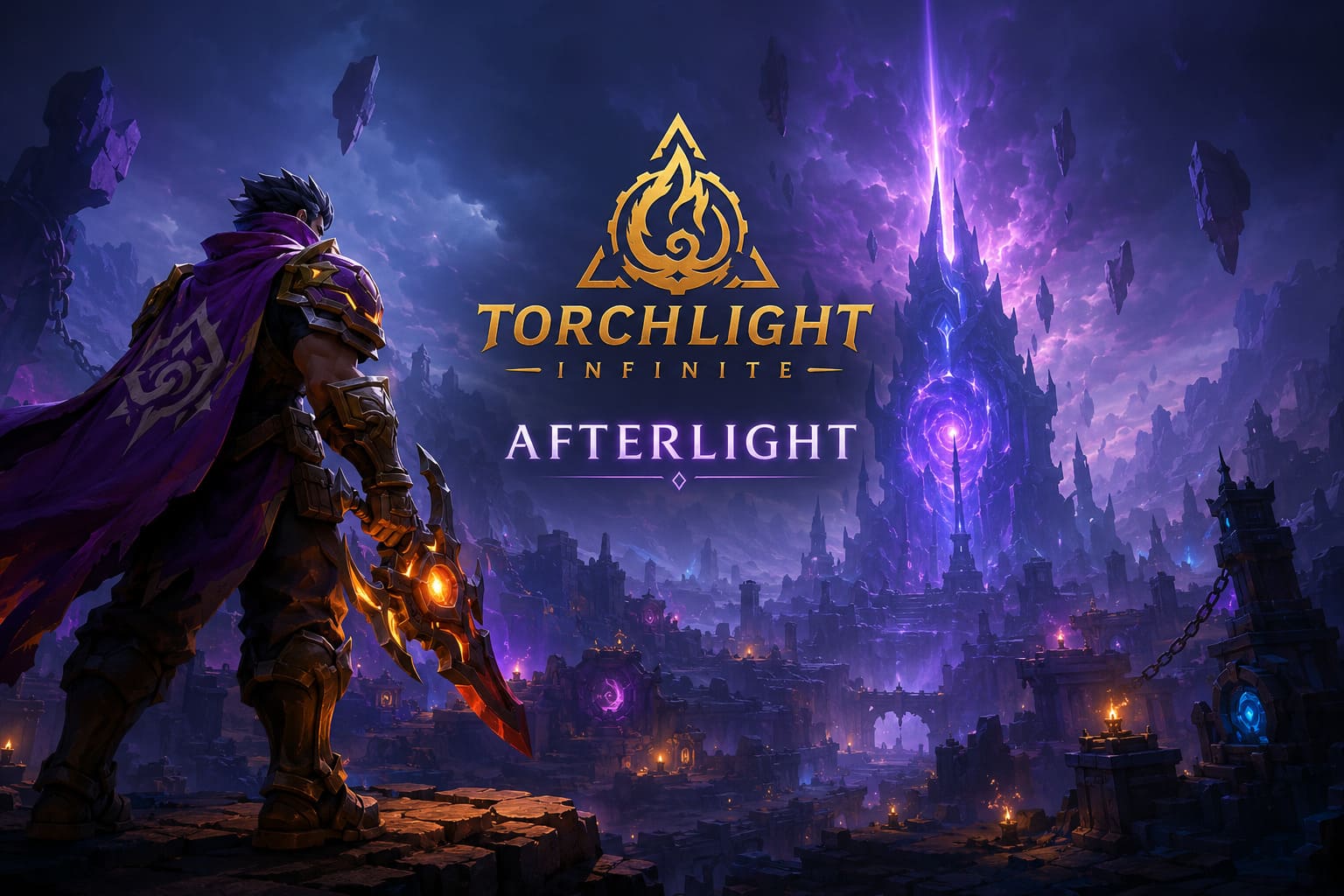
When a new Torchlight Infinite season launches, I usually expect two things: exciting new builds to experiment with and servers packed with players racing toward the endgame. What I don’t expect is staring at a black screen for several minutes after pressing Play.
Unfortunately, that’s exactly what happened to many players after the Afterlight update. Some people couldn’t get past the opening logo, others crashed before reaching the character selection screen, and a few managed to load in only for the game to freeze moments later.
The good news is that this isn’t usually a hardware problem. After spending time digging through community discussions, testing different fixes myself, and comparing what worked for other players, I noticed something interesting: most black screen issues come from only a handful of causes.
If you’re stuck watching an empty screen instead of farming loot, these are the fixes worth trying first.
Why Does Torchlight Infinite Show a Black Screen?
Large seasonal updates don’t simply add content. They also replace game files, update rendering systems, rebuild shaders, and modify configuration files. Even if the installation finishes successfully, something as simple as an outdated graphics driver or a corrupted settings file can prevent the game from rendering properly.
The most common reasons include:
- Damaged configuration or cache files.
- Graphics API conflicts between DirectX 11 and DirectX 12.
- Outdated GPU drivers.
- Windows permission problems.
- Overlay software interfering with the game.
- Corrupted game files after downloading the latest patch.
- Authentication or cache issues on mobile devices.
The trick is starting with the easiest fixes before jumping into more advanced troubleshooting.
Force a Different DirectX Version
This was the very first thing that solved the problem for me. After a major update, the game may decide to launch with a rendering mode that simply doesn’t cooperate with your graphics hardware. Switching DirectX versions often forces Torchlight Infinite to initialize in a different way.
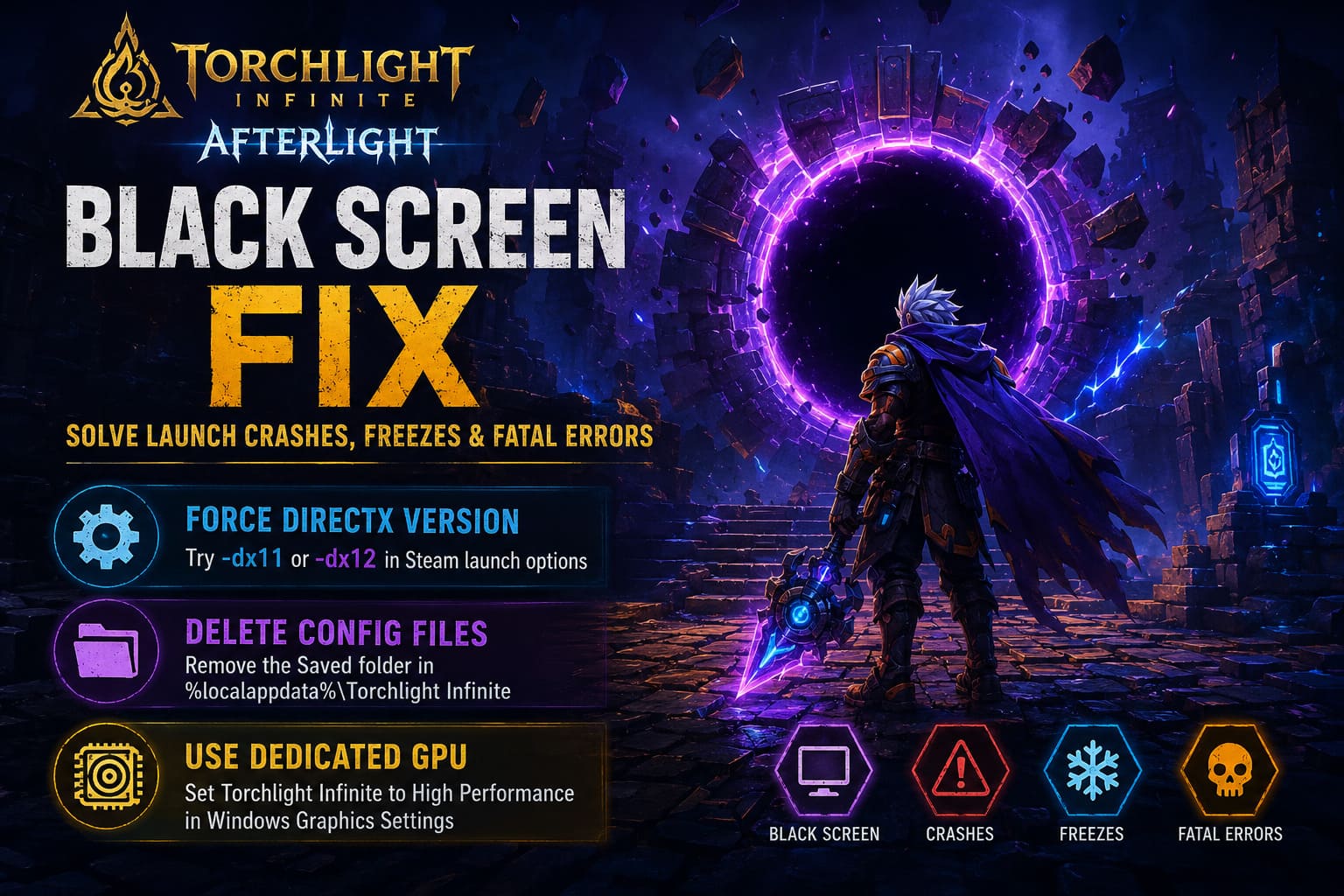
How to Change Launch Options in Steam
- Open your Steam Library.
- Right-click Torchlight: Infinite and choose Properties.
- Locate the Launch Options field.
- Type
-dx11. - Launch the game and check whether the issue is resolved.
If the game still refuses to load properly, repeat the process and replace -dx11 with -dx12. Older graphics cards often behave better with DirectX 11, while modern NVIDIA RTX and AMD Radeon GPUs sometimes perform more reliably under DirectX 12. If neither option helps, remove the launch argument before moving on.
Delete Old Configuration Files
I’ve learned over the years that leftover configuration files are responsible for more launch problems than people realize. Whenever a live-service game receives a massive seasonal update, existing settings can suddenly become incompatible.
Fortunately, your account progress is stored online, so deleting local configuration files won’t affect your characters.
Steps
- Press Windows + R.
- Type
%localappdata%and press Enter. - Locate the Torchlight Infinite folder.
- Open it.
- Delete the Saved folder.
The next time you launch the game, Unreal Engine automatically creates fresh configuration files, which often resolves startup issues immediately.
Make Sure the Game Uses Your Dedicated Graphics Card
Gaming laptops are especially prone to launching demanding games with integrated graphics instead of the dedicated GPU. When that happens, Torchlight Infinite may fail to render properly, resulting in black screens, freezing, or instant crashes.
Force High Performance Mode
- Open Graphics Settings in Windows.
- Click Browse and locate the Torchlight Infinite executable.
- Add the game to the list.
- Select Options.
- Choose High Performance.
- Save the changes.
This ensures Windows launches the game using your dedicated NVIDIA or AMD graphics card instead of integrated graphics.
Run Everything as Administrator
I normally avoid recommending administrator mode as a universal fix, but this is one of those rare situations where it can genuinely make a difference. Windows security sometimes prevents the game from creating temporary files during startup.
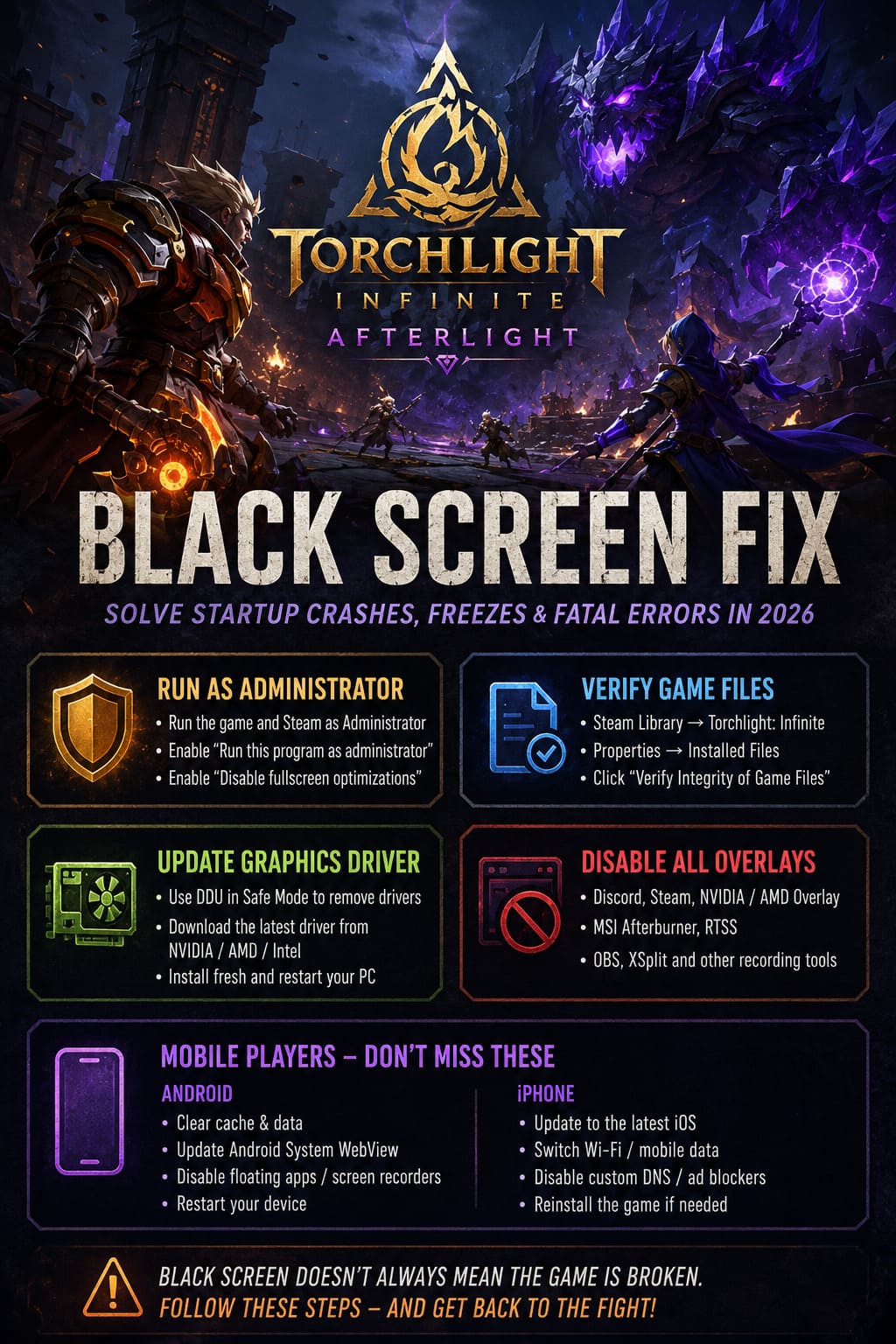
- Open the Torchlight Infinite installation folder.
- Right-click the main executable.
- Select Properties.
- Open the Compatibility tab.
- Enable Run this program as an administrator.
- Enable Disable fullscreen optimizations.
- Apply the changes.
- Launch Steam as Administrator before starting the game.
Verify the Game Files
Sometimes the problem isn’t Windows or your hardware at all. A single damaged file left behind after a large update can prevent the game from loading correctly.
Steam includes a built-in repair feature that compares every installed file against the official version.
- Open your Steam Library.
- Right-click Torchlight: Infinite.
- Select Properties.
- Open the Installed Files tab.
- Click Verify Integrity of Game Files.
The process usually finishes much faster than downloading the entire game again and often replaces any corrupted files automatically.
Update Your Graphics Driver the Right Way
If Torchlight Infinite loads briefly before crashing or produces random black screens during gameplay, the graphics driver deserves a closer look.
Simply installing the newest version over an existing driver isn’t always enough. A clean installation removes leftover files that can continue causing conflicts.
- Download Display Driver Uninstaller (DDU).
- Boot Windows into Safe Mode.
- Remove the existing graphics driver completely.
- Restart your PC.
- Download the latest driver from NVIDIA, AMD, or Intel.
- Install it as a fresh installation.
- Restart once again.
Although this process takes a little longer, it eliminates many hidden driver issues that regular updates fail to fix.
Turn Off Every Overlay You Can
Most gaming PCs run several overlays at the same time without the user even noticing. Steam, Discord, GeForce Experience, AMD Software, MSI Afterburner, RTSS, OBS, and other tools all inject themselves into games differently.
Most of the time they work perfectly. Occasionally, however, one conflicts with a newly updated game client and prevents it from rendering correctly.
Temporarily disable the following:
- Discord Overlay
- Steam Overlay
- NVIDIA Overlay
- AMD Software Overlay
- MSI Afterburner
- RivaTuner Statistics Server (RTSS)
- OBS Studio
- XSplit
- Any third-party recording or monitoring software
If the game launches normally afterward, simply re-enable each application one at a time until you discover which one is responsible.
Mobile Players Aren’t Safe Either
The Afterlight season hasn’t only affected PC players. Android and iPhone users have also reported endless loading screens and black displays before reaching the login menu.
Android
- Clear the game’s cache.
- Clear application data.
- Update Android System WebView.
- Disable floating apps and screen recorders.
- Restart the device.
iPhone
- Install the latest iOS update.
- Switch between Wi-Fi and mobile data.
- Temporarily disable custom DNS or ad-blocking services.
- Reinstall the game if necessary.
Authentication problems sometimes appear as a black screen even though the game itself is working correctly.
A Complete Reinstallation Should Be Your Last Option
Reinstalling Torchlight Infinite should always be the final step. Before downloading everything again, make sure you’ve already tried verifying the game files, deleting the Saved folder, switching DirectX versions, disabling overlays, and updating your graphics drivers.
If absolutely nothing works, perform a completely clean installation.
- Uninstall Torchlight Infinite.
- Delete any remaining installation folders.
- Remove leftover cache files from
%localappdata%. - Restart Windows.
- Download and install a fresh copy of the game.
While this process takes the most time, it also removes every potentially corrupted file that may have survived previous repairs.
Torchlight Infinite SS13 Afterlight Leveling Guide: Best Beginner Starter Builds & Speedrun Tips
Quick Troubleshooting Overview
| Problem | Most Likely Cause | Recommended Fix |
|---|---|---|
| Black screen immediately after launch | DirectX conflict | Switch between -dx11 and -dx12 |
| Freezes during loading | Corrupted cache | Delete the Saved folder |
| Crash after the logo | Permission issue | Run Steam and the game as Administrator |
| Random crashes after loading | Graphics driver corruption | Perform a clean GPU driver installation |
| Poor performance or black screen on laptops | Integrated graphics selected | Force High Performance GPU mode |
| Problems after updating the game | Corrupted installation files | Verify files or reinstall the game |
Final Thoughts
After dealing with launch-day issues in countless online RPGs over the years, I’ve learned not to panic when something breaks after a major seasonal update. Torchlight Infinite is no exception. The encouraging part is that the black screen issue usually isn’t caused by faulty hardware but by local software conflicts that can be fixed without replacing any components.
If I had to recommend one troubleshooting order based on both my own experience and what consistently helped other players, I’d start by changing the DirectX launch option, then delete the Saved folder, verify the Steam installation, disable every overlay, force the game to use the dedicated GPU, perform a clean graphics driver installation if necessary, and only consider reinstalling the game as the final step.
Working through those fixes methodically gives you the best chance of eliminating startup crashes, freezing issues, and black screen problems introduced with the Afterlight update. Hopefully, you’ll spend less time staring at an empty monitor and more time testing new builds, collecting legendary gear, and enjoying everything the new season has to offer.