How to Fix Torchlight Infinite SS13 Afterlight Server Connection Timeout Error
The launch of Torchlight Infinite Season 13: Afterlight has been one of the most exciting updates the game has received in a while. Between Selena’s new mechanics, the Tangle System, and fresh endgame content, there is plenty of reason to jump back into the grind.
Unfortunately, like almost every major online ARPG launch, the excitement has also come with a familiar problem: server connection timeout errors.
After spending hours reading player discussions across Reddit, Steam, Discord, and trying countless fixes myself, I noticed something interesting. Most connection issues aren’t caused by one single bug. Instead, they’re usually a combination of overloaded servers, internet routing problems, and local network settings that simply don’t cooperate when thousands of players log in at once.
If you’re stuck on the loading screen, getting kicked back to the main menu, or seeing endless connection failures, don’t panic yet. Below are the fixes that consistently helped both me and many other players.
Why Does the Connection Timeout Happen?
One mistake many players make is assuming the game itself is broken.
Sometimes it is—but not always.
When Torchlight Infinite throws a connection timeout, it simply means your game client couldn’t complete communication with the game’s servers before the request expired.
From everything I’ve seen during previous seasons, the causes usually fall into three categories.
| Possible Cause | How Often It Happens | Difficulty to Fix |
|---|---|---|
| Server congestion after a major update | Very High | Wait for developers |
| ISP routing or packet loss | High | Moderate |
| Local PC or network configuration | Medium | Easy |
Launch week is almost always the worst period.
Thousands of players create new seasonal characters within minutes of the servers opening, and even well-prepared infrastructure can struggle under that amount of traffic.
The good news is that many timeout errors can still be reduced—or even eliminated—from your side.
Step 1 — Check Whether the Servers Are Actually Having Problems
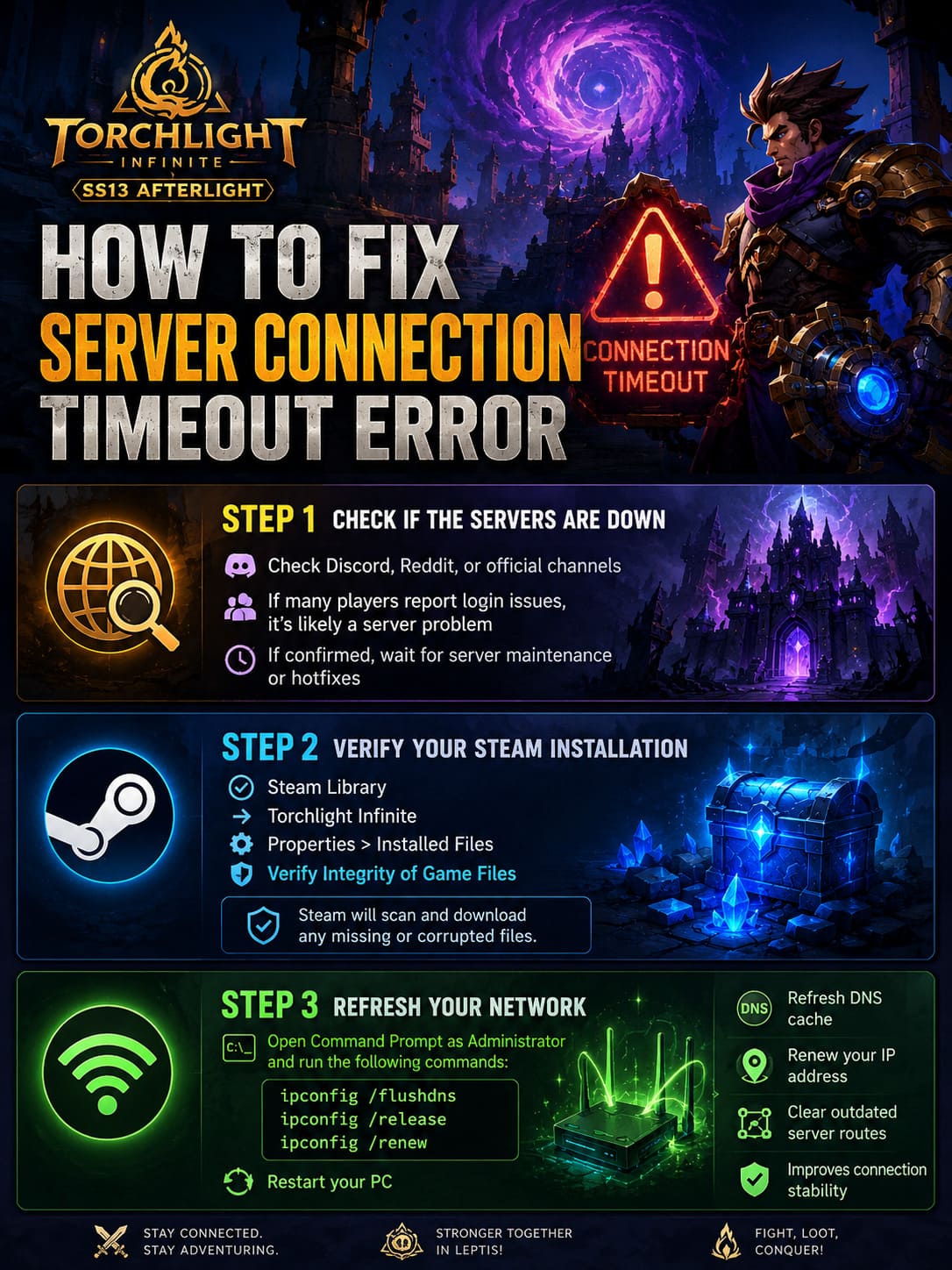
Before changing Windows settings or reinstalling anything, spend one minute checking whether everyone else is experiencing the same issue.
If Discord, Reddit, or the official social channels are full of players reporting login failures, there’s a good chance nothing is wrong with your computer.
I’ve learned this lesson the hard way.
During previous seasonal launches I spent nearly an hour troubleshooting my network, only to discover the servers entered emergency maintenance shortly afterward.
If developers acknowledge ongoing issues, your best option is simply waiting for capacity upgrades or hotfixes.
Step 2 — Verify Your Steam Installation
Corrupted files are surprisingly common after large seasonal updates.
Steam makes checking this incredibly simple.
Open:
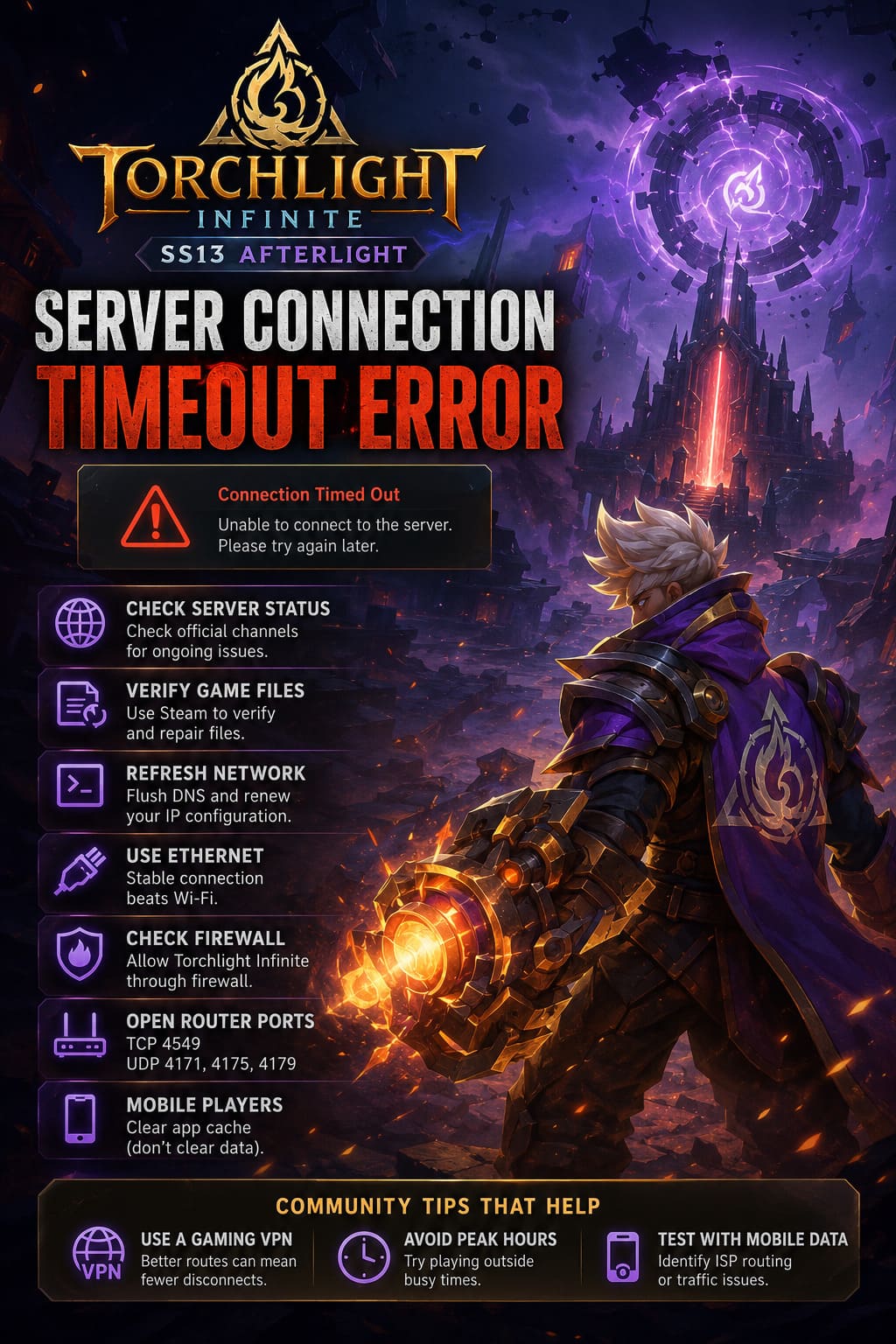
- Steam Library
- Torchlight Infinite
- Properties
- Installed Files
- Verify Integrity of Game Files
Steam compares your installation against the latest version and automatically downloads anything missing.
This won’t solve server overload, but it removes one variable from the equation.
Step 3 — Refresh Your Network Configuration
One fix that has helped me across multiple online games is flushing Windows networking.
It sounds technical, but it only takes a minute.
Open Command Prompt as Administrator, then run:
ipconfig /flushdns
ipconfig /release
ipconfig /renew
Restart your PC afterward.
Refreshing DNS and renewing your IP clears cached network information that occasionally points your client toward outdated server routes after major game updates.
It’s a simple step, but surprisingly effective.
Step 4 — Ethernet Still Beats Wi-Fi
This may sound old-fashioned, but wireless interference continues to be one of the biggest causes of unstable online gaming.
Even if your download speed looks excellent, packet loss can still occur.
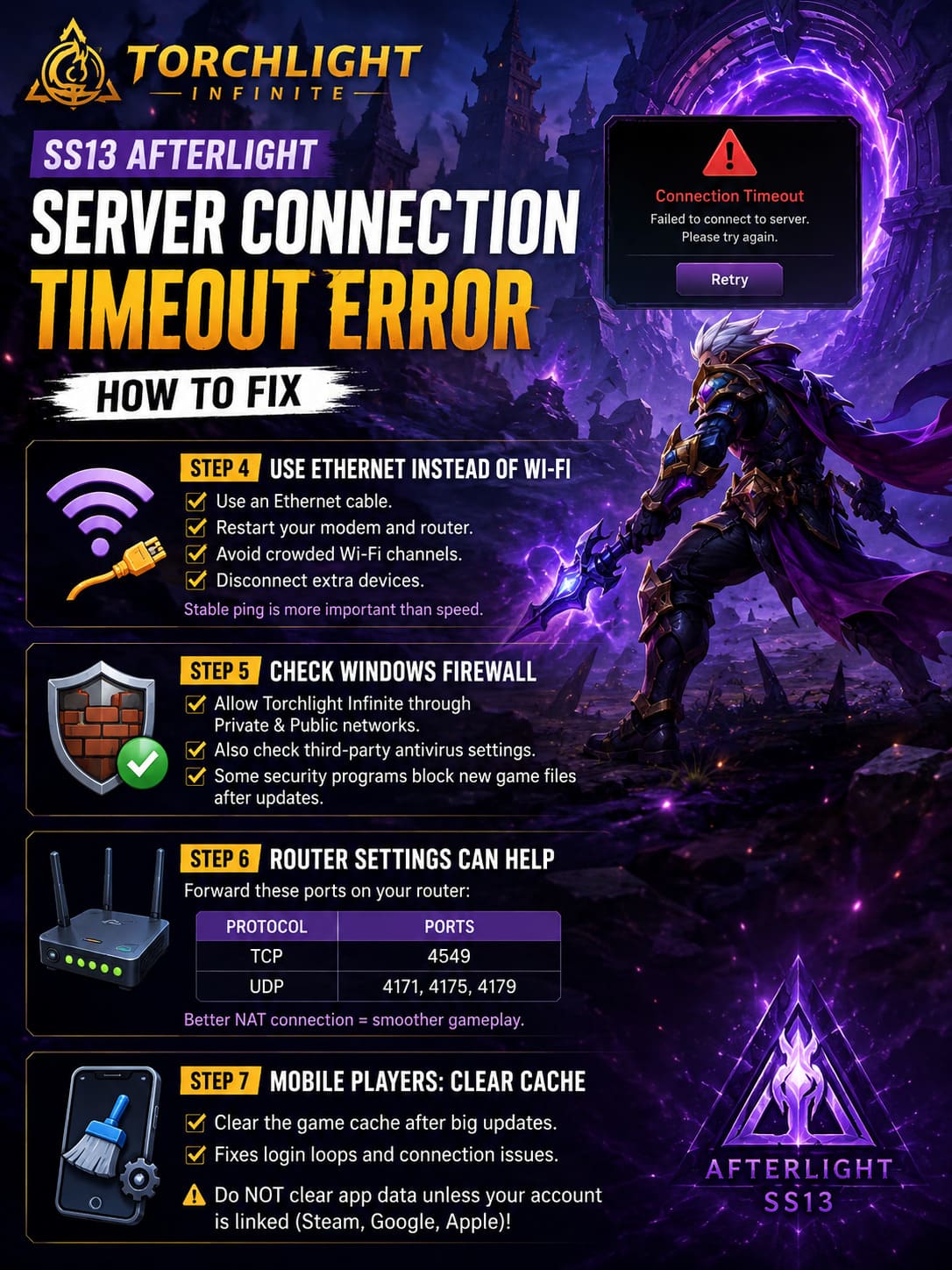
Whenever possible:
- Use an Ethernet cable.
- Restart both your modem and router.
- Avoid crowded Wi-Fi channels.
- Disconnect unnecessary devices while playing.
Stable latency matters far more than raw internet speed.
Step 5 — Check Windows Firewall
I’ve seen several cases where Windows Defender treated newly updated game executables differently after a patch.
If Torchlight Infinite isn’t allowed through both Private and Public networks, connection attempts may fail before they even reach the game servers.
Take a minute to verify the game is properly whitelisted.
If you use third-party antivirus software, check that as well.
Some security suites aggressively inspect new executable files immediately after updates.
Step 6 — Router Configuration Can Matter
Most players never touch their router settings—and usually that’s perfectly fine.
However, if you’re experiencing constant disconnects while everyone else seems to be playing normally, forwarding the recommended ports can improve communication with the servers.
Recommended ports include:
| Protocol | Ports |
|---|---|
| TCP | 4549 |
| UDP | 4171, 4175, 4179 |
Don’t expect miracles, but improving NAT communication has solved connectivity problems for many online games over the years.
Step 7 — Mobile Players Should Clear the Cache
Android and iOS versions sometimes keep outdated temporary files after large updates.
Instead of reinstalling the entire game, simply clearing the application cache often resolves endless login loops.
One important warning:
Don’t clear app data unless your account is already linked to Steam, Google, or Apple.
Otherwise you risk losing locally stored progress.
Community Fixes That Actually Seem to Help
Not every solution comes from official support.
Some of the most useful advice I’ve found came directly from longtime players experimenting with different network setups.
Here are the community recommendations that appear most consistently.
Use a Gaming VPN
Normally I’m not someone who recommends VPNs for every issue.
But routing problems are real.
If your ISP sends traffic through congested network nodes, services designed for gaming can occasionally produce a noticeably more stable route.
Several players reported fewer disconnects after switching to servers geographically closer to North American infrastructure.
It’s definitely worth testing if standard troubleshooting doesn’t work.
Try Playing Outside Peak Hours
This sounds obvious, yet it tells you a lot.
If the game connects perfectly at 8 AM but constantly times out at 8 PM, your home network probably isn’t the problem.
Server capacity almost certainly is.
Testing during quieter hours helps identify whether the issue is local or server-side.
Test With Mobile Data
One of my favorite troubleshooting tricks is connecting through a smartphone hotspot.
If Torchlight Infinite suddenly logs in without any issues, you’ve learned something valuable:
Your ISP may be experiencing routing problems or traffic shaping.
That information alone can save hours of pointless troubleshooting.
Temporary Seasonal Workaround
If seasonal servers remain overloaded during launch week, consider spending some time on the permanent realm.
No, you won’t experience every new mechanic immediately.
But you can still experiment with builds, farm gear, and enjoy stable gameplay while waiting for the seasonal infrastructure to settle down.
Sometimes patience is honestly the fastest fix.
Common Mistakes Players Make
While reading community discussions, I noticed the same mistakes appearing over and over.
Avoid these if possible:
- Reinstalling Windows before confirming server issues.
- Constantly reinstalling the entire game.
- Restarting routers every five minutes.
- Assuming high download speed guarantees stable latency.
- Ignoring official maintenance announcements.
Most launch-week problems disappear naturally once server load stabilizes.
My Personal Experience
I’ve played enough online ARPG launches to know that day one is rarely perfect.
Whether it’s Diablo, Path of Exile, Last Epoch, or Torchlight Infinite, launch-day server congestion almost feels like part of the tradition.
What surprised me this season wasn’t that connection errors existed—it was how inconsistent they were.
Some players connected instantly, while others couldn’t even reach the character selection screen.
In my own testing, verifying game files combined with refreshing Windows networking fixed the issue permanently. A friend of mine, meanwhile, solved it simply by switching from Wi-Fi to Ethernet.
That tells me the timeout error isn’t caused by one universal bug. Instead, it’s several smaller networking issues producing the exact same error message.
That’s frustrating, but it also means there’s a decent chance one of the solutions above will work for you.
Torchlight Infinite SS13 Afterlight Leveling Guide: Best Beginner Starter Builds & Speedrun Tips
Final Thoughts
The Torchlight Infinite SS13 Afterlight connection timeout error can certainly ruin the excitement of a new season, but in most cases it isn’t permanent.
Start by checking whether the servers themselves are under heavy load. From there, work through the basics: verify your installation, refresh your network, review your firewall settings, and eliminate local connection issues before assuming the worst.
If none of those steps solve the problem, community-tested alternatives like using a gaming VPN, trying another internet connection, or logging in outside peak hours are worth experimenting with.
Every season launches with a few bumps, but things usually stabilize quickly once the initial wave of players settles in. Hopefully these tips save you some frustration—and get you back to chasing legendary drops instead of staring at another timeout screen.