How to Fix The Relic: First Guardian Unreal Engine 5 Crashing and Launch Issues
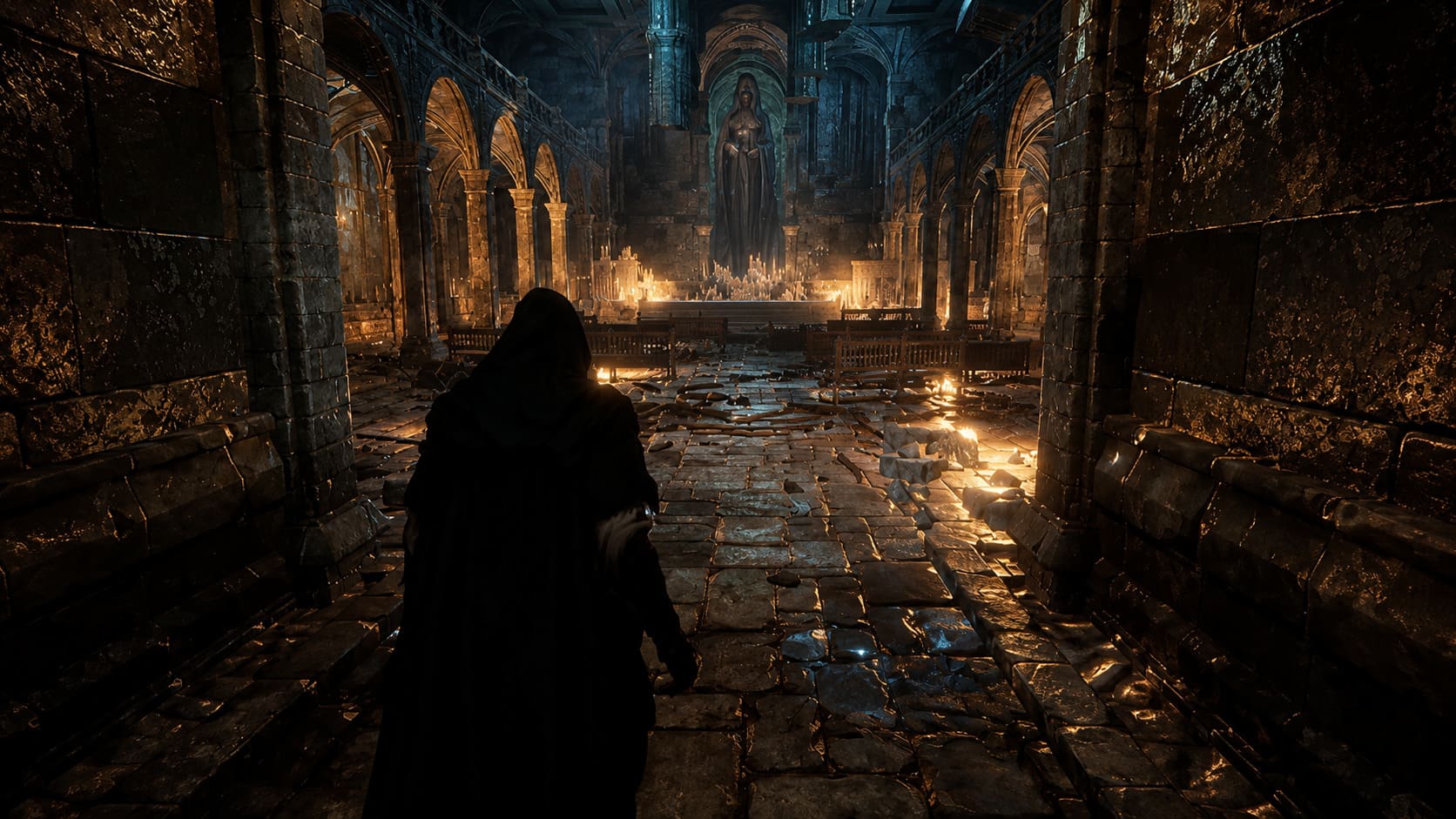
There’s a lot to like about The Relic: First Guardian. After spending dozens of hours with Soulslike games over the years, I immediately noticed that this title has its own personality. The combat feels faster, more aggressive, and rewards smart stamina management instead of simply waiting for the perfect opening. The ruined world of Arsiltus looks incredible as well, but that visual ambition comes with a familiar problem that many Unreal Engine 5 games struggle with.
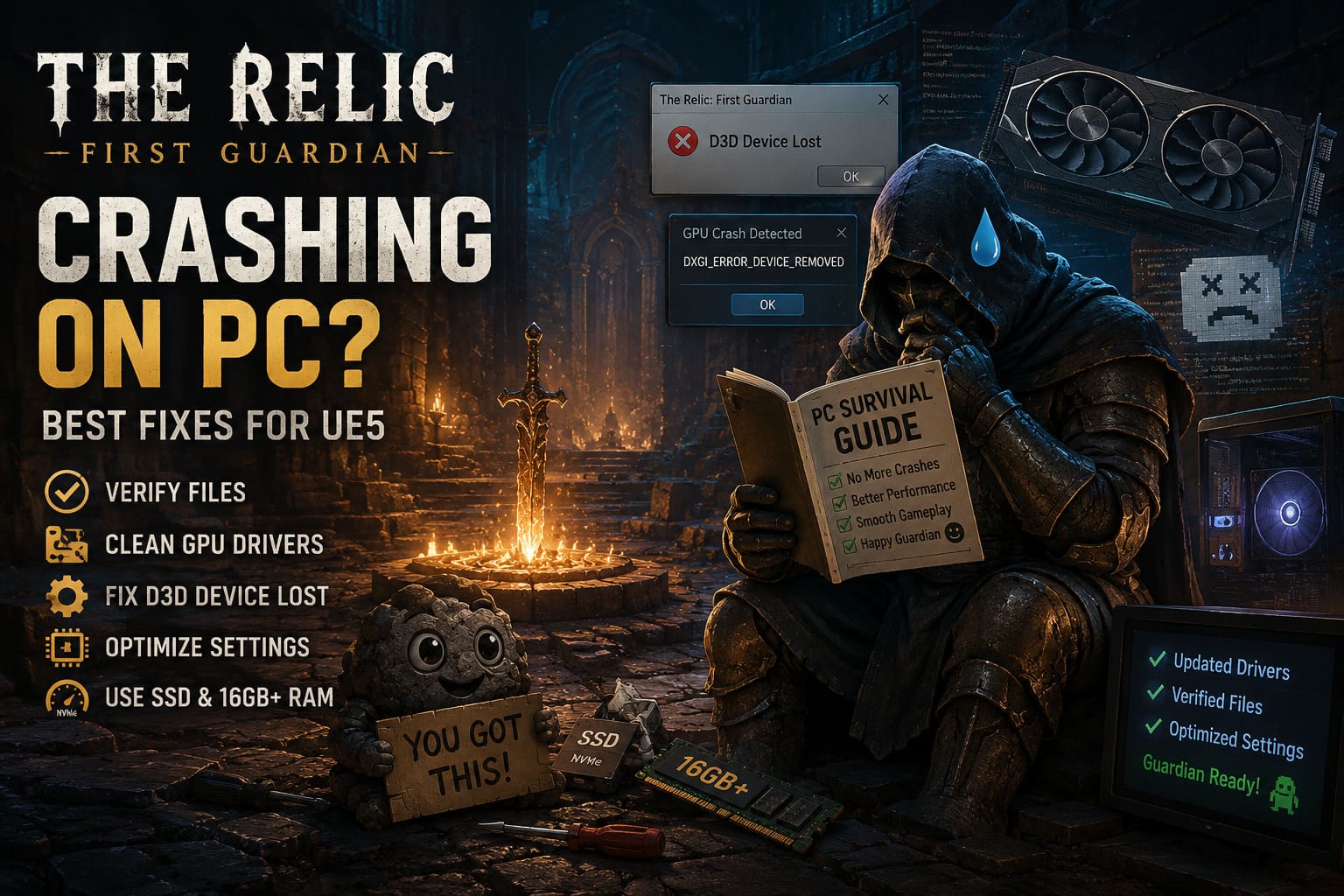
Like several other modern UE5 releases, The Relic: First Guardian can suffer from PC crashes, black screens, freezing, stuttering, and the annoying ‘D3D Device Lost’ error. It is especially frustrating when the game itself is enjoyable, but technical problems interrupt boss fights or exploration sessions. Nobody wants a perfect run against a difficult enemy ruined because the game suddenly closes to desktop.
The good news is that most of these problems are usually caused by software conflicts, unstable settings, corrupted shader files, or driver issues rather than the game being completely broken. After testing different solutions and looking through feedback from PC players, these are the fixes that have the highest chance of getting The Relic: First Guardian running properly.
Is The Relic: First Guardian Worth It? Full 2026 Game Review & Community Verdict
Start With the Basic Fixes First
Before changing advanced Windows settings or modifying system files, it is always worth checking the simple things first. I have seen many PC games crash because of damaged installation files after updates, interrupted downloads, or corrupted patches.
Steam includes a built-in tool that can quickly scan the game folder and replace missing files. It takes only a few minutes and should always be the first troubleshooting step.
- Open your Steam Library.
- Right-click The Relic: First Guardian.
- Select Properties.
- Open the Installed Files section.
- Click Verify Integrity of Game Files.
Another important factor is your hardware. Unreal Engine 5 is extremely demanding because it uses advanced technologies like Lumen lighting, Nanite geometry, and high-quality asset streaming. If your PC barely meets the minimum requirements, crashes may happen during heavy combat scenes or when entering new areas.
| Component | Recommended Advice |
|---|---|
| Storage | Install the game on an SSD instead of an HDD |
| RAM | 16 GB minimum, 32 GB recommended |
| GPU | Modern DirectX 12 compatible graphics card |
| CPU | Recent 6-core processor or better |
Using an old mechanical hard drive can create additional problems because Unreal Engine 5 constantly loads large textures and world assets while you explore. Slow storage can lead to missing assets, long freezes, and even crashes.
Perform a Clean GPU Driver Installation
One mistake many PC players make is assuming that a normal graphics driver update completely removes old files. In reality, previous driver components can remain on your system and sometimes create conflicts with newer rendering engines.
The Relic: First Guardian uses modern UE5 rendering features, which means graphics driver stability is extremely important. If you are experiencing random crashes without any clear pattern, a clean GPU driver installation is one of the best things to try.
The recommended method is using Display Driver Uninstaller (DDU). This removes existing NVIDIA or AMD drivers completely before installing the newest version.
- Download the latest stable driver for your GPU.
- Download and run Display Driver Uninstaller.
- Restart Windows into Safe Mode.
- Use DDU to remove the current graphics driver.
- Install the fresh driver using the clean installation option.
In my experience, this simple process has fixed crashes in many demanding games. Sometimes the problem is not the game itself, but old driver files fighting against new rendering technology.
Fix the Unreal Engine 5 D3D Device Lost Error
The ‘D3D Device Lost’ or ‘DXGI_ERROR_DEVICE_REMOVED’ message is one of the most common Unreal Engine 5 crashes. It does not always mean your graphics card is damaged. Usually, Windows believes the GPU stopped responding because a frame took too long to render.
When this happens, Windows activates its Timeout Detection and Recovery system and resets the graphics driver. Unfortunately, the game usually crashes instantly afterward.
A possible solution is increasing the amount of time Windows allows the GPU to respond before forcing a reset.
- Press Windows Key + R and type regedit.
- Navigate to HKEY_LOCAL_MACHINE\SYSTEM\CurrentControlSet\Control\GraphicsDrivers.
- Create a new DWORD value called TdrDelay.
- Set the value to 10.
- Create another DWORD value called TdrDdiDelay and also set it to 10.
- Restart your PC.
This does not increase performance, but it gives your GPU more time to finish demanding rendering tasks before Windows decides something has gone wrong.
Switch Between DirectX 12 and DirectX 11
DirectX 12 is the default choice for The Relic: First Guardian because it allows Unreal Engine 5 to use its newest graphical features. However, newer does not always mean more stable on every computer configuration.
Some systems, especially older GPUs or PCs with complicated driver histories, may run much better with DirectX 11. You might lose some advanced lighting effects, but stability usually improves.
To force DirectX 11:
- Open Steam Library.
- Right-click The Relic: First Guardian.
- Select Properties.
- Find the Launch Options field.
- Enter -dx11.
If that does not work, try -d3d11. For many players, this small change can completely remove startup crashes and random freezes.
Clear Corrupted Shader Cache Files
Shader compilation is one of the biggest challenges in modern PC gaming. Unreal Engine 5 games process thousands of shaders, and if something becomes corrupted during this process, crashes can happen repeatedly at the same point.
If The Relic: First Guardian crashes while loading a save, entering a new area, or before a boss fight, clearing the configuration files may help.
- Press Windows Key + R.
- Type %localappdata%.
- Find the folder related to The Relic or Project Cloud Games.
- Open the Saved folder.
- Delete Config, Crashes, and Intermediate folders.
You can also clear Unreal Engine shader cache folders if they exist. The next launch may take longer because shaders need to rebuild, but this often removes persistent loading crashes.
Disable Overclocks and Test Hardware Stability
Modern Unreal Engine 5 games push both CPUs and GPUs much harder than many older titles. A system that appears stable in normal games can still crash when a demanding UE5 scene pushes hardware to maximum load.
If you use any type of overclock, temporarily return everything to stock settings.
- Disable CPU overclocks.
- Turn off AMD Precision Boost Overdrive.
- Reset GPU overclocks in MSI Afterburner.
- Test the game with default motherboard settings.
I have seen many situations where a small unstable GPU memory overclock caused crashes only in specific engines. Removing the overclock may feel disappointing, but it is one of the fastest ways to confirm whether hardware stability is the problem.
Reduce GPU Power Limit
This solution sounds strange, but it has helped some players using powerful graphics cards. High-end GPUs can experience short power spikes during heavy rendering scenes, and those spikes may trigger driver crashes.
Using MSI Afterburner, try lowering the GPU power limit to around 80-85%. Performance loss is usually minimal, but system stability can improve significantly.
I would always prefer a slightly lower frame rate over random crashes during important fights. A smooth experience matters more than chasing every last FPS.
Adjust In-Game Graphics Settings
If the game launches correctly but crashes after several minutes of gameplay, the problem is likely related to demanding graphics features. Instead of lowering every setting immediately, focus on the options that put the most pressure on Unreal Engine 5.
- Disable Hardware Ray Tracing.
- Lower Lumen quality settings.
- Cap your FPS to 60, 120, or your monitor refresh rate.
- Disable Frame Generation temporarily.
- Reduce shadow quality before lowering textures.
Unlimited FPS can keep your GPU running at maximum power constantly. A stable frame cap often reduces temperatures, power spikes, and sudden crashes while keeping gameplay smooth.
Final Thoughts
After playing many Unreal Engine 5 titles, I have noticed that technical issues are often connected to the same problems: drivers, shader compilation, aggressive rendering settings, and unstable hardware configurations. The Relic: First Guardian is an impressive-looking action RPG, but its visuals demand a lot from modern PCs.
If I had to troubleshoot this game from the beginning, I would start with verifying files, installing clean GPU drivers, testing DirectX 11, clearing shader caches, and disabling overclocks. These steps solve the majority of UE5 crashing problems and should help you return to Arsiltus without constant interruptions.
Once the technical issues are gone, The Relic: First Guardian finally gets a chance to show its strengths. The challenging boss encounters, dark fantasy atmosphere, and satisfying combat system are worth experiencing without crashes getting in the way.