How to Fix Dressmaker Black Screen on Startup in Windows 11 (2026 Guide)
There is nothing quite as annoying as launching a brand-new game, grabbing your mouse, getting ready to play—and being rewarded with a completely black screen.
That is exactly what some Dressmaker players can run into on Windows 11. The cozy tailoring and crafting simulation from Cozy Lives and Free Lives launched on September 21, 2026, after building a sizeable wishlist following. The concept is wonderfully hands-on: choose fabrics, take measurements, work with mannequins, sketch outfits, cut materials, and gradually build your own tailoring business.
It is the kind of game that should be relaxing.
A black screen with absolutely nothing happening? Not so much.
The startup problem can appear in several ways. Sometimes Dressmaker launches normally in the background and you can hear music, ambient workshop sounds, or sewing-machine effects while the display remains completely black. In other cases, you get a brief black window before the game crashes straight back to the desktop. Some players may not receive an error message at all, which makes the problem especially frustrating because Windows gives you almost nothing to work with.
The good news is that a black screen does not automatically mean the game is broken or that you need to reinstall Windows. There are several things worth checking first, ranging from a simple graphics-driver reset to Steam file verification and configuration cleanup.
I’ve arranged the fixes from the quick stuff I’d try first to the more invasive troubleshooting steps. Don’t jump straight into deleting folders or messing around with system files if a 10-second shortcut solves the problem.
What Usually Causes the Dressmaker Black Screen?
A startup black screen is normally caused by a failure somewhere between the game, Windows, your GPU driver, and the files Dressmaker needs to initialize.
| Possible Cause | What It Can Do | First Fix To Try |
|---|---|---|
| Outdated GPU Driver | Prevents proper rendering during startup | Update GPU driver |
| Corrupted Game Files | Stops assets or configuration files loading | Verify Steam files |
| Fullscreen Conflict | Creates a frozen or invisible display | Disable fullscreen optimizations |
| Overlay Conflict | Interferes with rendering hooks | Disable overlays |
| Missing Runtime Files | Prevents required game components from launching | Repair Visual C++ |
| Broken Configuration | Loads an invalid resolution or graphics state | Reset configuration |
The annoying part is that several of these problems look almost identical from the player’s perspective. That’s why troubleshooting Dressmaker systematically is much more effective than randomly changing ten settings at once.
Quick Fixes to Try Before Anything Else
1. Reset the Windows Graphics Driver
This is the first trick I’d try if you can hear Dressmaker running but can’t see anything.
Press:
Windows Key + Ctrl + Shift + B
Windows will briefly refresh the graphics driver. Your monitor may flicker, the screen can go black for a moment, and you should normally hear a short system beep.
Your applications remain open.
If the problem was simply a temporary graphics subsystem hiccup, Dressmaker may suddenly appear afterward. It’s a ridiculously simple fix, but it has saved me from staring at frozen game windows more times than I’d like to admit.
2. Force Dressmaker Into Windowed Mode
Fullscreen initialization can sometimes go sideways, especially if the game starts with a resolution or refresh-rate combination Windows doesn’t like.
While Dressmaker is showing the black screen, press:
Alt + Enter
This shortcut can switch many games between fullscreen and windowed mode.
If Dressmaker suddenly appears, head into the game’s display settings and consider using Borderless Windowed instead of exclusive fullscreen.
For troubleshooting purposes, borderless mode is also useful because it removes another variable from the equation.
Step 1 — Verify Dressmaker’s Steam Files
Before blaming your GPU, Windows, or the game engine, make sure the installation itself isn’t damaged.
Steam’s verification tool checks the local installation against the files available through Steam and replaces files that are missing or corrupted.
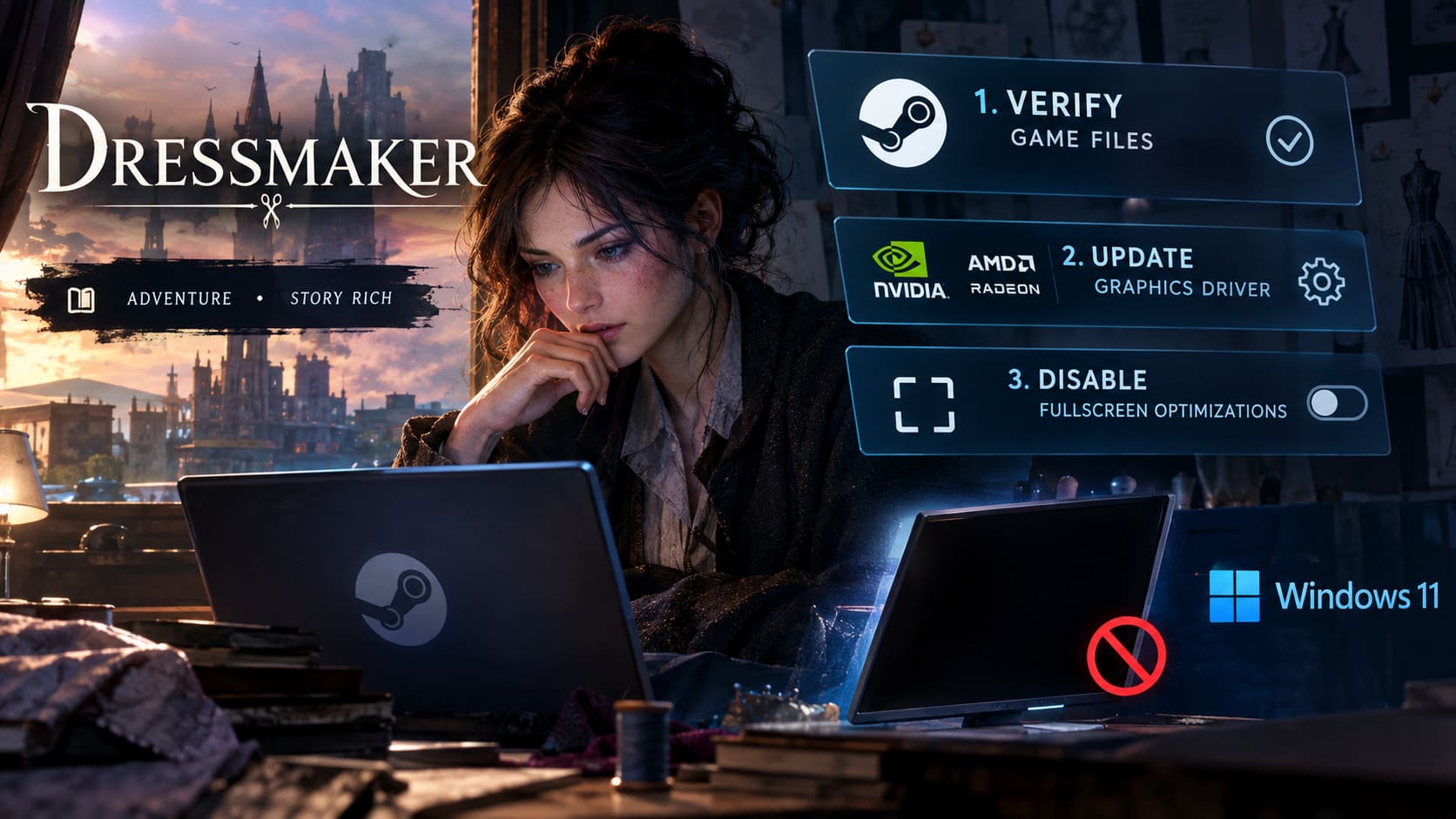
How to verify the installation:
- Open Steam.
- Go to your Library.
- Find Dressmaker.
- Right-click the game and select Properties.
- Open Installed Files.
- Select Verify integrity of game files.
- Wait for Steam to finish checking the installation.
If Steam finds damaged files, it can download replacement versions automatically.
This is one of those boring maintenance steps that players often skip because the game technically installed successfully. Don’t. A download can fail silently, an update can be interrupted, or one asset can become corrupted without Steam immediately making it obvious.
Step 2 — Update Your Graphics Driver
If your GPU driver is several months behind, I’d put this fairly high on the troubleshooting list.
New games frequently depend on updated driver support, shader behavior, and runtime improvements. A driver can also become corrupted after multiple updates, so simply having a “recent” version isn’t always enough.
NVIDIA GPUs
If you’re using an NVIDIA graphics card:
- Open the NVIDIA App or GeForce Experience.
- Go to the Drivers section.
- Select Check for Updates.
- Download the latest Game Ready Driver.
- If available during installation, choose Custom Installation.
- Select the option for a clean installation.
A clean installation is particularly worth considering if you’re seeing black screens in several different games rather than only Dressmaker.
AMD GPUs
For Radeon hardware:
- Open AMD Software: Adrenalin Edition.
- Check for available driver updates.
- Download the newest compatible driver.
- If normal updates haven’t helped and you’re experiencing recurring graphics problems, consider the factory reset option during installation.
Still broken? Consider DDU
If your driver installation appears seriously messed up, Display Driver Uninstaller (DDU) can provide a deeper cleanup.
The usual approach is to boot Windows 11 into Safe Mode, use DDU to remove the existing display-driver remnants, restart the PC, and then install a fresh driver package from NVIDIA or AMD.
This is a much bigger hammer than simply updating the driver, so I wouldn’t use it as the very first step. But when normal driver updates repeatedly fail, it becomes a reasonable troubleshooting option.
Step 3 — Disable Fullscreen Optimizations
Windows 11 includes fullscreen optimization features intended to improve gaming performance and compatibility.
The catch? Occasionally, those optimizations don’t play nicely with a particular game.
To disable them for Dressmaker:
- Open Steam.
- Right-click Dressmaker.
- Select Manage.
- Click Browse local files.
- Locate the main executable, usually Dressmaker.exe.
- Right-click the executable.
- Choose Properties.
- Open the Compatibility tab.
- Check Disable fullscreen optimizations.
- Click Apply, then OK.
Launch the game again and see whether the black screen has disappeared.
If you are dealing with a resolution handshake or fullscreen rendering conflict, this can make a surprisingly big difference.
Step 4 — Try Administrator Rights and Compatibility Mode
Windows security restrictions can occasionally prevent a game from accessing files or folders it needs during startup.
Return to:
Dressmaker.exe → Properties → Compatibility
Then enable:
- Run this program as an administrator
- Run this program in compatibility mode for
For the compatibility setting, the supplied troubleshooting approach recommends trying Windows 8.
This isn’t something I’d leave enabled forever without testing whether it’s actually helping. Compatibility mode changes how Windows handles certain application behaviors, and modern games aren’t necessarily designed around legacy compatibility layers.
The goal here is simple: test it.
Launch Dressmaker. If the black screen disappears, you’ve found a useful clue about where the conflict is happening.
Step 5 — Check Windows Security and Antivirus Blocking
Security software can occasionally get a little too enthusiastic with brand-new applications.
A freshly released game may contain executable files or temporary processes that antivirus software hasn’t seen before. If something is being blocked, Dressmaker might fail before it ever gets to the main menu.
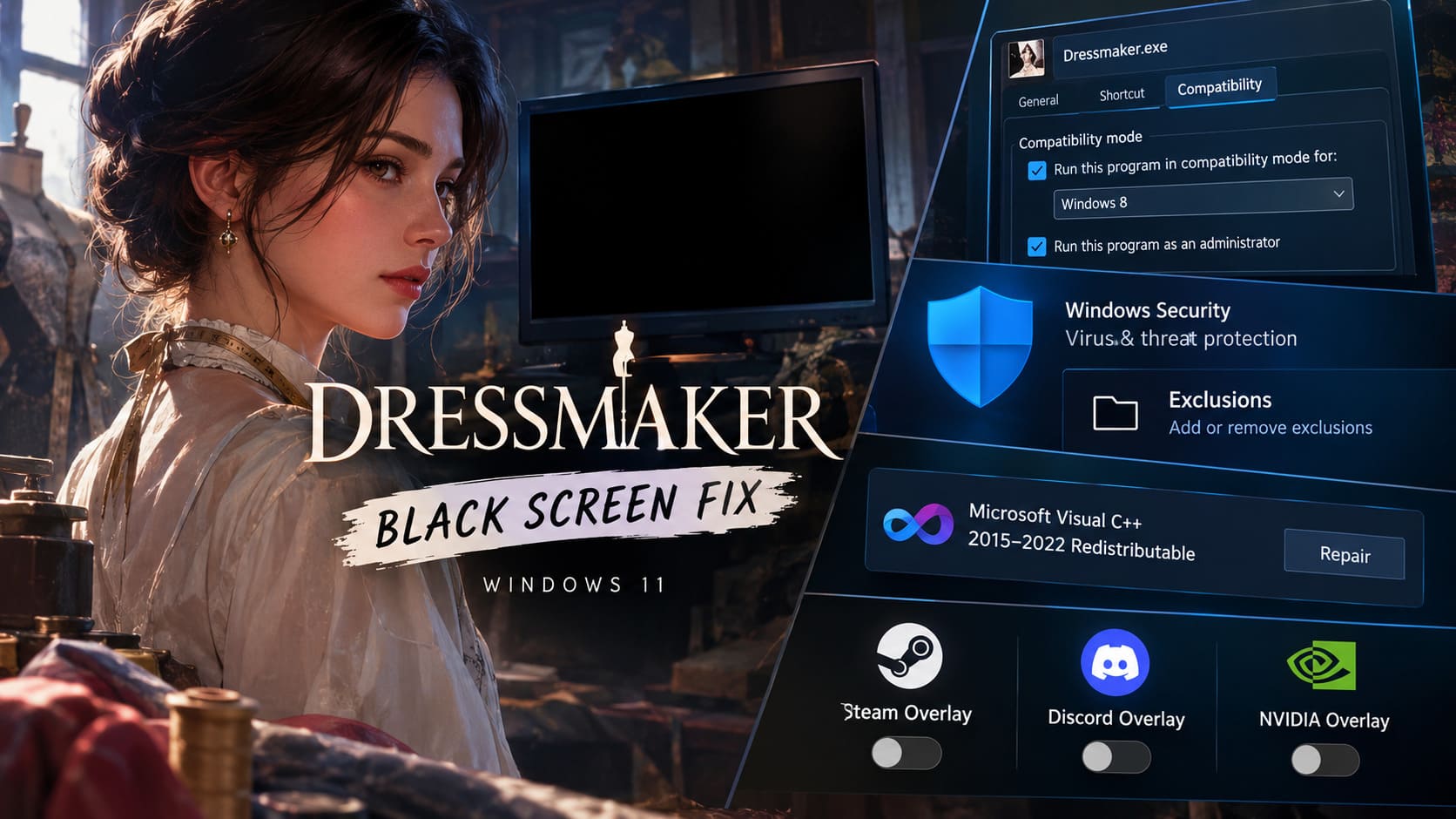
To check Windows Security:
- Open the Windows Start menu.
- Search for Windows Security.
- Open Virus & threat protection.
- Select Manage settings.
- Scroll to Exclusions.
- Choose Add or remove exclusions.
- Select Add an exclusion.
- Choose Folder.
- Locate your Dressmaker installation directory.
A typical Steam installation may resemble:
Steam/steamapps/common/Dressmaker
Only add an exclusion if you trust the game installation and understand the security implications. You should also avoid blindly excluding your entire Steam library when a specific game folder is sufficient.
After adding the appropriate exclusion, try launching Dressmaker again.
Step 6 — Repair Microsoft Visual C++ Redistributables
Some games depend on Microsoft runtime components that aren’t part of the game itself.
If a Visual C++ installation is damaged or incomplete, Dressmaker may crash before the renderer properly initializes.
On Windows 11:
- Press Windows Key + X.
- Select Installed Apps.
- Search for Visual C++.
- Look for the Microsoft Visual C++ 2015–2022 Redistributable packages.
- Check both x86 and x64 installations.
- Click the three-dot menu beside a package.
- Select Modify.
- Choose Repair.
- Repeat for the other relevant package.
- Restart Windows when finished.
Don’t be surprised by multiple Visual C++ packages. Different games and applications can depend on different runtime versions, so having several installed is normal.
Step 7 — Turn Off Overlays and Background Capture
Overlays are useful, but they also inject themselves into the rendering pipeline. When a new game is already struggling to initialize its graphics, an overlay can become one more thing getting in the way.
I’d temporarily disable the major ones while troubleshooting.
Steam Overlay
Open Steam settings and find the In-Game section. Disable:
Enable the Steam Overlay while in-game
Discord Overlay
Open Discord:
User Settings → Game Overlay
Disable the in-game overlay.
NVIDIA Overlay / ShadowPlay
If you’re using NVIDIA software, temporarily disable the In-Game Overlay as well.
You don’t have to permanently give up overlays. The point is to remove them as variables. Once Dressmaker launches correctly, you can enable them again one at a time and see whether a particular overlay causes the problem to return.
Advanced Fixes for Persistent Black Screens
If you’ve made it this far and Dressmaker still launches into darkness, it’s time to look at configuration and startup parameters.
Use Steam Launch Options
Steam allows you to pass startup arguments directly to the game.
Go to:
Steam Library → Dressmaker → Properties → General → Launch Options
Enter:
-windowed -noborder
Then close the properties window and launch Dressmaker.
These parameters tell the game to start in a windowed, borderless configuration rather than attempting its normal fullscreen initialization.
This is particularly useful when the game works in principle but fails while establishing the initial display mode.
If it launches successfully, you can later experiment with the game’s own graphics settings and return to fullscreen if desired.
Reset Dressmaker’s Configuration Files
A corrupted configuration can be surprisingly stubborn.
Imagine the game successfully remembers a resolution or graphics option that your current display setup can’t handle. Every launch reads that same broken configuration, applies it again, and crashes or produces a black screen.
You can reset the configuration by renaming the relevant folder rather than immediately deleting it.
Press:
Windows Key + R
Enter:
%appdata%
Press Enter.
Look for folders associated with:
- Cozy Lives
- Free Lives
- Dressmaker
If nothing relevant appears in Roaming, move up to the main AppData folder and check:
Local
and
LocalLow
If you find Dressmaker’s configuration directory, rename it to something like:
Dressmaker_Backup
The idea is simple: don’t destroy the old configuration. Keep a backup.
When you launch the game again, Dressmaker should have an opportunity to generate fresh configuration data.
If the black screen disappears, you’ve almost certainly narrowed the issue down to corrupted or incompatible local settings.
Dressmaker Steam Deck Best Settings: 2026 Optimization Guide
Recommended Troubleshooting Order
If you don’t want to bounce randomly between Windows menus, I’d tackle the problem in this order:
- Press Windows + Ctrl + Shift + B
- Try Alt + Enter
- Verify Dressmaker’s Steam files
- Update or clean-install your GPU driver
- Disable fullscreen optimizations
- Disable Steam, Discord, and GPU overlays
- Repair Visual C++ Redistributables
- Test administrator/compatibility settings
- Try
-windowed -noborder - Reset Dressmaker’s local configuration
That order keeps the easy, reversible solutions at the top and leaves the more invasive changes for later.
Dressmaker Game Guide: Advanced Sewing Tips, Tricks, and Walkthrough for 100% Client Satisfaction
Final Thoughts
A Dressmaker black screen on Windows 11 is frustrating precisely because the game may actually be running. Hearing music behind a completely dead display is one of those PC gaming moments where you immediately start wondering whether your GPU has decided to retire.
Don’t panic and don’t immediately reinstall everything.
Start with the graphics-driver reset and Alt + Enter. If those fail, verify the Steam installation and make sure your GPU drivers are current. From there, fullscreen optimization settings, overlays, Visual C++ components, Windows permissions, launch arguments, and corrupted configuration data are the major areas worth investigating.
The most important thing is to change one variable at a time. If you simultaneously reinstall drivers, delete configuration folders, disable security software, and change launch parameters, you’ll never know what actually fixed the problem.
For most players, the goal is simply to get through that initial startup sequence and reach the Dressmaker menu. Once the game finally renders correctly, you can restore settings one by one and get back to the part that actually matters: designing ridiculous outfits, tweaking fabrics, managing mannequins, and building your virtual tailoring empire instead of staring at a black monitor.
As Dressmaker receives post-launch updates and stability patches, some of these problems may eventually disappear through official fixes. Until then, these Windows 11 troubleshooting steps give you a solid checklist for getting past the startup black screen without resorting to drastic measures.