Dressmaker Steam Deck Best Settings: 2026 Optimization Guide
Dressmaker is exactly the kind of game that feels like it was made for a Steam Deck session. It is cozy, creative, relaxing, and completely focused on the satisfying process of making clothes rather than fighting enemies or surviving another chaotic open world. You measure customers, choose fabrics, cut patterns, pin pieces together, decorate garments, and eventually watch your work come together at the sewing machine.
That sounds like a perfect handheld experience, and for the most part, it is. After spending time looking at how Dressmaker runs on Steam Deck, though, there are a few settings worth changing if you want a cleaner image, steadier performance, or longer battery life.
The game is not especially demanding in terms of download size, but its cloth and material simulation makes things a little more interesting. Fabric transparency, layered clothing, detailed textures, mannequin physics, and the sewing interactions can put more pressure on the hardware than you might expect from a peaceful fashion simulator.
So, rather than simply leaving everything at the default values, I would recommend creating a dedicated Steam Deck profile for Dressmaker. The good news is that you don’t need to sacrifice the game’s beautiful fabrics to get smooth performance.
Is Dressmaker Good on Steam Deck?
Yes, and it feels particularly comfortable on the handheld screen. Dressmaker is classified as Playable on Steam Deck, although the experience is not completely perfect yet. The game launches properly and can run at a very high frame rate, but there are a few small annoyances that are worth knowing about.
| Setting Area | Recommended Approach |
|---|---|
| SteamOS | Use Proton Stable |
| Resolution | 1280×800 Handheld |
| Target FPS | 40 FPS LCD / 45 FPS OLED |
| Textures | High Or Ultra |
| Shadows | Medium |
| Fabric Simulation | Medium |
| Motion Blur | Off |
The most noticeable issue for some players is not actually performance. It is the interface. Certain prompts can still behave as if you’re using a mouse and keyboard, while some text is simply too small on the Deck’s display. Neither problem ruins the game, but both are easy to notice once you start spending hours designing clothes.
My Recommended Steam Deck Settings for Dressmaker
If you want my starting point, I would not immediately chase 60 FPS. A stable 40 or 45 FPS feels more natural for Dressmaker, especially because this is a game where precision and image quality matter more than extremely low input latency.
For an LCD Deck, 40 FPS at 40Hz is a particularly nice combination. OLED owners can use a 45 FPS limit with a 90Hz refresh rate. The result is smooth enough that the sewing and cutting interactions feel responsive without forcing the hardware to work unnecessarily hard.
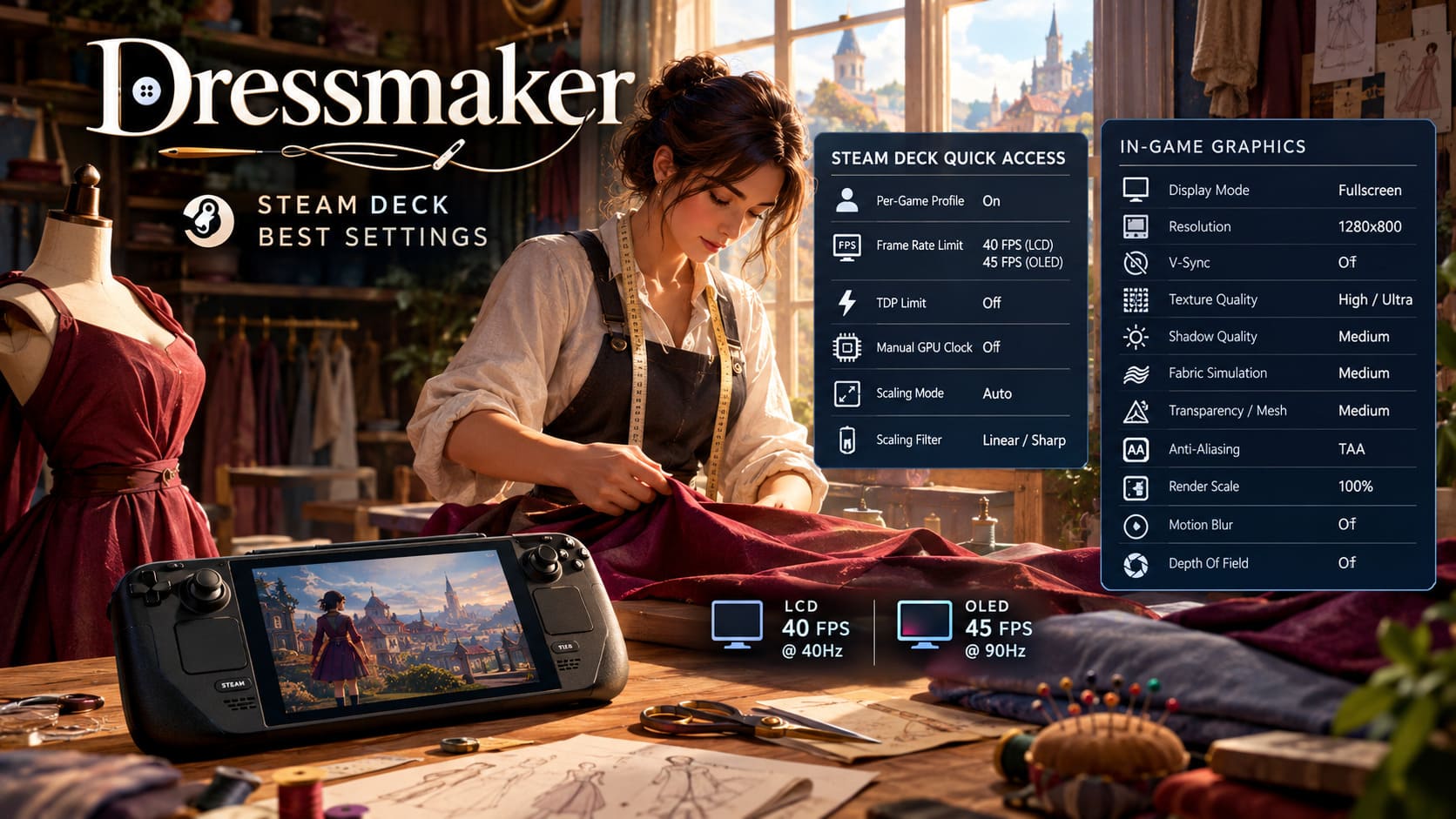
Steam Deck Quick Access Menu
- Per-Game Profile: Enabled
- Frame Rate Limit: 40 FPS on LCD / 45 FPS on OLED
- TDP Limit: Disabled
- Manual GPU Clock: Disabled
- Scaling Mode: Auto
- Scaling Filter: Linear, or Sharp if you prefer extra definition
I would leave TDP and the GPU clock alone for the balanced profile. Dressmaker’s cloth simulation can behave differently depending on what is happening on screen, so allowing Steam Deck to manage power dynamically makes more sense than forcing a restrictive power ceiling.
Best In-Game Graphics Settings for 40/45 FPS
The biggest mistake I would avoid is lowering everything to Low simply because you’re playing on a handheld. Dressmaker actually benefits a lot from good texture quality. Fabrics are one of the main visual attractions of the game, and turning them down too aggressively makes the entire experience look flatter than it needs to.
| Graphics Option | Recommended Setting |
|---|---|
| Display Mode | Fullscreen |
| Resolution | 1280×800 |
| V-Sync | Off |
| Texture Quality | High / Ultra |
| Shadow Quality | Medium |
| Fabric Simulation | Medium |
| Transparency / Mesh Quality | Medium |
| Anti-Aliasing | TAA |
| Render Scale | 100% |
| Motion Blur | Off |
| Depth Of Field | Off |
Textures should be the priority. Shadows are much easier to reduce without making the game look dramatically worse. Fabric simulation and transparency settings are more interesting because these can affect both the visual presentation and performance when several pieces of clothing are being manipulated at once.
Keeping the render scale at 100% also makes sense to me on the Deck. The sketchbook, customer information, menus, and tiny UI elements are already competing for space on a relatively small screen. I would rather have a clean native image than gain a few extra frames that I probably won’t notice.
Best Dressmaker Settings for Steam Deck Battery Life
This is where the Steam Deck becomes especially interesting. Dressmaker isn’t a twitch shooter, so there is very little reason to insist on a high frame rate when you’re playing during a long trip.
If I’m sitting on a train or plane, 30 FPS is more than enough for this type of game. The slower pace gives you plenty of room to reduce power consumption without making the controls feel bad.
For an Eco profile, I would start with:
- Frame Rate Limit: 30 FPS
- TDP Limit: 8-9W
- Manual GPU Clock: 800-900 MHz
- Scaling Filter: FSR
- FSR Sharpness: Around 2
Inside the game, dropping the resolution to 1152×720 or 960×600 can reduce the workload further. Steam Deck’s scaling and FSR can then reconstruct the image while keeping the overall presentation reasonably sharp.
For this battery-focused setup, I would also lower the expensive simulation settings. Set shadows, fabric simulation, and transparency or mesh quality to Low. Keep textures at High if possible, because they generally provide a better visual return than spending your performance budget on shadows.
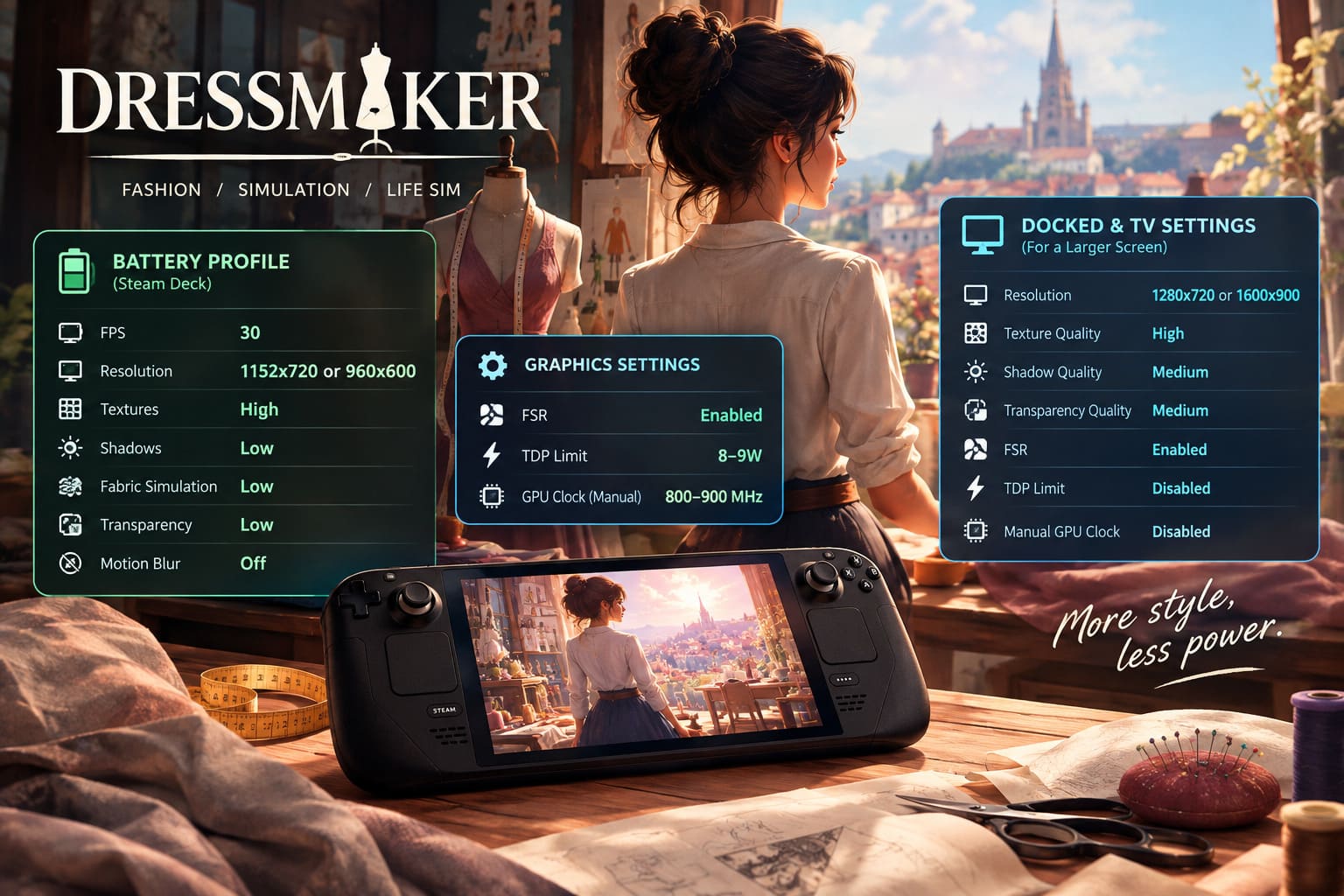
| Setting | Battery Profile |
|---|---|
| FPS | 30 |
| Resolution | 1152×720 or 960×600 |
| Textures | High |
| Shadows | Low |
| Fabric Simulation | Low |
| Transparency | Low |
| Motion Blur | Off |
Depending on your Deck model, brightness, system settings, and what you’re doing in-game, this kind of setup can make a noticeable difference to battery endurance. I would treat any specific battery-hour figure as an estimate rather than a guarantee, because real-world Steam Deck battery life varies considerably.
Steam Deck Docked and TV Settings
Playing Dressmaker on a large TV is a surprisingly fun way to appreciate the clothing details. The problem is that the Steam Deck’s APU has considerably more work to do once you start pushing higher external resolutions.
I wouldn’t try to render the game at native 4K. That sounds impressive on paper, but it isn’t a sensible target for this hardware. Instead, 720p or 900p with FSR upscaling is a much more practical choice.
- Resolution: 1280×720 or 1600×900
- Texture Quality: High
- Shadow Quality: Medium
- Transparency Quality: Medium
- FSR: Enabled where appropriate
- TDP Limit: Disabled while docked
- Manual GPU Clock: Disabled
The advantage of this approach is that you retain the important details in fabrics and clothing while avoiding an unnecessary resolution hit. From a normal sofa distance, a well-upscaled 720p or 900p image can look perfectly respectable.
How to Fix Small Text on Steam Deck
This is one of the quality-of-life issues I noticed immediately. Dressmaker contains plenty of menus, descriptions, customer information, and detailed sewing elements, and some of them can be uncomfortable to read on the Deck screen.
Fortunately, SteamOS has a built-in zoom feature. Hold the Steam button and press the Left Bumper (LB) to magnify the screen. It is especially useful when you’re checking small pieces of text or examining a detailed part of a garment.
It isn’t the most elegant solution, but until the game’s UI is better optimized for handheld displays, it works surprisingly well.
Improve Dressmaker Controls with Steam Input
The controller situation is another area where I would spend five minutes before starting a serious playthrough. If some menus still show keyboard-style prompts or a particular interaction feels awkward, Steam Input can make the whole game more comfortable.
My preferred approach is to turn the right trackpad into a mouse-style controller. Dressmaker has enough precision-based menus that a trackpad can feel considerably better than trying to navigate everything exclusively with an analog stick.
The rear buttons can also be useful. If you regularly use particular shortcuts, assigning them to L4, L5, R4, or R5 means you don’t have to constantly move your hands away from the controls.
I would personally leave gyro disabled. This isn’t a game where aiming benefits from motion controls, and accidentally moving the Deck while trying to make a precise selection is more annoying than helpful.
Dressmaker Game Guide: Advanced Sewing Tips, Tricks, and Walkthrough for 100% Client Satisfaction
Which Dressmaker Steam Deck Profile Should You Use?
There isn’t one perfect configuration for every player. For me, the 40/45 FPS balanced profile is the one I would use most of the time. Dressmaker is visually pleasant enough that sacrificing texture quality feels unnecessary, while 40 or 45 FPS gives the game a smooth and relaxed feel.
For travel, however, the 30 FPS battery profile makes much more sense. You can lower the expensive simulation settings, reduce resolution, cap the frame rate, and let the Deck operate at a much lower power level without turning Dressmaker into an unpleasant experience.
| Playstyle | FPS | Textures | Simulation | Best Use |
|---|---|---|---|---|
| Balanced | 40/45 | High/Ultra | Medium | Everyday Play |
| Battery Saver | 30 | High | Low | Travel |
| Docked | 30-40 | High | Medium | TV/Monitor |
Dressmaker Game Beginner’s Guide: Essential Tips, Tricks, and Crafting Strategies
Final Thoughts
Dressmaker is a natural fit for the Steam Deck, and the game’s relaxed pace means you have plenty of freedom when it comes to performance tuning. You don’t need to chase the highest possible frame rate to enjoy it. In fact, I think a stable 40 or 45 FPS with high-quality textures is a much better compromise than turning every setting down just to see a bigger number in the performance overlay.
The most important changes are straightforward: keep textures high, reduce shadows and simulation quality when necessary, disable motion blur, use the Deck’s native resolution for the balanced profile, and switch to 30 FPS with a lower power limit when battery life matters more than visual quality.
I’d also recommend creating separate Balanced and Battery Saver profiles. Steam Deck makes switching between them painless, and it means you don’t have to remember your preferred settings every time you leave home.
For a cozy game about sewing, fabrics, and designing beautiful clothes, Dressmaker doesn’t need to run like a competitive esports title. Give it a stable frame rate, a sharp image, and comfortable controls, and the Steam Deck becomes an excellent little sewing studio you can take practically anywhere.