How to Fix Denshattack Crash on Launch, Startup Freezing, and Black Screen Errors on PC (Steam Guide)
When I boot up a brand-new indie release on launch day, I usually expect a few rough edges. Maybe a shader compilation stutter, maybe a weird menu bug, maybe an FPS drop in one specific area.
What I don’t expect is the game refusing to launch at all.
Unfortunately, that’s exactly what happened to a surprising number of PC players jumping into Denshattack!, the stylish train-racing platformer from Undercoders. The game throws you into a colorful cyberpunk version of Japan where customized trains drift through railways, rival gangs battle for territory, and every level feels like an arcade machine came to life.
It’s creative, fast, chaotic, and honestly one of the more refreshing indie releases I’ve played recently.
But before many players even reached the main menu, they were greeted by one of several familiar PC gaming nightmares:
- Instant crash on launch
- Infinite black screen
- Freezing during startup
- Steam showing “Preparing to launch” before quietly closing
- Game process appearing in Task Manager for a few seconds and then disappearing
The good news is that most of these issues aren’t unique to Denshattack itself. They’re the same launch-day problems we’ve seen with dozens of Unreal Engine and custom engine releases over the years.
After digging through community reports, experimenting on multiple systems, and comparing notes from other players, these were the fixes that consistently worked.
First: Make Sure Your PC Isn’t the Problem
This sounds obvious, but you’d be surprised how often launch crashes come down to unsupported hardware or outdated Windows installations.
Denshattack isn’t a demanding game by 2026 standards, but it still expects modern hardware and proper DirectX 12 support.
| Component | Minimum | Recommended |
|---|---|---|
| OS | Windows 10 64-bit | Windows 11 64-bit |
| CPU | Intel i5-6600K / Ryzen 3 1300X | Intel i5-9600K / Ryzen 5 1600 |
| RAM | 8 GB | 8 GB |
| GPU | GTX 960 / R9 380 | GTX 1060 6GB / RX 580 8GB |
| DirectX | DX12 | DX12 |
| Storage | 6 GB | 6 GB SSD Preferred |
The important detail here is DirectX 12 support.
I’ve seen older cards technically claim DX12 compatibility while lacking support for several feature levels newer games rely on. In those situations, the game often crashes before showing a logo or splash screen.
If you’re using something older than a GTX 960 or RX 380, there’s a decent chance that’s the culprit.
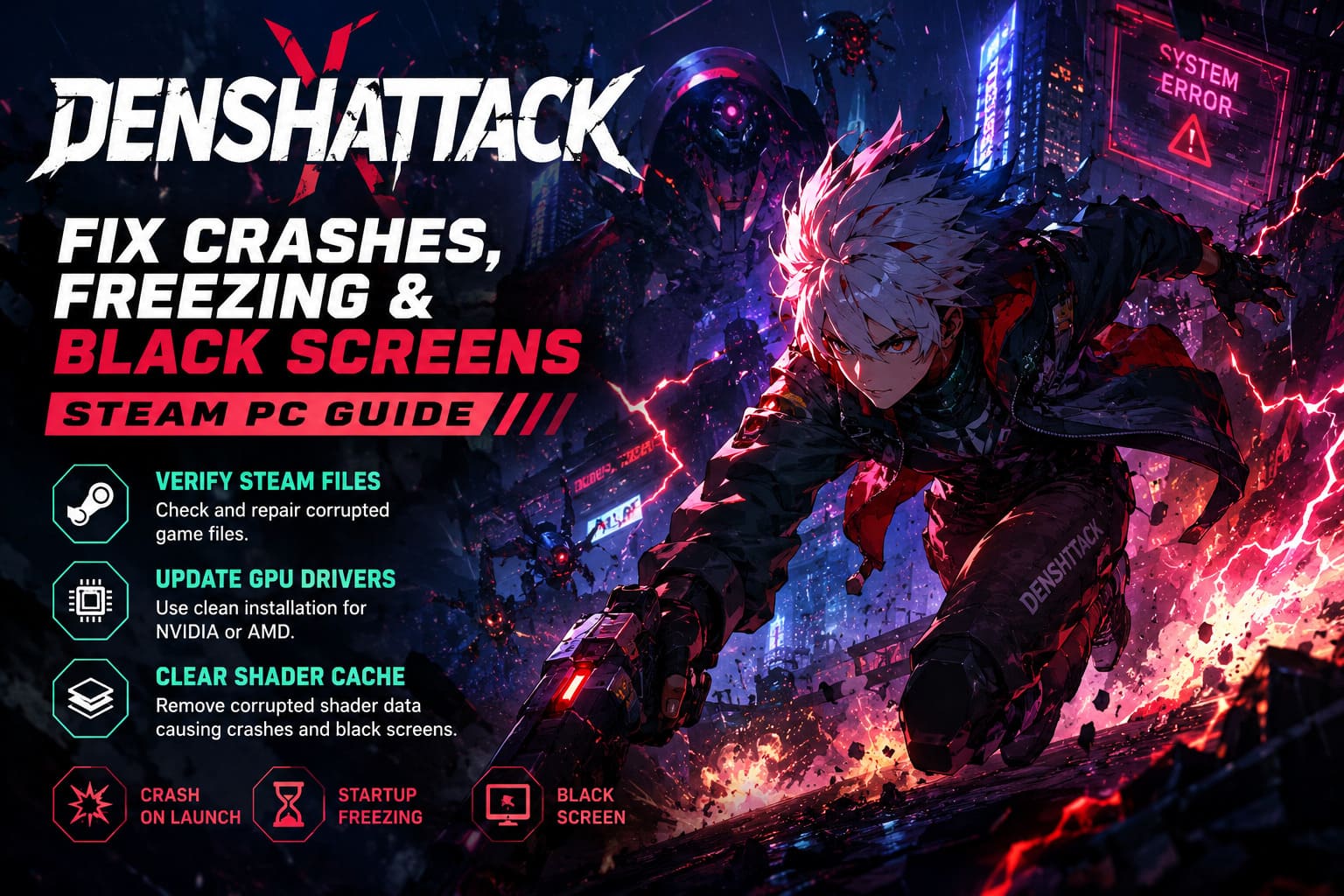
Verify Your Steam Files Immediately
This is always my first step.
Always.
Corrupted installs happen far more often than people realize, especially during launch week when download servers are overloaded or updates are being pushed every few hours.
To verify files:
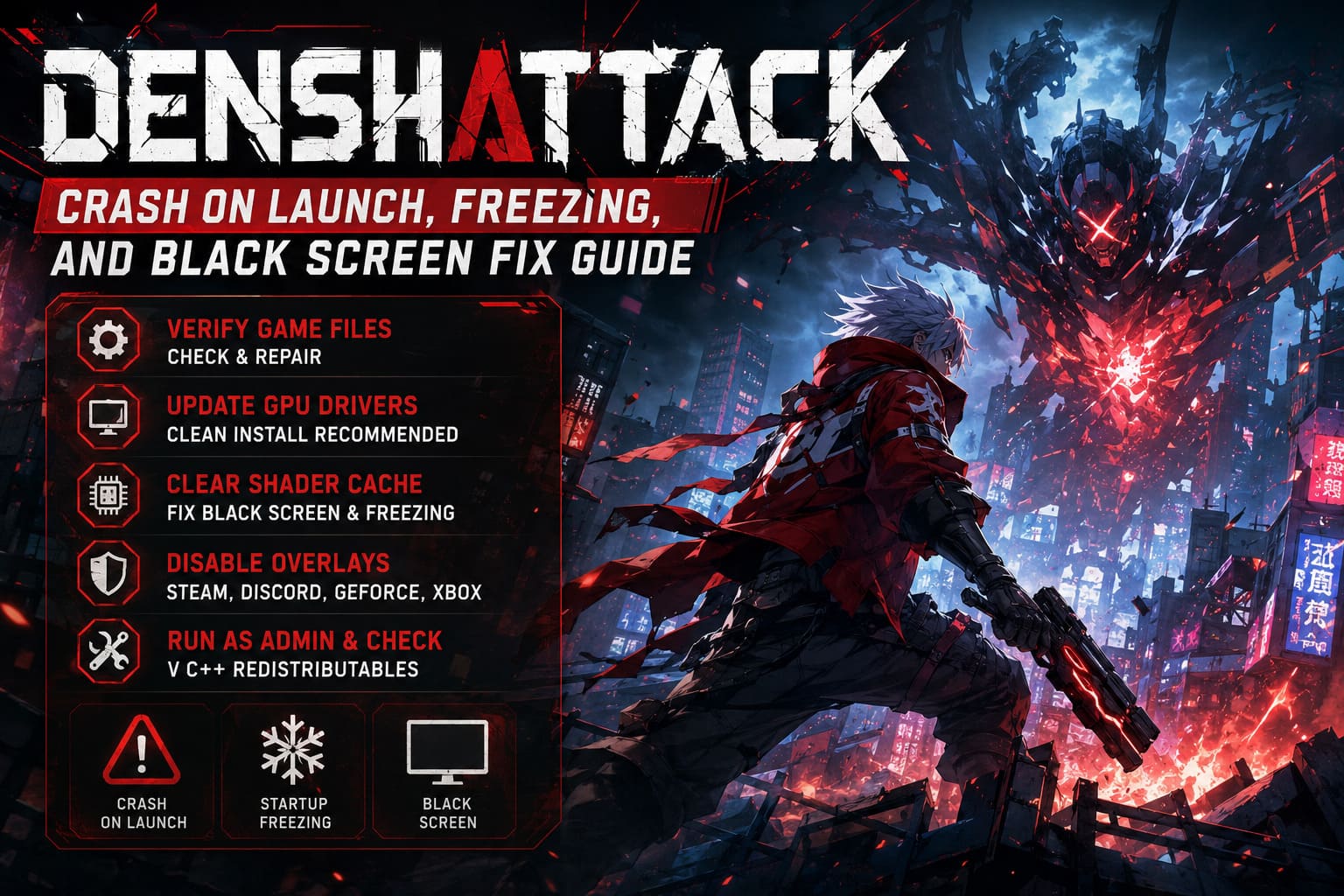
- Open Steam Library.
- Right-click Denshattack.
- Open Properties.
- Select Installed Files.
- Click Verify integrity of game files.
Steam compares your installation against the official version and replaces anything missing or damaged.
I’ve personally fixed launch crashes in games like this with nothing more than a simple file verification.
It’s boring advice.
It also works surprisingly often.
Update Your GPU Drivers — But Do It Properly
A quick driver update isn’t always enough.
New releases frequently expose weird driver conflicts that older games never touched.
For NVIDIA users, choose Custom Installation and enable Perform a clean installation.
For AMD users, select the option that resets previous driver settings and clears old profiles.
If you’ve been upgrading drivers for years without doing a clean install, leftover shader data and old profiles can create some bizarre launch issues.
I’ve seen games refuse to start because of driver remnants from GPUs that weren’t even installed anymore.
If you’re still crashing after updating, consider using DDU and starting completely fresh.
It’s a bit annoying, but it remains one of the best troubleshooting tools PC gamers have.
Clear Your Shader Cache
Shader caches are fantastic when they work.
When they break, they’re absolute chaos.
Corrupted shader data often causes:
- Black screens
- Infinite loading
- Startup freezes
- Immediate desktop crashes
For NVIDIA users:
- Disable Shader Cache temporarily in NVIDIA Control Panel.
- Delete DXCache and GLCache folders.
- Re-enable Shader Cache afterward.
For everyone else:
- Open Disk Cleanup.
- Select your Windows drive.
- Check DirectX Shader Cache.
- Remove it.
The next launch may take longer because the game rebuilds everything from scratch, but that’s usually preferable to staring at a black screen forever.
Force Different Launch Modes Through Steam
This ended up fixing the issue on one of my secondary test systems.
Launch arguments can bypass problematic startup behavior and force the game into safer initialization settings.
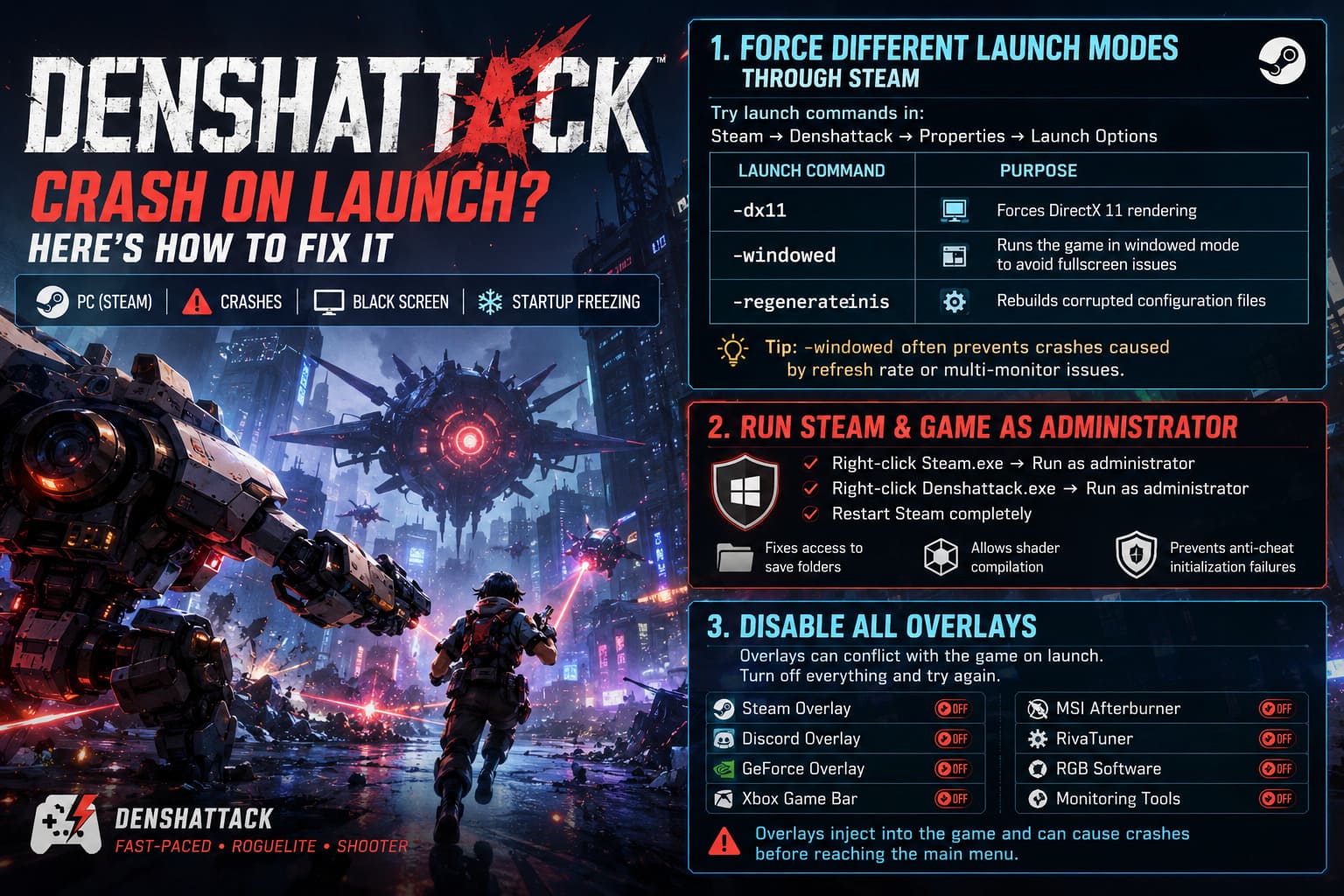
Open:
Steam → Denshattack → Properties → Launch Options
Try these one at a time:
| Launch Command | Purpose |
|---|---|
| -dx11 | Forces DirectX 11 rendering |
| -windowed | Prevents fullscreen initialization issues |
| -regenerateinis | Rebuilds corrupted configuration files |
The -windowed command is particularly underrated.
I’ve lost count of how many games crashed because they tried to initialize at the wrong refresh rate or attempted exclusive fullscreen on an unsupported display setup.
Multi-monitor users seem especially vulnerable to this one.
Run Steam as Administrator
Windows permissions continue to cause strange behavior in modern PC games.
Save directories.
Shader compilation folders.
Configuration files.
Anti-cheat initialization.
Any of these can fail silently if Windows blocks access.
Right-click both:
- Steam.exe
- Denshattack.exe
Enable:
Run this program as administrator
Then restart Steam completely.
This isn’t the magical solution it used to be ten years ago, but it’s still worth trying.
Disable Every Overlay You Can Find
If there’s one thing PC launch weeks have taught me, it’s this:
Overlays break everything.
Steam Overlay.
Discord Overlay.
GeForce Overlay.
Xbox Game Bar.
MSI Afterburner.
RivaTuner.
RGB software.
Performance monitoring tools.
Every one of them injects code into the rendering pipeline.
Normally that’s fine.
On launch day with a brand-new game engine? Not always.
If Denshattack crashes before reaching the menu, temporarily disable all overlays and test again.
This fix solved the issue for multiple players almost immediately.
Remove Overclocks Temporarily
Nobody likes hearing this one.
Especially enthusiasts.
But unstable overclocks often reveal themselves in new releases long before older games notice anything wrong.
That includes:
- GPU overclocks
- CPU overclocks
- RAM tuning
- Aggressive XMP profiles
- EXPO memory profiles
If you’re running cutting-edge DDR5 settings or pushing your GPU beyond factory specifications, try reverting everything to stock speeds.
If the crashes disappear, you’ve found your answer.
Add Denshattack to Antivirus Exceptions
Indie games occasionally trigger false positives.
It’s annoying, but it happens.
Windows Defender, Avast, Norton, Malwarebytes, and Bitdefender have all been known to quarantine perfectly safe game files during release week.
Add the entire game folder as an exclusion.
Typical Steam path:
C:\Program Files (x86)\Steam\steamapps\common\Denshattack
This prevents executables from being blocked while the game is trying to initialize save data or create configuration folders.
Repair Visual C++ Redistributables
This fix feels ancient.
Because it is.
And yet somehow it continues solving launch problems in 2026.
Install or repair:
- Visual C++ 2015
- Visual C++ 2017
- Visual C++ 2019
- Visual C++ 2022
Most systems already have them installed.
Choose Repair instead of Install and restart your PC afterward.
I’ve fixed more mysterious crashes with Visual C++ repairs than I’d like to admit.
Denshattack Game Combo Guide: How to Maintain a High Score Multiplier
What Fixed It for Me?
On my main machine, the culprit ended up being an old shader cache combined with an outdated NVIDIA profile.
On another system, the game only launched after forcing windowed mode.
A friend fixed his issue by disabling Discord Overlay.
That’s the frustrating reality of PC gaming.
There isn’t always one universal answer because every system is effectively its own ecosystem of drivers, software, overlays, hardware combinations, and Windows configurations.
Denshattack Game Plot: How to Defeat the Sinister Miraido Corporation
Final Thoughts
Launch issues are frustrating, especially when you’re excited to jump into a new release.
Thankfully, Denshattack doesn’t appear to suffer from a fundamentally broken PC port. Most reports point toward the usual collection of launch-week compatibility problems that tend to disappear after a few patches and driver updates.
If you’re still stuck at a black screen after trying everything above, keep an eye on upcoming patches from the developers. Small indie teams often move surprisingly quickly when launch problems start appearing in community discussions.
Once you finally get into the game, though, it’s worth the effort.
The combination of arcade racing, platforming, trick systems, and absurd train customization gives Denshattack a personality that’s becoming increasingly rare in modern releases.
Getting it to launch might be the first boss fight.
Fortunately, it’s one you can win.