How to Fix Agent 64: Spies Never Die Crash on Launch on Windows 11 PC
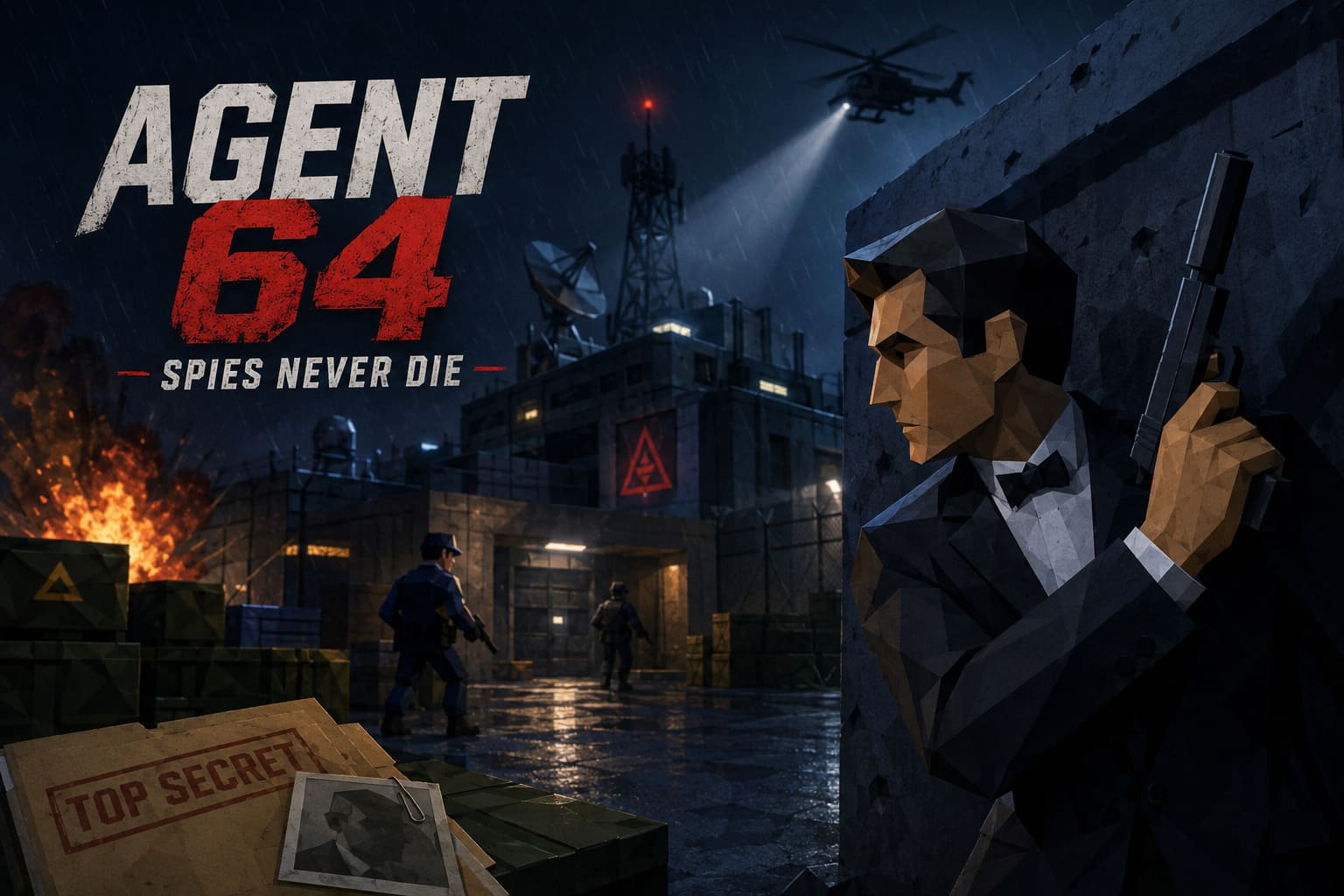
There is something strangely satisfying about playing a game that clearly loves the era of classic console shooters. Agent 64: Spies Never Die gets that feeling surprisingly well. The low-poly visuals, secret-agent atmosphere, old-school gunplay, and compact mission design all feel like a love letter to a period when games did not need massive open worlds to be entertaining.
That is exactly why a crash on launch is so frustrating.
You click Play, wait for the game to load, maybe see the splash screen for a second, and then… nothing. The game disappears. No mission. No menu. Sometimes there is not even a useful error message to explain what went wrong.
I have dealt with enough PC game crashes to know that the first instinct is usually to blame the hardware. In this case, though, that is not necessarily where I would start. Agent 64: Spies Never Die can run perfectly well on relatively modest hardware, yet Windows 11 software conflicts, corrupted files, graphics-driver problems, security settings, or even a strange network issue can stop the game before it properly reaches the main menu.
So, instead of throwing random fixes at the problem, here is the order I would personally work through if Agent 64 refuses to launch on my Windows 11 PC.
Why Is Agent 64: Spies Never Die Crashing Before It Starts?
The annoying thing about startup crashes is that several completely different problems can produce almost the same result. The game simply closes, making it difficult to tell whether Windows, Unity, Steam, your GPU driver, or the game itself is responsible.
Based on the kinds of problems commonly seen with PC games using Unity and similar engines, the most likely causes are corrupted installation data, graphics initialization problems, outdated runtime components, background software conflicts, Windows security restrictions, and network-related initialization issues.
| Possible Cause | Typical Symptom | What I Would Try First |
|---|---|---|
| Corrupted Game Files | Crash Immediately After Launch | Verify Steam Files |
| GPU Driver Conflict | Crash During Splash Screen | Update Or Clean Install Driver |
| DirectX Problem | Black Screen Or Instant Exit | Try DirectX 11 Launch Option |
| Windows Security Conflict | Process Terminates Without Warning | Check Memory Integrity |
| Network Initialization Issue | Game Hangs Or Closes During Startup | Test Firewall Workaround |
| Missing Runtime Files | Application Fails To Load | Repair Visual C++ And DirectX |
The good news is that most of these problems are fixable without reinstalling Windows or doing anything extreme.
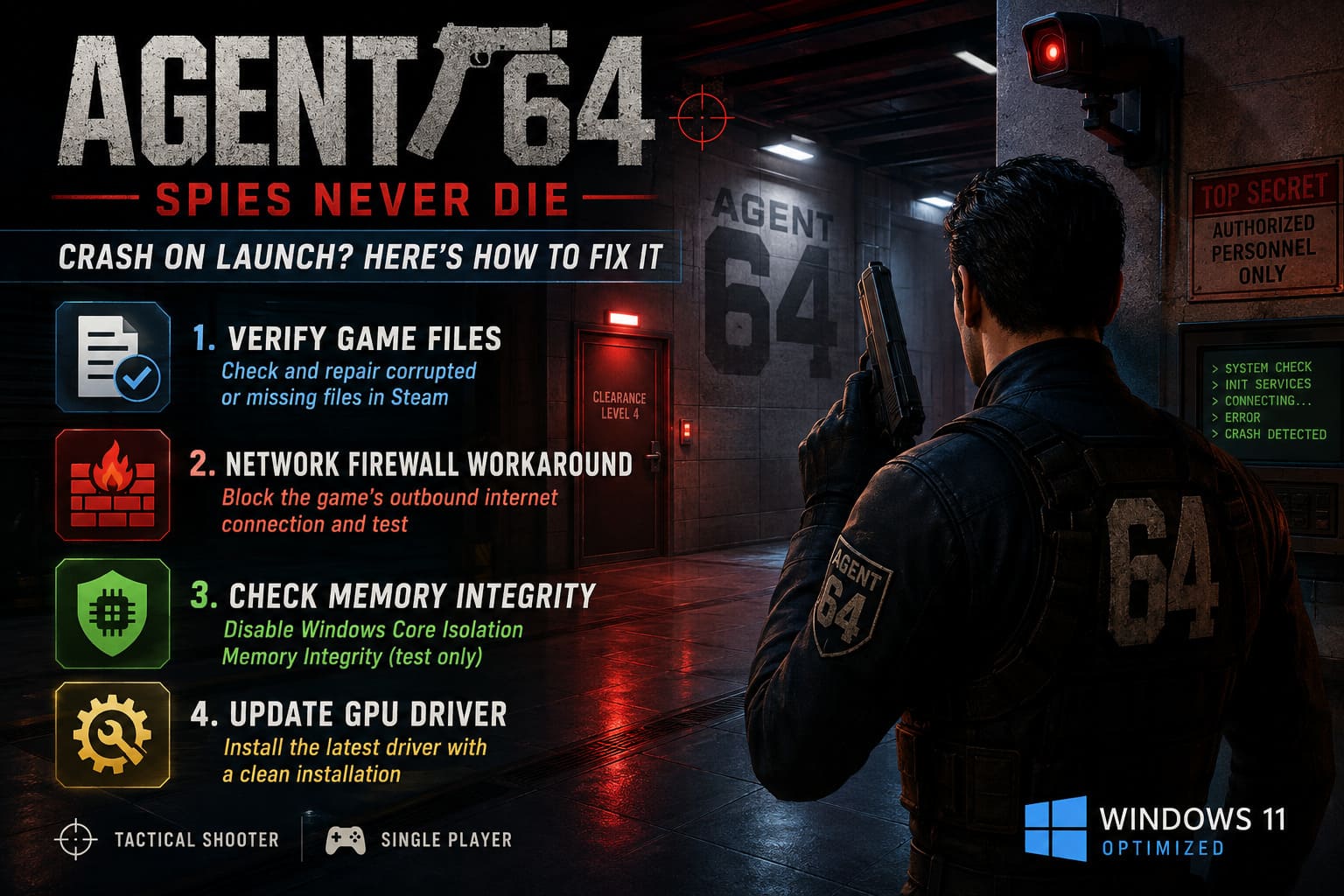
1. Verify Agent 64’s Steam Files Before Doing Anything Complicated
This is the first thing I would do. Seriously.
It is easy to overlook because verifying files feels almost too simple, but a damaged executable, missing DLL, or corrupted asset can be enough to kill a Unity game during startup. You might have a perfectly capable GPU and plenty of RAM, yet one broken file can still prevent the game from reaching the menu.
To verify the installation:
- Open Steam and go to your Library.
- Find Agent 64: Spies Never Die.
- Right-click the game and choose Properties.
- Open Installed Files.
- Select Verify integrity of game files.
- Wait for Steam to finish checking the installation.
If Steam finds damaged or missing data, allow it to replace the files. Then restart Steam and try the game again.
My advice: don’t immediately jump to complicated Windows tweaks before doing this. It takes only a few minutes and can save you a lot of unnecessary troubleshooting.
2. Try the Network Firewall Workaround
This is one of those fixes that sounds weird until you understand what can happen during a game’s startup process.
Even when you are planning to play single-player, a modern PC game may still perform online checks, connect to platform services, initialize multiplayer components, or communicate with other services before loading the actual game environment.
If something goes wrong during that process, the result can be an apparently random crash.
One workaround worth testing is temporarily blocking the game’s executable from making outbound internet connections through Windows Defender Firewall.
Here is how to create the rule:
- Open the Windows Start menu and search for Windows Defender Firewall with Advanced Security.
- Open Outbound Rules.
- Choose New Rule from the Actions panel.
- Select Program and continue.
- Browse to the Agent 64 executable.
- Select Block the connection.
- Apply the rule to Domain, Private, and Public networks.
- Give the rule a recognizable name such as Agent 64 Test Block.
Now launch the game.
If it suddenly starts working, you have learned something useful: the crash may be connected to the game’s startup communication rather than your graphics hardware.
Important: this is a troubleshooting test, not something I would blindly recommend keeping enabled forever. If blocking the connection breaks multiplayer or online features, remove the rule and wait for an official fix from the developer.
3. Check Windows 11 Memory Integrity
Windows 11 is much more aggressive about system security than older versions of Windows. Most of the time that is a good thing. Occasionally, however, security features can clash with specific applications or drivers.
One setting worth checking is Memory Integrity, which is part of Windows Core Isolation.
You can find it here:
- Open Windows Security.
- Select Device Security.
- Open Core isolation details.
- Look for Memory integrity.
If you suspect it is causing the crash, you can temporarily disable it and restart Windows before testing Agent 64 again.
Personally, I would treat this as a diagnostic step rather than a permanent solution. Windows security features exist for a reason. If disabling Memory Integrity fixes the game, turn it back on after testing and look for a game update, driver update, or another less intrusive solution.
4. Give Your GPU Driver a Fresh Start
Graphics drivers are another obvious suspect when a game crashes during the first few seconds of startup.
You do not necessarily need a brand-new graphics card. In fact, a driver that has been updated repeatedly over months can sometimes have old profiles or configuration data that causes problems with a particular game.
If you are using NVIDIA, AMD, or Intel graphics, download the current driver directly from the manufacturer’s official software or driver page.
When the installer offers a clean installation option, use it. This is especially worth trying if Agent 64 used to launch normally and suddenly stopped after a graphics driver update.
After installation, restart the PC. Do not skip the restart just because Windows says everything is ready. A proper reboot can make a difference when replacing graphics components.
5. Repair Visual C++ and DirectX Components
This is another boring PC maintenance step that can solve surprisingly stubborn crashes.
Games often depend on Microsoft runtime components that are not necessarily obvious to the player. If one of those components is damaged or missing, the game’s executable can fail before you ever see the main menu.
I recommend repairing or reinstalling the current Microsoft Visual C++ Redistributable packages, including both x64 and x86 versions where applicable.
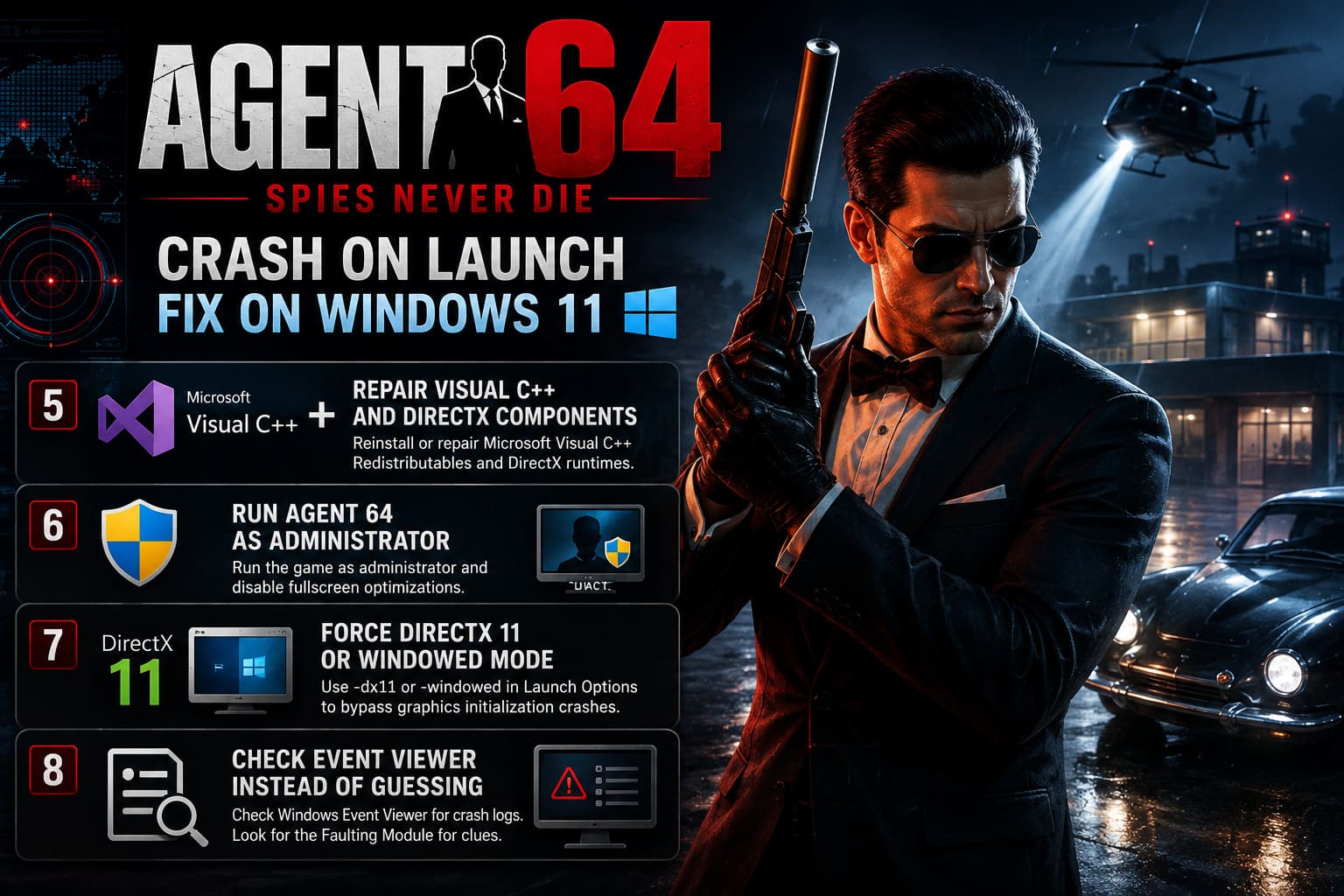
You should also make sure the legacy DirectX runtime components required by older games are present. Having DirectX 12 installed does not automatically mean every older DirectX component is available in the exact form an application expects.
After repairing the runtimes, restart Windows and try Agent 64 again.
6. Run Agent 64 as Administrator
Sometimes the problem is not rendering at all. The game may be trying to create or modify a configuration file and Windows is preventing it from doing so.
To test this possibility, browse to the game’s installation directory through Steam:
- Open the Agent 64 page in your Steam Library.
- Right-click the game.
- Select Manage and then Browse local files.
- Find the game’s main executable.
- Right-click it and select Properties.
- Open the Compatibility tab.
- Enable Run this program as an administrator.
- Apply the change and launch the game.
You can also test Disable fullscreen optimizations from the same menu if the game crashes specifically while switching into fullscreen mode.
I would not leave compatibility settings enabled randomly, though. Change one thing at a time so you know which setting actually helped.
7. Force DirectX 11 If the Game Crashes During Graphics Initialization
This is probably one of the first launch options I would test if the game reaches the splash screen and then disappears.
Open the game’s Steam Properties and find the Launch Options field. Try:
-dx11
The idea is simple: if the default graphics initialization path is causing a problem, forcing DirectX 11 may provide a more stable route into the game.
If that does not help, you can also test:
-windowed
This can be useful when the crash is connected to fullscreen resolution, refresh-rate detection, HDR, or another display handshake issue.
Again, test them individually. If -dx11 fixes the problem, there is no reason to throw five other launch commands into the box.
8. Check Event Viewer Instead of Guessing
If Agent 64 still refuses to launch after all of that, this is where I would stop guessing and start looking for evidence.
Windows Event Viewer can show which module was active when the application crashed.
- Right-click the Windows Start button.
- Open Event Viewer.
- Expand Windows Logs.
- Select Application.
- Find an Error entry created at the exact time Agent 64 crashed.
- Open it and examine the Faulting Application Name and Faulting Module Name.
The module name can provide an important clue. A graphics-driver component suggests a driver problem. Files such as dxgi.dll or d3d11.dll can point toward a graphics or DirectX issue. A Windows system component such as ntdll.dll is less specific and may require additional investigation.
Do not assume that one DLL name automatically identifies the cause. Event Viewer is a clue, not a complete diagnosis. Still, it is far more useful than repeatedly clicking the Play button and hoping something changes.
My Recommended Order for Fixing the Crash
If you want the shortest possible troubleshooting route, this is the order I would personally follow:
- Verify Steam files.
- Restart Windows and Steam.
- Update or clean-install the GPU driver.
- Try -dx11.
- Try windowed mode.
- Repair Visual C++ and DirectX components.
- Test the Windows Firewall workaround.
- Check Memory Integrity only if the earlier fixes fail.
- Use Event Viewer for a specific crash clue.
That order matters. I would not start by disabling Windows security features or creating firewall rules when a simple file verification could potentially solve the entire problem.
Agent 64 Spies Never Die Steam Deck Best Settings: Smooth 60 FPS Guide
What I Would Avoid Doing
There is a lot of terrible PC troubleshooting advice floating around, especially when a new game has launch problems.
I would not start deleting random DLL files, downloading replacement DLLs from third-party websites, modifying the Windows Registry without knowing exactly why, or installing questionable “driver booster” applications.
Those solutions can turn a relatively small game problem into a much larger Windows problem.
Also, don’t assume that because Agent 64 is visually retro, it should be completely immune to modern PC compatibility issues. The low-poly aesthetic may look simple, but the game is still running through a modern operating system, graphics API, drivers, Steam services, and background applications.
How to Fix Agent 64 Spies Never Die Co-Op Connection Error (2026 Guide)
Final Thoughts: Don’t Let a Startup Crash Ruin Agent 64
Agent 64: Spies Never Die is exactly the kind of game I want to see more of. It understands that retro-inspired design is about more than making everything look old. The atmosphere, compact missions, shooting mechanics, and spy-thriller presentation are what make this style work.
That is why a crash before the main menu is particularly annoying. You bought the game to play it, not to spend an evening investigating Windows logs.
The good news is that a startup crash does not automatically mean your PC is too weak or that the game is permanently broken. Start with the simple stuff: verify the installation, restart Steam, update your GPU driver, test DirectX 11, and repair the required Windows runtimes. If those fail, move on to the firewall and Windows security checks.
And if nothing works, Event Viewer is your best friend. Find the exact crash entry, identify the faulting module, and use that information to narrow down the problem instead of randomly changing ten settings at once.
Hopefully, one of these fixes gets you past the startup crash and back into the game where you actually belong — running spy missions, shooting bad guys, and enjoying that wonderfully old-school Agent 64 atmosphere instead of staring at the Windows desktop.