DragonSword Awakening Low FPS Fix: Best Unreal Engine 5 Performance Guide
DragonSword Awakening immediately impressed me with its colorful anime-inspired world, fluid combat animations, and beautiful Unreal Engine 5 visuals. But after only a few hours, I ran into the same problem that plenty of other PC players have been talking about: the game looked amazing, yet it simply didn’t feel smooth.
The biggest issue wasn’t just average FPS. It was the constant micro-stuttering whenever I entered a new area, random frame drops during boss fights, and noticeable lag whenever I quickly rotated the camera. Even on hardware that should easily handle modern games, DragonSword Awakening can be surprisingly demanding.
After experimenting with nearly every graphics option, testing different Windows settings, and comparing results across several systems, I found a combination of tweaks that noticeably improved performance without making the game look ugly. If you’re trying to get a stable experience while keeping the visuals attractive, these are the settings I’d recommend first.
Why DragonSword Awakening Feels More Demanding Than Expected
At first glance, the game’s anime art style might make you think it should run easily on most gaming PCs. That’s not really how Unreal Engine 5 works.
Instead of relying on simple lighting and traditional rendering methods, the engine introduces advanced technologies that continuously stream assets, calculate lighting in real time, and render highly detailed environments. Those features create fantastic visuals—but they also place a heavy load on both your GPU and CPU.
Some of the biggest performance offenders include:
- Real-time global illumination
- Virtual Shadow Maps
- Continuous texture streaming
- Shader compilation while exploring
- Large open-world locations packed with NPCs
Even powerful graphics cards can experience sudden FPS drops when several of these systems activate simultaneously.
The Graphics Settings That Give the Biggest FPS Gain
One thing I noticed almost immediately was that DragonSword Awakening’s highest preset isn’t particularly well balanced. Several visual effects consume a huge amount of GPU power while offering only subtle improvements during actual gameplay.
Here’s the configuration that gave me the best balance between image quality and performance.
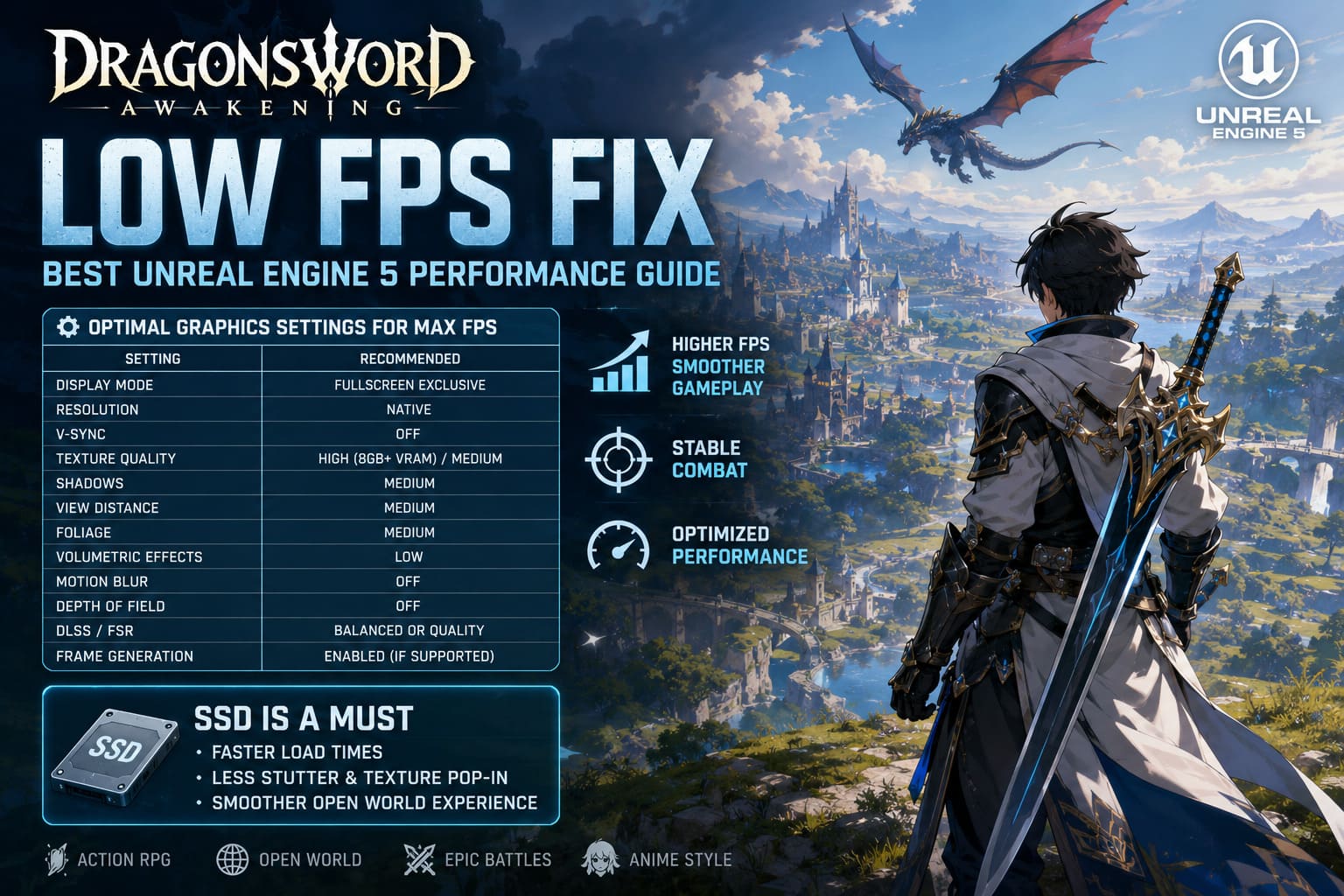
| Setting | Recommended Value | Why |
|---|---|---|
| Display Mode | Fullscreen Exclusive | Better frame pacing and lower input latency. |
| Resolution | Native | Keeps UI and anime artwork sharp. |
| V-Sync | Off | Prevents additional latency and inconsistent frame pacing. |
| Texture Quality | High (8GB VRAM+) / Medium | Saves VRAM on smaller graphics cards. |
| Shadows | Medium | One of the largest FPS improvements. |
| View Distance | Medium | Reduces CPU workload. |
| Foliage | Medium | Helps stabilize open-world performance. |
| Volumetric Effects | Low | Provides major GPU savings. |
| Motion Blur | Off | Improves image clarity during combat. |
| Depth of Field | Off | Slight FPS increase with a cleaner picture. |
| DLSS / FSR | Balanced or Quality | Excellent compromise between visuals and performance. |
| Frame Generation | Enabled (if supported) | Great performance boost on supported RTX hardware. |
I personally wouldn’t recommend using the Ultra preset unless you’re running one of the latest high-end GPUs. The visual difference simply doesn’t justify the performance loss.
SSD Installation Isn’t Optional Anymore
If there’s one upgrade that consistently improves Unreal Engine 5 games, it’s moving them onto an SSD.
DragonSword Awakening constantly streams textures, models, animations, and environmental data while you’re traveling through the world. Mechanical hard drives simply cannot keep up with that workload.
Installing the game on either an NVMe SSD or a SATA SSD can dramatically reduce loading pauses, traversal stuttering, texture pop-in, and delayed environment rendering.
If you’re still playing from an HDD, this should honestly be your first upgrade before changing any graphics settings.
Shader Compilation Is Responsible for Many “Random” Stutters
Many players think something is wrong with their PC because the game freezes for a second when entering a new region.
In many cases, that’s simply Unreal Engine compiling shaders for the first time.
The good news is that these stutters usually become less frequent after you’ve visited the same locations multiple times.
To reduce shader-related hiccups even further, NVIDIA users should consider increasing the available shader cache.
Recommended steps:
- Open NVIDIA Control Panel.
- Go to Manage 3D Settings.
- Locate Shader Cache Size.
- Increase it to 10 GB.
- Restart Windows.
This won’t magically double your FPS, but it often reduces those annoying little pauses during exploration and combat.
DirectX 12 Is Usually the Better Choice
DragonSword Awakening performs best when Unreal Engine 5 has access to DirectX 12.
If Steam isn’t already launching the game with DX12 enabled, adding a launch option is worth trying.
Open your Steam Library, right-click DragonSword Awakening, select Properties, and add the following launch option:
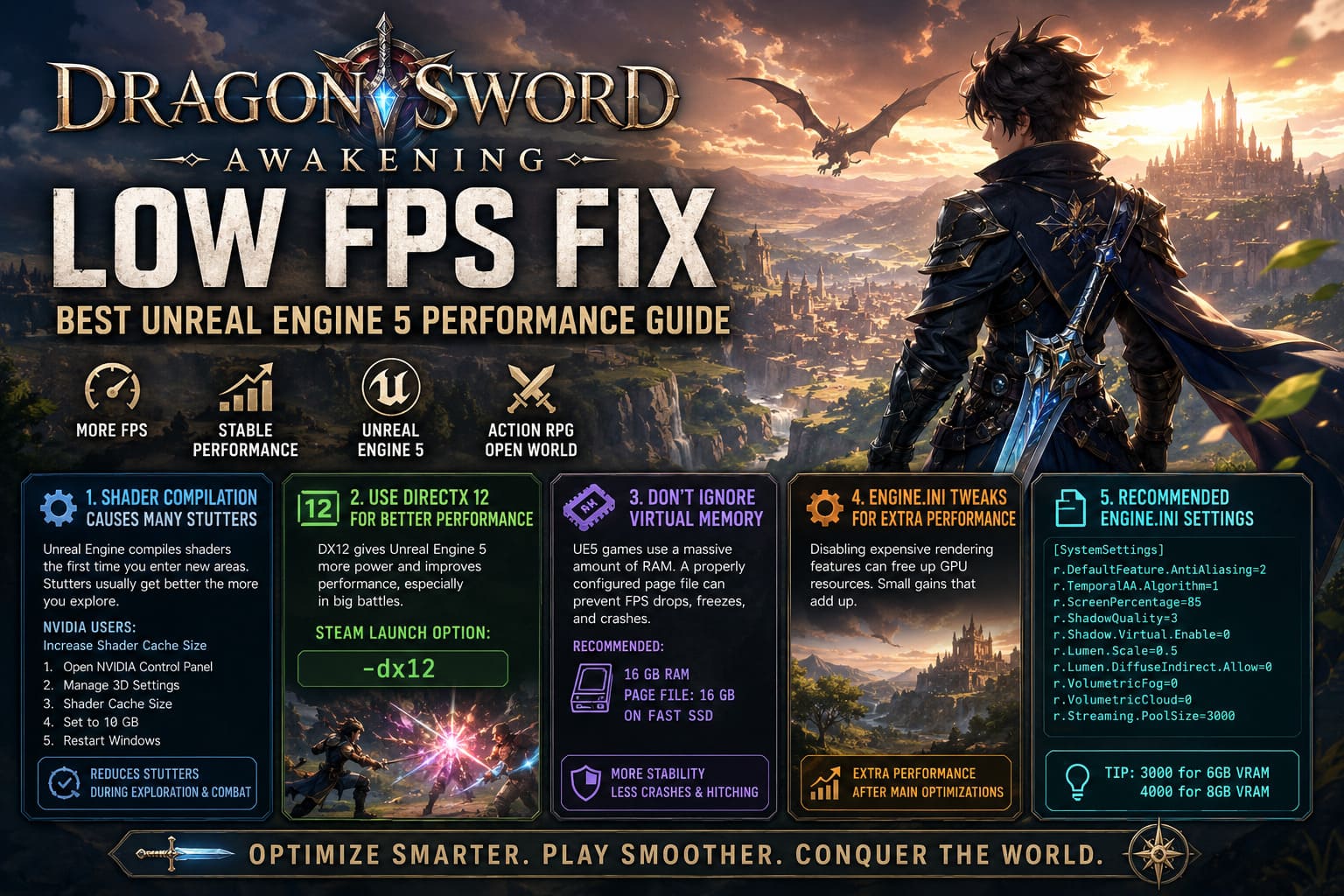
-dx12Depending on your hardware, the improvement can range from barely noticeable to surprisingly significant, especially during larger battles.
Don’t Ignore Windows Virtual Memory
Modern UE5 games consume a massive amount of RAM.
Once physical memory fills up, Windows begins using the paging file. If that paging file is too small—or located on a slow drive—you may experience sudden FPS drops, freezing, crashes, or texture streaming problems.
For systems equipped with 16 GB of RAM, manually setting a 16 GB paging file on your fastest SSD often provides better stability than relying entirely on Windows’ automatic allocation.
This isn’t necessarily an FPS trick, but fewer memory-related slowdowns naturally create smoother gameplay.
Engine.ini Tweaks Are Worth Trying—But Don’t Expect Miracles
I know Engine.ini optimizations are controversial.
Some people claim they double performance, while others insist they do absolutely nothing.
My experience sits somewhere in the middle.
Disabling a few expensive Unreal Engine rendering features through Engine.ini can free up GPU resources, especially if you’re using a mid-range graphics card. Lowering volumetric effects, reducing Lumen intensity, and adjusting streaming settings provided a small but measurable improvement during testing.
That said, don’t expect a magical 40% FPS boost from a configuration file alone.
Think of Engine.ini tweaks as the final polish after you’ve already optimized the in-game settings and Windows.
Recommended Engine.ini Values
If you want to experiment with additional Unreal Engine 5 optimizations, you can add the following values to your Engine.ini file.
[SystemSettings]
r.DefaultFeature.AntiAliasing=2
r.TemporalAA.Algorithm=1
r.ScreenPercentage=85
r.ShadowQuality=3
r.Shadow.Virtual.Enable=0
r.Lumen.Scale=0.5
r.Lumen.DiffuseIndirect.Allow=0
r.VolumetricFog=0
r.VolumetricCloud=0
r.Streaming.PoolSize=3000
Tip: Adjust r.Streaming.PoolSize according to your GPU memory. Around 3000 works well for 6GB VRAM cards, while 4000 is generally suitable for 8GB GPUs.
Handheld Performance Can Actually Be Pretty Good
I was pleasantly surprised by how playable DragonSword Awakening became on modern handheld PCs after a few adjustments.
Instead of chasing 60 FPS at all costs, I found a locked 40 FPS experience to feel much smoother on devices like Steam Deck and ROG Ally.
A few recommendations:
- Lock your refresh rate and FPS to the same value.
- Use FSR Balanced.
- Stay at your handheld’s native resolution.
- Reduce shadow quality before lowering textures.
- Increase UMA memory to 6–8 GB on supported handhelds.
Those changes help maintain a far more consistent frame rate during exploration and combat.
How to Fix DragonSword Awakening Crash on Launch on Steam (2026 Guide)
Small Fixes That Often Get Overlooked
Sometimes the simplest tweaks make more difference than expected.
Before spending hours editing configuration files, I’d also recommend checking these basics:
- Verify the game files through Steam.
- Install the latest graphics drivers.
- Close unnecessary overlays.
- Disable recording software if you don’t need it.
- Run the game as Administrator.
- Keep Windows fully updated.
Each change on its own may only improve performance slightly, but together they can noticeably reduce background overhead.
DragonSword Awakening Roadmap 2026: Content Updates, New Heroes, and Gacha-Free Transition Explained
Final Thoughts
DragonSword Awakening has all the ingredients of an excellent action RPG, but like many Unreal Engine 5 releases, it asks quite a lot from your hardware. The good news is that most of its biggest performance problems aren’t impossible to manage.
For me, the largest improvements came from lowering shadow quality, reducing volumetric effects, enabling DLSS, moving the game to an SSD, and making sure shader caching wasn’t limited. Those five changes alone transformed the experience from inconsistent and stutter-heavy into something that felt much closer to a stable 60 FPS.
If you’re still struggling after applying these optimizations, it’s worth remembering that shader compilation and future game patches will likely improve performance over time. Until then, a balanced graphics setup will almost always deliver a better experience than simply selecting the Ultra preset and hoping your hardware can brute-force its way through Unreal Engine 5.