Crimson Desert vs. Skyrim: Is Pywel Really the Largest Open World of 2026?
Crimson Desert has finally landed, and it’s a visual spectacle. Pearl Abyss has truly outdone themselves with the BlackSpace Engine, delivering sprawling open-world landscapes, stunning weather effects, and combat that feels alive.
But, if you’re a PC gamer like me, you may have noticed that the performance can be… a bit finicky. Stuttering, random FPS drops, and even crashes to desktop (CTDs) seem to plague both new rigs and mid-range setups.
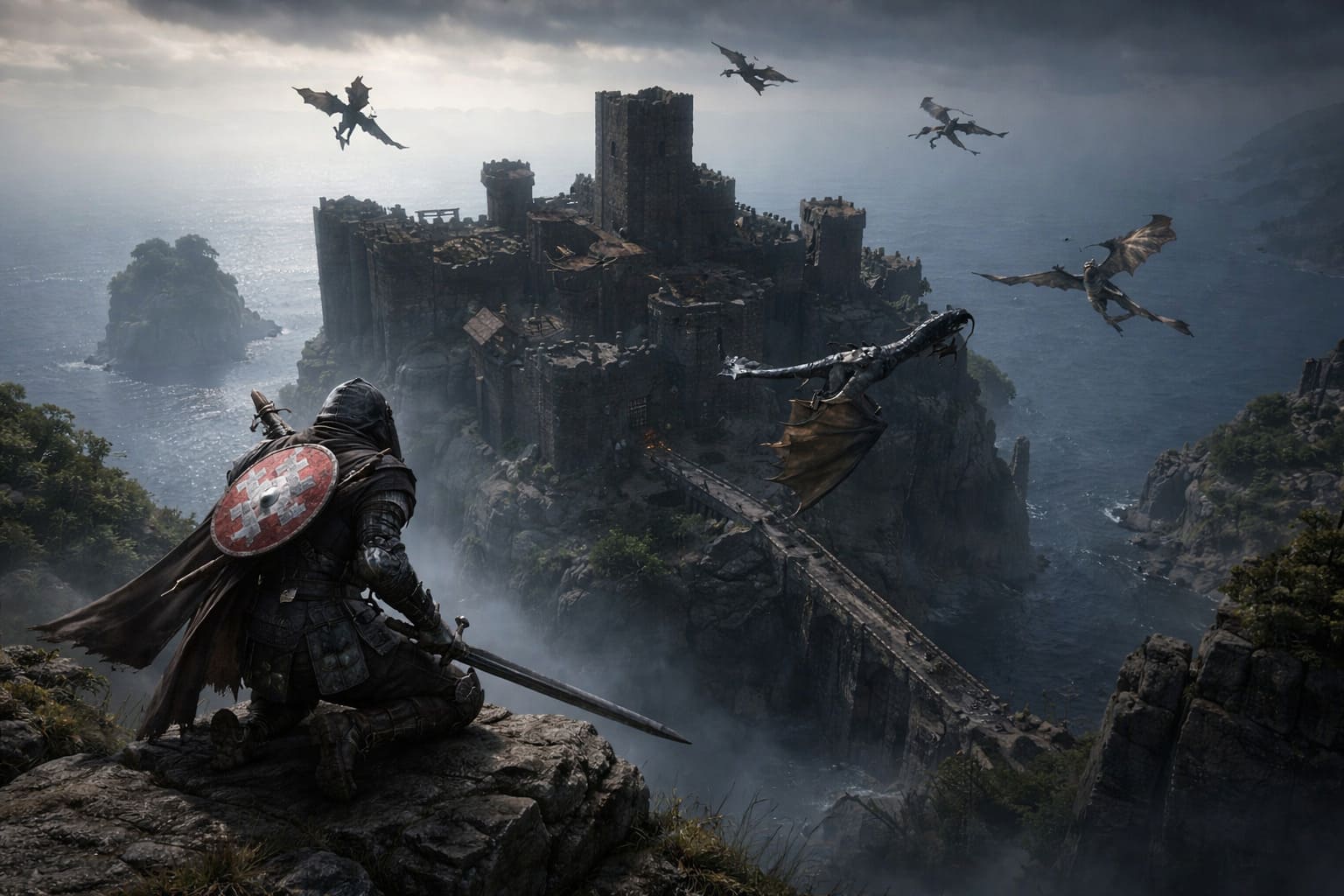
Don’t worry—I’ve spent hours tinkering, testing, and watching the community’s feedback, and here’s my take on how to tame Pywel’s wild world while still enjoying high-quality graphics.
Best Starting Solo Builds in Crystalfall & Spellblade Leech Mastery: Almost Unfair, Fully Optimized
This guide blends personal experience with community-tested fixes to help you reach a smooth 60+ FPS—or at least get close without sacrificing too much visual fidelity.
1. Know Your Hardware Before You Dive In
Before tweaking settings endlessly, make sure your PC meets the game’s minimum and recommended requirements. I’ve seen too many posts online where players are frustrated, only to realize their rig is below spec. Here’s a handy table:
| Preset | Target | CPU | GPU | RAM | Notes |
|---|---|---|---|---|---|
| Minimum | 1080p (Upscaled) @ 30 FPS | i5-8500 / Ryzen 5 2600X | GTX 1060 / RX 5500 XT | 16GB | SSD 150GB free recommended for textures |
| Recommended | 1080p @ 60 FPS | i7-14700K / Ryzen 7 7800X3D | RTX 2080 / RX 6700 XT | 32GB | Smooth gameplay with High settings |
| Ultra (4K) | 4K @ 60 FPS | Core Ultra 9 285K | RTX 5090 / RTX 4090 | 32GB+ | For visually stunning ultra performance |
Pro tip: An SSD isn’t just nice to have—it’s essential. The BlackSpace Engine streams massive textures, and running this game off a traditional HDD can cause major stutter.
2. Settings That Actually Make a Difference
The good news is, you don’t need to max out every setting to enjoy Crimson Desert. Based on benchmarks and my own tests, here’s what works best for a stable, smooth experience:
Upscaling (Your FPS Lifesaver)
– NVIDIA: DLSS 4/4.5
– AMD: FSR 3/4
– Mid-range cards (RTX 3060, 6600 XT): “Quality” or “Balanced” mode often adds 30–50% FPS without ruining visuals.
Shadows & Effects
– Shadow Quality: Medium (shadows are a GPU nightmare)
– Volumetric Effects & Particles: Medium or Low
– Ray Reconstruction: High (for high-end NVIDIA cards; improves visual stability)
Other Tweaks
– Motion Blur: Off. Not only does it hide stutters temporarily, but it also creates ghosting with frame generation.
– Texture Quality: Keep High if you have VRAM headroom; otherwise, Medium can prevent hitching in cities.
From personal experience, turning shadows and volumetric effects down is like giving your GPU a fresh cup of coffee—suddenly the game runs smooth without feeling empty.
3. Combatting Stuttering and Frame Drops
Stuttering isn’t always your hardware’s fault. Sometimes it’s shader caching and CPU bottlenecks. Here’s how I fix it:
Step 1: Repair Game Files
– Open your launcher (Steam or otherwise)
– Right-click Crimson Desert → Properties → Installed Files
– Select “Verify integrity of game files”
Step 2: Clear Shader Cache
– NVIDIA: Control Panel → Manage 3D Settings → Shader Cache Size → Set to 10GB or Unlimited
– Update to the latest drivers via GeForce Experience
Step 3: Mind the CPU Load
– Close background apps (Discord, Chrome tabs, etc.)
– For older 4–6 core CPUs, Denuvo anti-tamper can tax your system heavily. Freeing up cycles helps a lot.
Personally, after doing this, my mid-range setup went from 35–40 FPS in cities to a consistent 55–60 FPS.
4. Under-the-Hood Tweaks for Extra Performance
If you’re serious about squeezing out every FPS, here’s what works for me:
Disable Fullscreen Optimizations
– Go to CrimsonDesert.exe → Properties → Compatibility
– Check “Disable fullscreen optimizations”
– Run as Administrator
Adjust Windows Power Settings
– Win + S → Power Plan → High Performance or Ultimate Performance
– Enable Hardware-accelerated GPU Scheduling (HAGS) in Graphics Settings
Extra Tip: I also turn off Windows Game Mode because it can sometimes throttle background processes needed for streaming textures smoothly.
5. Troubleshooting Common Headaches
Even after optimization, some issues pop up:
Game Won’t Launch
– Add an exception for CrimsonDesert.exe in Windows Firewall and antivirus.
Steam Deck Players
– 30 FPS is often the ceiling without aggressive FSR upscaling and “Low” presets
– CPU limits are the main bottleneck here, so patience is key.
Crashes to Desktop (CTDs)
– Verify installation
– Update drivers
– Lower settings temporarily while exploring new areas
Crimson Desert PC Performance Deep Dive: What Actually Matters for Smooth Gameplay in 2026
If you’ve been waiting for Crimson Desert like I have, you probably already guessed one thing: this game is not forgiving when it comes to hardware. After spending time digging through benchmarks, testing discussions, and tweaking settings myself, I can say this — the game looks incredible, but getting it to run smoothly is a bit of an art.
Let’s break it down in a way that actually helps you play comfortably, not just stare at numbers.
Why Crimson Desert Is So Demanding
The biggest reason behind the heavy performance cost is the BlackSpace Engine. Unlike something like Unreal Engine 5, this one feels more raw — extremely scalable, but also less optimized out of the box.
The biggest trap is the “Cinematic” preset. It sounds tempting and it looks amazing, but in reality it is where performance drops hard unless you are running top-tier hardware.
Real GPU Performance (What You Should Expect)
Let’s talk honestly — not marketing numbers, but what actually feels playable.
4K Performance Reality Check
| GPU | Performance | Verdict |
|---|---|---|
| RTX 5090 | 120+ FPS (with DLSS) | Overkill but perfect |
| RTX 4090 | 60–80 FPS | Strong but struggles at max |
| RX 7900 XTX | 45–55 FPS | Needs FSR for smoothness |
At 4K, the difference between Ultra and Cinematic is massive. Cinematic looks slightly better in motion, but the FPS drop is brutal.
My take is simple: stick to Ultra with upscaling. You will barely notice the visual downgrade during gameplay, but the FPS gain is huge.
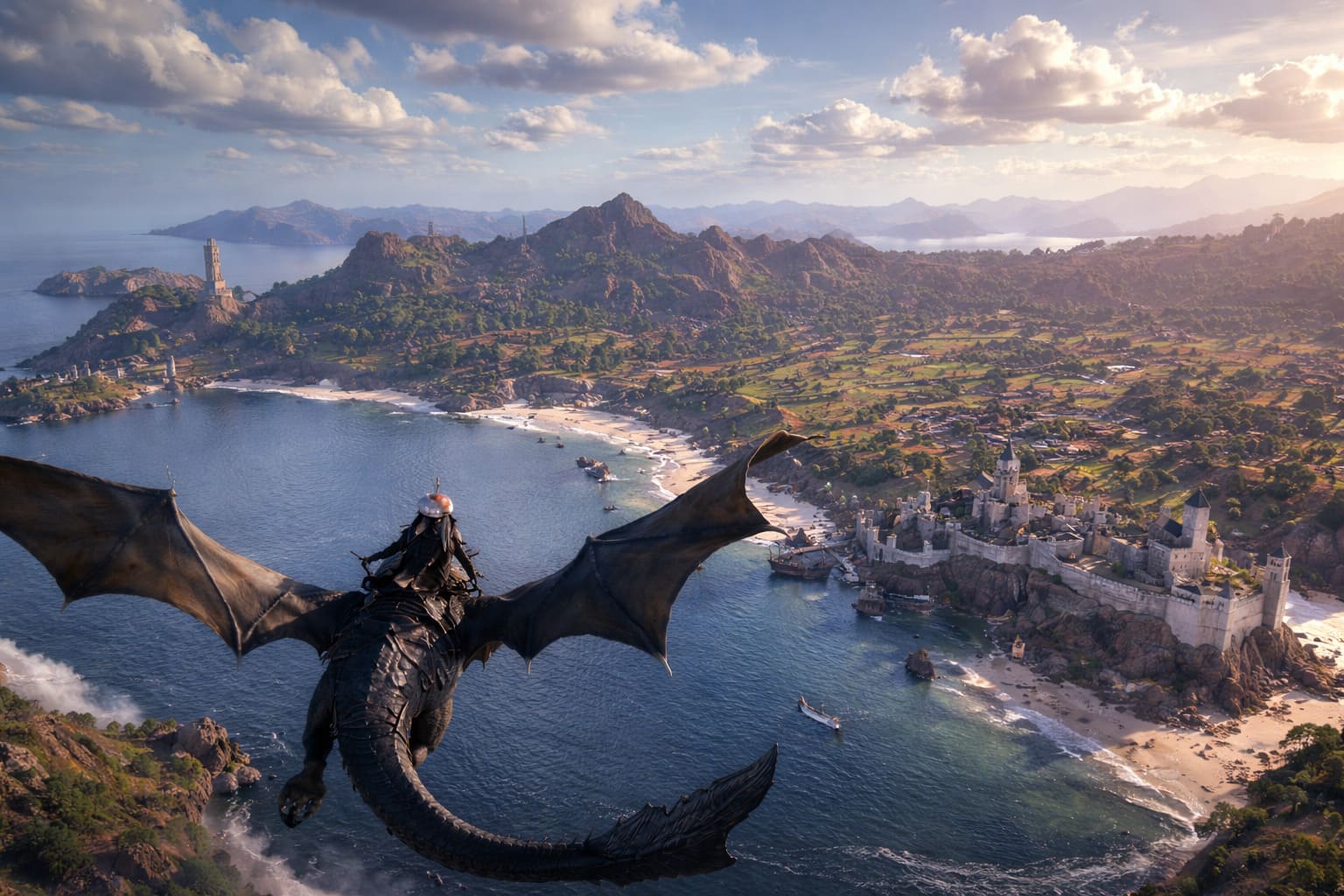
1440p — The Sweet Spot
| GPU Tier | Expected FPS | Experience |
|---|---|---|
| RTX 4070 Super | 80–95 FPS | Smooth and stable |
| RTX 3080 | ~90 FPS | Still very capable |
1440p feels like the intended experience. You get high detail, solid framerate, and fewer compromises.
If you are building or upgrading a PC for this game, aim for 1440p because it offers the best mix of visuals and performance.
1080p — Still Totally Viable
| GPU | Performance |
|---|---|
| RTX 4060 | 60+ FPS High |
| RTX 2080 / RX 6700 XT | 60 FPS Medium-High |
The game scales surprisingly well at 1080p as long as you avoid pushing everything to maximum settings.
This resolution is perfect if you just want to enjoy the game without constantly tweaking settings.
The Settings That Actually Matter
Instead of lowering everything blindly, focus on the real performance-heavy options that have the biggest impact.
- Voxel Fog — very demanding and barely noticeable during gameplay
- Cloth Physics — surprisingly expensive for performance
- Advanced lighting and ray features — great visuals but heavy cost
Lowering these settings gives you a noticeable FPS boost without ruining the overall visual quality.
Hidden Tweaks Most Players Miss
Crimson Desert does not expose all its settings in the menu, but there are ways to improve performance manually.
Config File Tweaks
You can find the config files in your user directory under Documents in the CrimsonDesert folder, specifically inside UserCache where GameOption.txt is located.
Inside this file, you can disable extra fog layers, reduce hidden physics calculations, and tweak effects that are not available in the in-game settings.
This alone can significantly smooth out performance, especially on mid-range systems.
Modding Is Already Emerging
The community is already working on performance improvements and optimization mods.
- Performance texture packs often called “Potato Mode”
- No Bloom or No Fog mods
- General optimization tweaks
These are especially useful if you are playing on older or mid-tier hardware.
External Tools That Help
Some external tools can noticeably improve your experience.
- Special K helps fix frame pacing and improves HDR
- Future scripting tools may unlock deeper engine control
If you are sensitive to stuttering, using tools like Special K can make a big difference.
Stuttering Fixes (This Is Critical)
If your FPS seems fine but the game feels unstable or choppy, the issue is likely not raw performance but frame consistency.
VRAM Management
High settings use around 6GB of VRAM, while Cinematic settings can spike significantly higher and cause instability.
If you are using an 8GB GPU, it is best to avoid the Cinematic preset entirely because it can lead to micro-stutters, frame spikes, and inconsistent performance.
Drivers Matter More Than Usual
Make sure your GPU drivers are up to date because early versions had issues including crashes on launch.
Updating drivers can resolve stability problems and improve compatibility with the game.
CPU Optimization
This is one of the more underrated improvements. For Intel 13th and 14th generation CPUs, adjusting the Ring Ratio to around 5.0GHz in the BIOS can stabilize frametimes.
This will not increase FPS directly, but it will make the gameplay feel smoother and more consistent.
My Personal Recommended Settings
If you want a balanced experience without spending hours tweaking, use these settings as a starting point.
- Preset: Ultra
- Resolution: 1440p
- Upscaling: Enabled
- Voxel Fog: Reduced or Off
- Cloth Physics: Medium
- Lighting effects: Balanced
This setup provides a smooth experience while maintaining high visual quality and avoiding most common performance issues.
Final Thoughts
Crimson Desert is one of those games where chasing maximum settings is not always the best decision. While Cinematic mode looks impressive, the performance cost is simply too high for most systems.
During actual gameplay, you will not notice many of the visual differences, but you will definitely feel stuttering, FPS drops, and input lag if your system is struggling.
With the right settings, a few smart tweaks, and realistic expectations, you can achieve a smooth and enjoyable experience without needing top-tier hardware.