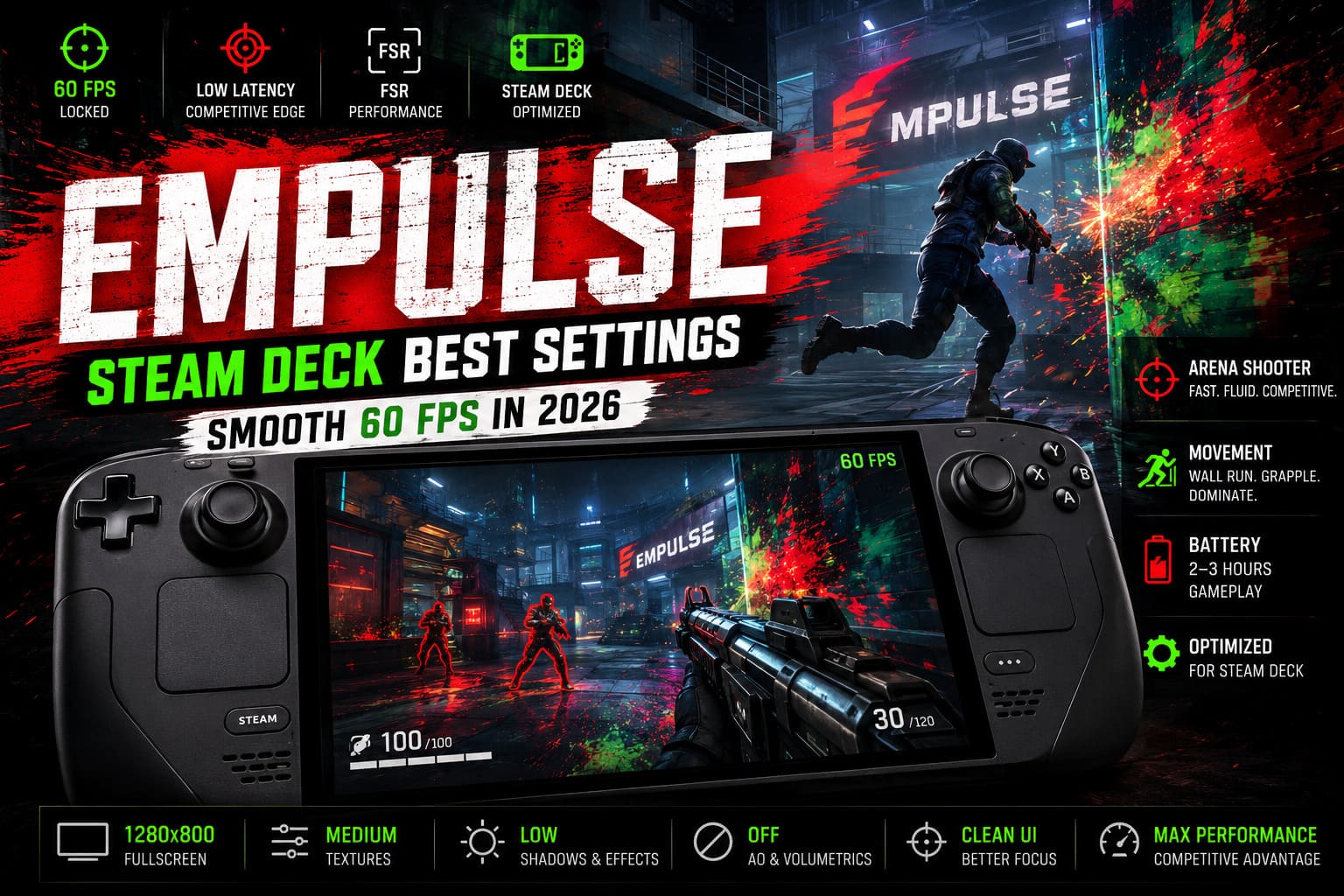
Best EMPULSE Steam Deck Settings: How to Get Smooth 60 FPS in 2026
The first time I jumped into EMPULSE, I immediately felt those old-school Titanfall vibes that many of us have been missing for years. Fast movement, wall-running, grappling across rooftops, giant mechs crashing into the battlefield — this game absolutely rewards speed and precision. And if you’re playing on a Steam Deck like I am, getting a stable frame rate isn’t just a nice bonus. It’s essential.
After spending dozens of matches tweaking settings and experimenting with different performance profiles, I finally found a setup that delivers what matters most: smooth gameplay, responsive controls, and consistent frame times. I don’t care about ultra shadows or cinematic effects when I’m trying to outmaneuver another player in midair. I just want my shots to land.
Here’s the setup that has worked best for me.
Why I Prioritize 60 FPS Over Graphics
EMPULSE isn’t a slow-paced single-player game where beautiful lighting matters more than performance. This is a competitive arena shooter where every second counts.
When the frame rate drops during a firefight, you feel it immediately:
- Input delay becomes noticeable.
- Tracking fast-moving enemies gets harder.
- Wall-running and grappling lose their smoothness.
- Sudden stutters can ruin an otherwise perfect play.
That’s why I always aim for a locked 60 FPS experience. Even if it means sacrificing some visual effects, the game simply feels better.
Steam Deck System Tweaks I Recommend
Before touching the in-game settings, I spent a few minutes adjusting SteamOS itself.
Performance Menu Settings
These are the values I personally use:
| Setting | Recommended Value |
|---|---|
| Refresh Rate | 60 Hz |
| Frame Limit | 60 FPS |
| Scaling Filter | FSR |
| FSR Sharpness | 5 |
| TDP Limit | Default |
| Manual GPU Clock | Disabled |
If you’re using a Steam Deck OLED, I still suggest staying at 60 FPS. Sure, the screen supports 90 Hz, but EMPULSE becomes much more demanding during large battles, and battery life drops quickly.
Launch Option Worth Trying
Inside Steam Properties, under Launch Options, I use:
SteamDeck=0 %command%Some players have reported better access to custom resolution options with this command. In my experience, it doesn’t perform miracles, but it doesn’t hurt either.
My Favorite EMPULSE Graphics Settings for Steam Deck
After many hours of testing, these are the settings I keep coming back to.
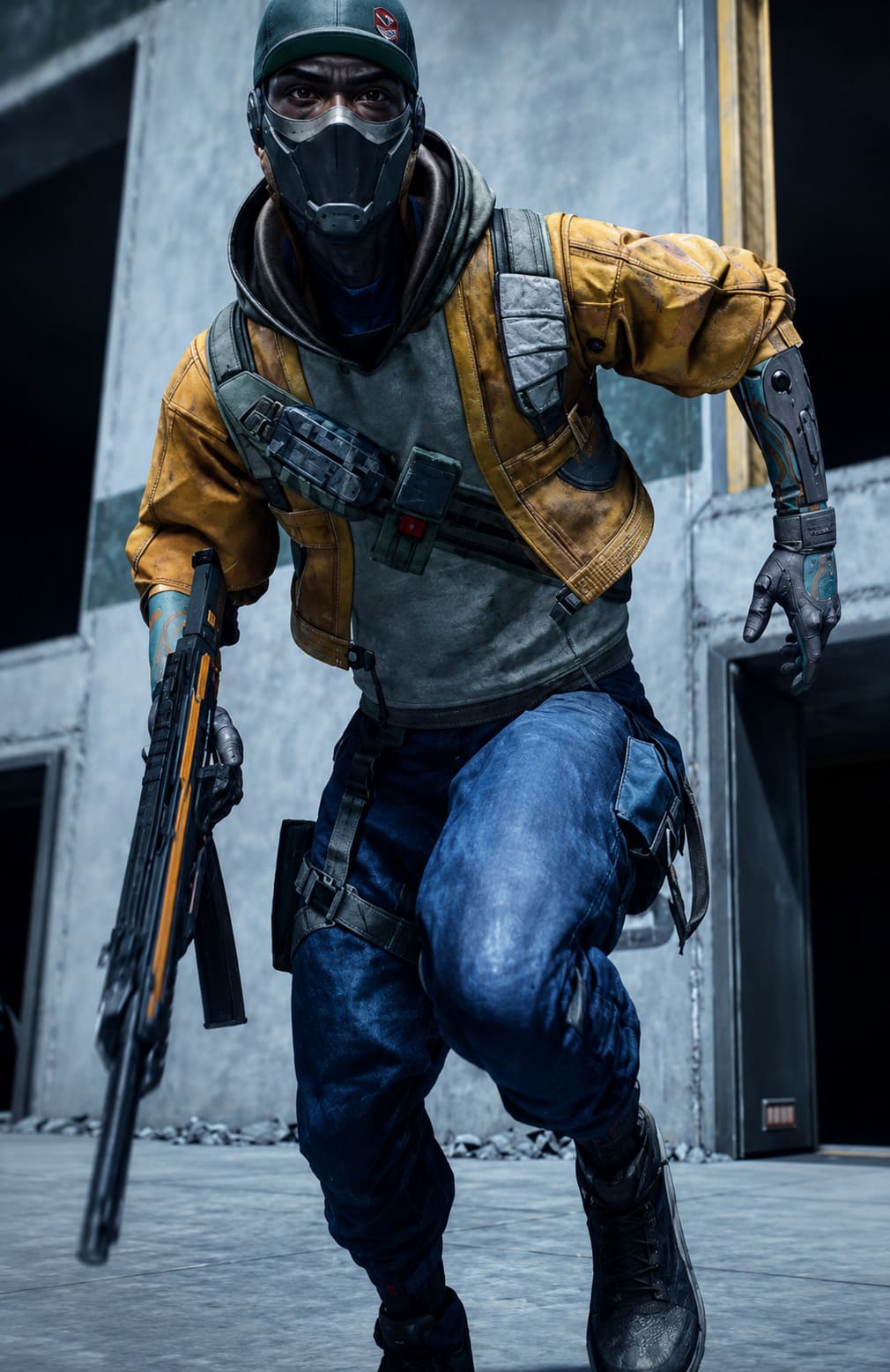
Display Settings
| Option | Value |
|---|---|
| Window Mode | Fullscreen |
| Resolution | 1280×800 |
| V-Sync | Off |
| Max FPS | 60 |
| FOV | 95 |
I experimented with FOV values above 100, but honestly, I noticed more frame drops without gaining much of an advantage. Around 95 feels like the sweet spot.
Graphics Settings
This is where most of the performance gains come from.
| Setting | Recommended |
|---|---|
| Texture Quality | Medium |
| Texture Filtering | 2x Anisotropic |
| View Distance | Low |
| Shadow Quality | Low |
| Effects Quality | Low |
| Lighting Quality | Low |
| Volumetric Effects | Off |
| Ambient Occlusion | Off |
| Anti-Aliasing | Low |
Why Medium Textures?
One thing I discovered while playing is that the Steam Deck handles texture quality surprisingly well. Medium textures make weapons and mechs look noticeably cleaner without causing major FPS losses.
Shadows, on the other hand, are absolute performance killers. Lowering them gave me one of the biggest improvements.
Post-Processing Settings I Disable Immediately
Whenever I install a competitive shooter, these are the first options I turn off.
Motion Blur
Off. Always.
I honestly don’t understand why so many games enable this by default. During high-speed movement, motion blur just makes everything look messy.
Film Grain
Off.
I want a clear image, not artificial camera noise.
Camera Shake
Set it to 0 or as low as possible.
Explosions already create enough chaos. I don’t need my screen bouncing around while trying to land headshots.
Accessibility Tweaks That Help More Than You Think
Most players ignore accessibility settings, but I actually found them extremely useful.
Red Enemy Outlines
EMPULSE maps are full of bright colors and paint effects. The default orange outline sometimes blends into the environment.
Changing enemy highlights to bright red made opponents much easier to spot, especially during intense fights.
It’s a small change, but it genuinely improved my target acquisition.
Simpler Crosshair = Better Aim
I eventually disabled the reactive grapple crosshair.
At first it seemed cool, but after a while I realized that all the extra animation just distracted me.
My current setup:
- Static crosshair.
- Bright green color.
- Small size.
- No unnecessary effects.
Simple and effective.
Battery Life vs Performance
One thing I appreciate about the Steam Deck is the flexibility.
Depending on where I’m playing, I use two different profiles.
Competitive Mode
For ranked matches:
- 60 FPS lock.
- Low settings.
- Maximum responsiveness.
Battery life:
Around 2 hours.
Travel Mode
For longer sessions:
- 40 FPS lock.
- Slightly higher textures.
- Reduced power consumption.
Battery life:
Closer to 3 hours.
Honestly, 40 FPS still feels surprisingly good on the Deck, especially when you’re relaxing and not sweating every match.
Is Lossless Scaling Worth It?
I’ve tested Lossless Scaling and LSFG frame generation, and my opinion is mixed.
Pros
- Lower power consumption.
- Smoother visual output.
- Allows higher graphics settings.
Cons
- Slight increase in latency.
- Not ideal for serious competitive play.
Personally, I prefer native performance for ranked matches. Frame generation looks impressive, but in a fast shooter like EMPULSE, responsiveness matters more to me.
Settings Summary
If someone asked me for a quick recommendation, this would be it:
Best EMPULSE Steam Deck Settings
Display
- Fullscreen
- 1280×800
- V-Sync Off
- 60 FPS cap
- FOV 95
Graphics
- Medium Textures
- Low Shadows
- Low Effects
- Low Lighting
- Ambient Occlusion Off
- Volumetrics Off
Post Processing
- Motion Blur Off
- Film Grain Off
- Camera Shake 0
SteamOS
- FSR Enabled
- Sharpness 5
- 60 FPS Limit
EMPULSE Advanced Traversal Guide: How to Chain Wall Running and Grapple Swings
Final Thoughts
EMPULSE quickly became one of my favorite multiplayer shooters in recent years. The movement system feels incredible, the mech battles are chaotic in the best way possible, and every match creates those “one more game” moments that keep you up way too late.
And honestly, that’s why I spent so much time optimizing it on the Steam Deck.
EMPULSE Release Date & Early Access Walkthrough: 1047 Games Movement Shooter Guide (2026)
With the settings above, I consistently stay around 55-60 FPS, even during hectic objective modes. The game feels responsive, aiming stays smooth, and wall-running across the map is just ridiculously fun.
Could I push visual quality higher? Sure.
But after hundreds of hours playing competitive shooters, I’ve learned one thing:
I’d rather have smooth gameplay than prettier shadows every single time.